


 Menu
MenuMenu


Get Sales Advice from Mon - Fri 9am - 5:00pm:
020 3337 8950LAST UPDATED: July 09, 2026
Canon Printer Troubleshooting: Quick Fixes for Common Problems
A Canon printer is useful for home documents, schoolwork, office printing, photos and everyday scanning, but like any printer, it can sometimes stop working when you need it most. You may see flashing lights, a paper jam warning, faded prints, blank pages, a Wi-Fi error or a message saying the printer is offline.
The good news is that most Canon printer troubleshooting steps are simple. In many cases, the problem is caused by paper loading, low ink, a clogged print head, a stuck print queue, a Wi-Fi connection issue or outdated Canon printer software.
This guide explains the most common Canon printer problems and solutions in clear steps. It covers Canon PIXMA printer troubleshooting, ink problems, paper jams, flashing lights, wireless printer issues, software faults and when it may be better to repair or replace your printer.
If you are comparing a replacement, you can shop Canon print deals, browse all printers, or compare inkjet models at Box.co.uk.
Quick Canon Printer Troubleshooting Checklist
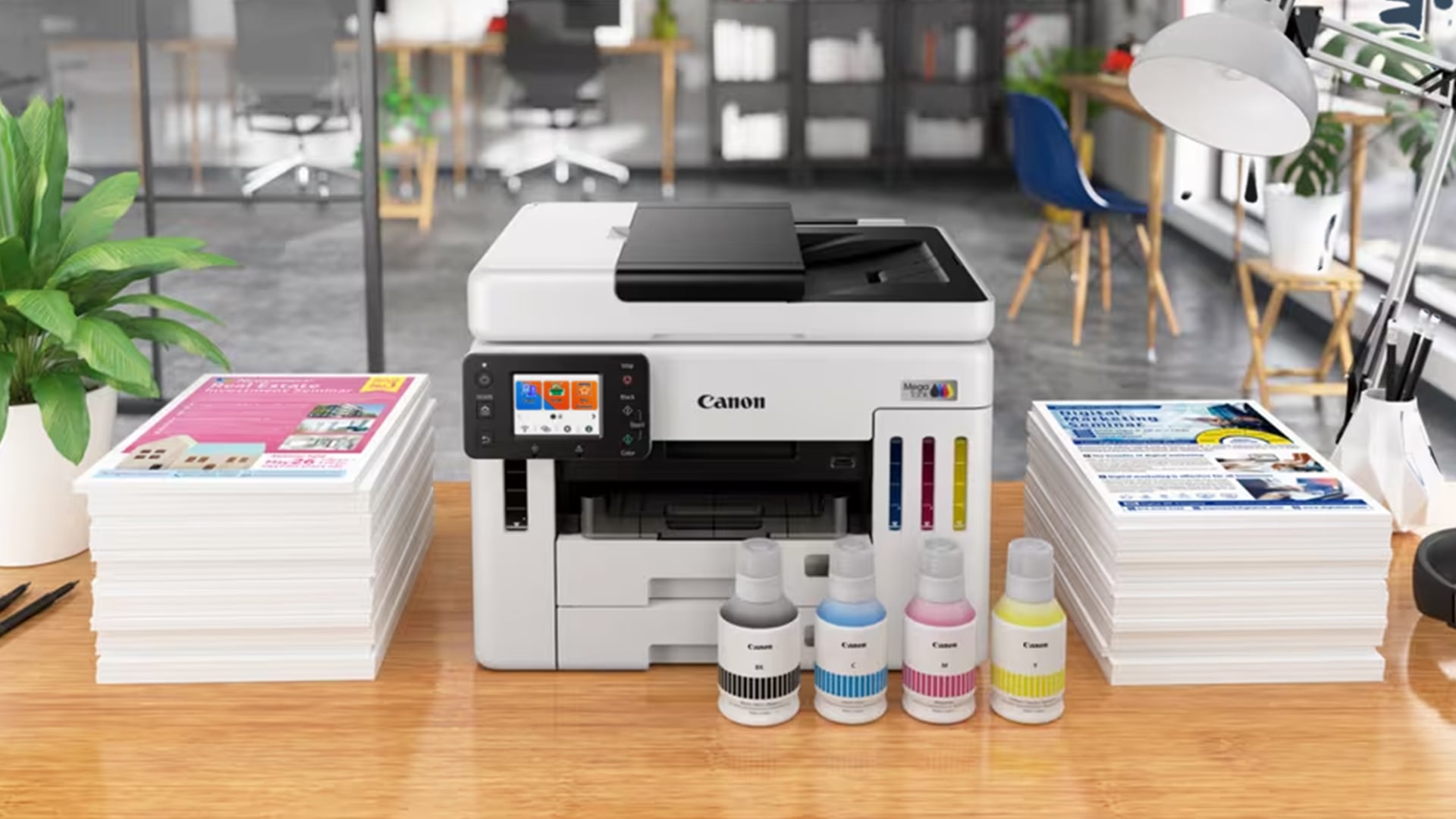
Before you try advanced fixes, start with the basics. Many Canon printer faults are caused by simple issues such as low ink, paper loaded incorrectly, or the wrong printer being selected.
Check Power, Paper, Ink and Printer Status
Make sure the printer is switched on and not in sleep mode. Check that paper is loaded correctly, the paper tray is not overfilled and the paper guides are aligned. Also check the ink cartridges, because low ink or a cartridge that is not seated properly can stop printing or cause poor print quality.
If you see a warning light, support code or error code, do not ignore it. The printer is trying to tell you which area needs attention.
Confirm the Correct Printer Is Selected
If your Canon printer will not print, your computer may be sending the job to the wrong printer. This is common if you have used multiple printers, PDF printers or older printer entries.
Check that your Canon printer is selected as the default printer. Then try printing a test page.
Restart the Printer, Router and Computer
A restart can clear temporary connection faults. Turn the Canon printer off, wait a few seconds, and turn it back on. If it is a wireless printer, restart your router as well. Then restart your computer or phone before trying again.
This is often enough to fix a printer offline status, printer not responding message or temporary wireless setup issue.
Print a Test Page Before Deeper Troubleshooting
A test page helps confirm whether the issue is with the printer itself or the document you are trying to print. If the test page prints correctly, the problem may be with the file, app or print settings. If the test page does not print, continue with the troubleshooting steps below.
Canon Printer Not Printing: Common Causes
If your Canon printer not printing issue appears suddenly, do not assume the printer is broken. Most printing problems have a practical cause.
The Printer Is Offline or Not Connected
A Canon printer may show offline if your computer cannot communicate with it. This can happen over Wi-Fi, USB, or network connections.
Check that the printer is connected to the same Wi-Fi network as your device. If using USB, check the cable and port. If using a shared office network, confirm the printer is still connected to the router or network.
The Print Queue Is Stuck
A stuck print job can block every job behind it. Open the print queue and cancel any failed, paused or old jobs. Then send a new test page.
On Windows, print spooler issues can also stop printing. Restarting the print spooler or removing and re-adding the printer can help if the queue keeps freezing.
Ink Cartridges Are Empty or Not Detected
If the printer says the ink cartridge is empty, missing or not recognised, open the printer and check the cartridges. Make sure they are installed in the correct slots and clicked into place.
If you need new cartridges, browse replacement ink and toner.
Paper Size or Tray Settings Do Not Match
A Canon printer may not print if the paper size selected on your computer does not match the paper loaded in the tray. For example, if the document is set to A4 but the printer settings show another paper size, the printer may pause or display an error.
Check the paper size in both the printer settings and the document print menu.
Drivers or Software Need Updating
Outdated Canon printer driver software can cause connection and printing issues. If your printer worked before but suddenly stopped after a Windows, Mac or router update, reinstalling or updating the driver may help.
Canon PIXMA Printer Troubleshooting for Inkjet Problems
Many Canon home printers are PIXMA inkjet models. Canon PIXMA printer troubleshooting often focuses on ink, print heads, cartridges and print quality.
Canon PIXMA Printer Not Printing Black or Colour
If your Canon PIXMA printer not printing black or colour, first check ink levels. If the ink is low or empty, replace the cartridge or refill the tank where applicable.
If the ink level looks fine but the printer still misses black or colour, the print head nozzles may be clogged. This is common if the printer has not been used for a while.
Blank Pages, Faded Prints and Streaky Output
Blank pages, faded prints and streaky printing are usually linked to ink flow or print head issues. Run a nozzle check to see whether each colour is printing correctly. If lines are missing, run a print head cleaning cycle.
Avoid running too many cleaning cycles in a row, as they use ink. If the first clean does not fix the issue, wait a short while and try again.
When to Run a Nozzle Check or Print Head Clean
Run a nozzle check when:
- Prints are faded
- Black or colour is missing
- Lines appear broken
- Photos look uneven
- Text is patchy
- The printer has not been used for a while
Run print head cleaning when the nozzle check shows missing lines or poor output. This can help clear dried ink from the nozzles.
How to Avoid Dried Ink and Blocked Print Heads
Inkjet printers work best when used regularly. To avoid dried ink, print a small colour page every so often, keep the printer covered from dust and use suitable paper. Also avoid unplugging the printer abruptly, as some models need power to park the print head correctly.
For more help, read our guide on how to maintain inkjet print quality.
Canon Printer Flashing Lights and Error Codes
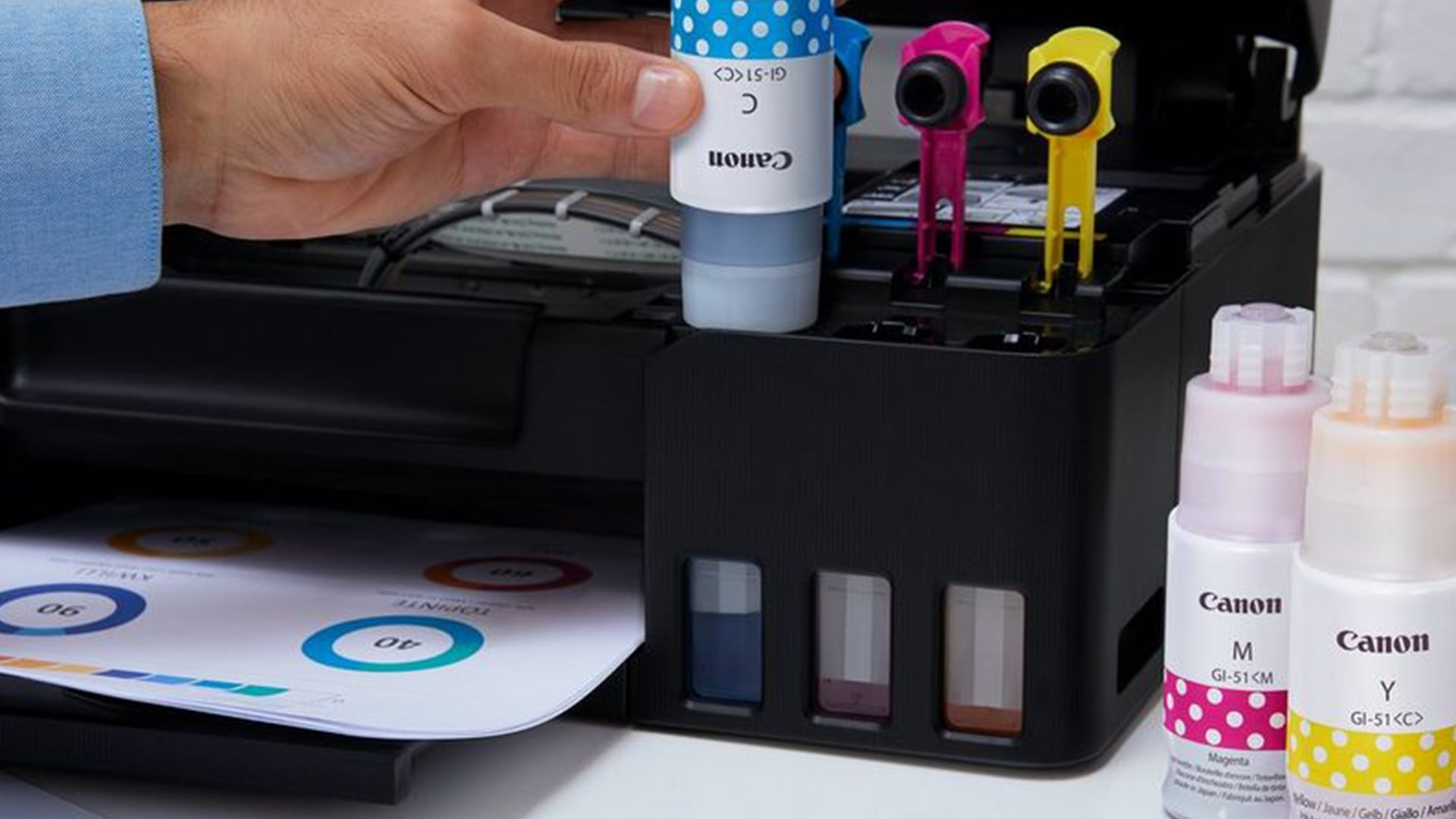
Flashing lights are one of the most common Canon PIXMA printer errors. A flashing orange light, alarm light or support code usually means the printer has detected a fault.
Canon Printer Troubleshooting Flashing Lights
For Canon printer troubleshooting flashing lights, first check the printer screen or your computer for an error message. Many Canon printers show a support code that explains the problem.
Common causes include:
- Paper jam
- No paper loaded
- Ink cartridge problem
- Print head fault
- Cover open
- Incorrect cartridge installation
- Internal printer error
The number of flashes can also help identify the issue on some PIXMA models.
What the Orange Alarm Light Usually Means
A flashing orange light or orange alarm light usually means the printer needs attention. It may be low ink, a paper feed problem, a paper jam, a cartridge fault or another support code.
Do not keep pressing print repeatedly. Check the paper path, ink cartridges, and support code first.
How to Read Canon Support Codes
A Canon support code is an error number shown on the printer display or computer. It helps identify the fault. Search the support code in your printer manual or Canon support resources to find the recommended fix for your exact model.
When Flashing Lights Mean Paper, Ink or Print Head Faults
If the light appears after a failed print, check for paper jams first. If it appears after cartridge replacement, check the ink cartridge installation. If it appears alongside poor print quality, the issue may be linked to the print head or ink system.
Canon Printer Paper Jam Troubleshooting
Paper jams are frustrating, but they are usually easy to fix if you remove the paper carefully.
Canon Printer Troubleshooting Paper Jam
For Canon printer troubleshooting paper jam issues, turn the printer off before pulling paper. Open the printer carefully and remove jammed paper in the direction of the paper path where possible. Avoid tearing the paper, because small scraps can remain inside and cause more jams.
If the paper tears, use a torch to check the rear tray, output slot and rollers.
Check the Rear Tray, Output Slot and Rollers
Paper can jam in different places depending on the printer. Check the rear tray, front output area, paper feed rollers and inside access panels.
Do not use sharp tools inside the printer, as they can damage rollers or sensors.
Prevent Future Paper Jams with Better Paper Loading
To prevent future jams:
- Use clean, dry paper
- Do not overfill the tray
- Align the paper guides
- Avoid curled or damaged paper
- Use the correct paper size
- Store paper flat
- Remove printed pages from the output tray
For more detail, read our guide to fix printer paper jams.
Canon Printer Ink Problems and Cartridge Faults
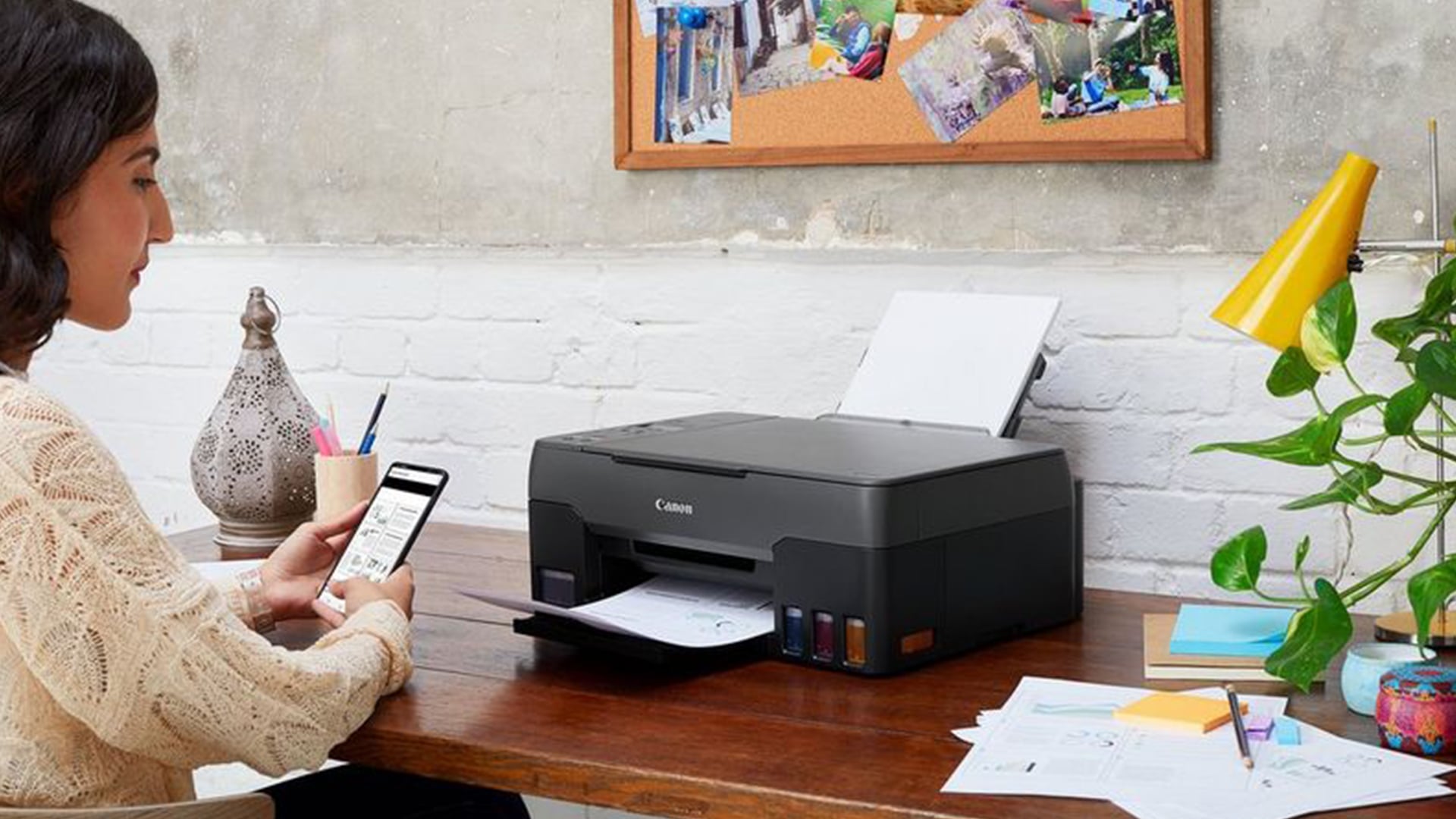
Ink issues are common on inkjet printers, especially if the printer is used occasionally.
Canon Printer Problems Ink
Common Canon printer problems ink include low ink warnings, cartridge not recognised messages, blank pages, missing colours, smudging and streaky output.
Start by checking the ink level and cartridge installation. If the cartridge is new, make sure any protective tape or seal has been removed.
Canon Printer Says Ink Is Empty but Cartridge Is Full
If the printer says ink is empty but the cartridge looks full, the cartridge may not be seated correctly, the chip may not be detected, or the printer may need a reset. Remove and reinstall the cartridge carefully, then restart the printer.
Use genuine or compatible cartridges designed for your exact model.
Cartridge Not Recognised or Installed Incorrectly
If the cartridge is not recognised, remove it and check that it is in the correct slot. Clean any visible contact points gently if advised in your printer manual. Reinstall the cartridge and close the cover properly.
If the same cartridge continues to fail, it may be faulty or incompatible.
Ink Smudging, Poor Colour and Missing Lines
Smudging can be caused by wrong paper type, too much ink, dirty rollers or incorrect print settings. Missing lines and poor colour are more likely to be clogged nozzles or low ink.
Run a nozzle check, select the correct paper type and use print head cleaning if needed.
Canon Wireless Printer Troubleshooting
Wireless printing is convenient, but Wi-Fi issues can make the printer appear offline or unavailable.
Canon Wireless Printer Troubleshooting
For Canon wireless printer troubleshooting, first make sure the printer and your device are connected to the same Wi-Fi network. If your router has separate 2.4GHz, 5GHz or guest networks, your printer and laptop may be connected to different networks.
Restart the printer, router, and computer, then try printing again.
Reconnect Your Canon Printer to Wi-Fi
Use the Canon PRINT app, printer display or wireless setup button to reconnect the printer to Wi-Fi. If your router password changed, the printer will need the new password.
If the printer is far from the router, move it closer during setup.
Fix Printer Offline Errors on Windows or Mac
If the Canon printer is offline on Windows, check the print queue, turn off “Use Printer Offline” and set the Canon printer as default. If needed, remove and re-add the printer.
On Mac, open Printers & Scanners, remove the Canon printer and add it again. This refreshes the connection and can fix printer unavailable errors.
Update Canon Printer Software, Drivers and Firmware
Outdated software can cause wireless printing issues. Download the latest Canon printer driver for your model and check for firmware updates where available.
This is especially useful after a Windows or macOS update.
Troubleshoot Printing from Phones and Tablets
If printing from a phone or tablet fails, check that mobile printing is supported and that your device is on the same Wi-Fi network. Update the Canon PRINT app and restart both the phone and printer.
If AirPrint or Mopria printing is not working, remove the printer from the app and add it again.
Canon Printer Troubleshooting Software
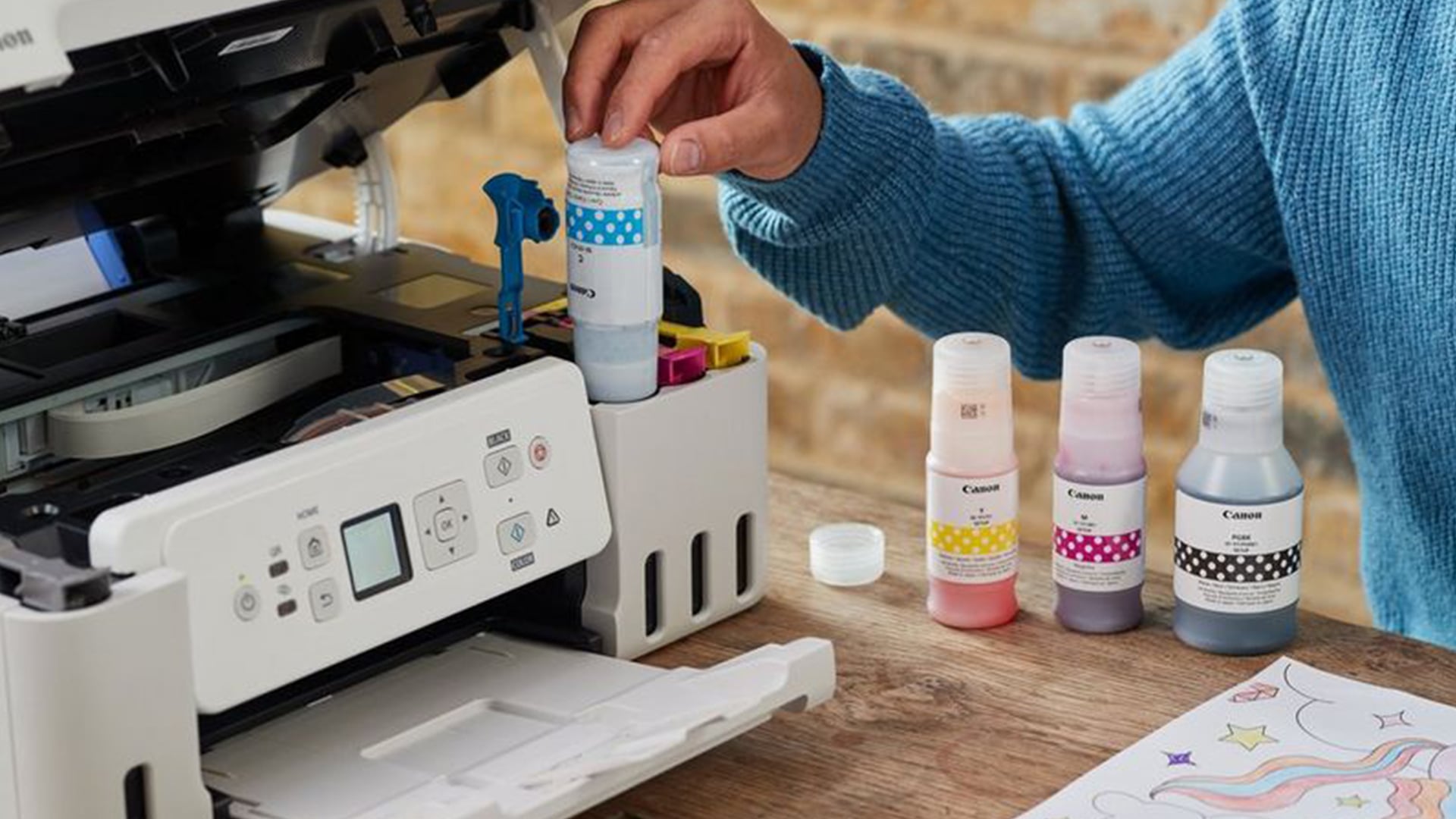
Software problems can look like printer faults, even when the printer hardware is fine.
Driver Problems and Failed Print Jobs
If the Canon printer driver is missing, old or corrupted, print jobs may fail. Reinstalling the driver can fix issues such as printer not responding, missing settings, wrong paper sizes or failed wireless printing.
Print Queue, Print Spooler and Default Printer Issues
A stuck print queue can stop new documents from printing. Clear the queue and restart the print spooler if you are using Windows.
Also check that your Canon printer is the default printer. This prevents your computer from sending jobs to an old printer or PDF printer by mistake.
When to Remove and Re-Add the Printer
Remove and re-add the printer if:
- The printer shows offline
- The printer driver is not working
- The IP address has changed
- Wireless setup keeps failing
- The printer appears twice in settings
- Print jobs keep getting stuck
This simple step often fixes software and connection confusion.
Canon Printer Problems and Solutions
Use this quick table to match the symptom to the likely cause and fix.
| Problem | Possible Cause | Quick Fix |
|---|---|---|
| Canon printer not working | Power, connection or software issue | Restart printer, router and computer |
| Canon printer won’t print | Offline status, stuck queue or wrong printer selected | Clear queue and set Canon as default |
| Canon printer paper jam | Misfed paper or overloaded tray | Remove jam carefully and reload paper |
| Canon printer flashing lights | Paper, ink, cover or support code error | Check support code and printer screen |
| Canon printer ink problem | Low ink, cartridge fault or blocked nozzle | Check cartridges and run nozzle check |
| Canon printer software problem | Driver, firmware or app issue | Update driver and remove/re-add printer |
| Canon PIXMA printer faults | Inkjet print head or cartridge issue | Run nozzle check and clean print head |
| Canon wireless printer not printing | Wi-Fi or network mismatch | Reconnect to same Wi-Fi network |
When Should You Repair or Replace a Canon Printer?
Most Canon printer problems can be fixed, but some faults may point to worn hardware or a printer that no longer suits your needs.
Signs the Fault May Be Hardware-Related
The issue may be hardware-related if:
- Paper jams happen repeatedly
- The printer makes grinding noises
- The same support code keeps returning
- Cartridges are not detected even after replacement
- The printer cannot connect after repeated resets
- The print head is badly blocked
- Repairs cost more than the printer is worth
If the printer is old or unreliable, replacing it may save time and reduce frustration.
When Repairs Cost More Than Replacing the Printer
For budget home printers, repair costs can sometimes be higher than buying a new model. If you need better wireless printing, a scanner, copier, photo output or refillable ink, upgrading may be the better option.
Top Canon Printer Options at Box
If you are ready to replace or upgrade, here are some Canon options to consider.
| Product | Best For | Why It Makes Sense |
|---|---|---|
| Refillable Canon home printer | Lower-running-cost home printing | A Canon PIXMA refillable inkjet option for users who want print, scan and copy features. |
| Canon photo all-in-one printer | Photo and creative printing | A 3-in-1 Canon PIXMA model for home users who care about photos and colour output. |
| A3 Canon photo printer | Larger creative prints | A wireless A3 all-in-one option for photos, creative projects and larger documents. |
| Affordable Canon wireless printer | Everyday home office use | A compact wireless Canon PIXMA all-in-one for printing, scanning, copying and faxing. |
You can also explore multifunction printer options, home printing picks, or office print solutions depending on your setup.
If your home or office uses different printer brands, our guide on Replacing toner on a Brother printer may also help with general printer maintenance.
Final Thoughts!
The best way to fix Canon printer problems is to start simple. Check power, paper, ink, printer status and Wi-Fi before moving to deeper fixes. Many problems are caused by a stuck print queue, low ink, paper jam, clogged print head, outdated Canon printer driver or wireless connection issue.
If your Canon printer is not printing clearly, run a nozzle check and print head clean. If you see flashing lights, check the support code. If paper keeps jamming, reload the paper carefully and inspect the rollers. If your wireless printer is offline, reconnect it to the same Wi-Fi network as your device.
If the same faults keep coming back and the printer is old, upgrading may be the smarter option. or shop replacement ink and toner at Box.co.uk.
FAQs
What are the common problems with Canon printers?
Common Canon printer problems include paper jams, low ink warnings, cartridge not recognised errors, flashing lights, support codes, clogged print heads, blank pages, faded prints, printer offline messages and wireless connection problems.
Why is my Canon printer suddenly not printing?
Your Canon printer may suddenly stop printing because it is offline, the print queue is stuck, the wrong printer is selected, the ink is low, paper is jammed, the driver needs updating or the Wi-Fi connection has dropped.
Is there a reset button on my Canon printer?
Some Canon printers have buttons that can be used for restart or reset functions, but the exact method depends on the model. A basic restart is to turn the printer off, unplug it briefly, plug it back in and turn it on again. For a factory reset, check your printer’s manual.
What is the most common error in printers?
Paper jams, low ink, offline status and stuck print queues are among the most common printer errors. For Canon inkjet printers, clogged print heads and cartridge detection issues are also common.
What is the lifespan of a Canon printer?
A Canon printer can last several years with proper use and maintenance. Lifespan depends on print volume, paper quality, ink use, maintenance, storage conditions and whether repairs become more expensive than replacement.
What does flashing orange triangle mean on a Canon printer?
A flashing orange triangle or alarm light usually means the printer has detected an error. This may relate to paper, ink, a paper jam, cartridge installation, print head issues or another support code. Check the printer screen or computer message for the exact code.
What are three possibilities that might cause a printer not to print at all?
Three common causes are no connection to the computer or Wi-Fi network, a stuck print queue, and empty or incorrectly installed ink cartridges. Paper jams, wrong printer selection and driver problems can also stop printing.
How do you restart a Canon?
To restart a Canon printer, turn it off using the power button, wait a few seconds and turn it back on. For a deeper reset, unplug the printer from the power source for a short time, then reconnect it and turn it on again.
You can pay with:
*PayPal Credit Representative Example: Assumed credit limit £1,200, Representative 23.9% APR (variable). Purchase rate 23.9% p.a (variable).Terms & Conditions apply.


PayPal Credit and PayPal Pay in 3 are trading names of PayPal UK Ltd, 5 Fleet Place, London, United Kingdom, EC4M 7RD. Terms and conditions apply. Credit subject to status, UK residents only, Five Tech LTD acts as a broker and offers finance from a restricted range of finance providers. PayPal Pay in 3 is not regulated by the Financial Conduct Authority. Pay in 3 eligibility is subject to status and approval. 18+. UK residents only. Pay in 3 is a form of credit. Check if affordable and how you will repay. May make other borrowing more difficult or expensive. See product terms for more details.
Copyright © 1996-2026 Fivetech LTD | Terms and Conditions
box.co.uk & Box are trading names of Five Tech Limited. Registered office: Box LTD, Unit 10 Woodford Trading Estate, Woodford Green IG8 8HF