


 Menu
MenuMenu


Get Sales Advice from Mon - Fri 9am - 5:00pm:
020 3337 8950POSTED: 18 June, 2026
How to Replace Toner on Brother Printer: Step-by-Step Guide
If your Brother printer says “Toner Low”, “Replace Toner” or “Toner Ended”, it usually means the toner cartridge is running low or has reached the end of its expected life. The fix is normally straightforward: open the printer, remove the toner and drum unit assembly, replace the toner cartridge, clean the corona wire, then reinstall everything correctly.
The process can feel confusing the first time because many Brother laser printers use a separate toner cartridge and drum unit. You are usually replacing the toner cartridge, not the whole drum unit.
This guide covers how to replace toner on Brother printer models, how to choose the correct toner cartridge for Brother printer units, what to do if the “Replace Toner” message stays on, and how toner replacement differs from ink cartridge replacement.
Quick answer: To replace Brother printer toner, open the front cover, remove the drum and toner assembly, release the old toner cartridge, insert the new toner into the drum until it clicks, clean the corona wire, reinstall the assembly, close the cover and print a test page.
Brother Toner Replacement at a Glance
| Tas | What to Do |
|---|---|
| Message on screen | Check whether it says “Toner Low” or “Replace Toner” |
| Correct part | Confirm the toner model for your exact Brother printer |
| Main assembly | Remove the drum unit and toner cartridge together |
| Old cartridge | Release it from the drum unit |
| New cartridge | Insert until it clicks into place |
| Maintenance step | Clean the corona wire using the green tab |
| Final check | Reinstall, close the cover, and print a test page |
If you are shopping by printer brand, you can browse Brother Printer's Store at Box to compare Brother printers and compatible supplies.
Toner Cartridge vs Drum Unit: What Are You Replacing?
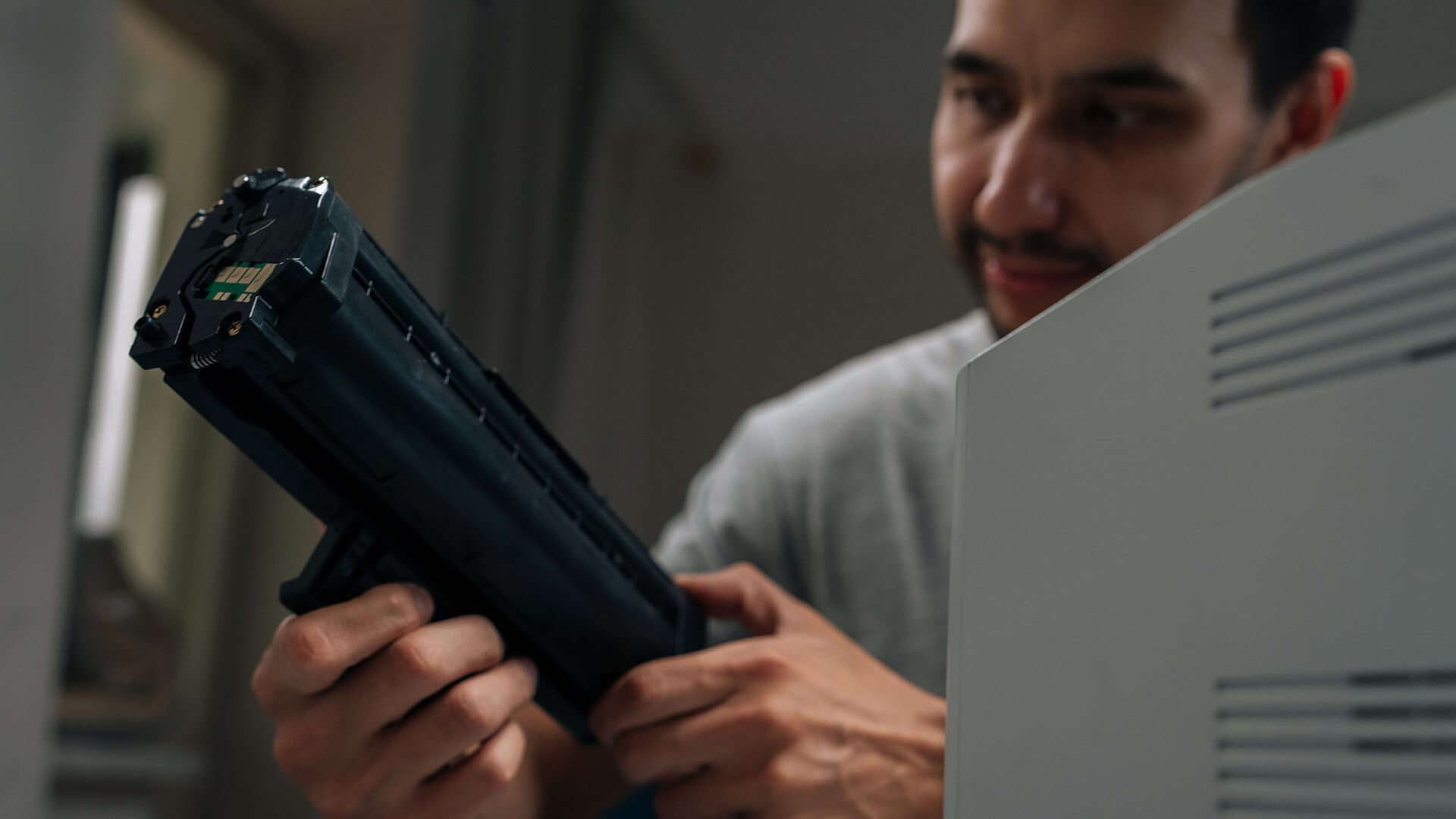
Before you change Brother printer toner, it helps to understand the two main parts inside many Brother laser printers.
Brother laser printers often use:
- A toner cartridge
- A drum unit
They work together, but they are not the same thing.
Toner Cartridge vs Drum Unit
| Part | What It Does | When It Is Replaced |
|---|---|---|
| Toner cartridge | Holds the toner powder used to print text/images | When toner runs low or reaches end of life |
| Drum unit | Transfers toner onto the paper | After a much higher page count, or when drum warning appears |
| Corona wire | Helps transfer toner cleanly | Clean during toner changes or print quality issues |
A “Replace Toner” message usually means the toner cartridge needs attention. A “Drum” warning usually means the drum unit needs cleaning, resetting, or replacing, depending on the model and message.
Do not throw away the drum unit every time you replace the toner unless your printer specifically tells you to replace the drum.
When Should You Replace Brother Printer Toner?
You should replace toner on Brother printer models when the machine clearly reaches the toner replacement stage, or when print quality shows the cartridge is no longer doing the job.
Common Signs You Need Toner
| Sign | What It Usually Means |
|---|---|
| “Toner Low” message | Toner is running low, but may still print |
| “Replace Toner” message | Toner cartridge should be replaced |
| Faded prints | Toner may be low or uneven |
| Streaky prints | Toner, drum or corona wire may need attention |
| Low toner warning light | Cartridge is near end of life |
| Blank or very pale pages | Toner may be empty or not seated correctly |
| Repeated poor quality | Cartridge, drum, or printer maintenance issue |
A “Toner Low” message is usually a warning. A “Replace Toner” message is more urgent and may stop printing until a new cartridge is installed.
If your printer is older and problems keep coming back, it may be worth comparing current models in the full printers' range at Box.
How to Find the Right Toner Cartridge for Your Brother Printer
The best replacement toner for Brother printer models is the one made for your exact printer series. Brother toner cartridges are not universal.
Check your printer model before buying. It is usually shown:
- On the front of the printer
- On a label at the back
- In the printer settings menu
- In the Brother software
- On the old toner cartridge
- In the user manual
Common Brother Printer Series
Series |
Typical Use |
|---|---|
| Brother HL series | Print-only laser printers |
| Brother HL-L series | Modern mono laser printers |
| Brother DCP series | Print, scan, and copy models |
| Brother MFC series | Multi-function printers with extra office features |
Brother TN-series cartridges include examples such as TN-1050, TN-2420, TN-2421, TN-730, and TN-760, but the exact cartridge depends on the printer model and region.
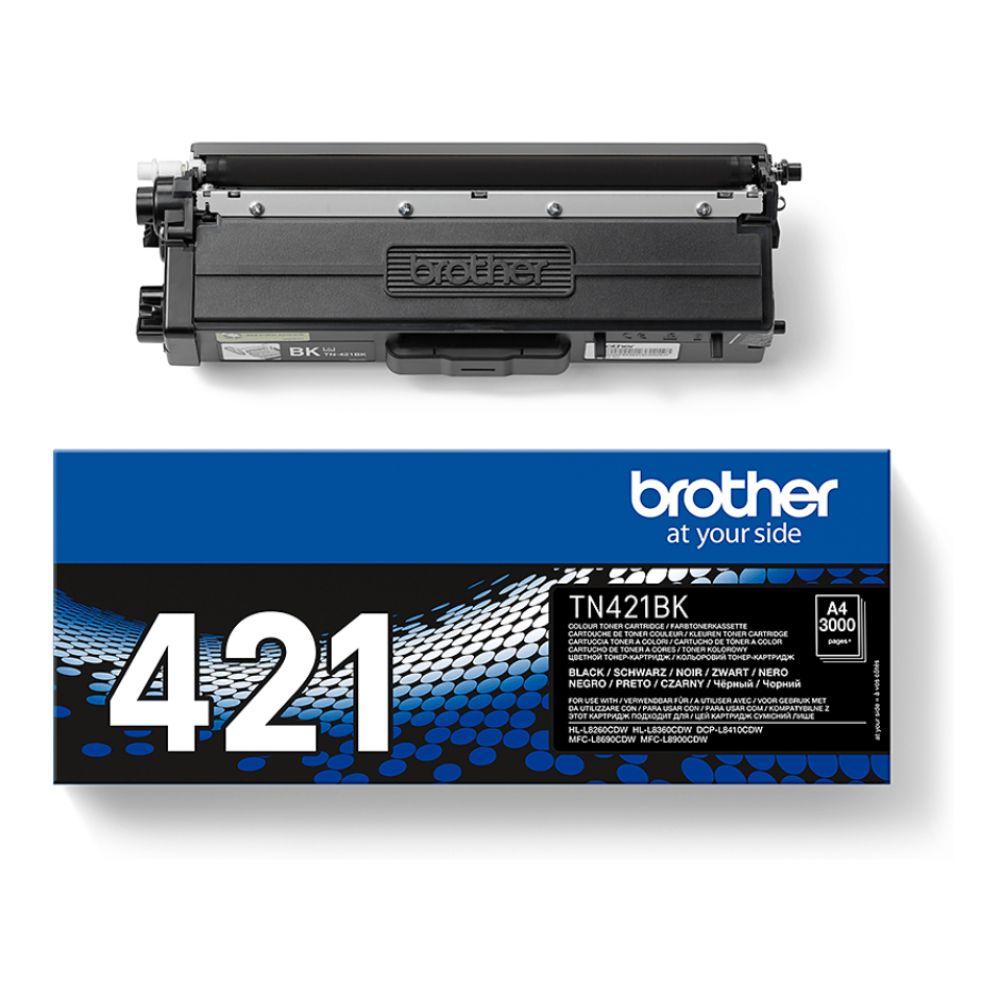
For compatible toner examples, the Brother TN421BK replacement black toner is a good example of why checking model compatibility and page yield matters before buying.
How to Replace Toner on Brother Printer: Step-by-Step
The steps below apply to many Brother laser printers, including common Brother HL, HL-L, DCP, and MFC models. Some details vary by printer, so always check your model guide if the layout looks different.
Step 1: Turn the Printer On
Keep the printer switched on unless your model instructions say otherwise.
This allows the machine to recognise the new toner after installation.
Step 2: Open the Front Cover
Open the front cover or toner access panel.
On many Brother laser printers, the toner and drum assembly sits behind the front cover.
Wait a moment if the printer has been running, as internal parts may be warm.
Step 3: Remove the Drum Unit and Toner Cartridge Assembly
Pull the drum unit and toner cartridge assembly out carefully.
Place it on a flat surface.
It is a good idea to use scrap paper underneath in case a small amount of toner spills.
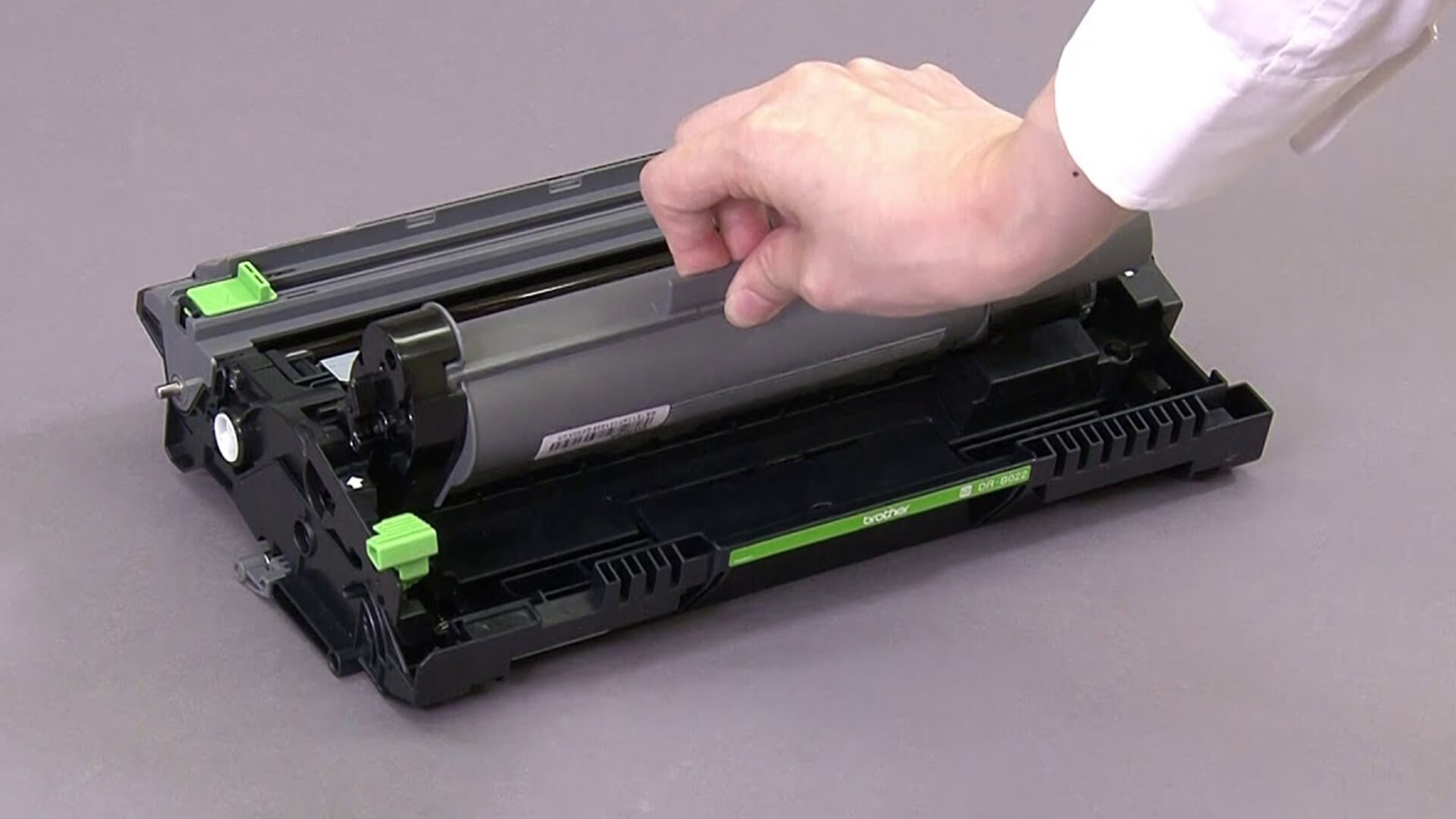
Step 4: Release the Old Toner Cartridge
Look for the lock lever on the drum unit. On many Brother models, this is a green tab or lever.
Press the lever and lift or slide the toner cartridge out of the drum unit.
Avoid shaking the old cartridge too much. Toner powder can spill and make a mess.
Step 5: Prepare the New Toner Cartridge
Unpack the new toner cartridge.
Before installing it:
- Remove protective packaging
- Remove the protective cover
- Avoid touching contact points
- Keep the cartridge level
- Do not expose it to bright light for too long
- Check it is the correct model
Some cartridges may need gentle side-to-side rocking before installation to distribute toner evenly. Follow the instructions included with the cartridge.
Step 6: Install the New Toner into the Drum Unit
Insert the new toner cartridge into the drum unit.
Push it firmly until it clicks or locks into place.
If the cartridge is not seated properly, the printer may show:
- “No Toner”
- “Replace Toner”
- “Toner Low”
- Cartridge not recognised
- Poor print quality
Make sure the toner cartridge and drum unit are joined securely before reinstalling them.
Step 7: Clean the Corona Wire
This is an important step that people often miss.
Slide the green corona wire tab from side to side several times. Then return it to the home position.
If the tab is not returned correctly, you may see vertical lines or print defects.
Step 8: Reinstall the Assembly
Slide the drum unit and toner cartridge assembly back into the printer.
Push it in firmly, but do not force it.
Close the front cover.
Step 9: Print a Test Page
Once the printer is ready, print a test page.
Check for:
- Clear text
- No vertical streaks
- No faded areas
- No toner smudges
- No warning messages
If the printer still says “Replace Toner”, use the troubleshooting section below.
How to Replace Toner in Brother HL-L2350DW
The Brother HL-L2350DW is a popular compact mono laser printer, so many users search for this model specifically.
The basic process is the same as many Brother HL-L printers.
HL-L2350DW Toner Replacement Steps
| Step | Action |
|---|---|
| 1 | Open the front cover |
| 2 | Remove the drum unit and toner cartridge assembly |
| 3 | Press the lock lever to remove the old toner |
| 4 | Unpack the new toner cartridge |
| 5 | Remove protective parts from the new cartridge |
| 6 | Insert the toner into the drum until it locks |
| 7 | Clean the corona wire using the green tab |
| 8 | Return the green tab to its home position |
| 9 | Reinstall the assembly and close the cover |
If your HL-L2350DW still shows a toner message after replacement, the cartridge may not be seated correctly, the corona wire may need cleaning, or the machine may not have detected a brand-new cartridge properly.
Brother DCP Change Toner Guide
Brother DCP series printers are all-in-one models, usually offering printing, scanning, and copying. The toner change process is often similar to Brother HL printers, but the panel layout may differ.
Brother DCP Change Toner Steps
- Open the front cover.
- Remove the toner and drum unit assembly.
- Release the old toner from the drum.
- Insert the new toner cartridge.
- Clean the corona wire.
- Reinstall the assembly.
- Close the front cover.
- Check the screen or status light.
For DCP models, make sure you read the on-screen message carefully. It may specify toner, drum, paper, scanner, or another issue.
If your current printer is becoming unreliable or too slow for everyday work, you can explore our latest laser printers to compare newer laser printer options from Brother and other popular brands.
What to Do When a Brother Printer Says “Replace Toner”
A “Replace Toner” message usually means the cartridge has reached its expected end of life and should be replaced.
However, there are a few things to check before assuming something is broken.
Replace Toner Checklist
| Check | What to Do |
|---|---|
| Correct toner model | Make sure the cartridge matches your printer |
| New cartridge | Use a brand-new cartridge, not a partly used one |
| Proper installation | Remove and reinstall the toner cartridge |
| Drum connection | Make sure toner is locked into the drum unit |
| Corona wire | Clean it and return the tab home |
| Cover closed | Make sure the front cover is fully shut |
| Firmware | Update printer firmware if the message persists |
If the message appeared after replacing the toner, do not immediately assume the new cartridge is faulty. Reinstall it carefully first.
Why Does My Brother Printer Still Say Replace Toner After I Changed It?
This is one of the most common Brother toner replacement problems.
The cause is usually one of these:
- The toner cartridge is not fully locked into the drum unit
- The protective cover was not removed
- The cartridge is not new
- The wrong cartridge was installed
- The corona wire needs cleaning
- The printer firmware needs updating
- The message is for a different colour cartridge
- The drum unit is not seated properly
Quick Fix Order
Try this order:
- Remove the toner and drum assembly.
- Check the new toner model number.
- Confirm protective parts are removed.
- Reinsert the toner until it locks.
- Clean the corona wire.
- Return the corona wire tab home.
- Reinstall the assembly.
- Close the front cover firmly.
- Restart the printer if needed.
- Check for firmware or driver updates.
If the issue follows a paper jam or poor print quality, it may not be toner-related. Our guide to troubleshoot common printer problems is useful for checking paper path and jam-related issues.
Toner Counter Reset: Should You Do It?
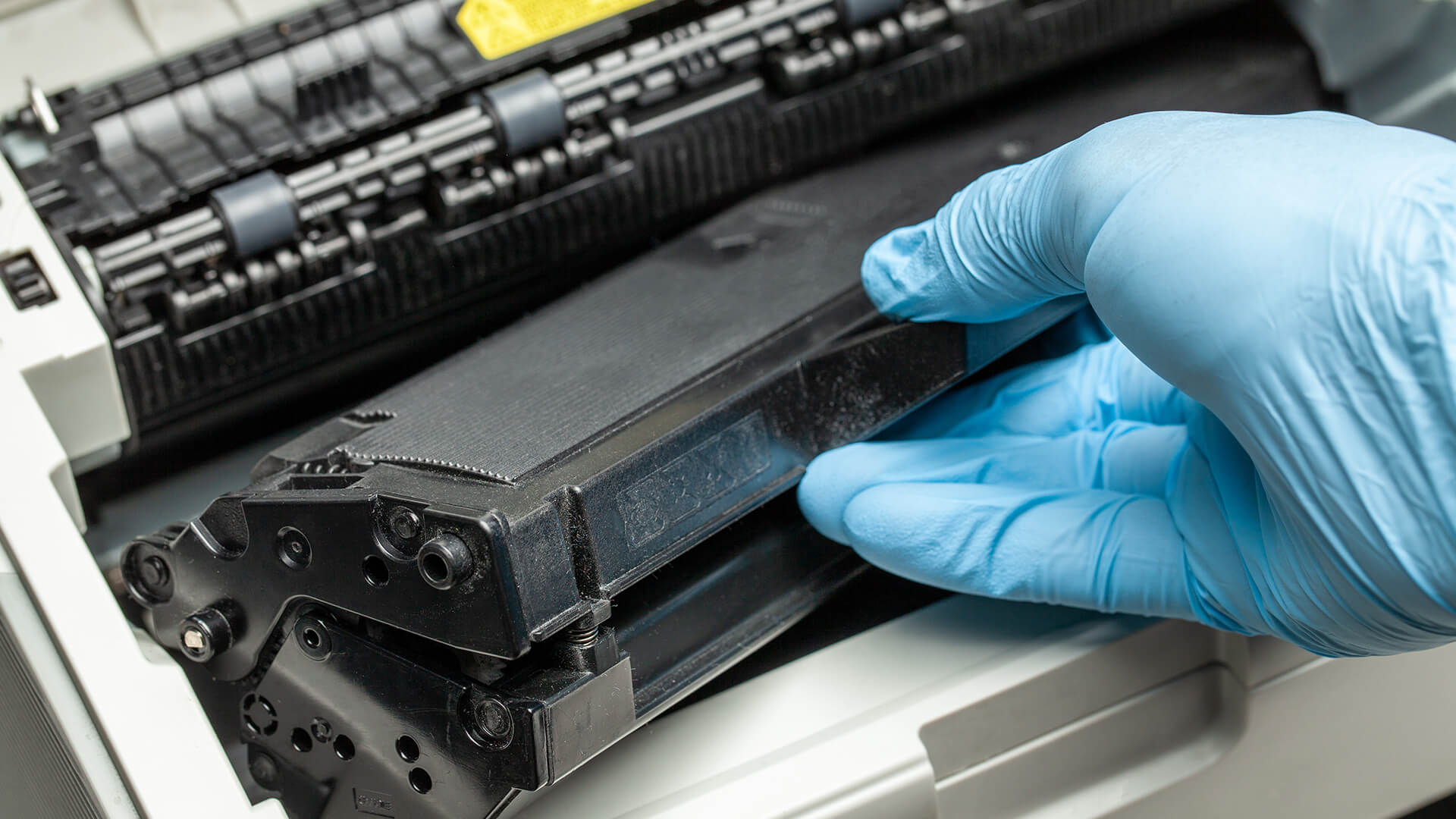
If your Brother printer still shows a toner warning after you have installed a new cartridge, the printer may not have detected the replacement properly. In some cases, this means the toner counter needs to be reset, but the exact steps depend on the printer model.
A reset may be useful if:
- A brand-new cartridge was installed
- The printer did not recognise the cartridge correctly
- You followed the correct installation steps
- The model manual includes a reset process
Avoid using reset tricks just to force a genuinely empty cartridge to keep printing. That can lead to poor output, faded pages, and wasted time.
Before Trying Any Toner Reset
Check these first:
- Is the cartridge new?
- Is it the correct model?
- Is it installed properly?
- Is the drum unit seated?
- Is the corona wire clean?
- Is the front cover closed?
- Is the firmware up to date?
If all of that is correct and the message remains, check your printer manual or Brother support for the exact toner reset process for your model.
Genuine Brother Toner vs Compatible Toner
When choosing a toner cartridge for Brother printer models, you will usually see genuine and compatible options.
Genuine vs Compatible Toner
| Option | Pros | Watch-Outs |
|---|---|---|
| Genuine Brother toner | Designed for the printer, reliable quality | Usually costs more |
| Compatible toner | Often cheaper | Quality and recognition can vary |
| Remanufactured toner | Reuses cartridge materials | Quality depends on supplier |
| Unknown low-cost toner | Very cheap upfront | Higher risk of leaks, poor print quality, or recognition issues |
For important work documents, genuine toner is usually the safer choice. For everyday printing, compatible toner may be fine if it comes from a trusted supplier and is clearly matched to your printer model.
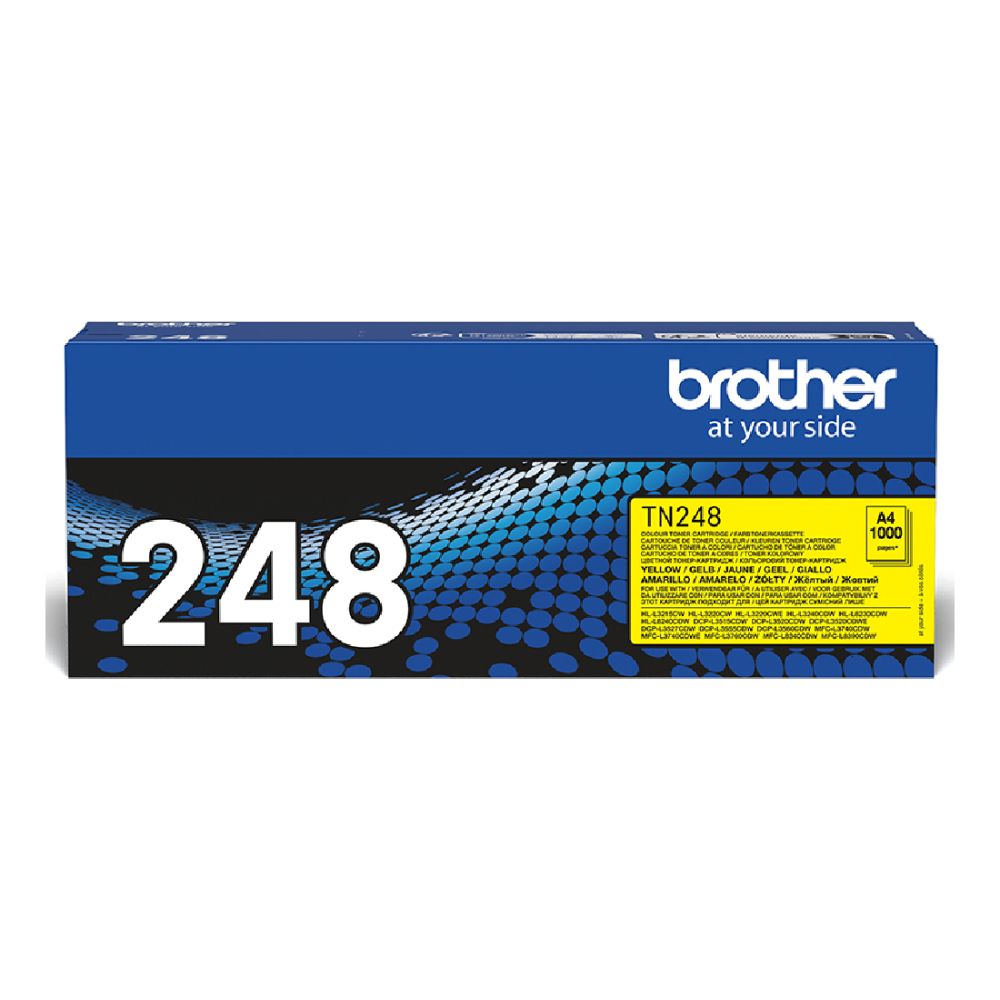
For colour laser models, cartridge matching matters even more. A yellow toner kit for Brother printers must match the correct Brother series, not just the colour you need.
Ink vs Toner: Do Brother Printers Use Both?
Brother makes both laser and inkjet printers.
That means some Brother printers use toner, while others use ink cartridges. The replacement process is different.
Ink vs Toner for Brother Printers
| Printer Type | Uses |
|---|---|
| Brother laser printer | Toner cartridge and drum unit |
| Brother inkjet printer | Ink cartridges |
| Brother all-in-one laser | Toner and drum |
| Brother all-in-one inkjet | Ink cartridges |
If your printer uses ink, do not buy toner. If it uses toner, do not buy ink cartridges.
For example, the Brother LC424BK black ink cartridge is an ink cartridge, not toner. It is suitable for compatible Brother inkjet models, not laser printers.

How Do I Reset My Brother Printer After Changing Ink Cartridges?
This question often appears alongside toner searches, but ink and toner systems work differently.
For Brother inkjet printers, the machine normally detects a new ink cartridge when it is installed correctly and the cover is closed.
If the printer still shows an ink message:
- Remove and reinstall the ink cartridge
- Check the colour position
- Confirm the protective tab was removed
- Make sure the cartridge is pushed in fully
- Close the cover properly
- Restart the printer
- Check for firmware or driver updates
- Confirm the cartridge is compatible
Do not use toner reset steps on an inkjet printer. They are different systems.
If you are unsure whether your next printer should be inkjet or laser, our guide to choosing your next printer can help compare printer types.
How to Avoid Toner Replacement Problems
A smooth Brother toner replacement is mostly about preparation.
Before You Open the Printer
Check:
- Printer model number
- Toner cartridge code
- Whether the message says toner or drum
- Whether you have the correct colour
- Whether the cartridge is new
- Whether you have space to work
- Whether you have paper ready for a test print
During Installation
Do:
- Keep the cartridge level
- Avoid touching the roller
- Remove protective covers
- Seat the cartridge firmly
- Clean the corona wire
- Return the green tab home
- Close covers fully
Avoid:
- Forcing parts
- Touching electrical contacts
- Mixing cartridges from other printers
- Installing partly used toner
- Leaving the drum unit in bright light
- Ignoring colour-specific messages
Print Quality Problems After Toner Replacement
If prints look bad after changing toner cartridge on Brother printer models, the problem may not be the toner itself.
Common Print Quality Issues
| Problem | Likely Cause | Fix |
|---|---|---|
| Faded print | Low toner, poor cartridge seating, wrong setting | Reinstall toner, check density settings |
| Vertical line | Corona wire tab not home or dirty wire | Clean corona wire and return tab |
| Toner smudges | Paper type, fuser issue, or leaking toner | Check paper and cartridge |
| Blank pages | Cartridge not installed correctly | Remove and reinstall |
| Spots or marks | Drum issue | Inspect or replace drum |
| Uneven colour | Wrong or low colour toner | Replace correct colour |
If the same print defect appears repeatedly in the same place, the drum unit may be involved.
Recycling Old Brother Toner Cartridges
Do not throw used toner cartridges straight into general waste if a recycling option is available.
Toner cartridges contain plastic, residual toner, and components that can often be collected or recycled through suitable schemes.
Disposal Tips
- Keep the old cartridge in a bag or box
- Avoid shaking it
- Do not open the cartridge body
- Use manufacturer recycling where available
- Follow workplace WEEE disposal rules
- Check local recycling guidance
If sustainability matters in your next printer purchase, our guide to eco-friendly printer picks is a useful supporting read.
When Is It Time to Replace the Printer Instead?
Sometimes a toner replacement is not enough. If the printer is old, slow, or regularly showing faults, a new printer may be better value.
Consider Replacing the Printer If:
- It needs frequent toner or drum attention
- Print quality stays poor after maintenance
- It is too slow for your workload
- It lacks wireless printing
- It cannot scan or copy when you need it to
- Replacement cartridges are hard to find
- Repair costs are not worth it
- It no longer suits home or office use
If budget is the main concern, you can get the best deals on printers before buying a new model.
For lower-cost alternatives, you may also consider a refurbished printer upgrade if your current Brother printer is no longer worth maintaining.
Final Thoughts
Brother toner replacement is usually quick once you know what you are looking at.
The main thing to remember is that the toner cartridge and drum unit are often separate parts. Remove them together, replace only the toner cartridge, clean the corona wire, reinstall the assembly, and check the printer status.
For most users, the best process is:
- Confirm the exact Brother printer model
- Buy the correct toner cartridge
- Open the printer and remove the assembly
- Replace the toner inside the drum unit
- Clean the corona wire
- Reinstall everything firmly
- Print a test page
- Recycle the old cartridge responsibly
If the printer still says “Replace Toner” after the change, reinstall the cartridge, check that it is brand new, clean the corona wire and update firmware if needed.
A careful five-minute replacement can save a lot of frustration and keep your Brother laser printer running smoothly.
FAQs
-
How to replace toner in Brother printer?
Open the front cover, remove the drum unit and toner cartridge assembly, release the old toner cartridge, install the new toner into the drum until it clicks, clean the corona wire, reinstall the assembly, and close the cover. Print a test page to confirm everything is working.
-
What to do when a Brother printer says to replace toner?
Check the toner cartridge model, install a new compatible cartridge, make sure it locks into the drum unit, clean the corona wire, and close the cover properly. If the message stays on, reinstall the cartridge and check for firmware updates.
-
Why is my printer saying replace toner when I just replaced it?
This can happen if the toner is not seated correctly, the cartridge is not brand new, the wrong cartridge was installed, the corona wire is dirty, the drum unit is not installed properly, or the printer firmware needs updating.
-
How do I reset my Brother printer after changing ink cartridges?
For Brother inkjet printers, the printer should normally detect a new ink cartridge once it is installed correctly and the cover is closed. If it does not, remove and reinstall the cartridge, check the colour position, confirm the protective tab was removed, and restart the printer. Do not use toner reset steps on inkjet models.
-
How to replace toner in Brother printer HL-L2350DW?
Open the front cover, remove the toner and drum unit assembly, press the lock lever to remove the old toner, insert the new toner into the drum until it clicks, clean the corona wire, return the green tab to its home position, reinstall the assembly, and close the cover.
-
How do I override my Brother toner life ending?
Some Brother models have model-specific toner reset options, but overriding toner life is not always recommended. First check that the cartridge is new, installed correctly and compatible. If the cartridge is genuinely empty, replace it rather than forcing the printer to continue, as print quality may become poor.
-
Can I replace only the toner and not the drum?
Yes, in many Brother laser printers the toner cartridge and drum unit are separate. You usually replace the toner cartridge more often and replace the drum only when the printer shows a drum warning or print quality suggests the drum is worn.
-
What is the difference between Brother toner and Brother ink?
Brother toner is powder used in laser printers. Brother ink is liquid used in inkjet printers. They are not interchangeable, so always check whether your Brother printer is a laser or inkjet model before buying supplies.
You can pay with:
*PayPal Credit Representative Example: Assumed credit limit £1,200, Representative 23.9% APR (variable). Purchase rate 23.9% p.a (variable).Terms & Conditions apply.


PayPal Credit and PayPal Pay in 3 are trading names of PayPal UK Ltd, 5 Fleet Place, London, United Kingdom, EC4M 7RD. Terms and conditions apply. Credit subject to status, UK residents only, Five Tech LTD acts as a broker and offers finance from a restricted range of finance providers. PayPal Pay in 3 is not regulated by the Financial Conduct Authority. Pay in 3 eligibility is subject to status and approval. 18+. UK residents only. Pay in 3 is a form of credit. Check if affordable and how you will repay. May make other borrowing more difficult or expensive. See product terms for more details.
Copyright © 1996-2026 Fivetech LTD | Terms and Conditions
box.co.uk & Box are trading names of Five Tech Limited. Registered office: Box LTD, Unit 10 Woodford Trading Estate, Woodford Green IG8 8HF