


 Menu
MenuMenu


Get Sales Advice from Mon - Fri 9am - 5:00pm:
020 3337 8950LAST UPDATED: July 06, 2026
How to Fix a Black Chromebook Screen? 7 Easy Ways to Try
A black Chromebook screen can look worse than it really is. In many cases, the Chromebook is not dead. It may be out of charge, stuck in sleep mode, frozen after a ChromeOS glitch, connected to an external display, or sitting at the lowest brightness setting.
The key is to work through the simple fixes first. Do not jump straight to a factory reset or repair unless charging, brightness, restart and external display checks have failed.
This guide serves as a complete troubleshooting and fix guide for a black Chromebook screen. So, without further ado, let’s get started.
Quick answer: To fix a black Chromebook screen, plug it in, check the power light, turn up the brightness, force restart it, perform a Chromebook hard reset, remove USB-C accessories, test with an external monitor, then use Powerwash or ChromeOS recovery only as a last resort.
What Should You Do First If Your Chromebook Screen Is Black?
Start with the basics. A Chromebook black screen fix is often much simpler than replacing the screen.
Try These First
- Plug in the charger and wait 20 to 30 minutes.
- Check whether the power light turns on.
- Press the brightness-up key several times.
- Hold the power button for 10 seconds, then turn it back on.
- Remove USB-C hubs, adapters, and external devices.
- Try a Chromebook hard reset.
- Connect to an external monitor to test the display.
Fast Troubleshooting
| Symptom | Most Likely Cause | First Fix |
|---|---|---|
| Screen black, light on | Frozen display or brightness | Brightness keys, restart, hard reset |
| Black screen when charging | Charger or port issue | Try other charger, hard reset |
| Random black screen | Sleep setting or battery | Check power settings/updates |
| Camera black screen | Permissions or app issue | Check permissions, restart app |
| Black spots on screen | Physical pressure or panel damage | Repair or replace screen |
| Black line on screen | Display panel or cable issue | External monitor test |
If your Chromebook is old, slow, or damaged beyond repair, it may be worth comparing everyday Chromebook options before spending too much on repair.
Why Is My Chromebook Screen Black?
A black screen Chromebook problem can be caused by software, power, settings, or hardware.
Here are the most common reasons.
The Battery May Be Drained
A fully drained battery can make the device look completely dead. You may see no screen, no sound, and no immediate response.
Try this:
- Plug in the official charger
- Use a working wall socket
- Wait at least 20 to 30 minutes
- Check the charging light
- Try powering on again
The Screen Brightness May Be Turned All the Way Down
It sounds simple, but it happens. If the brightness is set to the lowest level, the Chromebook dark screen may look like a fault.
Press the brightness-up key several times. Also, try shining a torch at the screen. If you can faintly see the display, the issue may involve brightness or backlight failure.
Your Chromebook May Be Stuck in Sleep Mode
A sleep mode glitch can leave the Chromebook blank screen stuck even though the power light is on.
Try:
- Pressing the power button once
- Closing and opening the lid
- Pressing any key
- Holding the power button for 10 seconds
- Restarting after a short wait
ChromeOS May Have Frozen or Crashed
If ChromeOS freezes, the Chromebook screen may stay black while the device remains powered.
This can happen after:
- a ChromeOS update
- too many tabs
- an extension crash
- low battery
- app conflict
- storage issues
A force restart or hard reset often clears this.
A USB-C Adapter or External Device May Be Causing a Display Issue
USB-C hubs, docking stations, HDMI adapters, and external displays can confuse display output.
Remove:
- USB-C hubs
- HDMI adapters
- external monitors
- USB drives
- SD cards
- external keyboards and mice
- charging docks
Then restart the Chromebook.
The Screen, Backlight or Display Cable May Be Faulty
If the Chromebook powers on but the display stays black, the screen hardware may be the issue.
Possible faults include:
- backlight failure
- loose display cable
- cracked LCD panel
- damaged hinge wiring
- screen pressure damage
- liquid damage
An external monitor test is the easiest way to check this.
How to Fix a Black Chromebook Screen: 7 Easy Ways to Try
Work through these steps in order. Stop once the screen comes back.
1. Charge Your Chromebook and Check the Power Light
A drained battery is one of the easiest problems to miss.
Steps
- Plug the Chromebook into power.
- Use the original charger if possible.
- Try a different wall socket.
- Leave it charging for 20 to 30 minutes.
- Look for a charging or power light.
- Press the power button once.
If the power light is off, test another charger or USB-C cable if you have one that is safe for your Chromebook.
If the Power Light Is On
If your Chromebook screen is black but the power light is on, the device is receiving power. Move on to brightness, restart, and hard reset checks.
2. Turn Up the Brightness and Wake the Display
A Chromebook dark screen can sometimes be a brightness issue rather than a broken display.
Try This
- Press the brightness-up key several times.
- Press the power button once.
- Close the lid and reopen it.
- Press any key to wake it.
- Move the trackpad.
- Disconnect any external monitor.
If the screen stays black, hold the power button for around 10 seconds to shut it down, then press it again to restart.
3. Force Restart Your Chromebook
A force restart helps if ChromeOS has frozen.
Steps
- Hold the Power button for around 10 seconds.
- Wait a few seconds.
- Press Power again.
- Watch for the startup screen.
This can fix a Chromebook black screen after an app crash, sleep glitch, or update issue.
If your Chromebook will not turn off, keep holding the power button for longer. If that still fails, leave it unplugged until the battery drains, then charge and restart.
4. Perform a Chromebook Hard Reset
A Chromebook hard reset restarts the hardware. It can help with screen, keyboard, touchpad, or power glitches.
Steps for Most Chromebooks
- Turn off the Chromebook.
- Press and hold Refresh.
- Tap Power.
- When the Chromebook starts, release Refresh.
This does not usually erase your files, but it can reset some hardware-level settings.
If you use a Chromebook tablet or a model without a standard keyboard, the key combination may be different. Check the manufacturer’s guidance for your model.
5. Remove USB Devices, Hubs, and External Accessories
If your Chromebook goes black after connecting a monitor, hub, or charger, an accessory may be causing the issue.
Remove These
- USB-C hubs
- HDMI adapters
- docking stations
- external monitors
- USB drives
- memory cards
- external keyboards
- external mice
- headphones
- printers
After removing everything, restart the Chromebook. If the screen works again, reconnect accessories one at a time to find the problem.
Test the Chromebook with an External Monitor
This is one of the most useful tests.
If the Chromebook works on an external display, the device itself is probably running. The problem may be with the built-in screen, display cable, or backlight.
Steps
- Connect the Chromebook to a monitor or TV using HDMI, USB-C, or a suitable adapter.
- Turn on the external display.
- Restart the Chromebook.
- Use the display key or settings if the image appears externally.
What the Test Means
- External monitor works: likely Chromebook screen, cable, or backlight fault
- External monitor does not work: possible power, ChromeOS, or motherboard issue
- External monitor flickers: possible adapter, cable, or USB-C issue
If you own an ASUS model, our ASUS Chromebook display troubleshooting guide may help with model-specific display checks.
7. Use ChromeOS Recovery or Powerwash as a Last Resort
Only use these steps after simpler fixes fail.
A Powerwash Chromebook reset removes local user data, settings, and apps. ChromeOS recovery can also erase local files.
Use Powerwash If:
- You can still sign in
- The screen works sometimes
- The issue started after settings or app changes
- You have backed up important files
Use ChromeOS Recovery If:
- ChromeOS will not start
- You see a recovery error
- Updates or startup keep failing
- The device is stuck after boot
Recovery mode is usually entered with Esc + Refresh + Power on many Chromebooks. Do not use recovery casually. Back up anything important first where possible.
How to Fix a Black Chromebook Screen with Cursor
A black Chromebook screen with cursor usually means the display works, but ChromeOS or the user session has frozen.
Try These Fixes
- Press Search + Esc to open Task Manager, if it responds
- Restart the Chromebook
- Try Guest Mode
- Sign in with another Google Account
- Remove recently added extensions
- Update ChromeOS
- Powerwash only if the issue keeps returning
If the screen returns in Guest Mode, the issue may be linked to your profile, extension, or account settings.
Why Does My Chromebook Screen Go Black Randomly?
If your Chromebook screen goes black randomly, look for a pattern.
Common Causes
- Sleep settings are too aggressive
- Battery is draining quickly
- Charger is loose or faulty
- ChromeOS needs an update
- Device is overheating
- Display cable is loose
- Lid sensor is glitching
- An extension or app is crashing
What to Check
- Change sleep and power settings
- Update ChromeOS
- Remove heavy extensions
- Keep vents clear
- Use the Chromebook on a hard surface
- Test with and without the charger
- Try a hard reset
If the problem happens only when the lid moves, it may be a display cable or hinge-related fault.
Why Is My Chromebook Screen Black When Plugged In?
A black Chromebook screen when plugged in can point to power, charger, or USB-C issues.
Try This
- Use a different wall socket
- Check that the charger is firmly connected
- Remove USB-C hubs or adapters
- Try another compatible charger
- Leave it charging for 30 minutes
- Hard reset while plugged in
- Test whether the charger light changes
If the Chromebook only fails with one charger or USB-C adapter, stop using that accessory.
How to Fix a Chromebook Camera Black Screen
A Chromebook camera black screen is different from a full display issue. If the Chromebook screen works but the camera preview is black, check software first.
Steps to Try
- Close the Camera app.
- Reopen it.
- Restart the Chromebook.
- Check camera permissions.
- Try the camera in another app, such as Google Meet.
- Close apps that may already be using the camera.
- Update ChromeOS.
Camera Permission Check
In Chrome, go to:
chrome://settings/content
Then check camera permissions for the site or app you are using.
If the camera is black in every app after a restart and update, it may be a hardware issue.
What Do Black Spots or Black Lines on a Chromebook Screen Mean?
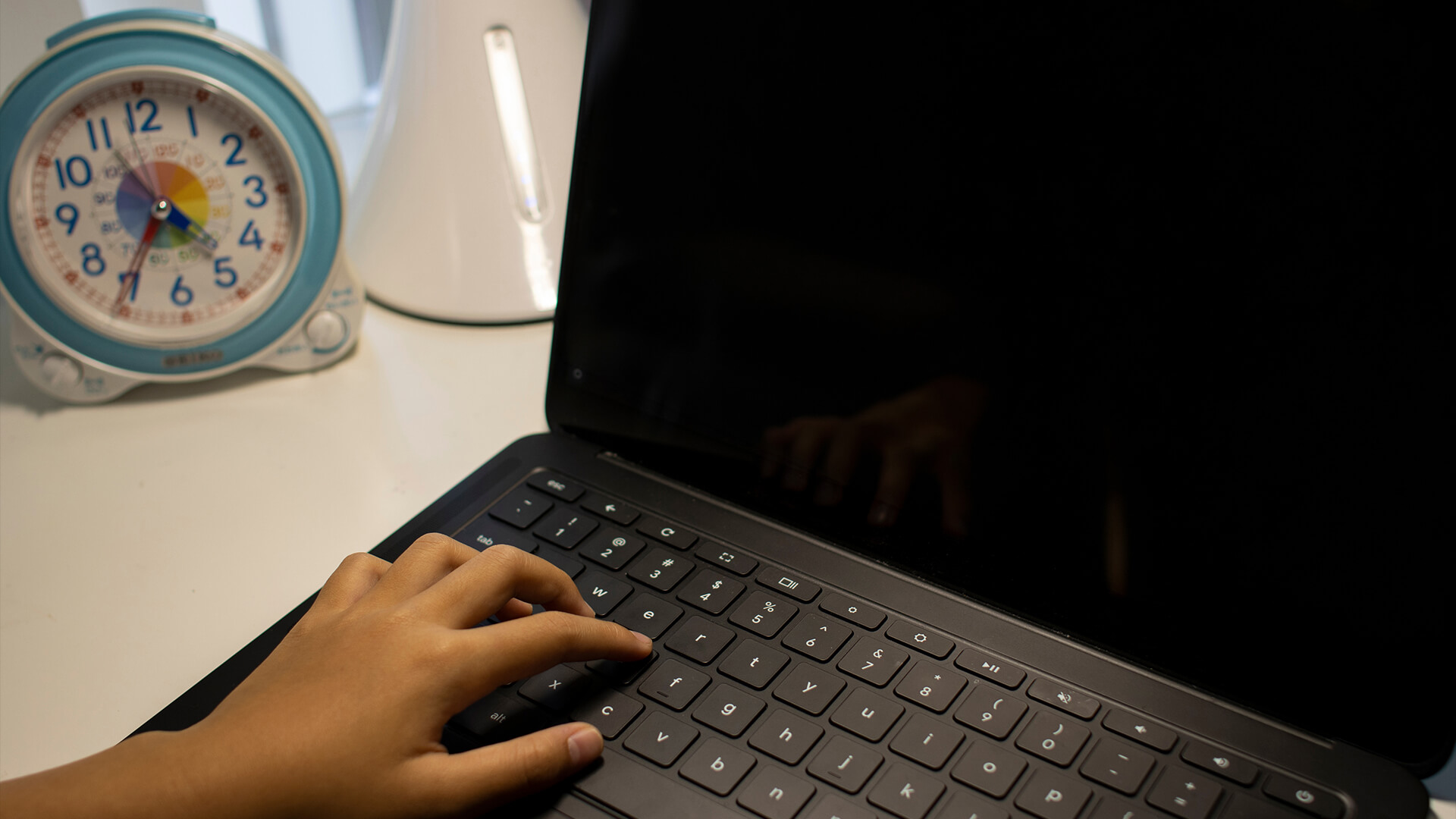
Black spots and black lines usually point to physical screen damage rather than a ChromeOS problem.
Black Spots on Chromebook Screen
Black spots on a Chromebook screen can be caused by:
- pressure damage
- cracked LCD layer
- impact damage
- liquid damage
- dead pixels
- panel wear
Restarting or resetting the Chromebook usually will not fix physical black spots.
Black Line on Chromebook Screen
A black line on a Chromebook screen may be caused by:
- damaged display panel
- loose display cable
- pressure damage
- hinge cable fault
- graphics or motherboard issue
Run the external monitor test. If the line only appears on the Chromebook screen and not the external display, the built-in display is likely the issue.
When Should You Repair or Replace Your Chromebook?
Repair is worth considering if the Chromebook is fairly new, performs well, and only needs a screen or cable fix.
Replacement may make more sense if the Chromebook is old, slow, physically damaged, or no longer worth the repair cost.
Repair or Replace?
| Situation | Better Option |
|---|---|
| Newer Chromebook with screen damage | Repair |
| Old Chromebook with weak battery and slow performance | Replace |
| Black spots or cracked screen | Repair or replace based on cost |
| Black screen after liquid damage | Professional repair check |
| Random black screen plus overheating | Repair check |
| Low-cost Chromebook with expensive repair quote | Replace |
| School or work-managed device | Contact IT/admin first |
If repair costs are high, compare budget-friendly Chromebook replacements before spending money on an older machine.
You can also compare affordable Acer ChromeOS laptops available at Box. Or if you are into ASUS more, we also have some amazing ASUS Chromebook models that you will love. And if you need something budget-friendly, go for our Lenovo Chromebooks for everyday tasks.
For users who need more power than ChromeOS, browse the wider range of best laptops for work, study, and home use available at Box.
Final Thoughts:
A black Chromebook screen is not always a serious hardware fault. Start with charging, brightness, restart and hard reset steps before trying recovery or repair.
Follow this order:
- Charge it
- Check the power light
- Turn up brightness
- Force restart
- Hard reset
- Remove accessories
- Test an external monitor
- Use Powerwash or ChromeOS recovery only if needed
If the Chromebook works on an external display, the built-in screen, backlight, or display cable may need repair. If it does not power on at all, check the charger, USB-C port, and battery before assuming the worst.
A simple fix can save you from an unnecessary repair. But if the screen has black spots, black lines, or clear physical damage, replacement or professional repair is usually the realistic next step.
FAQs
-
Why is my Chromebook screen black but the power light is on?
If your Chromebook screen is black but the power light is on, the device may be frozen, stuck in sleep mode, set to very low brightness, or suffering from a display/backlight problem. Try brightness keys, force restart, Chromebook hard reset, and an external monitor test.
-
Is the Chromebook black screen of death fixable?
Yes, it is often fixable. Many black screen Chromebook issues are caused by battery drain, sleep mode glitches, ChromeOS crashes, or accessory problems. If the issue is physical screen damage or backlight failure, repair may be needed.
-
How do I get my Chromebook out of black mode?
Press the brightness-up key, wake the device, restart it, and remove any external display accessories. If the screen stays black, perform a hard reset by holding Refresh and tapping Power on most Chromebook models.
-
What should I do if my Chromebook screen is black with a cursor?
Restart the Chromebook first. If the issue returns, try Guest Mode or another Google Account, remove recently installed extensions, and update ChromeOS. A black screen with cursor often points to a frozen session or profile issue.
-
How do I fix black spots on a Chromebook screen?
Black spots usually mean screen damage, pressure damage, dead pixels, or liquid damage. Software resets rarely fix this. Test with an external monitor to confirm whether the issue is only on the built-in screen, then consider repair or replacement.
-
Why does my Chromebook screen go black randomly?
A Chromebook screen may go black randomly because of sleep settings, overheating, battery drain, charger problems, ChromeOS glitches, or a loose display cable. Check power settings, update ChromeOS, remove accessories, and test whether it happens when plugged in.
-
What should I do if my Chromebook screen is black and won’t turn on?
Plug it in for at least 30 minutes, check the power light, try another charger or wall socket, then hold the power button for 10 seconds. If it still does not respond, try a hard reset or contact manufacturer support.
You can pay with:
*PayPal Credit Representative Example: Assumed credit limit £1,200, Representative 23.9% APR (variable). Purchase rate 23.9% p.a (variable).Terms & Conditions apply.


PayPal Credit and PayPal Pay in 3 are trading names of PayPal UK Ltd, 5 Fleet Place, London, United Kingdom, EC4M 7RD. Terms and conditions apply. Credit subject to status, UK residents only, Five Tech LTD acts as a broker and offers finance from a restricted range of finance providers. PayPal Pay in 3 is not regulated by the Financial Conduct Authority. Pay in 3 eligibility is subject to status and approval. 18+. UK residents only. Pay in 3 is a form of credit. Check if affordable and how you will repay. May make other borrowing more difficult or expensive. See product terms for more details.
Copyright © 1996-2026 Fivetech LTD | Terms and Conditions
box.co.uk & Box are trading names of Five Tech Limited. Registered office: Box LTD, Unit 10 Woodford Trading Estate, Woodford Green IG8 8HF