


 Menu
MenuMenu


Get Sales Advice from Mon - Fri 9am - 5:00pm:
020 3337 8950LAST UPDATED: February 27, 2026
Display Issues on Asus Chromebook: Flicker, Black Screen & Touchscreen Malfunctions
Asus Chromebook Laptops are well known for their smooth performance, reliable build quality and brilliant value for everyday use. They've become a popular choice for students, families and professionals who want a simple and efficient device. But many people report Asus Chromebook display issues such as flickering, black screens or unresponsive touch controls. Most of the time, such issues can be fixed at home with simple tweaks, and they're usually caused by minor software glitches or temporary system hiccups rather than any hardware failure.
This guide walks you through the most common Asus Chromebook screen problems, including flickering, black displays and touch faults. It also explains how to diagnose the cause and the best ways to fix these issues at home. Whether the issue stems from ChromeOS, minor hardware wear or a temporary software glitch, you'll find clear and simple steps to get your Asus Chromebook working smoothly again.
Asus Chromebook Display Issues: Screen Flickering or Flashing
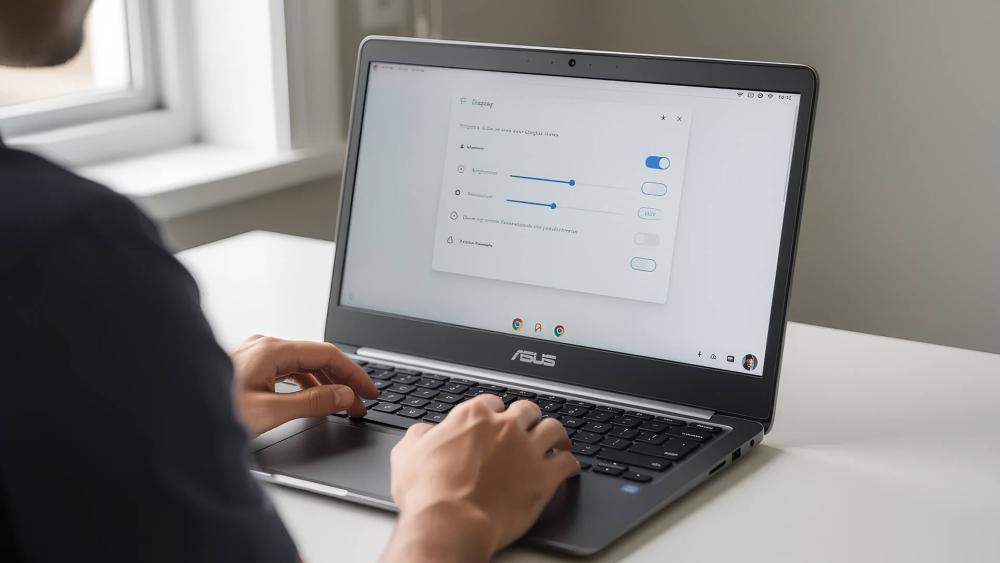
Screen flicker is one of the most common Asus Chromebook display issues, often appearing as brief flashes, brightness drops or rapid on-off pulses while browsing. Although it can look serious, many flickering problems stem from simple software conflicts or ChromeOS behaviour rather than a major hardware failure.
Why the Screen Flickers
Several factors may trigger flickering on an Asus Chromebook device:
- ChromeOS display glitches or outdated versions
- Adaptive brightness or power-saving controls misbehaving
- Hinge strain causing display issues and pressuring the internal cable
- A loose internal screen connector or early eDP cable fault
- Corrupted settings after recent updates
These symptoms usually worsen when the laptop lid is adjusted, which is a sign that the hinge or cable may be involved.
How to Fix a Flickering Screen on Chromebook
A reliable screen flickering fix usually involves:
- Updating to the latest Chromebook OS version to eliminate software bugs
- Resetting display settings and disabling adaptive brightness
- Testing the device with an external monitor to isolate the fault
- Gently adjusting the lid to check for hinge-related flicker
- Restarting or performing a quick hard reset
If flicker occurs only when moving the lid, the hinge or cable area may need attention before the issue develops further.
Asus Chromebook Display Issues: Blank or Black Screen After Login or Wake-Up
Another common Asus Chromebook display issue most users face is a blank or black screen after login or when waking from sleep. Some users describe this as the device turning on but showing a "black screen of death". This can be alarming, yet many causes are diagnosable at home.
Why a Black Screen Happens
A black or blank display may be due to:
- ChromeOS crashing during boot. If you are facing problems at startup, read our ASUS Chromebook boot recovery guide to fix them.
- Panel backlight failure
- A damaged panel cable near the hinge
- A power glitch or incorrect system sleep state
Sometimes the backlight fails while the display image still loads internally, which is why testing the Chromebook using an external monitor becomes especially useful.
How to Fix a Black Screen Issue
Here are the different steps for a Chromebook black screen fix:
- Hard resetting the device
- Adjusting brightness keys in case of accidental dimming
- Connecting to an external monitor to confirm whether the panel or ChromeOS is at fault
- Charging with a genuine adapter to rule out power-related instability
- Booting into recovery using Google Chrome OS recovery tools
If the Chromebook works normally on another display, you may be dealing with a panel backlight failure or internal cable issue rather than a full system fault.

Asus Chromebook Display Issues: Touchscreen Not Working or Unresponsive
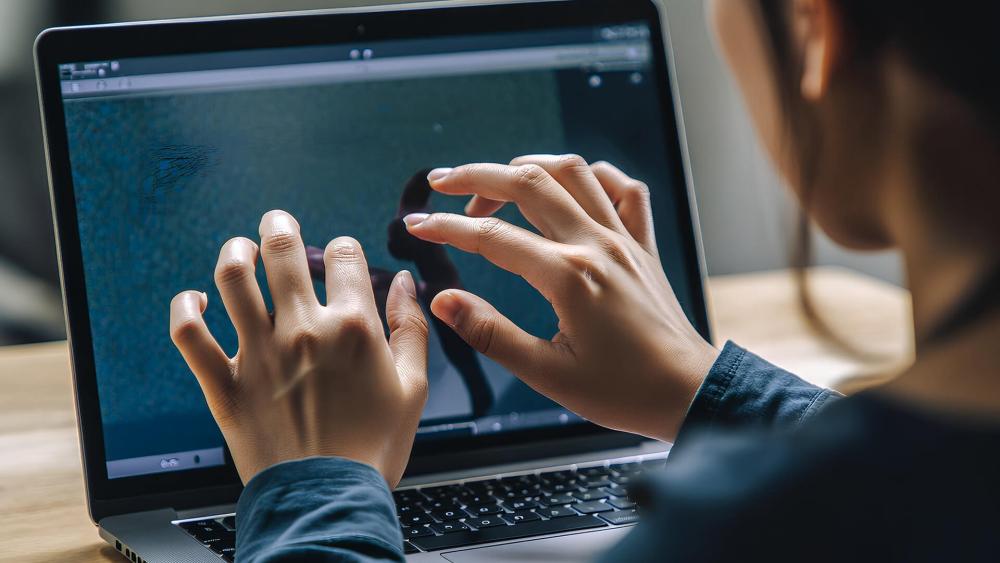
If your Chromebook touchscreen is not working, you're not alone. Touchscreen problems are among the most frequent Asus Chromebook display issues. While these faults may seem hardware-related at first, many are actually caused by calibration glitches, ChromeOS updates or disabled touch settings rather than a failed screen.
Why the Touchscreen Malfunctions
Common triggers include:
- Digitiser calibration drifting after updates
- Touch mode being disabled unintentionally
- ChromeOS interpreting touch inputs incorrectly
- Hinge pressure affecting the digitiser signal
- A deeper hardware issue, such as a loose internal connector
Touch problems sometimes appear alongside flickering or ghost touches, pointing to a combined cable or hinge fault.
How to Fix Touchscreen Issues
To fix a Chromebook screen with touch faults, try:
- Restarting and updating ChromeOS
- Checking whether touch mode is enabled
- Resetting touchscreen calibration
- Performing a hard reset to refresh input drivers
- Testing the device in guest mode to rule out profile conflicts
If none of these methods restore normal touch function, the digitiser may require inspection, and the costs can get significantly high. In such cases, it is a good idea to explore touchscreen-compatible laptops if repair isn't worth it and get a new Chromebook as per your needs.
How to Identify Hardware vs Software Problems
Before attempting repairs, it's important to understand whether your Asus Chromebook display issues are caused by ChromeOS settings or by failing components inside the device. A few simple checks can help you pinpoint the source quickly and avoid unnecessary parts replacement.
Using an External Monitor to Isolate the Problem
One of the most reliable ways to diagnose a display fault on an Asus Chromebook is to check with an external monitor for screen troubleshooting. This helps determine whether the issue lies in the panel, cable or ChromeOS itself.
If the external display works normally, the problem is likely limited to the Chromebook's internal components, such as:
- A loose internal screen connector
- An eDP cable fault
- Panel backlight failure
- Hinge strain affecting the display cable
If the external screen also shows errors, the issue may be software-related or linked to the graphics driver.
Checking ChromeOS Version and Recent Updates
Asus Chromebook display issues often happen due to outdated software. ChromeOS updates contain important patches that fix glitches, improve driver support and resolve sleep/wake bugs.
Signs your software may be responsible include:
- Flicker appearing after a reboot
- Black screen only after login
- Touchscreen is working in guest mode, but not your main profile
Updating your Chromebook to ChromeOS's latest version often resolves these problems immediately.
Physical Checks: Hinges, Panel Cable & Brightness Controls
A quick physical inspection can reveal a lot about potential hardware faults. Many display problems arise from stress around the hinge area, where the internal cable connects the motherboard to the screen.
Things to look for:
- Display flickering when opening or closing the lid
- Clicking or stiffness in the hinge mechanism
- Sudden brightness drop on Chromebook
- Signs of hinge strain causing display issues
- Slight pressure points on the back of the panel
If the display reacts to lid movement, you may be dealing with a cable issue rather than a software problem. In such a situation, test with new monitor cables and adapters to rule out any malfunctioning equipment.
Preventive Measures to Avoid Future Problems
Preventing display issues on your Asus Chromebook is often easier than fixing them later. A few simple habits can help extend your device's lifespan and reduce the chances of flickering, black screens or touch faults returning.
Keep ChromeOS and Firmware Updated
ChromeOS updates often include fixes for brightness glitches, graphics driver issues and touchscreen calibration problems. Keeping the device on the ChromeOS's latest version ensures better stability and prevents recurring display faults.
Avoid Hinge Strain and Extreme Lid Angles
Many internal faults, such as a loose internal screen connector or eDP cable fault, develop due to repeated pressure around the hinge. Open and close the lid smoothly, avoid bending the screen back too far and keep the laptop away from situations where the hinge may be stressed.
Avoid Keeping Brightness at Maximum
Running maximum brightness constantly can accelerate wear on the panel backlight and contribute to flicker or sudden brightness drop issues. Moderate brightness levels help maintain long-term display performance.
Use Genuine Chargers and Adapters
Third-party chargers may cause inconsistent voltage, which in turn leads to flickering or power-related screen faults. Using approved adapters helps prevent instability and protects the panel from long-term damage.
Final Checklist & What to Do If the Issue Persists
If you're still dealing with Asus Chromebook display issues after completing the basic troubleshooting steps, it's worth running through a quick final check to make sure nothing has been missed. Confirm that ChromeOS is up to date, the device has been restarted properly, and the display behaves the same when the lid is adjusted or when the laptop is left to wake from sleep. If the issue continues, reaching out to ASUS support with the device details is the most reliable next step, as they can advise whether the problem is linked to the screen, the internal cable or another component. And if your Chromebook is older or has recurring faults, it may simply be time to consider a replacement rather than investing in repairs, especially as newer models offer many ASUS Chromebook AI features that help enhance productivity.
FAQs
Why is my Chromebook screen flickering?
Screen flicker can occur due to ChromeOS bugs, brightness settings, hinge strain or a loose internal connector. Updating the system and checking hinge movement usually helps identify the cause.
How do I fix a black screen on my Chromebook?
Try a hard reset, adjust the brightness keys and test the device with an external monitor. If the external display works, the issue may be linked to a backlight or internal cable fault.
Why is my touchscreen not working on my Chromebook?
Touch failures often come from calibration issues, ChromeOS updates or accidental disabling of the touch function. Restarting, updating and recalibrating usually resolves the issue.
Can outdated ChromeOS cause display problems?
Yes. Older ChromeOS versions may contain bugs that affect brightness, touch responsiveness or graphics performance. Installing the latest update is one of the easiest fixes.
How do I know if my display problem is hardware or software-related?
If the fault appears on an external monitor, it's often software-related. If the Chromebook works externally but not on its own screen, you may be dealing with cable strain, backlight failure or another panel issue.
You can pay with:
*PayPal Credit Representative Example: Assumed credit limit £1,200, Representative 23.9% APR (variable). Purchase rate 23.9% p.a (variable).Terms & Conditions apply.


PayPal Credit and PayPal Pay in 3 are trading names of PayPal UK Ltd, 5 Fleet Place, London, United Kingdom, EC4M 7RD. Terms and conditions apply. Credit subject to status, UK residents only, Five Tech LTD acts as a broker and offers finance from a restricted range of finance providers. PayPal Pay in 3 is not regulated by the Financial Conduct Authority. Pay in 3 eligibility is subject to status and approval. 18+. UK residents only. Pay in 3 is a form of credit. Check if affordable and how you will repay. May make other borrowing more difficult or expensive. See product terms for more details.
Copyright © 1996-2026 Fivetech LTD | Terms and Conditions
box.co.uk & Box are trading names of Five Tech Limited. Registered office: Box LTD, Unit 10 Woodford Trading Estate, Woodford Green IG8 8HF