


 Menu
MenuMenu


Get Sales Advice from Mon - Fri 9am - 5:00pm:
020 3337 8950LAST UPDATED: March 11, 2026
Overheating, Noise or Thermal Throttling in Acer Desktops - Diagnosing & Fixes
Modern Acer desktops are built to handle everyday tasks, gaming, creative workloads and professional applications. However, like any system, they can develop CPU overheating, GPU overheating or thermal throttling issues if cooling performance drops over time. Many users report loud fans, sudden slowdowns, unexpected shutdowns, or temperatures climbing beyond what is considered a good CPU temperature while gaming or safe GPU temperatures under load. The good news: most of these issues can be diagnosed and repaired without replacing the entire system.
This guide explains the symptoms, causes, diagnostic steps and fixes for overheating and thermal throttling in Acer desktops.
Symptoms of Overheating and Thermal Throttling
Thermal throttling occurs when a CPU or GPU reduces its clock speed to prevent overheating. In simple terms, the system intentionally slows down to protect itself from damage.
When temperatures exceed safe limits:
- CPU throttling reduces processing speed
- GPU throttling lowers graphics performance
- Frame rates drop
- Applications feel sluggish
This is not a hardware fault, it’s a built-in safety feature. However, frequent thermal throttling means your cooling system is no longer performing efficiently.
Symptoms of Overheating and Thermal Throttling

Thermal issues in an Acer desktop rarely appear suddenly; they usually start with subtle signs that become worse over time. Understanding these symptoms helps you catch overheating early.
1- Sudden Shutdowns or Restarts
If your Acer desktop suddenly powers off during heavy workloads, gaming sessions or rendering tasks, it is likely protecting itself from thermal damage. Acer PCs include temperature-based shutdown mechanisms: when the CPU or GPU exceeds its safe operating limit, the system cuts power to prevent hardware failure.
This is one of the clearest indicators of severe overheating or a failing cooling system. If shutdowns occur only under load, it’s almost always a temperature-related issue.
2- Loud Fans at Idle or Light Tasks
A desktop should remain quiet during browsing, office work or light applications. When fans begin spinning at maximum speed even during low loads, it means the CPU or GPU is getting warmer than it should.
This usually happens due to:
- Dust clogging the heat sink
- Blocked air vents
- Dry or degraded thermal paste
- A faulty fan or failing bearing
Loud fans are often the first noticeable symptom of long-term cooling problems.
3- Apps Lagging Under Load
When your Acer PC gets hot, it reduces CPU speed to keep the processor within safe temperature limits. This is known as thermal throttling, and it causes:
- Slow app performance
- Stuttering in games
- Lag when switching between tasks
- Delayed system responses
If your Acer desktop is overheating, performance issues become much more noticeable during gaming, video editing, design work or any high-load activity.
4- High CPU/GPU Temperatures
If you check system temperatures and consistently see high values (85°C+, especially under modest workloads), your system is struggling to dissipate heat. Acer desktops vary, but most CPUs should ideally sit around:
- 35–50°C idle
- 60–80°C under load
Anything consistently above 85°C under moderate workloads may indicate CPU overheating, poor airflow, degraded thermal paste or failing cooling components. GPUs can run slightly warmer, but temperatures above 90°C under standard loads are considered high GPU temperatures and should be investigated.
Step-by-Step Diagnosis for Acer Desktop Overheating
The steps below guide you through a complete diagnosis, helping you pinpoint exactly what is causing the temperature rise or fan noise without jumping straight to repairs.
Step 1: Checking Fan Operation
The first step is to confirm that all cooling fans inside your Acer desktop are working as they should. When the system powers on, every fan including the CPU cooler, rear exhaust fan and any front or side case fans should briefly spin up. This quick spin is part of the motherboard’s self-test and is the easiest way to spot fans that are failing or stuck. After removing the side panel, let the system run idle and observe the movement of each fan. They should spin smoothly, without wobbling, rattling or stopping intermittently. If a fan starts and stops, spins slower than expected, or produces grinding or clicking noises, it may be worn out or obstructed. Similarly, if the CPU cooler fan doesn’t ramp up under load, overheating will occur quickly. Any unusual behaviour here is often the root cause of temperature problems, and replacing or cleaning the affected fan becomes necessary.
Step 2: Monitoring Temperatures with Tools
Once you’ve confirmed that the fans physically operate, the next step is to check how hot the system actually gets during normal use and under load. Temperature-monitoring tools such as HWMonitor, CoreTemp, Speccy or MSI Afterburner allow you to see real-time CPU and GPU temperature readings. Start by checking the idle temperatures; if they sit unusually high (for example, 60°C or above when the system is doing nothing), then something is preventing heat from escaping efficiently. Then run a light workload or game and watch how quickly the temperatures climb. If the CPU or GPU temperature spikes instantly under even small loads, this suggests the cooler is not transferring heat properly, possibly due to old thermal paste or a poorly seated heat sink. Frequent temperature spikes and rapid drops are also common signs of thermal throttling, where the system slows itself to manage heat. These tools give you a clear picture of whether overheating is mild, moderate or severe.
Step 3: Verifying Airflow and Case Ventilation
Airflow inside the case plays a major role in controlling temperature. With the side panel removed, observe how air moves through the system. The front of the case should pull cool air into the desktop, and the rear exhaust should push hot air out. If you feel very little air coming from the rear vent or none being drawn from the front, the airflow path is restricted.
Many Acer desktops, especially compact models, can struggle with airflow if internal cables are blocking fan intakes or lying directly against the heat sink. Objects placed behind the PC, or positioning the desktop in a closed cabinet, can further restrict ventilation. A system with poor airflow will trap warm air inside, forcing fans to spin faster and causing temperatures to stay unusually high.
Step 4: Examining Dust Levels
Dust accumulation is one of the most common causes of rising temperatures in Acer desktops, especially PCs that have been in use for several years. Using a flashlight, inspect the system closely; start with the CPU heat sink, as dust often settles between the fins and significantly reduces its cooling efficiency. Check the GPU fan shroud, the power supply intake, and any case vents or filters. Dust buildup in these areas restricts airflow, causing fans to work harder and louder while still failing to cool the system effectively. Even a thin layer of dust can impact performance, and heavy dust buildup can completely choke airflow. If dust is visible anywhere inside the system, this alone may explain both the overheating and the sudden increase in fan noise.
|
Compare Acer Desktop Types If you're unsure which Acer model offers the best airflow, cooling layout or upgrade potential, our upcoming guide on compare Acer desktop types will help you understand the differences between each series and choose the right tower for your needs. |
Quieting Loud Fans and Reducing Noise Levels
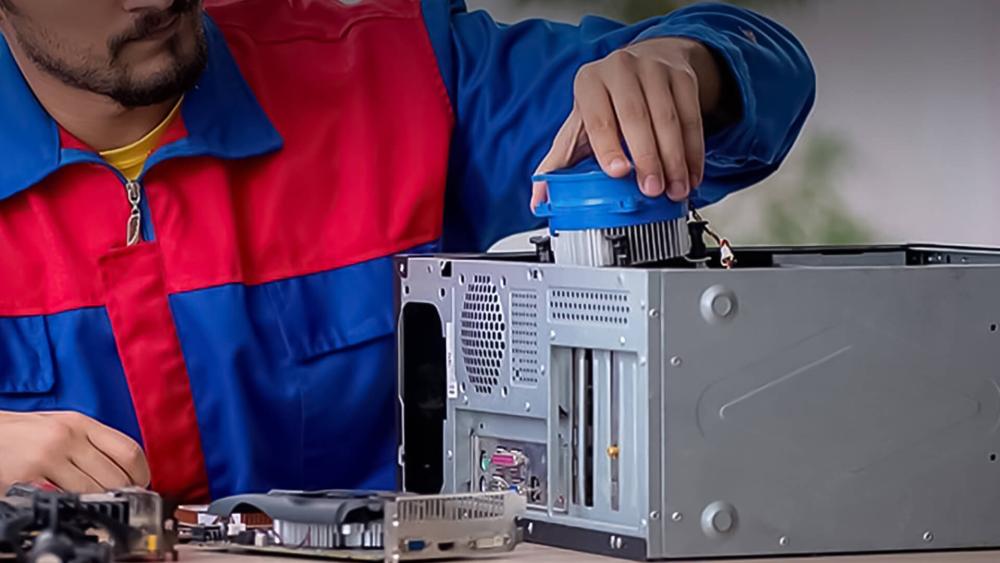
Loud fans in an Acer desktop are usually a sign of CPU overheating, restricted airflow or aggressive fan curves. If you’re wondering how to reduce PC fan noise, the solution almost always starts with fixing the temperature issue first. When temperatures rise due to dust, poor airflow, or failing components, the fans automatically ramp up to compensate, resulting in constant noise even during simple tasks. Reducing that noise starts with identifying what’s causing the fans to work harder than they should.
1- Clean the Fans and Vents to Restore Proper Airflow
Dust is one of the most common reasons Acer systems become loud over time. As dust collects on fan blades, vents and heat-sink fins, it restricts the flow of cool air entering the case and traps warm air inside. This forces the fans to spin at maximum speed just to keep temperatures under control. Giving the fans, vents and heat sinks a gentle clean with compressed air or a soft brush can dramatically improve airflow and instantly reduce noise levels.
2- Adjust Fan Curves for Smoother, Quieter Operation
If the fans seem to jump suddenly from quiet to loud, the issue may be with the fan curve; the temperature-based profile that controls how fast the fans spin. Many Acer desktops allow you to adjust this curve through BIOS or system utilities. A smoother, more gradual curve helps prevent abrupt spikes in fan speed, resulting in more consistent and quieter operation. Just be cautious not to lower the minimum RPM too far, as this can increase heat buildup and reduce performance.
3- Organise Internal Cables to Prevent Airflow Disruption
Loose or tangled cables inside the case can disrupt airflow or even brush against spinning fan blades, creating intermittent rattling or buzzing sounds. Tidying up the internal layout by routing cables away from airflow paths helps the fans move air more efficiently and eliminates unwanted noises caused by physical obstruction. Improved cable management also makes future maintenance easier and helps the entire cooling system work more effectively.
Fixing Thermal Throttling in Acer Desktops
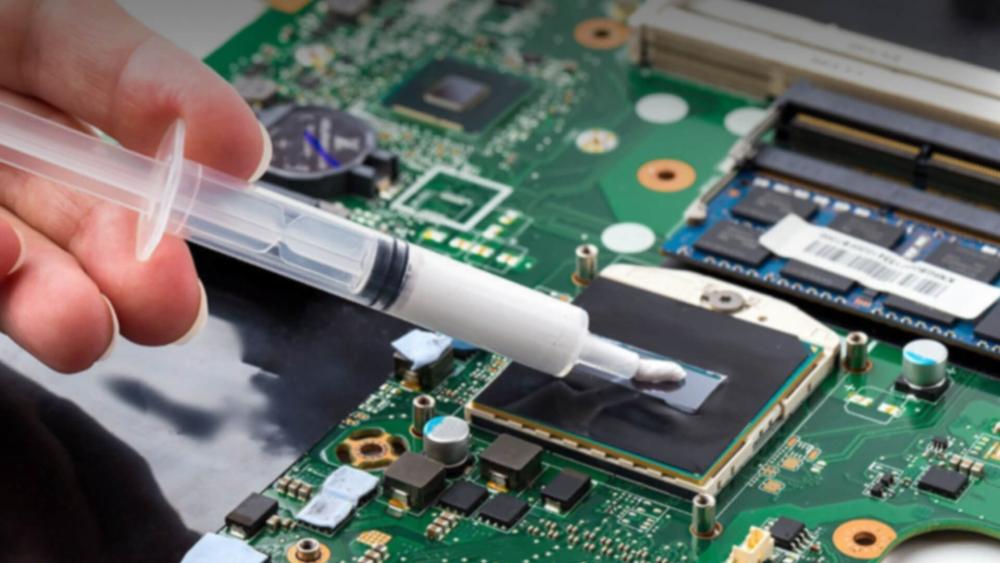
Thermal throttling occurs when your CPU or GPU becomes so hot that the system intentionally slows down to prevent damage. This is why an Acer desktop may feel fast for one moment and painfully slow the nextl the hardware is protecting itself by lowering clock speeds. Restoring performance means improving how efficiently heat is transferred away from your key components. In most cases, this involves refreshing thermal materials, improving airflow or ensuring that the cooling hardware is making proper contact.
1- Applying Fresh Thermal Paste
Thermal paste plays a crucial role in maintaining cool CPU temperatures. Over time, especially on Acer desktops that have been used for several years, the original paste dries out and loses its ability to transfer heat between the CPU and its cooler. When this happens, temperatures can spike suddenly during even light tasks, causing immediate throttling. Reapplying fresh, high-quality thermal paste (Gamdias XC3 Performance Thermal Compound Paste 2g MPN: XC3 THERMAL PASTE) creates a proper thermal bridge and often results in a dramatic temperature drop. This single step can restore lost performance and bring the system back to stable operation, especially in older desktops. Acer systems respond very well to thermal paste refreshes, making this one of the most effective and affordable fixes.
2- Reseating the CPU Cooler
Even with good thermal paste, the CPU cooler must be firmly and evenly mounted to maintain proper contact. If it was knocked, installed incorrectly, or came loose over time, heat cannot be transferred effectively. Reseating the cooler involves removing it, cleaning away the old paste, reapplying a fresh layer and reinstalling the cooler with even pressure. This ensures the cooler sits flat on the CPU surface, eliminating air gaps that can cause rapid temperature spikes. Many Acer desktop heat sinks use simple mounting brackets that can loosen slightly with age, so verifying proper installation is an important part of fixing throttling.
3- Improving Internal Airflow
Even a perfectly mounted cooler will struggle if the airflow inside the Acer desktop is restricted. Good airflow depends on cool air entering the case and warm air exiting efficiently. Many Acer desktops use compact chassis designs that can trap heat if vents are blocked or if internal components are arranged too tightly. By improving the airflow path, ensuring that the front of the case can draw in cool air, and the rear can push hot air out temperatures stabilise more quickly. Sometimes the fix is as simple as repositioning the PC, rearranging internal cables, or cleaning the vents. However, if the case is particularly restrictive, upgrading to an airflow-optimised chassis can provide a long-term solution, especially for high-performance workloads.
Checking GPU Fan Functionality
Thermal throttling isn’t limited to the CPU; many Acer desktops rely on compact OEM GPUs with smaller cooling systems that wear down over time. If the GPU fan isn’t spinning properly, gets clogged with dust or cannot reach full speed, the graphics card will quickly overheat and throttle. This leads to stuttering in games, slow rendering, and high fan noise as the system tries to compensate. Checking that the GPU fan starts reliably, spins smoothly and ramps up under load is essential. Cleaning or replacing the GPU cooling assembly often restores normal behaviour and reduces system-wide heat buildup, since an overheating GPU can raise the temperature of every other component around it.
| For related issues, refer to the internal troubleshooting guide fix Acer startup issues. |
When Cooling Components Need Replacement
Even with regular cleaning and maintenance, cooling components in an Acer desktop do eventually wear out. Fans lose speed, thermal paste dries up, and older coolers struggle to keep up with modern workloads. When these parts stop performing as they should, replacing them becomes the most reliable way to restore stable temperatures and prevent long-term damage. Below are the situations where a replacement is not just recommended, but often necessary.
When Fans No Longer Spin Reliably
If your Acer desktop’s fans hesitate to start, spin unusually slowly, or produce grinding or rattling noises, the internal bearings are likely wearing out. A failing fan often can’t maintain the airflow needed to cool the system, leading to hotter temperatures and louder operation as the remaining fans compensate. Once a fan begins to stall or stop mid-operation, cleaning it will no longer help replacing it is the only dependable way to regain proper cooling performance.
When Thermal Paste Has Degraded
Over time, the thermal paste between the CPU and its cooler dries out and loses the ability to transfer heat efficiently. This usually shows sudden temperature spikes when launching apps, gaming, or opening multiple tabs. If your Acer desktop is a few years old or has been exposed to heavy workloads, degraded thermal paste is almost guaranteed. Reapplying fresh thermal paste renews the thermal contact and can significantly reduce temperatures, often restoring performance instantly.
When the CPU Cooler Is Insufficient
Stock coolers included with many Acer desktops are designed for light workloads. If you frequently game or run creative software, they may not maintain a good CPU temperature while gaming, making an upgrade necessary. If the cooler struggles to keep temperatures under control even after cleaning and refreshing the paste, it simply may not be powerful enough for what you do. Upgrading to a Strong CPU Cooler gives the processor more thermal headroom and prevents throttling during demanding tasks.
When Airflow Limitations Require a New Case
Some Acer cases, especially compact or older models, have restricted airflow due to small vents, single-fan layouts or limited intake space. If your desktop repeatedly overheats despite cleaning, reseating the cooler and replacing thermal paste, the case itself may be the bottleneck. Moving your components into an Airflow-optimised case gives the system better ventilation, more room for fans, and a cooler, more stable environment overall.
Final Thoughts: Keep Your Acer Desktop Cool and Reliable!
Most overheating and noise problems in Acer desktops can be fixed with simple maintenance like cleaning dust, refreshing thermal paste, improving airflow, and ensuring fans are working properly. These steps often restore normal temperatures and stop thermal throttling, helping your system feel faster and run much more quietly. If issues continue even after troubleshooting, it may be a sign that your cooler, case or power supply is no longer keeping up with your workload or that your system has reached its thermal limits.
When repairs aren’t enough, upgrading key components or considering a newer Acer desktop with better built-in cooling can offer a longer-lasting solution. To make your system cooler, quieter and more stable, you can explore Cooling Upgrades, Fresh Thermal Paste, Strong CPU Coolers, Airflow optimised cases, Reliable PSUs, and even the full Acer Computers range directly at Box.co.uk. A few smart upgrades can completely transform how smoothly your Acer desktop performs.
Frequently Asked Questions
What is thermal throttling?
Thermal throttling is when the CPU or GPU intentionally lowers its speed to prevent overheating. It protects hardware but reduces performance.
What is a high CPU temperature?
A high CPU temperature is typically anything above 85°C under load. Temperatures above 95°C are considered critical.
What is a high GPU temperature?
A high GPU temperature is generally above 90°C. While GPUs can handle heat, consistent temperatures in this range reduce lifespan.
What is a good CPU temperature while gaming?
A good CPU temperature while gaming is between 60–80°C. Brief spikes above this are normal, but sustained temperatures above 85°C indicate cooling issues.
What are safe GPU temperatures?
Safe GPU temperatures under load typically range between 65–85°C. Anything above 90°C should be addressed.
How do I reduce PC fan noise?
To reduce PC fan noise clean dust buildup, optimise fan curves, improve airflow, replace worn-out fans, and upgrade the CPU cooler.
How much thermal paste should I apply?
A pea-sized drop in the centre of the CPU is sufficient. Too much paste can reduce cooling efficiency.
How do I apply thermal paste to a CPU?
Clean off old paste completely, apply a pea-sized drop in the centre, reseat the cooler evenly, and secure it firmly without over-tightening.
You can pay with:
*PayPal Credit Representative Example: Assumed credit limit £1,200, Representative 23.9% APR (variable). Purchase rate 23.9% p.a (variable).Terms & Conditions apply.


PayPal Credit and PayPal Pay in 3 are trading names of PayPal UK Ltd, 5 Fleet Place, London, United Kingdom, EC4M 7RD. Terms and conditions apply. Credit subject to status, UK residents only, Five Tech LTD acts as a broker and offers finance from a restricted range of finance providers. PayPal Pay in 3 is not regulated by the Financial Conduct Authority. Pay in 3 eligibility is subject to status and approval. 18+. UK residents only. Pay in 3 is a form of credit. Check if affordable and how you will repay. May make other borrowing more difficult or expensive. See product terms for more details.
Copyright © 1996-2026 Fivetech LTD | Terms and Conditions
box.co.uk & Box are trading names of Five Tech Limited. Registered office: Box LTD, Unit 10 Woodford Trading Estate, Woodford Green IG8 8HF