


 Menu
MenuMenu


Get Sales Advice from Mon - Fri 9am - 5:00pm:
020 3337 8950LAST UPDATED: December 09, 2025
Acer Desktops Not Booting or No Signal: Step‑by‑Step Troubleshooting
Few things are as frustrating as pressing the power button and nothing happens or worse your Acer desktop is on but no display shows up. Whether you're using an Acer Aspire, Acer Veriton, Nitro, or any PC Acer, boot failures and no-signal issues can bring your entire day to a halt.
But here's the good news: most of these problems are fixable at home, and often without any tools. This guide breaks down every possible cause, what each symptom means, and the exact fixes you can apply right now.
You'll also find helpful notes about Acer desktop models, reliable power supply options, fast SSDs, cooling solutions, and Acer desktop types guide to help you understand your system better.
Let's get your Acer up and running again.
Understanding the Problem
Before you fix your Acer desktop, it's crucial to recognise which type of issue you're dealing with. Almost every startup problem falls into one of two categories, and understanding the difference saves time and helps you troubleshoot accurately.
Boot Failure: When the PC Shows No Signs of Life
If you press the power button and nothing happens; no fans, no lights, no beeps; the system isn't receiving power. This usually points to a power delivery issue, such as a loose cable, a faulty surge protector, a failing PSU, or in rare cases, a non-responsive motherboard.
No Signal: When the PC Turns On but the Screen Stays Black
If the fans spin and the LEDs light up but your monitor only shows "No Signal," the PC is running, but the display output isn't reaching the monitor. This commonly happens due to incorrect HDMI/DP ports, loose cables, monitor input mismatches, a poorly seated GPU, or plugging the display into the motherboard instead of the graphics card.
Quick Checks Before You Begin; Simple Fixes That Solve Most Acer Boot Problems

Before you open your Acer desktop or start worrying about failed components, it's worth running through a few quick checks. You'd be surprised how often a "dead" PC or a "no signal" issue turns out to be something incredibly simple; a loose cable, a wrong input setting, or a surge protector that silently stopped supplying power. These are the easiest fixes, and they solve many Acer desktops not booting or Acer no signal issue cases.
Start by Confirming Your Power Source Is Actually Working
Many users assume their PC is broken when the problem is really with power delivery. Make sure the PSU switch at the back of the desktop is set to | (ON) and not flipped off accidentally; this happens more often than people think, especially after moving the PC or cleaning around it.
Check that the power cable is pushed firmly on both ends. A loosely connected cable can cause intermittent power loss, giving the impression that the computer is not turning on. Also test a different wall outlet or remove the surge protector temporarily. Surge protectors and cheap extension lead often wear out silently, and once they do, your PC won't receive enough stable power to start. Simply plugging your Acer computer directly into a reliable socket can instantly bring it back to life.
Make Sure Your Monitor Is Actually Showing the Right Input
A huge number of PC no display on boot issues come from something as simple as using the wrong HDMI or DisplayPort input. Monitors with multiple ports often default back to HDMI 1 or the last-used input, so if you move your PC or upgrade cables, the screen may no longer match the current input signal.
Switch through your monitor's input options; HDMI 1, HDMI 2, DisplayPort, or USB-C until the correct one displays your desktop. Many users believe a "dead PC" is often just the monitor waiting for a signal on a different port.
Check That the Monitor Isn't the Real Problem
Before assuming your Acer desktop has failed, quickly rule out the monitor itself. Connect it to another device like a laptop, console, or even a phone with screen-casting capabilities.
If the monitor shows a picture from another device, the issue comes from the PC. If it doesn't show anything at all, the monitor might be faulty, or the cable could be damaged.
This step is especially important because users sometimes chase complex fixes when the issue is simply a failing display.
Fixing Acer Desktops That Won't Boot at All
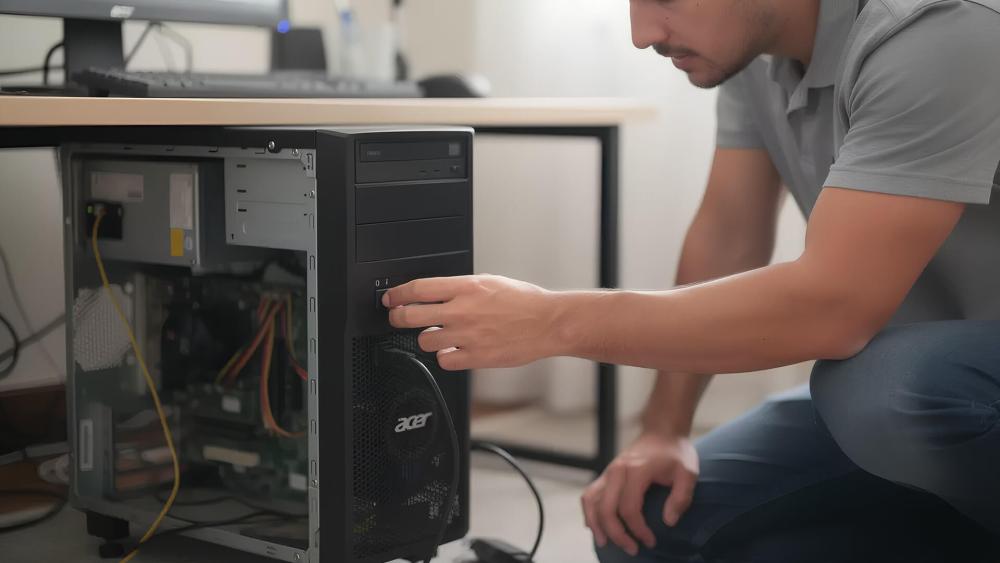
When an Acer desktop shows no signs of life; no fans, no lights, no beeps; it can feel like the entire PC has failed.
Below are the steps that resolve the majority of Acer desktops, not booting cases.
Check the PSU Switch and Power Cable
The power supply unit (PSU) has a physical switch on the back of the desktop. If it's switched off or stuck between positions, the PC won't turn on at all. This switch can easily be flipped accidentally while cleaning, moving the PC, or adjusting cables.
- Make sure the switch is set to | (ON).
- Next, check the power cable. IEC power cables tend to loosen over time, and internal wire fatigue is more common than people realise. Even if the cable looks fine, it may no longer be delivering consistent power.
Why this matters:
A huge portion of "dead PC" scenarios come down to a cable that simply isn't making a complete connection.
Test a Different Wall Outlet
It's easy to assume the PC is at fault, but wall sockets and power strips fail too; especially older ones. Plugging the Acer desktop into a different outlet or a different room quickly rules out a bad power source.
Many users are surprised to find their PC boots instantly once they plugged into a new socket.
Why this matters:
You avoid wasting time tearing your PC apart for what was actually a building-level power issue.
Reseat Your RAM & Storage Drives
Inside your Acer computer, the RAM sticks and storage drives (SSD/HDD) must be firmly seated in their slots. If a stick becomes even slightly loose due to vibration, moving the tower, or temperature changes, the system may refuse to power up.
- Remove each RAM stick, then reinstall it until you hear a solid click.
- Repeat the same process for any SSDs or hard drives that use slot-based mounting or cables.
Why this matters:
A surprising number of desktops will not boot up cases are caused by RAM that shifted less than a millimetre.
Clear the CMOS to Reset Hardware Settings
If your BIOS settings become corrupted; which can happen after failed updates, power outages, or hardware changes; the PC may block startup entirely. Clearing the CMOS resets the motherboard to factory defaults, restoring stable configuration settings.
This is done by either:
- Using the CMOS jumper on the motherboard
- Removing and reinserting the CMOS battery
Why this matters:
A BIOS reset removes hidden software-level issues that can completely prevent your Acer desktop from booting, even when all hardware is functioning correctly.
Fixing Acer Desktops That Have Power but No Signal
When your Acer desktop powers on; fans spinning, LEDs glowing; but your monitor stays dark with a "No Signal" message, the good news is your PC is starting. The issue is almost always related to where the display signal is coming from or how it's being delivered. This isn't a full system failure; it's a communication problem between the computer and the monitor. With a few checks, you can usually pinpoint the exact cause.
Check HDMI and DisplayPort Cables & Ports
A surprising number of no-signal problems come from damaged or incorrectly seated cables. Even a slightly bent HDMI pin or a loose DisplayPort connection can cause the screen to go completely black.
Try swapping cables, switching ports on the GPU and monitor, and ensuring everything is firmly connected. If your monitor suddenly stopped working after being moved or bumped, this is the most likely culprit.
Why this helps:
HDMI and DP cables degrade over time, and many households reuse older cables that can't keep up with today's higher bandwidth requirements. Changing the cable alone often restores the display instantly.
Test Integrated Graphics vs Dedicated GPU Ports
Many Acer Aspire and Acer gaming desktops include two sets of display outputs:
- Motherboard ports (for integrated graphics)
- Graphics card ports (for your dedicated GPU)
If your system has a dedicated GPU installed, the motherboard ports usually become inactive. Plugging your monitor into the wrong port results in an instant no display situation; even though the PC itself is working perfectly.
Try moving the cable to the GPU's HDMI/DP port instead of the motherboard. This fixes the issue for a huge number of first-time desktop users or anyone who recently upgraded their graphics card.
Reseat the Graphics Card Properly
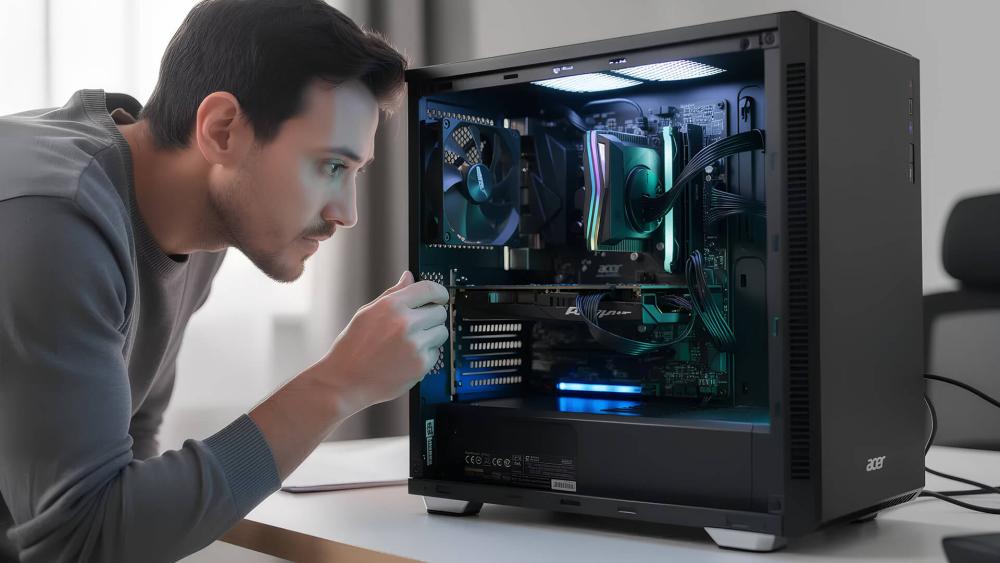
Sometimes the graphics card may look fully installed but isn't making proper contact with the motherboard. A slight disconnect can happen due to dust, vibrations, rough handling during transport, or even temperature changes.
Remove the GPU, check the gold contacts, and reseat it firmly until it clicks back into place. Secure it with screws to avoid sagging or movement.
Why this helps:
When the GPU isn't fully seated, the system may power on but cannot output a video signal; leading to the classic "PC on but no display" issue.
Check GPU Power Connectors
If your graphics card has external 6-pin or 8-pin power connectors and they aren't plugged in correctly, the GPU won't initialise. The fans may spin, giving the illusion that it's working, but internally it never enters an active state.
Ensure the PCIe power connectors are:
- Firmly connected
- Fully clicked into place
- Using the right cable directly from the PSU
Why this helps:
A GPU without proper power will not send any signal to the display; even though the PC itself seems to be running normally.
When the Display Works but Windows Won't Load
If your Acer desktop shows the Acer logo or reaches BIOS but fails when Windows tries to boot, the system is powering on correctly, but something is preventing it from loading the operating system. This usually points to storage issues, corrupt system files, or incorrect boot settings.
Recognising a Failing OS Drive
A failing SSD or HDD often gives early warning signs before it completely dies:
- The system loops endlessly during startup
- You see "No bootable device found"
- Windows freezes halfway through loading
- The PC shuts down unexpectedly during boot
These symptoms appear most often on older HDD-based Acer desktops or budget models still using mechanical drives.
Fix Your Boot Order in BIOS
Sometimes Windows won't load simply because the PC is trying to boot from the wrong device; especially after an update, BIOS reset, or if multiple drives are installed.
Enter the BIOS and make sure:
- Your primary SSD is set as the first boot device
- USB devices are moved to the bottom of the boot list
- Old HDDs aren't outranking your OS drive
Why this helps:
If the system boots from the wrong drive, it will appear to "fail" even when nothing is broken.
Use Windows Recovery Tools to Repair Startup
Windows' built-in recovery options can fix boot loops, missing files, corrupted updates, and misconfigured startup services. Tools like Startup Repair, System Restore, and Safe Mode are often enough to recover a non-loading OS without reinstalling Windows.
When the Desktop Powers On but Keeps Restarting
Constant restarts are one of the trickiest issues because they could be linked to heat, power, memory, or motherboard stability. But the pattern of the restarts gives clues about what's really happening.
Check for Overheating Issues
If the PC warms up unusually fast or restarts shortly after booting, overheating is the likely cause. The CPU cooler may be loose, clogged with dust, or suffering from dried-out thermal paste. When temperatures spike, the system force-restarts to protect itself.
Cleaning the cooler, reseating it, or replacing thermal paste often solves the issue immediately.
| If you suspect heat is causing shutdowns or reboot loops, our upcoming guide on Acer overheating fixes will walk you through the most effective ways to improve cooling and prevent thermal-related crashes. |
Inspect All Internal Cables & Hardware Modules
Inside a desktop, even one loose cable can cause intermittent restarts.
Check the large 24-pin motherboard connector, the 8-pin CPU power connector, GPU power cables, RAM seating, and SSDs. If any of them aren't clicked in firmly, your system might restart the moment it draws extra power.
Look for RAM or PSU Clues
The behaviour of the restart often reveals the failing component:
- Restarts during gaming or heavy load → GPU or PSU issue
- Restarts randomly, even when idle → RAM or motherboard
- Restarts instantly after pressing power → PSU failure
When Hardware Needs Replacement: And What to Choose Instead
Sometimes, no matter how much troubleshooting you do, a component has simply reached the end of its life. That's normal for aging Acer desktops, and replacing the faulty part is often the quickest, most reliable fix.
When to Replace the PSU
If your desktop shows power problems such as sudden shutdowns, inconsistent booting, or the system not turning on at all; the power supply is usually the culprit. A fresh PSU restores stable power delivery and instantly eliminates many boot-related issues.
When to Replace RAM or SSD
Frequent crashes, very slow startup times, or Windows freezing during everyday tasks often point to faulty RAM or a failing storage drive. Upgrading to newer memory or a faster SSD not only fixes the issue but also gives your Acer PC a noticeable speed boost.
When to Replace the GPU
If the PC powers on but you still get no display or the GPU overheats and shuts down during use; the graphics card may be failing. Installing a new GPU typically resolves no-signal problems and improves overall performance for modern workloads.
| If your no-signal issue is caused by a failing or outdated GPU, upgrading can often restore stability instantly; you can explore the latest options when you're ready to Browse graphics cards for a reliable replacement. |
When Upgrading Is the Better Long-Term Choice?
If your Acer desktop continues to struggle even after replacing faulty parts, upgrading to a modern system may offer far better long-term value. Newer Acer desktop models deliver improved reliability, better airflow, and more efficient power management, making them ideal for everyday work. Creators and gamers benefit from towers with enhanced cooling and stronger GPUs, which prevent overheating and ensure consistent performance during demanding tasks. And for users who work with multiple apps, large files, or AI-driven workloads, desktops powered by new-gen CPUs and NPUs provide the stability and speed needed for smooth multitasking. In many cases, upgrading not only fixes ongoing issues but gives you a faster, quieter, and more future-proof setup.
Final Thoughts: Get Your Acer Desktop Running Smoothly Again
A desktop that won't boot or shows no signal can feel like a major setback, but as you've seen, most Acer startup issues come down to a handful of fixable causes: loose cables, incorrect display outputs, failing drives, overheating, or aging components. With the right checks from power delivery to GPU ports to storage health; you can quickly narrow down the problem and bring your system back to life.
Whether your Acer desktop needs a simple reset, a part replacement, or a full upgrade, you now have a clear roadmap for diagnosis and repair. And if you discover a component is failing or no longer keeping up with your workload, upgrading to modern hardware can dramatically improve reliability, speed, and everyday performance.
For replacement parts, performance upgrades, or a brand-new system, Box.co.uk has everything you need from reliable power supply options and fast SSDs to graphics cards, cooling solutions, and a full range of Acer desktop models built for stability and long-term use.
Explore smarter, upgrade confidently, and keep your setup running at its best with Box.co.uk; your trusted destination for components, desktops, and everything you need to stay powered and productive.
You can pay with:
*PayPal Credit Representative Example: Assumed credit limit £1,200, Representative 23.9% APR (variable). Purchase rate 23.9% p.a (variable).Terms & Conditions apply.


PayPal Credit and PayPal Pay in 3 are trading names of PayPal UK Ltd, 5 Fleet Place, London, United Kingdom, EC4M 7RD. Terms and conditions apply. Credit subject to status, UK residents only, Five Tech LTD acts as a broker and offers finance from a restricted range of finance providers. PayPal Pay in 3 is not regulated by the Financial Conduct Authority. Pay in 3 eligibility is subject to status and approval. 18+. UK residents only. Pay in 3 is a form of credit. Check if affordable and how you will repay. May make other borrowing more difficult or expensive. See product terms for more details.
Copyright © 1996-2026 Fivetech LTD | Terms and Conditions
box.co.uk & Box are trading names of Five Tech Limited. Registered office: Box LTD, Unit 10 Woodford Trading Estate, Woodford Green IG8 8HF