


 Menu
MenuMenu


Get Sales Advice from Mon - Fri 9am - 5:00pm:
020 3337 8950LAST UPDATED: July 06, 2026
How do I update the firmware on a Gigabyte monitor?
Updating your monitor firmware can fix bugs, improve compatibility and help your display work properly with newer software, graphics cards and features. If you are searching for Gigabyte software monitor help, the safest route is simple: use the official Gigabyte support page, download the correct file for your exact model and update through the correct Gigabyte monitor software. Gigabyte’s download centre allows users to search by product model or serial number for software, drivers, manuals and firmware, so start there rather than guessing.
How Do I Update the Firmware on a Gigabyte Monitor?
To update Gigabyte monitor firmware, find your exact monitor model, visit the official Gigabyte support page, download the latest firmware and required utility, connect the monitor to a Windows PC with the USB upstream cable, then run the update through OSD Sidekick or Gigabyte Control Center.
The usual process is:
- Find the exact monitor model.
- Download the correct Gigabyte display firmware.
- Install the required Gigabyte monitor software.
- Connect USB, HDMI or DisplayPort, and power.
- Run the firmware update.
- Restart the monitor and check the firmware version.
Gigabyte notes on support pages for some monitors that OSD Sidekick requires a USB cable connection between the PC and monitor, so do not skip the USB step.
What You Need Before Starting
Before running any Gigabyte software monitor update, make sure you have:
- A Windows PC.
- The monitor’s exact model number.
- A stable power supply.
- HDMI or DisplayPort connected.
- The USB upstream cable connected.
- The correct firmware file.
- OSD Sidekick or Gigabyte Control Center installed.
Do not update during a power cut risk, unstable PC session or while swapping cables.
Why Updating Monitor Firmware Matters
A Gigabyte monitor firmware update may fix display bugs, improve device detection, add compatibility improvements or solve feature issues. For gaming monitors, it can also help with display stability, refresh rate behaviour, HDR issues or OSD features.
If your monitor already works perfectly, updating is optional. If you are troubleshooting a bug, the update may be worth doing.
Check Your Gigabyte Monitor Model First
Where to Find the Exact Model Number
Your model number is usually on:
- The rear label of the monitor.
- The original box.
- The order confirmation.
- The monitor’s on-screen display menu.
- The Gigabyte support page for your product.
Do not rely on a rough description like “Gigabyte 27-inch gaming monitor” or “Gigabyte 4K gaming monitor”. Firmware must match the exact model.
Why Firmware Must Match Your Monitor Model
Firmware is not universal. A file made for one Gigabyte monitor can be wrong for another, even if both look similar. Using the wrong Gigabyte monitor firmware download can cause update errors or create display issues.
This matters even more with AORUS models, ultrawide displays and high-refresh gaming panels. If you are comparing upgrades or replacements, browse the best Gigabyte monitors or AORUS monitors at Box before choosing your next display.
How to Check the Current Firmware Version
The firmware version may appear in:
- The monitor OSD menu.
- OSD Sidekick.
- Gigabyte Control Center.
- The support utility after the monitor is detected.
If you cannot find it, still check the support page. The latest firmware notes may show whether the update applies to your issue.
Download the Correct Gigabyte Monitor Firmware
Use the Official Gigabyte Support Page
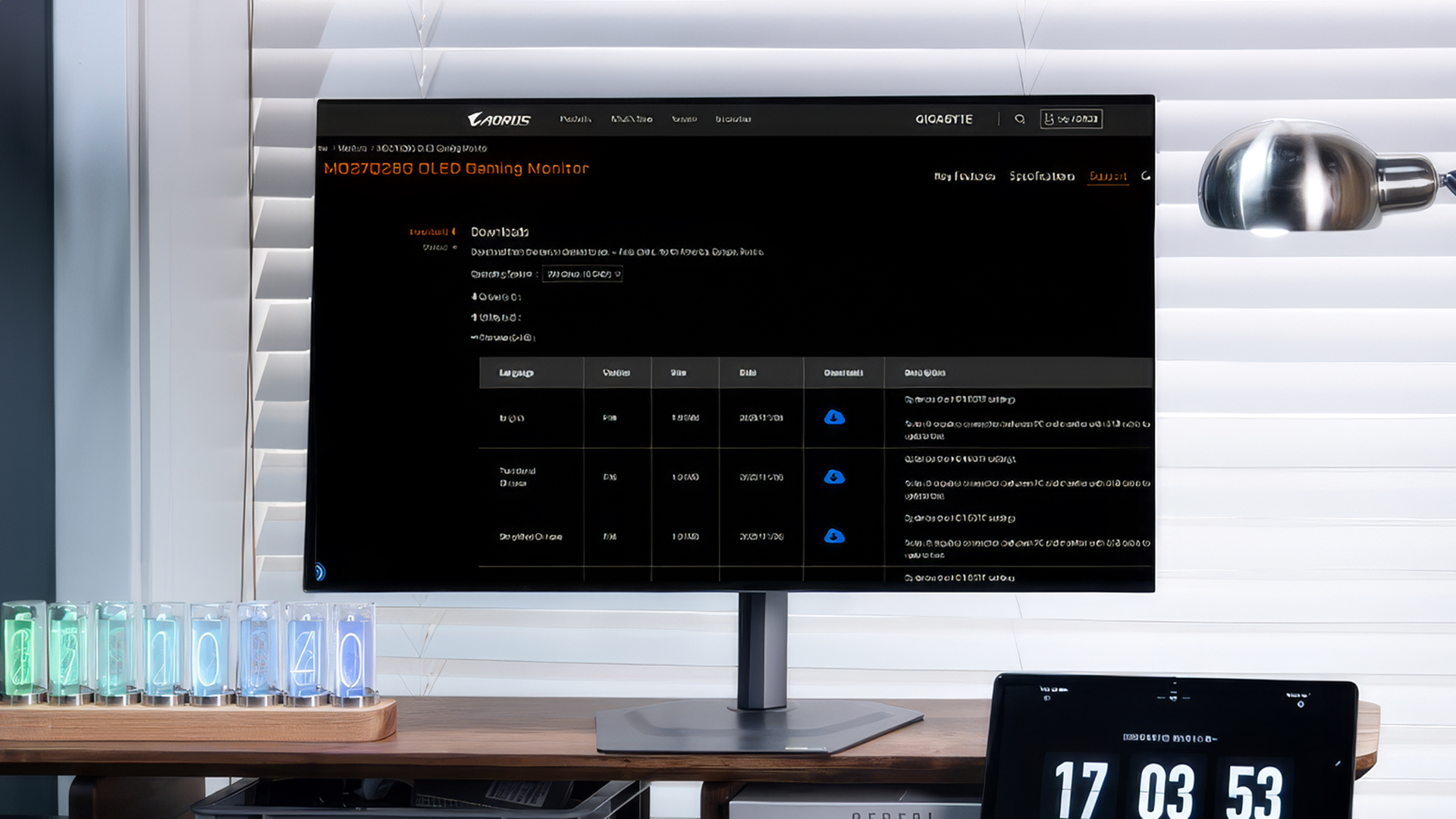
Always use Gigabyte’s official support and download pages. Their download centre is designed to provide the latest firmware, software, drivers and manuals for the selected product model.
Search for your exact model, then open the support or downloads section.
Find the Firmware and Utility Sections
On the monitor support page, look for:
- Firmware.
- Utility.
- Driver.
- Manual.
- OS support.
The utility section may include OSD Sidekick or Gigabyte Control Center. The firmware section should include the actual update file if one is available for your model.
Avoid Third-Party Firmware Downloads
Do not download Gigabyte monitor driver software or firmware from random forums, file-sharing sites or unofficial mirrors. Firmware controls the monitor at a low level, so the wrong file is not worth the risk.
Use third-party sites only for reading discussion, not for downloading update files.
Install the Required Gigabyte Software
What Is OSD Sidekick?
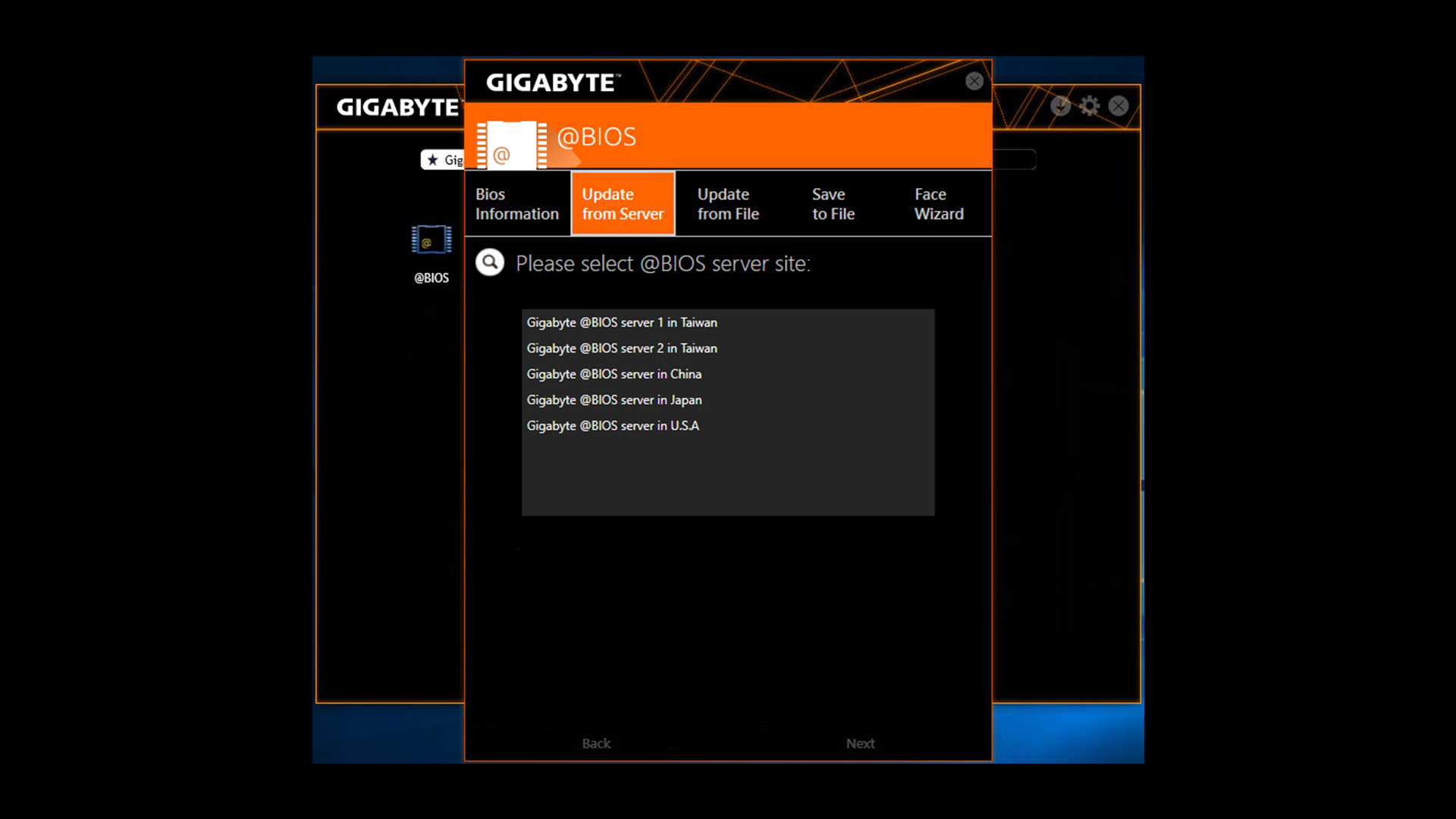
OSD Sidekick is Gigabyte’s monitor utility for changing settings from Windows instead of using the physical monitor buttons. On many monitors, it is also the tool used for firmware updates.
A Gigabyte support page for the G27QC, for example, lists OSD Sidekick and states that enabling it requires a USB cable connection between the PC and monitor.
What Is Gigabyte Control Center?
Gigabyte Control Center is a newer unified software platform for supported Gigabyte products. Gigabyte describes it as a one-stop platform for utilities, supported hardware and updates.
Some newer monitors may use Gigabyte Control Center rather than a separate OSD Sidekick download.
Which Tool Should You Use for Your Monitor?
Use the tool listed on your exact monitor support page. If the page lists OSD Sidekick, use that. If it lists Gigabyte Control Center, use that instead.
This is the easiest way to avoid using the wrong Gigabyte monitor update tool.
Connect Your Monitor Properly Before Updating
Use the USB Upstream Cable
This is the step people miss most often. HDMI or DisplayPort sends the picture signal, but the firmware tool may need USB to communicate with the monitor.
Connect the USB upstream cable from the monitor to your Windows PC before opening the software.
Keep HDMI or DisplayPort Connected
Keep your normal display cable connected too. Use either HDMI or DisplayPort, depending on your setup. Do not disconnect the display cable once the update has started.
Make Sure the Monitor Stays Powered On
Keep the monitor plugged into power throughout the update. Do not turn it off, unplug it or let the PC sleep while the firmware file is being written.
Step-by-Step: How to Update Gigabyte Monitor Firmware
Step 1: Download and Extract the Firmware File
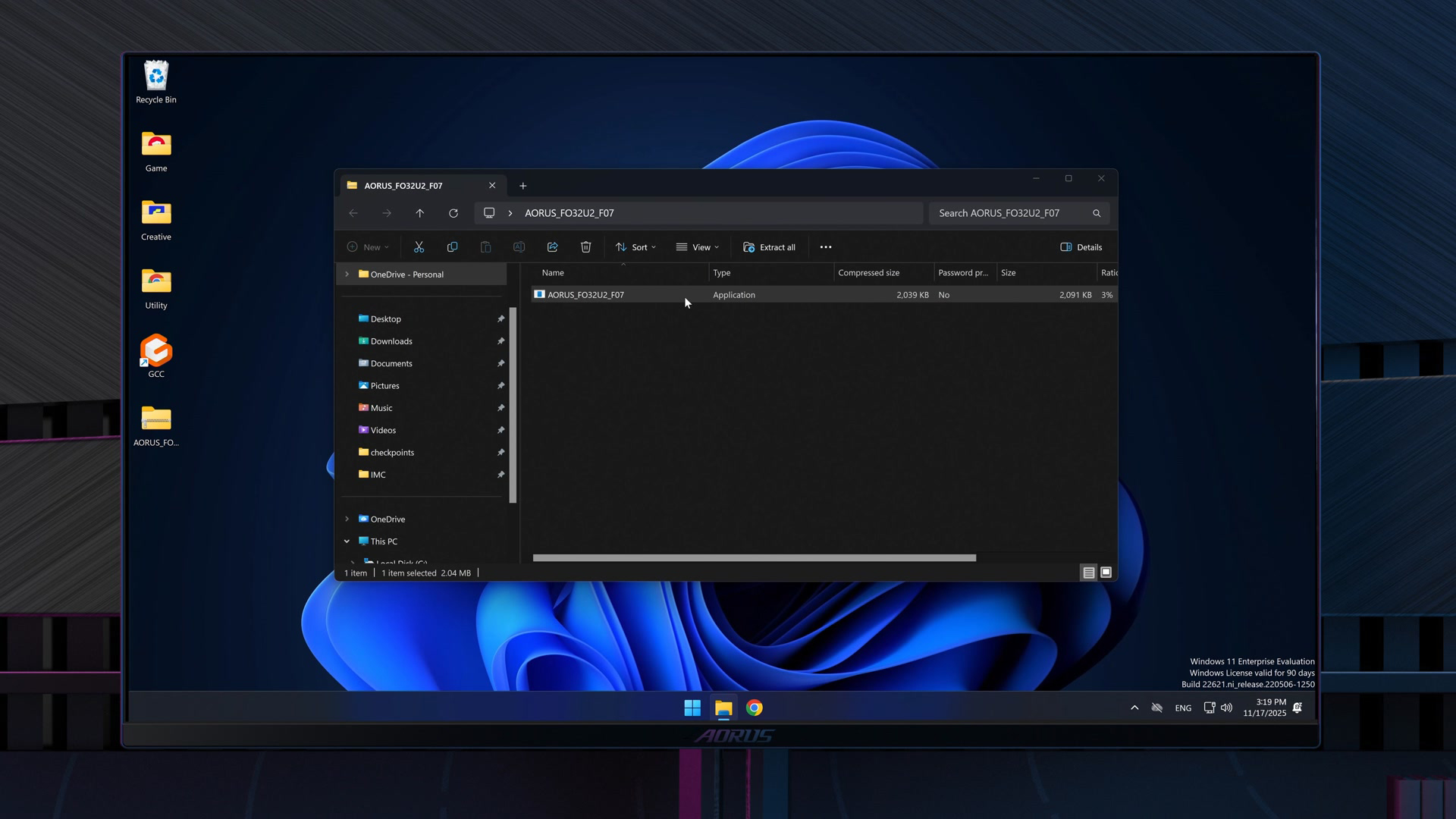
Go to the official Gigabyte support page for your exact monitor model. Download the latest firmware file and the required software utility.
If the file is compressed, extract it first. Keep the extracted folder somewhere easy to find, such as Downloads or Desktop.
Step 2: Open OSD Sidekick or Gigabyte Control Center
Install and open the correct Gigabyte monitor software. If the monitor is not detected, close the software, reconnect the USB cable and reopen it.
Make sure you are running the software as instructed by Gigabyte for your model.
Step 3: Select the Firmware Update Option
Look for the firmware update section inside OSD Sidekick or Gigabyte Control Center. The wording can vary by model and software version.
Select the firmware file only if you are sure it matches your exact monitor.
Step 4: Start the Update and Wait Until It Finishes
Start the update and leave everything alone. Do not:
- Turn off the monitor.
- Restart the PC.
- Remove the USB cable.
- Remove HDMI or DisplayPort.
- Close the update tool.
The update may take several minutes. Let it finish fully.
Step 5: Restart the Monitor and Check the Version
When the update is complete, restart the monitor if the software asks you to. Then reopen the utility or monitor menu and check the Gigabyte monitor firmware version.
If the version has changed, the update has worked.
Common Problems When Updating Gigabyte Monitor Firmware
1. Firmware Update Option Not Showing
This usually means the wrong tool is installed, the monitor is not detected or your model does not support a downloadable firmware update.
Check the support page again and confirm that firmware is actually listed.
2. Monitor Not Detected by OSD Sidekick
The most common cause is missing USB connection. OSD Sidekick needs the USB link for supported monitors, not just HDMI or DisplayPort.
Also check that the USB cable is connected to the correct upstream port on the monitor.
3. Update Stuck or Failed
If the update gets stuck, do not panic-click or unplug the monitor straight away. Wait longer first. If the software clearly fails, restart the PC and monitor, reconnect all cables and try again only if the monitor works normally.
4. Wrong Firmware File Error
This usually means the file does not match your monitor model or revision. Go back to the official support page and download the correct file.
How to Fix Gigabyte Monitor Firmware Update Issues
Reconnect the USB Cable and Restart the Software
Close OSD Sidekick or Gigabyte Control Center. Unplug and reconnect the USB upstream cable, then open the tool again.
This fixes many Gigabyte monitor not detected OSD Sidekick issues.
Try Another USB Port on Your PC
Use a rear motherboard USB port on a desktop PC if possible. Avoid USB hubs during firmware updates, as they can cause detection problems.
Reinstall OSD Sidekick or Gigabyte Control Center
If the software still does not detect the monitor, uninstall it, restart Windows and install the latest version from Gigabyte’s official utility page.
Contact Gigabyte Support If the Update Fails
If the update fails repeatedly, contact Gigabyte support rather than forcing the same file again. Firmware issues should be handled carefully.
Should You Update Your Gigabyte Monitor Firmware?
When a Firmware Update Is Worth Installing
A firmware update is worth considering if:
- Gigabyte lists a fix you need.
- The monitor has display issues.
- OSD Sidekick is not behaving properly.
- HDR, refresh rate or input switching feels buggy.
- Gigabyte support recommends the update.
For a gigabyte monitor software issue, updating the utility first may also help.
When You Should Avoid Updating
Avoid updating if:
- The firmware is not for your exact model.
- Your monitor works perfectly and the update notes are irrelevant.
- Your PC or power supply is unstable.
- You are not sure which file to use.
- The firmware comes from an unofficial source.
Firmware updates are useful, but they are not something to rush.
Safety Tips Before Running the Update
Before starting the firmware update Gigabyte gaming monitor process:
- Use official downloads only.
- Match the exact model number.
- Keep power connected.
- Keep USB connected.
- Do not update through a USB hub.
- Do not interrupt the update.
- Read the included instructions first.
Wrapping Up
Updating Gigabyte monitor firmware is straightforward when you follow the correct process. The main thing is to use the official support page, download the correct file and connect the monitor properly before opening the update tool.
For most users, the safest order is:
- Check the exact model.
- Download official firmware and utility.
- Connect USB, HDMI or DisplayPort, and power.
- Run OSD Sidekick or Gigabyte Control Center.
- Wait for the update to finish.
- Restart and confirm the firmware version.
If your monitor is not detected, check the USB upstream cable first. That one cable is often the difference between a failed Gigabyte software monitor session and a smooth update.
FAQs
-
Do all Gigabyte monitors support firmware updates?
No. Some Gigabyte monitors have downloadable firmware updates, while others may only have drivers, manuals or utilities. Always check the official support page for your exact model.
-
Do I need OSD Sidekick to update Gigabyte monitor firmware?
Many Gigabyte monitors use OSD Sidekick for firmware updates, but newer models may also use Gigabyte Control Center. The correct tool depends on the monitor model.
-
Why is OSD Sidekick not detecting my Gigabyte monitor?
The most common reason is that the USB upstream cable is not connected between the monitor and PC. Gigabyte states that OSD Sidekick requires a USB cable connection to enable the software.
-
Is it safe to update Gigabyte monitor firmware?
Yes, if you use the official Gigabyte firmware for your exact monitor model and do not disconnect power or cables during the update.
-
Can I update Gigabyte monitor firmware on Mac?
Most Gigabyte monitor update utilities are designed for Windows, so a Windows PC is usually required. If you only have a Mac, check the official support page for your exact model before attempting the update.
-
Where do I download Gigabyte monitor firmware?
Download it from the official Gigabyte support page for your exact monitor model. Avoid third-party firmware downloads.
-
What cable do I need for a Gigabyte monitor firmware update?
You usually need the USB upstream cable as well as HDMI or DisplayPort. The display cable gives the picture, while USB lets the software communicate with the monitor.
You can pay with:
*PayPal Credit Representative Example: Assumed credit limit £1,200, Representative 23.9% APR (variable). Purchase rate 23.9% p.a (variable).Terms & Conditions apply.


PayPal Credit and PayPal Pay in 3 are trading names of PayPal UK Ltd, 5 Fleet Place, London, United Kingdom, EC4M 7RD. Terms and conditions apply. Credit subject to status, UK residents only, Five Tech LTD acts as a broker and offers finance from a restricted range of finance providers. PayPal Pay in 3 is not regulated by the Financial Conduct Authority. Pay in 3 eligibility is subject to status and approval. 18+. UK residents only. Pay in 3 is a form of credit. Check if affordable and how you will repay. May make other borrowing more difficult or expensive. See product terms for more details.
Copyright © 1996-2026 Fivetech LTD | Terms and Conditions
box.co.uk & Box are trading names of Five Tech Limited. Registered office: Box LTD, Unit 10 Woodford Trading Estate, Woodford Green IG8 8HF