


 Menu
MenuMenu


Get Sales Advice from Mon - Fri 9am - 5:00pm:
020 3337 8950POSTED: March 26, 2026
Safe Temperatures and Cooling for AMD Ryzen CPUs (Idle, Gaming & Overclocking)
It is easy to panic when you see your CPU temperature jump to 80°C or even 90°C during gaming. Many Ryzen users immediately assume something is wrong or that long-term damage is inevitable. The truth is more reassuring. Modern Ryzen processors are designed to run warm and intelligently boost performance until they approach their thermal limits. Seeing higher numbers does not automatically mean you are outside a safe temperature for AMD Ryzen systems.
That said, there are sensible ranges you should be aware of. Idle temperatures, gaming loads, stress testing and overclocking all produce different readings, and not every spike is a cause for concern. Cooling choice, airflow, voltage and even room temperature all influence what qualifies as a safe temperature range for AMD Ryzen processors in real-world use.
In this guide, we will clearly explain safe idle temperatures, typical gaming ranges, maximum limits before throttling, whether stock coolers are enough, and how overclocking affects heat and lifespan. You will also learn simple ways to lower temperatures if your system is running hotter than expected, without diving into overly technical tweaks.
What Is a Safe Temperature for AMD Ryzen CPUs?
Understanding the safe temperature for the advanced AMD Ryzen processors starts with knowing how they are designed to behave. Ryzen CPUs from Zen 2, Zen 3, Zen 4 and Zen 5 all use aggressive boost algorithms. They automatically increase clock speeds until they reach power or temperature limits. This means higher temperatures are often normal, especially under load.
In general terms:
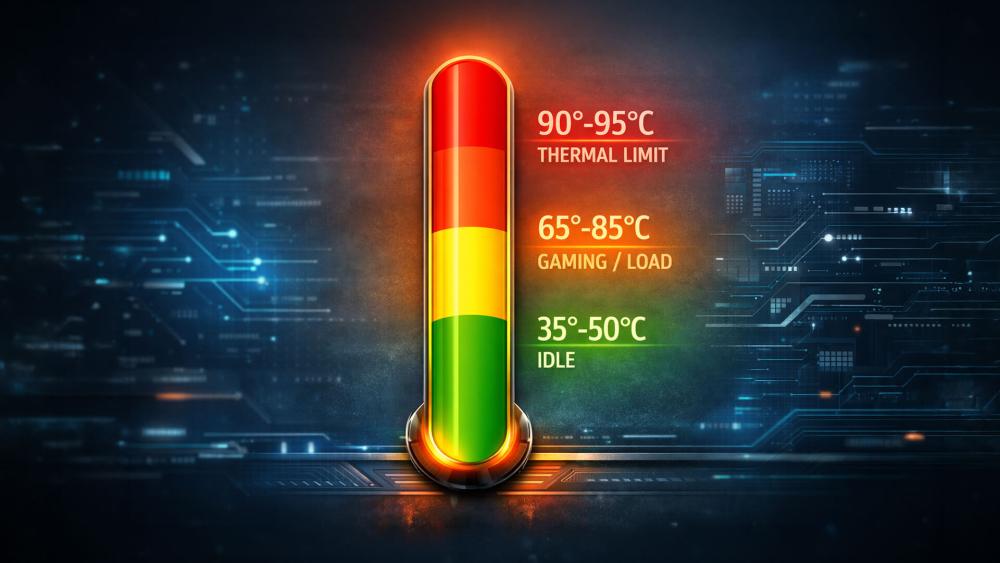
- Idle: Often 35–50°C, sometimes slightly higher
- Gaming or heavy load: Typically 65–85°C
- Thermal limit (throttling point): Around 90–95°C depending on model
These are not hard cut-offs, but useful guidelines. The key is whether temperatures are sustained near the maximum or briefly spike there. Let's break it down further.
Safe Idle Temperatures for Ryzen CPUs
When people ask about the safe idle temperature for Ryzen 5 / Ryzen 7 / Ryzen 9, they are usually worried after seeing mid-40s or even mid-50s on the desktop.
For most systems:
- 35–45°C at idle is very common
- 45–55°C is still generally fine
- 55–60°C may simply reflect warmer ambient room temperatures or background apps
Modern Ryzen chips constantly adjust voltage and frequency, so brief temperature spikes while opening apps are normal. As long as your system is stable and not idling near 80°C, you are within a safe temperature for AMD Ryzen operation at idle.
Many people running a Ryzen 7 7800X3D often ask, "Is 55-degree idle for Ryzen 7 7800X3D good?" In most cases, yes, it can be perfectly normal. The Ryzen 7 7800X3D is designed to boost aggressively and can show mid-50s at idle, depending on:
- Room temperature
- Cooler type
- Background applications
- Case airflow
If temperatures remain stable and drop when the system is truly idle, 55°C is not automatically unsafe. The important factor is whether the system stays within a safe temperature range for AMD Ryzen under load, not just at idle.
Safe Temperatures for Ryzen While Gaming or Under Load
The safe temperature range changes dramatically when it comes to gaming. For example, the safe temperature for Ryzen 5 5600x while gaming or the safe temperature for Ryzen 7 5800x under heavy load are completely different from the idle level.
During gaming:
- 65–75°C is very typical
- 75–85°C is common on smaller air coolers
- Up to high 80s can occur during demanding titles
The Ryzen 7 5800X is known to run warmer than some other models, especially with stock or smaller CPU air coolers. This does not mean it is unsafe. As long as temperatures are not constantly hitting the throttle limit, you are usually within a safe range for AMD Ryzen.
Maximum Temperatures Before You Should Start Worrying
Every Ryzen CPU has a defined thermal junction maximum (TjMax), usually around 90–95°C, depending on generation and model. When approaching this limit, the modern processors automatically reduce clock speeds to protect themselves.
You should start investigating cooling improvements if:
- Temperatures constantly sit at 90°C or above
- You notice performance drops due to throttling
- The system becomes unstable under load
Short bursts into the high 80s or even low 90s during stress tests are not unusual. What matters is sustained heat. Maintaining a consistent safe temperature for AMD Ryzen under heavy use is more important than eliminating every brief spike.
How to Check and Monitor Ryzen CPU Temperatures
Before worrying about cooling upgrades, you need accurate readings. Knowing the safe temperature range for AMD Ryzen processors only helps if you are measuring the right numbers in the right way. Many users misinterpret brief spikes or look at the wrong sensor entirely.
Modern Ryzen CPUs constantly adjust voltage and clock speed, which means temperatures can fluctuate rapidly. This is normal behaviour and does not automatically mean you are outside the safe temperature limit.
The Easiest Ways to Monitor Ryzen Temperatures in Windows
To properly assess the safe temperature for AMD Ryzen CPU, use reliable monitoring tools rather than generic motherboard utilities.
The most trusted options include:
- HWInfo – Detailed and accurate sensor readings
- AMD Ryzen Master – Official tool with CPU-specific data
- MSI Afterburner – Useful if you also want in-game overlays
Look for the CPU "Tctl/Tdie" or "CPU Package" temperature, as this reflects the overall chip temperature. Ignore single brief spikes unless they remain high for extended periods.
How to Check Ryzen Temps While Gaming
Instead of Alt+Tabbing out of a game, use an overlay from tools like MSI Afterburner or HWInfo. This allows you to:
- Monitor live CPU temperature
- Track maximum recorded temperature
- See CPU usage alongside temperature
If your CPU sits consistently between 70–85°C during gaming, you are typically within a safe temperature range for AMD Ryzen processors. Short spikes are normal during loading screens or heavy scenes.
Understanding CPU Package vs Core Temperatures
When monitoring CPU temperatures, you will often see multiple readings:
- CPU Package (Tctl/Tdie)
- Individual Core temperatures
The CPU Package temperature is the most important overall value. Core temperatures can vary slightly depending on workload distribution. Brief jumps on one or two cores are expected and do not automatically indicate a cooling problem.
Understanding this difference helps prevent unnecessary panic. As long as the overall package temperature stays within a reasonable range, your system is operating safely.

Are Ryzen Stock Coolers Enough for Safe Temperatures?
One of the most common concerns after checking temperatures is whether the included cooler is to blame. AMD has shipped several versions of its Wraith coolers over the years, including the Stealth, Spire and Prism. These are designed to handle stock settings safely, but expectations need to be realistic.
For most users running at stock speeds, the included cooler can maintain a safe temperature for AMD Ryzen processors. However, once you move into heavier gaming, sustained workloads or overclocking, thermal headroom becomes more limited.
Let's break it down properly.
Everyday Use and Light Gaming
For everyday tasks such as browsing, streaming and office work, the answer is yes. Even light gaming is typically fine on a stock cooler, provided your case airflow is decent and ambient temperatures are reasonable.
Stock coolers are tuned to keep the CPU within a safe operating range at default settings. They are not designed for aggressive overclocking or extended heavy workloads, but for standard users, they generally maintain a safe temperature for AMD Ryzen chips without issue.
If you are running something like a Ryzen 5 5600X at stock settings, the included cooler (where provided) or a basic aftermarket tower cooler will usually be sufficient.
Are Ryzen Stock Coolers Quiet, or Will Your PC Get Loud?
Ryzen stock coolers are considered one of the best in the market. At idle or during light use, they are typically quiet. However, under load, smaller heatsinks require higher fan speeds to control heat. This is where noise can increase noticeably, especially in compact cases.
When the CPU approaches higher gaming temperatures, the fan may ramp up quickly. This does not necessarily mean the system is unsafe, but it can result in what many describe as a "jet engine" effect during demanding games.
Upgrading to a larger tower cooler or AIO CPU Cooler often reduces both temperatures and noise, helping maintain a safe temperature for AMD Ryzen processors more quietly.
What Cooler Do You Need for a Hotter Ryzen CPU?
If you are looking for the best cooling solution for your AMD Ryzen CPU, such as Ryzen 5 5600X or Ryzen 7 5800X, we have got you covered.
For a Ryzen 5 5600X:
- A quality single-tower air cooler is usually more than enough.
- Even mid-range 120mm tower coolers provide excellent thermal headroom.
For a Ryzen 7 5800X:
- A larger dual-tower air cooler is recommended.
- A 240mm AIO can offer better sustained performance under load.
If your goal is overclocking or consistently pushing high loads, stepping up from the stock solution is strongly recommended. A better cooler not only improves performance consistency but also keeps you comfortably within a safe temperature for AMD Ryzen systems over the long term.
Safe Voltages and Overclocking for Ryzen CPUs
Temperature and voltage go hand in hand. If you increase voltage, you increase heat output. That heat must be managed properly to stay within the safe temperature range.
Modern Ryzen CPUs already boost aggressively out of the box. For many users, manual overclocking offers limited gains compared to Precision Boost Overdrive (PBO). Still, voltage-related questions remain common, especially with older chips.
Many users ask if 1.4V is safe for a Ryzen 5 2600? The short answer is: it depends on context.
- For short benchmarking sessions, 1.4V may be acceptable.
- For 24/7 daily use, 1.4V is generally considered high.
Sustained high voltage increases heat output and accelerates silicon degradation. Even if temperatures appear manageable, running consistently at 1.4V can shorten the CPU's lifespan over time.
For long-term daily stability, keeping voltage lower while maintaining a safe temperature for AMD Ryzen systems is the smarter approach.
General Guidelines for Safe Voltage on Ryzen CPUs
There is no universal voltage number that applies to every Ryzen processor, but there are sensible boundaries.
As a broad guideline:
- Daily-use voltages should remain moderate and stable.
- Automatic boost behaviour often spikes voltage briefly, which is normal.
- Sustained manual voltage increases are what require caution.
Ryzen CPUs dynamically adjust voltage based on workload. Brief spikes above what you manually set are often part of normal boost behaviour and not necessarily dangerous.
Ultimately, maintaining a safe temperature for AMD Ryzen processors is more important than chasing small clock speed increases. Good cooling and sensible voltage settings go together.
Will Overclocking a Ryzen CPU Decrease Its Lifespan?
Technically, yes, any increase in voltage and sustained heat can reduce long-term lifespan due to silicon wear. However, moderate overclocking with proper cooling typically does not result in noticeable real-world lifespan reduction for most users.
Problems arise when:
- High voltage is applied continuously
- Cooling is insufficient
- The CPU frequently operates near its thermal limit
If you keep the voltage reasonable and ensure a safe temperature for AMD Ryzen under load, modest overclocks are unlikely to cause immediate issues.
Safer Alternatives to Manual Overclocking (PBO and Curve Optimiser)
For most users, enabling Precision Boost Overdrive (PBO) is safer than manual fixed overclocks.
PBO allows the CPU to boost higher automatically when thermal and power headroom are available. It adjusts dynamically rather than locking the chip to a fixed high voltage.
The Curve Optimiser, available on newer Ryzen platforms, can reduce voltage slightly while maintaining performance. This often results in:
- Lower temperatures
- Lower noise
- Similar or slightly improved performance
Instead of forcing high manual settings, letting the CPU manage itself while maintaining a safe temperature for AMD Ryzen operation is often the smarter long-term strategy.
Why Is My Ryzen CPU Running So Hot? Common Causes
If your temperatures look higher than expected, the issue is often something simple. Modern chips are built to boost close to their limits, but you should not let your hardware cross the safe limit for long periods.
Before replacing hardware, it helps to check a few common causes. Many temperature concerns come down to airflow, mounting pressure or software behaviour rather than a faulty CPU.
High Idle Temperatures on Ryzen – Normal or a Problem?
Higher idle temperatures can be caused by:
- Background apps using CPU resources
- High room temperature
- Poor case airflow
- Aggressive motherboard auto-voltage settings
If your CPU drops in temperature when background processes close, it is likely behaving normally. As long as the system stays within a safe temperature for AMD Ryzen under load, slightly elevated idle numbers are rarely dangerous.
However, if idle temperatures sit above 70°C consistently, that usually points to a cooling or mounting issue.
High Gaming Temperatures – When to Worry
During gaming, temperatures in the 70–85°C range are common. You should investigate further if:
- Temperatures sit above 90°C for extended periods
- Performance drops noticeably due to throttling
- The system crashes under heavy load
Short spikes are not the issue. Sustained high temperatures combined with instability are.
Installation Issues That Can Make Ryzen Run Hot
Incorrect installation is one of the most common causes of overheating.
Check for:
- Uneven cooler mounting pressure
- Too much or too little thermal paste
- Plastic film left on the cooler base
- Loose mounting brackets
- Poor airflow direction inside the case
Even a good cooler cannot maintain a safe temperature if it is not making proper contact with the CPU.
Easy Ways to Lower Ryzen Temperatures
If your system is running warmer than expected, several straightforward fixes can help bring it back within the safe temperature range for AMD Ryzen processors. Most of these do not require expensive upgrades or advanced technical knowledge.
Start with airflow and cooling basics before adjusting voltage or replacing components.
Improving Case Airflow and Fan Curves
Poor airflow is one of the biggest reasons systems exceed a safe temperature for AMD Ryzen CPUs.
To improve airflow:
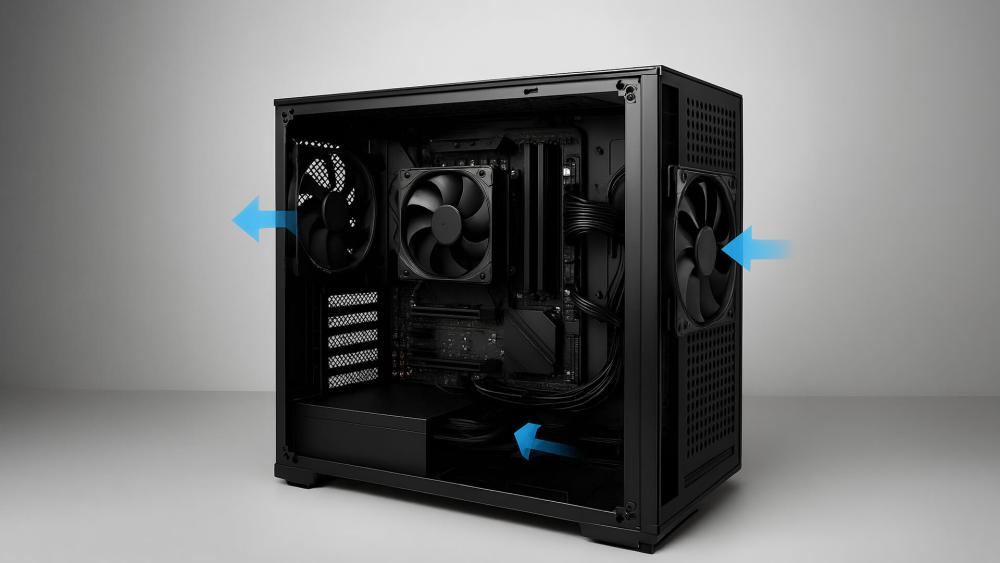
- Ensure you have at least one intake and one exhaust fan
- Keep cables tidy to avoid blocking airflow
- Use front intake and rear/top exhaust configuration
- Clean dust filters regularly
Adjusting fan curves in BIOS or software can also help. A slightly more aggressive fan curve can lower load temperatures without dramatically increasing noise. Better airflow often reduces both CPU and GPU temperatures at the same time.
Reapplying Thermal Paste and Reseating the Cooler
If temperatures remain high, it may be worth reseating the cooler.
- Remove the cooler carefully
- Clean old thermal paste using isopropyl alcohol
- Apply a small, pea-sized amount of fresh paste
- Reinstall the cooler evenly with firm, balanced pressure
Poor mounting pressure or dried-out paste can prevent proper heat transfer. Correct installation alone can bring temperatures back into a safe range.
Undervolting Ryzen for Lower Temps and Noise
Undervolting is a simple and often overlooked way to reduce heat. Instead of increasing voltage for performance, you slightly reduce it while maintaining stability.
Benefits include:
- Lower CPU temperatures
- Reduced fan noise
- Similar real-world performance
For many users, undervolting is safer than manual overclocking and helps maintain a comfortable, safe temperature for AMD Ryzen processors during gaming and productivity tasks.
Final Thoughts
Ryzen processors are designed to run warm, and higher numbers alone do not mean something is wrong. The key is understanding what a realistic and safe temperature for AMD Ryzen looks like at idle, during gaming and under heavier workloads. Once you know the normal ranges, it becomes much easier to separate harmless spikes from genuine cooling issues.
With sensible airflow, proper cooler installation and reasonable voltage settings, most systems will stay well within safe limits. Whether you are running at stock settings or fine-tuning performance, keeping temperatures under control ensures stable performance today and reliable hardware for years to come.
Frequently Asked Questions
Is 55°C Idle for a Ryzen 7 7800X3D Good?
Yes, in most cases it is normal. If the temperature drops under a lighter background load and stays stable during gaming, it is within a typical range. Factors such as room temperature and cooler type matter a lot.
What Is a Safe Temperature for Ryzen While Gaming?
For most models, 65–85°C is common during gaming. Brief spikes above this are not unusual, but sustained temperatures near 90°C may require better cooling.
Are Ryzen Stock Coolers Enough for Gaming?
They are usually sufficient for stock settings and light to moderate gaming. For hotter CPUs or quieter operation, an aftermarket air cooler or AIO is recommended.
Is 1.4V Safe for Ryzen 5 2600?
It can be acceptable for short benchmarking sessions, but it is generally high for continuous daily use. Lower sustained voltage is safer for long-term reliability.
Will Overclocking My Ryzen CPU Decrease Its Lifespan?
Higher voltage and sustained heat can reduce lifespan over time. Moderate overclocks with proper cooling are typically fine, but aggressive settings increase long-term risk.
You can pay with:
*PayPal Credit Representative Example: Assumed credit limit £1,200, Representative 23.9% APR (variable). Purchase rate 23.9% p.a (variable).Terms & Conditions apply.


PayPal Credit and PayPal Pay in 3 are trading names of PayPal UK Ltd, 5 Fleet Place, London, United Kingdom, EC4M 7RD. Terms and conditions apply. Credit subject to status, UK residents only, Five Tech LTD acts as a broker and offers finance from a restricted range of finance providers. PayPal Pay in 3 is not regulated by the Financial Conduct Authority. Pay in 3 eligibility is subject to status and approval. 18+. UK residents only. Pay in 3 is a form of credit. Check if affordable and how you will repay. May make other borrowing more difficult or expensive. See product terms for more details.
Copyright © 1996-2026 Fivetech LTD | Terms and Conditions
box.co.uk & Box are trading names of Five Tech Limited. Registered office: Box LTD, Unit 10 Woodford Trading Estate, Woodford Green IG8 8HF