


 Menu
MenuMenu


Get Sales Advice from Mon - Fri 9am - 5:00pm:
020 3337 8950POSTED: 07 July, 2026
Printer Not Working? Common Printing Problems and Easy Fixes
When your printer is not working, the problem is usually easier to narrow down than it first seems. Most printing issues come from simple things like a stuck queue, loose cable, weak Wi-Fi, low ink or toner, a paper jam, an offline status or the wrong printer being selected.
The best place to start is with quick printer troubleshooting before changing advanced settings. Check the power, paper tray, warning lights, cartridges, connection and print queue first. These simple checks can often point you towards the right printer fix without wasting time.
This guide covers the most common printing problems, including connection errors, Windows issues, poor print quality, paper jams and brand-specific checks for Canon, Epson and HP printers.
Quick Printer Troubleshooting Checklist
If your printer is not working, start with the basics before changing drivers or network settings. These quick checks can help you diagnose printer problems and separate simple faults from deeper issues.
| First check | What it tells you |
|---|---|
| Power and warning lights | Confirms whether the printer is ready or showing an error |
| Paper tray | Checks for empty trays, misaligned paper or a possible jam |
| Ink or toner | Helps spot low supplies or cartridge problems |
| Test page | Shows whether the printer hardware is working |
| Print queue | Finds a stuck job blocking other documents |
| Default printer | Confirms the job is going to the right device |
| Connection | Checks USB, Wi-Fi or network communication |
For basic printer troubleshooting, work through these steps:
- Check the power cable and make sure the printer is switched on
- Load paper properly and avoid overfilling the tray
- Check the ink or toner cartridge
- Look for an error code or warning light
- Restart the printer, computer and router
- Print a test page before changing settings
- Make sure the correct default printer is selected
- Cancel any stuck print job in the queue
- Check whether it is showing as an offline printer
These first checks solve many common printing problems. If the same issue keeps coming back, it may be time to shop reliable printers instead of repeatedly trying the same solutions.
Printer Won’t Print: What to Check First
When a printer won’t print, look at what happens after you press the print button. The symptom usually tells you where to start, whether it is the printer, the computer, the connection or the document itself.
| What you see | What it usually means | What to try |
|---|---|---|
| Nothing happens after clicking print | The job may be going to the wrong device | Choose the correct printer and set it as the default printer |
| The job appears but does not move | The print queue may be blocked | Cancel the job and try again |
| The printer shows as offline | The computer cannot communicate with the printer | Check the connection and printer status |
| Only one file will not print | The document or app may be the issue | Try a different file or programme |
| A test page works but documents fail | The printer hardware is likely fine | Check the printer driver or app settings |
If the same problems keep coming back, avoid changing several settings at once. Try one fix, test it, then move to the next. This makes it easier to spot whether the issue is with the printer, the computer, the connection or the document.
How to Fix Printer Connection Issues
Printer connection issues are usually linked to the cable, Wi-Fi network, router, printer app or the device you are printing from. If the printer is not working because it cannot connect, start with the connection type.
For USB Printers
- Check both ends of the USB printer connection
- Try a different USB port on your computer
- Avoid using a damaged cable or loose adapter
- Restart the printer and computer after reconnecting
- Reinstall the driver if the printer is detected but still will not print
For Wireless Printers
- Make sure the printer and computer are on the same Wi-Fi network
- Check that the Wi-Fi printer connection signal is stable
- Restart the printer and router
- Re-run the wireless printer setup if the printer has changed networks
- Move the printer closer to the router if the signal is weak
For Network Printers
- Check that the printer is powered on and connected
- Restart the router if several devices cannot print
- Check whether the printer IP address has changed
- Reconnect the printer to the network if it keeps dropping out
- Treat repeated dropouts as possible network printer issues
For Phone or Tablet Printing
- Make sure the phone and printer are on the same Wi-Fi network
- Check that the printer app is updated
- Use AirPrint for supported Apple devices
- Use Mopria for supported Android printing
- Follow our wireless phone printing guide if you are having trouble connecting your mobile to the printer
If the printer is not connecting to the network repeatedly, reset the wireless settings on the printer and set up the connection from scratch.
Windows Printer Troubleshooting: Queue, Spooler and Drivers
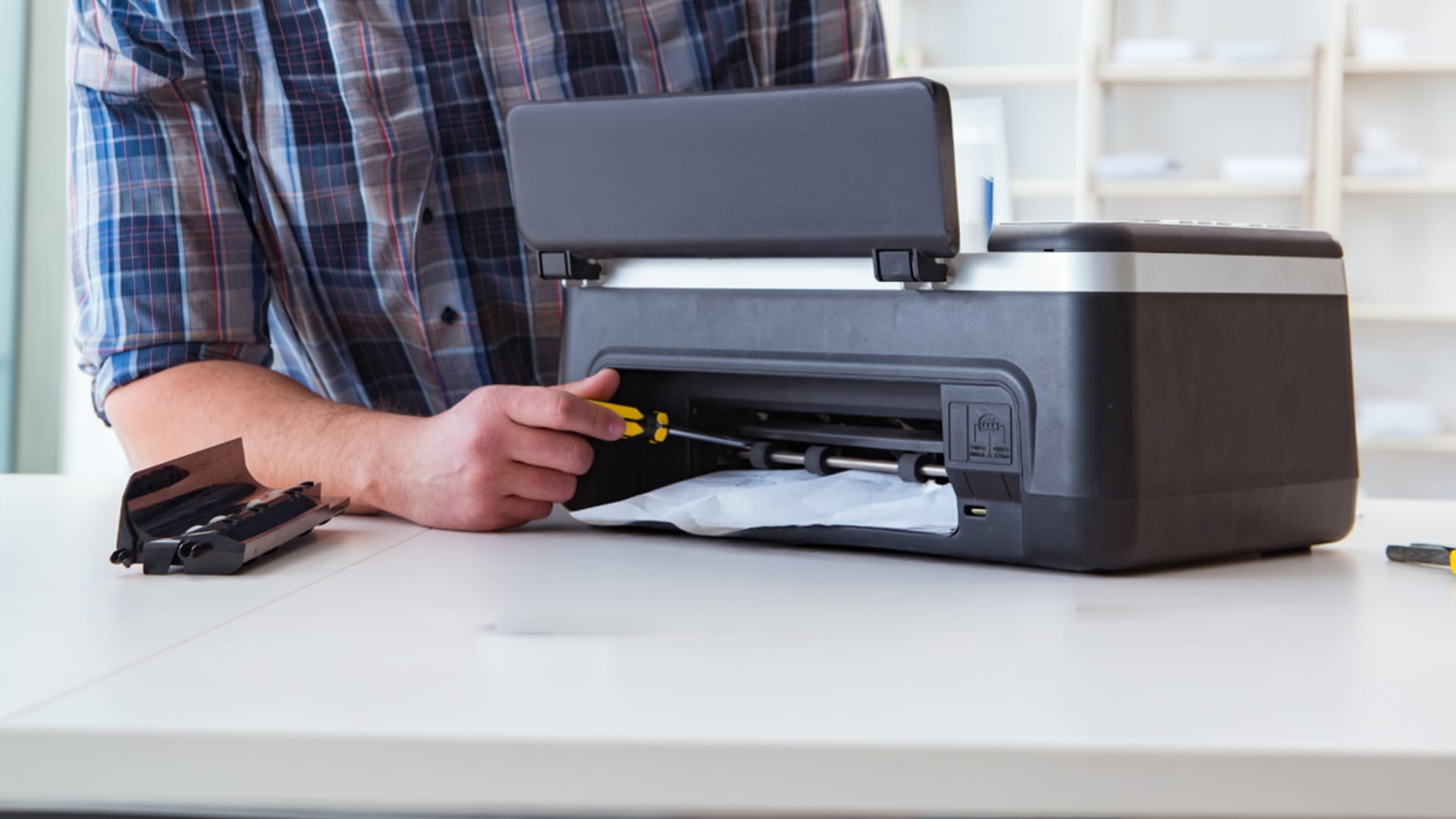
If the printer works from its own test page but not from your PC, the issue may be inside Windows rather than the printer itself. Windows printer troubleshooting usually starts with the queue, spooler and driver.
Try these fixes in order:
- Open the print queue and cancel any stuck documents
- Restart the print spooler if jobs keep freezing or disappearing
- Check that the printer is not set as an offline printer
- Make sure the correct printer is set as the default device
- Update the printer driver if Windows cannot communicate with the printer properly
- Remove and re-add the printer if it keeps showing errors
- Restart the PC and printer after making changes
If you keep seeing printer errors after these steps, print from another app or device. If the printer works elsewhere, the issue is likely with the Windows settings, the driver or the original file.
Common Printer Errors and Simple Fixes
Some printer errors are easy to understand once you look at the screen, lights or message on the computer. Start with the visible warning, then try the safest fix first.
Paper Jam or Ghost Paper Jam
A paper jam usually means paper is stuck in the tray, rollers or paper path. A ghost paper jam can appear when there is no full sheet inside, but a small torn piece, dust or debris is still triggering the sensor.
Try this:
- Turn the printer off before removing the paper
- Pull the jammed paper slowly and evenly
- Check the input tray, output tray and rear access panel
- Remove small scraps of torn paper
- Reload paper neatly and avoid overfilling the tray
- Follow our guide on clearing paper jams safely if these fixes don't work
Low Ink or Low Toner Warning
A low ink or toner warning means the printer may not have enough supply to produce clean output. Sometimes the cartridge is not empty, but it may be poorly seated or not recognised properly.
Try this:
- Check the ink or toner level in the printer menu or app
- Remove and reinstall the ink cartridge or toner cartridge
- Replace empty cartridges when needed
- Check for protective tape on new cartridges
- Print a test page after replacing supplies
Driver or Firmware Error
A driver error means the computer may not be communicating with the printer properly. A printer firmware problem can also cause failed jobs, warning messages or features not working as expected.
Try this:
- Restart the printer and computer
- Update or reinstall the printer driver
- Check for a firmware update in the printer app or support menu
- Remove and re-add the printer if the error continues
- Try printing from another device to narrow down the issue
Warning Light or Error Code
A flashing warning light or error code usually indicates a specific issue, such as paper, ink, toner, an open cover, or a jam. Do not ignore the exact message, as it often tells you where to start.
Try this:
- Read the message on the printer screen or computer
- Check the paper tray, cover, cartridges and connection
- Restart the printer after fixing the issue
- Print a test page to confirm the error has cleared
Fix Poor Print Quality: Blank, Faded, Streaky or Smudged Prints
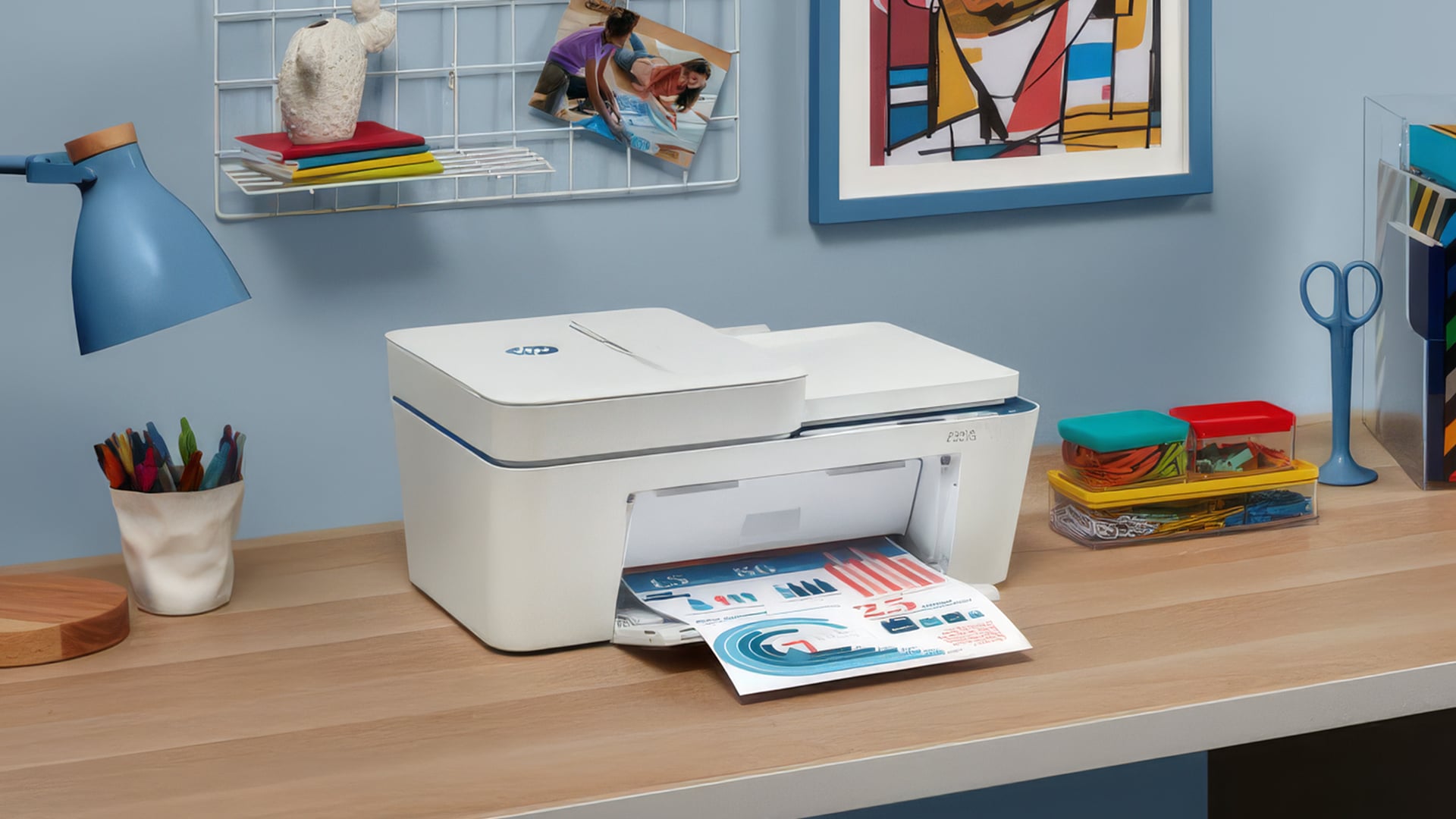
Poor print quality is one of the most common printing problems, especially if the printer has not been used for a while. The cause is usually ink, toner, paper, settings or printer maintenance.
Blank Pages
Blank pages usually mean the printer is feeding paper, but no ink or toner is reaching the page. This can happen because of an empty cartridge, protective tape on a new cartridge, a clogged printhead or the wrong print settings.
Try this:
- Check the ink or toner levels
- Remove and reseat the cartridge
- Check for protective tape on new cartridges
- Run a test page
- Run a nozzle check if you use an inkjet printer
- Try printhead cleaning if the nozzle check shows gaps
Faded Prints
Faded prints can happen when ink or toner is running low, the print quality setting is too low, or the wrong paper type is selected. On laser printers, toner may also be unevenly distributed.
Try this:
- Check ink or toner levels
- Choose a higher print quality setting
- Make sure the paper type matches the print settings
- Replace old or empty cartridges
- For laser printers, check whether the toner needs replacing
Streaky Printing or Missing Colours
Streaky printing often points to blocked nozzles, printhead misalignment or low ink. If colours are missing, run a nozzle check first before using a cleaning cycle.
Try this:
- Run a nozzle check
- Use printhead cleaning if the nozzle check shows gaps
- Run printhead alignment if text or images look uneven
- Replace low or empty cartridges
- Use our guide on fixing streaky prints on an inkjet printer if the issue keeps returning
Smudged Prints
Smudged prints are usually caused by wet ink, the wrong paper type, dirty rollers or print settings that do not match the paper. This is common when glossy, photo or thicker paper is used with the wrong setting.
Try this:
- Let prints dry before handling
- Match the paper type in the printer settings
- Clean the rollers if marks keep appearing
- Avoid damp or curled paper
- Use the correct paper for your printer type
If print quality keeps dropping despite cleaning and new cartridges, it may be worth comparing newer models. For photo-heavy or colour work, browse inkjet printers that suit the type of printing you do most.
Canon, Epson and HP Printer Troubleshooting
Brand-specific tools and error messages can vary, but the first checks are usually the same. Start with the visible error, then check the connection, cartridges, drivers and maintenance settings.
Canon Printer Checks
If a Canon printer won’t print, the issue may be linked to the queue, connection, cartridge setup, driver or an on-screen support code. Canon printer errors often appear as a number, warning light or message on the printer display.
Try this:
- Check the error code or warning message
- Make sure the paper and cartridges are loaded correctly
- Clear the print queue and try again
- Check the USB, Wi-Fi or network connection
- Update or reinstall the Canon driver if needed
Epson Printer Checks
If an Epson printer is not printing, start with ink, printhead and connection checks. Many Epson printer issues are linked to clogged nozzles, low ink, faded output, banding or Wi-Fi setup problems.
Try this:
- Check ink levels and cartridge installation
- Run a nozzle check if the output looks faint or incomplete
- Use printhead cleaning only if the nozzle check shows gaps
- Check the Wi-Fi connection and printer status
- Reinstall the driver if your computer is not detecting the printer
HP Printer Checks
If an HP printer shows offline, unavailable or not responding, the issue is often linked to the connection, driver or printer status. Start with the network and then use the HP app or built-in diagnostic tools if the problem continues.
Try this:
- Check that the printer is on the same network as your device
- Restart the printer, computer and router
- Clear any stuck jobs in the queue
- Check the driver and printer status
- Use HP diagnostic tools if the printer stays offline
When Should You Repair or Replace a Printer?
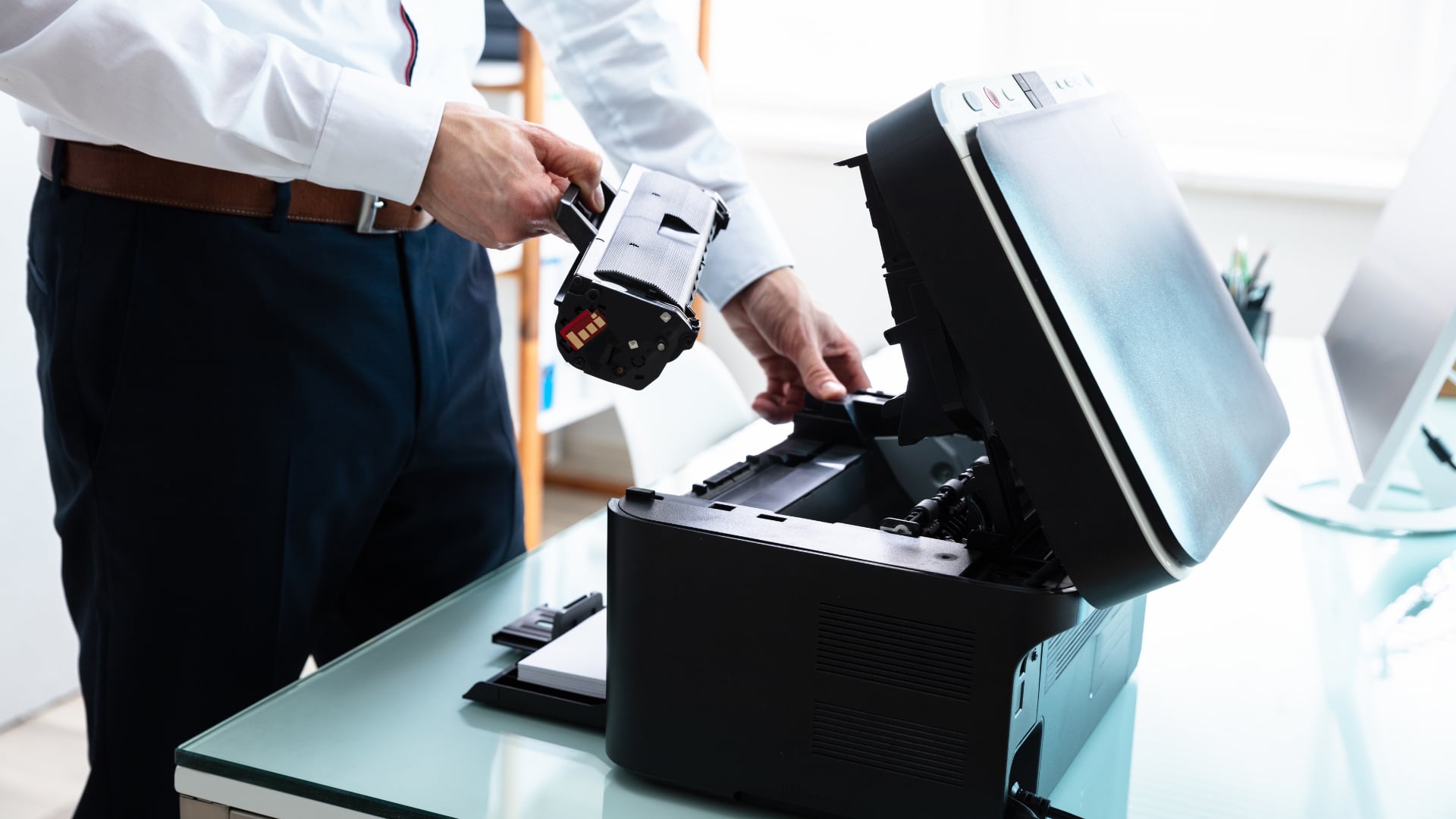
Not sure whether to repair or replace your printer? These checks can help you decide.
Try a Repair or Quick Fix First
A repair is usually worth trying if the issue is small, recent or easy to isolate. Many printer problems and their solutions come down to setup, supplies or maintenance rather than failed hardware.
It is likely fixable if:
- A test page still prints correctly
- The queue, driver or connection needs resetting
- Ink or toner is low
- The printer only needs basic printer maintenance
- A Wi-Fi setup or cable connection needs correcting
- Print quality improves after cleaning or cartridge replacement
Consider Replacing the Printer
It may be time to replace the printer if the same fault keeps returning or the repair cost is too high for the printer’s age and features. Newer models can also offer better mobile printing, wireless setup and running-cost options.
Consider replacing if:
- Paper jams or error messages keep coming back
- Drivers or firmware are no longer supported
- Print quality stays poor after cleaning and new supplies
- Repairs cost close to the price of a new model
- You need newer features offered by an all-in-one printer, easier mobile printing or better wireless support
- Your workload has changed, and you now need an inkjet printer for colour or a laser printer for regular documents
For everyday home use, browse home printers with simple setup and low running costs. For heavier workloads, compare office printers with stronger paper handling and faster output. If you need one device for printing, scanning and copying, look for print, scan, and copy models. For text-heavy work, laser printers are the best option. You can also view printer deals if you are looking for discounts and special offers.
Frequently Asked Questions
How do I fix an unresponsive printer?
Restart the printer and computer first. Then check the power cable, USB or Wi-Fi connection, paper tray, ink or toner levels, warning lights and print queue.
Why is my printer on but not printing?
The job may be stuck in the queue, the wrong printer may be selected, or the printer may be showing as offline. Try printing a test page to see whether the printer itself is working.
How do I get my printer back online?
Check the USB or Wi-Fi connection, make sure the printer is on the same network as your device, then disable “Use Printer Offline” if it is switched on in Windows.
How do I reset a printer that will not print?
Turn the printer off, unplug it for a short time, reconnect it and switch it back on. If the problem continues, use the reset option in the printer menu or app. A factory reset should be a last resort because it may remove saved settings.
Why is my printer connected but not printing?
It may be caused by a stuck print job, a print spooler issue, a driver problem or a wrong default printer. Clear the queue, restart the printer and try a different document.
Why is my printer not printing from my phone?
Make sure your phone and printer are on the same Wi-Fi network. Also check that the printer supports the app or service you are using, such as AirPrint, Mopria or the printer brand’s own app.
What are the common causes of a printer not working?
Common causes include power issues, empty paper trays, low ink or toner, paper jams, offline status, weak Wi-Fi, loose USB cables, stuck print jobs, driver problems and printer error messages.
Why is my printer paper going through but not printing?
This usually points to an ink, toner or printhead problem. Check that the cartridge is installed properly, remove any protective tape from new cartridges, check ink or toner levels and run a test page or cleaning cycle.
You can pay with:
*PayPal Credit Representative Example: Assumed credit limit £1,200, Representative 23.9% APR (variable). Purchase rate 23.9% p.a (variable).Terms & Conditions apply.


PayPal Credit and PayPal Pay in 3 are trading names of PayPal UK Ltd, 5 Fleet Place, London, United Kingdom, EC4M 7RD. Terms and conditions apply. Credit subject to status, UK residents only, Five Tech LTD acts as a broker and offers finance from a restricted range of finance providers. PayPal Pay in 3 is not regulated by the Financial Conduct Authority. Pay in 3 eligibility is subject to status and approval. 18+. UK residents only. Pay in 3 is a form of credit. Check if affordable and how you will repay. May make other borrowing more difficult or expensive. See product terms for more details.
Copyright © 1996-2026 Fivetech LTD | Terms and Conditions
box.co.uk & Box are trading names of Five Tech Limited. Registered office: Box LTD, Unit 10 Woodford Trading Estate, Woodford Green IG8 8HF