


 Menu
MenuMenu


Get Sales Advice from Mon - Fri 9am - 5:00pm:
020 3337 8950LAST UPDATED: March 02, 2026
How to Use NAS for Media Streaming, Backups, and Remote Access
Drowning in external drives, cloud fees, and streaming limits? It's time to simplify your setup.
A NAS (Network Attached Storage) might be the missing piece. With the right setup, you can turn your home into a personal cloud; stream movies with Plex, automate backups, and access your files from anywhere.
For UK users managing growing digital libraries, learning how to use NAS isn't just practical, it's essential. Still weighing your options? See how it stacks up in our breakdown of NAS vs cloud for media storage.
A well-configured NAS for media streaming, paired with a smart Plex Synology setup, ensures smooth playback across all your devices. Need a reliable NAS for backup? Sorted. Building the best NAS for home media server use? We'll guide you through it.
Using NAS for Media Streaming – Step-by-Step Guide

If you're looking to centralise your digital media collection and make it accessible across your home—or even remotely—learning how to use NAS for media streaming is an excellent place to start. With a few simple steps, your NAS can transform into a private, customisable media hub that connects your content to TVs, laptops, smartphones, and tablets, seamlessly and securely.
1. Set Up Your NAS for Media Streaming
Start by transferring all your media—films, TV series, music, and photos—onto your NAS device. This becomes your central media library, always available on your network. Most NAS systems, such as those from Synology or QNAP, have built-in tools for managing and organising media files.
Next, install media server software. Many NAS brands offer native media server options right in their OS, while others support powerful third-party apps like Plex Media Server, which offers a more polished and feature-rich media experience. Depending on your needs, you can opt for lightweight built-in tools or go for full-featured software that supports metadata, remote access, and advanced transcoding.
2. Choose Your Streaming Method
There are several ways to stream media from your NAS. Each method offers different features depending on your devices and preferences:
DLNA/UPnP Streaming
One of the simplest methods is using DLNA (Digital Living Network Alliance) or UPnP streaming, which is supported by most smart TVs, gaming consoles, and media players.
- How it works: Enable the DLNA server in your NAS settings. Your NAS will automatically index your media and broadcast its availability across the network.
- Compatibility: DLNA works with most smart TVs, PlayStations, Xbox consoles, and other DLNA-certified devices.
- Setup tips: Make sure media indexing is enabled, and check that your NAS supports DMA (Digital Media Adapter) compatibility to improve performance and discoverability.
While DLNA lacks the slick interface of apps like Plex, it's a great plug-and-play option, especially for households with varied devices.
Plex Media Server
If you want a highly organised, feature-rich media centre, NAS with Plex server is the gold standard.
- How it works: Plex scans your media library and pulls in metadata, cover art, and subtitles automatically. Your content is then streamed to devices via the Plex app or a browser.
- Compatibility: Works with nearly any device—smartphones, tablets, smart TVs, PCs, Apple TV, Roku, Chromecast, and more.
- Transcoding needs: Plex can convert file formats on the fly (called transcoding), which is essential for compatibility across different devices. To do this smoothly, your NAS needs a powerful processor (e.g. Intel-based NAS or one with a dedicated GPU).
- Bonus: With Plex Pass, you can even download media for offline viewing or stream outside your home network.
Direct HDMI Connection
If your NAS has an HDMI port (commonly found in some QNAP models), you can plug it directly into your TV.
- How it works: Connect your NAS to your TV via HDMI, turning the NAS into a media centre without needing another streaming device.
- Control: You can navigate the interface using a keyboard, mouse, or your TV remote, just like using a desktop PC.
- Use case: Ideal if you want a no-fuss setup and don't need remote access or mobile streaming.
File Sharing (SMB/NFS)
Want to keep things simple without apps? Just access media files through your network.
- How it works: Enable SMB (Server Message Block) or NFS file sharing on your NAS.
- Access: Open your NAS folder from Windows Explorer or macOS Finder and stream media directly from there.
3. How to Access Your NAS Media Content
Once your NAS is set up and streaming is enabled, you can access your content in multiple ways, depending on your device.
Smart TVs and Streaming Devices
- DLNA access: Your NAS will appear as a media source in the input or network list on your smart TV.
- Plex access: Use the Plex app on Apple TV, Roku, or Chromecast to access your media library with artwork, playlists, and watch history.
- HDMI setup: If connected directly, switch to the HDMI input and use your NAS interface with a remote.
Computers (Windows/Mac/Linux)
- Network folder: Your NAS will show up in the "Network" section of Windows Explorer or Finder.
- Direct access: Open files with your preferred media player (e.g., VLC or Windows Media Player).
- Web interface: Use your NAS's web interface or Plex Web App for full control and media browsing.
Smartphones and Tablets
- Official apps: Most NAS manufacturers like Synology or QNAP have mobile apps for browsing, playing, and even casting media.
- Plex app: Stream from your NAS to your mobile device with full metadata, subtitle support, and remote streaming capabilities.
- Offline access: Download files via the app for watching offline during travel.
Using a NAS for media streaming gives you the freedom to enjoy your content your way. With the right setup, your NAS becomes a powerful home media server that supports the way you live and watch.
Check out more NAS installation tips in our guide.
Using NAS for Backups – Step-by-Step Guide

Using a NAS for backup is one of the most effective ways to protect your data across multiple devices. Follow these steps to set up a reliable backup system using your NAS.
1. Set Up Your NAS
Begin by installing drives and connecting your NAS to your network. Configure the basic settings, including network details and user permissions. Then, create shared folders—these will act as destinations for your backup tasks.
2. Choose a Backup Strategy
Decide how you want to back up your data:
- NAS to PC: Map the NAS as a drive and use backup software on your computer.
- NAS to NAS: Mount a shared folder from another NAS and copy data across.
- NAS to Cloud: Connect your NAS to a cloud service for off-site backup.
3. Configure the Backup Task
Install backup software such as Synology Hyper Backup or another compatible app.
- Create a new backup task.
- Select the files or folders to back up.
- Set the NAS shared folder as the destination, entering the IP address and login credentials if prompted.
4. Adjust Backup Settings
Set a schedule for automatic backups. Enable compression to reduce storage usage. Use encryption to protect sensitive data and configure notifications for status updates.
5. Test and Monitor
Run a test restore to verify that backups work correctly. To ensure optimal performance, perform regular integrity checks to detect corruption early. For help with issues, we advise giving our guide on troubleshooting backup error a read.
Using NAS for Remote Access – Step-by-Step Guide

Remote access lets you use your NAS from anywhere—stream media, manage backups, or check your Plex Synology setup while on the go. Here's how to set it up securely and reliably.
1. Use Your NAS Vendor's Remote Access Service
Most NAS brands offer built-in tools for remote access. For example, Synology users can enable QuickConnect via Control Panel > External Access.
2. Set Up Port Forwarding and DDNS
For more control or access to specific services like a NAS with Plex server, use manual port forwarding.
Log in to your router and forward relevant ports (e.g. 5000/5001 for Synology DSM).
In your NAS settings, enable DDNS to link a domain name to your NAS, so you're not relying on a changing public IP. This gives you a consistent, browser-accessible address.
3. Configure a VPN for Secure Access
For maximum security, turn your NAS into a VPN server.
- Set up the VPN service in your NAS settings.
- Install a VPN client on your remote device to connect. Once connected, you can use your NAS as if you were on the local network.
4. Use Third-Party Services
Tools like Tailscale or Cloudflare Tunnel let you access your NAS securely without opening ports. These create a private connection and offer a stable remote link.
5. Apply Security Best Practices
Enable HTTPS, use strong passwords, activate your NAS's firewall, and turn on two-factor authentication. These steps protect your NAS for backup and remote access.
Discover and Explore a Wide Selection of NAS Devices at Box.co.uk
At Box.co.uk, you'll find a wide range of NAS devices from trusted names in the industry. Whether you need a NAS for media streaming, a secure NAS for backup, or the best NAS for home media server, we stock models to suit every setup. Choose from QNAP, Synology, and UGREEN—all known for reliability, performance, and ease of use.
Each device comes with a warranty, competitive pricing, and flexible payment options, including PayPal Pay in 3 and PayPal Credit, allowing you to spread the cost with no interest.
QNAP – Feature-Rich and Scalable
QNAP NAS systems are known for their robust hardware and flexible software environment. With options ranging from two-bay home units to rack-mounted enterprise systems, QNAP is incredible for tech-savvy users, content creators, and small businesses. Features include advanced backup options, support for virtual machines, and integrated HDMI ports on select models for direct media playback.
Top Pick:
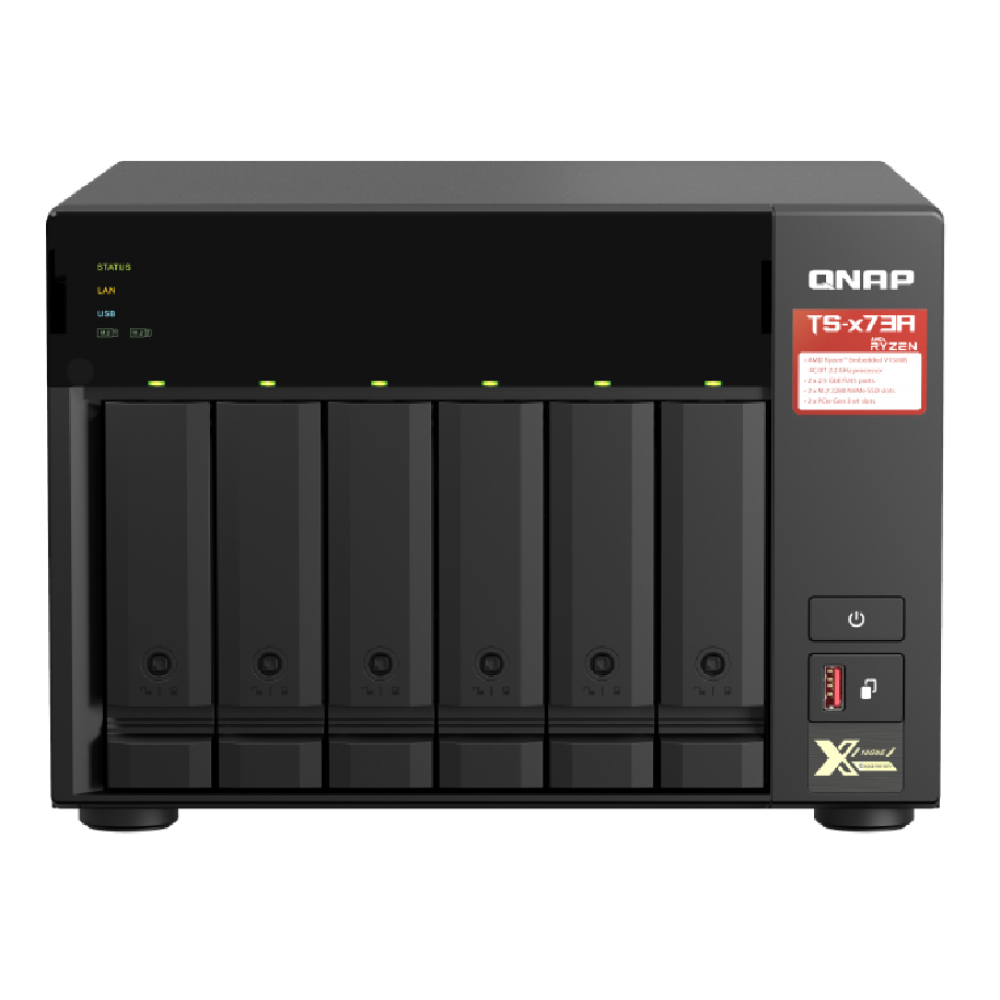
QNAP TS-673A-8G AMD Ryzen V1500B 8GB 6 Bay NAS Enclosure (MPN: TS-673A-8G)
The QNAP TS-673A-8G is a powerful 6-bay NAS with an AMD Ryzen processor, ideal for media streaming, backups, and virtualisation. With dual 2.5GbE ports, PCIe expansion, and M.2 NVMe support, it's perfect for advanced home users and small businesses.
Synology – User-Friendly and Secure
Synology is popular for its intuitive DiskStation Manager (DSM) interface, making setup and management straightforward, even for beginners. Synology NAS is exceptional for families or home users wanting easy NAS with Plex server setup, photo backups, or personal cloud storage. DSM apps also support smooth file sharing, automated backups, and remote access with QuickConnect.
Top Pick:
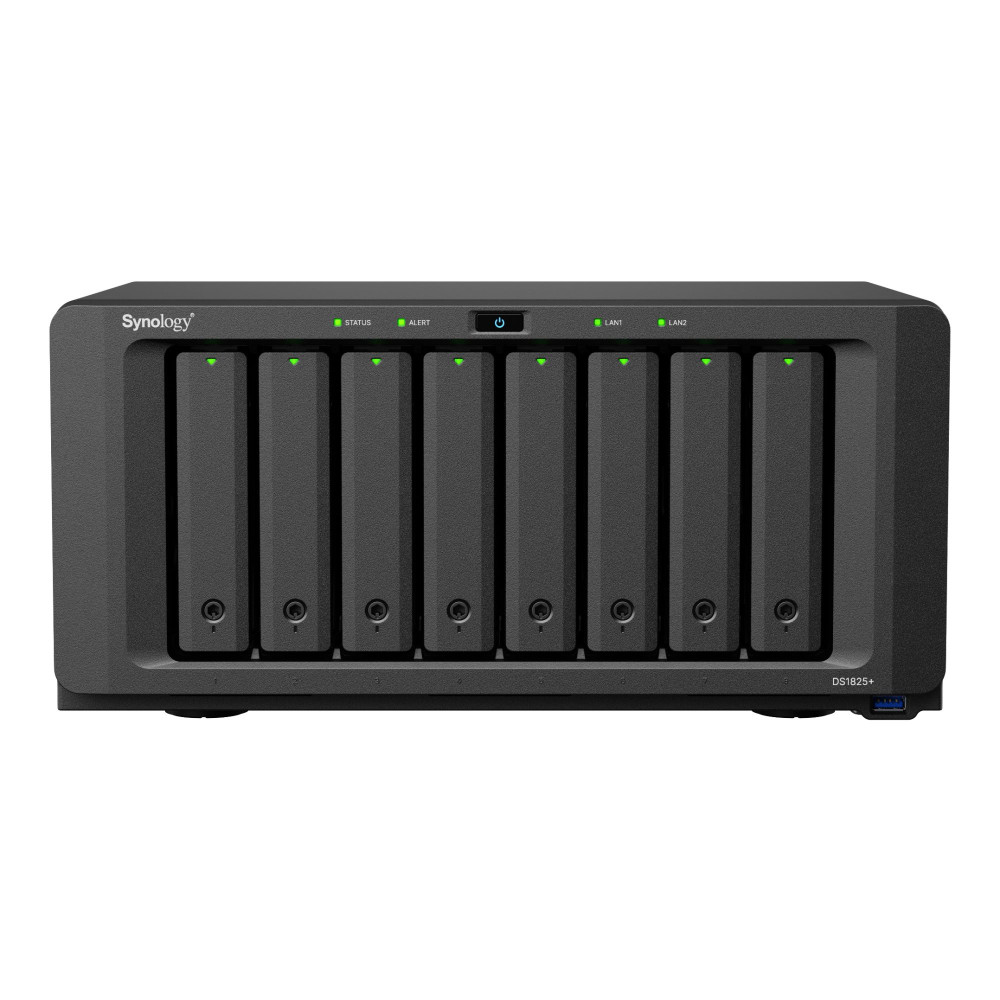
Synology DS1825+ 8-Bay NAS Enclosure (8GB RAM) (MPN: DS1825+)
The Synology DS1825+ is a high-performance 8-bay NAS built for scalability, speed, and reliability. With a quad-core AMD Ryzen CPU, ECC memory, and dual M.2 NVMe slots, it's unrivalled for advanced users and businesses managing large datasets or running a NAS with Plex server.
UGREEN – Compact and Budget-Friendly
UGREEN NAS devices are designed with affordability and simplicity in mind. While not as feature-heavy as QNAP or Synology, they're a solid choice for media streaming and light backups. Their compact design and user-friendly app support make them excellent for first-time NAS users or anyone needing basic remote storage without a large footprint.
Top Pick:
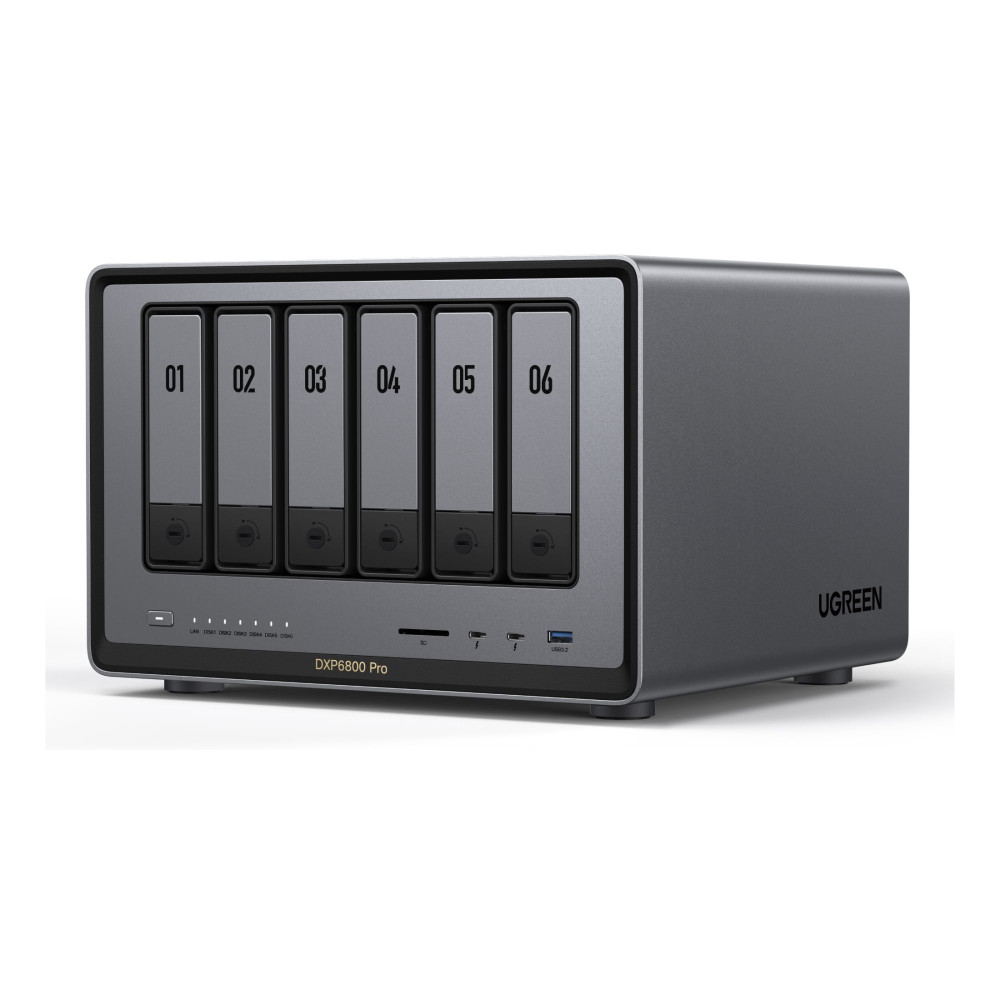
UGREEN NASync DXP6800 Pro 6-Bay-NAS (Diskless) (MPN: DXP6800PRO)
The UGREEN NASync DXP6800 Pro stands out with its powerful Intel Core i5 10-core processor and 8GB DDR5 memory, delivering phenomenal performance for demanding tasks. Its support for up to 196TB storage and dual 10GbE network ports makes it asmart pick for professionals needing fast, secure, and scalable NAS solutions.
The ultimate NAS device is just a click away! Learn more about NAS in our guide before you buy.
Conclusion
A NAS is key for media streaming, secure backups, and easy remote access to your files, whether you're setting up a Plex Synology server or managing your home media library. Understanding how to use NAS effectively ensures smooth performance and data protection.
For expert NAS installation tips, help with troubleshooting backup errors, guidance on choosing the best NAS for your home media server, and to buy your ideal NAS device, visit Box.co.uk today!
Frequently Asked Questions
What is a NAS server and how does Network Attached Storage (NAS) work?
A NAS server (Network Attached Storage) is a dedicated storage device connected to your home or office network. Instead of plugging into one computer like an external hard drive, NAS storage connects to your router and allows multiple devices to access files at the same time.
It works as centralised NAS storage for home, letting you store movies, photos, documents, backups, and more in one secure location.
How do I set up a NAS at home or build my own NAS?
To set up a NAS at home, connect the NAS device to your router via Ethernet, install hard drives, power it on, and complete the setup through a web browser interface. Most modern NAS systems provide guided installation.
If you prefer more control, you can build a NAS using a PC case, compatible motherboard, multiple drives, and NAS software such as TrueNAS or Unraid. Prebuilt NAS systems are easier for beginners, while custom builds offer flexibility and upgrade potential.
Can I use NAS as a home media server or Plex server?
Yes. A home media server with NAS allows you to store and stream movies, TV shows, and music across your home network. Many people use NAS devices with Plex, making them ideal for creating a best NAS for Plex media server setup.
For smooth streaming, especially 4K, choose a NAS with a capable CPU and sufficient RAM for video transcoding.
How do I stream movies from NAS to my TV?
To stream movies from NAS to TV, install a media app like Plex or enable DLNA on your NAS. Then access your media library from a smart TV, Fire TV Stick, Apple TV, or games console connected to the same network. This allows seamless playback without needing cables or USB drives.
How can I access my NAS remotely and use it as personal cloud storage?
You can access NAS remotely by enabling the built-in remote access or cloud service provided by the manufacturer, or by configuring secure port forwarding on your router.
This effectively turns your device into NAS personal cloud storage, allowing you to securely access files from anywhere without paying ongoing cloud subscription fees.
You can pay with:
*PayPal Credit Representative Example: Assumed credit limit £1,200, Representative 23.9% APR (variable). Purchase rate 23.9% p.a (variable).Terms & Conditions apply.


PayPal Credit and PayPal Pay in 3 are trading names of PayPal UK Ltd, 5 Fleet Place, London, United Kingdom, EC4M 7RD. Terms and conditions apply. Credit subject to status, UK residents only, Five Tech LTD acts as a broker and offers finance from a restricted range of finance providers. PayPal Pay in 3 is not regulated by the Financial Conduct Authority. Pay in 3 eligibility is subject to status and approval. 18+. UK residents only. Pay in 3 is a form of credit. Check if affordable and how you will repay. May make other borrowing more difficult or expensive. See product terms for more details.
Copyright © 1996-2026 Fivetech LTD | Terms and Conditions
box.co.uk & Box are trading names of Five Tech Limited. Registered office: Box LTD, Unit 10 Woodford Trading Estate, Woodford Green IG8 8HF