


 Menu
MenuMenu


Get Sales Advice from Mon - Fri 9am - 5:00pm:
020 3337 8950LAST UPDATED: March 11, 2026
Should You Install 26.3.1 Updates? What’s New in macOS, iOS and iPadOS
Apple pushed out the 26.3.1 updates on 4 March 2026, covering iOS 26.3.1, iPadOS 26.3.1, and macOS Tahoe 26.3.1. The headline change is simple (and very "Apple"): these updates expand external display support, so your devices play nicely with the new Studio Display (2026) and the all-new Studio Display XDR.
Before you reinstall your whole vibe around "update ASAP," there's an important twist: Apple's security releases page states these 26.3.1 updates have no published CVE entries. That doesn't automatically mean "don't install," but it does change the urgency for most people, especially compared to point updates that ship with a long list of security patches. So, if you are still wondering whether you should update or not, this guide has all the answers.
What 26.3.1 is and Why Apple Released it Now
Apple tends to use "x.y.1" releases as housekeeping updates: compatibility, stability, and a tidy-up of issues that appear after a larger point release. Apple's own macOS update guidance separates an update (a minor release within the same macOS) from an upgrade (a major named release), which is exactly what 26.3.1 is for Tahoe users.
For 26.3.1 specifically, Apple's release notes across iPhone, iPad, and Mac all point to one main reason: external display support for the new Studio Display models, plus unspecified bug fixes. This timing also lines up with Apple's March 2026 display launches; Apple officially announced a refreshed Studio Display and introduced the Studio Display XDR, positioning them as modern desk companions with Thunderbolt 5 and upgraded camera/audio features.
If you've ordered Apple's newest products, Studio Display (2026) or Studio Display XDR, 26.3.1 is essentially the "make it work on day one" update you don't want to skip. Tech outlets covering the release frame 26.3.1 as a compatibility-driven update more than a feature drop.
| Studio Display or Studio Display XDR? Can't decide? Check out our Studio Display vs Studio Display XDR comparison for help in choosing the right option. |
What's New and Fixed Across macOS, iOS, and iPadOS
Apple's own wording is unusually consistent across platforms: 26.3.1 expands external display support to include Studio Display (2026) and Studio Display XDR, and includes bug fixes. In plain English: if you plug in one of Apple's new displays, your device should now recognise it properly and deliver the intended experience, rather than acting temperamental (or not working at all).
One detail that matters for anyone who likes a neat desk: the Studio Display XDR spec highlights not only compatibility requirements, but also performance limits. Some Macs will run the Studio Display XDR at up to 60Hz, while newer chips can access the higher refresh rate capabilities. Apple also describes Studio Display XDR as a 27-inch 5K Retina XDR display with a mini‑LED backlight, up to 2000 nits peak HDR brightness, and a 120Hz refresh rate with Adaptive Sync, targeting heavier creative workflows.
Security note: Apple's security releases page explicitly states iOS 26.3.1/iPadOS 26.3.1 and macOS Tahoe 26.3.1 have no published CVE entries. So, if you're installing purely for security reasons, this isn't the same story as something like 26.3, which Apple already described as including security updates.
That said, Apple also supports Background Security Improvements, which can deliver lightweight security releases for components like Safari/WebKit and system libraries between full software updates. In other words: it's worth checking that your automatic/background protections are enabled, regardless of whether 26.3.1 itself ships published CVEs.
macOS Tahoe 26.3.1: Studio Display Support and Mac-specific Fixes

Apple's release notes for macOS Tahoe 26.3.1 are blunt: it expands external display support to include Studio Display (2026) and Studio Display XDR, plus bug fixes. Apple also states that macOS Tahoe updates improve stability/performance/compatibility and are recommended for all Tahoe users, which is Apple's general stance on point updates once you're on the current macOS.
What the Display Support Actually Means for Mac Owners
Apple's Studio Display XDR spec sheet spells out a key limitation: Studio Display XDR requires an Apple Silicon Mac running macOS Tahoe 26.3.1 or later, and lists compatible Apple's lightweight MacBooks families (including MacBook Pro, MacBook Air, the new MacBook Neo, Mac mini, Mac Studio, Mac Pro, iMac, with Apple Silicon era models). It also calls out that Macs with M1/M2/M3-class chips are limited to up to 60Hz on Studio Display XDR, even though other features are still supported.
If you're eyeing Studio Display XDR specifically because you want that higher refresh rate experience, coverage of Apple's compatibility notes suggests you'll want a newer Mac configuration (with higher-tier chips) to fully benefit. If you're more focused on accurate colour, HDR performance, and Thunderbolt 5 connectivity, you'll still get most of the "pro" value even on hardware that caps at 60Hz. Consider the new MacBook Air M5 if you are looking to upgrade your setup. But before you go for it, check out our blog on what's new in the MacBook Air M5 to see what you'll get.
Intel Macs and the New Studio Displays: Mind the Gap
Here's a "save yourself the headache" point: reporting based on Apple's compatibility lists indicates the new Studio Display and Studio Display XDR won't work with Intel Macs, even if your Intel Mac can run macOS Tahoe. That matters because macOS Tahoe still supports some Intel models (for example, certain 2019–2020 Macs), so it's easy to assume "Tahoe installed = new display supported." Apple's display compatibility notes don't work that way.
Bonus: Expect a Display Firmware Update
Coverage of the macOS Tahoe 26.3.1 release notes says Apple also released a firmware update for the new displays. In real life, that usually means your Mac, including Apple's newest Macbook Pro models, may prompt you (or quietly handle) additional steps when you first connect the display, so don't schedule your update five minutes before a client call.
iOS 26.3.1: iPhone Changes, Performance, and Display Support
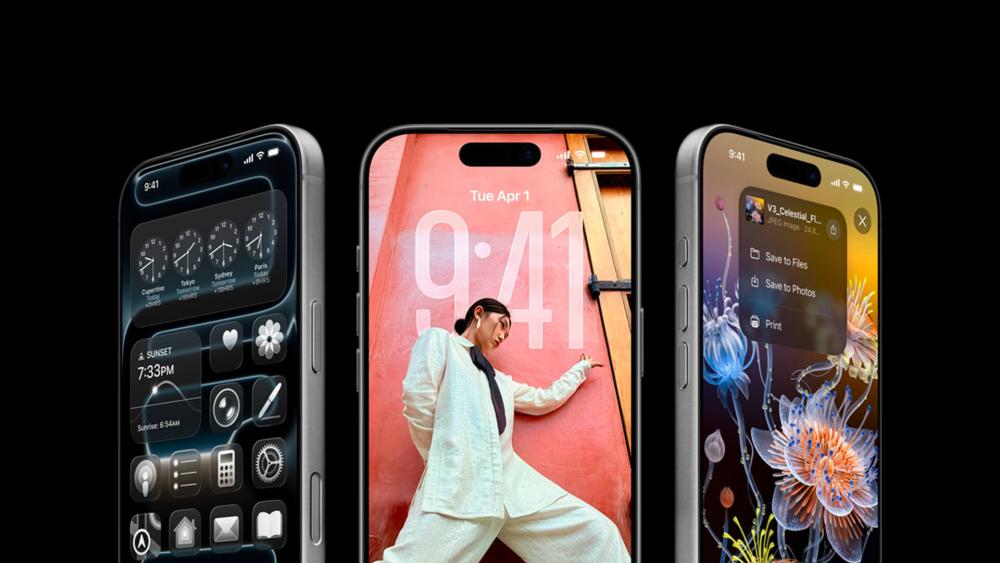
Apple's iOS 26.3.1 release notes say the update expands external display support to include Studio Display (2026) and Studio Display XDR on supported iPhones, along with bug fixes. Apple's security releases page also places iOS 26.3.1 on a clear timeline: released 4 March 2026, and no published CVE entries.
Which iPhones can Install iOS 26.3.1
At the broad level, iOS 26 support includes iPhone 11 and later, plus iPhone SE (2nd generation) and later. If you want the full device list, Apple's compatibility notes in the iPhone guide spell it out across the iPhone 11–17 generations (and newer lines like iPhone Air, where applicable).
"External Display Support" on iPhone: What You Can Realistically Do
iPhones have long supported external displays in limited ways (adapters, TV output, AirPlay mirroring). Apple's own user guide still describes the basics: use a suitable adapter (Lightning or USB‑C depending on model), then connect HDMI/VGA to a monitor/TV/projector.
What's new here is the specific Studio Display (2026)/Studio Display XDR compatibility story. Apple's OS 26.3.1 update enables USB‑C iPhone users to connect to Studio Displays for screen mirroring and peripheral access functionality, pointing to real-world "desk setup" use rather than just a one-off presentation. If you're on a USB‑C iPhone and you prefer a single-cable workflow, that's the most compelling reason to install 26.3.1 on day one.
Will this Update Speed Up Your iPhone?
Apple hasn't published a detailed public changelog for the bug fixes in 26.3.1 (beyond "bug fixes"). So, it's best to treat performance gains as "possible" rather than promised, unless you're fixing a specific compatibility issue (like connecting a new display).
If you're worried about battery after updating, Apple's battery guidance is consistent: after an update, it's normal for background tasks to continue for a while, which can temporarily affect battery life and thermal performance. Apple recommends giving it a few days and then checking again.
iPadOS 26.3.1: iPad Changes, External Display, and Productivity Notes
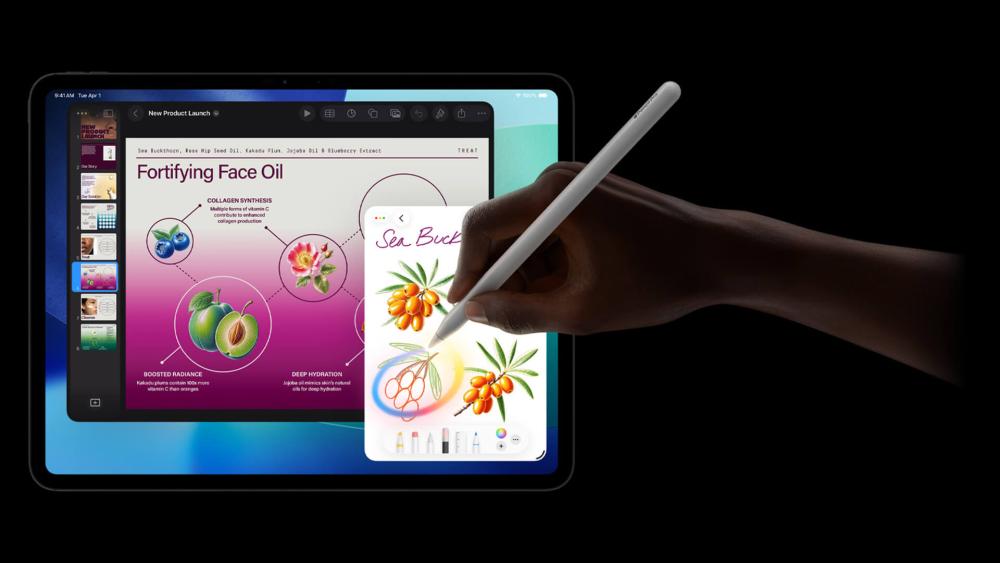
Apple's iPadOS 26.3.1 release notes mirror iOS: this update expands external display support to include Studio Display (2026) and Studio Display XDR on supported iPads, plus bug fixes. Apple's security releases documentation again flags no published CVE entries for iPadOS 26.3.1.
Which iPads Can Install iPadOS 26.3.1
The iPadOS 26 compatibility list covers a wide range of iPads, including iPad mini (5th gen and later), iPad (8th gen and later), iPad Air (3rd gen and later), and iPad Pro models across multiple generations. If you're not sure which iPad you have, Apple's compatibility page is written as a checklist you can match against your model name.
Studio Display XDR on iPad: the supported list is narrower
Even though many iPads can install iPadOS 26, not every iPad running the latest iPadOS will be compatible with Studio Display XDR. Apple's Studio Display XDR specs list supported iPads (including certain iPad Pro generations and specific iPad Air models), and also note that iPad Pro (M5) supports 120Hz while other compatible iPads support 60Hz.
So, if your plan is "I'll update my iPad and use it like a mini desktop," check the display compatibility list before you commit to a new monitor purchase. It's the difference between a smooth single-cable setup and a very expensive moment of disappointment.
Practical Connection Guidance for iPad + Displays
Apple's iPad user guide explains that you can connect iPad to a secondary display with the right cable/adapter, and specifically notes connecting to Studio Display or Pro Display XDR using the included Thunderbolt cable on supported models, with iPad charging while connected. If your iPad uses USB‑C, Apple also outlines the adapter-based approach (USB‑C Display AV Adapter / VGA Multi‑port Adapter) for HDMI/VGA displays.
This is relevant because 26.3.1 is about expanding external display support to specific newly launched Apple displays, meaning the physical connection method and the "supported model" caveat still apply.
Should You Install Apple's 26.3.1 Updates Immediately?
If you want the honest answer: it depends on what you're plugging in this week.
If you're buying (or already own) the new Studio Display (2026) or Studio Display XDR, installing 26.3.1 is the straightforward move, these updates are explicitly designed to expand compatibility for those displays. If you're setting up a new desk with Apple's latest displays and Macs, multiple outlets highlight 26.3.1 as the release that makes everything talk nicely together.
If you don't have new Apple displays in your near future, the urgency is softer. Without security fixes and without Apple detailing what bugs were fixed, many users can reasonably wait until the next bigger point release, unless they need that hardware support now.
A good middle ground is: update when you have a calm window (not right before travel, an exam, or a deadline), and make sure you've got a backup. Apple's own update guidance repeatedly recommends backing up before installing new software.
How to Install 26.3.1 Safely and Which Devices are Supported
A smooth update is mostly about prep: power, Wi‑Fi, storage space, and a backup you trust. Apple's guidance for iPhone/iPad updating is clear: back up, plug into power, connect to Wi‑Fi, then update via Settings. For Mac, Apple recommends using Software Update, backing up first, and letting the installation finish without putting your Mac to sleep.
Before You Hit "Install"
Make this your quick checklist:
- Back up your iPhone/iPad (iCloud or computer) and your Mac (Time Machine or your preferred method).
- Plug in and use Wi‑Fi for iPhone/iPad updates.
- Expect the Mac to restart during installation; don't close the lid mid‑update.
- If you're updating iPhone/iPad and you're tight on storage, Apple notes iOS/iPadOS can temporarily remove and reinstall apps to free space.
Install on iPhone or iPad
Apple's steps are:
- Open Settings
- Tap General
- Tap Software Update
- Tap Download and Install and follow the prompts
If the update doesn't show up, Apple notes you can update using a computer instead. Also remember that after installing a software update on iOS/iPadOS, you can't downgrade to the previous version. So, make sure you are absolutely ready to update.
Install on Mac
Apple's process is:
- Open System Settings
- Go to General → Software Update
- Install the update when it appears
If Software Update doesn't offer macOS Tahoe 26.3.1, Apple explains that Software Update only shows what's compatible with your Mac model and may simply report you're up to date.
Device Support Snapshot
If you just need the "am I eligible?" answer:
- iOS 26.3.1: available for iPhone 11 and later (and iPhone SE 2nd gen and later).
- iPadOS 26.3.1: available for iPads that support iPadOS 26 (including many iPad Air/Pro models, plus iPad 8th gen+ and iPad mini 5th gen+).
- macOS Tahoe 26.3.1: available for Apple laptops that support macOS Tahoe 26 including all compatible MacBook Air, MacBook Pro laptops, iMac, Mac mini, Mac Studio, Mac Pro models.
If your goal is to use Studio Display XDR specifically, follow Apple's compatibility list for that display (Apple silicon Macs on Tahoe 26.3.1+, and a narrower set of iPads on iPadOS 26.3.1+).
FAQs
What's included in Apple's 26.3.1 updates for macOS, iOS and iPadOS?
Apple says the 26.3.1 update mainly expands external display support for Studio Display (2026) and Studio Display XDR, along with general bug fixes across macOS, iOS and iPadOS.
What changes does macOS 26.3.1 bring to Mac users?
macOS Tahoe 26.3.1 adds support for the new Studio Display models and includes system bug fixes. Apple also notes that Studio Display XDR requires macOS 26.3.1 or later on Apple silicon Macs.
Does the 26.3.1 update improve iPhone and iPad performance?
Apple lists general bug fixes rather than specific improvements. Any performance changes will depend on the device and usage, and temporary battery drain may occur shortly after updating.
Should you install Apple's 26.3.1 updates immediately?
If you plan to use the new Studio Display models, installing the update is recommended. Otherwise, it mainly provides bug fixes and compatibility updates.
Which Apple devices support the 26.3.1 updates?
iOS and iPadOS 26.3.1 support iPhone 11 and later, plus compatible iPads running iPadOS 26. macOS Tahoe 26.3.1 supports a range of modern Macs including MacBook Air, MacBook Pro, iMac, Mac mini, Mac Studio and Mac Pro models.
You can pay with:
*PayPal Credit Representative Example: Assumed credit limit £1,200, Representative 23.9% APR (variable). Purchase rate 23.9% p.a (variable).Terms & Conditions apply.


PayPal Credit and PayPal Pay in 3 are trading names of PayPal UK Ltd, 5 Fleet Place, London, United Kingdom, EC4M 7RD. Terms and conditions apply. Credit subject to status, UK residents only, Five Tech LTD acts as a broker and offers finance from a restricted range of finance providers. PayPal Pay in 3 is not regulated by the Financial Conduct Authority. Pay in 3 eligibility is subject to status and approval. 18+. UK residents only. Pay in 3 is a form of credit. Check if affordable and how you will repay. May make other borrowing more difficult or expensive. See product terms for more details.
Copyright © 1996-2026 Fivetech LTD | Terms and Conditions
box.co.uk & Box are trading names of Five Tech Limited. Registered office: Box LTD, Unit 10 Woodford Trading Estate, Woodford Green IG8 8HF