


 Menu
MenuMenu


Get Sales Advice from Mon - Fri 9am - 5:00pm:
020 3337 8950LAST UPDATED: March 06, 2026
Studio Display vs Studio Display XDR (2026): What’s the Difference and Who Are They For?
If you're upgrading a Mac setup this spring, you've probably landed on the same question we're hearing nonstop: Studio Display vs Studio Display XDR, what's actually different, and which one makes sense for your desk? Apple's newest Apple Studio monitors look similar at first glance (same size, same sharp Retina-level clarity, same "it just works" Mac integration), but they're built for two very different kinds of users: everyday creators and teams who simply want a premium Apple creator monitor, versus pros who need a true XDR display Apple experience for HDR, print workflows, and highly color‑critical work.
This comparison focuses on the things you will actually notice when using the display every day. That includes brightness and HDR performance, motion smoothness, colour accuracy, connectivity options, charging capabilities and compatibility with macOS devices. By looking at how each display performs in real-world use, it becomes much easier to decide which model fits your workflow, whether you are editing content, building a creator setup or simply upgrading your desk with a premium Apple display.
Studio Display vs Studio Display XDR Quick Comparison
| Feature | Apple Studio Display | Studio Display XDR |
| Panel Type | 5K Retina display | 5K Retina XDR mini-LED |
| Brightness | 600 nits | 1000 nits SDR / 2000 nits peak HDR |
| HDR Support | No | Yes |
| Refresh Rate | 60Hz | 120Hz with Adaptive Sync |
| Colour Support | P3 wide colour | P3 + Adobe RGB |
| Charging Power | 96W via Thunderbolt | 140W via Thunderbolt |
| Stand | Tilt-only included | Tilt + height adjustable included |
| Best For | Productivity, creators, home office | HDR video, print design, pro workflows |
What Changed in the Studio Display Lineup this Year

Apple's 2026 reset is simple: there are now two "Studio" displays, and both get meaningful updates, especially around connectivity and the built-in camera/audio features that matter for hybrid work and content creation. These displays were part of Apple's broader spring announcements, which also included updates across the Mac lineup. If you want the full picture of everything unveiled, our Apple March Event 2026 recap breaks down the biggest launches from that event.
The Apple Studio Display remains the more approachable option. It's a 27‑inch 5K Retina display (5120×2880 at 218 ppi) with 600 nits brightness, P3 wide color, and a 60Hz refresh rate, plus a built-in 12MP Center Stage camera with Desk View, a three‑mic array, and a six‑speaker system with Spatial Audio.
The Studio Display XDR is the step-up model, Apple's new "pro" choice and, effectively, the modern answer for shoppers who previously looked at a Pro Display XDR or other Apple Pro display options. It keeps the same 27‑inch 5K footprint, but upgrades the panel to mini‑LED with 2304 dimming zones, adds HDR (2000 nits peak), boosts SDR brightness to up to 1000 nits, expands color coverage to P3 + Adobe RGB, and jumps to a 120Hz refresh rate with Adaptive Sync (yes, this is the "smooth scrolling / smooth motion" upgrade many creators have been waiting for).
Both displays also move to modern desk connectivity, each includes two Thunderbolt 5 ports and two USB‑C ports, with the upstream Thunderbolt port used to connect (and charge) your Mac. The difference is how much power each can deliver: Studio Display provides 96W host charging, while Studio Display XDR provides 140W host charging.
Studio Display vs Studio Display XDR at a Glance
If you're making a quick buying decision, here's the simplest Studio Display XDR vs Studio Display breakdown:
Studio Display is the better fit if you want an excellent all‑in‑one Apple Studio display for everyday productivity, creative work in SDR, and great built-in camera/audio, without paying for HDR and pro-grade reference workflows.
Studio Display XDR is the better fit if you work in HDR video, color-critical photography/print, or motion-heavy workflows, and you want Apple's newest XDR screen technology (mini‑LED + local dimming + extreme brightness) in a size that still makes sense as a "normal" desk monitor.
Key differences that typically decide the purchase:
- Panel and HDR: Studio Display is standard 5K Retina; Studio Display XDR is 5K Retina XDR with mini‑LED and HDR (2000 nits peak).
- Brightness: 600 nits vs up to 1000 nits SDR / 2000 nits peak HDR.
- Refresh rate: 60Hz vs 120Hz with Adaptive Sync.
- Color spaces: P3 vs P3 + Adobe RGB.
- Stand in the box: tilt-only included vs tilt + height included.
- Charging power: 96W vs 140W.
- Reference modes: both support reference modes, but XDR adds for HDR, print (Adobe RGB), and medical imaging presets.
If you're browsing desktop displays in general and want to compare Apple alongside other options, start in our monitors range and filter down from there: desktop displays and high-resolution displays are great starting points, especially if you're comparing 5K/6K alternatives.
Display Quality and Why the XDR Model Exists
On paper, both screens are "27‑inch 5K at 218 ppi," and that's important: whichever model you choose, text looks crisp, UI elements look clean, and macOS scaling tends to feel natural at this size/resolution.
The real story is what happens with contrast, highlights, and motion.
Studio Display Image Quality in Plain English
The standard Studio Display is a bright, high‑resolution Retina monitor tuned for everyday use and SDR creative work. Apple lists 600 nits brightness, support for 1 billion colors, P3 wide color, and True Tone. It's also configurable with nano‑texture glass if you work in a bright room and want reduced reflectivity.
For most people creating content for the web, working in productivity apps, editing photos for social, cutting occasional video, or running a home office, those Studio Display specs are already "premium" compared to typical consumer monitors, especially once you factor in the built-in camera, mic, and speaker system that removes the need for extra desk clutter.
Studio Display XDR Image Quality and What Mini‑LED Changes
Studio Display XDR is built around one thing: dramatically better control of light.
Apple's specs call out a mini‑LED backlight with 2304 dimming zones, which lets the display dim parts of the backlight independently for deeper blacks and brighter highlights. In Apple's own description, those dimming zones deliver "remarkably precise lighting" for "reduced halo and blooming."
That's why it can hit up to 1000 nits in SDR and 2000 nits peak in HDR, while keeping the kind of extreme contrast pro workflows rely on. Apple also positions this as a true "reference display" built for demanding work in film/video, design, and even gaming.
Just as importantly for many creators, the XDR model isn't only about brightness. It's also about color spaces and presets. Apple lists P3 + Adobe RGB wide color gamuts, and specifically notes this matters "especially when going to print."
Reference Modes and Pro Calibration
Both displays support Apple reference modes, which are designed to help you view content in common standards (video, web, design/print, photography) without manually tweaking settings every session. Studio Display includes modes like Apple Display (P3-600 nits) plus common video/web presets.
Studio Display XDR expands that list dramatically, adding two dedicated Studio Display XDR modes (including a P3 + Adobe RGB variant), HDR video modes, design/print modes in both P3 and Adobe RGB, photography modes, and even medical imaging presets.
Apple also provides guidance on using reference modes on its displays, including how they're used for different workflow needs and how custom reference modes can be created and managed in macOS.
A particularly new for 2026 note: Apple includes Medical Imaging (DICOM) reference modes on Studio Display XDR and says a Medical Imaging Calibrator is pending FDA review and expected to be available soon, with clear caveats about not using those presets for diagnostic purposes unless properly calibrated and paired with compatible software (and not intended for mammography).
Connectivity, Charging, and the Setup Details that Matter at Your Desk
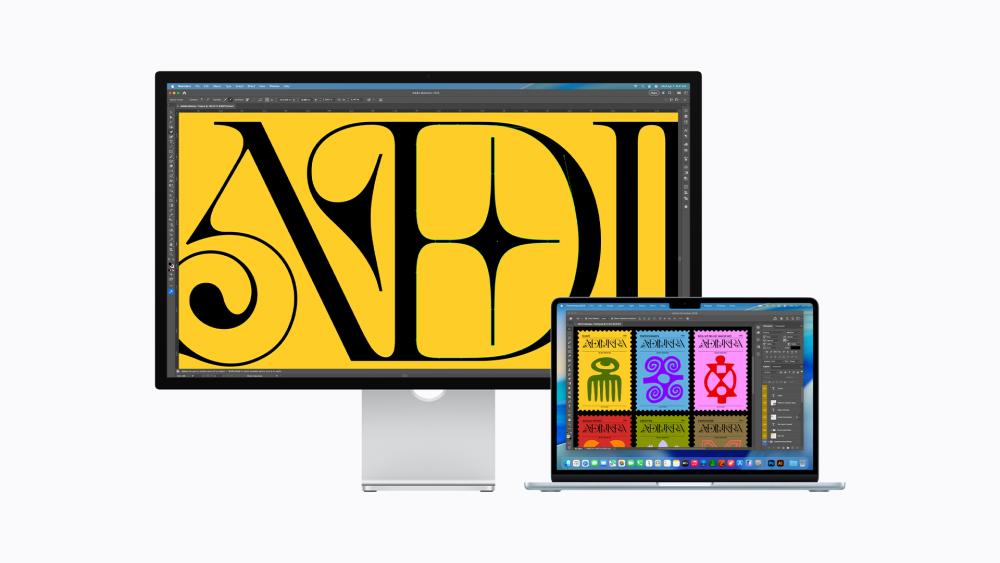
For many users, the monitor decision is really a setup decision: how clean can you make your desk, how many devices can you connect, and will the display charge your laptop with a single cable?
Ports and the Single‑Cable Idea
Both models now include the same basic port layout:
- Two Thunderbolt 5 ports (Apple lists up to 120Gb/s) and two USB‑C ports (up to 10Gb/s).
- One upstream Thunderbolt 5 port is used for the host connection, and one downstream Thunderbolt 5 port is for high-speed accessories or daisy-chaining additional displays.
- The two USB‑C ports can be used for peripherals, storage, and networking.
Both also include a Thunderbolt 5 Pro cable (1m) in the box, which is exactly what you want for a tidy "one cable to rule your desk" setup.
If you're someone who's constantly swapping between laptop mode and desk mode, or you're trying to build a cleaner workstation around a MacBook Air or MacBook Pro, this is one of the biggest practical advantages of choosing an Apple display in the first place.
Charging Power Difference: 96W vs 140W
This is a quiet but meaningful separation:
- Studio Display provides 96W host charging through the upstream Thunderbolt 5 port.
- Studio Display XDR provides 140W host charging through the upstream Thunderbolt 5 port.
In plain terms, 96W is typically plenty for many MacBook users, but 140W is more no compromises, particularly if you're running a higher-performance MacBook Pro and want the display to keep up with heavier sustained workloads while charging.
Built‑in Camera and Audio: Very Similar, with Strong Everyday Value
Both displays include:
- A 12MP Center Stage camera with Desk View.
- A studio-quality three‑mic array with directional beamforming (and "Hey Siri" support).
- A six‑speaker system with force‑cancelling woofers and Spatial Audio support.
Apple also calls out quality-of-life features in the Studio Display that benefitted from this year's refresh, including improved low‑light performance for the camera, Desk View, and "Edge Light" (a virtual ring-light effect around the edges of the display for better face lighting on calls).
Apple also notes an updated speaker tuning, including "30 percent deeper bass" on the refreshed Studio Display.
For a lot of Box shoppers, especially those building a work-from-home setup, this bundled approach is the reason an Apple monitor can make sense even next to strong third‑party panels: you're buying a display, webcam, mic, and speaker upgrade in one clean package.
Stands, Ergonomics, and VESA Mounting
The stand situation is one of the most "real-world" differences between these two models:
- Studio Display includes a tilt-adjustable stand, with an option to configure a tilt‑and‑height adjustable stand or a VESA mount adapter.
- Studio Display XDR includes a tilt‑and‑height adjustable stand by default, and can also be configured with a VESA mount adapter (supporting 100×100mm VESA and portrait orientation with VESA).
If you already know you want height adjustment (or you're setting up long editing sessions and care about eye level), the XDR model's included stand can be a hidden "value" factor, even though the display itself is in a much higher price tier.
If you're building out a full workstation, don't forget the basics: upgrade your display setup with the right mount/arm, keyboard/mouse, and desk layout; and find the right display cables for any secondary devices or adapters you plan to connect.
Compatibility and the "120Hz" Detail You Should Know Before Buying
To protect you from buyer's remorse, here are some compatibility details you should know before purchasing your screen.
Apple Silicon and macOS requirements
Apple's tech specs list both displays as compatible with Mac models with Apple Silicon running macOS Tahoe 26.3.1 or later, and Apple provides a specific list of supported Macs (including MacBook Air, MacBook Pro, Mac mini, Mac Studio, Mac Pro, and iMac models with Apple silicon).
Both also support a range of iPads running iPadOS 26.3.1 or later, but Apple notes that some camera features/firmware updates require a Mac connection, and certain older iPads may get only USB 2.0 data speeds through the display's USB‑C ports.
In other words: if you're on an older Intel Mac, you'll want to double-check your upgrade path first, because these newest Studio Display 2026 models are positioned around the Apple Silicon ecosystem.
The Studio Display XDR 120Hz Caveat
Apple is very clear about the refresh-rate reality. Studio Display XDR supports 120Hz refresh rate and Adaptive Sync. But Apple also states that Macs with M1, M1 Pro, M1 Max, M1 Ultra, M2, and M3 will run Studio Display XDR at up to 60Hz (even though other display features remain supported).
On the iPad side, Apple notes iPad Pro (M5) supports 120Hz, while other compatible iPads support 60Hz.
If a 120Hz refresh rate is one of the main reasons you're considering the XDR model, it's also worth thinking about the Mac you plan to pair it with, both today and in the future. Higher refresh rates and HDR workflows tend to benefit most from systems with stronger graphics performance.
For example, many creators pairing an XDR display Apple monitor with a laptop often choose a MacBook Pro, especially when working with video editing, 3D content, or colour-critical design projects. If that setup sounds familiar, our guide on MacBook Pro powered by M5 Pro and M5 Max breaks down what those new chips bring to professional workflows.
On the other hand, plenty of users will be connecting a Studio Apple display to a MacBook Air for productivity, creative apps, or a clean desk setup at home. If you're exploring that route, the M5 MacBook Air launch overview is a useful place to see how Apple's latest lightweight laptop fits into modern desktop setups.
Pricing, Availability, and Which One We'd Recommend for Most Buyers
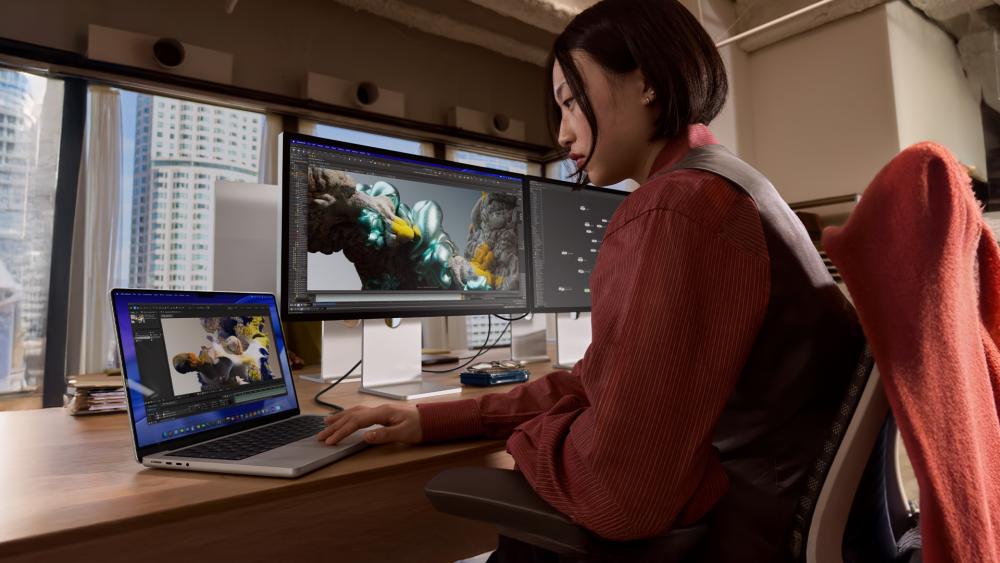
Apple positions these as two tiers of the same "Studio" family, and the pricing clearly reflects that.
Studio Display pre-orders began March 4, with availability starting March 11, and Apple lists a starting price of £1,499 (configuration-dependent).
Studio Display XDR availability also starts March 11, with a starting price of £2,999 (configuration-dependent).
As users shop across a wide range of budgets and workflows, here's how we'd make the decision simple:
Choose Studio Display If You Want the Best "Everyday Premium Mac Monitor"
Pick Studio Display if your priority is an elegant, high-resolution Apple desktop display that upgrades your entire desk experience without chasing pro HDR finishing. It's ideal for:
- Remote work and productivity where sharp text, a great webcam, strong mics, and surprisingly good speakers matter every day.
- Content creation for web and social (photo work in P3, design work, YouTube editing that doesn't require HDR mastering).
- Creators who want an Apple-aligned "single cable" setup with Thunderbolt 5 and built-in host charging.
If your shopping goal is "give me one of the best-looking, best-sounding, best-integrated monitors built for creators," Studio Display is usually the value sweet spot, especially compared with chasing comparable third‑party setups that require separate camera/audio choices.
Choose Studio Display XDR If Your Work Depends on HDR, Motion, and Print-Accurate Color
Pick Studio Display XDR if you routinely work in HDR video, print pipelines, or color-critical workflows where brightness, contrast, dimming control, and Adobe RGB support materially change the accuracy of what you deliver. It's ideal for:
- HDR video workflows that need a true XDR reference-style experience with extreme brightness and contrast.
- Design and print professionals who need P3 + Adobe RGB access from the same display family (a major differentiator vs many P3-only creator monitors).
- Motion-heavy work where a 120Hz refresh rate and Adaptive Sync can make timelines, previews, animation checks, and even game dev feel smoother and more responsive.
- Users who want a "premium by default" ergonomics package thanks to the included tilt-and-height adjustable stand, plus 140W host charging.
If you're specifically hunting for colour accurate monitors for design work and you deliver to clients who expect consistency from screen to print (or you're mastering HDR deliverables), Studio Display XDR is the Apple option designed for that reality.
Simple Bottom Line
For most Box shoppers, Studio Display is the smarter buy: you get Apple's best all-in-one monitor concept, sharp 5K Retina, great integrated camera/mics/speakers, Thunderbolt 5, and a clean single-cable desk setup, without paying for HDR and mini‑LED.
Studio Display XDR is the right buy when you can clearly explain why you need it: HDR finishing, print-accurate color across P3 + Adobe RGB, and the kind of brightness/contrast control that makes an XDR screen worth it.
If you're comparing broader Apple monitor comparison options (Apple vs third-party), start with desktop displays, then narrow by high-resolution displays, 27 inch display options, or monitors built for creators depending on your workflow and budget.
FAQs: Studio Display vs Studio Display XDR
Is Studio Display XDR better than Studio Display?
Studio Display XDR is the more advanced option, but it is not automatically better for every user. The key difference in the Studio Display vs Studio Display XDR comparison is the display technology. Studio Display XDR uses a mini-LED panel with HDR support and up to 2000 nits peak brightness, while the standard Apple Studio Display uses a traditional 5K Retina display at 600 nits. For everyday productivity, content creation for web, and general macOS workflows, the regular Studio Display is usually the better value. The XDR display Apple model is designed for HDR video editing, print workflows, and colour-critical professional work.
Does Studio Display XDR support HDR?
Yes. The Studio Display XDR supports full HDR output thanks to its mini-LED backlight and local dimming zones. Apple lists up to 1000 nits sustained brightness and 2000 nits peak HDR brightness, which allows it to display high-contrast content accurately. The standard Apple Studio Display does not support HDR and is designed primarily for SDR workflows.
Is Studio Display XDR worth it for creators?
For professional creators working with HDR video, colour-critical photography, or print design, the Studio Display XDR can absolutely be worth it. The display supports P3 and Adobe RGB colour spaces, reference modes, and extremely high brightness levels that help ensure accurate colour and highlight reproduction. However, many creators working primarily with web content, YouTube videos, or general design projects will find the Apple Studio Display more than capable.
Can Studio Display and Studio Display XDR charge a MacBook?
Yes. Both displays provide host charging through Thunderbolt connectivity. Studio Display offers up to 96W charging while Studio Display XDR offers up to 140W charging. This means both displays can power a MacBook with a single cable while also connecting peripherals and external devices.
Do both displays work with Apple Silicon Macs?
Yes. Both displays are designed primarily for Apple Silicon Macs running modern versions of macOS. They are compatible with MacBook Air, MacBook Pro, Mac Studio, Mac mini, iMac, and Mac Pro models using Apple Silicon. However, certain features such as 120Hz refresh rate on Studio Display XDR may depend on the Mac model you are using.
What size are Apple Studio monitors?
Both displays use a 27-inch 5K panel with a resolution of 5120 × 2880 at 218 pixels per inch. This resolution delivers extremely sharp text and UI scaling that works naturally with macOS.
Is Studio Display XDR good for gaming?
While the Studio Display XDR includes a 120Hz refresh rate with Adaptive Sync, it is primarily designed as an Apple creator monitor rather than a gaming display. It works well for development, animation previews, and motion workflows, but dedicated gaming monitors may offer higher refresh rates and gaming-specific features.
You can pay with:
*PayPal Credit Representative Example: Assumed credit limit £1,200, Representative 23.9% APR (variable). Purchase rate 23.9% p.a (variable).Terms & Conditions apply.


PayPal Credit and PayPal Pay in 3 are trading names of PayPal UK Ltd, 5 Fleet Place, London, United Kingdom, EC4M 7RD. Terms and conditions apply. Credit subject to status, UK residents only, Five Tech LTD acts as a broker and offers finance from a restricted range of finance providers. PayPal Pay in 3 is not regulated by the Financial Conduct Authority. Pay in 3 eligibility is subject to status and approval. 18+. UK residents only. Pay in 3 is a form of credit. Check if affordable and how you will repay. May make other borrowing more difficult or expensive. See product terms for more details.
Copyright © 1996-2026 Fivetech LTD | Terms and Conditions
box.co.uk & Box are trading names of Five Tech Limited. Registered office: Box LTD, Unit 10 Woodford Trading Estate, Woodford Green IG8 8HF