


 Menu
MenuMenu


Get Sales Advice from Mon - Fri 9am - 5:00pm:
020 3337 8950LAST UPDATED: September 25, 2025
iPhone Stolen Device Protection: How to Secure and Recover Your Phone
If you’ve ever said, “I lost my iPhone”, you’ll know the sinking feeling that follows. With so much of our lives stored on a handset, from banking apps to personal photos, the idea of an iPhone being stolen is more than just losing a gadget; it’s potentially losing control over sensitive information. Apple has long led the way in security for mobile phones, giving users tools to track a lost iPhone, lock it remotely, or even erase it completely if it falls into the wrong hands.
However, thieves are becoming increasingly sophisticated, and so are the security measures. That’s why Apple has continued to strengthen iOS with features like Find My, Lost Mode, Activation Lock and Stolen Device Protection. These tools work together to make a stolen Apple phone far harder to exploit. With the arrival of the latest iPhone models and the software upgrade to iOS 26, Apple is putting even greater focus on privacy and physical security.
This guide will cover everything you need to know, from the basics of locating a lost iPhone to the advanced protection built into the iPhone 17 and iOS 26. By the end, you’ll know how to keep your device safe and what steps to take immediately if you find yourself searching for “Find my lost iPhone” on Google in a panic.
Core Apple Tools to Locate & Protect a Lost iPhone:
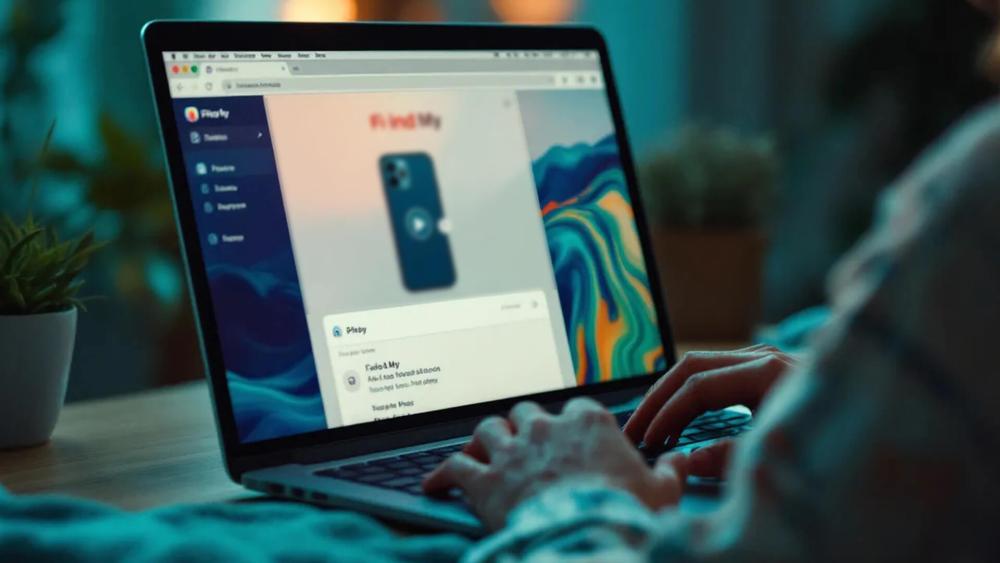
Apple has developed a comprehensive set of tools to help you recover a lost iPhone or protect your data if it is stolen. These features are baked into iOS and are free to use as long as they’re enabled beforehand.
Find My iPhone:
The Find My app is your first line of defence when you need to track a lost iPhone. Once activated, it allows you to:
- See your iPhone’s location on a map, even if it’s offline (thanks to Apple’s crowdsourced network).
- Play a sound to help locate it nearby.
- Display a custom message and contact number on the lock screen for anyone who finds it.
Lost Mode:
When panic sets in and you realise, “I’ve lost my iPhone”, Lost Mode is the tool to activate. With one tap, it:
- Locks your device immediately with a passcode.
- Shows a message and contact info on the screen.
- Tracks movements in real time through Find My.
Activation Lock:
An often overlooked but powerful safeguard, Activation Lock ties your iPhone to your Apple ID. Even if someone tries to wipe the phone, they won’t be able to set it up again without your credentials. This makes reselling a stolen iPhone nearly impossible.
Remote Erase:
If recovery looks unlikely, you can erase your device remotely. This removes all personal data, protecting your accounts and files from misuse. As long as you keep regular iCloud backups, you can restore everything when you sign in to a replacement device.
Together, these tools make it significantly harder for anyone to misuse a lost Apple device. They form the foundation of Apple’s approach to protecting your data, and the starting point before you move on to advanced protections like Stolen Device Protection.
Stolen Device Protection (introduced iOS 17.3):
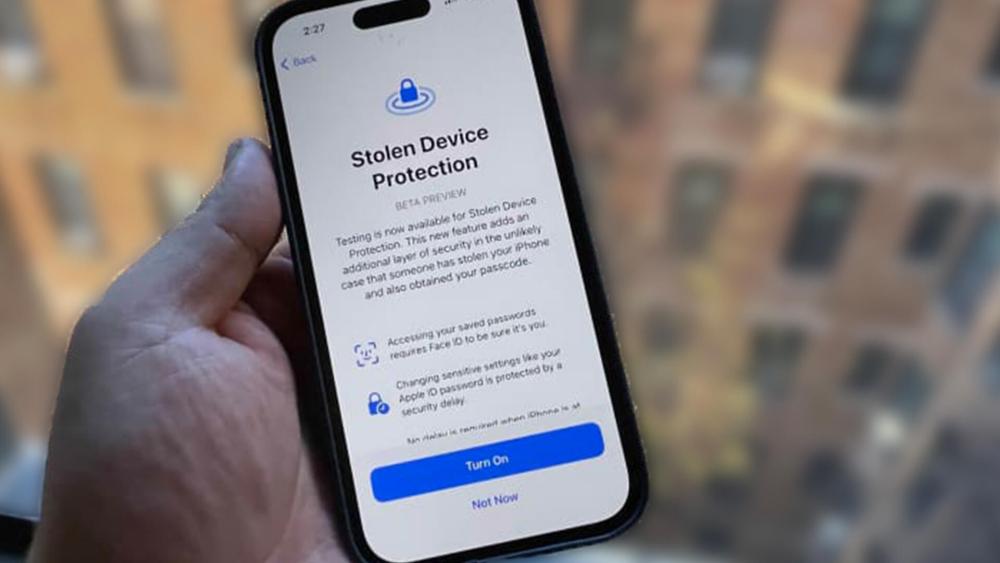
While tools like Find My and Lost Mode have been around for years, Apple raised the bar with Stolen Device Protection in iOS 17.3. This feature was designed to stop thieves from making major account or security changes if they’ve somehow gained access to your passcode.
1. What is Stolen Device Protection?
It’s a security layer that limits what someone can do with your iPhone if it’s outside your trusted locations (like home or work). For example, changing an Apple ID password, turning off Find My, or altering Face ID now requires Face ID or Touch ID authentication, not just a passcode.
2. Security Delay:
Another clever safeguard is the Security Delay. If you’re not at a familiar location, sensitive actions like resetting your password or disabling security features are blocked for an hour. After this delay, you must again confirm with Face ID or Touch ID. This means even if your iPhone is stolen and the thief knows your passcode, they can’t immediately lock you out of your Apple account.
3.Actions Restricted by Stolen Device Protection:
Once enabled, thieves cannot easily:
- Change your Apple ID or iCloud account details.
- Disable Find My or turn off Stolen Device Protection itself.
- Add or remove biometric authentication methods.
- Access saved payment methods like Apple Wallet without biometric approval.
4. How to Enable It:
To turn this feature on:
- Update to iOS 17.3 or later.
- Go to Settings → Face ID & Passcode → Stolen Device Protection.
- Toggle it on, ensuring Find My, two-factor authentication, and Significant Locations are enabled.
With this in place, a stolen Apple phone becomes far less useful to a thief. The delay, biometric lock, and account safeguards together create a formidable wall of protection.
What’s New in iOS 26 for Lost/Stolen iPhone Protection:
With the launch of iOS 26, Apple has doubled down on security and privacy, making it even harder for thieves to exploit a lost iPhone. Beyond the existing protections like Find My and Stolen Device Protection, the latest update introduces refinements that make recovery and data defence smoother.
-
Smarter Find My Integration:
iOS 26 improves the Find My iPhone interface with clearer alerts and real-time notifications. If you’ve misplaced your device, the app provides more precise tracking and better integration with nearby Apple devices in the Find My network. This means it’s quicker to locate a lost iPhone, even in crowded areas.
-
Enhanced Privacy Prompts:
Apple has added new privacy prompts for sensitive actions. Whenever a suspicious attempt is made to disable Find My or change Apple ID credentials, you’ll get more visible alerts across your connected devices. This is particularly useful when dealing with a stolen Apple phone, as you’ll know instantly if someone tries to tamper with your account.
-
Recovery Assistance Improvements:
In iOS 26, Apple ID Recovery is more streamlined, giving you faster routes to lock down or recover your lost Apple iPhone. Combined with iCloud backup prompts, this ensures you can restore everything quickly if a remote erase becomes necessary.
-
Extra Biometric Safeguards:
Actions that previously relied on passcodes now more frequently require Face ID. This prevents the common scenario where a thief who has shoulder-surfed your passcode could take control of your phone. iOS 26 continues the trend started with iOS 17.3 by pushing biometric verification front and centre.
Together, these changes show Apple’s evolving strategy: making a stolen iPhone increasingly useless to criminals while making recovery simpler for owners. You can learn more about iOS 26 features in our guide.
Specific Security Upgrades in iPhone 17:
Alongside iOS 26, the iPhone 17 introduces hardware-level improvements that make it tougher for thieves or hackers to exploit a stolen iPhone. These upgrades complement Apple’s software protections and highlight why the latest iPhone models are the most secure yet.
-
Memory Integrity Enforcement (MIE):
The iPhone 17 debuts Memory Integrity Enforcement, a feature powered by the new A19 chip. MIE makes it significantly harder for attackers to use malware or spyware to hijack your device after it’s been stolen. By isolating and protecting memory processes at the hardware level, it shuts down a common path thieves could exploit if they managed to bypass the lock screen.
-
Hardware-Backed Security:
The Secure Enclave, already a key part of iPhone security, is even stronger on the iPhone 17. Sensitive information like Face ID data, payment credentials, and Apple ID keys is more deeply locked down, making an Apple stolen phone less of a target for organised data theft.
-
Smarter Biometrics:
Face ID on iPhone 17 is faster and works at more angles, meaning you’re less reliant on your passcode. Since iOS 26 and Stolen Device Protection lean heavily on biometric verification, this upgrade ensures that authentication is quick and reliable in everyday use.
-
Software & Hardware Synergy:
Apple’s biggest security win with iPhone 17 is how its hardware and iOS 26 work hand in hand. Features like Find My iPhone, Stolen Device Protection, and Activation Lock are supported by chip-level encryption, making the device both harder to crack and easier for you to recover if it’s misplaced.
For anyone considering an upgrade, the best Apple iPhone to protect your data is undoubtedly the iPhone 17. It’s not just about performance, but also peace of mind. If you want to know more about the iPhone 17 series, check out our iPhone 17 launch guide for every detail.
Best Practices: What You Should Do
Even with all of Apple’s advanced protections, the security of your iPhone ultimately depends on how you use it. If your iPhone is stolen, taking the right precautions beforehand and knowing how to respond quickly can make all the difference.
1. Enable All Security Features:
- Turn on Find My iPhone and keep it active at all times.
- Switch on Stolen Device Protection in your settings (iOS 17.3 or later).
- Make sure Activation Lock is linked to your Apple ID.
2. Use Strong Authentication:
- Set a strong passcode – avoid simple numbers like “1234” or birthdays.
- Always enable Face ID or Touch ID for quicker, more secure authentication.
- Keep two-factor authentication enabled for your Apple ID.
3. Keep iOS Updated:
- Apple frequently adds patches and upgrades to stop new attack methods. Updating to iOS 26 ensures you have the most advanced safeguards for a lost iPhone.
4. Back Up Regularly:
- Set up iCloud backups so your photos, messages, and apps are always safe. If you ever need to use remote erase on a lost Apple phone, you’ll be able to restore everything quickly to a new device.
5. Act Quickly if Your iPhone Goes Missing:
- Use Find My immediately to locate your device.
- Activate Lost Mode to lock it down and display contact details.
- Contact your mobile network to block the SIM card.
- If recovery looks unlikely, trigger a remote erase.
By combining these habits with Apple’s built-in features, you’ll massively reduce the risks if your iPhone is stolen.
Wrapping Up!
Losing your iPhone can feel like a nightmare, but Apple’s layered approach to security means a stolen iPhone doesn’t have to mean stolen data. From the long-standing Find My network and Lost Mode to the more recent Stolen Device Protection and the privacy upgrades in iOS 26, every tool works to make your device harder to exploit and easier to recover.
The iPhone 17 takes this even further, with hardware-level protections like Memory Integrity Enforcement and smarter biometrics that give you stronger defences right out of the box. Combined with best practices such as using strong passcodes, enabling backups, and keeping iOS updated, you’ll have multiple layers of security on your side.
If you’re considering an upgrade, the latest iPhone models deliver not only cutting-edge performance but also unmatched protection. And if the worst happens, you’ll know exactly what to do: locate your lost iPhone, lock it down, and keep your personal information safe.
FAQs – iPhone Stolen Device Protection:
Can someone change my Apple ID if they steal my iPhone?
No. With Stolen Device Protection and Activation Lock enabled, a thief cannot remove or change your Apple ID without biometric verification. Even with your passcode, iOS 26 now requires Face ID in most cases.
Does Find My work if my iPhone is turned off?
Yes. On iPhones running iOS 15 or later, including the latest iPhone 17, Find My can still locate a device for a short time after it’s turned off by using low-power Bluetooth and nearby Apple devices.
Can I erase my iPhone remotely if it’s lost?
Absolutely. Using Find My, you can issue a remote erase command. This deletes your personal data but keeps Activation Lock active, meaning the device is useless without your Apple ID.
What should I do first if I lose my iPhone?
Immediately open Find My from another device or via iCloud.com, mark your phone as lost, and contact your network provider to block the SIM. This prevents both misuse of your data and fraudulent calls or texts.
Will I lose all my data if I use remote erase?
You’ll wipe the device itself, but as long as you’ve set up iCloud backup, you can restore everything to a new iPhone during setup. That’s why regular backups are crucial for protecting against a lost iPhone.
You can pay with:
*PayPal Credit Representative Example: Assumed credit limit £1,200, Representative 23.9% APR (variable). Purchase rate 23.9% p.a (variable).Terms & Conditions apply.


PayPal Credit and PayPal Pay in 3 are trading names of PayPal UK Ltd, 5 Fleet Place, London, United Kingdom, EC4M 7RD. Terms and conditions apply. Credit subject to status, UK residents only, Five Tech LTD acts as a broker and offers finance from a restricted range of finance providers. PayPal Pay in 3 is not regulated by the Financial Conduct Authority. Pay in 3 eligibility is subject to status and approval. 18+. UK residents only. Pay in 3 is a form of credit. Check if affordable and how you will repay. May make other borrowing more difficult or expensive. See product terms for more details.
Copyright © 1996-2026 Fivetech LTD | Terms and Conditions
box.co.uk & Box are trading names of Five Tech Limited. Registered office: Box LTD, Unit 10 Woodford Trading Estate, Woodford Green IG8 8HF