


 Menu
MenuMenu


Get Sales Advice from Mon - Fri 9am - 5:00pm:
020 3337 8950LAST UPDATED: December 03, 2025
Display / Signal Issues on HP Victus: No Signal, Flicker or Blackout - What First Fixes to Try
If you're gaming on an HP Victus and suddenly run into display issues, it's annoying enough to throw off your whole session. Whether it's a random flicker mid-match, the screen cutting to black while loading into a map, or your external monitor shouting "No Signal", these problems can hit even well-maintained setups. The good news is that most causes are simple and fixable at home without tools or tech knowledge.
Victus systems are brilliant value for gaming and everyday use, sitting comfortably alongside other HP laptops for reliability. Still, like any gaming laptop, a misconfigured display mode, loose cable, driver bug or wake-from-sleep glitch can trigger sudden flicker or blackout symptoms. If you're switching between a Victus and a desktop PC, or running an external monitor for FPS titles, the wrong port or refresh rate setting can cause issues too.
In this guide, we walk you through the quickest and most effective fixes for HP Victus display issues, covering everything from software troubleshooting to potential hardware causes. If you ever find the problems persist, it may even be worth weighing a repair against upgrading to the latest HP Victus laptops or performance-focused HP desktop PC options.
Let's get into the first things to check before assuming the worst.
Quick Checks Before You Panic
Before diving into deeper troubleshooting, it's worth covering a few simple checks that resolve a surprising number of HP Victus display issues. These are quick, low-effort steps that can instantly rule out basic mistakes or settings that commonly cause flicker, blackouts, or "no signal" errors on both the laptop screen and external displays.
Check the Basics (Cables, Power, Brightness)
If you're using your Victus with an external monitor, start by inspecting every cable. A slightly loose HDMI or DisplayPort connection can trigger a HP Victus display issue that looks far more serious than it is. Push each cable firmly into its port and make sure you're using a certified high-speed cable that supports the resolution and refresh rate you're trying to run.
On the laptop itself, test the brightness keys just in case Windows or a game has dimmed the screen down to nothing. Also look for signs of power fluctuation. A Victus on low battery may dim or flicker under load. If you've been switching between your Victus and PC desktop computers, double-check your monitor input selection; it's very easy to leave it set to the wrong source when swapping devices.
Confirm the Laptop Is Actually Booting
Some users assume they're dealing with a full HP Victus display issue when the laptop hasn't actually completed its boot sequence. When you press the power button, check for fan spin, keyboard lighting or any indicator LEDs. If these don't come on, or they flash and shut off again, the laptop may not be reaching the point where the display can activate.
If the system seems alive but the screen stays black, this could be an early sign of an HP Victus black screen fault, but rule out simple boot hangs first by holding the power button for 10 seconds to force a hard reset.
Reset External Display Modes
Press Windows + P to cycle through display profiles. It's surprisingly common for Windows to switch itself to "Second screen only" or "Projection mode" after an update or game crash. This instantly creates the appearance of a full-on display issue, especially if the external screen isn't connected at that moment.
Toggling through these modes often restores output and clears the confusion between the internal panel and any monitors you normally use. Gamers who regularly dock their Victus to larger displays will see this issue far more often, particularly when changing refresh rates or moving between resolutions that their primary laptop preset doesn't expect.
Fixing HP Victus Flicker: Software & Driver Troubleshooting

Flickering is one of the most frustrating HP Victus display issues, especially when it shows up mid-match or while alt-tabbing between a game and Discord. Most flicker comes from software conflicts or incorrect settings rather than faulty hardware, so these are the first fixes you should try.
Update or Roll Back GPU Drivers
Graphics driver conflicts are the most common cause of HP Victus flicker, particularly if you've been experimenting with new game-ready drivers or beta releases. Both NVIDIA and AMD occasionally push updates that behave unpredictably on certain laptops.
Open GeForce Experience or AMD Adrenalin and check for a clean driver install. If the flicker started directly after an update, try rolling back to the previous version. This often resolves HP Victus display issues instantly.
Also avoid mixing driver sources. Some players update via Windows Update while others use the GPU apps. Stick to one method to prevent conflicts.
Adjust Refresh Rate Settings
Incorrect refresh rate settings can produce odd flicker, stuttering and brightness pulsing. Go to Settings → System → Display → Advanced display and confirm the refresh rate matches your Victus panel, typically 60 Hz, 120 Hz or 144 Hz depending on the model.
Running games at a higher refresh rate than your display supports may trigger a HP Victus display issue, and Windows sometimes drops the refresh rate after a major update. Bringing the setting back to its intended value usually stabilises things straight away.
Disable Adaptive Brightness & VRR
Adaptive Brightness, Dynamic Contrast and Variable Refresh Rate (VRR) all try to improve picture quality automatically, but on some HP Victus models these features cause inconsistent luminance and flicker. Gamers often notice this while moving between dark and bright scenes.
Turn off VRR in Windows Display Settings, disable Adaptive Brightness in Power Settings and check your GPU control panel for any auto-optimisation features. Removing these variables is a strong step towards HP Victus screen flicker troubleshooting and fixing.
BIOS & Firmware Updates
HP regularly releases firmware packages that resolve driver instability and specific HP Victus display issues. Open HP Support Assistant and check for BIOS, embedded controller or panel firmware updates.
If flicker only happens on battery or only when waking from sleep, a firmware update is a likely fix. Make sure your laptop is plugged in before you start, as BIOS updates can't be interrupted.
HP Victus Black Screen Issues: What Typically Causes Them
Black screen problems can feel more serious than flicker, but many causes are still software-related. When HP Victus display issues appear as a total blackout, the system might still be running in the background; it's often Windows, drivers or power states misbehaving rather than hardware failure.
Corrupted Fast Startup
Fast Startup is meant to help Windows boot faster, but on many gaming laptops it can create wake and boot inconsistencies. If you power on your Victus and get a full HP Victus black screen with no login screen, Fast Startup might have cached a broken session.
Turn Fast Startup off via Control Panel → Power Options → Choose what the power buttons do. After disabling it, restart the laptop normally. This resolves a surprising number of HP Victus display issues after updates or crashes.
GPU Driver Crashes Mid-Game
If your screen blacks out while sound continues or your game keeps running underneath, the GPU has likely crashed. This is extremely common when switching between windowed and full-screen modes, especially in competitive titles.
A driver crash is one of the most recognisable HP Victus display issues, and it doesn't always leave error messages. Updating your GPU drivers, cleaning old files or performing a clean reinstall can stabilise performance.
Faulty Sleep or Hibernation State
Victus systems sometimes struggle to wake from sleep, resulting in a black screen even though the laptop is powered. This can happen after long idle periods, when using external monitors, or if the laptop lid was closed during a GPU-intensive task.
Reset your power plan to default and disable hybrid sleep. Many users report these steps instantly clearing persistent HP Victus display issues tied to sleep mode.
Panel or Cable Faults
If the blackout happens even during BIOS or HP diagnostics, you may be dealing with a panel or ribbon cable fault. When flicker gradually escalates into a permanent HP Victus black screen, it's usually physical rather than software related.
At this point, running HP's built-in diagnostics or comparing performance against another device can help isolate the issue.
Signal Dropouts or 'No Signal' on External Monitors
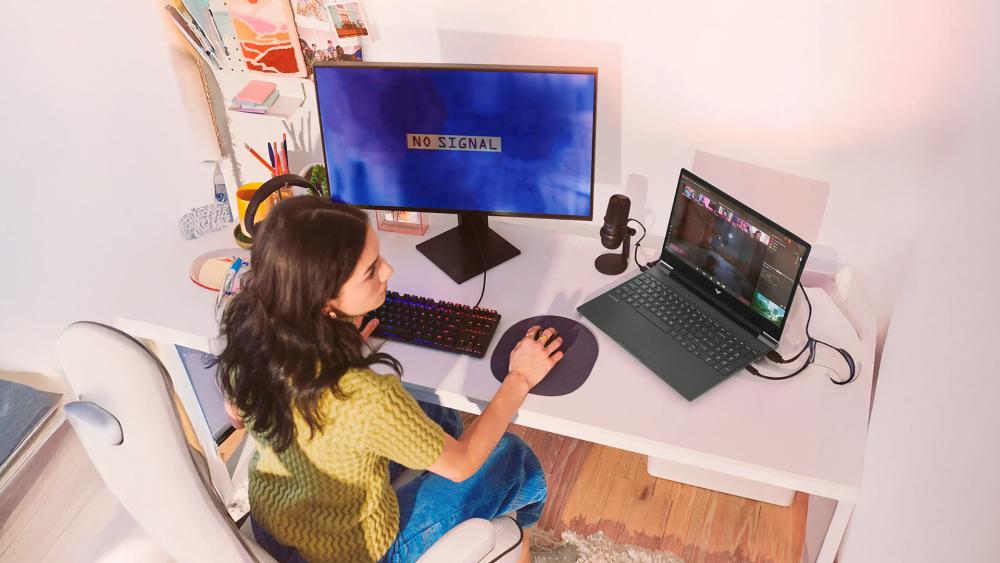
External monitor problems are some of the most frustrating HP Victus display issues, especially if you run a dual-screen setup for gaming, streaming or productivity. A "No Signal" message doesn't always mean your monitor is faulty; often the Victus isn't outputting a compatible signal or is sending video through the wrong GPU or port.
HDMI/DisplayPort Version Mismatches
Not all HDMI and DisplayPort standards support high refresh rates or certain resolutions. If your monitor uses DisplayPort 1.4 but your cable is an older 1.2 variant, the Victus might attempt a mode the cable can't handle, leading to a sudden HP Victus display issue that appears as flicker or total dropout.
Swap to a certified high-speed cable and retest. This is especially important if you're gaming on a higher-end monitor.
GPU Output Switching Between iGPU and dGPU
HP Victus laptops use hybrid graphics, meaning the system can switch between integrated and dedicated GPU outputs. Some external display ports are wired to the iGPU, which may not support the refresh rates you expect for gaming.
If the Victus chooses the wrong GPU path, you'll see HP Victus display issues ranging from slow output to full "No Signal" screens. You can force the dGPU for specific games using Windows Graphics Settings, or switch the laptop into dedicated GPU mode through BIOS if your model supports it.
Incorrect Scaling or Resolution Settings
If Windows or a game attempts to output a resolution or refresh rate the monitor doesn't support, the screen may flash black, stutter, or show no signal at all. This commonly happens after driver updates or when reconnecting a monitor that was previously running with custom settings.
Resetting the display back to a supported mode usually resolves the HP Victus display issue instantly.
Using the Wrong Port While Gaming
Some ports on HP Victus models connect directly to the iGPU rather than the dedicated GPU, which can limit performance or cause display instability on high-refresh monitors. If your monitor flickers or loses signal at 120 Hz or 144 Hz, try switching to a different port.
This is particularly important if you're upgrading from another laptop as these devices often route outputs differently and don't share the same limitations.
Gaming-Specific Causes of Display Issues
When problems only appear during gameplay, you're most likely seeing software behaviour rather than hardware failure. Many HP Victus display issues that show up in competitive titles or heavy games are triggered by overlays, game engine quirks or performance spikes rather than the screen itself.
Game Engine V-Sync and Fullscreen Bugs
Some engines struggle with rapid switching between windowed, borderless and fullscreen modes. When this happens, the screen may flash, dim or go black for a second. This is especially common in older engines or titles patched with new rendering systems.
If you're seeing HP Victus display issues only while loading maps or alt-tabbing, turn V-Sync off, try a different fullscreen mode, or reset graphics settings. This often stabilises output immediately.
Overlays and Recording Tools
Discord overlay, Xbox Game Bar, NVIDIA ShadowPlay, SteelSeries and Razer software can all interrupt the frame buffer and cause flicker or blackouts. These tools hook into the GPU at a deep level, and when several overlays are active at once, conflicts are inevitable.
If flicker appears exclusively during gameplay rather than on the desktop, disable each overlay one by one to identify the culprit. Many gamers find that turning off Game Bar alone eliminates persistent HP Victus display issues.
Thermal Throttling and Power Instability
Under heavy load, your GPU and CPU draw maximum power, which may temporarily dip the voltage available to the screen. If the laptop is running hot or the power brick is struggling, the panel may flicker, dim or briefly black out.
This type of HP Victus display issue usually appears after 20–30 minutes of gameplay, not at idle. Make sure your fans are clear of dust and your power cable is firmly connected. A cooling pad also helps the Victus maintain stable clock speeds in more demanding titles.
When It's Definitely Hardware (and How to Check)

Most HP Victus display issues come down to software, power states or drivers, but there are times when the fault is genuinely on the hardware side. Before assuming the worst, you can run a few quick checks to confirm whether the panel, hinge, cable or ports are at fault.
The LCD Panel Test
If your Victus powers on but the screen stays black, shine a torch at the display from different angles. If you can faintly see the desktop or login screen underneath, the backlight may have failed. This produces a type of HP Victus display issue that looks like a total blackout but is actually a lighting fault rather than a GPU problem.
This test also helps rule out software crashes, since a functioning faint image means the GPU is still outputting correctly.
Running the HP UEFI Display Test
HP includes built-in UEFI diagnostics that run outside of Windows. Restart the laptop and press Esc or F2 (depending on your model) to enter diagnostics mode. Run the display test to check for stuck pixels, panel failures and connection errors.
If the screen shows problems even in UEFI, it confirms the HP Victus display issues aren't software related. UEFI runs entirely outside Windows and bypasses drivers, so any flicker or blackout here signals a genuine hardware fault.
Port, Hinge or Ribbon Cable Damage
Frequent opening and closing of the lid can slowly wear down the ribbon cable that connects the screen to the motherboard. If you notice flicker, lines or blackouts when adjusting the hinge angle, the cable may be loose or partially damaged.
Similarly, damaged HDMI or DisplayPort jacks can create unreliable signals to external monitors. Testing with another device, such as a Victus PC or another HP laptop, can help confirm whether the port or cable is the culprit.
When a Repair or Replacement Makes More Sense
If diagnostics confirm hardware failure, repair is possible, but depending on the age and condition of your laptop, upgrading may be more cost-effective. Screen replacements and cable repairs are common fixes, but severe GPU or motherboard faults may not be worth the investment.
If you're weighing up your options, you could go for newer HP Victus laptops or even consider switching to one from our range of the best laptops for more stable long-term performance.
Final Checklist: Quick Wins to Try First
Before diving into deeper fixes or assuming hardware failure, run through these quick actions. They resolve most everyday HP Victus display issues without needing tools or advanced troubleshooting.
- Restart the laptop to clear cached power or display states.
- Press Windows + P to cycle through display modes and restore the internal panel.
- Update or roll back GPU drivers if flicker or blackouts began after an update.
- Reset refresh rate to the correct setting in Windows Display options.
- Disable VRR, Adaptive Brightness and Battery Saver to prevent screen pulsing or dimming.
- Try a different HDMI or DisplayPort cable if using an external display.
- Test with a monitor also used on another system like a desktop computer to rule out monitor faults.
- Run HP UEFI Diagnostics if black screens appear even before Windows loads.
- Ensure proper airflow to prevent thermal throttling during games.
- Double-check that Windows hasn't set your display output to the wrong source after sleep or update.
These steps rule out the majority of causes for HP Victus display issues, giving you clarity on whether you're dealing with a simple settings glitch or something deeper.
Conclusion
Screen problems can be frustrating, especially when they interrupt a match or stop your system booting properly. The good news is that most HP Victus display issues come down to simple software quirks, misconfigured settings or driver conflicts that you can resolve quickly at home. Whether you're dealing with flicker, a full HP Victus black screen, or signal dropouts on an external monitor, the fixes in this guide cover the most common causes gamers run into.
If you've gone through every step and the issue still persists, it may point toward a hardware problem such as a faulty ribbon cable, port or panel. At that point, comparing repair costs with an upgrade could be worth considering. You can explore the latest HP Victus laptops, high-performance desktop PC systems, or even wider HP laptops options for long-term stability.
With the right checks and a bit of patience, most users can get their Victus display working again without too much hassle. If you're ever unsure, running HP's diagnostics or testing your setup against another device helps narrow things down quickly.
FAQs
Why is my HP Victus screen black but the laptop is on?
A black screen while the system is powered usually points to corrupted Fast Startup data, a GPU crash or Windows choosing the wrong display mode. Shine a light at the panel to check for a faint image. If you see one, it's a backlight fault rather than a software issue. Many users experiencing HP Victus display issues find that a hard reset or disabling Fast Startup fixes this instantly.
How do I fix flickering on my HP Victus laptop?
Start by resetting your refresh rate in Windows Display Settings, turning off VRR and updating or rolling back your GPU drivers. Flicker is one of the most common HP Victus display issues, and it's usually caused by software conflicts, especially after major Windows or graphics driver updates.
Why does my HP Victus show "No Signal" on HDMI?
Your laptop may be outputting an unsupported resolution or refresh rate, or you may be using an HDMI/DisplayPort cable that doesn't match your monitor's capabilities. Switching to a certified high-speed cable or selecting a supported mode in Windows generally resolves the issue.
Can outdated drivers cause display issues on HP Victus laptops?
Yes. Outdated or corrupted GPU drivers can lead to flicker, blackouts, stuttering or complete signal loss. Many HP Victus display issues are resolved instantly with a clean driver installation using GeForce Experience or AMD Adrenalin.
Does the HP Victus have known display problems?
The HP Victus doesn't have widespread hardware faults, but it's known for occasional software-related issues such as refresh rate resets, brightness pulsing, and wake-from-sleep glitches. Most are easy to fix, and HP regularly pushes firmware updates to improve stability across the range.
You can pay with:
*PayPal Credit Representative Example: Assumed credit limit £1,200, Representative 23.9% APR (variable). Purchase rate 23.9% p.a (variable).Terms & Conditions apply.


PayPal Credit and PayPal Pay in 3 are trading names of PayPal UK Ltd, 5 Fleet Place, London, United Kingdom, EC4M 7RD. Terms and conditions apply. Credit subject to status, UK residents only, Five Tech LTD acts as a broker and offers finance from a restricted range of finance providers. PayPal Pay in 3 is not regulated by the Financial Conduct Authority. Pay in 3 eligibility is subject to status and approval. 18+. UK residents only. Pay in 3 is a form of credit. Check if affordable and how you will repay. May make other borrowing more difficult or expensive. See product terms for more details.
Copyright © 1996-2026 Fivetech LTD | Terms and Conditions
box.co.uk & Box are trading names of Five Tech Limited. Registered office: Box LTD, Unit 10 Woodford Trading Estate, Woodford Green IG8 8HF