


 Menu
MenuMenu


Get Sales Advice from Mon - Fri 9am - 5:00pm:
020 3337 8950LAST UPDATED: January 06, 2026
Gaming Monitor Showing 'No Signal' / Blank Screen: How to Troubleshoot
Few things interrupt a gaming session more abruptly than turning on your system only to see your gaming monitor display "No Signal" or stay completely black. Whether you're using HDMI, DisplayPort or USB-C, this issue almost always comes down to connection problems, input mismatches, GPU display output errors or incorrect resolution settings. The good news? Most of these problems can be fixed at home with simple checks.
This guide breaks down why your gaming monitor no signal error appears, how to identify the root cause, and the exact steps to bring your display back to life. Whether you're setting up a new monitor from the latest gaming monitors collection or troubleshooting an existing setup, this walkthrough will help you get everything working quickly and reliably.
No Signal vs Blank Screen: What's the Difference?
Understanding whether your monitor is showing "No Signal" or simply going black helps pinpoint the problem faster. A No Signal message means the monitor is turned on but receiving no video feed from the PC is usually caused by cable, GPU output or input selection issues. A blank screen or gaming monitor black screen often means the PC and monitor are connected, but something is preventing the image from displaying, such as resolution errors or system boot problems.
Knowing which one you're facing helps you choose the right fix without unnecessary steps.
Common Scenarios Where No Signal Occurs (Step-by-Step Diagnosis)

1. Monitor Powers On but Shows No Image
This normally means the PC isn't sending the signal to the port you're using.
Step-by-step fix:
- Check the cable location: Make sure your cable is plugged into the graphics card, not the motherboard.
- Check GPU seating: Power off the PC, remove the side panel, and firmly push the GPU into the PCIe slot.
- Check PCIe power cables: Ensure the GPU's 6-pin/8-pin connectors are fully inserted.
- Try another GPU port: Switch from HDMI to DisplayPort or vice versa.
- Try another monitor input: If the monitor has multiple HDMI/DP ports, switch to the next one.
If the monitor displays BIOS but not Windows, skip to the Resolution/Refresh Rate section.
2. No Signal After Booting or Waking the PC
Your monitor might show the boot logo but lose signal when Windows loads.
Step-by-step fix:
- Force Windows into low-resolution boot mode:
Restart → Press F8 (or hold Shift while clicking Restart) → Select Low-Resolution Mode. - Lower refresh rate to 60Hz temporarily.
- Lower resolution (e.g., 1440p → 1080p).
- Check your cable's bandwidth limits:
- HDMI 1.4 cannot run 1440p 144Hz
- DisplayPort 1.1 may not support ultrawide high refresh
- Disable multi-monitor confusion:
Go to Windows Display Settings → Detect → Make your current screen "Main Display."
Many no-signal issues appear right when a game or OS forces an unsupported setting.
3. Display Works in BIOS but Not in Windows
This means the hardware is fine but Windows/GPU settings are wrong.
Step-by-step fix:
- Boot into Safe Mode (basic drivers only).
- Perform a clean driver reinstall using DDU (Display Driver Uninstaller).
- Reset display settings to defaults.
- Ensure games are not set to resolutions your monitor cannot handle.
- Remove any custom GPU overclocks.
This often happens when upgrading to new 1440p or high refresh rate monitors.
Cable and Input Source Checks (Step-by-Step)
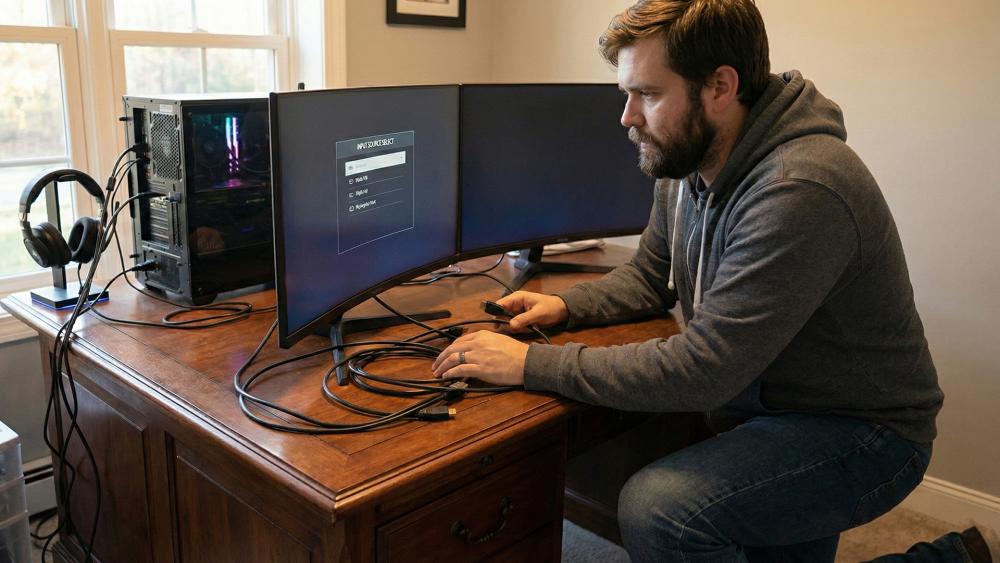
1. Incorrect Input Source Selected
Your monitor may be on the wrong source, even if the cable is plugged in correctly.
Step-by-step fix:
- Open the monitor's OSD menu (press Menu button).
- Navigate to Input or Source.
- Select HDMI, DisplayPort or USB-C manually.
- Turn off "Auto Input Select" to prevent unwanted switching.
Monitors often default to a port that isn't being used; especially after sleep mode.
2. HDMI or DisplayPort Cable Limitations
A weak, damaged or outdated cable is one of the most common causes of monitor no display issues.
Step-by-step fix:
- Inspect cable ends for bent pins or loose connectors.
- Test the cable while connected gentle movement causing flicker means the cable is failing.
- Try a completely different cable.
- Try a different type of connection (HDMI → DP or DP → HDMI).
- Make sure the cable supports your monitor's performance:
- 144Hz requires high-bandwidth cable
- 165Hz, 240Hz and 4K require HDMI 2.0+ or DisplayPort 1.4
If you need high-quality replacements, browse monitor cables and adapters at Box.co.uk.
Graphics Card Output & Display Configuration (Step-by-Step)
1. GPU Output Not Detected by Monitor
Sometimes your GPU simply isn't sending a signal to the port you expect.
Step-by-step fix:
- Try all available GPU ports (DP1, DP2, HDMI1, HDMI2).
- Check for dust blocking the GPU ports.
- Ensure PCIe power connectors are fully clicked into the GPU.
- Reseat the GPU in the PCIe slot.
- Update GPU firmware (if supported).
Newer GPUs sometimes prioritise DisplayPort output first.
2. Resolution or Refresh Rate Incompatibility
If your PC outputs a setting your monitor cannot interpret, you'll see a blank screen.
Step-by-step fix:
- Boot into Safe Mode.
- Reset resolution to 1080p 60Hz.
- Reboot normally and increase settings gradually.
- Match your monitor's native resolution (e.g., 2560×1440).
- Match your monitor's max refresh rate (e.g., 144Hz).
If you're planning to upgrade, our gaming monitor panel types comparison and 1440p gaming monitor guide will help you choose compatible hardware.
Step-by-Step Troubleshooting: Full Checklist
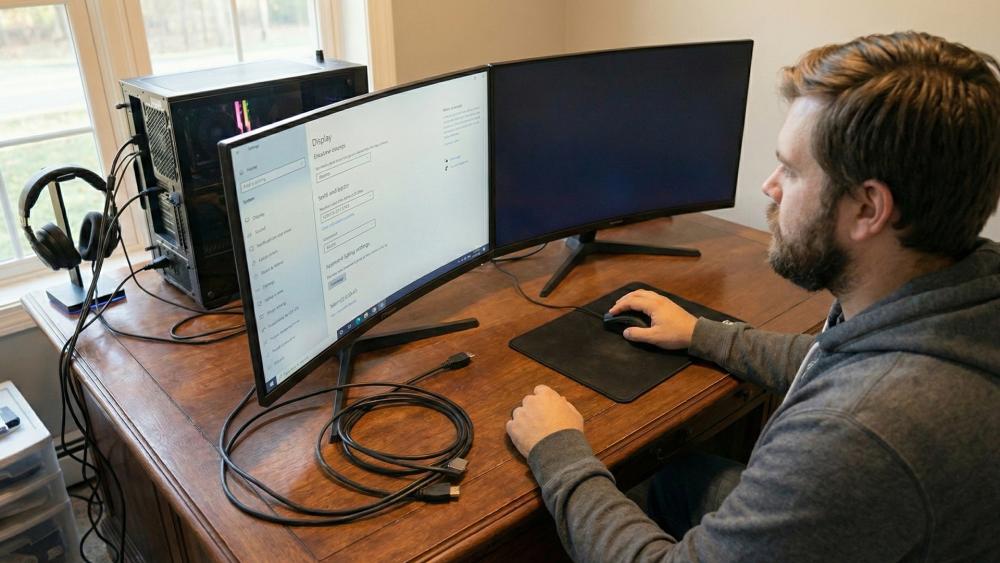
1. Restart the Monitor and PC Properly
This resets handshake and signal detection.
Steps:
- Power off both devices
- Unplug power cables
- Wait 10 seconds
- Reconnect and power on
2. Manually Select the Correct Input Source
Steps:
- Press Menu on monitor
- Select Input Source
- Choose HDMI / DP / USB-C
- Disable Auto-Detect
3. Test Different Cables and Ports
Steps:
- Replace HDMI cable
- Replace DisplayPort cable
- Try different monitor port
- Try different GPU port
If ANY combination works → the original cable or port is faulty.
4. Reset Display Settings to Safe Defaults
Steps:
- Boot into Safe Mode
- Set resolution to 1080p
- Set refresh rate to 60Hz
- Restart PC
- Increase settings gradually
Confirming the Source of the Issue (Step-by-Step)
1. Test Monitor With Another Device
Steps:
- Connect a laptop
- Try a console (PS5 / Xbox)
- Use the same cable & port
If it works → your monitor is healthy.
2. Test PC With a Different Display
Steps:
- Connect your PC to another monitor
- Try a TV if you don't have a second monitor
- Use the same cable
If the second screen works → the problem is with your original monitor.
If both fail → your GPU or PC is the issue.
When Further Action Is Required
If none of the previous troubleshooting steps restore a signal to your gaming monitor, the issue may be linked to deeper hardware faults rather than simple configuration problems. In some cases, the GPU may be failing to output video reliably, the monitor's internal board may be damaged, or your system's display drivers may be so severely corrupted that Windows cannot initialise them properly. Other possibilities include a damaged PCIe slot preventing the GPU from making stable contact, system instability caused by faulty RAM or a weakening power supply, or even a failing monitor backlight or firmware error that stops the panel from displaying an image.
When problems reach this point, seeking professional diagnosis or considering a hardware replacement becomes the most practical solution.
Upgrading to more stable, modern components such as the best GPUs or one of the latest gaming monitors can often eliminate repeated no-signal issues and give you a more reliable setup moving forward.
Conclusion
A gaming monitor showing "No Signal" or staying black is usually caused by simple connection issues, unsupported display settings or a GPU output mismatch rather than serious hardware failure. By following the step-by-step checks in this guide from verifying ports and inputs to resetting resolutions and testing different devices you can often restore your display in minutes and avoid unnecessary stress. Understanding how your monitor, GPU and cable connection work together also helps prevent the problem from happening again, especially when you upgrade to higher-resolution or high-refresh-rate screens.
If you're looking to improve your setup or replace unreliable components, exploring high-quality Cables & Adapters for monitors, browsing the latest gaming monitors, or upgrading to more powerful graphics cards at Box.co.uk can make your system more stable, compatible and future-proof.
With the right hardware working together, your monitor will deliver the smooth, vibrant and reliable gaming experience you expect every time you turn your PC on.
Frequently Asked Questions
Why does my gaming monitor say no signal?
Your monitor shows "No Signal" when it's powered on but not receiving any video output from the PC. This usually happens because the cable is connected to the wrong port, the input source isn't set correctly, the graphics card isn't outputting to that connector, or the cable itself can't support the resolution/refresh rate you selected. Loose GPU power cables or seating issues can also cause the signal to drop during boot.
Why is my gaming monitor going black?
A gaming monitor may go black when the PC outputs a resolution or refresh rate that the monitor cannot display. It can also happen if the HDMI or DisplayPort cable is faulty, if the GPU temporarily stops sending a signal (often due to drivers), or if the system wakes from sleep and selects the wrong display output. In many cases, resetting the display settings in Safe Mode or switching cables resolves the issue.
Can RAM cause no signal?
Yes, faulty or incorrectly seated RAM can prevent your system from booting properly, which results in your monitor showing no signal at all. When RAM fails, the PC may power on but fail to complete the POST process, meaning no image is ever sent to the monitor. Reseating the RAM sticks or testing them individually often resolves this.
Is a no signal message a sign of a faulty monitor?
Not always. A "No Signal" message is more commonly caused by connection problems, GPU output issues, driver conflicts or unsupported display settings. However, if your monitor fails to show any image with multiple devices and multiple cables, or if the on-screen menu doesn't appear, then the monitor itself may be faulty. Testing with another PC or console helps confirm this before seeking repair or replacement.
You can pay with:
*PayPal Credit Representative Example: Assumed credit limit £1,200, Representative 23.9% APR (variable). Purchase rate 23.9% p.a (variable).Terms & Conditions apply.


PayPal Credit and PayPal Pay in 3 are trading names of PayPal UK Ltd, 5 Fleet Place, London, United Kingdom, EC4M 7RD. Terms and conditions apply. Credit subject to status, UK residents only, Five Tech LTD acts as a broker and offers finance from a restricted range of finance providers. PayPal Pay in 3 is not regulated by the Financial Conduct Authority. Pay in 3 eligibility is subject to status and approval. 18+. UK residents only. Pay in 3 is a form of credit. Check if affordable and how you will repay. May make other borrowing more difficult or expensive. See product terms for more details.
Copyright © 1996-2026 Fivetech LTD | Terms and Conditions
box.co.uk & Box are trading names of Five Tech Limited. Registered office: Box LTD, Unit 10 Woodford Trading Estate, Woodford Green IG8 8HF