


 Menu
MenuMenu


Get Sales Advice from Mon - Fri 9am - 5:00pm:
020 3337 8950LAST UPDATED: March 25, 2026
DDR5 Not Detected or No POST? Step-by-Step Fix Guide
If your new build powers on but shows a DRAM LED, loops endlessly, or refuses to display anything at all, you are not alone. DDR5 not detected and DDR5 no POST issues are some of the most common early-build problems on modern Intel and AMD systems, especially after a first install, a BIOS update, or enabling XMP or EXPO. The frustrating bit is that several different faults can produce the same symptom: black screen, no boot, or a board that keeps retraining memory. The fix is rarely just reseat the RAM and hope for the best.
The good news is that most DDR5 boot and detection problems can be narrowed down in a logical way. In many cases, the cause is something straightforward, such as the wrong slot configuration, incomplete installation, unstable memory settings, a BIOS issue, or normal DDR5 memory training being mistaken for a fault. What matters is working through those possibilities in the right order rather than changing random settings and making the problem harder to track down.
This guide is designed to do exactly that. It takes you through the most common causes of DDR5 not working, from basic physical checks to BIOS resets, default memory settings, slot testing, and safe XMP or EXPO troubleshooting. By the end, you should have a much clearer idea of whether you are dealing with a simple setup issue, a compatibility problem, or a genuine hardware fault.
What "DDR5 not detected" or "DDR5 no POST" usually looks like
These problems tend to show up in a few familiar ways:
- The system powers on but shows a black screen.
- The motherboard's DRAM LED stays lit.
- The board cycles on and off in a DDR5 boot loop.
- Fans spin, but there is no video output and no BIOS screen.
- The system works with one module but not two.
- The system boots at defaults, then fails as soon as XMP or EXPO is enabled.
The important thing to remember is that these symptoms do not always point to dead RAM. They can just as easily be caused by incorrect slot population, incomplete installation, memory training delays, unstable memory profiles, or a BIOS issue. That is why the first goal is not to assume the worst, but to narrow the problem down step by step.
Before you start: one crucial DDR5 reality check
DDR5 memory training can look like a failure
This catches a lot of builders out. Some DDR5 systems can require a period of memory training before they will complete POST, and in some cases, this can take up to 15 minutes. During that time, you may only see a black screen or a board apparently hanging on boot.
So before you tear the system apart:
- Power on the PC.
- Leave it alone for at least 10 to 15 minutes on the first boot after a memory change, BIOS reset, or RAM profile change.
- Do not repeatedly force shutdowns unless you are sure it is genuinely stuck.
This is especially relevant on AM5 boards, where DDR5 training behaviour is widely discussed, but it can also happen on Intel DDR5 systems.
XMP and EXPO are overclocking profiles, not guaranteed defaults
Intel XMP and AMD EXPO are designed to apply faster, more aggressive memory settings than the JEDEC default. AMD describes EXPO as a user-friendly path to higher DDR5 performance on AM5. That is useful, but it also means instability under EXPO or XMP is not the same thing as defective RAM.
A system that boots at default settings but fails under XMP or EXPO is usually telling you one of three things:
- the BIOS is too old,
- the kit is too aggressive for the current CPU memory controller,
- or the board needs manual tuning rather than one-click memory overclocking.
Step 1: Confirm the RAM is in the Correct Slots
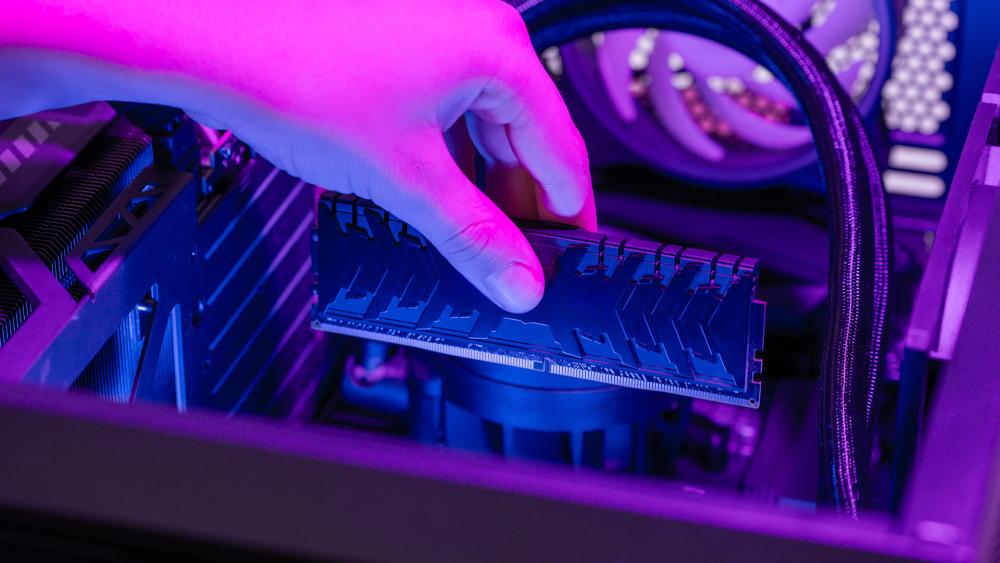
This is the first thing to check because it causes a huge number of DDR5 no boot complaints.
For most consumer DDR5 motherboards:
- One stick: install in A2
- Two sticks: install in A2 and B2
Why it matters:
- Those slots are usually electrically optimised for the board's routing.
- Using A1/B1 first can trigger DDR5 motherboard issue symptoms even when the RAM itself is fine.
- Wrong slot population is one of the easiest ways to end up with DDR5 not working on a fresh build.
What to do
- Power off and switch off the PSU.
- Remove both sticks.
- Reinstall one stick in A2 only.
- Test.
- If that works, add the second stick in B2 and test again.
If one specific slot never works, that can point to a board slot problem, CPU socket contact issue, or one dead memory channel rather than bad RAM. If that is the case, you need to go for compatible Intel CPUs or Ryzen processors based on your specific configuration.
Step 2: Reseat the Memory Properly
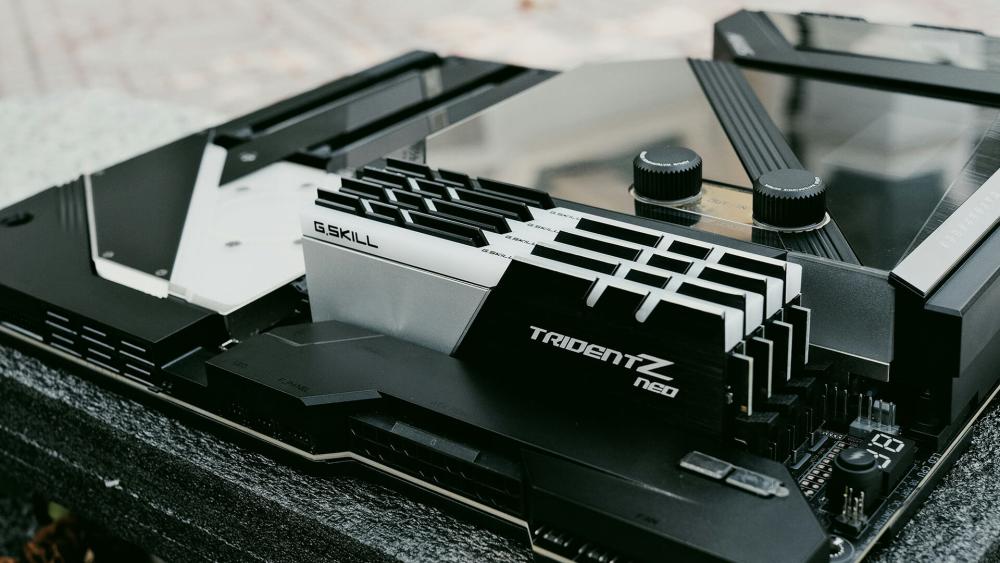
DDR5 can feel seated when it is not fully latched. ASUS specifically tells users to confirm the memory is fully installed and to inspect both the module contacts and the slot for dust or contamination.
What to do
- Remove the DIMM and inspect the gold contacts.
- Check the DDR5 DIMM slots for dust, debris, or packing residue.
- Reinsert the module with firm, even pressure until the latch is fully engaged.
If the board has a DRAM LED and it clears after reseating, the issue was likely installation rather than a dead kit.
Step 3: Clear CMOS and boot at JEDEC defaults
If the board has stored unstable memory settings, especially after a failed XMP or EXPO attempt, it may keep failing until you wipe them.
ASUS recommends a CMOS reset when Q-LED or Q-Code memory troubleshooting does not resolve the issue.
What to do
- Use the board's clear CMOS button or jumper if available.
- If not, power off, disconnect AC power, remove the CMOS battery briefly, then reinstall.
- Boot with one stick in A2 after the reset.
- Leave the system at JEDEC default memory speed.
This matters because a surprising number of DDR5 BIOS issue cases are simply leftover unstable timings or voltages from an earlier profile attempt.
Step 4: Update the BIOS before blaming the RAM
This is one of the highest-value fixes in the whole guide.
Motherboard vendors continually improve DDR5 compatibility and training behaviour through BIOS updates. ASUS support often advises users with DRAM Q-LED issues to update to the latest BIOS and then clear CMOS. ASUS also notes that some boards support BIOS FlashBack, which lets you update firmware even without a working CPU/RAM boot.
Why this matters so much
- Early BIOS releases often have weaker DDR5 training support.
- Newer CPUs can need later BIOS versions for stable memory behaviour.
- New high-capacity kits sometimes need updated memory tables.
What to do
- Check the motherboard support page.
- Confirm the latest BIOS version.
- Read the release notes for DDR5, AGESA, or memory compatibility improvements.
- Update the BIOS.
- Clear CMOS again after updating.
- Retry with one DIMM at default speed.
If you are building from scratch, updating BIOS before enabling XMP or EXPO is simply good practice.
Step 5: Test one stick at a time
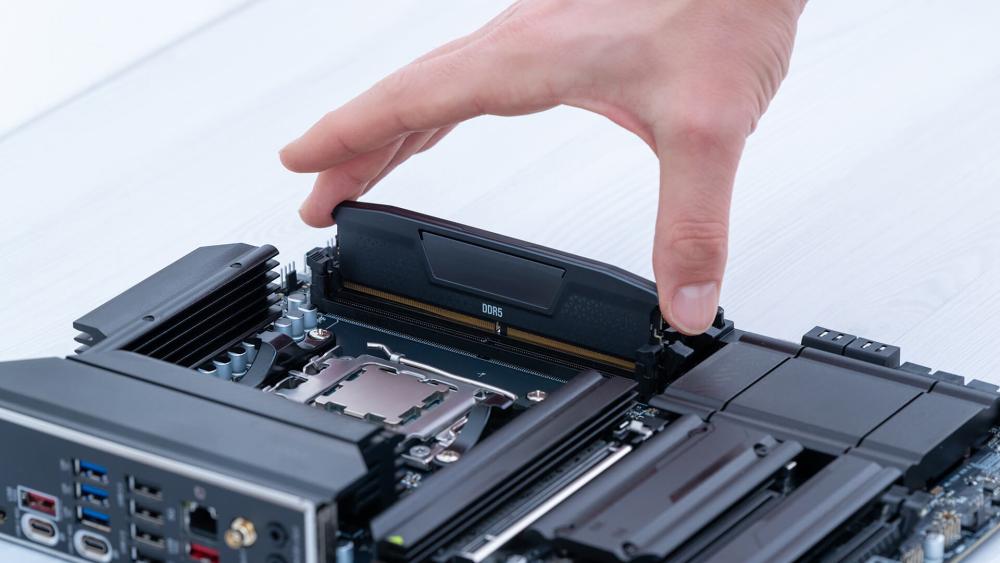
If the system still fails, isolate the fault.
Single-channel testing method
- Test Stick 1 in A2
- Test Stick 2 in A2
- If both work individually, test each in B2
- Then test dual-channel in A2/B2
This tells you whether the fault follows:
- a specific module,
- a specific slot,
- or only appears when dual-channel is enabled.
What the results usually mean
- Only one stick fails in A2: likely bad DIMM
- Both sticks work in A2 but fail in B2: possible motherboard slot or channel issue
- Both sticks work individually but fail together: training instability, BIOS issue, CPU memory controller limit, or profile instability
This is one of the fastest ways to separate DDR5 RAM problem from DDR5 motherboard issue. Check out our guide on DDR5 stability problems and crash fixes to learn more.
Step 6: Check the QVL and Platform Support
A DDR5 kit can be electrically compatible with the platform and still not be validated on your exact board.
ASUS tells users to check the board's Memory QVL list, and MSI likewise warns that unsupported modules may not function properly.
Why the QVL Matters
- It confirms what the board vendor has actually tested.
- It often lists supported speeds per capacity and rank configuration.
- It can reveal that a kit marketed for one platform is less ideal for another.
Important Expert Caveat
A QVL match is helpful, but not a guarantee. Enthusiast moderators on ASUS forums regularly point out that CPU memory controller quality still matters, even with QVL-listed RAM.
So:
- If your kit is not on the QVL, it may still work, but troubleshooting gets harder.
- If your kit is on the QVL and still fails, the issue may be BIOS, seating, or the CPU/socket.
Step 7: Understand Official Memory-Speed Limits
A lot of no-POST complaints come from assuming the kit's rated speed is guaranteed.
It is not.
AMD AM5 Official Speeds
AMD's official Ryzen 7000/9000 product specifications show:
- 2x1R / 2x2R: DDR5-5200
- 4x1R / 4x2R: DDR5-3600
for many AM5 desktop CPUs.
Intel Desktop DDR5 Official Guidance
Intel's published DDR5 matrices show that supported frequencies drop depending on:
- 1 DIMM per channel vs 2 DIMMs per channel
- Single-rank vs dual-rank
- Desktop vs mobile routing: For many desktop platforms, 1DPC support is much higher than 2DPC support.
Why this matters
If you install a DDR5-6400 or DDR5-7200 kit and enable XMP/EXPO, you are overclocking the memory subsystem. That is normal, but it means:
- some CPUs will do it easily,
- some will need tuning,
- some will refuse entirely.
If the system no longer boots after enabling XMP/EXPO, that is often not "bad RAM". It may simply be that the profile is too aggressive for the current CPU + board + BIOS combination. In that case, our guide on how DDR5 speed and timings affect stability can help you out.
Step 8: If XMP or EXPO Causes the Failure, Back Off Methodically
This is where you move from recovery into tuning.
Start simple
- Disable XMP or EXPO
- Boot at JEDEC default
- Confirm the system is stable there
Then try:
- Enable the profile again after BIOS update
- If it fails, set a lower manual frequency
- Keep timings on Auto at first
- Avoid random voltage jumps unless you know what you are doing
On AMD, EXPO is the obvious path. On Intel, XMP is the usual equivalent. Some boards also offer vendor-assisted memory profiles or training options. ASUS, for example, promotes AEMP-style assisted profiles on some platforms.
Practical rule
If DDR5-6400 no longer posts but DDR5-6000 does, that is a stable answer, not a failure. To learn more about this, check out our guide on choosing the best computer RAM based on your requirements.
Step 9: Inspect the CPU Socket and Memory Channel Path
If one channel never works, do not ignore the CPU side.
On modern platforms, the CPU memory controller and socket contact quality matter. Bent pins or poor pad contact can cause:
- A channel not to initialise
- One side of dual-channel to fail
- Persistent DRAM LED even with good RAM
This is especially important if:
- both sticks work individually in the same slot,
- but one slot group or one channel never works.
What to do
- Remove the cooler and CPU carefully
- Inspect socket pins or contact pads with good light
- Look for bent pins, debris, or paste contamination
- Reseat the CPU evenly
- Recheck cooler pressure after reinstall
Memory-channel failure is one of the classic "looks like bad DDR5" cases that is actually a socket/contact issue.
Step 10: Do Not Overlook Power Stability
A poor PSU is less common than slot population or BIOS issues, but it can absolutely make DDR5 training and boot behaviour less consistent.
If the system is:
- cycling on and off,
- resetting during training,
- or failing unpredictably under memory changes,
then unstable power delivery is worth ruling out.
This matters more on high-core-count CPUs, boards with aggressive auto-training, or marginal entry-level supplies. If your current unit is questionable, compare against a high-quality PSU before you start blaming every other component.
A Clean Step-by-Step Recovery Sequence
If you want the shortest expert workflow, use this order:
- Power off and wait.
- Install one stick in A2.
- Leave the board up to 15 minutes for DDR5 training.
- If still no POST, clear CMOS.
- Retry one stick in A2 at defaults.
- Update BIOS.
- Retry one stick in A2.
- Test the second stick individually.
- Test A2/B2 together.
- Check the board QVL and CPU support page.
- Only then try XMP or EXPO again.
- If profile boot fails, use lower speed manually.
- If one channel never works, inspect the CPU socket and board.
This approach avoids the two biggest mistakes:
- changing too many things at once
- assuming high-speed profile failure means dead RAM
When to Suspect Faulty DDR5 RAM
After all of the above, a kit becomes genuinely suspicious if:
- one module fails in every slot,
- the same stick prevents POST on multiple boards,
- the system is stable with another known-good DDR5 kit,
- or memory test errors appear even at JEDEC default.
At that point, replacement makes sense. If you are swapping hardware, compare against known-good DDR5 RAM kits that match your platform and board support list.
When the Motherboard is More Likely to be the Problem
Suspect the board if:
- one slot never works with any module,
- both modules boot in A2 but never in B2,
- BIOS FlashBack and CMOS reset do not change anything,
- and the CPU/socket checks out.
If you are moving to a new board, match the platform correctly. Go for DDR5 Intel boards for Intel systems or check out DDR5 AMD boards for Ryzen systems.
Final Thoughts
Most DDR5 not detected and DDR5 no POST issues come down to five things: wrong slots, incomplete seating, old BIOS, unfinished memory training, or unstable XMP/EXPO settings. Those are fixable. The key is to treat the problem like a sequence, not a mystery.
Start with A2, one stick, a proper CMOS reset, and enough time for memory training. Then update the BIOS, verify the QVL, and only test memory profiles once the system proves it can boot cleanly at defaults. That is the expert path because it separates bad hardware from bad assumptions.
FAQs
Why is my DDR5 RAM not detected?
The most common causes are wrong slot population, incomplete seating, an old BIOS, failed memory training, or unstable XMP/EXPO settings. Start by testing one stick in A2, clearing CMOS, and booting at defaults.
Can DDR5 cause no POST on a new build?
Yes. DDR5 systems can fail POST on first boot if memory training takes time, if the RAM is in the wrong slots, or if the BIOS needs updating for better compatibility.
Should I update BIOS before installing DDR5?
If possible, yes. A current BIOS greatly improves DDR5 compatibility, training behaviour, and support for newer CPUs and memory kits. On many boards, BIOS FlashBack lets you update even without a successful boot.
Why does my motherboard show a DRAM light?
A DRAM light usually means the board cannot initialise memory correctly. That could mean no memory detected, faulty memory, wrong slot use, unstable memory settings, or a CPU/socket contact issue.
How do I know if my DDR5 RAM is faulty?
If one stick fails to boot in every slot, while another known-good stick works, the DIMM is likely faulty. If both sticks work individually but not together, the problem is more likely training, BIOS, or CPU/motherboard-related rather than a dead module.
You can pay with:
*PayPal Credit Representative Example: Assumed credit limit £1,200, Representative 23.9% APR (variable). Purchase rate 23.9% p.a (variable).Terms & Conditions apply.


PayPal Credit and PayPal Pay in 3 are trading names of PayPal UK Ltd, 5 Fleet Place, London, United Kingdom, EC4M 7RD. Terms and conditions apply. Credit subject to status, UK residents only, Five Tech LTD acts as a broker and offers finance from a restricted range of finance providers. PayPal Pay in 3 is not regulated by the Financial Conduct Authority. Pay in 3 eligibility is subject to status and approval. 18+. UK residents only. Pay in 3 is a form of credit. Check if affordable and how you will repay. May make other borrowing more difficult or expensive. See product terms for more details.
Copyright © 1996-2026 Fivetech LTD | Terms and Conditions
box.co.uk & Box are trading names of Five Tech Limited. Registered office: Box LTD, Unit 10 Woodford Trading Estate, Woodford Green IG8 8HF