


 Menu
MenuMenu


Get Sales Advice from Mon - Fri 9am - 5:00pm:
020 3337 8950LAST UPDATED: July 06, 2026
The Best Student Tech Setup for Every Course: Back to School Tech Guide
The right tech setup can make student life much easier, but it is not the same for every course. A business student may need a lightweight laptop, strong battery life and a second screen for spreadsheets. An engineering, design or media student may need more performance, better graphics, extra storage and a larger display.
That is why choosing the right tech for university students should start with the course, not just the budget. The aim is to build a setup that helps with lectures, coursework, research, online classes and day-to-day study without buying accessories that will barely be used.
In this guide, we will break down the best tech for students by course type, covering laptops, monitors, storage, docks, keyboards, mice, headphones and other back-to-school tech essentials that can support a better study routine.
Why Every Student Needs a Different Tech Setup

A good tech setup should be built around how a student actually works each week. The best way to choose is to consider three things: workload, study location, and upgrade priority.
How Your Course Impacts Your Technology Needs
Different courses create different pressure points. Instead of buying every device at once, match the setup to the tasks that will take the most time.
| Course Demand | What to Prioritise |
|---|---|
| Lots of writing and reading | Battery life, keyboard comfort and simple note-taking |
| Regular spreadsheets and reports | Multitasking, screen space and reliable performance |
| Coding and development | RAM, SSD storage and a comfortable programming workstation |
| CAD or simulation work | Stronger processor, graphics support and software compatibility |
| Design or media projects | Better display quality, more storage and smoother creative workflows |
| Online seminars and group work | Webcam quality, audio, online classes and hybrid learning support |
A study setup for students should make regular tasks easier. That may mean a lightweight laptop for lectures, a second screen for research, or more power for specialist coursework.
Building a Setup That Balances Budget and Performance
The best setup for students is not always the most expensive one. It is the setup that puts money into the parts that matter most for the course.
- Spend first on the laptop, as it controls performance, portability and daily use.
- Upgrade RAM and storage if the course involves larger files, coding tools or creative software.
- Add a monitor only if it improves multitasking, referencing or long study sessions.
- Choose accessories that solve a clear issue, such as poor posture, limited ports or not enough storage.
- Use special offers like back-to-school tech deals for students to save money, but avoid buying extras that will sit unused.
The aim is to build a setup that supports study productivity throughout the year, rather than a desk full of gadgets with no clear purpose.
Core Components of a Student Tech Setup
A strong tech setup for students starts with the essentials. The laptop does most of the work, but the right screen, storage and accessories can make studying much smoother.
Choosing the Right Laptop
The laptop should match the course, commute and workload.
- Processor: Choose enough power for everyday apps, browser tabs, video calls and course software.
- RAM: 8GB can work for lighter study, while 16GB is a better target for heavier multitasking. Look for machines with 32GB or more only if you run heavier workflows.
- Storage: SSD storage helps with faster start-up, smoother file access and better everyday performance.
- Battery life: Important for lectures, library sessions and long days on campus.
- Weight: A lighter laptop is easier to carry between classes.
- Keyboard and webcam: Useful for essays, note-taking, online classes and presentations.
If you are comparing options, start with student laptops for every budget and don't forget to check out our student laptop buying advice guide before choosing.
When a Second Screen Makes Sense
A second display is not essential for every student, but it can be a big help when the workload involves research, spreadsheets, coding or creative work.
- Use a portable screen if you move between halls, home and the library.
- Use a larger monitor if most study happens at a fixed desk.
- A second screen helps keep notes, documents and video calls open while working.
- A dual-monitor setup is useful for students who need more space for multitasking.
For students who regularly compare documents, write reports or work across several windows, portable monitors for multitasking and productivity monitors for study sessions can make a student desk setup much more efficient.
Essential Accessories for Productivity
Accessories should make studying easier, not clutter the desk.
- External SSD: Useful for coursework, backups, media files and large projects.
- USB-C hub: Adds extra ports when the laptop only has limited connections.
- Docking station: Better for a fixed desk with a monitor, keyboard, mouse and storage.
- Wireless keyboard: More comfortable for long writing or coding sessions.
- Wireless mouse: Useful for spreadsheets, editing, design work and general navigation.
- Laptop stand: Helps raise the screen and improve posture during longer study sessions.
- Noise-cancelling headphones: Useful for focus in halls, shared homes, libraries and busy spaces.
A good student productivity setup does not need every accessory at once. Start with the tools that solve the biggest daily problems, such as limited ports, poor posture, not enough storage or a cramped screen. For most students, USB-C docks and hubs plus wireless keyboards and mice are practical upgrades once the main laptop is sorted.
Best Tech Setup for Business and Finance Students
Business and finance students need a tech setup that can handle spreadsheets, reports, presentations, online meetings and research without feeling slow. The focus should be on a reliable laptop first, then a few accessories that make long study sessions easier.
Recommended Laptop Features
For most business and finance courses, the laptop does not need heavy graphics power. It should be fast, portable and comfortable to use every day.
- Processor: Intel Core i5, Intel Core Ultra 5, AMD Ryzen 5 or better is a sensible starting point. Go for Core i7, Core Ultra 7 or Ryzen 7 if you expect heavier multitasking. Apple MacBook models with M3 or M4 chips are also strong options for business and finance students, offering smooth performance and excellent battery efficiency.
- RAM: 8GB is the minimum for everyday study. 16GB is better for large spreadsheets, lots of browser tabs, video calls and multiple apps open together.
- Storage: 256GB SSD is enough for lighter use. 512GB SSD is a safer choice if you store lots of reports, downloads, lecture files and project work locally.
- Battery life: Aim for at least 8 hours of real-world use. Around 10-12 hours is better if you spend long days on campus without easy access to a charger.
- Display: A 14-inch screen is easier to carry, while a 15.6-inch screen gives more room for spreadsheets and dashboards. Full HD should be the minimum.
- Weight: Look for something around 1.2kg to 1.7kg if you will carry it to lectures, the library and group sessions most days.
- Keyboard: A comfortable keyboard matters for essays, reports, note-taking and long financial analysis tasks.
Students comparing options can check out our comparison of the top 10 laptops for students to narrow down choices by budget, portability and performance.
Productivity Accessories Worth Having
Business and finance students do not need a complicated desk. A few practical accessories can make spreadsheets, presentations and research projects much easier to manage.
- Portable monitor: Useful for keeping spreadsheets, reports and sources open side by side.
- Wireless mouse: Better than a trackpad for spreadsheets, dashboards and long editing sessions.
- Laptop stand: Helps raise the screen and makes a student desk setup more comfortable.
- USB-C hub: Useful if the laptop has limited ports for a monitor, storage or accessories.
- Noise-cancelling headphones: Helpful for online classes, video calls and focused work in shared spaces.
A simple setup works best here: laptop, mouse, stand and a second screen if you regularly work across multiple documents. That is usually enough to keep business and finance work organised without overbuying.
Best Tech Setup for Computer Science Students
Computer science students need a tech setup that can handle coding, testing, browser-based research, development tools and project files. The setup does not always need to be expensive, but it should have enough performance headroom to avoid slowing down during larger tasks.
Hardware for Coding and Development
For most computing courses, aim for a laptop that is comfortable to code on and strong enough for development environments.
- Processor: Intel Core i5, Intel Core Ultra 5, AMD Ryzen 5 or Apple M-series chips are good starting points. Choose Core i7, Core Ultra 7, Ryzen 7 or a higher-spec Apple chip if you expect heavier compiling, virtual machines or larger development projects.
- RAM: 16GB or more is a better target for computer science students. 8GB is not the right option as it may slow you down during heavier multitasking.
- Storage: 1TB is a sensible option, especially if you will keep multiple development environments, datasets, virtual machines or large project folders on the laptop.
- Battery life: Aim for at least 8 hours of real-world use. Around 10 hours or more is better if you code in lectures, labs and libraries without staying plugged in.
- Keyboard: A comfortable, responsive keyboard matters more than many students realise. Long coding sessions quickly expose a poor layout or shallow key feel.
- Operating system: Windows works well for most courses, while macOS is a strong option for students already in the Apple ecosystem. A MacBook also makes sense if the course includes iOS or macOS development, as Apple’s Xcode tools are built around macOS.
A good uni students tech setup for computer science should feel quick, reliable and comfortable. It does not need to be a full desktop replacement unless the course involves heavy virtualisation, advanced AI workloads or large local builds.
Monitors and Storage for Programming Projects
Coding often feels easier with more screen space. A compact second screen can turn a laptop into a better programming workstation without taking over the desk.
- Second screen: A portable monitor or desk monitor helps keep code, documentation and previews open at the same time.
- External SSD: Useful for backups, repositories, datasets and larger project files.
- USB-C hub: Handy if the laptop has limited ports for monitors, storage, Ethernet or peripherals.
- Dual-monitor setup: Helpful for larger coding projects, debugging, documentation and web development work.
- Backup habit: Keep important work in at least two places, such as cloud storage plus external storage.
The aim is to make coding smoother, not to overload the desk. A laptop, a second screen, an external SSD and a simple hub are enough for most computer science students.
Best Tech Setup for Engineering Students
Engineering students usually need a more performance-focused tech setup than students in lighter writing-based courses. The exact spec depends on the branch of engineering, but CAD, modelling, simulation and technical project work all benefit from stronger hardware.
Running CAD and Simulation Software
For engineering work, choose a laptop around the software your course expects you to use, not just the cheapest spec available.
- Processor: Intel Core i7, Intel Core Ultra 7, AMD Ryzen 7 or better is a sensible target. Core i5, Core Ultra 5 or Ryzen 5 can work for lighter first-year tasks, but may feel limited with heavier CAD software or simulation work.
- RAM: 16GB should be treated as the entry point. 32GB is a better long-term choice if your course involves larger models, simulation tools, 3D work or several apps open at once.
- Storage: 1TB SSD is the safer starting point for most engineering students. 512GB can work only if you use cloud storage, external drives or university lab machines for larger files. For CAD projects, datasets, simulation files and multiple engineering applications, 1TB to 2TB gives much more breathing room.
- Graphics: Integrated graphics may be fine for lectures, reports and lighter modelling. Dedicated NVIDIA RTX or AMD Radeon graphics are better for 3D modelling, rendering and GPU-supported tools.
- Display: A 15.6-inch or 16-inch Full HD screen is a good starting point. A higher-resolution display can help with detailed drawings, but it may increase cost and battery use.
- Battery life: Aim for around 6-8 hours of real-world use. High-performance laptops often drain faster under CAD, rendering or simulation workloads, so expect to plug in during demanding sessions.
Apple MacBook Pro models can work well for some engineering students, especially for coding, reports, design work and general technical tasks. However, check your course software first, as some Windows-based engineering tools and specialist plugins may not run natively on macOS.
Performance Requirements Explained
Engineering students should match performance to the actual workload, rather than buying the highest spec by default.
- For lighter engineering study: Core i5/Ryzen 5, 16GB RAM and a 1TB SSD can work well for lectures, reports, spreadsheets and basic modelling.
- For regular CAD work: Core i7/Ryzen 7, 16GB-32GB RAM, 1TB SSD and dedicated graphics are a stronger fit.
- For simulation, rendering or heavier 3D work: Prioritise 32GB RAM, a stronger GPU, 1TB-2TB SSD storage and better cooling where budget allows.
- For value-focused performance: Powerful machines like high-performance gaming laptops can make sense because they often include strong processors, dedicated graphics and better cooling at a lower price than workstation laptops.
- For desk comfort: A larger monitor, laptop stand, keyboard and mouse can turn a laptop into a perfect tech setup for long technical sessions.
A good study setup for students in engineering should run required tools smoothly, store large project files comfortably and leave enough performance headroom for later modules.
Best Tech Setup for Architecture and Design Students

Architecture and design students need a tech setup that supports visual work, large project files and long studio sessions. The setup should prioritise display quality, smooth performance and enough storage for portfolios, renders and project backups.
Colour-Accurate Displays
For design-focused courses, the screen matters almost as much as the laptop itself.
- Display size: A 15-inch or 16-inch laptop gives more room for layouts, toolbars and reference images. A larger external monitor is better for long desk-based work.
- Resolution: Full HD is the minimum. A QHD or 4K display can help with detailed visuals, but it will usually cost more.
- Panel quality: IPS, OLED or creator-focused displays are better for visual accuracy than basic panels.
- Colour coverage: Look for strong sRGB coverage at a minimum. For design-heavy work, better DCI-P3 or Adobe RGB coverage can help.
- Second screen: A portable monitor can work for flexible study, while a desk monitor is better for studio-style sessions.
A good study desk setup for architecture and design should give enough room for reference material, drawing tools, design software and project previews without making the workspace feel cluttered.
Hardware for Creative Workflows
Design students should avoid going too light on performance, especially if the course includes 3D modelling, rendering or large visual files.
- Processor: Intel Core i7, Intel Core Ultra 7, AMD Ryzen 7, or Apple M-series Pro-level chips are strong choices. Core i5, Core Ultra 5 or Ryzen 5 can work for lighter 2D design and first-year work.
- RAM: 16GB should be the minimum. 32GB is better for heavier design software, 3D models, rendering and multitasking.
- Storage: 1TB SSD is a sensible starting point. 2TB is worth considering if you will keep large project files, renders, textures and portfolios on the laptop.
- Graphics: Dedicated NVIDIA RTX or AMD Radeon graphics are useful for 3D design, rendering and GPU-supported tools. Apple MacBook Pro models can also be strong for creative work, but architecture students should check whether their main software runs natively on macOS.
- Battery life: Aim for 6-8 hours for performance laptops. Creative and rendering workloads will reduce battery life, so desk access to power still matters.
- Workspace: A laptop stand, monitor, keyboard and mouse can turn a laptop into a more comfortable creative workstation.
A minimalist tech setup can still work for design students, but only if the core device is powerful enough. Keep the desk simple, but do not underbuy on RAM, storage or display quality if your course depends on creative workflows.
Best Tech Setup for Media and Content Creation Students
Media students need a setup that can handle editing timelines, large files, audio work, exports and backups. The best tech setup for students in such courses will ideally have a laptop that is strong enough for creative apps, while the storage setup should protect important project work.
Video Editing and Rendering Requirements
For media and content creation courses, performance matters more than it does for standard essay-based study.
- Processor: Intel Core i7, Intel Core Ultra 7, AMD Ryzen 7 or Apple M-series chips are good starting points. Choose higher-end chips if you expect heavy editing, effects or regular rendering.
- RAM: 32GB is a better target for 4K projects, larger timelines, motion graphics or working across several creative apps. Go higher if you are involved with more demanding workflows.
- Storage: 1TB SSD should be treated as the realistic baseline. 2TB is better if you store footage, project files, exports and media libraries locally.
- Graphics: Dedicated graphics are useful for video editing, effects and faster exports. Apple MacBook Pro models with M-series Pro or Max chips are also strong options for many creative workloads.
- Display: A 15-inch or 16-inch screen is more comfortable for editing. A second monitor helps with timelines, previews and media bins.
- Battery life: Aim for 6-8 hours, but expect shorter battery life when editing or rendering away from the charger.
A media laptop should not just open editing software. It should handle video editing smoothly enough that coursework does not become slow, frustrating or difficult to manage.
Storage and Backup Solutions
Media students should think about storage from the start, not after the laptop fills up.
- External SSD: Useful for footage, project folders, exports and backups.
- Capacity: A 1TB external drive is a good starting point. 2TB or more is better for video-heavy courses.
- Speed: USB-C SSDs are better for moving large video files quickly.
- Backup rule: Keep important work in at least two places, such as laptop storage plus an external drive or cloud backup.
- Organisation: Separate folders for raw footage, project files, exports and final submissions make student collaboration easier.
The aim is simple: keep projects fast to access, easy to back up and safe if the laptop is lost, damaged or runs out of space.
Best Tech Setup for Humanities and Social Science Students
Humanities and social science students usually need a tech setup for students that is light, reliable and comfortable for long reading, writing and research sessions. The focus should be on portability, battery life, keyboard quality and easy access to notes, documents and online learning tools.
Portability and Battery Life
For essay-based and research-heavy courses, the laptop does not need to be overpowered. It should be easy to carry and dependable across a full study day.
- Processor: Intel Core i3, Core i5, AMD Ryzen 3, Ryzen 5 or Apple M-series chips are enough for most reading, writing, browsing and video calls. Choose a stronger chip only if you also edit media or run heavier apps.
- RAM: 8GB is fine for lighter study. 16GB is better if you keep lots of tabs, documents, PDFs and calls open at the same time.
- Storage: A 256GB SSD can work if you mainly use cloud storage. 512GB SSD is the safer choice for essays, downloads, lecture recordings and research files.
- Battery life: Aim for at least 10 hours of real-world use. More is better for long lecture days, library sessions or commuting.
- Screen size: 13-inch or 14-inch laptops are easier to carry. A 15-inch model gives more space for reading and writing but may feel heavier.
- Weight: Around 1kg to 1.5kg is ideal if you move between lectures, seminars, halls and the library.
A minimalist tech setup works well here. A reliable laptop, headphones and a few useful accessories are usually enough for essays, reading lists, remote learning and seminar prep.
Note-Taking and Research Tools
The best setup for humanities and social science students should make writing and research easier without adding clutter.
- Note-taking: Use apps or cloud documents to keep lecture notes, reading summaries and essay plans organised.
- Research projects: A second screen can help when reading academic papers while writing notes or drafting essays.
- Wireless keyboard: Useful for longer writing sessions, especially if you use a laptop stand or external monitor.
- Wireless mouse: Helps with document editing, browsing sources and managing multiple windows.
- Headphones: Useful for lectures, online classes, library study and shared accommodation.
- Backup storage: Keep important essays and research files saved in more than one place.
For most humanities students, the aim is not to build the most powerful desk. It is to create a simple study space that makes reading, writing, referencing and staying organised easier.
Essential Back-to-School Tech Accessories
Once the laptop is sorted, accessories should fill the gaps in the setup: more screen space, better storage, cleaner connectivity, improved comfort and fewer distractions. Here is a back-to-school tech checklist to get you sorted for the next term.
- Portable monitor: Useful for research, coding, editing, spreadsheets and multitasking without needing a full desktop monitor.
- External SSD: Helps with backups, large files, media projects, coursework folders and quick file transfers.
- USB-C hub: Adds extra ports for students using laptops with limited connections.
- Docking station: Better for a fixed desk where a laptop connects to a monitor, keyboard, mouse, storage and charger.
- Wireless keyboard: Makes long writing, coding and note-taking sessions more comfortable, especially with a laptop stand.
- Wireless mouse: Useful for spreadsheets, editing, design work and general navigation.
- Noise-cancelling headphones: Helpful for shared accommodation, libraries, online classes and focused study.
- Webcam: Worth adding if the laptop camera is poor or the student attends regular video calls, seminars or remote learning sessions.
- Laptop stand: Raises the screen and supports a more comfortable desk posture.
- USB-C charger: Useful for students splitting time between halls, home, campus and the library.
- Laptop sleeve or bag: Protects the laptop during daily travel between lectures and study spaces.
- Cable organiser: Keeps chargers, hubs, SSDs, and monitor cables tidy in smaller study areas.
How to Build a Productive Student Desk Setup
- Keep the laptop screen closer to eye level with a stand or riser to support a better ergonomic workspace.
- Use wireless keyboards and mice if the laptop is raised, so typing and navigation stay comfortable.
- Place the main screen, notebook and most-used accessories within easy reach to keep the study desk setup tidy.
- Use a dock, hub or cable clips to stop chargers, monitor cables and SSDs from taking over the desk.
- Keep only the tools needed for the current task on the desk to support better focus and study productivity.
- A clean setup works better than a crowded desk full of accessories that are rarely used.
Back-to-School Tech Deals and Smart Buying Tips
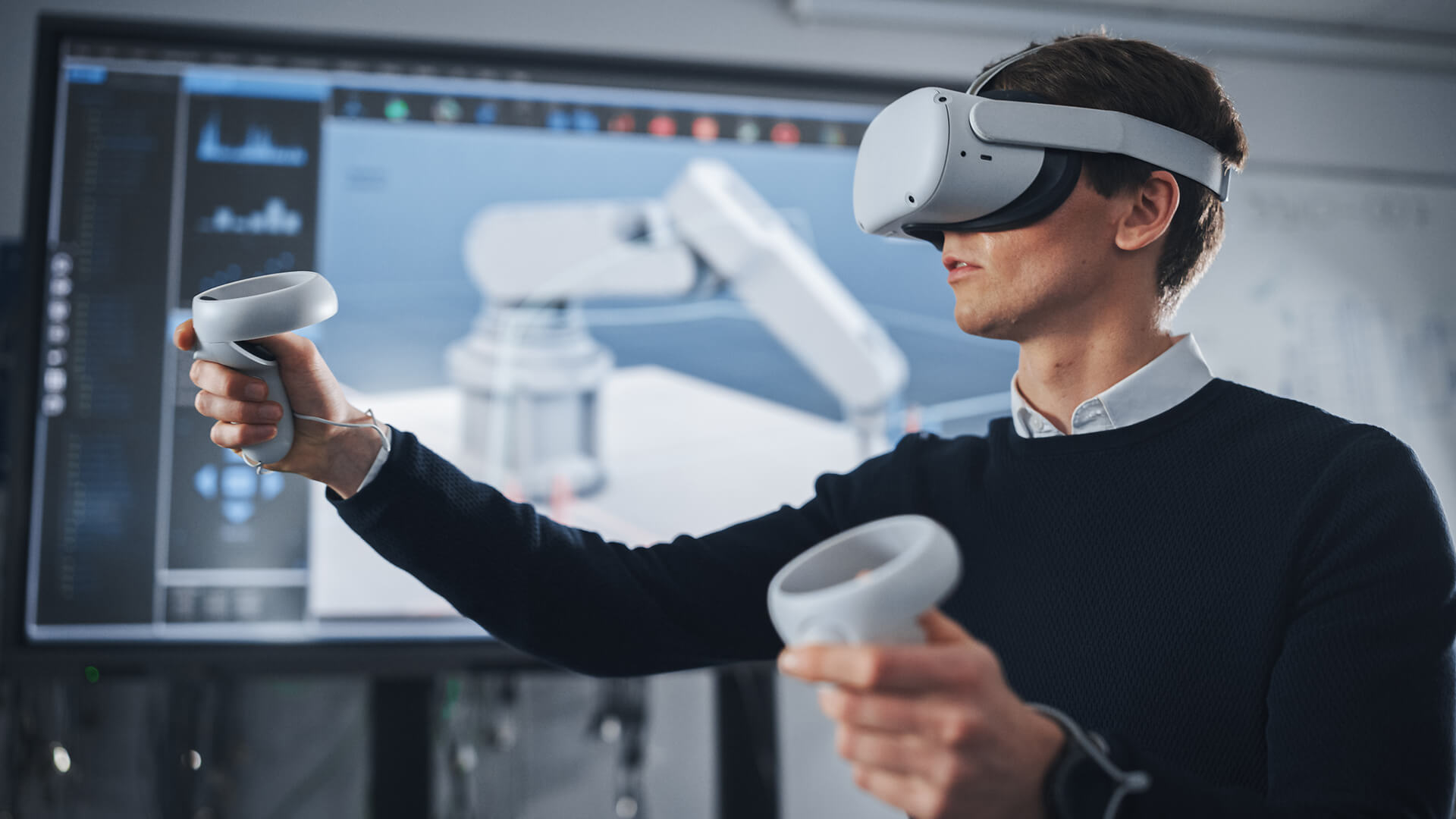
Back-to-school season is a good time to compare student tech deals, but the aim should be to buy smarter, not just cheaper. Start with the items that affect daily study the most, then add extras only when they genuinely improve the setup.
Prioritising Essentials First
- Start with the laptop. It should match the course, software needs, battery life and portability requirements.
- For everyday study, 8GB-16GB RAM and 256GB-512GB SSD storage can be enough. For engineering, media, design or coding, 16GB-32GB RAM and 1TB SSD or more is a safer choice.
- Buy accessories only when they solve a real issue, such as limited ports, poor posture, weak storage or not enough screen space.
- If the budget is tight, prioritise the laptop, storage and headphones before adding a second screen or full desk setup.
Future-Proofing Your Student Setup
- Choose enough RAM and storage to last the full course, not just the first term.
- Check whether your course works better with Windows, macOS or ChromeOS before buying.
- Look for USB-C or Thunderbolt support if you plan to use monitors, docks or fast external storage.
- Pick accessories that can move between devices, such as a monitor, SSD, keyboard, mouse or headset.
- Leave room for course changes. A student moving into heavier modules may need more storage, better performance or a larger screen later.
Final Thoughts
The best tech setup is the one that matches the course, study routine and budget. A lightweight laptop may be enough for writing, research and online classes, while coding, engineering, design and media courses may need more power, storage and screen space.
Start with the essentials first. Choose a reliable laptop, then add accessories that genuinely improve the study setup for students, such as a monitor, SSD, hub, keyboard, mouse or headphones.
In the end, the best tech for students should make coursework easier, keep study sessions organised and support the full academic year without unnecessary clutter.
Frequently Asked Questions
Which laptop is best for students?
The best laptop depends on the course. For everyday study, look for a lightweight laptop with good battery life, SSD storage and at least 8GB RAM. For coding, engineering, design or media work, 16GB RAM or more, stronger graphics and larger storage are better.
What is the best desk setup for students?
A good student desk setup includes a laptop, stand, keyboard, mouse, good lighting and tidy cable management. Add a monitor if you regularly work with research, spreadsheets, code, design tools or video editing software.
What is the best tech for students?
A reliable laptop should come first. After that, useful extras include headphones, external storage, a USB-C hub, a mouse, a keyboard and a portable monitor if multitasking is part of the course.
What devices do students use the most?
Students usually use laptops, smartphones, headphones and external storage the most. Some courses may also need tablets, monitors, webcams or specialist accessories.
Which gadget is best for students?
The most useful gadget depends on the problem it solves. A portable monitor helps with multitasking, an external SSD helps with backups, and noise-cancelling headphones help with focus in shared spaces.
Is i5 or i7 better for students?
An i5 is enough for most everyday student work, including essays, browsing, video calls and presentations. An i7 is better for heavier workloads such as video editing, coding projects, engineering software and regular multitasking.
You can pay with:
*PayPal Credit Representative Example: Assumed credit limit £1,200, Representative 23.9% APR (variable). Purchase rate 23.9% p.a (variable).Terms & Conditions apply.


PayPal Credit and PayPal Pay in 3 are trading names of PayPal UK Ltd, 5 Fleet Place, London, United Kingdom, EC4M 7RD. Terms and conditions apply. Credit subject to status, UK residents only, Five Tech LTD acts as a broker and offers finance from a restricted range of finance providers. PayPal Pay in 3 is not regulated by the Financial Conduct Authority. Pay in 3 eligibility is subject to status and approval. 18+. UK residents only. Pay in 3 is a form of credit. Check if affordable and how you will repay. May make other borrowing more difficult or expensive. See product terms for more details.
Copyright © 1996-2026 Fivetech LTD | Terms and Conditions
box.co.uk & Box are trading names of Five Tech Limited. Registered office: Box LTD, Unit 10 Woodford Trading Estate, Woodford Green IG8 8HF