


 Menu
MenuMenu


Get Sales Advice from Mon - Fri 9am - 5:00pm:
020 3337 8950LAST UPDATED: January 05, 2026
Colour Calibration & HDR on BenQ Monitors: How to Get Accurate & Vibrant Results
If you’ve ever edited a clip that looked perfect on your BenQ screen but weird everywhere else, or you’ve switched on HDR and suddenly everything looks washed out, you’re not alone. BenQ monitor colour calibration is the difference between "this looks nice on my desk" and "this looks correct everywhere". It’s also the fastest way to get consistent results across apps, consoles, and platforms without constantly tweaking sliders like you’re rebalancing a game patch.
This guide breaks down BenQ monitor colour calibration and HDR setup in a practical way: what matters, what to ignore, and how to avoid common mistakes. We’ll cover colour spaces (sRGB, AdobeRGB, DCI-P3), factory calibration vs manual tuning, HDR modes, and what to do if calibration causes flicker or brightness weirdness. So, without further ado, let’s get to it.
Why Colour Accuracy Matters on BenQ Monitors
For most people, the goal is not "the prettiest colours ever", it’s consistency. BenQ monitor colour calibration helps you get predictable output so your content looks the same on your phone, your mate’s laptop, and your client’s screen. That’s colour consistency, not visual preference, and it’s why monitor colour calibration is a proper upgrade for creatives.
Creative work vs general use is the big divide. If you’re doing photo editing, design, video grading, or product content, BenQ monitor colour calibration and proper colour management stop you chasing your tail. If you’re mostly browsing, office work, or casual gaming, factory presets can be fine, and "good enough" is genuinely good enough.
So, who actually needs calibration? If you care about a colour accurate monitor, share work publicly, print, or collaborate, you’ll feel the benefit immediately. If you play competitive games, you may not need strict computer monitor colour calibration, but you will benefit from better black levels, correct gamma, and predictable brightness, especially when swapping between SDR and HDR BenQ modes. BenQ monitor colour calibration is basically the monitor equivalent of tuning your in-game settings so every map looks readable.
Understanding Colour Spaces on BenQ Displays

Colour spaces are the ruleset your screen is following. If the ruleset is wrong, you can do all the monitor colour calibration in the world and still end up with odd-looking colours. This is where many people get stuck because "wide colour" sounds automatically better, but it depends on what you’re doing.
sRGB
sRGB is the default for most web content, streams, and general Windows apps. If you want your work to look right on social platforms and typical laptops, sRGB is the safest target. For a lot of people, monitor colour calibration aimed at sRGB is the most practical choice because it matches what the internet expects.
AdobeRGB
AdobeRGB is mainly for print workflows and certain photography pipelines. If you don’t print or deliver in that space, forcing AdobeRGB can make everything look over-saturated unless your apps manage colour properly. Colour calibration on your BenQ monitor matters even more here because the margins for error are bigger.
DCI-P3
DCI-P3 is common in cinema workflows and modern device ecosystems. It’s also a popular target for newer displays, including many BenQ HDR monitors and high-end creator panels. If you’re working with HDR video, a DCI-P3-capable workflow can make sense, but only if your apps and export targets support it.
Which BenQ series supports which colour space
BenQ’s ranges are often tuned for different use cases (creator lines vs esports/gaming lines). Rather than guessing based on marketing text, use a proper comparison resource before you buy, especially if you’re choosing between BenQ 4K creator models and gaming-focused panels.
Factory Calibration vs Manual Calibration;
Factory calibration is a great starting point, but it is not magic. BenQ monitor colour calibration done manually can still improve accuracy, consistency, and match your exact environment.
What factory calibration does well
Many BenQ creator-focused screens ship with strong presets (often aimed at sRGB or Rec.709 style workflows), and they can be surprisingly close out of the box. For general users, that can be enough. If you’re buying from the creator side, browsing colour-accurate monitors is the fastest way to focus on screens designed for these workflows.
Its limitations
Factory calibration can’t account for your room lighting, your brightness preference, or how your specific unit behaves after months of use. Even two "identical" monitors can drift slightly. This is why monitor colour calibration remains valuable even if your monitor claims factory accuracy.
When manual calibration is necessary
If you do professional colour workflows, need consistent results across multiple screens, or you’re delivering content to clients, manual BenQ monitor colour calibration is worth it. It’s also necessary when you want to build a consistent ICC profile (your system’s "colour translator") so apps that support colour management behave properly.
How to Calibrate a BenQ Monitor Properly
This is the section where BenQ monitor colour calibration becomes practical. Think of it like setting up a fresh PC: you want a clean baseline first, then you tweak.
Using built-in presets
Start here before you touch anything else.
- Reset the monitor to defaults
- Choose the correct colour mode for your work (typically sRGB for web content)
- Set brightness for your room (not max brightness unless you’re in a bright studio)
- Set the correct colour temperature (often D65 / 6500K for general work)
- Keep contrast at default unless you’re solving a specific issue
This alone can solve a lot of "my colours look wrong" issues without deep screen calibration tools.
Using calibration hardware
If you want real accuracy, a colourimeter is the best route. Hardware-based BenQ monitor colour calibration measures what your screen outputs and creates a profile that accounts for your exact panel. This is the most reliable path to a colour accurate monitor, and it’s what people mean by "professional colour workflows".
Software-based calibration tools
Software-only monitor calibration software can help, but it’s more subjective. It’s useful for basic fixes (gamma/black point/white point), but it can’t truly measure colour the way hardware can. If you do use software-only display colour calibration, do it in stable lighting and avoid constantly "re-correcting" by eye.
Tip for gamers: don’t calibrate using a game scene. Use a proper test pattern or calibration page, otherwise you’ll tune to one map and break everything else. BenQ monitor colour calibration should be content-neutral.
Common Calibration Mistakes to Avoid
Even good BenQ monitor colour calibration can go sideways if the environment or settings are wrong. These are the mistakes that cause most "why does this look worse?" moments.
Calibrating in a bright room
If daylight is blasting the screen, you’ll crank brightness and crush dark detail later. Do BenQ monitor colour calibration in stable lighting, ideally the same lighting you work in most often. Your eyes adapt quickly, so consistency matters more than perfection.
Ignoring white point
A wrong white point makes everything look "off" even if colours are technically close. If you want consistent results across devices, aim for a standard target (often 6500K). White point is a huge part of computer monitor colour calibration that people skip.
Over-adjusting contrast and brightness
People often push contrast and brightness too far, especially when chasing "pop". That can crush shadows, clip highlights, and make HDR look worse. For BenQ monitor colour calibration, you want detail, not drama.
HDR on BenQ Monitors Explained
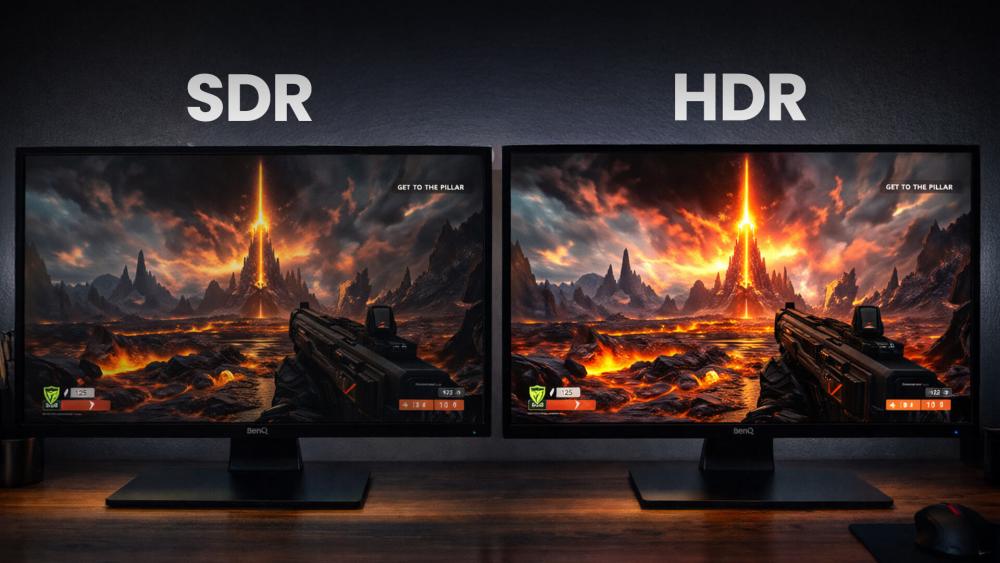
HDR is often misunderstood. BenQ monitor colour calibration and HDR are linked, but HDR is not simply "more colourful". HDR is about dynamic range: brighter highlights, more detail in shadows, and a wider brightness range when the display can actually support it.
What HDR actually improves
HDR can make bright effects (sunlight, neon, reflections) look more realistic and can preserve detail that SDR would clip. If you’re working in 4K HDR video or playing HDR-capable games, good HDR setup on BenQ HDR monitors can be brilliant.
HDR10 vs DisplayHDR
HDR10 is the content format many devices use. DisplayHDR is a certification standard that often hints at capability levels (peak brightness, contrast handling). Not every "HDR" label is the same, so this is where checking specs and comparisons matters. If you’re shopping specifically for HDR creator work, HDR-capable displays for creative work is a solid starting point.
Why HDR isn’t always better
Bad HDR setup can look washed out, too dim, or oddly grey. Some panels can accept HDR signals but can’t produce meaningful HDR impact due to limited peak brightness or local dimming. In those cases, SDR with proper BenQ monitor colour calibration can look better and more accurate.
How to Set Up HDR Correctly on BenQ Monitors
To get HDR right, you need three things aligned: the monitor mode, the OS/console HDR settings, and sensible brightness targets. HDR done wrong makes people blame the monitor when it’s actually the setup.
1. On the monitor (BenQ OSD)
- Enable HDR mode only when using HDR content
- Use the most accurate HDR preset available (avoid "Vivid" style modes for creative work)
- Keep sharpness and dynamic contrast enhancements low or off
2. On Windows
- Enable HDR in Display settings only when you’re using HDR content regularly
- Run the Windows HDR calibration tool if available and follow it carefully
- Re-check SDR brightness slider so desktop content doesn’t look dull
3. On consoles
- Use the console HDR calibration screens and do not rush them
- Match black level settings to your monitor’s actual black handling
- If a game has its own HDR sliders, set console HDR first, then fine-tune the game
For creators: do not grade HDR content using random HDR presets. If HDR is part of your workflow, treat it like a proper colour-managed process alongside BenQ monitor colour calibration. Check out our BenQ monitors series comparison for help in choosing the right option for your needs.
When Calibration or HDR Causes Display Problems
Sometimes switching modes or applying profiles triggers issues that look like "the monitor is broken". Often, it’s a signal negotiation problem, a mode mismatch, or a power-saving feature misbehaving. BenQ monitor colour calibration can expose these issues because it changes how the monitor and OS talk to each other.
Flickering after calibration
If flicker appears after monitor colour calibration, the common causes are refresh rate changes, VRR conflicts, or an unstable cable/port. Try:
- Swapping the cable (especially if you’re driving BenQ 4k at high refresh)
- Turning off VRR temporarily
- Testing a different port (HDMI vs DisplayPort)
Automatic brightness changes
Some monitors and operating systems apply automatic brightness features that fight your calibration targets. Disable ambient light or auto-brightness features if you’re aiming for accurate results. BenQ monitor colour calibration works best when brightness is stable.
Black screen when switching modes
HDR mode changes can briefly black-screen during handshake. If it stays black:
- Drop to a lower refresh rate temporarily
- Reset the monitor picture mode
- Toggle HDR off in the OS, then back on
- Confirm you’re using a proper bandwidth cable for 4K HDR
These are annoying, but usually fixable without returning the monitor. If the issue isn’t fixed with simple ways, you might want to check our guide on BenQ display flickering and brightness issues where we provide detailed solutions to your issues.
Should You Calibrate Your BenQ Monitor or Leave It as Is?
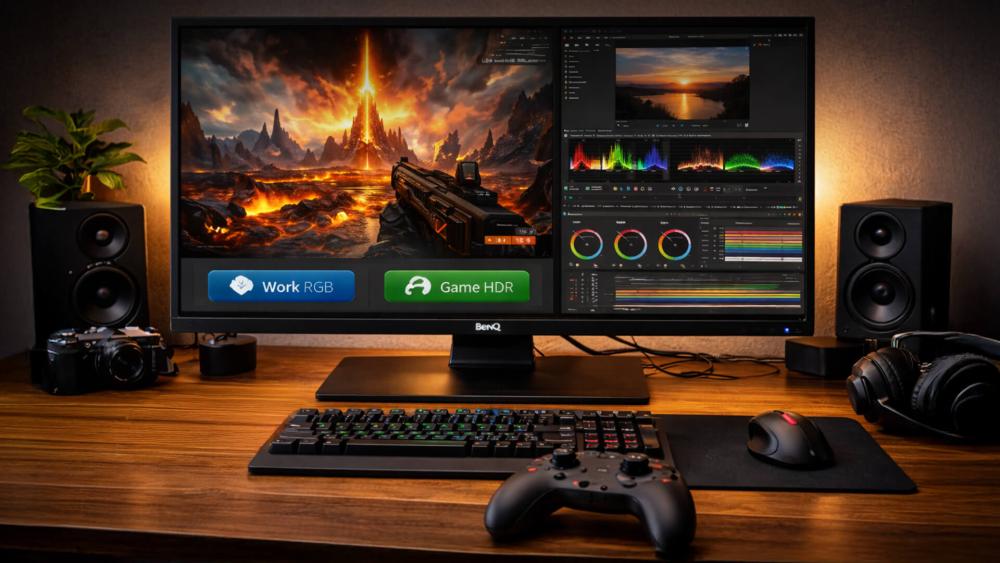
This is the decision section. Not everyone needs full-on BenQ monitor colour calibration, but everyone benefits from a sensible baseline.
Office users
- Use a good preset (often sRGB or Standard)
- Set brightness for comfort
- Skip hardware calibration unless colour accuracy is critical
Creatives
- Do BenQ monitor colour calibration properly (ideally with a colourimeter)
- Use ICC profiles and colour-managed apps
- Consider creator-focused models
Gamers
- Calibrate enough to get readable blacks and correct gamma
- Use SDR for competitive play if HDR adds latency or looks inconsistent
- Save an HDR profile for single-player titles and cinematic games
Conclusion
If you want accurate, consistent colour and better-looking content, BenQ monitor colour calibration is absolutely worth doing. Start with the correct colour space (usually sRGB for web), use sensible brightness targets, and avoid "vivid" presets that trade accuracy for punch. HDR can look fantastic on the right panel, but it needs proper setup, otherwise SDR with solid BenQ monitor colour calibration often looks better.
If you’re choosing hardware, compare BenQ professional monitors with colour-accurate creator monitors to find the right pick. Then use profiles and stable settings so your screen stays consistent, whether you’re editing a project, grading HDR, or jumping into a game after work.
FAQs
Are BenQ monitors colour accurate?
Many can be very accurate, especially creator-focused models, but results depend on mode, room lighting, and whether you’ve done BenQ monitor colour calibration properly. Factory presets are a great start, but manual calibration is best for consistent colour workflows.
How to calibrate a monitor BenQ?
For BenQ monitor colour calibration, start with a built-in preset like sRGB, set brightness for your room, and keep contrast near default. For best results, use a colourimeter and create an ICC profile through monitor calibration software.
How to enable HDR in BenQ monitors?
Enable HDR in the monitor’s OSD if available, then switch on HDR in Windows or your console settings. For stable results, set up SDR first with BenQ monitor colour calibration, then configure HDR using calibration screens and sensible brightness targets.
Are BenQ monitors HDR?
Some are. Support varies by model and series, so check specs before buying. If HDR is a priority for creative work, browsing HDR-capable displays helps narrow options.
Do all BenQ monitors support colour calibration?
Not all. Most allow basic screen calibration via presets and settings, but advanced calibration features and wide-gamut support depend on the series.
You can pay with:
*PayPal Credit Representative Example: Assumed credit limit £1,200, Representative 23.9% APR (variable). Purchase rate 23.9% p.a (variable).Terms & Conditions apply.


PayPal Credit and PayPal Pay in 3 are trading names of PayPal UK Ltd, 5 Fleet Place, London, United Kingdom, EC4M 7RD. Terms and conditions apply. Credit subject to status, UK residents only, Five Tech LTD acts as a broker and offers finance from a restricted range of finance providers. PayPal Pay in 3 is not regulated by the Financial Conduct Authority. Pay in 3 eligibility is subject to status and approval. 18+. UK residents only. Pay in 3 is a form of credit. Check if affordable and how you will repay. May make other borrowing more difficult or expensive. See product terms for more details.
Copyright © 1996-2026 Fivetech LTD | Terms and Conditions
box.co.uk & Box are trading names of Five Tech Limited. Registered office: Box LTD, Unit 10 Woodford Trading Estate, Woodford Green IG8 8HF