


 Menu
MenuMenu


Get Sales Advice from Mon - Fri 9am - 5:00pm:
020 3337 8950LAST UPDATED: March 16, 2026
ASUS ROG Laptop Overheating? Troubleshooting Thermals on Large-Form Gaming Laptops
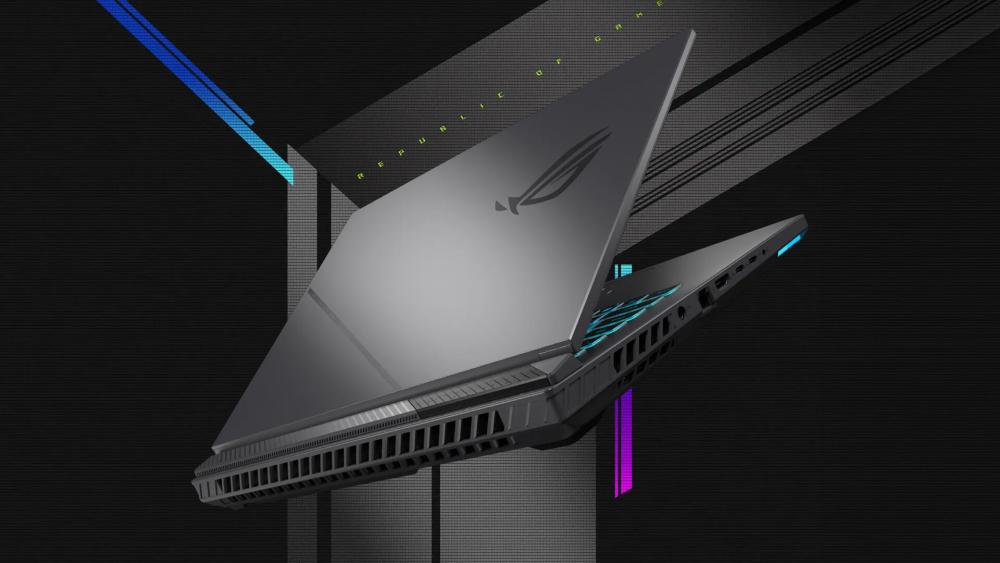
Gaming laptops are designed to deliver desktop-level performance in a portable form factor, but that power often comes with a challenge: heat. Large-form gaming laptops, such as many ASUS ROG models, pack high-performance CPUs and GPUs into relatively compact chassis, which means managing thermals becomes critical during gaming or heavy workloads. When temperatures climb too high, users may notice performance drops, loud fans, or sudden system slowdowns.
For many gamers, ASUS ROG laptop overheating issues become noticeable during long gaming sessions or while running demanding applications. High CPU temperatures, heavy GPU workloads, and sustained power draw can push the laptop’s cooling system close to its limits, especially on powerful machines built for modern games.
This guide explains the most common causes behind overheating issues in large gaming laptops, how to recognise the warning signs, and what steps you can take to reduce heat build-up. From quick adjustments and monitoring tools to deeper troubleshooting methods, we will explore practical ways to address ASUS ROG thermal issues and keep your gaming system performing consistently.
Why Do Large-Form ASUS ROG Laptops Run Hot?
Modern and powerful gaming laptops are designed to deliver desktop-class performance, but that power also produces significant heat. Even with advanced cooling technologies, many users notice their ASUS ROG laptop overheats during gaming or heavy workloads. Understanding why this happens helps identify whether the temperatures you see are normal or part of a larger thermal issue.
High-Performance Components Generate Extreme Heat
Modern gaming laptops use powerful processors and graphics chips that consume large amounts of power. Many ASUS ROG Strix gaming laptops and ROG Zephyrus laptops feature high-wattage Intel HX or AMD processors paired with RTX graphics cards. These components generate substantial heat during gaming, rendering, or other demanding tasks.
As workloads increase, CPU and GPU temperatures rise quickly. If the cooling system cannot remove heat fast enough, the system may trigger ROG thermal throttling, temporarily reducing performance to keep the hardware safe.
Larger Chassis Doesn’t Always Mean Better Cooling
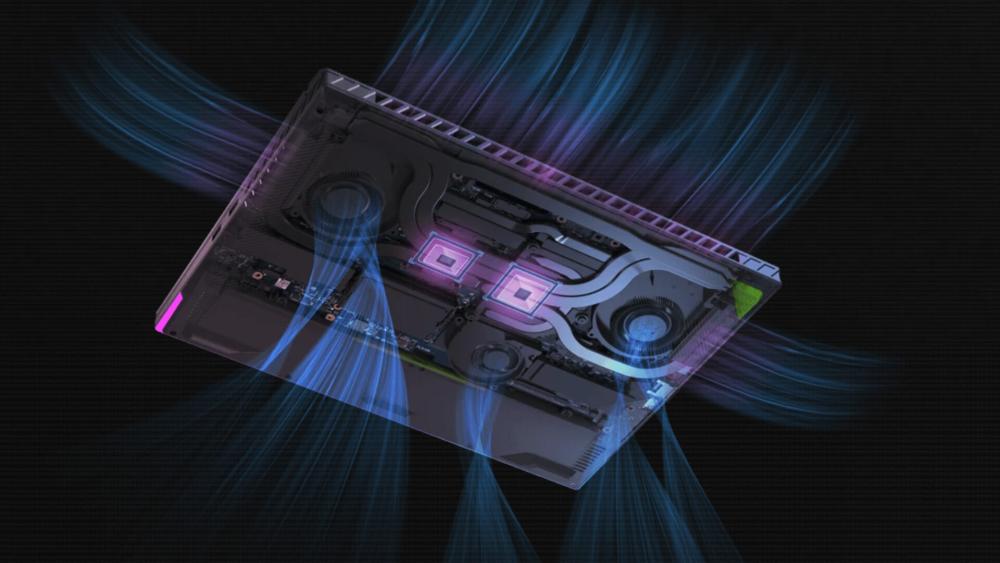
It is easy to assume that a bigger laptop automatically cools better, but that is not always the case. While larger ROG laptops provide more space for heat pipes, fans, and vapour chamber cooling, they still face thermal limits when powerful components run at high wattage for extended periods.
Heat pipes often share the load between the CPU and GPU, which means heavy gaming can cause heat build-up across the entire cooling system. In some scenarios, even high-performance laptops with larger chassis designs may struggle to dissipate heat efficiently.
What Temperature Is Too Hot for an ASUS ROG Laptop?
Gaming laptops naturally run warmer than standard notebooks, but there are general temperature ranges that help determine whether your system is operating normally.
| Usage Scenario | Typical Temperature Range |
| Idle / Light tasks | 40–60°C |
| Gaming / Heavy workloads | 80–90°C |
| High but manageable | 90–95°C |
| Critical / Potential overheating | 95°C and above |
Short temperature spikes can occur during intense workloads, but consistently high readings may indicate ASUS CPU overheating or an overloaded cooling system. Monitoring temperatures using tools like Armoury Crate can help determine whether the system is operating within safe limits.

Signs Your ASUS ROG Laptop Is Overheating
Before applying fixes, it is important to recognise the early symptoms of overheating in ASUS ROG laptops. High temperatures usually affect performance and system behaviour before they cause serious hardware issues. Monitoring these warning signs can help you identify heat problems quickly and act before the system begins throttling or shutting down.
Sudden FPS Drops and Thermal Throttling
One of the most common symptoms is a sudden drop in gaming performance. When GPU or CPU temperatures climb too high, the system activates ROG thermal throttling. This process lowers clock speeds to prevent overheating, which can lead to noticeable frame rate drops during gameplay.
Loud or Constant Fan Noise
Gaming laptops typically increase fan speed when temperatures rise. If the cooling fans remain loud even during lighter workloads, the cooling system may be struggling to keep temperatures under control. Persistent high fan speeds can indicate heat build-up inside the laptop.
Hot Keyboard Surface and Palm Rest
Another clear sign of excessive heat is when the keyboard deck or palm rest becomes unusually warm. Heat generated by the CPU and GPU often transfers through the internal chassis, making the laptop uncomfortable to use during long sessions.
Random Shutdowns or System Crashes
When temperatures exceed safe limits, laptops may automatically shut down to protect internal components. If your system unexpectedly powers off while gaming or running demanding applications, overheating may be the cause.
Armoury Crate Showing High CPU or GPU Temperatures
Most gaming models in the ASUS laptop range include monitoring tools such as Armoury Crate, which can function as a built-in heat monitor. If the software shows consistently high CPU or GPU readings during normal use, it may indicate an overheating problem that requires further troubleshooting.
Quick Fixes for ASUS ROG Overheating While Gaming
Before moving into advanced troubleshooting, it is worth trying a few simple adjustments to keep your gaming laptop cool. In many cases, ASUS ROG laptop overheating problems can be fixed by improving airflow, lowering system load, or adjusting cooling settings. These quick fixes for ASUS ROG gaming laptops are often enough to bring temperatures back into a safer range.
Move the Laptop to a Hard Surface
Airflow plays a major role in cooling performance. Placing a laptop on soft surfaces such as beds, sofas, or carpets can block the intake vents and trap heat underneath the device. Moving the laptop to a hard, flat desk helps the cooling system pull in fresh air and improves heat dissipation.
Clean Dust from Cooling Vents
Dust buildup inside vents and fans is one of the most common causes of overheating in gaming laptops. Over time, dust restricts airflow and forces the cooling system to work harder. Carefully blowing compressed air through the vents can help remove debris and restore proper airflow.
Close Background Applications
Running multiple applications at once increases CPU workload and raises CPU temperatures. Before launching a game, closing unnecessary background programs can reduce heat build-up and improve overall performance.
Update BIOS and Drivers
Outdated firmware or drivers can sometimes lead to inefficient thermal management. Installing the latest BIOS updates, GPU drivers, and system updates can improve stability and help resolve certain ASUS ROG thermal issues.
Use Armoury Crate to Adjust Performance Modes
ASUS includes Armoury Crate on most ROG laptops, allowing users to monitor temperatures and adjust performance profiles. Switching from Turbo mode to Balanced mode, or manually adjusting fan behaviour, can help lower temperatures during demanding workloads and reduce the chances of a ROG laptop running hot while gaming.
ASUS ROG Overheating Fix: Advanced Thermal Troubleshooting
If basic fixes do not resolve the issue, deeper troubleshooting may be required. Persistent overheating problems in ASUS ROG laptops can sometimes be linked to configuration settings, cooling hardware, or thermal materials inside the system. These methods are more advanced and should be performed carefully, as some may affect warranties.
Adjust Fan Curves Manually
Most ROG laptops allow users to customise fan behaviour through Armoury Crate. By creating a more aggressive fan curve, the cooling system can respond faster when CPU temperatures start to rise. Increasing fan speed earlier in the temperature range can reduce heat build-up during gaming sessions and heavy workloads.
Undervolting the CPU – Is It Safe?
Undervolting reduces the amount of voltage supplied to the CPU without lowering performance. This can significantly reduce heat output and power consumption. Many gamers use undervolting to address CPU overheating, as it helps lower temperatures while maintaining stable performance.
However, undervolting must be done carefully. Incorrect settings may cause system instability, so adjustments should always be gradual and tested for stability.
Reapplying Thermal Paste or Liquid Metal
High-end ROG laptops often use liquid metal thermal compound to improve heat transfer between the CPU, GPU, and heatsink. Over time, thermal material can degrade or become unevenly distributed.
Repasting the processor with new thermal compound can improve heat transfer and help reduce overheating. However, applying liquid metal incorrectly can damage components, so this process is best handled by experienced users or professional technicians.
Replacing Thermal Pads
Thermal pads are used to cool components such as VRAM and power delivery modules. If these pads dry out or lose proper contact with the heatsink, heat may accumulate around critical components. Replacing worn thermal pads can improve the overall efficiency of the cooling system.
Check Vapour Chamber Cooling
Some larger ASUS ROG laptops use vapour chamber cooling instead of traditional heat pipes. This design spreads heat across a wider surface area, improving thermal distribution and reducing hotspots. However, cooling performance can decline if the vapour chamber loses proper contact with the CPU or GPU due to degraded thermal materials or mounting issues.
When Overheating Indicates a Hardware Fault
In some cases, persistent overheating may indicate a deeper hardware problem rather than normal thermal behaviour. If high temperatures continue even after cleaning, adjusting fan settings, and updating software, it may be worth investigating potential cooling hardware issues.
Faulty Cooling Fans
Cooling fans are responsible for moving heat away from internal components. If a fan stops spinning, runs inconsistently, or produces unusual noise, airflow inside the laptop can drop significantly. This often leads to rising CPU temperatures and GPU heat during gaming or heavy workloads.
Dried or Poorly Applied Liquid Metal
Many modern ROG laptops use liquid metal thermal compound for improved heat transfer. Over time, this material can shift or dry out, reducing its ability to conduct heat efficiently. When this happens, CPU overheating and thermal spikes may occur even during moderate workloads.
Heatsink Mounting Pressure Issues
For effective cooling, the heatsink must maintain proper contact with the CPU and GPU. If mounting pressure becomes uneven or screws loosen over time, heat transfer can become less efficient. This may cause uneven temperature readings or rapid heat build-up during gaming.
Battery or Power Delivery Heat Issues
In rare cases, overheating can originate from components outside the CPU or GPU. Power delivery modules, charging circuits, or the battery itself may generate excess heat. These issues can sometimes mimic general cooling problems, but they usually require professional diagnostics to confirm the cause.
Long-Term Cooling Optimisation for Gaming Laptops
Even after fixing immediate overheating issues of your ASUS ROG laptop, maintaining good thermal performance over time requires proper usage and regular maintenance. Small habits can make a significant difference in keeping CPU temperatures stable and preventing heat build-up during long gaming sessions.
Use the Right Surface for Airflow
Always place your gaming laptop on a hard, flat surface such as a desk or table. Soft surfaces like beds or couches can block the intake vents underneath the laptop, reducing airflow to the cooling system. Keeping vents unobstructed allows the fans to draw in cool air more efficiently.
Cooling Pads – Do They Actually Work?
Cooling pads can provide additional airflow beneath the laptop and help reduce surface temperatures during heavy gaming. While they do not replace the internal cooling system, they can assist with heat management, particularly when a ROG laptop is running hot while gaming.
Keep Room Temperature in Check
The surrounding environment also affects laptop thermals. Gaming in a warm room makes it harder for the cooling system to remove heat. Using the laptop in a cooler environment or improving room ventilation can help stabilise temperatures during extended gaming sessions.
Follow a Regular Maintenance Schedule
Dust accumulation is one of the most common causes of overheating in gaming laptops. Cleaning vents and fans every few months helps maintain airflow and cooling efficiency. Monitoring system readings through tools like Armoury Crate can also help detect temperature spikes early, before they develop into serious thermal issues.
Final Words
High temperatures are common in powerful gaming machines, but persistent overheating problems should never be ignored. Large gaming laptops like ASUS ROG pack powerful processors and GPUs into compact chassis, which means managing thermals is essential for stable performance and long hardware lifespan.
By monitoring CPU temperatures, improving airflow, adjusting fan settings, and performing regular maintenance, most ASUS ROG laptop overheating issues can be reduced significantly. If temperatures remain unusually high despite these steps, it may indicate deeper cooling system or hardware problems that require professional inspection.
Keeping your system clean, optimising performance settings, and using proper cooling practices will help ensure your ASUS ROG laptop continues delivering reliable gaming performance without unnecessary thermal stress.
Frequently Asked Questions
Is it normal for an ASUS ROG laptop to reach 90°C while gaming?
Yes, gaming laptops often reach temperatures between 80°C and 90°C during demanding games. Occasional spikes are normal, but temperatures consistently above 95°C may indicate overheating.
Why is my ASUS ROG overheating even when idle?
Overheating at idle can occur due to background applications, dust blocking vents, outdated drivers, or fan issues that prevent proper cooling.
How do I reduce CPU temperature on my ROG laptop?
You can reduce CPU temperature by cleaning dust from vents, adjusting fan settings in Armoury Crate, closing background applications, or using a cooling pad.
Does undervolting void the laptop’s warranty?
Undervolting generally does not physically modify hardware, but some manufacturers may not support it officially. Always check warranty policies before making advanced changes.
Can overheating permanently damage a gaming laptop?
Yes. Prolonged high temperatures can degrade internal components, reduce battery lifespan, and affect overall system stability if not addressed.
Should I replace thermal paste on a new ROG laptop?
Most new laptops do not require immediate repasting. However, replacing thermal paste or liquid metal may help if temperatures remain unusually high after several years of use.
How often should I clean my gaming laptop's fans?
Cleaning vents and fans every 3–6 months is usually recommended, especially if the laptop is used frequently for gaming or in dusty environments.
You can pay with:
*PayPal Credit Representative Example: Assumed credit limit £1,200, Representative 23.9% APR (variable). Purchase rate 23.9% p.a (variable).Terms & Conditions apply.


PayPal Credit and PayPal Pay in 3 are trading names of PayPal UK Ltd, 5 Fleet Place, London, United Kingdom, EC4M 7RD. Terms and conditions apply. Credit subject to status, UK residents only, Five Tech LTD acts as a broker and offers finance from a restricted range of finance providers. PayPal Pay in 3 is not regulated by the Financial Conduct Authority. Pay in 3 eligibility is subject to status and approval. 18+. UK residents only. Pay in 3 is a form of credit. Check if affordable and how you will repay. May make other borrowing more difficult or expensive. See product terms for more details.
Copyright © 1996-2026 Fivetech LTD | Terms and Conditions
box.co.uk & Box are trading names of Five Tech Limited. Registered office: Box LTD, Unit 10 Woodford Trading Estate, Woodford Green IG8 8HF