


 Menu
MenuMenu


Get Sales Advice from Mon - Fri 9am - 5:00pm:
020 3337 8950LAST UPDATED: May 07, 2026
How to Keep Your Gaming Laptop Cool: A Complete Guide
Gaming laptops deliver serious performance in a portable setup, but knowing how to keep gaming laptop cool is essential if you want consistent FPS, long hardware lifespan and smooth gameplay. High-performance CPUs and GPUs generate serious heat, and without proper thermal management, you will quickly run into performance drops, loud fans, and even system shutdowns.
If you are dealing with laptop overheating while gaming, this guide covers everything you need to control temperatures, improve airflow, reduce thermal throttling, and optimise cooling efficiency.
Why Do Gaming Laptops Overheat?
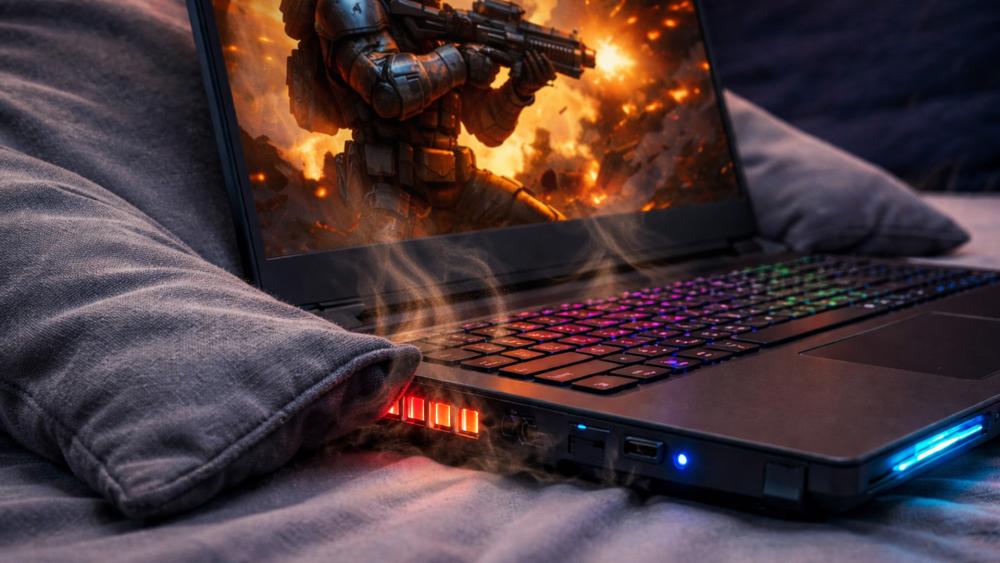
Understanding how to keep gaming laptop cool starts with knowing why gaming laptop heat issues happen in the first place. Here are a few common reasons:
High-Performance CPUs and GPUs Generate More Heat
Modern gaming laptops pack desktop-level processors and powerful GPUs into compact chassis designs. These components push high clock speeds and draw significant power, which leads to major heat dissipation challenges.
When your GPU overheating laptop scenario kicks in during AAA titles, ray tracing or high refresh rate gaming, temperatures rise quickly. Without effective cooling solutions, performance drops are inevitable.
Limited Airflow in Compact Laptop Designs
Gaming laptops are thinner than ever. While that looks great on your desk, compact layouts restrict airflow optimisation. Compared to desktop builds using large heat sinks, multiple PC cooling fans and even CPU liquid cooling, laptops have far less room for air circulation.
That is why learning how to keep gaming laptop cool becomes critical for long sessions.
Dust Buildup and Blocked Vents
Dust accumulation is one of the most common causes of an over heat laptop situation. Blocked vents reduce cooling efficiency and restrict airflow.
Even the best gaming laptop fan cannot function properly if exhaust ports are clogged.
High Ambient Room Temperature
Your environment plays a huge role in gaming laptop temperature control. If you are gaming in a warm room, especially during summer, your laptop pulls in hot air instead of cool air.
Higher ambient temperatures reduce cooling efficiency and make it harder to manage gaming laptop heat. This is why airflow optimisation and room ventilation are part of properly understanding how to keep gaming laptop cool.
Poor Surface Placement and Restricted Intake
Gaming on beds, sofas or soft surfaces blocks intake vents underneath the laptop. This restricts airflow and traps heat against the chassis.
If you frequently use soft surfaces, you are far more likely to experience laptop overheating while gaming. Hard, flat desks allow better heat dissipation and improve overall thermal management.
What Temperature Is Too Hot for a Gaming Laptop?
If you are serious about how to keep gaming laptop cool, you need to know safe operating ranges.
Safe CPU Temperature Range
- Idle: 40°C to 60°C
- Gaming load: 70°C to 85°C
- Concerning: 90°C and above
Consistently hitting 95°C means you need a gaming laptop overheating fix immediately.
Safe GPU Temperature Range
- Idle: 40°C to 65°C
- Gaming load: 70°C to 85°C
- Critical: 90°C+
If you notice GPU overheating laptop behaviour during intense gaming, action is required.
Signs Your Laptop is Overheating
- Sudden FPS drops
- Loud gaming laptop fan noise
- Hot keyboard surface
- Random shutdowns
- Stuttering gameplay
These are clear gaming laptop heat issues.
How Overheating Affects FPS and Performance
When temperatures spike, your system reduces clock speeds. That means:
- Lower frame rates
- Increased input lag
- Reduced boost frequencies
- Poor thermal performance
If you want stable performance from the best gaming laptops, managing temperatures is non-negotiable.
10 Effective Ways to Keep Your Gaming Laptop Cool
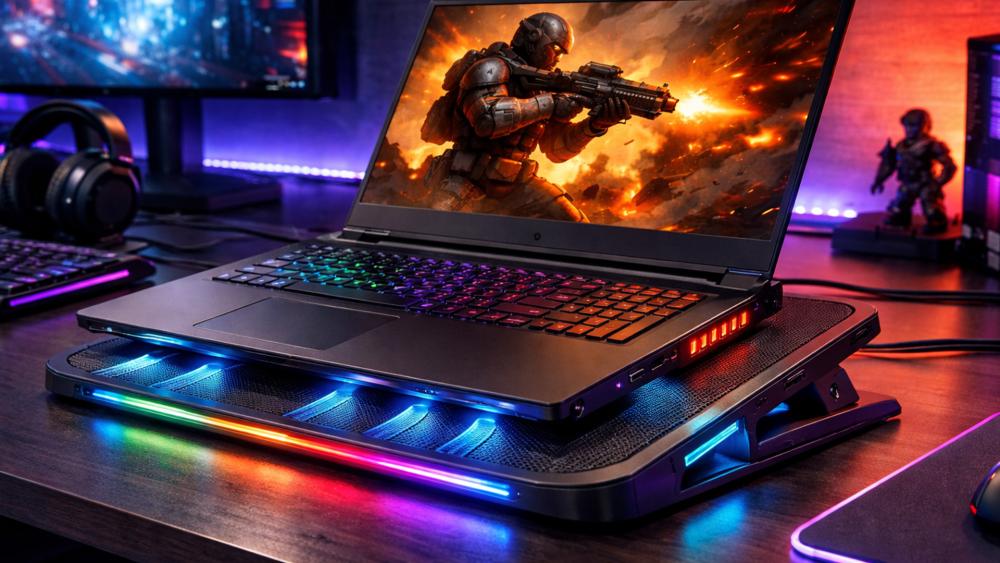
Here is the core of how to keep gaming laptop cool in real-world use.
Use a Laptop Cooling Pad
A gaming laptop cooling fan pad increases airflow underneath the chassis. This helps cool down a gaming laptop by improving heat dissipation.
Improve Airflow with Proper Desk Placement
Never game on soft surfaces. A flat desk improves airflow optimisation and prevents blocked vents.
Clean Your Laptop Fans and Vents Regularly
Dust removal improves cooling efficiency and helps stop gaming laptop overheating.
Replace Thermal Paste
Old thermal paste reduces heat transfer. Reapplying it can significantly reduce gaming laptop temperature.
Undervolt your CPU (Advanced Users)
Undervolting reduces voltage without sacrificing performance. It is one of the most effective gaming laptop cooling tips for advanced users.
Adjust Fan Curves in BIOS or Software
Fan optimisation allows you to control laptop temperature more aggressively during gaming.
Reduce Background Processes
Closing unnecessary apps improves gaming laptop temperature control.
Lower In-Game Graphics Settings
Reducing ray tracing and ultra settings can improve thermal management without massively impacting visuals.
Keep Drivers Updated
Updated GPU drivers often improve thermal performance and power management.
Avoid Soft Surfaces While Gaming
Beds, sofas and blankets trap heat. This is one of the easiest ways to prevent laptop overheating.
Do Cooling Pads Actually Work?
If you are researching how to keep gaming laptop cool, cooling pads are a common suggestion.
When Cooling Pads Make a Difference
They work best when your laptop draws air from underneath. Expect temperature reductions of 5°C to 10°C in many cases.
What to Look for in a Cooling Pad
- Multiple large fans
- Adjustable fan speed
- Elevated ergonomic design
- USB powered
A quality gaming laptop fan stand improves airflow optimisation and thermal management.
Cooling Pad vs External Fan
An external cooling fan for laptop setups directs air at vents. Cooling pads provide consistent airflow underneath. For serious gaming laptop heat issues, pads are usually more effective.
How to Improve Internal Cooling Performance
If you are serious about how to keep gaming laptop cool, external fixes are only part of the solution. Improving internal cooling performance can dramatically reduce gaming laptop overheating issues, improve thermal management and help maintain consistent boost clocks during long sessions.
Advanced users can take things further by optimising the hardware responsible for heat dissipation inside the chassis.
Cleaning Internal Dust Safely
Dust buildup inside your laptop reduces airflow and blocks heat sinks, which directly impacts cooling efficiency. Over time, this restricts heat dissipation and makes it harder to control laptop temperature under load.
To clean safely:
- Power off and unplug the laptop
- Use compressed air in short bursts
- Prevent fans from spinning excessively while cleaning
- Focus on intake vents, exhaust vents and heat sink fins
Regular internal cleaning can noticeably reduce gaming laptop temperature and help stop gaming laptop overheating before it becomes a serious issue.
Reapplying Thermal Paste Correctly
Thermal paste sits between your CPU or GPU and the heat sink. Its job is to transfer heat efficiently. Over time, it dries out and loses effectiveness, which leads to poor heat transfer and rising temperatures.
Replacing thermal paste can:
- Improve thermal performance
- Reduce peak temperatures
- Lower fan noise
- Improve overall cooling efficiency
For users wondering how to keep gaming laptop cool long term, replacing thermal paste every two to three years can significantly improve laptop cooling and reduce thermal throttling.
Checking Heat Sinks and Internal Fans
Heat sinks and internal gaming laptop fan units must sit securely against the processor and GPU. If screws loosen or components shift slightly, cooling performance drops.
Check for:
- Loose mounting brackets
- Uneven heat sink pressure
- Fan wobble or grinding noise
- Reduced fan spin speeds
Faulty internal fans are a common cause of gaming laptop heat issues. Ensuring everything is firmly secured improves airflow optimisation and heat dissipation.
Upgrading Internal Thermal Pads
Many gaming laptops use thermal pads to transfer heat from VRMs and memory modules to heat spreaders. Over time, these pads can degrade or compress, reducing contact and thermal efficiency.
Upgrading to high-quality thermal pads can:
- Improve temperature control on supporting components
- Reduce overall system heat
- Support better GPU overheating laptop prevention
- Enhance long-term thermal management
This is an advanced step but can make a noticeable difference when optimising laptop thermals.
When to Seek Professional Servicing
If you have cleaned dust, replaced thermal paste and still struggle with high temperatures, it may be time for professional servicing.
- Seek help if you notice:
- Persistent 95°C+ temperatures
- Sudden shutdowns under load
- Fan failure
- Unusual internal noises
- Severe performance drops
Whether your device uses traditional heat pipes or a gaming laptop with liquid cooling, internal cooling systems can fail or degrade over time. Professional inspection ensures proper installation, safe handling and long-term cooling reliability.
For gamers who want to fully understand how to keep gaming laptop cool, internal maintenance is one of the most effective ways to improve thermal performance and maintain consistent gaming performance without constant FPS dips.
Optimising Software for Better Thermal Management
When it comes to how to keep gaming laptop cool, hardware is only half the battle. Software optimisation plays a massive role in reducing gaming laptop temperature, improving cooling efficiency and preventing laptop overheating while gaming.
Smart adjustments can significantly reduce thermal load without sacrificing too much performance.
Monitoring Temperatures with Software Tools
You cannot manage what you do not measure. Monitoring tools allow you to track CPU and GPU temperatures in real time, helping you spot gaming laptop heat issues before they become serious.
Useful monitoring metrics include:
- CPU temperature
- GPU temperature
- Clock speeds
- Power draw
- Fan speeds
By tracking these, you can quickly identify when your system begins to over heat laptop territory and take action to cool down a gaming laptop before thermal throttling kicks in.
Monitoring is one of the easiest first steps in mastering how to keep gaming laptop cool effectively.
Managing CPU and GPU Usage
High utilisation equals high heat output. Managing CPU and GPU load is one of the most effective gaming laptop cooling tips available.
You can reduce gaming laptop temperature by:
- Limiting maximum processor state in power settings
- Capping frame rates in games
- Disabling unnecessary background apps
- Turning off auto-start software
Reducing constant 100 percent usage lowers thermal stress and improves overall thermal management. This is especially important if you frequently experience GPU overheating laptop behaviour during demanding titles.
Adjusting In-Game Graphics and Frame Limits
Ultra settings look great, but they significantly increase heat output. Reducing specific graphics options can improve thermal performance without ruining visual quality.
Focus on lowering:
- Ray tracing
- Shadow quality
- Volumetric lighting
- Resolution scaling
- Uncapped frame rates
Capping your FPS to match your display refresh rate is one of the smartest ways to reduce thermal load. This helps manage gaming laptop heat while maintaining smooth gameplay.
If you want to understand how to keep gaming laptop cool during extended sessions, optimising in-game settings is essential.
Windows Power Settings for Gaming
Windows power plans directly affect temperature control. High performance mode keeps components at maximum output, which increases heat.
Switching to balanced mode can:
- Reduce sustained clock speeds
- Improve cooling efficiency
- Lower average gaming laptop temperature
- Reduce fan noise
Balanced mode is ideal for players who are not pushing competitive esports titles at maximum settings.
Performance vs Balanced Mode
Choosing between performance and balanced mode depends on your priorities.
Performance mode delivers higher boost clocks but increases heat and fan noise. Balanced mode reduces power draw and improves thermal stability.
If your goal is to reduce thermal throttling, improve airflow optimisation and stop gaming laptop overheating, balanced mode often provides better long-term stability.
Understanding this trade-off is a key part of mastering how to keep gaming laptop cool while maintaining strong gaming performance.
When Should You Upgrade Your Gaming Laptop?
Sometimes, no amount of tweaking solves how to keep gaming laptop cool effectively.
Signs Your Cooling System is Outdated
- Constant 95°C temperatures
- Fan noise at idle
- Regular thermal throttling
Older Hardware vs Modern Cooling Systems
Modern laptops with good cooling use improved heat pipe designs, vapour chambers, and advanced airflow layouts.
Some high-end systems, such as Lenovo gaming laptops, even use advanced thermal designs similar to AIO CPU cooling options found in desktops.
Is it Time for a New Gaming Laptop?
If you cannot reduce gaming laptop temperature despite cleaning and optimisation, upgrading may deliver better long-term thermal management.
Cooling Accessories That Can Help
If you are serious about how to keep gaming laptop cool, investing in the right accessories can make a noticeable difference. While cleaning and software tweaks help, dedicated cooling solutions improve airflow optimisation, heat dissipation, and overall thermal management during long gaming sessions.
Here are the most effective laptop cooling accessories worth considering.
Laptop Cooling Pads
A quality gaming laptop cooling fan pad is one of the easiest ways to reduce gaming laptop temperature. These pads sit underneath your laptop and actively push cool air towards the intake vents.
Benefits include:
- Improved airflow underneath the chassis
- Better cooling efficiency during extended sessions
- Reduced surface temperatures
- Less strain on the internal gaming laptop fan
A gaming laptop fan stand also elevates the device, which improves natural airflow and helps prevent laptop overheating. For many users looking into how to keep gaming laptop cool, this is the first and most practical upgrade.
External Fans
An external cooling fan for laptop setups can provide additional airflow support, especially in warmer rooms. While not as efficient as cooling pads, desk fans can assist with heat dissipation by circulating air around the chassis.
They are particularly useful if:
- Your gaming space lacks ventilation
- You are gaming in summer
- You need a temporary gaming laptop overheating fix
External PC cooling fans work best when paired with proper desk placement and clean vents to improve overall cooling performance.
High-Performance Thermal Paste
Upgrading to high-quality thermal paste can significantly improve thermal performance. Premium compounds transfer heat more efficiently between the CPU or GPU and the heat sink.
For gamers dealing with GPU overheating laptop issues, upgrading paste can:
- Reduce peak temperatures
- Improve sustained boost clocks
- Reduce thermal throttling
- Improve overall laptop cooling performance
This is a more advanced step but one of the most effective ways to optimise laptop thermals internally.
Cleaning Tools and Maintenance Kits
Dust is one of the biggest enemies of cooling efficiency. A simple cleaning kit can help manage gaming laptop heat long term.
- Recommended tools include:
- Compressed air cans
- Anti-static brushes
- Microfibre cloths
- Small screwdrivers for safe panel removal
Routine maintenance helps stop gaming laptop overheating and ensures your cooling system performs as intended.
USB-Powered Fan Boosters and Cooling Stands
Some advanced cooling accessories include USB-powered fan boosters that attach directly to exhaust vents. These pull hot air out of the laptop more aggressively, improving heat dissipation.
Combined with a gaming laptop cooling fan stand, they can:
- Improve temperature control under load
- Enhance airflow optimisation
- Reduce gaming laptop heat issues during high-intensity gaming
- Support better long-term thermal management
For players pushing demanding titles or running content creation workloads, these accessories provide additional support when learning how to keep gaming laptop cool effectively.
Final Thoughts
Keeping your laptop cool is not about relying on a single fix; it’s about combining simple, effective solutions that work together over time. Improving airflow, cleaning dust, and adjusting performance settings can make a noticeable difference in reducing heat and maintaining smooth performance.
For users who regularly push their systems, especially those using gaming laptops, adding external solutions like cooling pads or stands from reliable Laptop Accessories can provide that extra layer of thermal support. These small additions help improve airflow and reduce the risk of overheating during demanding tasks.
It’s also worth noting that thermal performance can vary depending on the device itself. If you're comparing systems, factors like cooling design play a big role; something often highlighted in discussions like the ASUS ROG vs other gaming laptop brands comparison, where cooling efficiency can directly impact long-term performance.
In simple terms, the right combination of good habits and practical cooling solutions will not only stop laptop overheating but also help extend your device’s lifespan and keep it performing at its best
Frequently Asked Questions
How can I keep my laptop cool while gaming?
To keep your laptop cool while gaming, improve airflow by using a hard surface, clean dust from vents, reduce in-game settings if needed and consider using a cooling pad or stand.
Is it bad if my gaming laptop runs at 90°C?
Occasional spikes are manageable, but sustained 90°C temperatures increase thermal throttling and hardware wear.
Do cooling pads actually work?
Yes, cooling pads can help reduce temperatures by around 5°C to 10°C, especially during heavy use. They work best when combined with good airflow and a clean internal cooling system.
Is it bad if my laptop gets hot?
Some heat is normal, but consistently high temperatures can lead to performance drops and long-term hardware wear. Managing heat is important for maintaining performance and lifespan.
How often should I clean my gaming laptop?
Every 3 to 6 months for optimal thermal management.
Should I replace thermal paste on a laptop?
After 2 to 3 years, replacing paste can improve thermal performance.
Can undervolting reduce laptop heat?
Yes. Undervolting reduces power draw and improves cooling efficiency.
What is the best way to cool a gaming laptop without a cooling pad?
Improve airflow, clean vents, reduce settings and manage background processes to control laptop temperature.
Which gaming laptops maintain performance under warm UK ambient temperatures?
Gaming laptops with advanced cooling systems such as larger heat sinks, multiple fans and improved airflow design tend to perform better in warmer environments. Premium gaming laptops are specifically built to handle higher ambient temperatures while maintaining stable performance.
Do gaming laptops with advanced cooling reduce throttling?
Yes, advanced cooling systems help reduce thermal throttling by keeping CPU and GPU temperatures under control. Better cooling allows the laptop to maintain higher performance for longer periods, especially during gaming or heavy workloads.
How does thermal management technology improve user experience on gaming laptops?
Effective thermal management ensures consistent performance, quieter operation, and better system stability. It prevents sudden slowdowns, reduces fan noise spikes and helps maintain smoother gameplay and productivity.
You can pay with:
*PayPal Credit Representative Example: Assumed credit limit £1,200, Representative 23.9% APR (variable). Purchase rate 23.9% p.a (variable).Terms & Conditions apply.


PayPal Credit and PayPal Pay in 3 are trading names of PayPal UK Ltd, 5 Fleet Place, London, United Kingdom, EC4M 7RD. Terms and conditions apply. Credit subject to status, UK residents only, Five Tech LTD acts as a broker and offers finance from a restricted range of finance providers. PayPal Pay in 3 is not regulated by the Financial Conduct Authority. Pay in 3 eligibility is subject to status and approval. 18+. UK residents only. Pay in 3 is a form of credit. Check if affordable and how you will repay. May make other borrowing more difficult or expensive. See product terms for more details.
Copyright © 1996-2026 Fivetech LTD | Terms and Conditions
box.co.uk & Box are trading names of Five Tech Limited. Registered office: Box LTD, Unit 10 Woodford Trading Estate, Woodford Green IG8 8HF