


 Menu
MenuMenu


Get Sales Advice from Mon - Fri 9am - 5:00pm:
020 3337 8950POSTED: July 27, 2026
AMD Chipset Drivers: What to Install After Building a New PC
Building a new AMD PC is exciting, but the job does not end once Windows starts. After installing Windows, you still need the right motherboard and system drivers so your Ryzen processor, motherboard chipset, USB ports, storage controller, audio, Ethernet, Wi-Fi and Bluetooth features work properly.
The most important download for a new AMD build is the AMD chipset driver's package. This helps Windows communicate correctly with the motherboard chipset and Ryzen platform. It can include important components such as the AMD PCI device driver, AMD SMBus driver, AMD PSP driver, processor power management support, and other platform-level drivers.
However, chipset drivers are only one part of the setup. Depending on your motherboard, you may also need LAN and Wi-Fi drivers, Bluetooth driver, motherboard audio driver, SATA or RAID storage driver, Radeon graphics driver, and sometimes a BIOS or UEFI firmware update.
This guide explains what AMD drivers to install after building a new PC, where to download them, the safest installation order, and how to update them without creating driver conflicts.
compare latest motherboard options or view AM4 motherboard options at Box.co.uk.
What Are AMD Chipset Drivers?
AMD chipset drivers are software packages that help Windows communicate properly with the motherboard chipset and AMD platform hardware. They are not the same as graphics drivers. Graphics drivers control your Radeon GPU or integrated graphics, while chipset drivers support the motherboard and processor platform.
In simple terms, AMD chipset software helps Windows understand how to manage system-level features such as PCIe devices, power behaviour, USB controllers, storage pathways, security processor functions and communication between components.
Why Chipset Drivers Matter After a New PC Build
Windows can often install basic drivers automatically, but basic does not always mean best. Without the correct ryzen chipset drivers, your PC may still turn on, but it may not perform as efficiently or reliably as it should.
Chipset drivers can help with processor power management, system responsiveness, sleep behaviour, USB stability, PCIe device handling and general motherboard communication. This is especially important on modern AM4 and AM5 platform systems.
If you want a deeper explanation of how the chipset works, read our motherboard chipset guide.
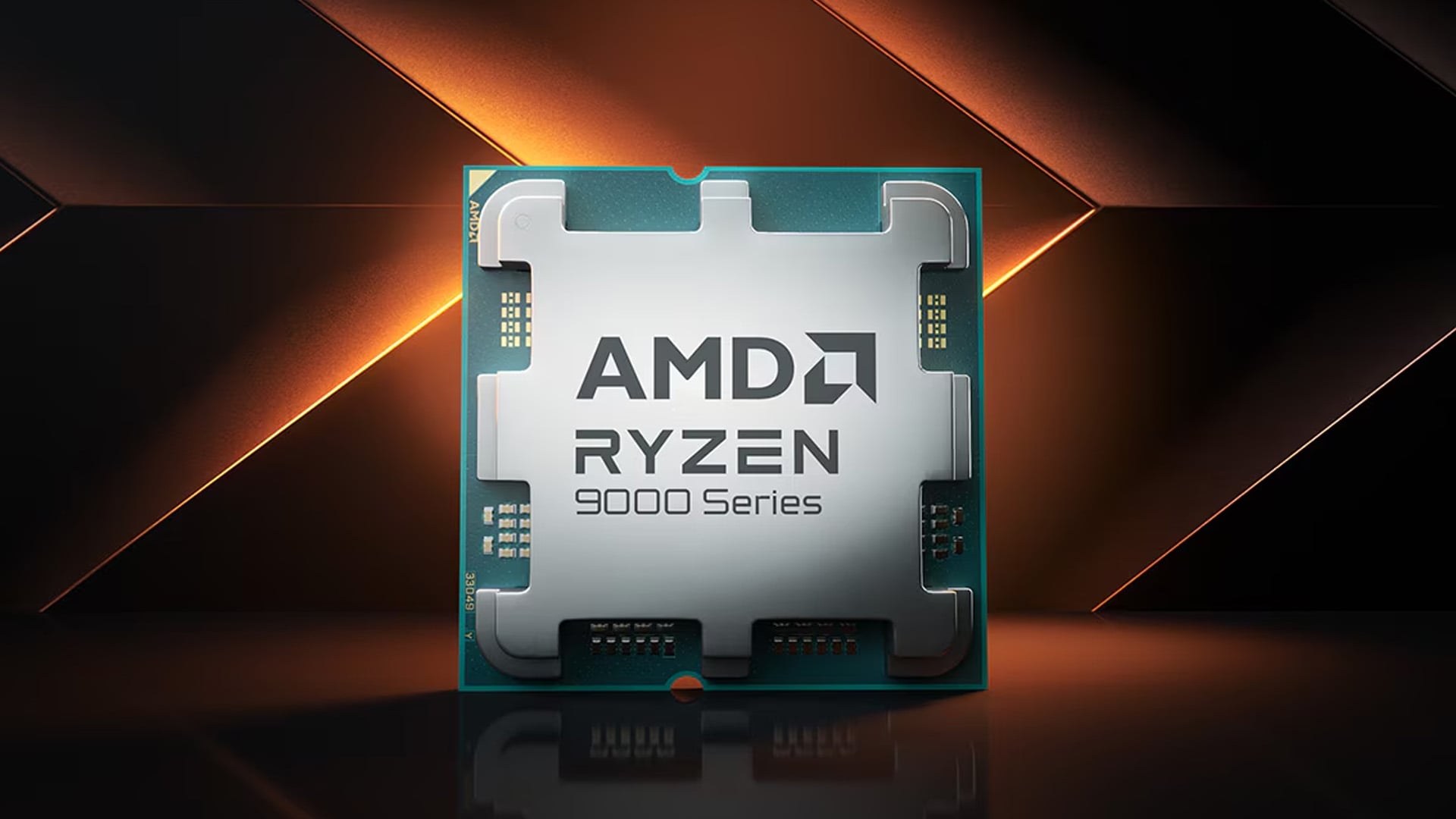
What Drivers Should You Install After Building an AMD PC?
After building an AMD PC, install drivers in a sensible order. You do not need to install every driver on the internet. You need the correct drivers for your exact motherboard, processor, graphics card and Windows version.
A typical AMD driver checklist looks like this:
| Driver Type | What It Does | Where to Get It |
|---|---|---|
| AMD chipset drivers | Supports motherboard chipset and Ryzen platform features | AMD support page |
| Graphics driver | Supports Radeon GPU or integrated graphics | AMD Adrenalin or GPU maker page |
| LAN driver | Enables wired Ethernet | Motherboard support page |
| Wi-Fi driver | Enables wireless networking if built in | Motherboard support page |
| Bluetooth driver | Enables Bluetooth if built in | Motherboard support page |
| Audio driver | Enables motherboard audio features | Motherboard support page |
| RAID driver | Needed only if you use RAID storage | AMD support page or motherboard page |
| BIOS or UEFI firmware | Updates motherboard firmware | Motherboard support page |
For most users, the basic order should be: Windows updates, AMD chipset drivers, networking drivers if needed, graphics driver, audio driver, optional motherboard utilities and BIOS update only if required.
AMD Chipset Drivers vs AMD Motherboard Drivers
The phrase AMD motherboard drivers can mean several things. It may refer to AMD chipset drivers, but it can also refer to drivers from ASUS, MSI, Gigabyte, ASRock or another motherboard brand.
The AMD chipset package comes from AMD and supports AMD platform-level features. Motherboard brand drivers come from the board manufacturer and support board-specific hardware such as Ethernet, Wi-Fi, Bluetooth, audio, RGB controllers and utility software.
What AMD Provides
AMD provides chipset drivers for supported AMD platforms, including AM4 and AM5 motherboards. It also provides Radeon graphics drivers, RAID drivers and some platform tools.
This is where you would look for amd b550 chipset drivers, amd b450 chipset driver or amd x870 chipset driver, depending on your motherboard chipset.
What Your Motherboard Brand Provides
Your motherboard brand provides drivers for the exact board model. For example, asus amd motherboard drivers may include Realtek audio, Intel or Realtek LAN, Wi-Fi, Bluetooth, Armoury Crate utilities and BIOS updates. msi amd motherboard drivers may include similar items through MSI’s support page or utility tools.
The safest approach is to use AMD for chipset and Radeon drivers, then use your motherboard support page for board-specific audio, LAN, Wi-Fi and BIOS files.
How to Find Your AMD Motherboard Model First
Before downloading anything, identify your exact motherboard model. This matters because similar boards can use different LAN chips, Wi-Fi modules, audio codecs or BIOS versions.
You can check the model through Windows System Information, Command Prompt, BIOS or the motherboard box. Once you know the model, go to the manufacturer’s support page and choose the correct Windows version.
For step-by-step help, read our guide to check your motherboard model.
Why the Exact Model Matters
A motherboard name such as “B550” or “X870” tells you the chipset, but not the full board. For example, two B550 boards may use different Ethernet controllers or audio chips. Installing the wrong driver may fail, install unnecessary software or leave a device unsupported.
Always match the driver page to your exact board name, not just the chipset family.
Best Driver Installation Order After Building an AMD PC
The best driver order keeps setup clean and reduces errors. You do not need to overcomplicate it.
Step 1: Install Windows and Run Windows Update
After installing Windows 11, connect to the internet if possible and run Windows Update. Windows may install basic drivers for networking, display, audio and chipset components.
This gives you a working base before installing AMD and motherboard-specific drivers.
Step 2: Install AMD Chipset Drivers
Install the latest supported AMD chipset drivers for your platform from AMD’s official support page. This is one of the most important steps after a new build.
The chipset installation package may include platform drivers such as AMD PCI device driver, AMD SMBus driver, AMD PSP driver and power management support. These help Windows work properly with your AMD motherboard and Ryzen processor.
Step 3: Install Graphics Drivers
If you use a Radeon graphics card, install AMD Software: Adrenalin Edition. If you use NVIDIA graphics, install the latest NVIDIA driver instead.
A Radeon graphics driver is separate from the chipset driver. Do not assume the chipset package also updates your GPU.
If you are building a gaming PC, you can compare the Radeon graphics card range or pair your system with Ryzen desktop processors.
Step 4: Install LAN, Wi-Fi and Bluetooth Drivers
If your Ethernet, Wi-Fi or Bluetooth does not work properly after Windows Update, install the drivers from your motherboard support page.
This is where amd motherboard ethernet drivers are usually handled by the board manufacturer, not AMD directly. The same applies to Wi-Fi and Bluetooth unless your board uses a driver package provided through Windows Update.
Step 5: Install Motherboard Audio Driver
Windows may install a basic audio driver, but the motherboard audio driver can unlock full audio features, jack detection, control panels and better compatibility.
Search your motherboard support page for the amd motherboard audio driver download that matches your exact board and Windows version.
Step 6: Install RAID Drivers Only If You Use RAID
Most home and gaming PCs do not need RAID. If you are using a normal single SSD or multiple separate drives, you usually do not need RAID drivers.
Use amd raid driver download only if you plan to create a RAID array for SATA or NVMe storage. RAID setup can affect how Windows sees your drives, so read the motherboard manual and AMD RAID guidance carefully before enabling it.
Step 7: Update BIOS or UEFI Only When Needed
A BIOS or UEFI firmware update can improve CPU compatibility, memory stability and platform support. However, it should not be treated like a normal driver update.
Update BIOS if you need support for a newer CPU, better memory compatibility, a security fix or a known stability improvement. Do not interrupt a BIOS update once it starts.
For new builders, our first PC build guide explains the broader setup process.
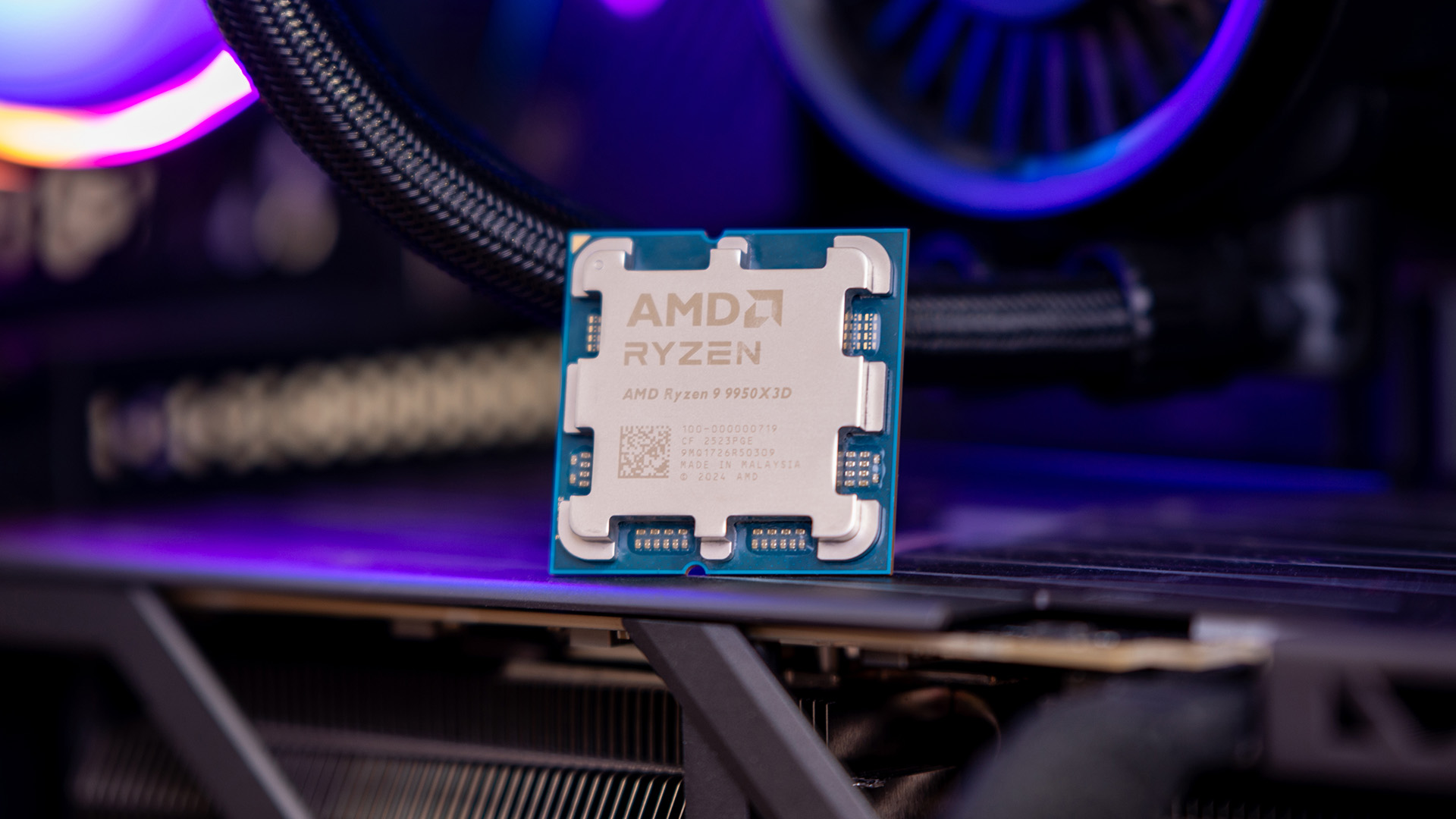
AM4 vs AM5: Which AMD Chipset Drivers Do You Need?
AMD has different desktop platforms, with AM4 and AM5 being the most important for many current and recent PC builds.
AM4 motherboards include chipsets such as B450, B550 and X570. AM5 motherboards include chipsets such as A620, B650, B850, X670 and X870. The chipset driver package from AMD often supports multiple AMD chipsets, but you should still download through the correct product family on AMD’s support page.
AM4 Platform Drivers
If you are using an AM4 platform, you may be searching for amd b450 chipset driver or amd b550 chipset drivers. These boards are still common for Ryzen 3000 and Ryzen 5000 builds.
AM4 remains useful for value-focused gaming PCs and upgrades, especially if you already own DDR4 memory. If you are building around AM4, compare AM4 motherboard options.
AM5 Platform Drivers
If you are using an AM5 platform, you may be looking for amd x870 chipset driver or drivers for B650, X670, B850 or A620 motherboards. AM5 is the newer platform for Ryzen 7000, Ryzen 8000G, Ryzen 9000 and newer compatible processors.
AM5 brings DDR5 support and newer platform features. For newer builds, explore latest AM5 motherboards.
For PCIe upgrade decisions, read PCIe 5.0 on AMD Motherboards: Is the Upgrade Worth Paying For?. If you are tuning DDR5 memory on AM5, read AMD EXPO Explained: How to Enable Faster DDR5 Memory on AM5 PCs.
Do You Need ASUS or MSI AMD Motherboard Drivers?
Yes, if you have an ASUS, MSI or other branded AMD motherboard, you should check the manufacturer’s support page for board-specific drivers.
ASUS AMD Motherboard Drivers
ASUS AMD motherboard drivers may include chipset links, LAN drivers, Wi-Fi drivers, Bluetooth drivers, audio drivers, SATA utilities, BIOS files and ASUS utilities. Use the exact board support page rather than downloading from a similar model.
MSI AMD Motherboard Drivers
MSI AMD motherboard drivers follow the same idea. MSI’s support page for your exact motherboard will usually include LAN, Wi-Fi, Bluetooth, audio, BIOS and utility downloads.
You can install AMD chipset drivers from AMD directly, but the motherboard page is still useful for the exact network and audio hardware.
Should You Use Motherboard Utility Software?
Motherboard utilities can make driver updates easier, but they are optional. Some users like them for convenience, RGB control or update alerts. Others prefer manual driver downloads to avoid unnecessary background software.
For a clean gaming PC, install only the utilities you actually need.
AMD RAID Driver Download: Do You Really Need It?
Most users do not need RAID. A modern NVMe SSD is already fast enough for gaming, everyday work and content creation. RAID can be useful in specialist storage setups, but it adds complexity.
Use AMD RAID drivers only if you are deliberately setting up RAID in BIOS or UEFI. If you install RAID drivers without using RAID, you may add unnecessary complexity to a simple system.
When RAID Makes Sense
RAID may be useful for some workstation, storage-heavy or redundancy-focused setups. For example, RAID 1 can mirror data across drives, while RAID 0 can combine drives for speed but increases risk because one drive failure can affect the whole array.
For most gaming PCs, a good NVMe SSD is the better and simpler option.
What About Radeon Graphics Drivers?
If your PC uses a Radeon GPU, install AMD Software: Adrenalin Edition after chipset drivers. This handles Radeon graphics cards and supported integrated graphics.
The Radeon graphics driver helps with game performance, display support, GPU features, driver updates and performance tuning. It is not the same as AMD chipset software.
If you use an NVIDIA graphics card on an AMD motherboard, you still install AMD chipset drivers for the motherboard and NVIDIA drivers for the graphics card.
What Happens If You Do Not Install AMD Chipset Drivers?
Your PC may still work, but it may not work as well as it should. Windows may use generic drivers, which can be enough for basic operation but not ideal for performance, power management or stability.
Without proper chipset drivers, you may see issues such as poor sleep behaviour, missing devices, USB instability, weaker power management, chipset-related warnings in Device Manager or lower system responsiveness.
For a new AMD build, installing chipset drivers is a simple step that can prevent avoidable problems.
How to Update AMD Motherboard Drivers Safely
An AMD motherboard driver update should be done carefully. Do not install random driver files from forums or unofficial websites.
Use this safer approach:
| Driver Type | Best Update Source |
|---|---|
| AMD chipset drivers | AMD official support page |
| Radeon graphics driver | AMD Software: Adrenalin Edition or AMD support |
| LAN, Wi-Fi, Bluetooth | Motherboard support page or Windows Update |
| Audio driver | Motherboard support page |
| RAID driver | AMD support or motherboard support page |
| BIOS or UEFI | Motherboard support page only |
Before major driver updates, create a restore point. Restart after chipset and graphics driver installations. Avoid installing multiple driver packages at the same time without rebooting.
Common AMD Driver Mistakes to Avoid
Many post-build driver problems come from small mistakes. Avoid these common issues:
| Mistake | Why It Causes Problems |
|---|---|
| Installing drivers for the wrong motherboard model | LAN, Wi-Fi or audio may not work correctly |
| Confusing chipset drivers with graphics drivers | Your Radeon GPU may remain outdated |
| Installing RAID drivers without using RAID | Adds unnecessary complexity |
| Skipping chipset drivers completely | Can affect platform stability and power management |
| Updating BIOS without a reason | Adds risk if interrupted or done incorrectly |
| Using old driver files from random sites | Can create security or stability issues |
| Installing every utility offered | Can add bloat and background processes |
The safest approach is to install only what your system needs from trusted sources.
How to Check If AMD Drivers Installed Correctly
After installing drivers, restart your PC and check Device Manager. There should be no warning icons under system devices, display adapters, network adapters or audio devices.
You can also check installed apps for AMD Software, AMD Chipset Software or motherboard utilities. For Radeon graphics, open AMD Software: Adrenalin Edition and check the driver version.
If something does not work, return to the motherboard support page and confirm that you downloaded the correct driver for your exact model and Windows version.
New AMD PC Driver Checklist
Use this checklist after your first Windows boot:
| Step | What to Install or Check |
|---|---|
| 1 | Run Windows Update |
| 2 | Install AMD chipset drivers |
| 3 | Restart the PC |
| 4 | Install Radeon or NVIDIA graphics driver |
| 5 | Install LAN or Wi-Fi driver if networking is missing |
| 6 | Install Bluetooth driver if needed |
| 7 | Install motherboard audio driver if needed |
| 8 | Install RAID driver only if using RAID |
| 9 | Check Device Manager for warning icons |
| 10 | Update BIOS only if required |
| 11 | Enable AMD EXPO if using compatible DDR5 memory |
| 12 | Test sleep, USB, networking, audio and gaming performance |
This order keeps the process simple and reduces the chance of driver conflicts.
Final Thoughts: What AMD Drivers Should You Install First?
After building a new AMD PC, install Windows updates first, then install the latest supported AMD chipset drivers for your motherboard platform. After that, install your graphics driver, then any board-specific LAN, Wi-Fi, Bluetooth and audio drivers from the motherboard manufacturer.
You do not need every optional tool or utility. You only need the drivers that match your exact motherboard, processor, graphics card, storage setup and Windows version. RAID drivers are only needed if you are actually using RAID. BIOS updates should be done only when there is a clear benefit, such as CPU support, memory stability or a required fix.
To plan or upgrade your next AMD build, browse the AMD motherboard range, or explore PC building components at Box.co.uk.
FAQs
What are the current AMD drivers?
The current AMD drivers depend on what hardware you are updating. For AMD motherboards, check the latest AMD chipset package for your chipset and Windows version. For Radeon graphics cards, check the latest AMD Software: Adrenalin Edition release. For RAID storage, use the correct AMD RAID package only if you are setting up RAID.
How do I get AMD drivers?
Get AMD drivers from AMD’s official support page or from your motherboard manufacturer’s support page. Use AMD for chipset and Radeon graphics drivers. Use the motherboard brand page for LAN, Wi-Fi, Bluetooth, audio and BIOS files that match your exact board.
Does AMD still have driver issues?
AMD drivers are much better than old internet myths suggest, but any PC hardware can still have driver issues depending on the system, Windows version, motherboard firmware and software setup. Most problems come from outdated BIOS, wrong drivers, conflicting old installs or skipping important platform updates.
How do I know if my AMD drivers are up to date?
Check AMD Software for Radeon graphics drivers, check AMD’s support page for chipset driver versions, and check your motherboard support page for board-specific updates. You can also check Device Manager for warning icons and compare installed driver versions with the official download page.
Do AMD drivers automatically update?
Some AMD graphics drivers can be checked through AMD Software, and Windows Update may install basic drivers automatically. However, chipset drivers and motherboard-specific drivers do not always update automatically in the way users expect. For a new build, it is better to manually install the correct AMD chipset package and motherboard drivers.
What happens if I do not update AMD drivers?
If you do not update AMD drivers, your PC may still work, but you may miss stability fixes, performance improvements, power management updates, device support and game optimisations. Outdated chipset drivers can affect platform behaviour, while outdated graphics drivers can affect gaming performance and display stability.
You can pay with:
*PayPal Credit Representative Example: Assumed credit limit £1,200, Representative 23.9% APR (variable). Purchase rate 23.9% p.a (variable).Terms & Conditions apply.


PayPal Credit and PayPal Pay in 3 are trading names of PayPal UK Ltd, 5 Fleet Place, London, United Kingdom, EC4M 7RD. Terms and conditions apply. Credit subject to status, UK residents only, Five Tech LTD acts as a broker and offers finance from a restricted range of finance providers. PayPal Pay in 3 is not regulated by the Financial Conduct Authority. Pay in 3 eligibility is subject to status and approval. 18+. UK residents only. Pay in 3 is a form of credit. Check if affordable and how you will repay. May make other borrowing more difficult or expensive. See product terms for more details.
Copyright © 1996-2026 Fivetech LTD | Terms and Conditions
box.co.uk & Box are trading names of Five Tech Limited. Registered office: Box LTD, Unit 10 Woodford Trading Estate, Woodford Green IG8 8HF