


 Menu
MenuMenu


Get Sales Advice from Mon - Fri 9am - 5:00pm:
020 3337 8950POSTED: June 04, 2026
Anti-Aliasing in Gaming: Types, Differences & Best Settings
Jagged edges can make even a great-looking game feel rough around the edges. You might notice them on character outlines, weapon models, fences, rooftops, grass, wires, or distant buildings, especially when playing at 1080p or moving the camera quickly. That is where anti aliasing comes in.
Anti aliasing is a graphics setting that smooths those harsh, stair-stepped edges so games look cleaner and more stable in motion. It can make a big difference in open-world games, racing titles, shooters, RPGs and anything with lots of fine detail on screen. The tricky part is that not every anti aliasing method works the same way. Some options are light and fast, while others produce a sharper image but use more GPU power.
In this guide, we will explain what anti aliasing is, what it does, the main anti aliasing types used in gaming, and the best anti aliasing settings for different resolutions and setups. This guide will help you quickly decide whether to use FXAA, TAA, SMAA, MSAA, DLAA, or turn anti aliasing down for better FPS.
What Is Anti Aliasing?
Anti aliasing is a graphics setting that smooths jagged, stair-stepped edges in games. These rough edges usually appear around diagonal lines, curved objects, railings, wires, foliage, weapon models, character outlines, and distant scenery. Anti aliasing makes those edges look cleaner by blending pixels, sampling extra edge information, or using previous frames to rebuild a smoother image.
In simple terms, anti-aliasing helps a game look less pixelated. It does not add more real detail to the scene, but it makes existing details easier on the eye.
For gamers, anti aliasing is one of those settings that can make a game look much more polished, especially at 1080p. The trade-off is performance. Some anti aliasing types are very light, while others can reduce FPS noticeably. That is why the best anti aliasing settings depend on your resolution, GPU, monitor, target frame rate and the type of game you are playing.
What Does Anti Aliasing Do?
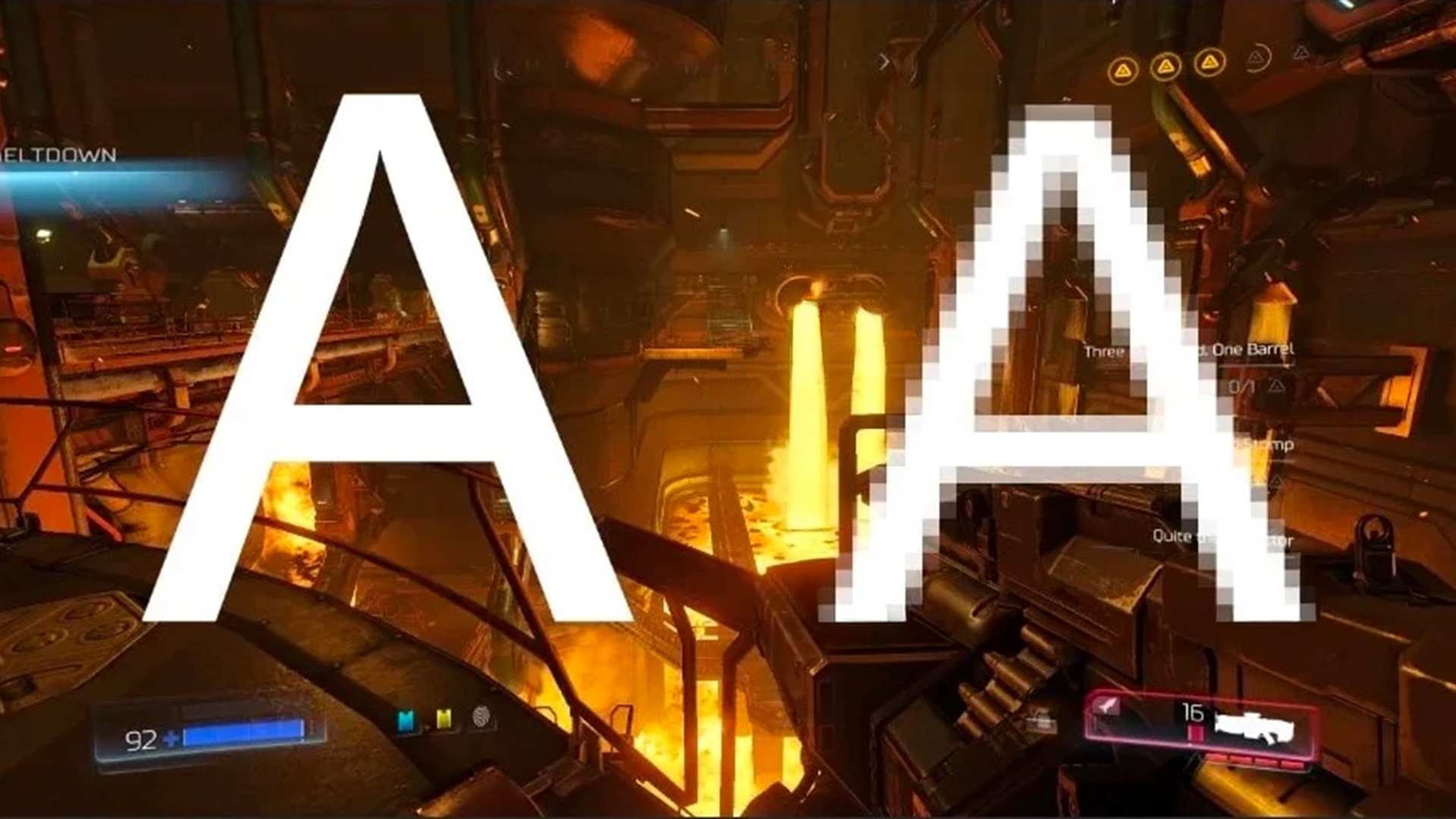
So, what does anti aliasing do in actual gameplay? It reduces the visible “jaggies” that happen because a display is made of square pixels, while games are full of curves, angles, and fine lines. Without anti aliasing, a diagonal roofline or sword edge can look like a staircase. With anti aliasing, that same edge looks smoother and less distracting.
Anti aliasing usually works in one of three ways. It can blur or blend high-contrast edges after the frame is rendered, sample more points around geometry edges, or use motion data from multiple frames to rebuild a cleaner image. Modern games often combine anti aliasing with upscaling, sharpening, or temporal reconstruction to balance clarity and FPS.
This matters most when you are moving through a game world. Jagged edges can shimmer, crawl, or flicker when the camera moves. Good anti aliasing helps stabilise the image, so distant fences, tree branches, and thin object outlines do not buzz on screen. If you use premium GPUs for high quality rendering, stronger anti aliasing settings become easier to run without tanking your frame rate.
Anti Aliasing Types Explained
There are several anti aliasing types in gaming, and each one handles image smoothing differently. The main options you will usually see are FXAA, SMAA, TAA, MSAA and DLAA. Some games may also include SSAA, TSR, DLSS, FSR or XeSS, but the core idea is the same: reduce jagged edges while keeping the image sharp and responsive. If you want to know which upscaling technology is best for your gaming needs, we have a guide to help you out.
The important bit is that not every anti aliasing method suits every game. A fast competitive shooter needs clarity and low latency. A single-player RPG can afford a heavier image-quality setting. A racing game might benefit from anti aliasing that handles motion well because barriers, road markings, and distant scenery can shimmer heavily at speed. So, matching the right type to PCs for smooth gameplay is quite important.
Here is the practical breakdown.
-
FXAA
FXAA stands for Fast Approximate Anti-Aliasing. It is a post-processing method, which means it smooths the final rendered image rather than deeply analysing the 3D geometry. FXAA is popular because it is fast, light, and easy to run. NVIDIA’s original FXAA paper describes it as a high-performance screen-space approximation designed to reduce visible aliasing at a practical frame-time cost.
The upside is performance. FXAA is often the best anti aliasing option for low-end PCs, older gaming laptops or demanding games where every frame counts. The downside is softness. Because FXAA works on the final image, it can blur fine texture detail, UI edges and distant objects.
Use FXAA when you want a quick FPS-friendly improvement over no anti aliasing. Avoid it if the game already looks soft or if you care about maximum image sharpness.
-
SMAA
SMAA stands for Subpixel Morphological Anti-Aliasing. It is also a post-process method, but it is generally better at preserving sharpness than FXAA. SMAA looks for edge patterns and smooths them more intelligently, so the final image often looks cleaner without as much blur.
SMAA is a solid middle-ground option. It usually costs more performance than FXAA but less than heavier methods such as MSAA or high-quality temporal anti aliasing. The original SMAA project describes it as an efficient GPU-based anti-aliasing method designed to handle subpixel features and improved pattern detection.
Use SMAA when FXAA looks too blurry but TAA feels too soft or ghosty. It is a good pick for players who want clear edges without making the whole image look smeared.
-
TAA
TAA stands for Temporal Anti-Aliasing. It uses information from current and previous frames to smooth edges and reduce shimmering. TAA is common in modern games because it handles more than simple geometry edges. It can help with subpixel detail, moving objects, foliage, and shader aliasing.
Unreal Engine’s documentation explains that temporal anti-aliasing upsampling samples different locations in each frame and blends information from past frames to smooth jagged edges.
The upside is stability. TAA can make a moving game world look much calmer, especially in open-world games with lots of grass, fences and distant details. The downside is blur and ghosting. Some TAA implementations soften the image too much, and some can leave faint trails behind moving objects.
Use TAA for modern cinematic games, open-world titles, and games with heavy shimmering. If it looks too soft, pair it with an in-game sharpening slider where available.
-
MSAA
MSAA stands for Multi-Sample Anti-Aliasing. It samples multiple points around geometry edges, which helps smooth hard object outlines without blurring the entire image. MSAA reduces geometry aliasing by using pixel coverage and depth-stencil tests at multiple sub-sample locations, but it does not reduce surface aliasing.
MSAA can look very clean on object edges, especially in older or forward-rendered games. However, it can be expensive, and it is less useful for modern deferred rendering pipelines where a lot of aliasing comes from shaders, textures, transparency, lighting and post-processing.
Use MSAA when the game offers it and your GPU has enough headroom. 2x MSAA is usually a sensible start. 4x MSAA can look cleaner but costs more. 8x MSAA is often not worth the performance hit unless the game is older or easy to run.
-
DLAA
DLAA stands for Deep Learning Anti-Aliasing. It is NVIDIA’s AI-based anti aliasing method for supported RTX graphics cards and supported games. Unlike DLSS Super Resolution, DLAA works at native resolution rather than rendering at a lower resolution and upscaling. NVIDIA says DLAA uses the same Super Resolution technology developed for DLSS to create a higher-quality native-resolution image.
DLAA can produce excellent image quality because it focuses on anti aliasing rather than FPS uplift. The trade-off is that it can be heavier than DLSS Quality mode, because it is not reducing the internal render resolution.
Use DLAA when you already have enough FPS and want a cleaner image. It is especially useful at 1440p or 4K when image quality matters more than chasing every extra frame.
Which Anti Aliasing Type is right for you?
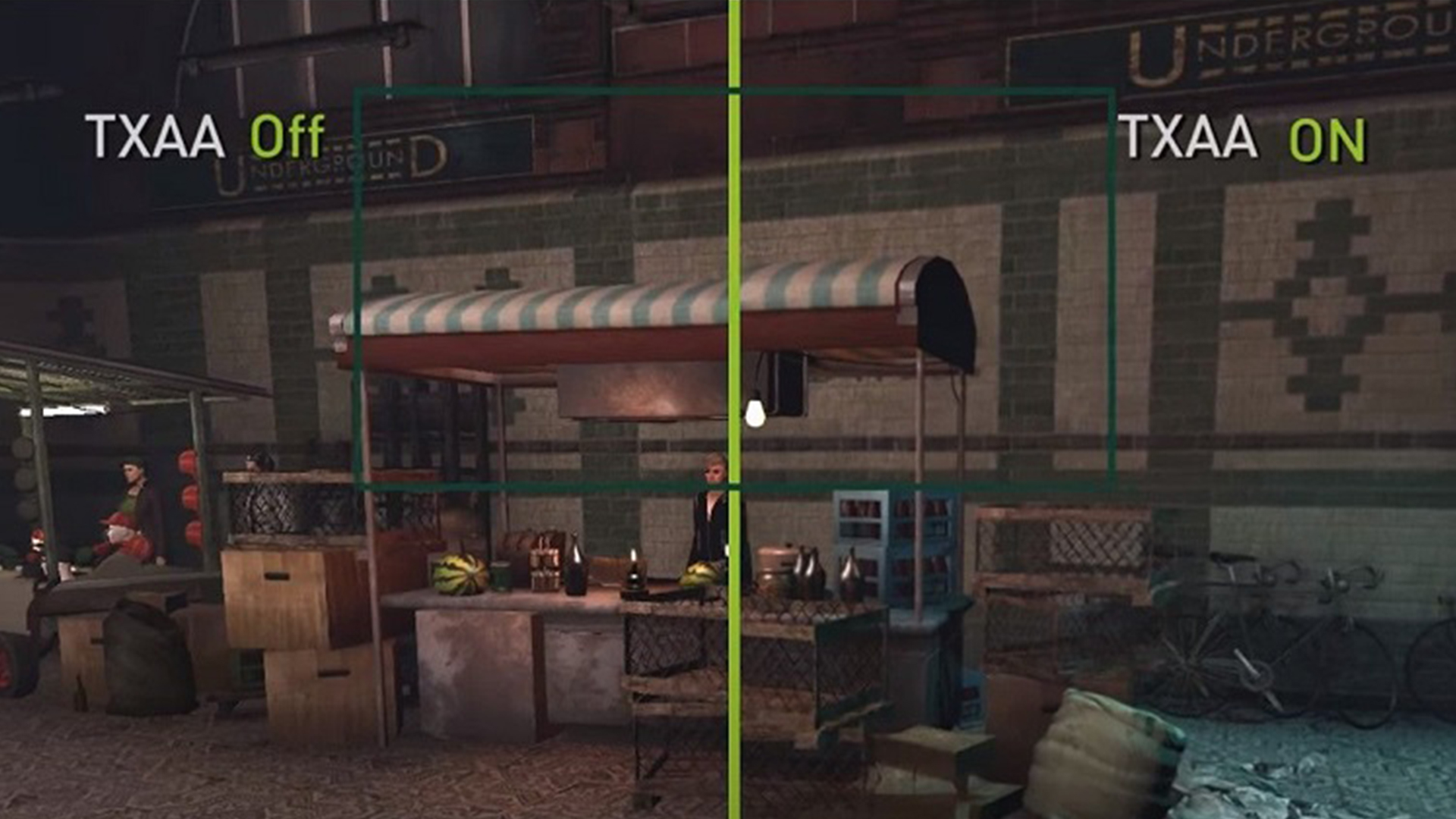
Once you understand the main anti aliasing types, the next step is choosing the right one for your setup. FXAA, TAA, MSAA, and DLAA all handle image smoothing differently, so the best option depends on whether you care more about FPS, sharpness, motion stability, or overall image quality. For a deeper side-by-side breakdown, our guide on FXAA vs TAA vs MSAA vs DLAA is a must-read, where we compare the main methods in more detail.
Best Anti Aliasing Settings for Gaming
The best anti aliasing settings depend on what you play and what you want from the game. There is no single perfect setting for every setup, but there are clear starting points.
For 1080p gaming, anti aliasing matters a lot because jagged edges are more visible at lower pixel density. Start with TAA if the game looks stable and sharp enough. Use SMAA if TAA is too blurry. Use FXAA if performance is limited. Use MSAA only if the game supports it well and your FPS remains comfortable.
For 1440p gaming, jagged edges are less obvious, but anti aliasing still helps with shimmering and fine detail. TAA, SMAA or DLAA are usually good choices. At this resolution, you may not need the highest AA setting because the extra pixels already help smooth the image.
For 4K gaming, anti aliasing is still useful but less critical. The higher pixel count naturally reduces jagged edges, so lighter anti aliasing settings can be enough. DLAA, TAA Low, SMAA or even no AA can work depending on the game. If your FPS is tight at 4K, lowering anti aliasing is often smarter than lowering textures.
For competitive gaming, prioritise FPS, visibility and response. FXAA, SMAA Low or anti aliasing off can make sense if you want the sharpest motion and lowest GPU load. For story-driven games, use TAA High, DLAA or higher-quality SMAA if your system can handle it.
When playing, remember that thermals and power limits matter too, even with the most powerful gaming laptops on the market. A laptop GPU can run strong anti-aliasing, but the best setting is the one that keeps frame rates stable during long sessions, not just in a quick benchmark.
Does Anti Aliasing Reduce FPS?
Yes, anti aliasing can reduce FPS, but the size of the hit depends on the method. FXAA usually has a small performance cost. SMAA is still fairly light. TAA varies by game, but it is often manageable. MSAA can be much heavier, especially at 4x or 8x. DLAA can also be demanding because it focuses on native-resolution image quality rather than performance uplift.
Anti aliasing reduces FPS because the GPU has to do extra work. That work might involve analysing the final frame, sampling extra geometry points, storing previous frame data, or running AI-assisted reconstruction. The heavier the method, the more GPU time it can take.
That said, anti aliasing is not always the first setting to lower. If a game has demanding ray tracing, ultra shadows, volumetric effects or heavy reflections, those may cost more FPS than AA. The sensible approach is to test one setting at a time. Lower anti aliasing if you see a meaningful FPS gain and the image still looks acceptable.
For a balanced setup, aim for stable FPS first, then clean up jagged edges. A smooth 100 FPS experience with medium anti aliasing usually feels better than a stuttery 60 FPS experience with every visual option maxed out.
Is Anti Aliasing Laggy?
Anti aliasing is not usually “laggy” by itself, but heavier settings can increase GPU workload. If the GPU is already maxed out, extra workload can raise frame times. Higher frame times can make the game feel less responsive, especially in shooters, racing games and esports titles.
The effect is not the same as network lag. Anti aliasing does not increase your ping. It can, however, contribute to lower FPS or uneven frame pacing if the GPU cannot keep up. That is why competitive players often use lighter anti aliasing settings or turn AA off when clarity and response matter more than smooth edges.
TAA can also feel less crisp in motion because it blends frame data over time. This is not input lag in the usual sense, but it can make fast movement look softer. If a game feels smeary, try SMAA, FXAA, a lower TAA quality setting, sharpening, or disabling motion blur before assuming anti aliasing is the only problem.
Does 4K Need Anti Aliasing?
4K does not need as much anti aliasing as 1080p, but it can still benefit from it. Higher resolution means smaller pixels and cleaner edges, so jaggies are naturally reduced. However, thin lines, foliage, fences, wires, and distant geometry can still shimmer when the camera moves.
At 4K, light anti aliasing is often enough. TAA Low, SMAA, DLAA or an upscaler’s quality mode can give a clean result without wasting too much performance. If you are short on FPS, lowering anti aliasing at 4K is usually a reasonable compromise because the resolution is already doing some of the smoothing.
This is where monitor choice matters. Higher pixel density can make jagged edges less visible, while refresh rate affects how smooth the image feels in motion. For story games and sharper visuals, displays that reduce jagged edges can make anti aliasing settings less aggressive. For esports, competitive display monitors can make lighter AA settings feel better because motion clarity and responsiveness become the priority.
Common Anti Aliasing Problems and Fixes
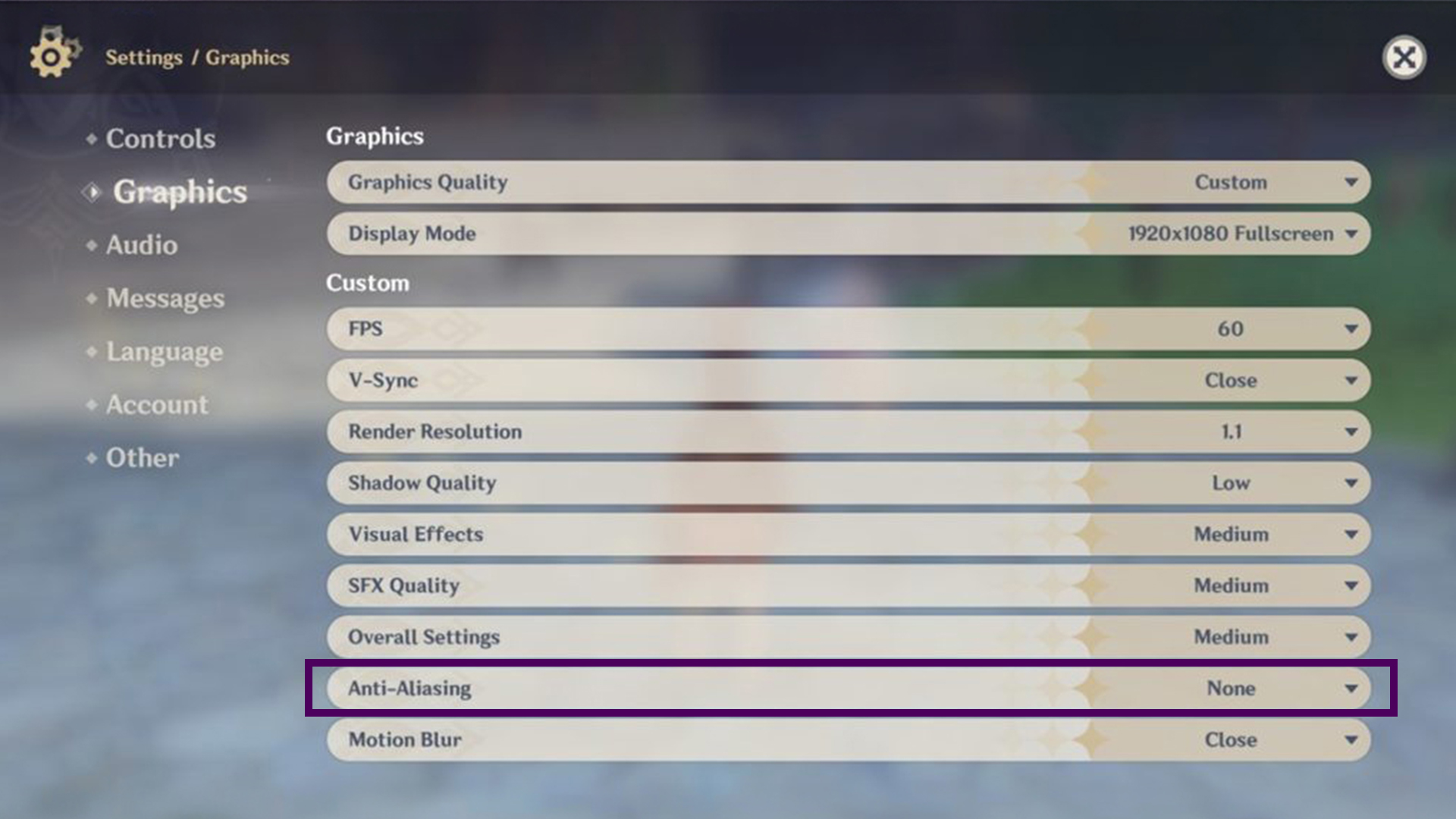
Anti aliasing can improve visuals, but the wrong setting can create new problems. If your game looks blurry, TAA or FXAA may be too aggressive. Try SMAA, reduce TAA quality, add sharpening or use DLAA if supported and your system can handle it.
If edges still shimmer, FXAA may not be enough. Try TAA, DLAA, TSR or a higher-quality AA option. Shimmering is common in games with lots of foliage, transparent textures and distant fine detail.
If FPS drops too much, reduce anti aliasing before lowering resolution. Try FXAA, SMAA Low, TAA Low or no AA. If you are using MSAA 8x, drop to 4x or 2x. In many games, the visual difference between 4x and 8x is not worth the performance hit.
If the image has ghosting, TAA may be the cause. Look for options such as TAA quality, motion blur, sharpening, upscaler quality or frame generation settings. Some games also offer separate sliders for anti aliasing, render scale and sharpening, so tune them together instead of changing only one.
Wrapping Up
Anti aliasing is one of the most useful graphics settings for cleaning up jagged edges, reducing shimmer and making games look more polished. The best choice depends on your hardware, resolution and play style.
Use FXAA when you need the lightest option. Use SMAA when you want better sharpness with low cost. Use TAA when you want stable visuals in modern games. Use MSAA when a game supports it well and you have GPU headroom. Use DLAA when you want high image quality at native resolution and your setup supports it.
For most gamers, the best anti aliasing settings are simple: start with the game’s default, check image sharpness, test FPS, then adjust based on what bothers you most. If the game shimmers, use stronger AA. If it looks blurry, use a sharper method. If performance drops, use a lighter option. Anti aliasing is not about maxing a slider. It is about finding the cleanest image your system can run smoothly.
FAQs
-
What is Anti-Aliasing?
Anti aliasing is a graphics technique that reduces jagged edges in games. It smooths stair-stepped lines around objects, curves, and distant details so the image looks cleaner and less pixelated.
-
Should I keep anti-aliasing on or off?
Keep anti aliasing on if jagged edges or shimmering distract you. Turn it off, or use a lighter setting, if you need more FPS or sharper visibility in competitive games.
-
Does anti-aliasing reduce FPS?
Yes, anti aliasing can reduce FPS because it adds extra GPU work. FXAA and SMAA are usually light, TAA is moderate depending on the game, while MSAA and DLAA can be heavier.
-
Is anti-aliasing laggy?
Anti aliasing does not create internet lag, but heavy settings can lower FPS or increase frame times if your GPU is already under pressure. That can make gameplay feel less responsive.
-
What anti-aliasing is best for FPS?
FXAA is usually the best anti aliasing option for FPS because it is very light. SMAA Low is also a good choice if you want a sharper image with a small performance cost.
-
Is FXAA or TAA anti-aliasing better?
TAA is usually better for reducing shimmer and stabilising modern game visuals, but it can look softer. FXAA is faster and lighter, but it can blur the image and may not clean up motion as well.
-
Does 4K need anti-aliasing?
4K needs less anti aliasing than 1080p because the higher pixel count naturally smooths edges. However, light AA can still help with thin lines, foliage, and distant shimmer.
You can pay with:
*PayPal Credit Representative Example: Assumed credit limit £1,200, Representative 23.9% APR (variable). Purchase rate 23.9% p.a (variable).Terms & Conditions apply.


PayPal Credit and PayPal Pay in 3 are trading names of PayPal UK Ltd, 5 Fleet Place, London, United Kingdom, EC4M 7RD. Terms and conditions apply. Credit subject to status, UK residents only, Five Tech LTD acts as a broker and offers finance from a restricted range of finance providers. PayPal Pay in 3 is not regulated by the Financial Conduct Authority. Pay in 3 eligibility is subject to status and approval. 18+. UK residents only. Pay in 3 is a form of credit. Check if affordable and how you will repay. May make other borrowing more difficult or expensive. See product terms for more details.
Copyright © 1996-2026 Fivetech LTD | Terms and Conditions
box.co.uk & Box are trading names of Five Tech Limited. Registered office: Box LTD, Unit 10 Woodford Trading Estate, Woodford Green IG8 8HF