


 Menu
MenuMenu


Get Sales Advice from Mon - Fri 9am - 5:00pm:
020 3337 8950LAST UPDATED: July 06, 2026
How to View and Hide Files on Mac: A Complete Step-by-Step Guide
Need to view hidden files Mac users cannot normally see? Or want to show hidden files Mac keeps tucked away in Finder? The quickest method is simple: open Finder and press Command + Shift + . to show or hide invisible files.
Hidden files exist for a reason. Many are system files, app settings, cache folders or configuration files that macOS keeps out of sight to prevent accidental changes. You can view them safely, but you should avoid editing or deleting anything unless you know what it does.
Quick answer: To show hidden files on a Mac, open Finder and press Command + Shift + .. Press the same shortcut again to hide them. To hide your own file or folder, use Terminal with chflags hidden, or use a private folder, encrypted disk image or separate user account for better privacy.
Quick Ways to View and Hide Files on Mac
| Task | Best Method | Difficulty |
|---|---|---|
| Show hidden files in Finder | Command + Shift + . | Easy |
| Hide hidden files again | Command + Shift + . | Easy |
| Open a hidden folder | Finder shortcut or Go to Folder | Easy |
| Hide your own file | Terminal: chflags hidden | Medium |
| Unhide your own file | Terminal: chflags nohidden | Medium |
| Make a folder private | Encrypted disk image or user account | Best for privacy |
How to Show Hidden Files on a Mac
The easiest way to show hidden files on a Mac is through Finder.
Method 1: Use Command + Shift + Dot
- Open Finder
- Go to the folder where you want to view hidden files
- Press Command + Shift + .
- Hidden files and folders will appear slightly faded
- Press Command + Shift + . again to hide them
This is the fastest way to show invisible files in Finder.
Where This Works
| Location | Does the Shortcut Work? |
|---|---|
| Desktop | Yes |
| Finder folders | Yes |
| Downloads | Yes |
| Documents | Yes |
| External drives | Yes |
| iCloud Drive | Usually, depending on folder contents |
| System folders | Yes, but edit with care |
This works on MacBook, iMac, Mac mini and most modern Macs running recent versions of macOS.
How to Open a Hidden File on Mac
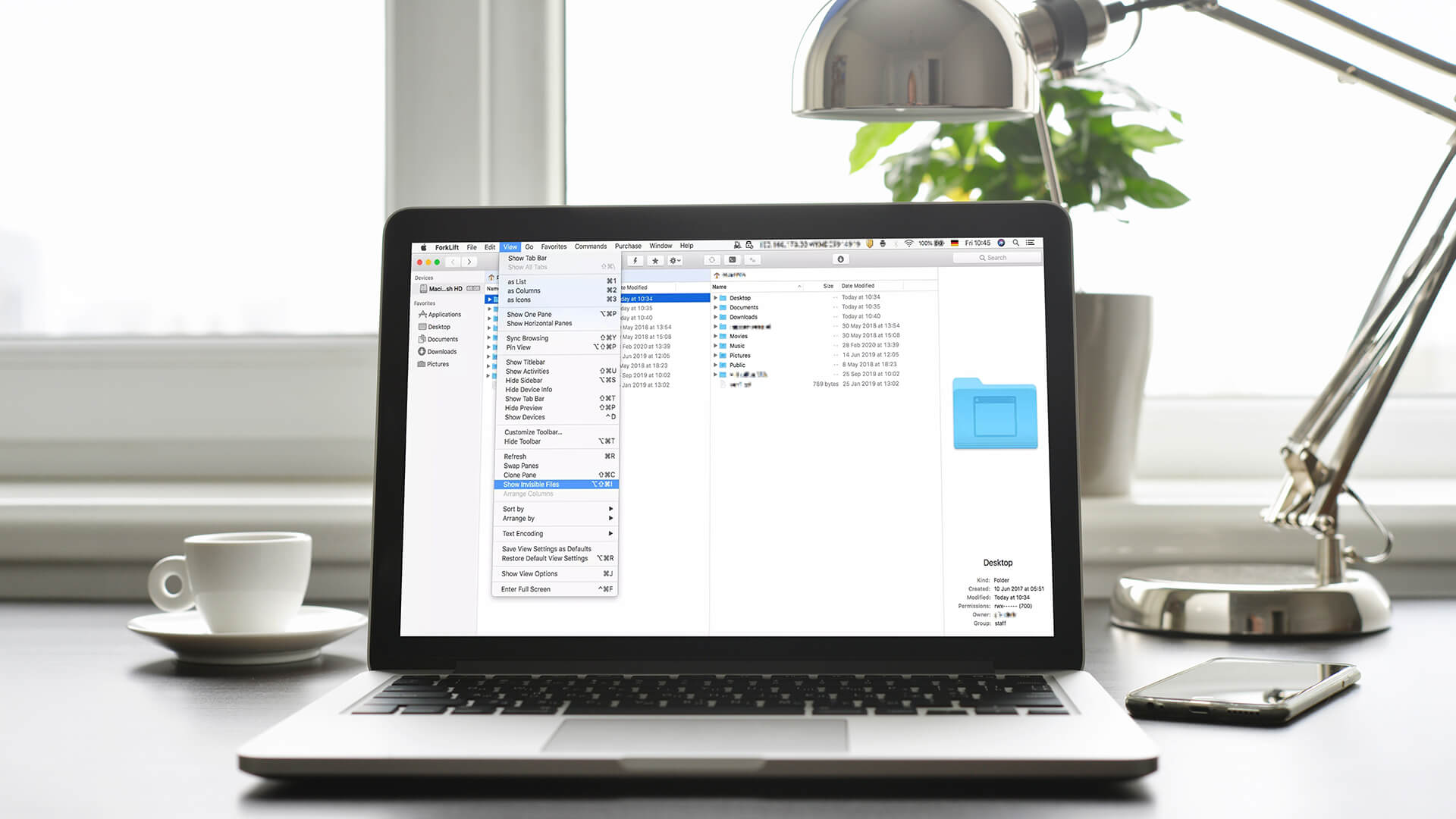
Once hidden files are visible, you can open them like normal files.
Steps
- Open Finder
- Press Command + Shift + .
- Find the hidden file
- Double-click it to open, or right-click and choose Open With
If the file does not open, it may be a system file, configuration file or file type that needs a specific app.
Common Hidden Files and Folders
| Hidden Item | What It Usually Is |
|---|---|
| .DS_Store | Finder folder view settings |
| .Trash | Trash folder on a drive |
| .ssh | SSH configuration folder |
| .zshrc | Shell configuration file |
| .config | App or developer settings |
| Library | User app settings and support files |
Avoid deleting hidden files just because they look unfamiliar. Some invisible files on Mac help apps and macOS work correctly.
How to Show a Hidden Folder on Mac Using Go to Folder
If you already know the folder path, use Go to Folder.
Steps
- Open Finder.
- Press Command + Shift + G.
- Type the folder path.
- Press Return.
Useful Folder Paths
| Folder | Path |
|---|---|
| User Library | ~/Library |
| SSH folder | ~/.ssh |
| User config folder | ~/.config |
| Applications Support folder | ~/Library/Application Support |
This is useful when you need to open hidden file Mac paths that do not appear in Finder by default.
How to Hide Files on a Mac
macOS does not give you a simple right-click “hide file” button in Finder. The cleanest built-in method is Terminal.
Method 1: Hide a File or Folder with Terminal
1. Open Terminal.
2. Type this command, leaving a space at the end:
chflags hidden
3. Drag the file or folder into the Terminal window.
4. Press Return.
The full command will look something like this:
chflags hidden /Users/yourname/Documents/example-folder
The file or folder will disappear from normal Finder view.
Method 2: Unhide the File Again
To make it visible again, use:
chflags nohidden /path/to/file-or-folder
You can also press Command + Shift + . in Finder, find the faded hidden file, drag it into Terminal after the command, and press Return.
Hide vs Private: What’s the Difference?
Hiding a file is not the same as protecting it.
A hidden file is simply less visible in Finder. Anyone who knows the shortcut can show it again.
Hide or Protect?
| Goal | Best Option |
|---|---|
| Keep a folder out of sight | chflags hidden |
| Stop casual Finder clutter | Hide the folder |
| Keep sensitive files private | Encrypted disk image |
| Protect a whole Mac account | Separate user account |
| Protect Mac data if lost | FileVault |
| Back up important files | External drive or cloud backup |
If the files matter, back them up before changing anything. Choosing external storage for backups is useful before editing system files, moving folders or reorganising important data.
How to Make a Folder Private on Mac
If you want proper privacy, hiding the folder is not enough.
Better options include:
- Use a separate macOS user account
- Turn on FileVault
- Create an encrypted disk image in Disk Utility
- Store sensitive files in a password-protected archive
- Use trusted encrypted cloud storage
Best Option for Most Users
For private files, use an encrypted disk image.
This creates a protected container that can be opened with a password. It is much safer than simply hiding a folder.
Should You Edit Hidden System Files?
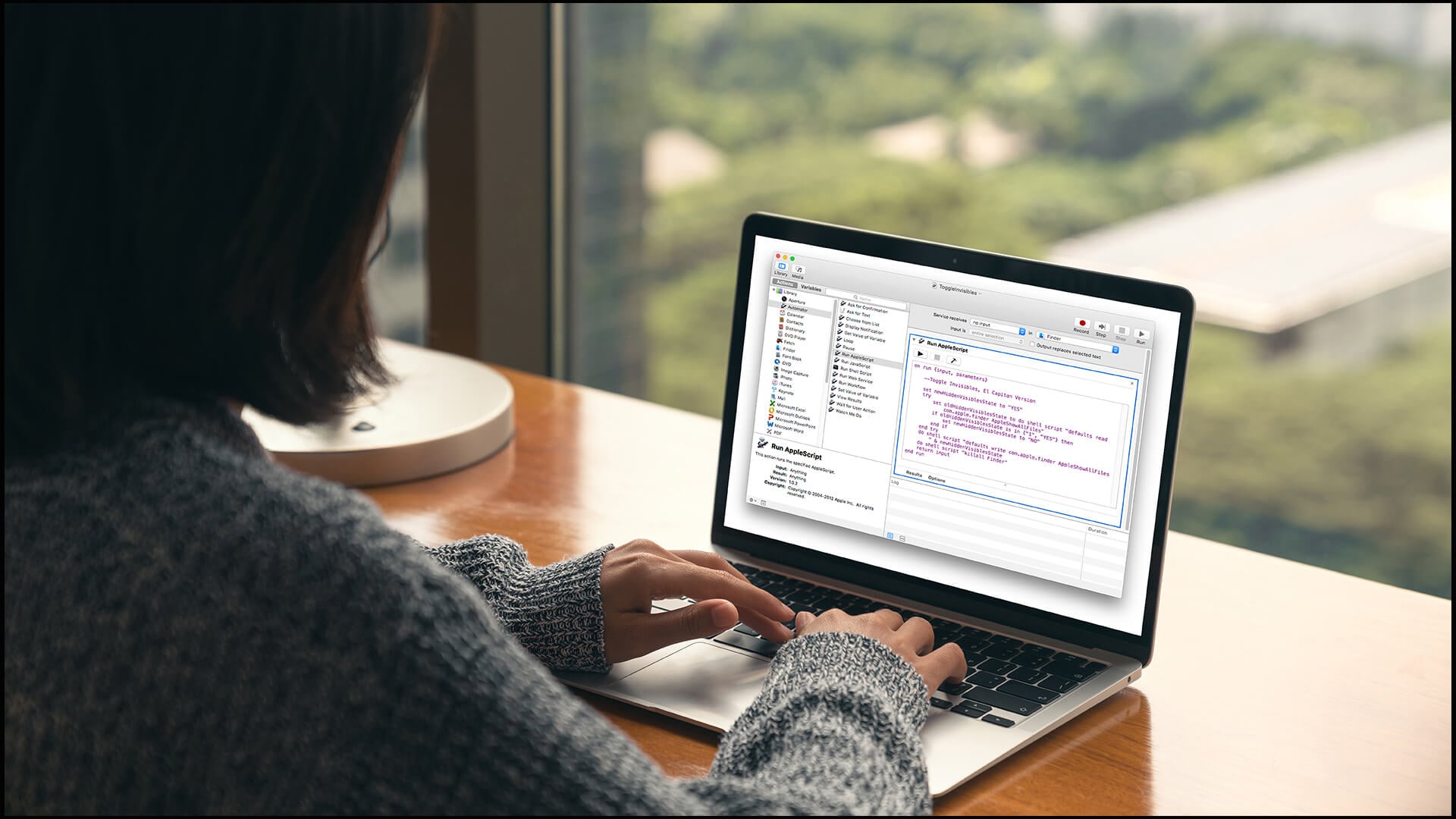
Be careful.
Hidden system files Mac users see in Finder may control app settings, system behaviour, user preferences or developer tools. Changing or deleting them can cause problems.
Safe vs Risky Actions
| Action | Risk Level |
|---|---|
| Viewing hidden files | Low |
| Opening known config files | Medium |
| Moving system files | High |
| Deleting hidden files | High |
| Editing app support folders | Medium to high |
| Backing up before changes | Recommended |
Only edit hidden files if:
- You know what the file does
- You have a backup
- You are following trusted instructions
- You can reverse the change
Finder Settings vs Hidden Files
Finder settings can help with file visibility, but they are not the same as hidden files.
Important Difference
| Feature | What It Does |
|---|---|
| Show hidden files | Reveals invisible files and folders |
| Show filename extensions | Shows file endings like .jpg, .pdf, .docx |
| Show path bar | Shows where a file is located |
| Show status bar | Shows folder item count and space info |
If you are trying to identify file types, showing filename extensions can help. If you are trying to see hidden folders Mac normally hides, use Command + Shift + . instead.
Common Problems When Showing Hidden Files
The Shortcut Does Not Work
Try this:
- Make sure Finder is active
- Click inside a Finder window first
- Use the full stop key, not the comma key
- Check your keyboard layout
- Restart Finder if needed
To restart Finder:
- Hold Option.
- Right-click the Finder icon in the Dock.
- Click Relaunch.
Hidden Files Still Do Not Appear
Possible reasons:
- You are looking in the wrong folder
- The file has been deleted
- The file is inside another user account
- You do not have permission
- The app stores files elsewhere
- The file is in iCloud or an external drive
A Hidden File Looks Greyed Out
That is normal. Hidden files often appear faded when shown in Finder.
Best Practices for Mac File Organisation

Hidden files are useful, but they should not become your main file organisation method.
Use this instead:
- Keep active files in Documents or Desktop folders
- Use clear folder names
- Use tags for projects
- Use iCloud Drive or external storage for backups
- Keep sensitive files in encrypted storage
- Avoid storing important files inside system folders
- Do not hide files just to “tidy up” messy folders
Simple Organisation Setup
| Folder Type | Good For |
|---|---|
| Documents | Work, study, admin files |
| Desktop | Temporary active files only |
| Downloads | Short-term downloads |
| External drive | Backups and large archives |
| Encrypted disk image | Private files |
| Project folders | Work in progress |
Final Thoughts
The easiest way to view hidden files Mac keeps out of sight is to open Finder and press Command + Shift + .. The same shortcut also hides them again.
If you want to show hidden files Mac has hidden for troubleshooting, development or file recovery, that shortcut is usually enough. If you want to hide your own files, Terminal can do it with chflags hidden, but remember that hidden does not mean private.
For privacy, use FileVault, a separate user account or an encrypted disk image. For safety, back up important data before editing hidden folders or system files.
Use hidden files carefully and your Mac stays tidy, organised and much easier to manage.
FAQs
-
How do I open a hidden folder on my Mac?
Open Finder, press Command + Shift + . to show hidden folders, then double-click the folder. If you know the path, press Command + Shift + G, type the folder path, and press Return.
-
How do I make a folder private on a Mac?
Hiding a folder does not make it private. For privacy, use an encrypted disk image, FileVault, a separate user account or trusted encrypted storage. These options are safer than simply using Terminal to hide a folder.
-
Why are some files hidden on Mac?
Some files are hidden because they are used by macOS, apps or developer tools. Hiding them reduces clutter and helps prevent accidental changes to important system files or settings.
-
Can I permanently hide files on Mac?
You can hide files with Terminal using chflags hidden, but they can still be shown again with Finder shortcuts or Terminal commands. For real privacy, use encryption instead of relying only on hidden file settings.
-
Is it safe to access hidden files on Mac?
It is usually safe to view hidden files, but you should be careful when editing, moving or deleting them. Some hidden files are used by macOS or apps, and changing them can cause problems.
-
What is the shortcut to show hidden files on Mac?
The shortcut is Command + Shift + .. Press it once in Finder to show hidden files. Press it again to hide them.
-
How do I hide a file on Mac using Terminal?
Open Terminal and type chflags hidden, add a space, drag the file or folder into Terminal, then press Return. To undo it, use chflags nohidden with the same file or folder path.
You can pay with:
*PayPal Credit Representative Example: Assumed credit limit £1,200, Representative 23.9% APR (variable). Purchase rate 23.9% p.a (variable).Terms & Conditions apply.


PayPal Credit and PayPal Pay in 3 are trading names of PayPal UK Ltd, 5 Fleet Place, London, United Kingdom, EC4M 7RD. Terms and conditions apply. Credit subject to status, UK residents only, Five Tech LTD acts as a broker and offers finance from a restricted range of finance providers. PayPal Pay in 3 is not regulated by the Financial Conduct Authority. Pay in 3 eligibility is subject to status and approval. 18+. UK residents only. Pay in 3 is a form of credit. Check if affordable and how you will repay. May make other borrowing more difficult or expensive. See product terms for more details.
Copyright © 1996-2026 Fivetech LTD | Terms and Conditions
box.co.uk & Box are trading names of Five Tech Limited. Registered office: Box LTD, Unit 10 Woodford Trading Estate, Woodford Green IG8 8HF