


 Menu
MenuMenu


Get Sales Advice from Mon - Fri 9am - 5:00pm:
020 3337 8950LAST UPDATED: January 28, 2026
How to Unlock a Samsung Galaxy Phone (Screen Locks and Network Locks Explained)
If you’re trying to unlock a Samsung Galaxy phone, the first thing to understand is what kind of lock you’re dealing with. Many people search for "unlock Samsung phone" when they actually mean very different things: getting past a forgotten PIN, removing a fingerprint lock, or unlocking the phone to use a different network SIM.
This guide explains all legitimate Samsung Galaxy phone unlock methods, covering both screen locks and network (SIM) locks. No matter is you have a model from the Samsung Galaxy A series phones range or any other, solutions covered in this guide work for all Samsung phones. Please note that this guide is for people who own the device or have permission to unlock it, including those dealing with second-hand phones, forgotten credentials, or contract restrictions in the UK.
What Do You Mean by "Unlock a Samsung Galaxy Phone"? (Screen vs Network)

On Samsung devices, unlocking can mean two completely different things, and confusing them is one of the main reasons people get stuck.
Screen unlock (device access)
This means getting past the lock screen so you can access the phone. Common lock types include:
- PIN
- Pattern
- Password
- Fingerprint
- Face unlock
Screen unlocking is about device security, not network compatibility.
Network / SIM unlock (carrier lock)
This means removing a carrier restriction so the phone can use SIM cards from other networks. For example:
- Using a Samsung bought on Vodafone with an EE SIM
- Taking a UK phone abroad and using a local SIM
This guide only covers legal and ethical unlocking. You should never attempt to bypass security on a phone you don’t own or have permission to access.
Samsung Galaxy Unlock Methods – Quick Comparison Table
This table helps you quickly identify the correct method for your situation.
| Scenario | Lock type | Recommended method | Requirements | Data loss risk |
| Forgot PIN / pattern on your own Samsung | Screen | Restart → official reset tools → factory reset | Google/Samsung account | High (reset wipes local data) |
| Biometrics failing but you know the PIN | Screen | Use backup PIN/password | None | None |
| Want to use a different network SIM | Network | Request carrier unlock | IMEI + eligible contract | None |
| Bought a second-hand phone that’s network locked | Network | Original carrier unlock | IMEI + original owner | None |
| Completely locked out and want a fresh start | Screen | Factory reset via recovery | Original Google account (FRP) | High |
How to Unlock a Samsung Galaxy Screen If You Still Know Your PIN or Password
If you still remember your credentials, unlocking is straightforward.
Standard unlock: PIN, pattern, password and biometrics
You can unlock using:
- Fingerprint
- Face unlock
- PIN, pattern, or password
If biometrics fail, the phone will always fall back to your primary lock method.
When the screen won’t respond or biometrics keep failing
Try:
- Restarting the phone
- Removing thick or damaged screen protectors
- Cleaning the fingerprint sensor
- Unlocking with your PIN instead
Temporary biometric failure is common after updates or if the sensor is obstructed.
How to remove or change the screen lock from settings
Once unlocked:
- Open Settings
- Go to Lock screen → Secure lock settings
- Authenticate with your PIN/password
- Change the lock type or remove it
How to Unlock a Samsung Galaxy Phone When You Forgot the Screen Lock
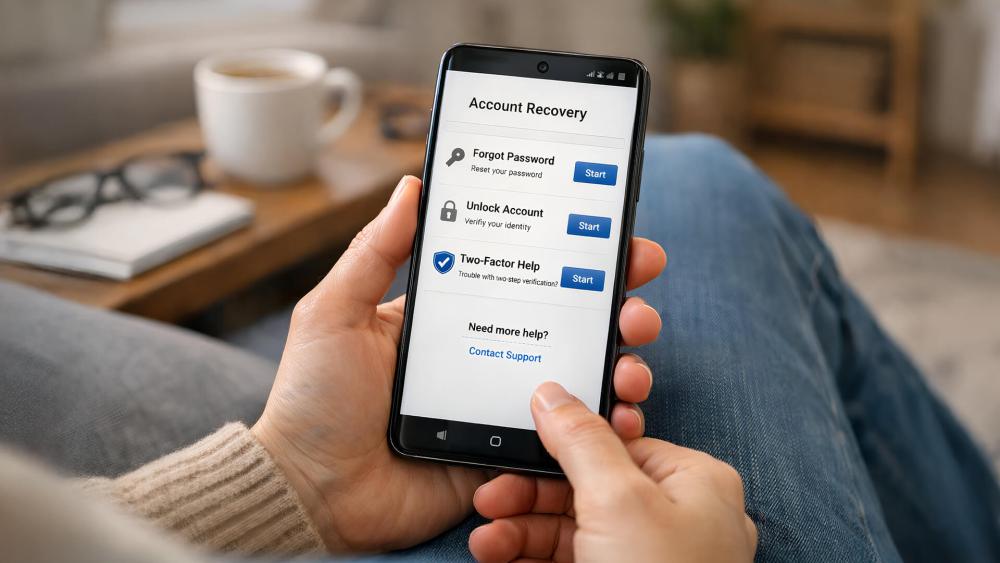
If you’ve forgotten everything, your options become more limited.
Try basic fixes first
- Restart the device
- Try any remembered backup PINs
- Attempt all enrolled biometrics
- If none work, proceed to official recovery options.
Use Google’s "Find My Device" to erase the phone (last resort)
If Find My Device was enabled:
- Sign in to your Google account on another device
- Select the phone
- Choose Erase device
This removes the screen lock but wipes all local data. Cloud data remains safe.
Use SmartThings Find (Samsung’s official tool)
The latest Samsung Galaxy phones now use SmartThings Find for device management.
- It can locate and remotely erase a device
- It does not reliably unlock the phone without erasing it
- Erase = lock removed, data wiped
Factory reset from recovery mode
If you’re fully locked out:
- Power off the phone
- Press and hold Volume Up + Power
- Select Wipe data/factory reset
- Confirm and reboot
Factory Reset Protection (FRP) applies: After reset, you must sign in with the Google account previously used on the device. There is no legitimate bypass for FRP.
Avoid third-party "unlock tools" claiming to remove Samsung locks without accounts. Many are scams or malware.
How to Network Unlock (SIM Unlock) a Samsung Galaxy Phone
Network unlocking is separate from screen unlocking and does not erase data.
Check if your Samsung Galaxy is network locked
You can:
- Insert a SIM from a different network
- Look for messages like "Network lock" or "SIM not supported"
- Check in Settings → Connections → Mobile networks
How to get an official carrier unlock code in the UK
Most UK networks allow unlocking once eligibility is met. You’ll usually need:
- The phone’s IMEI
- Contract paid off or minimum term completed
- Account holder details
Many UK carriers now unlock phones for free.
How to enter a SIM unlock code on a Samsung phone
- Insert a SIM from another network
- Power on the phone
- Enter the unlock code when prompted
- Confirm
Once unlocked, the phone works permanently on compatible networks.
Why you should avoid unofficial IMEI unlock sites
Risks include:
- Scams
- Invalid codes
- IMEI blacklisting
- Breaching network terms
Always use your carrier or an authorised service.
How to Unlock a Second-Hand or Used Samsung Galaxy Safely
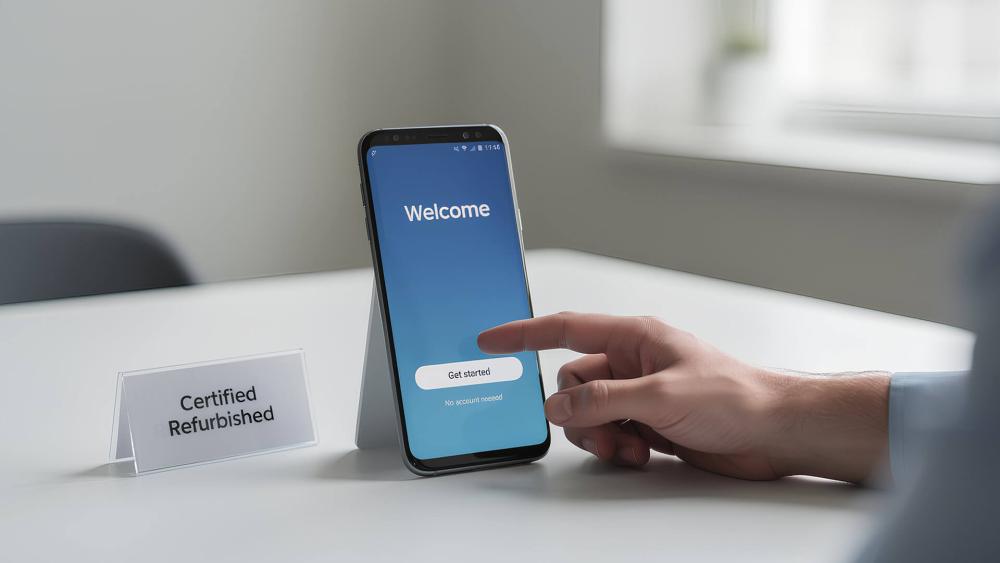
Second-hand phones require extra caution.
Check for screen locks and accounts before buying
Ask the seller to:
- Unlock the phone
- Remove all Google and Samsung accounts
- Factory reset the device in front of you
Handling a used Samsung that’s still network locked
You may need:
- The original carrier
- The original owner’s cooperation
Policies vary by network.
Avoid Google-locked, Samsung-locked or blacklisted phones
Warning signs include:
- "This device is linked to another account"
- FRP prompts you can’t complete
- Network block messages
These devices may be unusable so check for these issues when purchasing. If you go for second-hand options, it is better to go for refurbished Samsung Galaxy phones from a trusted source like Box. This can make sure that you are safe.
Data, Security and Privacy Considerations When Unlocking a Samsung Galaxy
Why screen locks matter
Locks protect:
- Messages
- Banking apps
- Photos
- Work data
Remove them only if you understand the risks.
Back up before unlocking or resetting
Use:
- Google backup
- Samsung Cloud
- Local PC backups
This is essential before factory resets.
Never share accounts or unlock codes
Sharing credentials can expose:
- Emails
- Payment methods
- Personal data
Common Problems When Unlocking a Samsung Galaxy Phone (and Fixes)
Phone still asks for account after reset (FRP)
This is normal. Sign in with the original Google account. If forgotten, you must recover it through Google — there is no safe bypass.
"Network unlock unsuccessful"
Check:
- Correct IMEI
- Correct unlock code
- Phone is eligible and not blacklisted
Biometrics not working after unlock
- Re-enrol fingerprints and face data
- Check screen protectors
- Update software if available
Final takeaway
Unlocking a Samsung Galaxy phone is safe and straightforward when you choose the right method for the right lock. Screen locks protect your data, network locks protect contracts and confusing the two leads to frustration.
If you own the device and follow official processes, you can unlock your Samsung Galaxy without risk, scams, or data loss surprises. If you are planning on buying a phone, it is better to check the Samsung phone deals on Box.co.uk rather than going for a second hand or refurbished phone. So check out the range for the best prices.
FAQs:
Can I unlock a Samsung Galaxy phone without losing data?
Yes, if you know your screen lock or are only doing a network unlock. Forgotten screen locks usually require a reset.
Can I unlock a Samsung phone without a PIN or Google account?
Not legitimately. Official methods involve data wiping and account verification, not bypassing security.
How do I know if my Samsung Galaxy is network locked?
Insert another network’s SIM or check mobile network settings.
Is it legal to unlock a Samsung Galaxy phone in the UK?
Yes, for phones you own, once contractual obligations are met.
Should I pay for an online unlocking service?
Always try your carrier or Samsung first. Many third-party sites are unreliable.
You can pay with:
*PayPal Credit Representative Example: Assumed credit limit £1,200, Representative 23.9% APR (variable). Purchase rate 23.9% p.a (variable).Terms & Conditions apply.


PayPal Credit and PayPal Pay in 3 are trading names of PayPal UK Ltd, 5 Fleet Place, London, United Kingdom, EC4M 7RD. Terms and conditions apply. Credit subject to status, UK residents only, Five Tech LTD acts as a broker and offers finance from a restricted range of finance providers. PayPal Pay in 3 is not regulated by the Financial Conduct Authority. Pay in 3 eligibility is subject to status and approval. 18+. UK residents only. Pay in 3 is a form of credit. Check if affordable and how you will repay. May make other borrowing more difficult or expensive. See product terms for more details.
Copyright © 1996-2026 Fivetech LTD | Terms and Conditions
box.co.uk & Box are trading names of Five Tech Limited. Registered office: Box LTD, Unit 10 Woodford Trading Estate, Woodford Green IG8 8HF