


 Menu
MenuMenu


Get Sales Advice from Mon - Fri 9am - 5:00pm:
020 3337 8950LAST UPDATED: March 18, 2026
SSD / HDD Failure Warnings & Data Recovery: What You Should Know
Storage failure never seems to happen at a convenient time. One minute your PC is loading as normal, and the next you are dealing with missing files, strange noises, corrupted folders, or a system that refuses to boot. Whether it is SSD drive failure or more traditional hard drive failure symptoms, the first few warning signs matter far more than most people realise.
The tricky part is that SSDs and HDDs do not usually fail in exactly the same way. A failing hard drive often gives you a bit of drama first. You might hear clicking, notice slow file access, or deal with repeated freezes before things get properly messy. A Solid State Drive failure can be less theatrical but more abrupt, which is why spotting signs of a failing SSD early is so important. If you ignore those small warnings, recovering data gets much harder and sometimes far more expensive.
That is why this guide focuses on the practical stuff. We will cover the biggest SSD failure signs, the most common HDD failure symptoms, what causes disk drive failure, what you should do the moment a drive starts acting up, and the smartest ways to protect your files before a full crash turns into a proper disaster. So, without further ado, let’s get started.
Why SSD and HDD Fail in Different Ways
Before looking at the warning signs, it helps to understand why SSDs and HDDs behave differently when they start to go wrong.
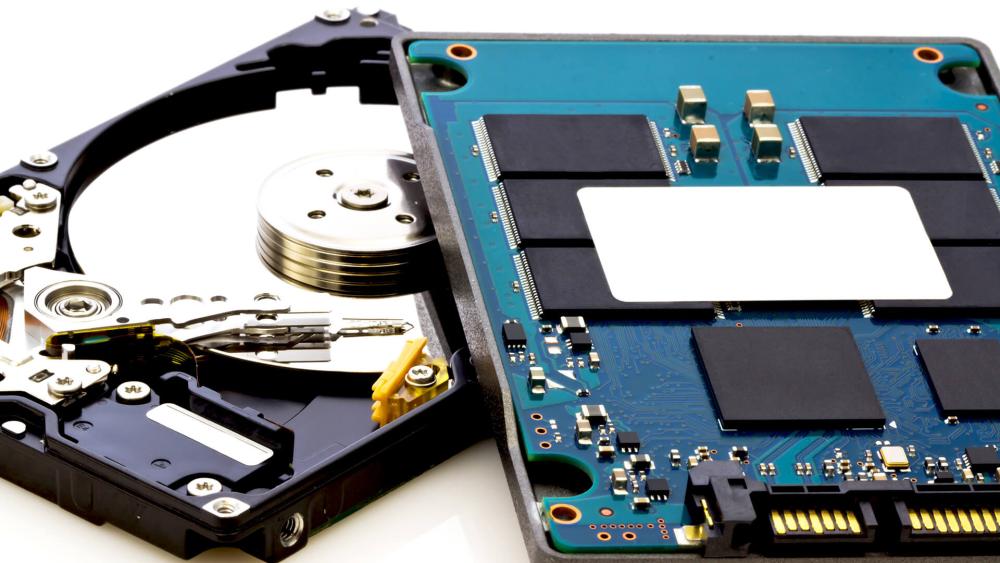
An HDD uses spinning platters and moving parts. That means wear, shock, heat, and age can all take a toll over time. When an HDD starts failing, the warning signs are often physical and performance-related. That is why failing hard drive signs usually include clicking sounds, slow loading, file corruption, and system hangs.
An SSD has no spinning platter, but that does not mean it is immune to failure. Flash memory cells wear out over time, controller faults can develop, firmware can go wrong, and power issues can hit harder than people expect. So, while a hard drive often limps towards failure, an SSD can sometimes go from "slightly odd" to "completely unreadable" much faster. That is why drive health monitoring matters for both, even though the symptoms may look different.
For many users, this is also the point where storage choices become more important. If you are already planning a replacement, it is worth comparing your options across Computer Storage, especially if you are deciding between a faster internal SSD for everyday use or a portable SSD for quick backups and portable recovery copies.
SSD Drive Failure: Signs You Should Not Ignore
A lot of people assume SSDs fail without warning, but that is not always true. The signs can be subtler, which is exactly why they are often missed.
Common failing SSD symptoms
If you are worried about SSD drive failure, watch out for these signs:
- Files suddenly becoming unreadable or disappearing
- Frequent crashes when opening or saving data
- Your PC booting inconsistently or failing to detect the drive
- Applications freezing during writes or installs
- The system switching into read-only mode
- Repeated file system errors
- Unusually slow save speeds despite otherwise decent system performance
These are some of the clearest signs SSD is failing. You might also notice that the drive still appears in your system, but behaves unpredictably. That is a classic warning sign because it often means the SSD is not fully dead yet, but it is no longer stable.
Reasons for SSD failure
The most common reasons for SSD failure usually come down to one of these:
- Flash memory wear over time
- Power loss during writes
- Firmware corruption
- Controller failure
- Excessive heat
- Manufacturing defects
- Physical damage during installation or transport
If you have recently had a crash, power cut, or sudden forced shutdown, it is worth treating any odd behaviour seriously. A failed SSD drive can look like a software problem at first, which is why users often waste valuable time restarting, reinstalling, or repeatedly forcing access instead of securing their data.
Hard Drive Failure Symptoms: What an HDD Usually Does Before It Dies
Traditional hard drives often give you more clues, but users sometimes ignore them because the system still technically works.
The Most Common Failing Hard Drive Signs
Typical hard drive failure symptoms include:
- Clicking, grinding, or buzzing noises
- Slow boot times and long file-loading delays
- Corrupted or missing files
- Frequent freezing during normal tasks
- Blue screens or repeated crash loops
- The drive disappearing and reappearing
- Bad sector warnings or scan errors
- Very slow file transfers
These are the classic HDD failure symptoms that show up when the mechanism or file system starts to break down. If your PC sounds like it is trying to spin up, then gives up halfway through, that is not something to shrug off.
Power Failure Hard Drive Damage
One of the most overlooked causes of disk drive failure is unstable power. A sudden outage, surge, or forced shutdown can interrupt writes and leave your drive in a bad state. With an HDD, that can sometimes mean logical corruption. In worse cases, it can contribute to head crashes or long-term instability.
If your machine has started behaving strangely after a blackout or an abrupt shutdown, do not assume it will sort itself out. Power failure hard drive damage can show up gradually over the next few boots, especially if the drive was already ageing.
When a Noisy HDD is Already a Serious Warning
A noisy hard drive is not just “an old drive being old”. Repeated clicking or grinding is one of the clearest failing hard drive signs because it can point to a head or platter problem. At that point, repeatedly powering the system on can make things worse. If the data matters, back out of the hero play and focus on recovery.
SSD vs HDD Failure: Which Is Worse for Data Recovery?
Neither is good, but they fail differently enough that recovery expectations need to be realistic.
An HDD often gives you a wider recovery window if the issue is logical rather than physical. If the drive is slow but still readable, there is a chance to clone it, copy priority files, or attempt hard drive data recovery before it gets worse.
An SSD can be more difficult because a failed SSD may stop communicating cleanly, lock itself into read-only behaviour, or disappear entirely. That makes data recovery from SSD more time-sensitive. Once controller or firmware issues fully take over, recover data from failed SSD attempts become much more complex.
That does not mean SSD recovery is impossible. It means you should move faster and more carefully. If the drive is still visible, your best chance is often to stop normal use immediately and focus on copying the most important data first.
The Biggest Warning Signs That Mean "Back Up Now"
Some symptoms are annoying but manageable. Others mean you should stop what you are doing and secure your data straight away.
Back up immediately if you notice:
- The drive repeatedly disconnects
- Files open one moment and vanish the next
- The system reports repair errors after every boot
- SMART or health warnings appear
- The drive suddenly becomes read-only
- You hear persistent clicking from an HDD
- Your SSD disappears from BIOS or Disk Management
- Large file copies fail for no obvious reason
This is where an external SSD backup option can save you a serious headache. If the internal drive is unstable, having somewhere fast and reliable to move data quickly can make the difference between a clean escape and a painful loss.
If you deal with lots of media, work files, or game captures, it is also worth thinking beyond a single spare drive. Considering NAS setups can help if you want a better long-term backup routine instead of crossing your fingers every few months.
What To Do If You Think Your SSD Is Failing
If you suspect signs of a failing SSD, the biggest mistake is continuing to use the drive normally as if nothing is wrong.
First Steps
- Stop installing, downloading, or moving files unnecessarily as more writes can make the situation worse.
- Back up the most important files first. Prioritise documents, photos, project folders, saves, and anything you cannot replace.
- Check if the drive is still detected. If it appears in BIOS or your OS, you may still have a recovery window.
- Use drive health tools carefully. This is where drive health monitoring becomes useful, but do not keep hammering the drive with repeated tests if it is already unstable.
- Clone if you can, recover if you must. If the SSD is readable, a full clone can be smarter than dragging files over one by one.
When to Stop Trying DIY Methods
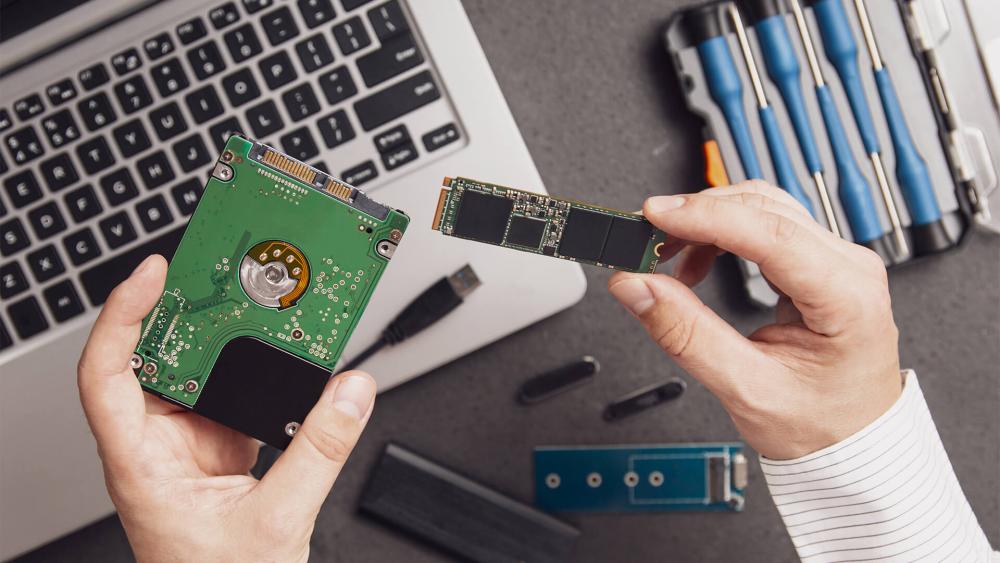
If the drive drops in and out, makes your system freeze during access, or disappears completely, repeated DIY recovery attempts can do more harm than good. That is especially true if the data is critical. At that point, treat the drive as unstable and avoid turning a recoverable issue into a fully cooked one.
What To Do If Your HDD Is Failing
A failing HDD gives you slightly different priorities because physical damage can worsen fast.
If the drive is still readable
- Copy your most important files immediately
- Avoid defragmenting, reinstalling Windows, or running long write-heavy tasks
- Move the most valuable data to a safe backup location first
- Consider cloning the drive if it is stable enough
If the HDD is Clicking or Grinding
Do not keep restarting it to “see if it comes back”. That is one of the fastest ways to make recover data from crashed hard drive scenarios much worse. Once an HDD starts making repeated mechanical noises, your safest move is to stop casual use and decide whether the data justifies professional recovery.
If the HDD is only slowing down badly
This is usually the best time to act. When a drive is slow but still readable, your chance of hard drive data recovery is often much better than after a full crash.
An Internal HDD still has a place for bulk storage, but if your main system drive is ageing, this is usually the moment where moving to an Internal SSD makes far more sense for speed, stability, and daily sanity.
Can You Recover Data from a Failed SSD?
Sometimes yes, but the window can be narrow.
If the SSD is still partially accessible, you may be able to:
- Copy essential files manually
- Create an image or clone
- Use recovery software for deleted or corrupted files
- Pull data from a read-only state before the drive dies completely
If the SSD is no longer detected or the controller has failed, recover data from failed SSD attempts become far more difficult. That is why the best chance often comes before full failure, not after it.
The same goes for recovering data from a failing SSD. These situations are not always hopeless, but they are definitely time-sensitive. The best play is usually to stop normal use as soon as symptoms appear and work from the safest copy-first approach possible.
Can You Recover Data from a Crashed Hard Drive?
Again, sometimes yes, and usually with better odds if you act early.
If the HDD still spins and mounts, you can often:
- Copy your most important files first
- Clone the drive to a safer target
- Use recovery tools on a copied image rather than on the original if possible
- Preserve the original drive as much as you can
For more severe failures, especially where the drive will not spin properly or makes mechanical noises, recover data from crashed hard drive efforts often need professional help. That is why backups still beat recovery every single time.
If you already know a drive is old and unstable, it is worth thinking ahead. A portable backup plan is usually far cheaper than emergency data recovery.
How To Prevent SSD Failure and HDD Data Loss
No drive lasts forever, but you can absolutely improve your odds.
Smart Habits that Help Prevent SSD Failure
- Keep firmware and system software up to date
- Avoid unnecessary write-heavy abuse where possible
- Watch temperatures in cramped laptops and small-form builds
- Use reliable shutdowns rather than forced power-offs
- Keep free space available instead of running the drive permanently full
- Use drive health monitoring instead of waiting for disaster
Smart Habits that Help Prevent HDD Failure
- Avoid physical shocks and movement while the drive is running
- Protect your system from poor power conditions
- Back up regularly instead of relying on one aging drive
- Watch for noise, slowdown, and bad sector warnings
- Replace old, clearly unstable drives before they become an emergency
Backups Matter More Than Recovery Plans
The best answer to SSD drive failure or disk drive failure is not brilliant last-minute recovery. It is having another copy ready before the crash happens. That can mean an external drive, a NAS, or a more structured setup for work and family data.
If your system is also feeling sluggish overall, storage is not the only thing worth checking. Sometimes users blame the drive when the whole machine is being held back elsewhere. That is why our processor buying guide can be useful too, especially if you are rebuilding an older setup and want to avoid upgrading one bottleneck while ignoring another. If you are planning a bigger refresh, browsing the best Processors at Box can help you map out the rest of the build sensibly.
Should You Replace a Failing Drive with SSD or HDD?
In most modern setups, a failing system drive is the clearest argument for moving to SSD.
Choose an Internal SSD if you want:
- Faster boot times
- Better everyday responsiveness
- Quieter operation
- A stronger primary drive for work, study, gaming, and general use
Choose an Internal HDD if you want:
- Cheap bulk capacity
- Archive storage
- A secondary drive for less speed-sensitive files
Choose an External SSD if you want:
- Fast backups
- Portable storage
- Quick recovery copies
- Better performance than older external hard drives
A lot of users end up with the best of both worlds: SSD for the main system, HDD for bulk storage, and an external backup on top. That is usually the most sensible long-term setup if your files matter.
Wrapping Up
The hardest part about storage failure is that people often act too late. By the time a drive is obviously dead, your easiest recovery options are already off the table. That is why learning the difference between SSD failure signs and HDD failure symptoms is worth it. Slow boot times, file errors, drive warnings, disappearing folders, strange noises, and repeated crashes are not just little annoyances. They are often the early signs of something much bigger.
If you suspect SSD drive failure, move quickly and avoid unnecessary writes. If you notice classic failing hard drive signs, do not keep pushing the drive just because it still boots sometimes. In both cases, the smartest move is always the same: secure your data first, diagnose second, and replace unstable storage before it turns into a full recovery job.
And if you are already at the point where replacement makes more sense than rescue, Box’s storage range makes it easier to move from a risky setup to something far more reliable, whether that means a faster Internal SSD, a practical External SSD, or extra bulk capacity through Computer Storage.
FAQs
What are the most common SSD failure signs?
The most common SSD failure signs include disappearing files, read/write errors, random crashes during saves, the drive becoming read-only, or the SSD not showing up consistently in the system.
Can I recover data from a failed SSD?
Sometimes, yes. If the drive is still partially accessible, you may be able to copy files or clone the drive. If the SSD is completely undetected or has controller failure, data recovery from SSD becomes much more difficult.
What are the main hard drive failure symptoms?
Typical hard drive failure symptoms include clicking or grinding noises, slow boot times, corrupted files, freezing, repeated scan errors, and the drive randomly disconnecting.
What causes solid state drive failure?
Common reasons for SSD failure include flash wear, controller faults, firmware issues, overheating, and abrupt power loss during writes.
Can power failure damage a hard drive?
Yes. Power failure hard drive damage can lead to corruption, unstable sectors, or in some cases more serious mechanical problems, especially on older drives.
Is it better to replace a failing HDD with an SSD?
For most users, yes. If the drive is your main system drive, replacing it with an SSD usually brings a noticeable speed boost as well as better day-to-day responsiveness.
How can I prevent SSD failure?
The best ways to prevent SSD failure include keeping backups, avoiding forced shutdowns, monitoring drive health, maintaining free space, and replacing drives that show repeated errors.
Should I use an external SSD for backup?
Yes, in many cases. An external SSD is a smart choice for fast backups, portable storage, and quick recovery copies, especially if your internal drive is starting to feel unreliable.
You can pay with:
*PayPal Credit Representative Example: Assumed credit limit £1,200, Representative 23.9% APR (variable). Purchase rate 23.9% p.a (variable).Terms & Conditions apply.


PayPal Credit and PayPal Pay in 3 are trading names of PayPal UK Ltd, 5 Fleet Place, London, United Kingdom, EC4M 7RD. Terms and conditions apply. Credit subject to status, UK residents only, Five Tech LTD acts as a broker and offers finance from a restricted range of finance providers. PayPal Pay in 3 is not regulated by the Financial Conduct Authority. Pay in 3 eligibility is subject to status and approval. 18+. UK residents only. Pay in 3 is a form of credit. Check if affordable and how you will repay. May make other borrowing more difficult or expensive. See product terms for more details.
Copyright © 1996-2026 Fivetech LTD | Terms and Conditions
box.co.uk & Box are trading names of Five Tech Limited. Registered office: Box LTD, Unit 10 Woodford Trading Estate, Woodford Green IG8 8HF