


 Menu
MenuMenu


Get Sales Advice from Mon - Fri 9am - 5:00pm:
020 3337 8950POSTED: February 24, 2026
Signs Your CPU Cooler Isn’t Working Diagnosing Overheating Noise and Fan Problems
If your PC suddenly sounds like it’s taking off, or your frames dip the moment a match heats up, your CPU cooler might not be working properly. A dodgy cooler doesn’t just make your system loud, it can cause thermal throttling, random shutdowns, and long-term component stress. The upside is that most cooler issues are diagnosable with a few quick checks, and many fixes are cheap (or free) if you catch them early.
This guide breaks down the most common CPU cooler not working symptoms, how to confirm what’s failing, and when to clean, repair, or upgrade. We’ll cover everything from an air cooled CPU cooler with a rattly fan to a water cooling CPU cooler where the pump is quietly giving up. So, without further ado, let’s get to it.
Why a Properly Working CPU Cooler Is Critical for Your PC
A CPU cooler is the part of your CPU cooling system that moves heat away from the processor, so it can boost properly and stay stable. When you have a CPU cooler not working, the CPU hits temperature limits fast, then drops clock speeds to protect itself. That’s why your "smooth 144 FPS" can turn into stutters the moment you load into a busy scene.
A modern PC cooling system is also a chain. Your PC CPU cooler is only as effective as the airflow feeding it, the thermal paste transfer, and the fan curve controlling it. If any link is weak, it can look like your CPU cooler is not working even if the hardware is technically fine. This is especially true in compact cases, dusty rooms, or builds that run hot GPUs.
How CPU Coolers Control Heat and System Stability
Your CPU produces heat under load. The cooler’s job is to:
- Pull heat into a heatsink (air coolers) or a cold plate and liquid loop (AIOs)
- Move that heat away using airflow or a radiator
- Keep temperatures low enough to avoid throttling, crashes, and thermal overload
If your CPU cooler is not working, you’ll usually see high temps, unstable fan behaviour, or performance drops that look like "lag" but are actually thermal throttling.
Risks of Using an Inefficient CPU Cooler
Ignoring a CPU cooler not working situation can lead to:
- Reduced performance from constant throttling
- Random shutdowns mid-game
- Degraded CPU lifespan from repeated heat cycles
- Stress on motherboard VRMs and surrounding components
- A louder, more annoying rig over time
If you’re already thinking about an upgrade, start by browsing the best CPU cooler for gaming options at Box that matches your case and CPU.
Common Signs Your CPU Cooler Isn’t Working Properly
The tricky part is that CPU cooler not working symptoms can look like other issues: bad airflow, dusty filters, unstable overclocks, or even a failing case fan. The key is spotting patterns and confirming them with temperature and fan data.
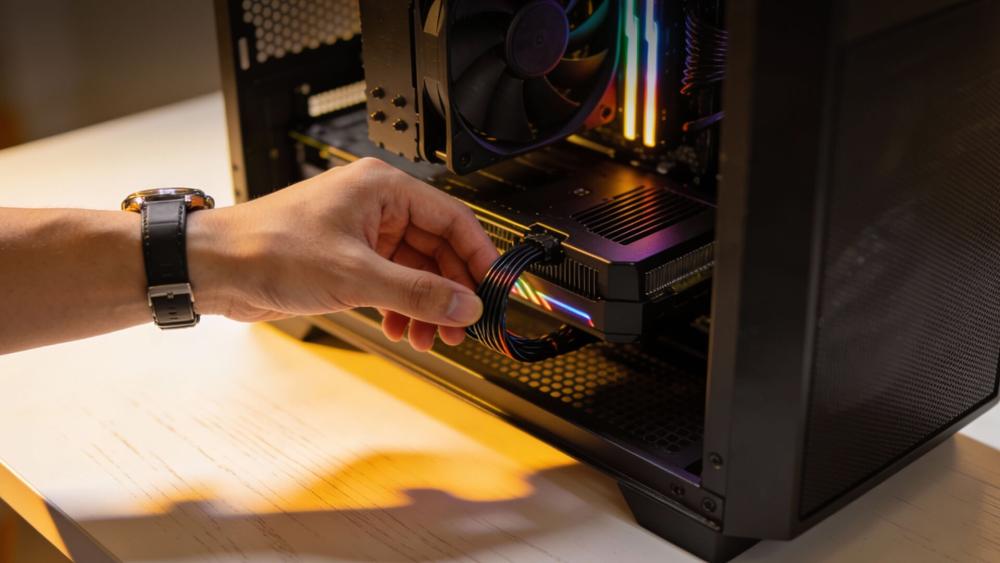
1. High CPU Temperatures at Idle or Under Load
High idle temps are one of the clearest CPU overheating signs. If your CPU is sitting at surprisingly high temperatures while doing nothing, your CPU cooler not working problem could be poor contact, dried paste, or a dead pump (on AIOs). Under load, watch for rapid spikes that climb too fast.
Quick rule of thumb: if your temps shoot up instantly when you start a game, and they drop instantly when you quit, that often points to heat transfer issues rather than case airflow alone. It’s also a common sign your PC CPU cooler isn’t mounted properly.
2. Random Shutdowns, Freezes, or Throttling
If your PC shuts down mid-session, freezes, or suddenly loses performance, it may be a CPU cooler not working scenario triggering thermal protection. Throttling often looks like:
- Sudden FPS drops after a few minutes
- "Feels stuttery" even when your GPU should be fine
- Lower clock speeds during stress tests
These are classic CPU overheating signs, especially if they repeat predictably under heavy load.
3. Loud or Unusual CPU Fan Noise
CPU cooler noise is a big clue. A healthy cooler can be audible under load, but it shouldn’t sound rough, rattly, or grindy. If you hear CPU fan making noise that’s new, harsh, or inconsistent, it can mean:
- Fan bearing wear (rattling fan, grinding fan sound)
- Cable touching blades
- Fan curve ramping too aggressively because temps are high
- Radiator fan vibration (AIO)
If your CPU cooler not working is driving the fan to 100% all the time, you’ll hear it immediately.
4. CPU Fan Not Spinning Consistently
A fan that starts, stops, or pulses can cause CPU cooler not working problems even if the heatsink is fine. Watch for:
- Fan that spins briefly then stops
- Fan that only spins when you tap the case (bad bearing)
- Fan that changes speed wildly with no temperature change
Unstable fan speed is often paired with CPU fan making noise, so treat the two together.
How to Diagnose CPU Cooler Problems Accurately
Guessing wastes time. The best way to confirm a CPU cooler not working issue is to check temperatures and fan behaviour in a controlled way, then inspect the hardware.
Check CPU Temperatures via Software and BIOS
Start with a simple temp check at idle, then under load. You can use monitoring tools in Windows, but the BIOS/UEFI is also useful because it shows baseline readings without background apps.
What to look for:
- Idle temps that seem too high for your room temperature
- Load temps that climb rapidly and hit limits
- CPU clocks dropping while the game or test is still running
- Fan RPM stuck at 0, stuck at max, or constantly bouncing
If the temps are high and the fan is maxed out, that’s a strong CPU cooler, not working pattern. If temps are fine but it’s loud, you might be dealing with CPU cooler noise from a worn fan rather than a cooling failure.
Physically Inspect the CPU Cooler
Power down, unplug, and then check:
- Fan cable is connected to the CPU_FAN header (not a case fan header)
- Heatsink is firmly mounted and not wobbling
- Dust buildup on fins and filters
- On AIOs: tubes not kinked, radiator fans spinning, and pump cable connected
A loose mount is a common reason for CPU cooler not working after transport. If your rig has been moved, a heatsink shift can create poor contact and instant cpu overheating signs.
If you’re planning a broader airflow refresh, you can browse full cooling system parts at Box, and if you want quiet, reliable airflow support, consider Be Quiet case fans.
Identifying the Type of CPU Cooler Failure
Not every cooler fails the same way. Knowing whether you have an air cooled CPU cooler or a water cooling CPU cooler changes what you test first when you suspect a CPU cooler not working issue.
Common Air Cooler Failure Symptoms
An air cooled cpu cooler is simple: heatsink + fan. That means failures are usually:
- Fan bearing wear (rattling, grinding, unstable RPM)
- Dust-clogged fins limiting airflow
- Loose mounting pressure
- Poor thermal paste condition
If your air cooled CPU cooler is loud but temps are only slightly high, the fan may be the main problem. If temps are very high and ramp instantly, mounting or thermal paste is more likely.
For those choosing upgrades, compare PC CPU cooler options at Box and find the right height and socket support.
AIO Pump and Fan Failure Signs
An AIO (liquid cooler) adds a pump and radiator, so CPU cooler not working symptoms can be different:
- High temps even though fans spin normally
- A faint buzzing or clicking near the pump
- One tube feels much warmer than the other during load (circulation issue)
- Sudden temp spikes and quick throttling
If you’re using a liquid cooler for CPU, pump failure is the big one. Fans can still spin and look "fine" while cooling is effectively gone.
If you want something more modern-looking, browse the Best AIO cooler with screen option at Box.
Thermal Paste and Mounting Issues That Mimic Cooler Failure
A lot of "CPU cooler not working" cases are not dead hardware. They’re contact problems. Thermal paste and mounting pressure matter more than most people think, especially on higher power CPUs.

Signs of Old or Poorly Applied Thermal Paste
Thermal paste is the bridge between CPU and cooler. When it’s dry, uneven, or applied badly, heat transfer suffers and you get CPU overheating signs even with a decent cooler.
Common paste-related symptoms that look like a CPU cooler not working problem:
- Temps are worse than they used to be with the same setup
- CPU spikes quickly under load
- Fan ramps hard, causing CPU fan making noise constantly
- Temps improve briefly after a reseat, then drift again
If you’ve had the same paste for years, or you’ve removed the cooler recently, repasting is often worth doing.
Poor Cooler Mounting or Uneven Contact
A cooler can be "installed" but not making proper contact. This happens when:
- Screws are tightened unevenly
- Mounting bracket is wrong for the socket
- Cooler is slightly tilted
- The backplate is misaligned
If you suspect a mounting issue, re-seat the cooler carefully and tighten in an even cross pattern. A solid mount can instantly fix a CPU cooler not working complaint and reduce CPU cooler noise because the fan no longer has to scream to compensate.
What Happens If You Ignore CPU Cooler Warning Signs
If you ignore a CPU cooler not working issue, your PC will keep protecting itself by throttling or shutting down. That’s not "fine", it’s your system waving a red flag every time you push it.
Long-Term Damage from CPU Overheating
Modern CPUs are designed to prevent instant damage, but repeated thermal overload is still bad for long-term stability. Over time, excessive heat can:
- Reduce sustained boost performance
- Stress motherboard power delivery
- Increase instability in heavy workloads
- Make fans wear faster due to constant high RPM
These aren’t scare tactics, they’re practical outcomes of prolonged cooling system problems.
Performance Loss from Thermal Throttling
Thermal throttling is the stealth killer of performance. You might think you need a GPU upgrade when it’s actually a CPU cooler not working situation dragging your CPU clocks down. In-game, it can feel like:
- Inconsistent frame pacing
- Stutters during CPU-heavy moments (big fights, busy cities, simulation-heavy games)
- Lower minimum FPS despite a strong GPU
If you’re trying to build a stable water cooled gaming PC, sorting the CPU thermal solution first is non-negotiable.
When to Repair, Replace, or Upgrade Your CPU Cooler
Once you’ve confirmed a CPU cooler not working issue, the next question is whether it’s fixable or if you should upgrade. Don’t replace parts blindly. Use the symptom and cooler type to decide.
When Cleaning or Minor Repairs Are Enough
You can often fix a CPU cooler not working complaint with basic maintenance:
- Clean dust from heatsink fins and radiator
- Replace a noisy fan on an air cooled CPU cooler
- Reapply thermal paste and re-seat the mount
- Adjust fan curves to stop unnecessary ramping
- Sort airflow with better case fans (especially for hot GPUs)
If your issue is mostly CPU fan making noise, check for cable contact first, then suspect worn bearings.
When a Cooler Replacement Is Necessary
Replace the cooler if:
- The AIO pump is failing or dead (persistent high temps despite fans spinning)
- The heatsink is undersized for your CPU and always throttles
- The fan is failing and you can’t source a replacement easily
- You’re building for higher sustained load (streaming, rendering, modern high-watt CPUs)
If you want a strong CPU fan cooler for simplicity and reliability, check mainstream air options before you jump to liquid. If you want a water cooling CPU cooler for lower noise and better burst handling, an AIO can be a good upgrade as long as you buy the right size for your case.
How to Prevent CPU Cooler Problems in the Future
Prevention is cheaper than replacement. A healthy cooler setup keeps performance consistent and avoids those annoying "why is my PC so loud today?" moments that scream CPU cooler not working.
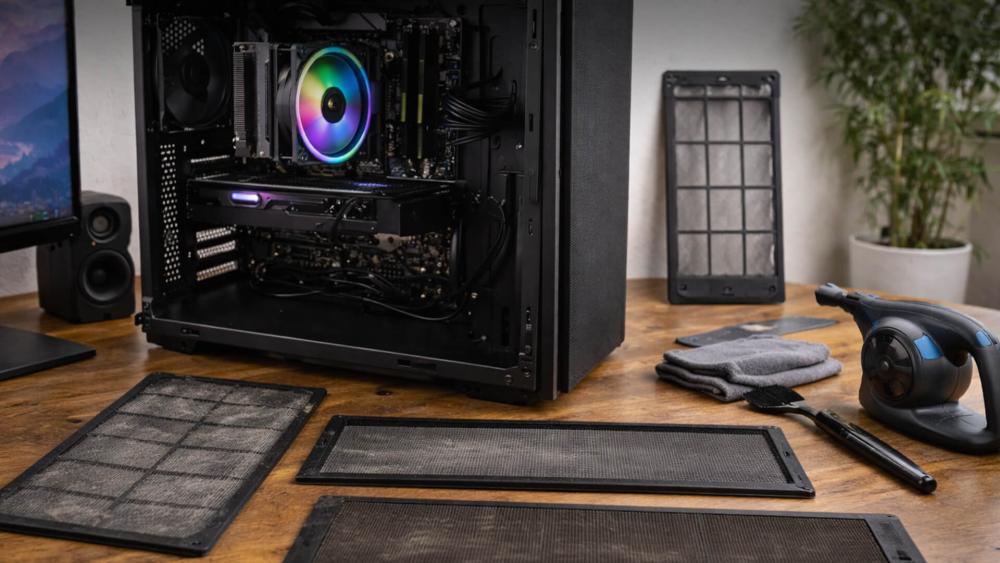
Routine CPU Cooler Maintenance
Do these regularly:
- Clean dust filters and heatsinks every few weeks if your room is dusty
- Check fan curves after major updates or BIOS changes
- Make sure cables are tied down and not brushing fan blades
- Listen for new CPU cooler noise early, before it becomes a failure
If you’re running a water cooling CPU cooler, check radiator fans and listen for pump changes. A new buzz, clicking, or inconsistent sound can be early CPU overheating signs waiting to happen.
Monitor CPU Temperatures Regularly
You don’t need to obsess, but keeping an eye on temps during heavy sessions helps catch a CPU cooler not working issue early. Pay attention to:
- Idle temperatures that creep up over time
- Load temps that are higher than your usual baseline
- Sudden changes after moving the PC or changing parts
If you’re chasing a quiet build, pairing a solid PC CPU cooler with good case airflow is the easiest win. And if you’re assembling a water cooled gaming PC, make sure the case airflow is still doing its job around the radiator and GPU area.
Conclusion
A CPU cooler not working problem is one of the fastest ways to turn a powerful PC into a loud, stuttery mess, but it’s usually fixable if you diagnose it properly. Start with temperatures and fan behaviour, then confirm whether you’re dealing with a failing fan, poor mounting, dried paste, or an AIO pump issue. Most CPU overheating signs come from simple causes like dust, airflow, or bad contact rather than "the cooler is dead". If you do need to upgrade, choose the right class of cooler for your use, whether that’s an air cooled CPU cooler for reliability or a liquid cooler for CPU to tame noise and heat in higher-load builds.
FAQs
How to tell if a CPU cooler is faulty?
A CPU cooler not working issue is most likely if temps are high at idle or spike fast under load, performance throttles, and the fan or pump behaviour is abnormal. Confirm with temperature monitoring and a physical inspection before replacing parts.
What are the signs of CPU fan failure?
The clearest signs are CPU fan making noise, unstable RPM (starting and stopping), grinding or rattling sounds, or a fan that won’t spin consistently. Fan failure can create CPU overheating signs even if the heatsink is fine.
What does a bad CPU cooler sound like?
Bad CPU cooler noise often includes rattling, grinding, buzzing, or a rough vibration that wasn’t there before. On an AIO, a failing pump can add clicking or a persistent buzz near the CPU block.
What are the signs of a dead CPU?
A dead CPU is rarer than a CPU cooler not working problem. Signs include no boot even with known-good components, no POST, and consistent failure across different cooling setups. Most overheating-related issues are cooler, paste, or mounting problems, not a dead processor.
You can pay with:
*PayPal Credit Representative Example: Assumed credit limit £1,200, Representative 23.9% APR (variable). Purchase rate 23.9% p.a (variable).Terms & Conditions apply.


PayPal Credit and PayPal Pay in 3 are trading names of PayPal UK Ltd, 5 Fleet Place, London, United Kingdom, EC4M 7RD. Terms and conditions apply. Credit subject to status, UK residents only, Five Tech LTD acts as a broker and offers finance from a restricted range of finance providers. PayPal Pay in 3 is not regulated by the Financial Conduct Authority. Pay in 3 eligibility is subject to status and approval. 18+. UK residents only. Pay in 3 is a form of credit. Check if affordable and how you will repay. May make other borrowing more difficult or expensive. See product terms for more details.
Copyright © 1996-2026 Fivetech LTD | Terms and Conditions
box.co.uk & Box are trading names of Five Tech Limited. Registered office: Box LTD, Unit 10 Woodford Trading Estate, Woodford Green IG8 8HF