


 Menu
MenuMenu


Get Sales Advice from Mon - Fri 9am - 5:00pm:
020 3337 8950LAST UPDATED: June 10, 2026
RTX 50 Laptop Throttling: Do They Lose Performance?
RTX 50 laptop throttling can happen, but it is not automatically a problem with every RTX 50 gaming laptop. Like any powerful gaming laptop, an RTX 50 model may reduce clock speeds if GPU or CPU temperatures, power limits or cooling capacity become limiting factors. The key difference between a good RTX 50 laptop and a weak one is sustained performance: can it keep strong FPS after 30, 60 or 90 minutes of gaming?
In 2026, RTX 50 laptops are powerful, but cooling still matters. NVIDIA’s RTX 50 Series Laptop GPUs use the Blackwell architecture, support DLSS 4.5 and are designed around Max-Q optimisations for thinner, longer-lasting RTX laptops. That does not remove heat from the equation. It means buyers should still check GPU power limits, cooling design, chassis size and real reviews before choosing. This guide will help you answer whether RTX 50 laptops throttle, and how to fix if they do. So, let’s get to it.
Quick Answer: Do RTX 50 Laptops Throttle?
Yes, RTX 50 laptops can throttle under heavy load, especially in slim designs, hot rooms or laptops with limited airflow. Throttling is when the system reduces GPU or CPU speed to control heat or stay within power limits. It can lead to lower FPS, stutter, louder fans or reduced boost clocks.
If you want 50 series laptops with better cooling, compare chassis size, fan design, vapour chamber cooling, TGP, review data and thermal behaviour before buying an RTX 50 Series laptop.
Simple Buyer Summary
| Situation | What Usually Happens |
| Thick gaming laptop with strong cooling | Better sustained performance |
| Thin RTX 50 laptop | More likely to hit power or thermal limits |
| High TGP GPU | More performance, but more heat |
| Low TGP GPU | Cooler and quieter, but lower peak FPS |
| Long gaming sessions | More likely to reveal throttling |
| Dusty vents or blocked airflow | Higher risk of overheating |
What Is Thermal Throttling?
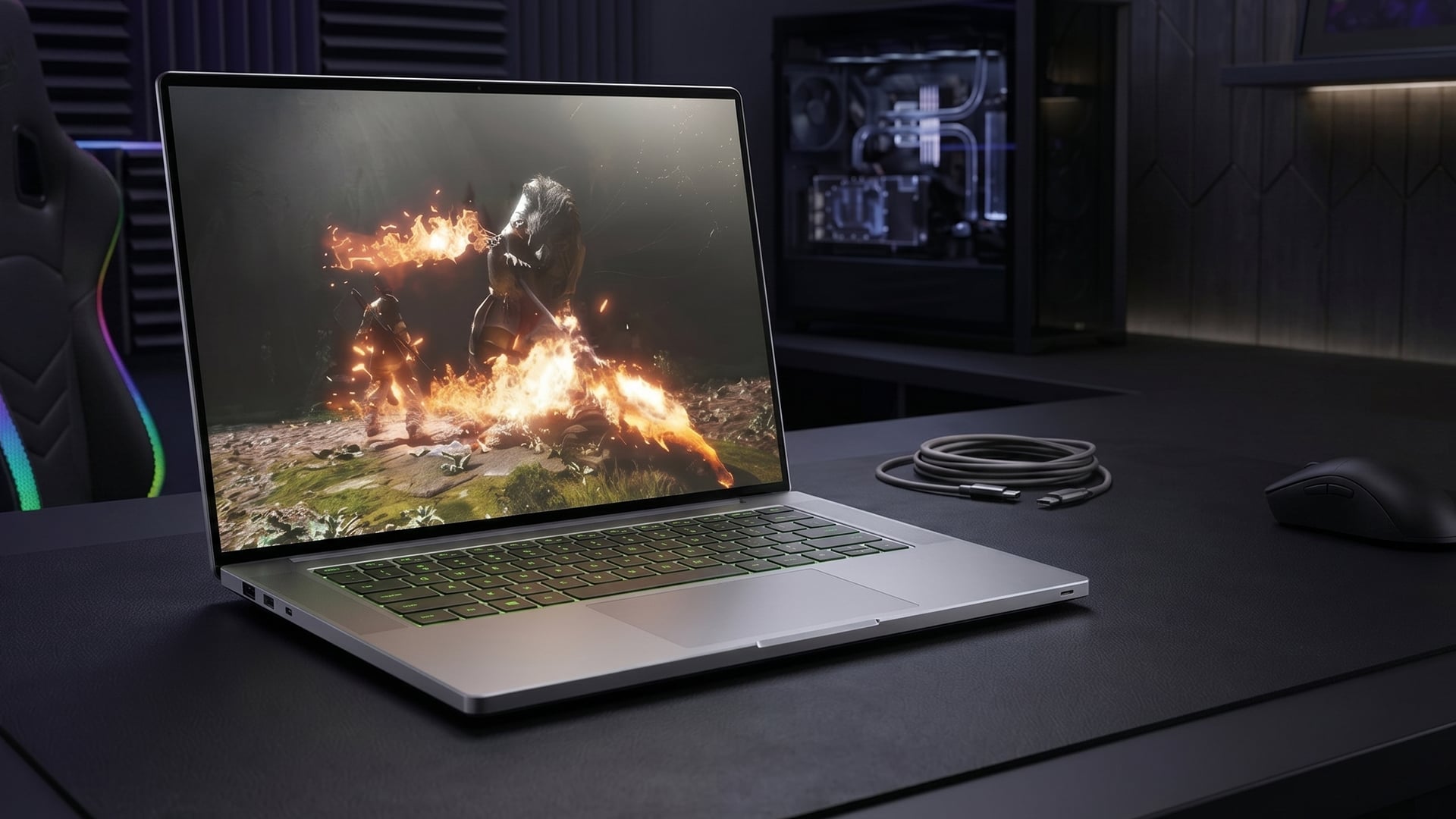
Thermal throttling is a safety feature. When a CPU or GPU gets too hot, the laptop lowers power and clock speeds to control temperature. MSI explains that thermal throttling reduces power when a CPU or GPU reaches a set thermal limit, usually around 95 to 100°C for CPUs and around 90°C for GPUs.
Thermal Throttling Explained
A gaming laptop has limited space for fans, heatsinks and airflow. When heat builds faster than the cooling system can remove it, the laptop protects itself by reducing performance.
This can affect:
- GPU clock speed
- CPU clock speed
- Power draw
- FPS stability
- Fan noise
- Frame-time consistency
Thermal throttling is not the same as a random FPS dip. It usually appears during sustained gaming, rendering or stress tests.
Thermal Throttling vs Power Limit Throttling
Not every RTX 50 laptop performance drop is caused by heat. Some laptops are limited by power settings. A laptop GPU may have the same RTX 5070, RTX 5080 or RTX 5090 name, but different Total Graphics Power limits.
The RTX 5080 Laptop GPU features an 80W to 150W TGP range, with a maximum of 150W including Dynamic Boost. Benchmarks show that different RTX 5080 laptops use different GPU TDP values, including 110W, 115W, 160W and 175W configurations.
Why This Matters
Two laptops with the same RTX 50 GPU can perform differently. The better-cooled, higher-power model may sustain higher clocks. The slimmer or lower-power model may run cooler and quieter but deliver lower FPS.
Do RTX 50 Laptops Overheat?
Most RTX 50 laptops should not “overheat” in the sense of becoming unsafe during normal use, but they can run hot. High-end gaming laptops are designed to operate near thermal limits under load. The issue is whether they keep stable performance without excessive noise, stutter or clock drops.
Performance drop-offs and high fan noise are common signs that users should check for thermal throttling. Tools such as HWiNFO64, GPU-Z and MSI Afterburner can be used for checking thermals, power and performance.
Normal Heat vs Problem Heat
Normal RTX 50 laptop behaviour:
- Fans ramp up during gaming.
- GPU and CPU temperatures rise under load.
- The chassis feels warm.
- FPS remains fairly stable.
Problem behaviour:
- FPS starts high then drops heavily.
- Games stutter after 10 to 30 minutes.
- Fans are loud but temperatures remain very high.
- Clock speeds repeatedly fall and recover.
- The laptop shuts down or crashes.
Is 50 Series Overheat a Common Issue?
The phrase 50 series overheat is often used too broadly. Many cases are not true overheating. They are normal heat, power limit behaviour or poor airflow. Still, buyers should be careful with thin high-end RTX 50 laptops because slim cooling systems have less thermal headroom.
Why RTX 50 Laptop Performance Can Drop
RTX 50 laptop sustained performance depends on more than the GPU name. Cooling, power limits, CPU pairing, fan curves and room temperature all matter.
GPU Power Limits and TGP
TGP is one of the biggest performance factors. A higher TGP RTX 5080 or RTX 5090 can usually push higher clocks, but it also produces more heat. A lower TGP version may run cooler, but it will not perform like a full-power model.
This is why performance differences across 50 series laptops can be large. Always check GPU wattage where available, not just “RTX 5080” or “RTX 5090” in the product title.
Laptop Cooling Design
The RTX 50 laptop cooling system matters because laptop GPUs and CPUs share a tight thermal space. Better designs may include:
- Larger fans
- More heat pipes
- Vapour chamber cooling
- Better exhaust layout
- More internal airflow
- Larger chassis volume
- Liquid metal or advanced thermal material on selected models
RTX 50 laptops feature designs with OverBoost Ultra and vapour chamber cooling on selected models, showing how manufacturers use stronger thermal solutions for high-performance RTX 50 hardware.
CPU Heat Sharing
The GPU is not the only source of heat. A powerful Intel Core Ultra HX or AMD Ryzen HX CPU can also raise internal temperatures. In some laptops, heavy CPU load can reduce the thermal headroom available to the GPU.
This matters when gaming while streaming, editing, rendering or running background tools.
Thin Chassis Limits
Slim laptops are easier to carry, but they have less room for cooling. That does not make them bad. It simply means performance may be tuned differently.
A thin RTX 50 laptop may prioritise:
- Lower noise
- Lower weight
- Better portability
- Lower sustained power
A thick RTX 50 laptop may prioritise:
- Higher TGP
- Stronger cooling
- Better sustained clocks
- Higher long-session FPS
RTX 50 Laptop Thermal Performance in Games
RTX 50 laptop thermal performance is easiest to judge during long gaming sessions. A short benchmark may look impressive, but sustained gaming shows whether the laptop can hold performance.
If you are comparing RTX high-end gaming laptops, check RTX models across the wider RTX laptop range and look beyond the GPU name.
1080p Gaming
At 1080p, the CPU can matter more, especially in esports games. If the CPU gets hot, FPS can drop even if the RTX 50 GPU still has headroom.
Best match:
- RTX 5050, RTX 5060 or RTX 5070
- High refresh display
- Good CPU cooling
- Stable fan profile
-
1440p and 1600p Gaming
This is the sweet spot for many RTX 50 gaming laptops. The GPU does more work, and DLSS can help balance image quality and FPS.
Best match:
- RTX 5070 Ti, RTX 5080 or RTX 5090
- Strong cooling
- Mid-to-high TGP
- Good airflow and fan profile
4K Gaming
4K gaming is much more demanding. Even high-end RTX 50 laptops may rely on DLSS and sensible settings.
Best match:
- RTX 5080 or RTX 5090
- Full-power or near full-power GPU design
- Larger chassis
- Strong thermal headroom
- DLSS enabled where useful
Our RTX 50 gaming resolution guide helps you understand more about how you can enhance your gaming with the proper settings.
Signs Your RTX 50 Laptop Is Throttling
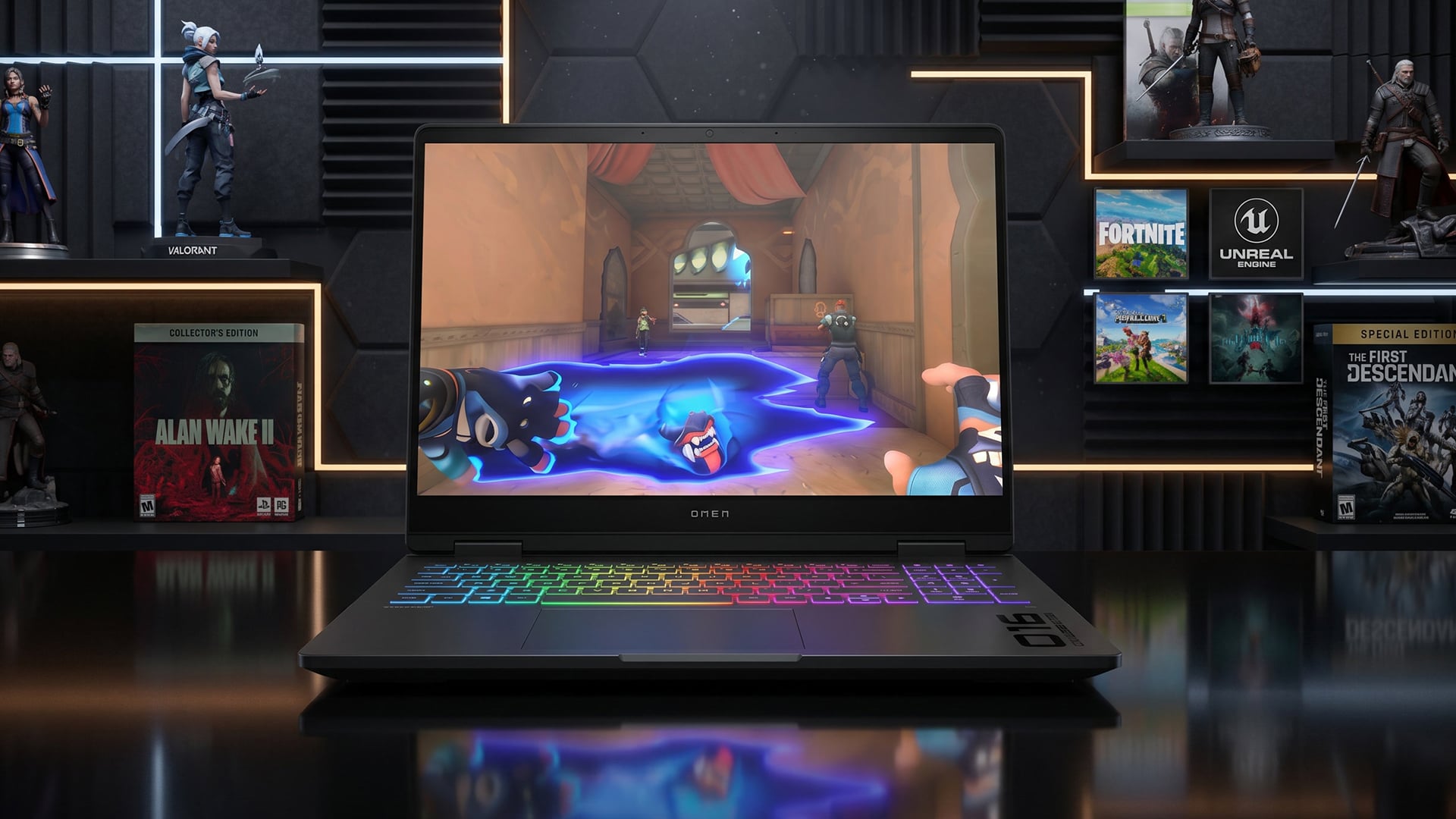
You do not need to guess. Throttling has clear signs.
Common Symptoms
Look for:
- FPS starts high, then drops after a while.
- Fans get very loud.
- GPU clock speed falls under load.
- GPU temperature stays near its limit.
- Games stutter during long sessions.
- Performance improves after cooling down.
- Laptop feels unusually hot around exhaust areas.
How to Confirm It
Use monitoring software while gaming or running a repeatable benchmark. Check:
- GPU temperature
- GPU hotspot temperature if available
- CPU temperature
- GPU clock speed
- CPU clock speed
- GPU power draw
- PerfCap reason in GPU-Z
- Fan speed
- FPS and frame-time stability
What Counts as a Real Problem?
A small clock adjustment is normal. A major FPS drop that keeps repeating during every long gaming session is not ideal.
If FPS drops by a small amount but stays smooth, the laptop is probably managing itself well. If performance falls hard and stays low, thermal or power limits are likely holding it back.
How to Reduce RTX 50 Laptop Throttling
You cannot turn a thin laptop into a desktop PC, but you can improve airflow, reduce heat and protect sustained performance.
Use the Right Performance Mode
Most gaming laptops include modes such as Silent, Balanced, Performance or Turbo. For gaming, use Performance or Turbo if fan noise is acceptable.
Balanced mode may be fine for casual games, but it can limit sustained performance in demanding titles.
Raise the Laptop and Keep Vents Clear
Do not game on a bed, sofa or blanket. Soft surfaces block vents and trap heat. Use a hard desk or laptop stand.
Simple airflow fixes:
- Raise the rear of the laptop.
- Keep intake vents clear.
- Keep exhaust vents away from walls.
- Avoid dusty or hot rooms.
- Clean vents regularly.
Cap FPS When Needed
An uncapped frame rate can make the GPU work harder than necessary. If your display is 165Hz, running a game at 250 FPS may only create extra heat.
Try:
- Capping FPS near your display refresh rate.
- Using V-Sync or adaptive sync where suitable.
- Lowering heavy settings like ray tracing.
- Using DLSS Quality or Balanced.
- Reducing background apps.
Keep Drivers and BIOS Updated
Laptop manufacturers often release BIOS, firmware and control software updates that improve fan curves, power behaviour or stability. NVIDIA also provides driver updates for game support and performance reliability.
NVIDIA says its Game Ready and Studio Drivers are tested across thousands of hardware configurations for performance and reliability.
Use Thermal Paste Only When Appropriate
If an older laptop’s thermals have worsened over time, fresh thermal material may help, but this is not a beginner fix on many gaming laptops. MSI notes that repasting can sometimes cut temperatures, but users should be careful with liquid metal systems and laptop servicing.
If you know what you are doing and the laptop is serviceable, Use thermal paste only with the right guidance, warranty awareness and proper disassembly steps.
What to Check Before Buying an RTX 50 Laptop
The best way to avoid RTX 50 laptop heat issues is to choose the right laptop before buying.
Check These Specs
Look for:
- GPU model
- GPU TGP
- CPU model
- Cooling design
- Chassis thickness
- Display resolution
- RAM capacity
- Storage layout
- Fan noise reviews
- Long-session benchmark results
- Warranty and service access
Do Not Buy on GPU Name Alone
An RTX 5080 in one laptop may outperform or underperform another RTX 5080 depending on power limit and cooling. The same applies across RTX 5060, RTX 5070, RTX 5070 Ti and RTX 5090 laptops.
A lower-tier GPU in a better-cooled chassis may sometimes feel more consistent than a higher-tier GPU in a thin, hot design.
Check Long-Session Gaming Behaviour
A quick benchmark only shows short burst performance. For RTX 50 laptop throttling, the real test is how the laptop performs after a longer gaming session. If FPS starts high but drops noticeably after 20 to 30 minutes, the laptop may be running into heat or power limits.
Look for benchmarks that highlight:
- FPS stability during long gaming sessions
- GPU and CPU temperatures under load
- Fan noise after extended play
- Whether performance drops once the laptop heats up
- GPU TGP, as higher wattage usually needs stronger cooling
A laptop that holds steady FPS after a long session is usually a better buy than one that looks fast in a short test but loses performance once temperatures rise.
Which RTX 50 Laptops Are Less Likely to Throttle?
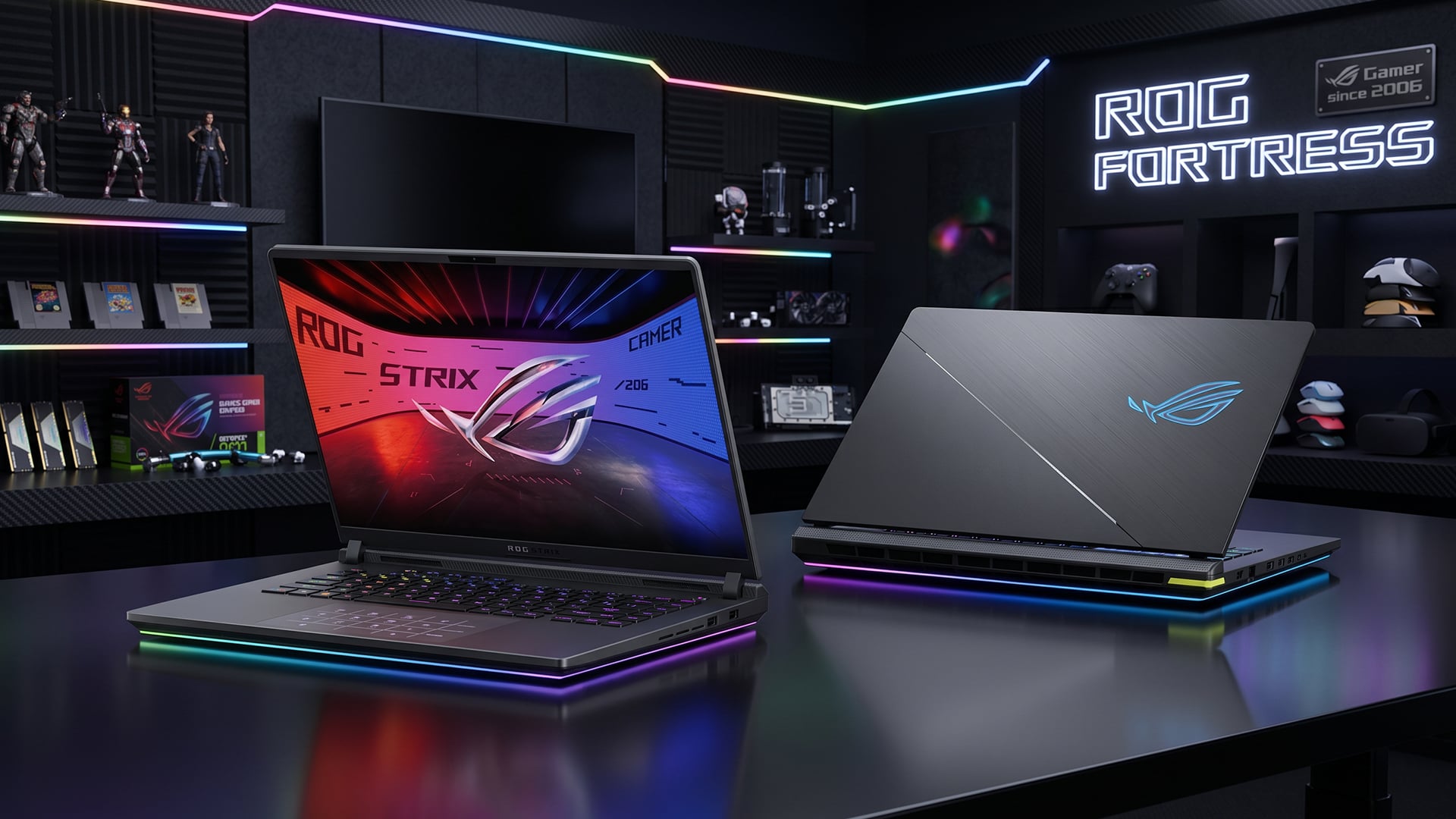
No laptop is immune to heat, but some designs are better prepared.
Better Choices for Cooling
Usually better for sustained performance:
- Larger 16-inch and 18-inch gaming laptops
- Vapour chamber designs
- Higher-end chassis
- Multiple exhaust vents
- Higher TGP models with proven cooling
- Laptops with strong fan control software
Higher Risk Designs
More likely to show performance limits:
- Very thin gaming laptops
- Compact designs with high-end GPUs
- Laptops with shared CPU/GPU heat limits
- Models with quiet fan tuning
- Systems used in hot rooms or blocked airflow
Good Buying Rule
Choose the laptop that matches your workload. If you mostly play esports, you may not need the hottest high-end GPU. If you play AAA games at high resolution, prioritise cooling and TGP as much as the GPU name.
Wrapping Up
Yes, RTX 50 laptops can lose performance under sustained load, but the level depends on cooling, TGP, laptop thickness, fan behaviour and room conditions. Some performance adjustment is normal. Heavy throttling, repeated stutter or large FPS drops are signs of weak cooling or poor setup.
The short answer:
- RTX 50 laptop throttling is possible.
- It is more common in thin, high-power designs.
- Cooling quality matters as much as GPU name.
- TGP affects real performance.
- Sustained FPS is more important than short benchmark spikes.
- Better airflow and sensible settings can reduce heat.
- Thicker laptops often perform better under long gaming loads.
Buy the RTX 50 laptop with the right cooling for your games, not just the highest GPU badge you can afford.
FAQs
-
Do RTX 50 laptops overheat during gaming?
They can run hot during gaming, but a well-designed RTX 50 laptop should manage heat without unsafe overheating. If FPS drops heavily after a short time, fans are constantly maxed out or the laptop crashes, check for thermal throttling, blocked vents or weak cooling.
-
Is throttling normal in gaming laptops?
Some clock adjustment is normal in gaming laptops. Severe throttling is not ideal. If the laptop loses a lot of performance during long sessions, the cooling system may not be keeping up.
-
Do RTX 50 laptops lose FPS over time?
They can lose FPS during a long gaming session if heat builds up and the GPU or CPU lowers clocks. They may also lose performance over months if dust blocks vents or thermal material degrades.
-
Are thicker gaming laptops better for cooling?
Usually, yes. Thicker gaming laptops often have more room for larger fans, heatsinks and vapour chamber cooling. That can improve thermal headroom and sustained gaming performance.
-
How can I reduce throttling on my laptop?
Use Performance mode, keep vents clear, raise the laptop, clean dust, update drivers, cap FPS, reduce heavy graphics settings and avoid gaming on soft surfaces. Advanced users may consider repasting only if the laptop is serviceable and warranty conditions are clear.
-
Does DLSS stop RTX 50 laptop throttling?
No. DLSS can reduce the rendering load and improve FPS, but it does not directly fix bad cooling. It may reduce heat in some games if it lowers GPU workload, especially with an FPS cap.
-
Is RTX 50 laptop throttling worse at 4K?
It can be. 4K gaming puts heavier load on the GPU, which can increase heat and power draw. For 4K gaming, choose a well-cooled RTX 5080 or RTX 5090 laptop and use DLSS where useful.
You can pay with:
*PayPal Credit Representative Example: Assumed credit limit £1,200, Representative 23.9% APR (variable). Purchase rate 23.9% p.a (variable).Terms & Conditions apply.


PayPal Credit and PayPal Pay in 3 are trading names of PayPal UK Ltd, 5 Fleet Place, London, United Kingdom, EC4M 7RD. Terms and conditions apply. Credit subject to status, UK residents only, Five Tech LTD acts as a broker and offers finance from a restricted range of finance providers. PayPal Pay in 3 is not regulated by the Financial Conduct Authority. Pay in 3 eligibility is subject to status and approval. 18+. UK residents only. Pay in 3 is a form of credit. Check if affordable and how you will repay. May make other borrowing more difficult or expensive. See product terms for more details.
Copyright © 1996-2026 Fivetech LTD | Terms and Conditions
box.co.uk & Box are trading names of Five Tech Limited. Registered office: Box LTD, Unit 10 Woodford Trading Estate, Woodford Green IG8 8HF