


 Menu
MenuMenu


Get Sales Advice from Mon - Fri 9am - 5:00pm:
020 3337 8950LAST UPDATED: February 23, 2026
Leveraging MUX Switch, Overclocking & Dynamic Boost on ROG Strix: What It Means & How to Use It Safely
If you’re still thinking of laptops as "portable but weaker" versions of desktop PCs, it’s time to update that worldview. Modern gaming notebooks, especially the ASUS ROG Strix range, are more like compact performance beasts with a surprising amount of tuning power hidden under the hood.
And that’s the exciting bit: features like the MUX Switch, overclocking controls, and NVIDIA Dynamic Boost aren’t reserved for hardcore PC modders anymore. ROG Strix laptops give you these tools right out of the box, letting you unlock extra performance with a few taps in Armoury Crate.
Whether you’re wondering "How do I use the MUX Switch on my ROG Strix?" or "Is Dynamic Boost actually safe?", this guide breaks everything down so you can make the right choices for better FPS, smoother gameplay, and a system that runs the way you want it to.
So, let’s get into it!
Simplifying Technical Terms for You!MUX Switch: The MUX Switch lets your ROG Strix send frames directly from the dedicated GPU to the display, bypassing the integrated graphics for faster, smoother performance. This simple hardware toggle boosts FPS reduces latency and makes your laptop feel more responsive in competitive games, especially when set to Discrete GPU mode in Armoury Crate. Overclocking: Overclocking gives your GPU a gentle speed boost by raising its clock speeds slightly above default levels. On ROG Strix laptops, this is safe and easy to do in Armoury Crate, helping you get smoother gameplay and a bit more power in demanding titles as long as temperatures stay under control. Dynamic Boost Dynamic Boost automatically shifts power between your CPU and GPU to wherever it’s needed most at that moment. It works in the background with no effort required from you, improving frame consistency and overall smoothness during intense gaming or creative workloads. |
Step-by-Step Guide on How to Use MUX Switch, Overclocking & Dynamic Boost on a ROG Strix
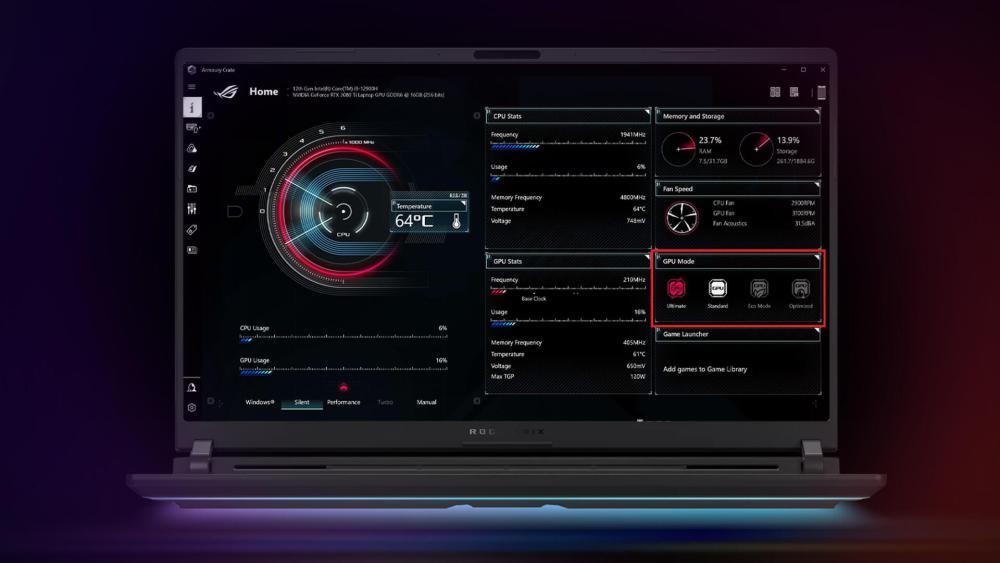
Now that we’ve covered what each feature does, let’s walk through exactly how to use them on your ROG Strix laptop. Don’t worry; you don’t need to be a tech expert. With a few clicks in Armoury Crate, you can switch between battery-saving modes, unleash maximum gaming performance, and monitor your system like a pro.
This is your simple, explanatory guide to getting the most out of your hardware.
Step 1: Check Which Features Your Laptop Supports
Most recent ROG Strix G-series, Strix Scar models, and all 2022+ RTX 30/40-series ROG Strix laptops include MUX Switch, overclocking tools and NVIDIA Dynamic Boost.
If you’re unsure, you can confirm by:
- Opening Armoury Crate
- Checking your laptop’s product page on the ASUS website
- Looking in the System Configuration section
If you see options for MSHybrid, Discrete GPU, or Manual Mode, you’re good to go.
Step 2: Enable the MUX Switch (dGPU Mode) for Maximum FPS
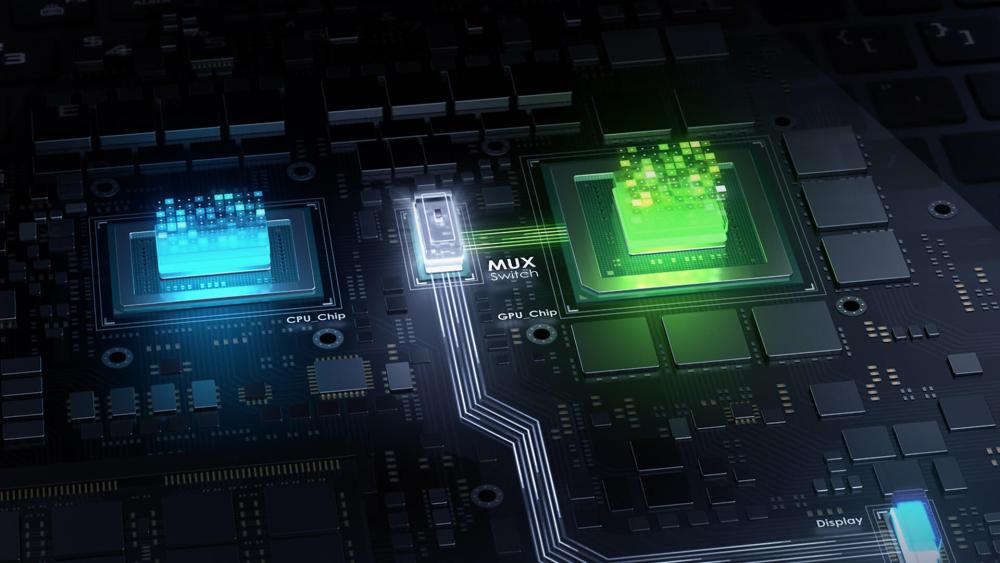
Switching the MUX is easily one of the most impactful changes you can make, and it’s incredibly simple.
How to enable MUX Switch via Armoury Crate:
1. Open Armoury Crate
2. Navigate to Device → System Configuration
3. Look for GPU Mode
4. Select Ultimate or Discrete GPU Mode
5. Restart your laptop to apply the change
This bypass helps lower input latency and often increases frame rates noticeably, giving your games a more responsive, desktop-like feel. It does, however, use significantly more power, so it’s best reserved for when you’re plugged in and gaming seriously.
When you’re not gaming or you want better efficiency, switching back to MSHybrid mode restores the default behaviour. You’ll immediately benefit from longer battery life, quieter fans, and cooler temperatures, because the laptop intelligently decides when to use the integrated or dedicated graphics. For everyday tasks such as browsing, studying, or working, Hybrid mode is far more practical and comfortable.
Step 3: Overclock Safely for a Free Performance Boost
Overclocking sounds complex, but Armoury Crate makes it surprisingly approachable. You’re simply giving the GPU a slight, controlled "speed shove".
How to overclock in Armoury Crate:
1. Make sure your laptop is plugged in
2. Open Armoury Crate
3. Select Manual Mode
4. Increase the GPU Core Clock by +20 to +40 MHz
5. Increase the Memory Clock by +50 to +100 MHz
6. Test the system with a game or benchmark
7. If everything runs smoothly, you can raise it a little more
As you increase the clock speeds, you’re mainly watching for system stability. A well-tuned overclock should feel completely seamless for stable gameplay, no visual artefacts, and temperatures that remain under safe operating limits (around 85–90°C on the GPU).
If you notice flickering, stuttering, unexpected shutdowns or temperatures climbing uncomfortably high, those are clear signs to reduce the overclock slightly. Think of it as fine-tuning rather than overpowering, and you’ll find a sweet spot that delivers extra performance without putting unnecessary strain on your hardware.
Step 4: Let Dynamic Boost Do the Work for You
Dynamic Boost is the easiest feature of the bunch because you don’t actually have to do anything.
Dynamic Boost activates automatically when:
- You’re plugged in
- You’re using Performance or Turbo Mode
- Your cooling system has enough airflow
It shifts power between the CPU and GPU on the fly, squeezing out extra performance exactly when you need it. No menus, no sliders; the laptop does the thinking for you.
Step 5: Monitor Your System Like a Pro
Any time you adjust performance settings, especially overclocking or forcing the GPU into direct mode, it’s worth keeping an eye on your system’s behaviour. Armoury Crate’s built-in hardware monitor is a great starting point, offering real-time readings of temperatures, fan speeds, clock values and component loads.
You’re mainly looking for temperature stability and consistent clock speeds. The laptop should maintain smooth performance without sudden dips, stutters, or thermal throttling. If you notice unusual heat spikes, loud or constantly ramping fans, or gameplay hitching in places where it normally runs smoothly, that’s an indication that your performance settings might be too aggressive. Reducing overclock or improving airflow usually solves the issue quickly.
Step 6: Switch Back to Hybrid Mode When You Need Efficiency
While Maximum Performance mode is brilliant for gaming, it’s not ideal for every situation. Hybrid mode is perfect for those times when you want quiet fans, cooler temperatures and long battery life such as commuting, studying in a café, sitting in lectures, or working in shared spaces. Since this mode leans heavily on the integrated GPU, your laptop runs far more efficiently, with minimal noise and significantly better battery endurance.
Switching to Hybrid mode isn’t about reducing performance; it’s about choosing the right tool for the moment. When you’re gaming, go all-out with Discrete GPU mode. When you’re living your everyday life, let Hybrid mode do what it does best.
| Tip: For the best experience when using MUX Switch or overclocking, pair your laptop with a ROG Strix monitor. Its high refresh rates and low response times allow you to see the full benefit of increased FPS and reduced latency, giving you a smoother, more competitive edge during gameplay. |
Benefits & Trade-Offs: Understanding What You Gain (and What You Give Up)
Using the MUX Switch, overclocking controls and Dynamic Boost on your ROG Strix laptop can unlock a noticeable jump in performance, and the benefits become obvious the moment you load into a fast-paced game. With the MUX Switch in dGPU mode, you’ll enjoy higher frame rates and far sharper responsiveness, which is especially valuable in competitive esports titles where every millisecond counts. Dynamic Boost also works quietly behind the scenes to keep performance smooth and consistent, allocating extra power to the component that needs it most. Together, these features give you a level of flexibility that desktop users take for granted allowing you to switch effortlessly between a full-power "gaming mode" when you’re plugged in, and a cooler, quieter, battery-friendly setup when you’re on the move. This versatility makes ROG Strix laptops brilliant for streamers, content creators and multitaskers who expect their machine to adapt to different scenarios throughout the day.
Of course, with great performance comes a few sensible compromises. Running in full dGPU mode or applying overclocking will naturally reduce your battery life, simply because the dedicated GPU stays active and draws more power. You may also notice higher temperatures and louder fan noise during demanding sessions, as the cooling system works harder to keep everything stable. If an overclock is pushed too far, occasional instability can occur, though this is easily corrected by dialling settings back or improving airflow. These aren’t alarming drawbacks; just normal considerations that help you use your hardware smartly and safely. As long as you monitor temperatures and switch modes according to your environment, you’ll enjoy all the benefits with minimal downsides.
Your Guide to Using Each Feature Smartly
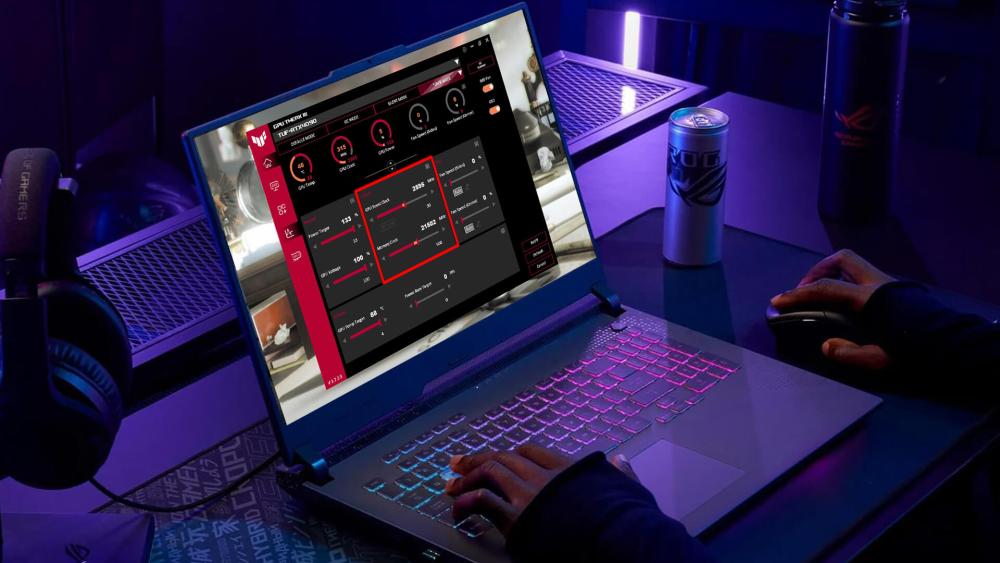
Understanding when each performance feature should be enabled helps you get the very best out of your ROG Strix laptop, without wasting battery or pushing the system harder than necessary. Here’s the clear breakdown, written in a smooth blog style with proper sub-headings.
When to Use MUX Discrete GPU Mode
Choose this mode when you’re plugged in and want maximum gaming performance. It’s perfect for competitive shooters, fast-paced titles and any scenario where every frame and millisecond counts. You’ll get higher FPS, lower latency and a more responsive experience.
When to Use MSHybrid or Eco Mode
Switch to Hybrid or Eco mode during everyday use. If you’re travelling, working, studying or just streaming content, this mode keeps your laptop cooler, quieter and far more efficient, giving you noticeably longer battery life.
When to Use GPU Overclocking
Overclocking is best when your laptop has good airflow and you want a small performance boost in demanding games. It can help stabilise high refresh rates and improve smoothness, as long as you’re comfortable monitoring temperatures.
When to Use Dynamic Boost
Dynamic Boost can be used all the time. It automatically adjusts power between the CPU and GPU to improve performance during intense moments, requiring no input from you and offering smoother gameplay overall.
Best Safety & Optimisation Tips
- Always plug in before enabling high-performance modes such as dGPU or overclocking, as they rely on consistent power.
- Keep your laptop’s vents clear and avoid using it on soft surfaces like beds, cushions or sofas, which can trap heat and restrict airflow.
- Run stress tests after making overclocking changes using tools like 3DMark or Unigine Heaven to ensure your system remains stable.
- Create custom performance profiles in Armoury Crate so you can quickly switch between gaming settings and everyday efficiency modes.
- Update your drivers and BIOS regularly to ensure features like Dynamic Boost, fan curves and GPU control run smoothly.
- Check your warranty terms so you’re aware of what adjustments are covered when exploring performance tuning.
A little attention to these simple steps goes a long way in keeping your ROG Strix running cool, stable and performing at its best.
Final Thoughts
The ROG Strix range offers far more than impressive hardware on paper; it gives you meaningful control over how that power is used. With the MUX Switch, you can unlock desktop-level responsiveness on your Strix laptop, while overclocking lets you squeeze out extra speed when your cooling allows. Dynamic Boost works quietly in the background to keep everything smooth during intense workloads. Used wisely, these features let your ROG Strix computer shift effortlessly between all-out gaming performance and cool, quiet efficiency depending on what you need.
Whether you’re jumping into competitive play, creating content, or simply enjoying a portable high-performance setup, fine-tuning these tools can dramatically enhance your experience. And if you’re ready to upgrade your setup further whether you're eyeing a new ROG Strix monitor, exploring a powerful Strix laptop, browsing the latest ROG portable monitor, or even considering the compact versatility of the ROG Ally; you’ll find an unbeatable selection at Box.co.uk.
Discover the full ASUS ROG lineup at Box.co.uk and elevate your play with hardware built to perform.
Frequently Asked Questions
What is the MUX Switch on ROG Strix and how do I enable it?
The MUX Switch lets your dedicated GPU send frames directly to the display for higher FPS and lower latency. You can enable it in Armoury Crate under System Configuration by selecting Discrete GPU mode and restarting your laptop.
Is using overclocking safe on a gaming laptop like Strix?
Yes, as long as you increase clock speeds gradually and monitor temperatures. ROG Strix laptops are designed with strong cooling systems for safe, moderate overclocking.
What is Dynamic Boost and does it actually improve FPS on my Strix?
Dynamic Boost automatically shifts power between the CPU and GPU based on workload. It typically improves FPS and frame stability by 5–9%, especially in GPU-heavy games.
How much FPS gain can I expect by enabling MUX direct mode on Strix?
You can expect around 9% average FPS increase, with some games seeing gains of 30% or more, depending on the title.
Will enabling MUX direct mode drain my battery faster on Strix?
Yes. Discrete GPU mode keeps the dGPU active, which increases power usage. It’s best used when plugged in.
Should I overclock GPU or CPU on my Strix for best gaming performance?
The GPU typically provides the most noticeable gaming improvements, so GPU overclocking is usually more effective than CPU overclocking.
You can pay with:
*PayPal Credit Representative Example: Assumed credit limit £1,200, Representative 23.9% APR (variable). Purchase rate 23.9% p.a (variable).Terms & Conditions apply.


PayPal Credit and PayPal Pay in 3 are trading names of PayPal UK Ltd, 5 Fleet Place, London, United Kingdom, EC4M 7RD. Terms and conditions apply. Credit subject to status, UK residents only, Five Tech LTD acts as a broker and offers finance from a restricted range of finance providers. PayPal Pay in 3 is not regulated by the Financial Conduct Authority. Pay in 3 eligibility is subject to status and approval. 18+. UK residents only. Pay in 3 is a form of credit. Check if affordable and how you will repay. May make other borrowing more difficult or expensive. See product terms for more details.
Copyright © 1996-2026 Fivetech LTD | Terms and Conditions
box.co.uk & Box are trading names of Five Tech Limited. Registered office: Box LTD, Unit 10 Woodford Trading Estate, Woodford Green IG8 8HF