


 Menu
MenuMenu


Get Sales Advice from Mon - Fri 9am - 5:00pm:
020 3337 8950LAST UPDATED: February 12, 2026
ROG Strix Stutters, FPS Drops, or Lag During Gaming: Diagnosing & Fixing Causes
ASUS ROG Strix laptops are renowned for their elite gaming performance, durable build quality, and cutting-edge cooling systems engineered to handle even the most demanding AAA titles with ease. Designed for gamers, creators, and power users, the ROG Strix range combines premium design with next-gen hardware like NVIDIA RTX graphics, AI-powered optimisation, and ultra-fast displays.
But even the most powerful gaming machines can sometimes run into performance hiccups. If you've noticed stutters, FPS drops, or lag mid-match, you're not alone and it doesn't mean your system is failing. These issues often stem from minor software conflicts, driver bugs, or thermal limits, all of which can be fixed with the right steps.
In this guide, we'll walk you through why your ROG Strix might stutter during gaming and how to resolve it quickly from BIOS and driver updates to power settings and GPU tuning so you can enjoy smooth, consistent, and lag-free performance, exactly how ASUS intended.
So, let's get into it!
What Are Stutters, FPS Drops, and Lag?
When your ASUS ROG Strix starts to stutter or lag mid-game, it usually comes down to one of three performance issues stutters, FPS drops, or lag.
Stuttering happens when your system briefly freezes or skips frames because the CPU and GPU aren't delivering data in sync. FPS drops are sudden dips in your frame rate, for example, from 165 to 60 FPS that make gameplay feel uneven or jerky. Lag, meanwhile, refers to input or network delay, where your action (like pressing a key) takes a moment to register on screen.
While ROG Strix laptops are built for elite gaming with powerful GPUs, intelligent cooling, and ultra-fast displays, even top-tier machines can experience these hiccups due to heat buildup, outdated drivers, or software conflicts. Knowing which issue you're dealing with is the first step toward restoring the smooth, responsive performance your Strix was designed for.
| Experiencing display issues? Try running your system on ROG Strix monitors; designed for precision visuals that help detect performance or colour calibration problems faster. |
Root-Cause Categories: What Could Be Happening?
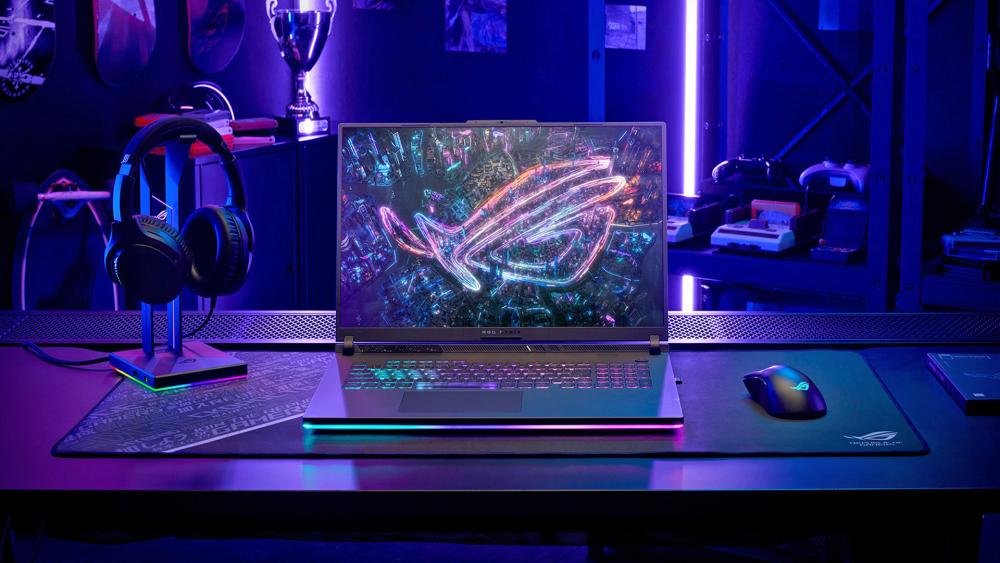
Even the most powerful ASUS ROG Strix laptops can occasionally face performance hiccups, and the reasons usually fall into a few key categories.
- Thermal Throttling & Cooling Issues: When your CPU or GPU overheats, it automatically reduces clock speeds to prevent damage, leading to FPS drops or stuttering. This can happen due to dust buildup, poor ventilation, or extreme ambient temperatures.
- Driver, BIOS, or Firmware Issues: Outdated GPU drivers, chipset updates, or BIOS firmware can cause instability and inconsistent frame pacing. ASUS often releases updates to fix these performance bugs and optimise system behaviour.
- Power Mode & GPU Switching (MUX/Optimus): Many ROG Strix laptops use hybrid graphics that switch between integrated and discrete GPUs to save power. However, this switching can sometimes interrupt performance during gaming sessions.
- Background Software & Resource Conflicts: Unnecessary apps, background updates, or high DPC latency from drivers can cause the system to momentarily pause while gaming.
- Game Engine or Settings Mismatch: Some titles are poorly optimised or use overly demanding settings (like ultra textures or ray tracing), which can push your hardware beyond its limits and create instability.
Understanding which of these root causes applies to your setup is the first step toward restoring smooth, consistent gameplay.
How to Diagnose Performance Issues on Your ROG Strix (Step-by-Step)

Before applying fixes, it's crucial to pinpoint what's really causing your ROG Strix to stutter or lag. Many performance issues look similar, but identifying the exact pattern can save you hours of trial and error. Here's a clear diagnostic checklist to help you find the root cause:
Update everything:
Use Armoury Crate or the ASUS Support page to install the latest BIOS, GPU, and chipset drivers, along with all Windows updates. Outdated firmware is one of the most common causes of underperformance.
Monitor temperatures and performance:
Track your CPU/GPU temperatures, usage, and clock speeds using tools like HWInfo or MSI Afterburner.
If temps exceed 90°C, or clocks drop sharply mid-game, you're likely facing thermal throttling.
Check your power settings:
Ensure your laptop is plugged in and set to Turbo or High Performance Mode in Armoury Crate. Gaming on battery or balanced mode can cause FPS dips and inconsistent power delivery.
Inspect GPU usage and VRAM:
If GPU usage spikes erratically (50–100%) or VRAM hits maximum capacity, your game settings may be too demanding, or there could be a driver or software issue at play.
Look for background tasks:
Open Task Manager or LatencyMon to identify any apps hogging CPU cycles. Common culprits include Discord overlays, RGB software, and background update tools that create DPC latency and micro-stutters.
Check GPU/iGPU configuration:
For Strix models with a MUX switch, make sure it's set to Discrete GPU Mode while gaming. Hybrid modes like NVIDIA Optimus can sometimes cause frame timing delays or FPS inconsistencies.
Watch for repeating stutters:
If stutters occur every 30–60 seconds regardless of temperature or workload, it could be linked to a firmware issue. ASUS has released BIOS updates to fix these specific timing-related bugs, so ensure your firmware is current.
Following these steps helps you isolate whether the issue is hardware, software, or configuration-related; the first step to restoring that buttery-smooth ROG gaming experience.
| For the best performance insights, always test your setup with a ROG Strix PC or pair it with a powerful ASUS ROG monitor to ensure accurate diagnostics. |
Fixes & Optimisations: How to Restore Lag-Free Gaming?
Once you've identified what's slowing your ROG Strix down, applying the right fix is straightforward and you don't need to be a tech expert to do it. Here's a clear, step-by-step guide to getting your system running smoothly again.
1- Keep Everything Up to Date
The first step to solving stutters is making sure your system software is current. Open Armoury Crate (or visit the official ASUS Support website) and:
- Install any BIOS updates listed for your model. These updates often fix hidden bugs that affect FPS or stability.
- Update your graphics driver (from NVIDIA GeForce Experience or AMD Adrenalin).
- Update your chipset drivers and Windows through Windows Update.
This ensures your system is using the latest performance tweaks ASUS and GPU makers have released.
2- Keep Your Laptop Cool
Heat is one of the biggest causes of performance dips. When components get too hot, they automatically slow down to protect themselves; that's called thermal throttling.
- Place your laptop on a hard, flat surface (never on a blanket or bed).
- Use a cooling pad or stand to help circulate air.
- Gently clean vents with compressed air every few months to remove dust.
- In Armoury Crate, switch to Turbo Mode to let the fans spin faster during games.
3- Optimise Power & GPU Settings
Your ROG Strix delivers full performance only when plugged in.
- Plug in the charger before launching games.
- Open Armoury Crate → Device → GPU Mode and choose Discrete GPU Only to ensure your dedicated graphics card handles all the work.
- In Windows Settings → Power & Battery, choose High Performance or Ultimate Performance.
4- Adjust In-Game Graphics Settings
If you're still seeing drops, your game might simply be set too high for the current thermals or driver state.
- Lower settings like ray tracing, shadows, or texture quality slightly.
- Turn on DLSS or FSR if your game supports it; these use AI upscaling to boost FPS while keeping visuals sharp.
- Disable extra filters or affects you don't need. You'll hardly notice the difference, but performance will improve instantly.
5- Close Background Apps
Extra software running in the background can cause micro-stutters or lag.
- Close browsers, recording tools, RGB sync apps, or system updaters before gaming.
- Press Ctrl + Shift + Esc to open Task Manager and end tasks that use high CPU or memory.
- If latency spikes come from USB devices, open Device Manager, right-click your USB Root Hub → Properties → Power Management and untick Allow the computer to turn off this device to save power.
6- Use a Frame Cap or V-Sync
Sometimes your GPU pushes more frames than your screen can display, causing tearing or inconsistent pacing.
- In-game, enable V-Sync or set up a frame cap slightly below your monitor's refresh rate (for example, 160 FPS on a 165 Hz display).
- This helps the GPU maintain stable performance and smoother motion.
7- Regular Maintenance
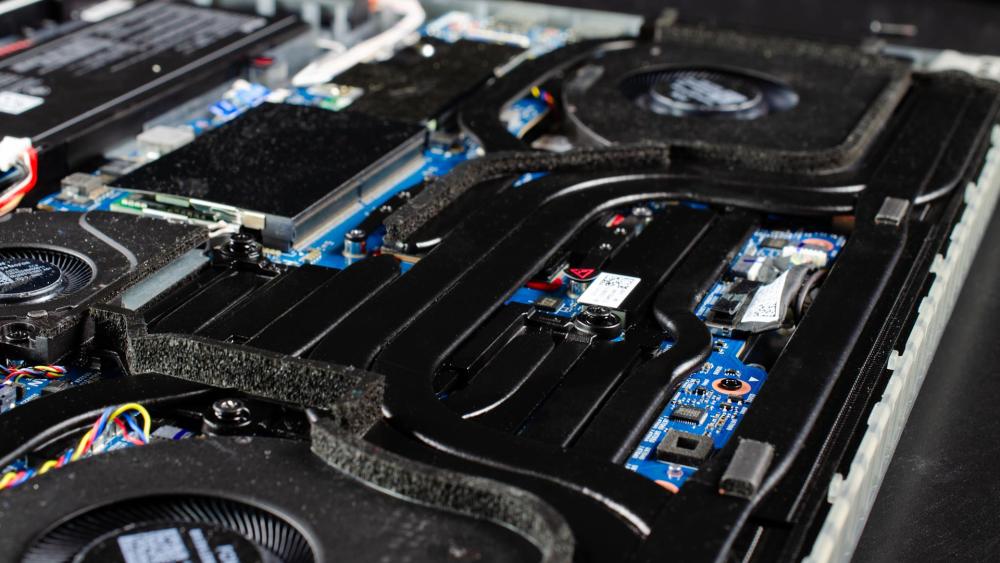
Think of your gaming laptop like a sports car; it performs best with regular tune-ups.
- Every few months, clean dust from vents and fans.
- Run HWInfo or LatencyMon to check temperatures and performance health.
- Keep Armoury Crate and Windows Defender updated for ongoing stability.
Contact ASUS Support if Issues Persist
If you've tried everything and your ROG Strix still stutters, the issue might be hardware-related such as dried-out thermal paste, a faulty fan, or an early GPU failure. A
When to Seek Professional Help or Warranty Service
If you've followed all the steps like updating drivers, cleaning vents, optimising performance and your ROG Strix still stutters or drops frames, it might be time to let the professionals take a look.
Persistent performance issues across all games, even after maintenance, often point to a deeper hardware fault rather than a software issue. For instance, if your CPU or GPU temperatures remain extremely high (above 95°C) despite cleaning and proper airflow, your cooling system could be malfunctioning. Similarly, constant throttling, loud fans, or random shutdowns might indicate problems with the thermal paste, fan assembly, or cooling block.
If your laptop is still under ASUS warranty, you're in luck. ASUS support can run diagnostics, replace defective parts, and reapply on thermal materials using official components. This not only restores performance but also keeps your warranty intact. Don't try to open or repaste the laptop yourself unless you're confident, as it could void your warranty.
When in doubt, it's better to contact ASUS Support or visit an authorised service centre especially if your ROG Strix shows consistent lag or FPS drops after every fix attempt. It's a quick way to ensure your system runs at full strength again.
Who Can Benefit from This Guide?
This guide is designed for power users who expect premium, stutter-free performance from their ROG Strix laptops but are facing unexpected slowdowns.
It's perfect for:
- Gamers who invested in a Strix laptop expecting high FPS performance but are experiencing random lag or frame inconsistencies.
- Tech-savvy users who know how to use monitoring tools but aren't sure which setting or process is causing issues.
- Students or creators who game in their downtime but also rely on their laptops for productivity and smooth multitasking.
However, if you're someone who plays lightweight titles or older games, you might not need deep optimisations simple steps like enabling V-Sync, lowering graphics settings, or cleaning your fans may be enough.
For users with older ROG Strix models, some performance limitations may stem from hardware age rather than configuration problems in those cases; upgrading may be more effective than repairing.
Conclusion: Bring Your ROG Strix Back to Peak Performance!
Even the best gaming laptops can experience stutters or lag from time to time, and the ASUS ROG Strix, despite its world-class engineering, is no exception. These performance hiccups often arise from firmware updates, thermal issues, or software conflicts that can easily be fixed.
The key takeaway is simple: don't panic; diagnose, optimise, and maintain. Most issues can be resolved with proper airflow, power settings, and system maintenance. And if problems persist, ASUS's robust warranty and support network ensures you're never left stuck with a lagging system.
With a little care and regular upkeep, your ROG Strix can continue delivering the buttery-smooth, and high-FPS gaming experience. ASUS remains one of the most trusted names in high-performance gaming laptops.
Explore more ROG Strix laptops, ROG Ally handhelds, and ROG gaming monitors at Box.co.uk; your go-to destination for cutting-edge ASUS gaming gear and accessories.
Frequently Asked Questions
Why does my ROG Strix stutter even with high FPS?
Inconsistent frame delivery from background apps, heat, or power limits can cause stutters. Keep your laptop cool and Turbo Mode for smoother gameplay.
What causes FPS drops on my ROG Strix?
Usually overheating, outdated drivers, or hybrid GPU mode. Update BIOS, use the Discrete GPU setting, and keep drivers current.
Can a BIOS update fix stuttering?
Yes, ASUS released BIOS updates to fix known stutter issues. Always update via Armoury Crate or the ASUS Support page.
What settings help reduce lag and FPS drops?
Use Discrete GPU only, Turbo Mode, disable V-Sync if laggy, and close background apps using CPU power.
Can USB power management cause stutters?
Yes. Disable power saving under Device Manager → USB Root Hub → Power Management.
When should I contact ASUS support?
If stutters persist after updates and cleaning, or if temps stay high; you may have a hardware issue.
How do I monitor GPU/iGPU switching?
Open Armoury Crate → GPU Mode or check Task Manager → Performance → GPU. Select Discrete GPU for gaming.
Does undervolting help reduce FPS drops?
Yes, a safe undervolt lowers heat and stabilises FPS. Use Intel XTU or Ryzen Master carefully to avoid instability.
You can pay with:
*PayPal Credit Representative Example: Assumed credit limit £1,200, Representative 23.9% APR (variable). Purchase rate 23.9% p.a (variable).Terms & Conditions apply.


PayPal Credit and PayPal Pay in 3 are trading names of PayPal UK Ltd, 5 Fleet Place, London, United Kingdom, EC4M 7RD. Terms and conditions apply. Credit subject to status, UK residents only, Five Tech LTD acts as a broker and offers finance from a restricted range of finance providers. PayPal Pay in 3 is not regulated by the Financial Conduct Authority. Pay in 3 eligibility is subject to status and approval. 18+. UK residents only. Pay in 3 is a form of credit. Check if affordable and how you will repay. May make other borrowing more difficult or expensive. See product terms for more details.
Copyright © 1996-2026 Fivetech LTD | Terms and Conditions
box.co.uk & Box are trading names of Five Tech Limited. Registered office: Box LTD, Unit 10 Woodford Trading Estate, Woodford Green IG8 8HF