


 Menu
MenuMenu


Get Sales Advice from Mon - Fri 9am - 5:00pm:
020 3337 8950LAST UPDATED: January 28, 2026
How to Find or Reset Your Apple ID Password (Safe Step-by-Step Guide)
Losing access to your Apple ID can feel like hitting a hard lock mid-raid. One minute you're downloading apps, syncing saves, or backing up clips to your iCloud account, the next you're staring at a sign-in screen with no idea what your Apple password is.
The good news is that Apple has built-in, secure ways to get your Apple ID account back. Whether you've forgotten your password, lost access to your email, or switched devices, this guide walks you through every safe and official method step by step.
Before we dive in, it's important to set expectations around what you can and can't do with an Apple ID. So, let's get started.
Can You Actually "Find" Your Apple ID Password?
Short answer: no, you can't view your current Apple ID password in plain text.
Apple encrypts Apple ID credentials end to end. That means even Apple ID support can't see your Apple password, and neither can you. This is deliberate, and it's what keeps your Apple ID secure if your device is ever lost or stolen.
What is possible is resetting your password using official Apple tools. Any website, app, or software claiming to "reveal" your Apple ID password should be avoided. These are often phishing attempts or malware designed to take over your iCloud account.
If you've forgotten your password, resetting it is the only safe route. Anything else puts your data, purchases, and devices at risk.
Ways to Recover Apple ID Access – Method Comparison Table
Not every Apple ID reset situation is the same. The right method depends on what devices and accounts you still have access to. This table helps you pick the quickest and safest Apple ID reset method without guessing.
| Situation | Recommended Method | What You Need | Time to Regain Access | When to Avoid |
| Forgot Apple ID password on iPhone | Reset via iPhone Settings | Device passcode, internet | Minutes | Shared or borrowed phones |
| Forgot Apple ID password on Mac | Reset via macOS Settings | Mac login password | Minutes | Public or work Macs |
| No trusted device, email or phone available | iforgot Apple ID website | Email or phone access | Minutes to hours | Unsecured browsers |
| No email, phone, or devices | Apple ID account recovery | Identity verification | Days | If you'll soon access a trusted device |
| Know password, want to change it | Device settings | Current password | Minutes | None |
How to Reset Your Apple ID Password on an iPhone or iPad
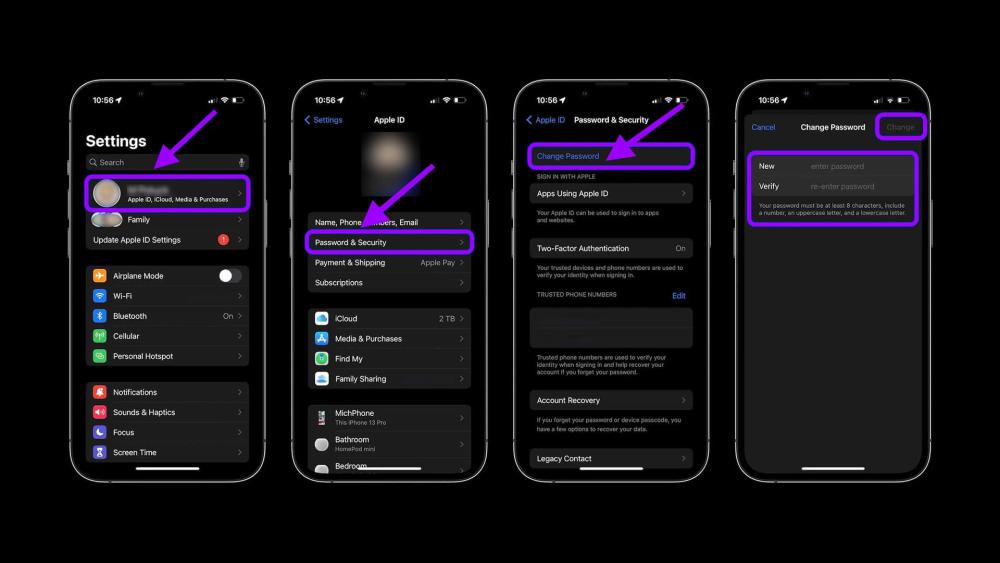
If you're already signed in, this is the fastest way to reset your Apple ID password.
-
How to Change or Reset Your Apple ID Password on an iPhone (If You're Signed In)
- Open Settings
- Tap your name at the top
- Go to Password & Security
- Tap Change Password
- Authenticate with Face ID, Touch ID, or your device passcode
- Enter a new Apple password and confirm
Your Apple ID password updates instantly and syncs across devices linked to your Apple ID account.
-
Forgot Your Apple ID Password on iPhone? Use the "Forgot Password" Option
If you're signing into iCloud, the App Store, or setting up a new device, you'll see a "Forgot password?" option. Tapping this starts the Apple ID reset flow and verifies your identity using your trusted device.
-
When You Should Not Use Someone Else's iPhone to Reset Your Apple ID
Avoid resetting your Apple ID password on a shared or borrowed phone unless you're using the official Apple Support app. Entering your Apple ID details on someone else's device can leave your account exposed.
Internal context: If you regularly manage your Apple ID across devices, pairing it with a secure Apple laptop can make account recovery much easier long term.
How to Reset Your Apple ID Password on a Mac
Using a Mac is ideal if you're already logged in and have your Mac password.
-
How to Change Your Apple ID Password on a Mac (If You're Signed In)
- Click the Apple menu
- Open System Settings
- Select your name
- Go to Password & Security
- Click Change Password
- Enter your Mac login password
- Set a new Apple ID password
This method works smoothly on macOS and is especially convenient if you use your Mac daily.
-
Use the "Forgot Apple ID or Password" Option on macOS
If you're signing into iCloud or the App Store and can't remember your Apple password, select "Forgot Apple ID or password" and follow the guided reset process.
-
Why macOS Asks for Your Mac Login Password
Your Mac password confirms that you're the authorised user of the device. This extra step protects your Apple ID account if someone gains physical access to your laptop.
How to Reset Your Apple ID Password Using a Web Browser (iforgot Site)
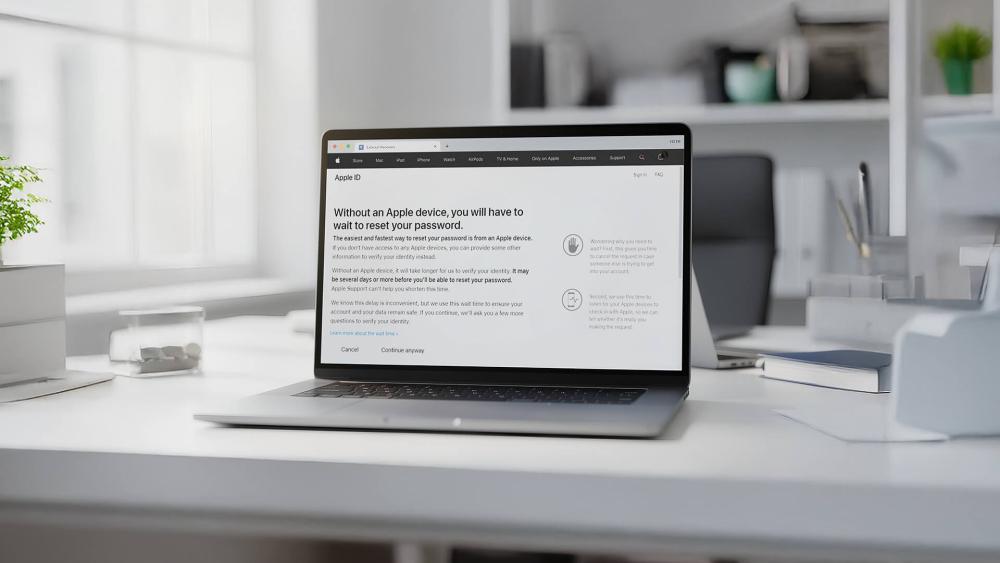
If you don't have a trusted device, Apple's web-based recovery still works.
-
How to Use the Official Apple iforgot Page to Reset Your Apple ID Password
- Visit Apple's official recovery site: https://iforgot.apple.com/
- Click on Reset Password
- Enter your Apple ID email address and pass the CAPTCHA check
- Follow the verification steps
- Create a new Apple password
This method is often referred to as iforgot Apple ID, and it's Apple's approved browser-based reset.
-
How to Verify Your Identity by Email or Phone
Apple may send a verification code to your trusted phone number or recovery email. Entering this confirms ownership of the Apple ID account.
-
Why You Should Only Enter Your Apple ID on Official Apple Websites
Always check the web address and security lock icon. Fake Apple ID reset pages are one of the most common phishing scams targeting iCloud accounts.
How to Use Account Recovery When You Can't Access Email or Trusted Devices
This is the last-resort option for Apple ID recovery.
-
When You Need Apple ID Account Recovery
- You'll need Apple ID account recovery if:
- You can't access your trusted phone number
- You've lost your recovery email
- You no longer have a trusted device
-
What to Expect from Apple ID Account Recovery
Apple verifies your identity using background checks. This process can take several days, and Apple will email you with status updates.
-
How to Make Your Apple ID Easier to Recover Next Time
- Add more than one trusted phone number
- Keep your recovery email updated
- Enable two-factor authentication
These steps massively reduce future lockouts.
How to Find Your Apple ID (If You've Forgotten the Email)
Sometimes the problem isn't the password, it's the Apple ID itself.
-
How to Find Your Apple ID on an iPhone, iPad or Mac
- On iOS: Settings > [your name]
- On macOS: System Settings > Apple ID
Your Apple ID email is displayed at the top.
How to Find Your Apple ID Using Apple Services You Already Use
Check:
- App Store account page
- iCloud account settings
- Apple purchase receipts in your email
How to Use the Apple Website to Look Up an Apple ID
Apple offers an Apple ID lookup option using your name and email addresses.
Can You See Your Apple ID Password Saved Anywhere?
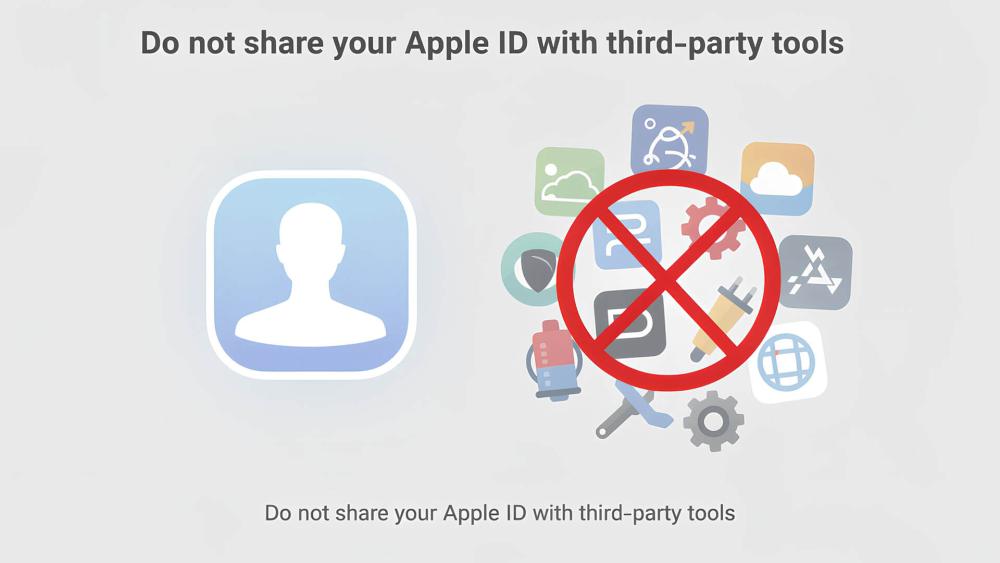
This is a common question, and the answer is mostly no.
-
Why Apple Does Not Show Your Apple ID Password in Plain Text
Apple encrypts Apple ID passwords. Even if saved, they're never displayed openly to prevent account theft.
-
Why Third-Party Tools Claiming to "Reveal" Apple ID Passwords Are Unsafe
These tools often lead to:
- iCloud account takeovers
- Device locks
- Malware infections
-
What You Can Do Instead After Resetting
Use a secure password manager to store your new Apple password safely.
How to Change Your Apple ID Password Regularly for Better Security
Keeping your Apple ID secure is just good digital hygiene.
-
When You Should Change Your Apple ID Password
- After a data breach
- If you reused the password elsewhere
- If you notice suspicious account activity
-
How to Create a Strong Apple ID Password
Use:
- At least 12 characters
- A mix of letters, numbers, and symbols
- No personal info
-
How to Store Your Apple ID Password Safely
Password managers are far safer than notes, screenshots, or reused logins.
Common Problems When Resetting Your Apple ID Password (and Fixes)
-
Not Receiving Verification Codes
- Check spam folders
- Ensure phone signal
- Wait a few minutes and resend
-
Apple ID Reset Link Not Working
Reset links expire quickly. Request a new one and check your device's date and time settings.
-
Apple ID Password Not Accepted After Reset
Sign out and back in, and make sure you're using the new Apple password, not the old one.
Conclusion:
Forgetting your Apple ID password can be frustrating, but it doesn't have to derail your setup for long. Whether you reset your password directly on an iPhone, use a Mac, or go through the official Apple account recovery process from another device, the key is sticking to Apple's built-in tools and avoiding risky third-party shortcuts. Once you're back into your Apple ID account, taking a few minutes to update recovery details and store your new Apple password securely can save you a lot of hassle down the line.
If you manage your Apple ID across multiple devices, having a reliable laptop makes account recovery and security management far smoother. Many users prefer MacBook Air laptops for everyday use thanks to their portability and battery life, especially if you're regularly signing into iCloud, the App Store, or Apple services on the go.
Power users and creatives who lean heavily on macOS may find MacBook Pro laptops a better fit, particularly when juggling multiple Apple ID-linked apps, cloud storage, and professional workflows. Having a trusted, personal device also reduces the risk of needing Apple ID account recovery in the first place.
Whichever route you choose, investing in premium laptops you trust ensures your Apple ID stays accessible, secure, and under your control. With the right setup and a few good security habits, forgetting your Apple ID password becomes a minor inconvenience rather than a full system lockout.
FAQs – How to Find or Reset Your Apple ID Password
Can I find my current Apple ID password without resetting it?
No. For security reasons, Apple does not allow Apple ID passwords to be viewed.
Can Apple Support tell me my Apple ID password?
No. Apple ID support can help you reset it, but they cannot see it.
What happens to my apps and purchases if I change my Apple ID password?
Nothing. All purchases remain linked to your Apple ID account.
How long does Apple ID account recovery take?
Anywhere from a few hours to several days, depending on verification.
How can I stop forgetting my Apple ID password in the future?
Use a password manager and keep your recovery details up to date.
You can pay with:
*PayPal Credit Representative Example: Assumed credit limit £1,200, Representative 23.9% APR (variable). Purchase rate 23.9% p.a (variable).Terms & Conditions apply.


PayPal Credit and PayPal Pay in 3 are trading names of PayPal UK Ltd, 5 Fleet Place, London, United Kingdom, EC4M 7RD. Terms and conditions apply. Credit subject to status, UK residents only, Five Tech LTD acts as a broker and offers finance from a restricted range of finance providers. PayPal Pay in 3 is not regulated by the Financial Conduct Authority. Pay in 3 eligibility is subject to status and approval. 18+. UK residents only. Pay in 3 is a form of credit. Check if affordable and how you will repay. May make other borrowing more difficult or expensive. See product terms for more details.
Copyright © 1996-2026 Fivetech LTD | Terms and Conditions
box.co.uk & Box are trading names of Five Tech Limited. Registered office: Box LTD, Unit 10 Woodford Trading Estate, Woodford Green IG8 8HF