


 Menu
MenuMenu


Get Sales Advice from Mon - Fri 9am - 5:00pm:
020 3337 8950LAST UPDATED: January 28, 2026
How to Remove an Administrator or Owner Account from a Chromebook (Step-by-Step Guide)
If you are trying to remove an administrator or owner account from a Chromebook, the correct method depends entirely on who owns the device and how it is managed. Personal Chromebooks, school Chromebooks, and work-managed devices all behave very differently, and using the wrong approach can lead to frustration or data loss.
This guide explains exactly what is possible, what is not, and how to safely remove an admin or owner account from a Chromebook using approved methods such as Powerwash (factory reset). It also covers common scenarios like second-hand devices, forgotten passwords, and school-managed Chromebooks.
If you are unsure whether your device allows ownership changes, it helps to start with Chromebooks where administrator and owner accounts can be managed, as not all models support admin removal outside approved reset methods.
Can You Remove an Administrator Account from a Chromebook? Understanding Limits

Before following any steps, it is important to understand Chromebook ownership rules, which are enforced by Google at the system level.
-
Owner / Admin vs Managed Chromebook
There are two very different situations:
Personal Chromebook
-
The first Google account that signs in becomes the owner
-
The owner controls key system settings
-
You can remove or change the owner, usually by factory resetting (Powerwash)
School or Work Chromebook
-
Managed by an organisation using Google Admin
-
Enrolment is enforced at the hardware level
-
You cannot remove the school or work administrator yourself
If your device shows messages like "This device is managed by your school or organisation", it is not possible to bypass this legally or technically.
Chromebook Admin Removal – Scenario Comparison Table
If you are wondering how to remove school administrator from Chromebook without password, this table covers the most common scenarios.
| Scenario | Can you remove the admin? |
Recommended method |
Data impact | Notes |
| Personal Chromebook, password known | Yes | Remove account or Powerwash | Local data erased if reset | New owner set after reset |
| Personal Chromebook, password unknown | Yes (with reset) | Powerwash from login screen | All local data erased | Google account data remains online |
| School Chromebook you’re returning | No (user-level only) | Contact school IT |
Device re-enrols after reset | Admin removal only by school |
| School/work Chromebook you do not own | No |
Not Permitted |
No workaround | Bypassing is not possible |
Many users search for how to remove a school administrator from a Chromebook without a password. It’s important to clarify that password-based removal is only possible on personal, unmanaged Chromebooks. If the device is enrolled to a school or organisation, no password, reset combination, or developer mode option will remove the administrator without official de-enrolment.
How to Remove a Non-Owner User Account from a Chromebook
If the account you want to remove is not the owner, the process is simple.
-
How to Remove a Secondary Google Account from the Sign-In Screen
-
Sign out of the Chromebook
-
Click the account you want to remove
-
Select Remove account
-
Confirm
-
How to Remove a Google Account from Chrome While Logged In
-
Open Settings
-
Go to Accounts
-
Select the account
-
Choose Remove
-
What Happens When You Remove a Secondary Account?
-
The account is removed from that Chromebook only
-
The Google account itself is not deleted
-
No system reset is required
How to Remove the Owner / Administrator Account from a Personal Chromebook
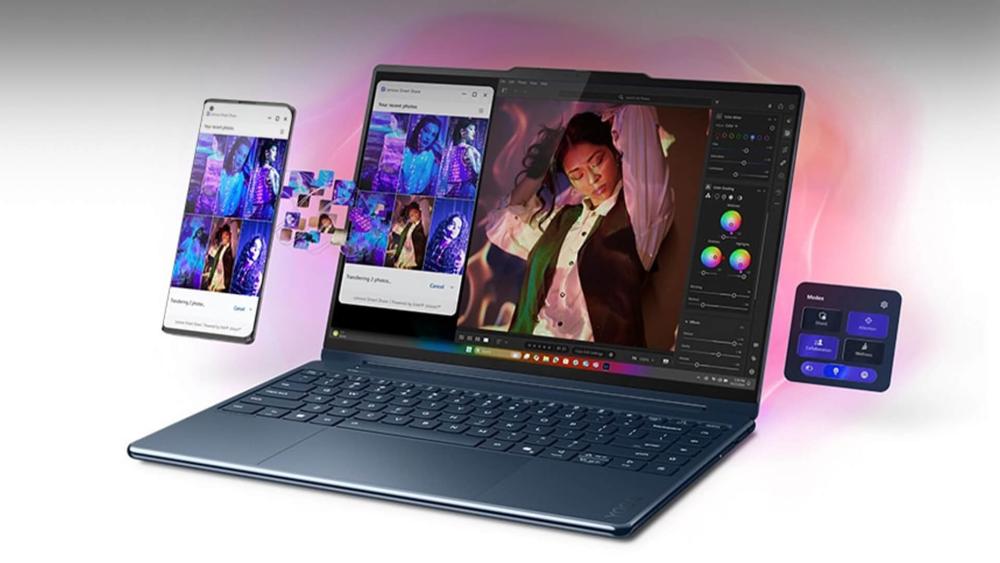
Removing the owner always requires a reset. This method works on most consumer devices, including ASUS personal Chromebooks that are not enrolled in school or business management.
-
Why You Usually Need to Powerwash to Remove the Owner
Chromebooks are designed so the first account added controls system-wide settings. There is no "transfer ownership" button, resetting the device is the only way.
-
How to Back Up Important Data Before Removing the Owner
Before proceeding:
-
Sync files to Google Drive
-
Copy the Downloads folder to external storage
-
Ensure browser data is synced
-
Step-by-Step: How to Powerwash a Personal Chromebook
-
Sign in (if possible)
-
Open Settings
-
Go to Advanced → Reset
-
Select Powerwash
-
Confirm and restart
-
On reboot, sign in with a new Google account
→ this becomes the new owner/admin
This is the correct solution for how to factory reset Chromebook and remove administrator account. The same reset process applies to Acer Chromebooks for home use, provided the device has never been organisation-managed. Many Lenovo Chromebooks for personal ownership also support owner removal through Powerwash when used outside enterprise environments.
How to Remove or Change Owner Account If You Don’t Know the Password
This situation is most common with second-hand or Refurbished Chromebooks that may require owner account removal, where the previous owner did not sign out before resale.
-
Can You Remove a Chromebook Owner Without the Password?
Yes, only on personal, unmanaged Chromebooks.
-
How to Trigger a Powerwash from the Login Screen
-
At the sign-in screen, press
Ctrl + Alt + Shift + R
-
Select Powerwash
-
Confirm reset
-
Why This Does Not Work on School or Work Chromebooks
After reset, managed Chromebooks automatically re-enrol once connected to the internet. This prevents bypassing restrictions.
School or Work Chromebook: Why You Usually Cannot Remove the Admin
Many people look for ways to remove a school administrator from a Chromebook, especially when they take a device home or buy one second-hand. Unfortunately, this is where expectations and reality often don’t align.
-
What Is a Managed Chromebook?
Signs include:
-
Management message on login
-
Restricted settings
-
Forced apps or wallpapers
-
Blocked developer options
-
Why You Cannot Remove School or Work Admin Accounts
The device is registered in an organisation’s Google Admin console. Only that organisation can de-provision it. If a device re-enrols after reset, it is not suitable for personal use and should not be resold as an unmanaged Chromebook.
-
Legitimate Options
-
Contact school or employer IT
-
Return the device if issued
-
Request de-enrolment if ownership has transferred
How to Change the Owner on a Personal Chromebook After Removing the Admin
Once a Chromebook has been Powerwashed, ownership is reset completely. The first Google account signed in after setup automatically becomes the new owner, with full control over system settings and users.
After setting up the new owner account, additional users can be added safely without giving them owner-level access. This is ideal for shared devices, as secondary accounts can use the Chromebook without changing system settings or security preferences.
If the Chromebook will be used by children, supervision tools such as Family Link can be applied to their accounts during setup. This allows parents to manage screen time, app access, and content restrictions without affecting the owner account.
This approach keeps ownership simple while still allowing secure sharing and appropriate controls for other users.
Data, Privacy and Security Considerations When Removing a Chromebook Admin
Removing an admin or owner account from a Chromebook has important implications for data security and privacy. Understanding what is removed and what remains helps prevent accidental data loss or exposure.
-
What Data Is Deleted During a Powerwash
A Powerwash resets the Chromebook to factory settings and removes all local data stored on the device. This includes:
-
Locally saved files and downloads
-
Installed apps and extensions
-
User settings, preferences, and profiles
However, cloud-based data linked to Google accounts is not deleted. Google Drive files, Gmail, Photos, and other synced content remain safely stored online and can be accessed again once you sign in on another device.
Because of this, Powerwash is effective for protecting personal data as long as all accounts are signed out beforehand.
-
Why You Should Always Remove Accounts Before Selling or Giving Away a Chromebook
Leaving accounts on a device creates serious security risks. If an admin or owner account remains linked, the next user may be blocked from setting up the Chromebook properly, or worse, gain unintended access to personal data.
Removing all accounts before a Powerwash:
-
Prevents account lockouts for the next owner
-
Protects emails, files, and synced data
-
Avoids ownership conflicts during setup
This step is especially important for refurbished Chromebooks, where leftover owner accounts can prevent resale or reuse.
-
Best Practices Before Giving a Chromebook Away
Before selling, donating, or handing down a Chromebook, always follow this checklist:
-
Sign out of and remove all Google accounts
-
Perform a full Powerwash
-
Confirm the Chromebook boots to the welcome setup screen
Seeing the welcome screen ensures the device is ready for a new owner and no accounts remain attached.
Common Problems When Removing Admin or Owner Accounts (and How to Fix Them)

Even when following the correct steps, users sometimes run into issues. Most are easy to identify once you know what to look for.
-
Chromebook Won’t Powerwash
If the Powerwash option does not appear or fails to complete:
-
Ensure the battery is sufficiently charged
-
Restart the Chromebook and try again
-
Check whether the device is still managed
If the Chromebook is managed by a school or organisation, Powerwash may be restricted.
-
Device Re-Enrols After Reset
If the Chromebook automatically re-enrols after being reset, this confirms it is still tied to an organisation. Managed devices cannot be fully removed from admin control without the original organisation’s credentials.
In this case, the device cannot be converted to personal use.
-
Can’t Sign In After Removing the Owner
If you cannot sign in after removing the owner account, check the basics first:
-
Confirm Wi-Fi is connected
-
Verify Google account email and password
-
Ensure the system date and time are correct
Most sign-in issues are caused by connectivity or credential errors rather than the reset process itself.
Conclusion
Removing an administrator or owner account from a Chromebook is straightforward only when the device is personally owned and unmanaged. In these cases, a Powerwash reset is the official and reliable way to remove ownership, set a new admin account, and prepare the device for continued use or resale.
For school or work-managed Chromebooks, removal is intentionally restricted. These devices remain enrolled to the organisation regardless of resets, passwords, or location. While this can be frustrating, it protects users, institutions, and second-hand buyers from misuse or data exposure.
Before resetting or selling a Chromebook, always back up important data, remove all accounts, and confirm the welcome screen appears after reset. This is especially important when dealing with refurbished Chromebooks that may require owner account removal or devices purchased second-hand.
If you are unsure whether a Chromebook can be reset safely, checking the device status early can save time and avoid unnecessary frustration. When handled correctly, removing an administrator or owner account ensures the Chromebook remains secure, usable, and ready for its next stage of ownership.
FAQs
-
Can I Remove the Admin from a School Chromebook I Take Home?
No. School Chromebooks remain managed regardless of location.
-
How Do I Remove the Old Owner from a Second-Hand Chromebook?
Powerwash the device. If it re-enrols, it is still managed.
-
Will Powerwash Completely Remove My Google Account?
Yes — from the device only. Online data remains safe.
-
Can I Change the Owner Without Resetting?
No. A reset is required by design.
You can pay with:
*PayPal Credit Representative Example: Assumed credit limit £1,200, Representative 23.9% APR (variable). Purchase rate 23.9% p.a (variable).Terms & Conditions apply.


PayPal Credit and PayPal Pay in 3 are trading names of PayPal UK Ltd, 5 Fleet Place, London, United Kingdom, EC4M 7RD. Terms and conditions apply. Credit subject to status, UK residents only, Five Tech LTD acts as a broker and offers finance from a restricted range of finance providers. PayPal Pay in 3 is not regulated by the Financial Conduct Authority. Pay in 3 eligibility is subject to status and approval. 18+. UK residents only. Pay in 3 is a form of credit. Check if affordable and how you will repay. May make other borrowing more difficult or expensive. See product terms for more details.
Copyright © 1996-2026 Fivetech LTD | Terms and Conditions
box.co.uk & Box are trading names of Five Tech Limited. Registered office: Box LTD, Unit 10 Woodford Trading Estate, Woodford Green IG8 8HF