


 Menu
MenuMenu


Get Sales Advice from Mon - Fri 9am - 5:00pm:
020 3337 8950LAST UPDATED: December 16, 2025
Graphical Artifacts, Crashes & Overheating on Nvidia GPUs: How to Diagnose & Fix Them
Whether you’re gaming, rendering, or simply browsing, Nvidia GPUs are built to deliver fast, reliable performance. But like any high-powered component, years of use, environmental factors, and normal wear and tear can occasionally lead to moments where the card displays unusual pixel patterns, brief glitches, unexpected crashes or higher temperatures than usual. The good news is that these issues are incredibly common across all GPUs; not just Nvidia and most can be diagnosed and fixed at home with a few simple steps.
In this guide, we’ll walk you through the most common symptoms, explain why they happen, and most importantly, show you how to resolve them before they become long-term problems.
What Causes Nvidia GPU Artifacts, Crashes & Overheating?
Nvidia graphics cards are incredibly capable, but like any complex hardware, they can run into issues when something in the system isn’t working correctly. Many symptoms that initially look like "GPU failure" are actually caused by software errors, temperature problems, power instability, or simple wear over time. Understanding why these problems happen makes it much easier to fix them without replacing your card.
1- Why Visual Glitches and Corrupted Pixels Appear on Your Screen
When you begin to notice unusual shapes, flickering pixels, colourful blocks or fine "snow-like" dots across the screen, your GPU is producing what’s known as artifacting. These glitches occur when the graphics card struggles to render images correctly.
Artifacts typically happen because:
- The GPU is overheating, causing calculations to fail.
- VRAM becomes unstable, especially under heavy load or high resolution.
- The card is not fully seated in the PCIe slot or a connector is loose.
- The GPU is simply ageing, and electrical components no longer behave as they did when new.
These visual distortions are often the first warning sign that something inside the system is not functioning as it should.
2- How Driver Instability or Shader Compilation Issues Can Cause GPU Errors
Not all artifacting comes from hardware problems; many issues originate from the software that tells your GPU how to work.
Driver-related issues often occur after:
- A fresh Nvidia driver update
- A Windows update that conflicts with Nvidia software
- A new game installation that changes shader files
- Overclocking profiles that push the GPU too far
When drivers become corrupted or shaders don’t compile properly, the GPU may display graphical distortions, freeze mid-game, or crash to desktop. Clearing shader caches or reinstalling drivers often resolves these problems within minutes.
3- How Thermal Throttling and Excessive Heat Lead to Crashes and Artifacts
Your GPU is designed to run hot but only to a point. When temperatures exceed recommended levels (usually around 80–90°C, depending on the model), the GPU begins to throttle its performance to protect itself. This drop in performance can cause stuttering, slowdowns, or complete system crashes.
Common reasons your GPU overheats include:
- Dust blocking the heatsink or fan
- Poor airflow inside the PC case
- Dried or ineffective thermal paste
- A failing or slow-spinning fan
If temperatures spike quickly, even at low workloads, it’s a sign the GPU cooling system needs attention.
4- How Poor Power Delivery or Faulty Cables Trigger GPU Instability
Graphics cards rely heavily on clean, stable power. When anything disrupts that power flow even momentarily; the GPU may crash or shut down.
This can happen due to:
- A weak or ageing power supply unit (PSU)
- Loose or damaged 8-pin or 12-pin power connectors
- Worn PCIe slots that struggle to provide consistent contact
- Power spikes during heavy gaming or rendering
If your PC suddenly reboots, freezes under load, or loses display entirely, unstable power delivery is a strong possibility.
5- Why GPU Physical Wear or VRAM Degradation Causes Long-Term Problems
Just like any electronic component, GPUs wear down over time. VRAM (Video Memory) is particularly vulnerable to aging because it constantly stores and retrieves large amounts of data.
Signs of VRAM degradation include:
- Persistent artifacting even at low temperatures
- Crashes in games that require high memory usage
- Failed or inconsistent results in GPU stress tests
- Distortions appearing during video playback or basic desktop use
If the GPU continues showing these symptoms after cleaning, repasting, driver updates, and cable checks, the hardware itself may be reaching the end of its usable life.
Looking for the right upgrade? Check out our Nvidia GPU Buying Guide for detailed comparisons and recommendations.
Step-by-Step Checks You Should Always Do Before Attempting GPU Repairs
Before you begin any advanced troubleshooting for Nvidia GPU issues, it’s important to eliminate a few simple, easily overlooked causes. Many problems that appear serious like black screens, artifacting, or crashes are often fixed by addressing basic setup issues. These early checks help you avoid unnecessary repairs and make diagnosing deeper problems much easier.
Start by Checking Your Monitor Cable and GPU Ports
A surprising number of "GPU failures" turn out to be problems with HDMI or DisplayPort cables. If a cable is damaged, loose, or not fully inserted, the signal can flicker, distort, or drop entirely, mimicking the symptoms of a faulty graphics card. Swapping to a high-quality cable, trying a different port on the GPU, or bypassing adapters can instantly reveal whether the problem is related to the display connection rather than the GPU itself. It’s one of the quickest and easiest diagnostic steps and one that resolves more issues than most people expect.
Restart Your PC and Clear Shader Caches Fixes Glitches
Many visual glitches, stutters, or texture issues come from corrupted shader files rather than hardware damage. Shaders are small pieces of compiled code that games and drivers generate to render images efficiently. When updates or crashes interrupt this process, the shader cache becomes inconsistent, and the GPU begins producing flickering, missing textures, or strange lighting effects. Restarting your PC clears temporary shader data, while clearing caches in Nvidia Control Panel, GeForce Experience, or Windows storage settings ensures the system rebuilds clean, error-free shader files. This simple step can resolve a long list of rendering problems instantly.
Try Fixing Driver Conflicts
If your GPU began crashing after a Windows update, a driver update, or installing new graphics hardware, a driver conflict is a likely culprit. Old files from previous Nvidia, AMD, or Intel GPUs can interfere with your current installation, causing instability, freezes, or unexpected restarts. Performing a clean driver reinstall with Display Driver Uninstaller (DDU) removes every leftover file, allowing you to reinstall the latest Nvidia driver in a completely fresh environment. This prevents conflicts with old overclocking profiles, outdated control panels, and unnecessary overlays that could interfere with GPU performance.
Proper Airflow Around Your PC to Prevent GPU Overheating
Your GPU’s cooling system depends heavily on airflow inside your PC case. Even the most advanced graphics card will overheat if it is installed inside a case with restricted ventilation, clogged dust filters, or broken fans. Poor airflow forces hot air to stay trapped around the GPU, causing temperatures to rise rapidly and triggering throttling, stuttering, and sometimes complete system shutdowns. Ensuring that intake and exhaust fans are working correctly, that vents are clear, and that the PC isn’t pressed tightly against a wall helps maintain stable temperatures. Good airflow can be the difference between a GPU that crashes under load and one that performs at its full potential.
Diagnosing Graphical Artifacts (Lines, Flickers, Pixel Blocks)
Graphical artifacts can look dramatic flickering lines, colourful blocks, moving pixels, or distorted shapes on the screen but they don’t always mean your GPU is permanently damaged. The key to diagnosing the problem is understanding when the artifacts appear and what they look like.
1- Recognise Different Artifact Patterns and What They Reveal About Your GPU
Artifact patterns behave differently depending on the cause. Heat-related artifacts usually show up only when the GPU is under stress, such as during gaming or benchmarking. These distortions appear when the graphics card becomes too hot to process data accurately.
VRAM-related artifacts are more persistent. They can appear even while browsing the desktop or watching videos, and often take the form of checkerboards, blocks of colour, or corrupted textures. These issues suggest the memory chips on the GPU are struggling to store and retrieve data reliably.
Shader-related artifacts tend to appear after installing new drivers or updating a game. When shader caches become corrupted, the GPU receives incomplete rendering instructions, causing flickering textures, missing geometry or strange lighting effects.
Understanding when and how artifacts appear helps narrow down whether the issue is thermal, memory-related or software-based.
2- How Stress Tests Help Confirm Whether the GPU Temperature or VRAM Is the Problem
Benchmarking tools such as FurMark, 3DMark or Unigine Heaven are designed to push the GPU to its limits. Running these tests can help you determine whether artifacts appear only under heavy load. If distortions show up quickly during a stress test, it often means the GPU is overheating or the VRAM becomes unstable at higher temperatures.
If the card passes stress tests but glitches appear only in certain games, the issue is more likely related to drivers, shader caches or specific software conflicts. Stress testing is an effective way to isolate whether the source of the problem is hardware or software.
3- How Overheating Leads to Artifacting and How to Tell When Heat Is the Culprit
Heat is one of the most common triggers of artifacting. When temperatures climb beyond safe limits, the GPU may begin miscalculating pixel data, resulting in flickering patches, moving dots or broken textures. If these artifacts fade or disappear once the GPU cools down, overheating is almost certainly the cause.
Often, a simple cleaning of the heatsink, refreshing thermal paste or improving airflow inside the case resolves the issue. Ensuring that fans are functioning correctly and that dust isn’t clogging vents plays a major role in keeping temperatures stable.
4- VRAM Instability Causes Persistent Artifacts and Crashes
When VRAM begins to fail, the GPU struggles with memory-heavy tasks, leading to more severe visual distortions. You may see checkerboard patterns, corrupted textures, or sudden crashes when loading large game worlds. Specialised tools such as OCCT can test VRAM directly and often reveal high error counts if memory chips are degrading.
Issues caused by VRAM instability tend to be more difficult to repair. Unlike heat-related problems, they rarely disappear after cleaning or improving cooling, often indicating that the GPU may be reaching the end of its usable lifespan.
Fixing GPU Crashes, Black Screens & Sudden Reboots
A GPU that crashes during gameplay, triggers black screens or causes sudden system reboots may not be failing outright; these symptoms often arise from driver problems, power instability or poor PCIe contact. Identifying the underlying cause is essential for restoring stability.
GPUs Crash Under Load and the Most Common Causes Behind It
Crashing typically occurs when the GPU is stressed. Driver conflicts can cause the graphics card to fail mid-process, while overheating leads to protective shutdowns. A failing power supply may be unable to deliver consistent voltage, causing the entire system to reboot when the GPU demands more power. Incorrect overclock settings also play a large role, pushing the GPU beyond what it can safely handle.
Understanding the operating environment; temperature, power and software, helps pinpoint the exact cause of recurring crashes.
Driver Rollbacks Vs Clean Installs
If your crashes began shortly after a new Nvidia driver was installed, reverting to a previous version often solves the problem immediately. However, deeper conflicts may require a clean installation using Display Driver Uninstaller (DDU). This tool removes all traces of previous drivers, control panels and old overclocking profiles, allowing you to reinstall the latest stable driver in a clean environment free from conflicts.
Power Supply Problems Cause GPU Crashes and Why Wattage Matters
Power instability is a frequent and often overlooked cause of GPU crashes. When the GPU draws more power than the PSU can supply, the system may shut down entirely, especially during games or rendering tasks. Increased coil whine, random black screens or sudden reboots under load are strong indicators that the power supply is struggling.
Ensuring your PSU meets the recommended wattage for your GPU and choosing a high-quality, efficient unit can significantly improve system stability. Explore the best power supplies at Box.co.uk
Reseating the GPU Restores Proper PCIe Connection and Stabilises Performance

A GPU that isn’t fully seated in the PCIe slot may receive inconsistent contact, causing black screens, display cutouts or system crashes. Dust inside the slot can contribute to poor connectivity, as can improperly secured power cables.
Removing the GPU, cleaning the slot and reinserting the card until the latch clicks into place ensures a secure, stable connection that can resolve a wide range of seemingly complex issues.
Overheating is not only a performance issue; it’s one of the most common triggers for crashes, throttling and long-term GPU degradation. Thankfully, heat issues are often easy to diagnose and fix at home.
Adjusting Fan Speeds to Cool Your GPU Faster
Software such as MSI Afterburner lets you manually control how quickly your GPU fans spin. By creating a more aggressive fan curve, the fans will increase speed earlier, helping your graphics card stay cooler under load. Pairing this with balanced case airflow where cool air comes in and warm air is pushed out can significantly lower overall temperatures.
Removing Dust to Restore Proper Cooling
Dust build-up is one of the biggest enemies of GPU cooling. When dust collects on the heatsink or blocks airflow, your GPU has to work much harder to stay cool. This often results in louder fan noise and reduced performance. Regularly cleaning your GPU, case fans and dust filters helps air move freely again and keeps temperatures stable.
Replacing Old Thermal Paste for Better Heat Transfer
Thermal paste sits between the GPU chip and its heatsink, helping heat move efficiently away from the processor. As years pass, this paste can dry out, causing sudden temperature spikes or overheating even during light tasks. Reapplying fresh, high-quality thermal paste is one of the best ways to revive an older GPU and improve cooling.
Fixing Faulty GPU Fans or Loose Heatsinks
If your GPU fans are not spinning, make strange noises or wobble when touched, they may be failing. A damaged or loose fan cannot cool the GPU properly. Similarly, a heatsink that is not secured tightly will not pull heat away from the GPU chip. Identifying and replacing faulty cooling components prevents dangerous temperature build-up.
Upgrading Your PC Case to Improve Airflow
Even a high-end GPU cooler cannot overcome a case that traps heat. Small, enclosed or older cases often limit airflow, causing temperatures to rise no matter how powerful your fans are. Switching to a case designed with good airflow especially those with mesh fronts can dramatically reduce GPU temperatures without any modification to the card itself.
When Thermal Paste, Cooling or Case Airflow Is the Issue
Overheating isn’t always caused by the GPU itself, sometimes the surrounding components or cooling setup are the real culprits. Improper thermal paste application, outdated cooling hardware, or poor case airflow can all trap heat inside your system and push temperatures beyond safe limits.
Signs Your Thermal Paste Needs Replacement
Thermal paste acts as a bridge between the GPU die and its heatsink, filling microscopic gaps to ensure efficient heat transfer. Over time, this paste can dry out, crack, or lose conductivity. If you notice rising temperatures despite normal workloads, sudden thermal spikes, or little improvement after cleaning your fans, worn-out thermal paste may be the problem. Reapplying fresh high-quality thermal paste can dramatically restore cooling efficiency.
When Upgrading Fans or Coolers Helps
If your GPU fan speeds seem maxed out but temperatures remain high, your cooling hardware may no longer be sufficient. Stock GPU coolers, especially older or blower-style ones, often struggle with modern workloads. Upgrading to better case fans, adding intake/exhaust balance, or switching to a more efficient air or liquid GPU cooler can significantly reduce temperatures and improve performance consistency.
When Your PC Case Is Too Restrictive
Some PC cases simply don’t allow enough airflow for today’s power-hungry GPUs. Signs include hot air lingering inside the case, components reaching similar high temperatures, or poor ventilation around the GPU area. A restrictive front panel, lack of mesh, or insufficient fan mounts can all cause heat buildup. Switching to a more airflow-focused case or removing obstructions inside the existing one can make cooling far more effective.
Power Supply Overheating Factors
Although often overlooked, an overheating PSU can contribute to overall system heat and even affect GPU stability. Dust buildup, a failing internal fan, or running the PSU at high loads (especially near its wattage limit) can cause it to run hotter than intended. An overheated PSU may push warm air into the case, worsening GPU temperatures. Ensuring the PSU has proper ventilation, adequate wattage headroom, and clean airflow helps maintain stable system thermals.
When Artifacting or Overheating Leads to No Display
Display failures don’t usually happen out of nowhere; many begin with subtle warning signs like visual artifacts or rising temperatures before finally reaching the point where the monitor no longer receives a signal. Understanding how these issues escalate helps diagnose whether the problem lies with the GPU, the system’s power delivery, or something as simple as a loose cable.
How Overheating or Artifacting Escalates to No Display
Artifacting random shapes, flickering colours, and checkerboard patterns; often indicates that the GPU’s memory or core is failing to process data correctly. When combined with overheating, these errors become more frequent and severe. If temperatures climb too high or the GPU becomes unstable, it may shut itself down to prevent damage. This protective behavior can cut video output entirely, resulting in a black screen or "No Signal" message.
Basic Checks (Cables, Ports)
Before assuming the GPU has failed, it’s important to rule out simple external factors. A loose DisplayPort or HDMI cable, a damaged connector, or selecting the wrong input on the monitor can all mimic GPU failure. Switching cables, trying alternate ports, reseating the GPU, and testing the display with another device are quick steps that often resolve what appears to be a major issue.
When the GPU Cuts Signal Under Load
Some GPUs function normally on the desktop but lose display output the moment they’re stressed. This typically happens when the card overheats or its power draw spikes higher than the PSU or VRMs can support. Under heavy load; gaming, rendering, or AI workloads, the GPU may trigger a shutdown of its display engine while the rest of the PC continues running. This type of failure strongly suggests a thermal or power-delivery issue rather than a software glitch.
When POST or Power Issues Take Over
If there is no display from the moment you turn on the PC, the problem may occur before the GPU even activates. A failing PSU, improperly seated GPU, corrupted BIOS, or insufficient power to PCIe rails can prevent the system from completing POST (Power-On Self-Test). In these cases, fans may spin but no signal is ever sent to the monitor. Motherboards with debug LEDs or beep codes can offer clues; pointing to GPU error states, memory failures, or boot sequence interruptions.
Explore related troubleshooting: Fixing Nvidia GPU Display Problems
When Your GPU Is Beyond Repair: Time to Upgrade
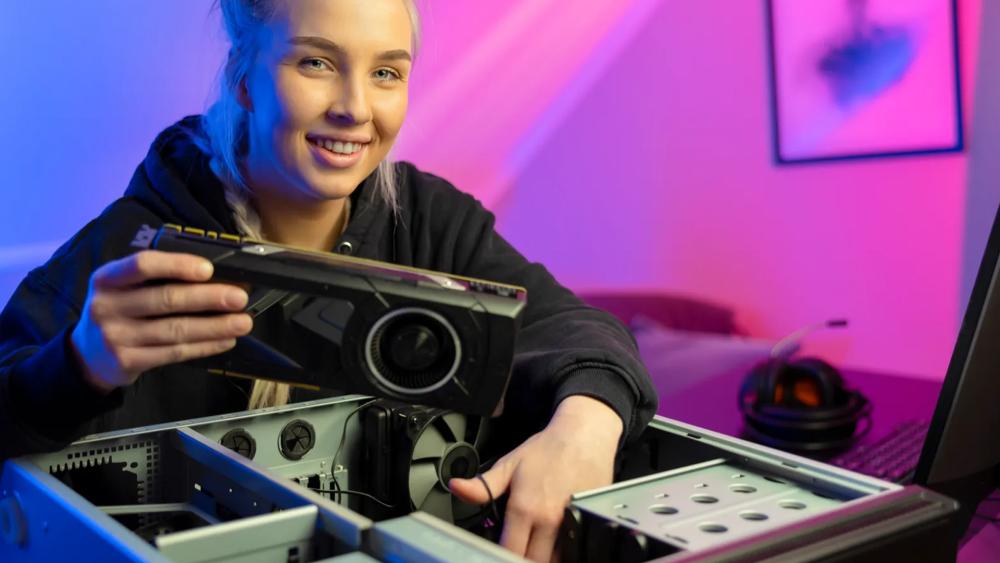
Even though Nvidia GPUs are built for long-term reliability, every component eventually reaches a point where repairs are no longer effective. If you continue to experience persistent artifacting, inconsistent performance during demanding tasks or overheating that remains even after cleaning, repasting and improving airflow, it may indicate that the card has simply reached the end of its usable life. In some cases, the GPU may still work, but its hardware or software capabilities are no longer designed for modern games, creative tools or new rendering technologies.
When this happens, upgrading isn’t a setback; it’s an opportunity to enjoy smoother performance, better efficiency and the newest features that enhance your gaming or productivity experience. Choosing the right upgrade comes down to your needs: whether you’re after higher frame rates, better thermals, support for the latest Nvidia technologies or improved performance for work applications, a new GPU can transform your entire system and offer a much more enjoyable, future-ready experience.
Final Thoughts
Diagnosing GPU issues doesn't have to be complicated. Understanding symptoms, maintaining good airflow, ensuring clean power delivery, keeping drivers up to date, and pairing your system with quality CPU coolers can resolve most problems long before they become serious. However, when hardware begins to age or fails outright, upgrading to more modern Nvidia GPUs provides better performance, increased stability, and access to the latest visual technologies.
No matter what stage your system is in, troubleshooting, repairing, or preparing to upgrade, you can find everything you need at Box.co.uk, from GPUs to cooling solutions, PC power supplies, cases, and more.
You can pay with:
*PayPal Credit Representative Example: Assumed credit limit £1,200, Representative 23.9% APR (variable). Purchase rate 23.9% p.a (variable).Terms & Conditions apply.


PayPal Credit and PayPal Pay in 3 are trading names of PayPal UK Ltd, 5 Fleet Place, London, United Kingdom, EC4M 7RD. Terms and conditions apply. Credit subject to status, UK residents only, Five Tech LTD acts as a broker and offers finance from a restricted range of finance providers. PayPal Pay in 3 is not regulated by the Financial Conduct Authority. Pay in 3 eligibility is subject to status and approval. 18+. UK residents only. Pay in 3 is a form of credit. Check if affordable and how you will repay. May make other borrowing more difficult or expensive. See product terms for more details.
Copyright © 1996-2026 Fivetech LTD | Terms and Conditions
box.co.uk & Box are trading names of Five Tech Limited. Registered office: Box LTD, Unit 10 Woodford Trading Estate, Woodford Green IG8 8HF