


 Menu
MenuMenu


Get Sales Advice from Mon - Fri 9am - 5:00pm:
020 3337 8950POSTED: May 19, 2026
What Are the Different PCIe Slots on a Motherboard For?
Motherboard PCIe slots are the connectors that let you add extra hardware to a desktop PC, from graphics cards and Wi-Fi cards to capture cards, networking cards and some SSD adapter cards. In simple terms, they give the motherboard hardware expansion support beyond the features already built into the board. PCIe is the standard used for fast communication between the CPU, chipset and connected expansion devices.
The tricky part is that not all motherboard expansion slots work in the same way. A long slot may be designed for a graphics card, while a smaller one may be better suited to a sound card or wireless card. Some slots may also look larger than the number of lanes they use, which is why knowing about PCIe slots matters before choosing a motherboard or installing upgrades.
This guide explains PCIe slots in simple terms. It covers things like what the different PCIe slots are for, how lanes and PCIe generations affect speed, when PCIe matters for gaming, and what to check before buying or upgrading a motherboard.
PCIe Slots Explained: Types, Lanes and Speeds
Before choosing a motherboard, it helps to understand the three things that shape PCIe: slot size, lane count and generation. These decide what hardware you can install, how much bandwidth it gets and whether the board layout gives you enough room for future upgrades.
What PCIe Slots Do
PCIe stands for Peripheral Component Interconnect Express. In simple terms, it is the high-speed connection that lets add-in hardware talk to the CPU or chipset through the motherboard. That is why motherboard PCIe slots are used for graphics cards, SSD adapter cards, capture cards, sound cards, Wi-Fi cards and other upgrades.
This is where technical knowledge about PCIe slots becomes useful. A motherboard may have several slots, but each one can be designed for a different job. Larger ATX boards usually offer more physical room for expansion, while smaller boards may have fewer usable slots once a large graphics card is installed.
PCIe x1, x4, x8 and x16 Slots
The numbers in PCIe x16, x8, x4, x1 refer to lane count. A lane is a data path, so more lanes can carry more data at once. That is why PCIe slot types are usually matched to the hardware’s bandwidth needs. Here is how the PCIe slots are used.
| PCIe slot type | Common use | Best for |
| PCIe x1 | Wi-Fi cards, sound cards, USB expansion cards | Small, low-bandwidth upgrades |
| PCIe x4 | NVMe SSD adapter cards, capture cards, faster network cards | Storage, streaming and creator upgrades |
| PCIe x8 | High-speed networking cards, workstation cards, and some secondary GPU layouts | Specialist expansion cards |
| PCIe x16 | Graphics cards and high-bandwidth cards | Main GPU installation |
A key point is that physical size does not always equal electrical speed. A full-length x16 slot may only run at x8 or x4, depending on the board’s expansion slot configuration. This is why checking the manual matters, especially when comparing the best PC motherboards with different chipsets and board layouts.
PCIe Generations and Bandwidth
Slot size tells you how many lanes a slot can use, while PCIe generation tells you how much data each lane can carry. Newer PCIe generations increase data transfer speeds, but that does not mean every device needs the newest version.
| PCIe generation | Transfer rate | Approx x1 bandwidth, one-way | Approx x16 bandwidth, one-way | Buyer note |
| PCIe 1.0 | 2.5 GT/s | 250 MB/s | 4 GB/s | Very old standard |
| PCIe 2.0 | 5 GT/s | 500 MB/s | 8 GB/s | Found on older systems |
| PCIe 3.0 | 8 GT/s | Around 1 GB/s | Around 16 GB/s | Still usable for many devices |
| PCIe 4.0 | 16 GT/s | Around 2 GB/s | Around 32 GB/s | Common in modern gaming PCs |
| PCIe 5.0 | 32 GT/s | Around 4 GB/s | Around 64 GB/s | Useful for newer GPUs and fast SSDs |
| PCIe 6.0 | 64 GT/s | Around 8 GB/s | Around 128 GB/s | Mainly for data-centre and high-end platform-focused |
| PCIe 7.0 | 128 GT/s | Around 16 GB/s | Around 256 GB/s | Released to members in 2025, aimed at data-heavy markets |
| PCIe 8.0 | 256 GT/s target | Around 32 GB/s target | Around 512 GB/s target | Draft 0.5, planned for 2028 |
What Each PCIe Slot Is Used For
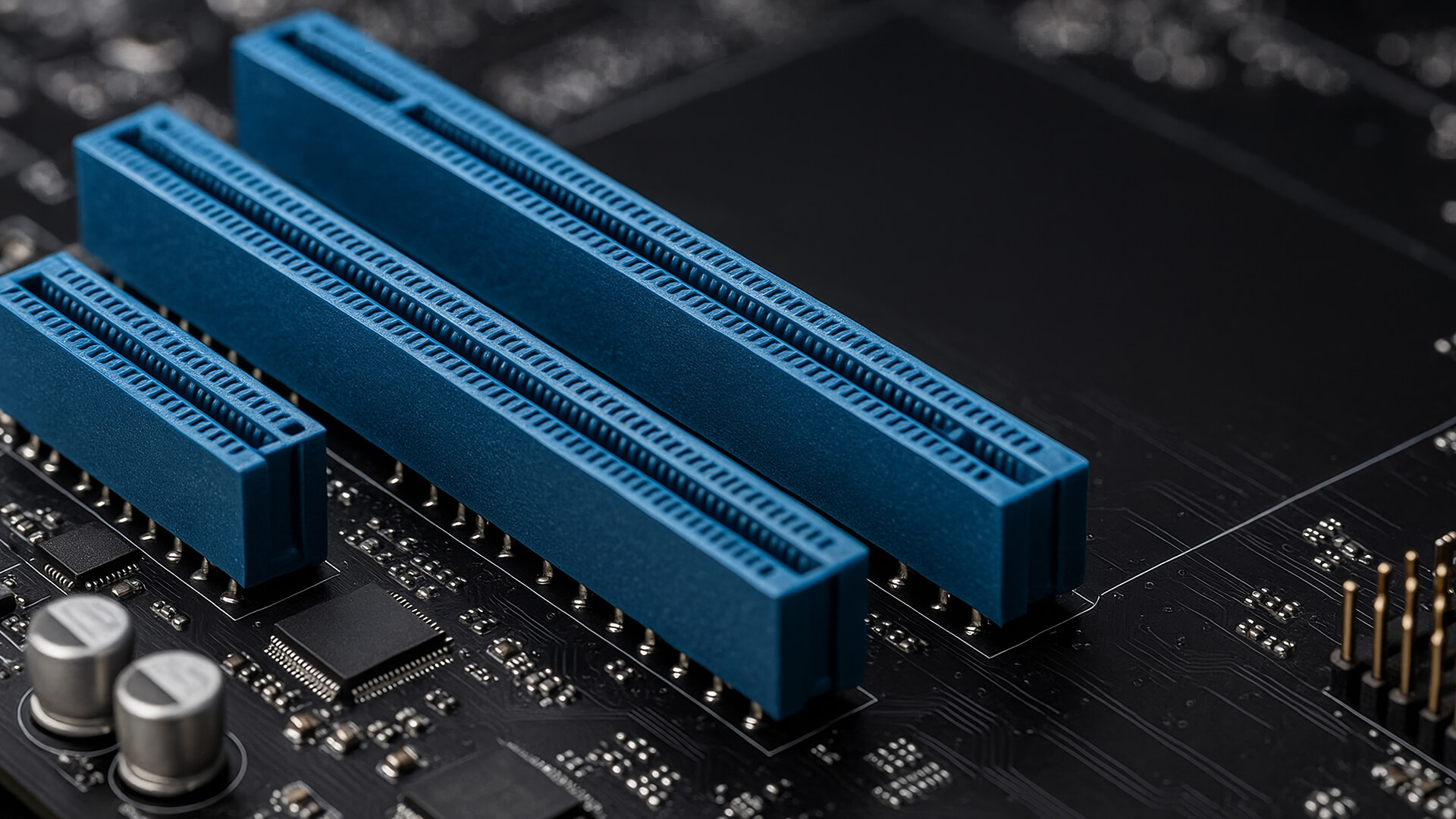
Once you know the slot sizes, the next step is knowing what belongs where. Motherboard PCIe slots are not just there to fill space on the board; each one is usually positioned and wired with a specific type of upgrade in mind.
Graphics Cards
A dedicated graphics card should usually go into the top full-length x16 slot, closest to the CPU. This is normally the main GPU PCIe slot, because it is designed to give the graphics card the strongest lane access and the best chance of running at its intended speed. For most gaming builds, this is the slot that matters most.
A useful thing to remember is that the longest slot is not always the best one if your board has more than one full-length connector. Some lower slots may run with fewer electrical lanes, so the top slot is usually the safest GPU installation slot unless your manual says otherwise. This applies to both AMD motherboards and Intel motherboards. So, checking the manual is very important, as slot layout can vary by model and chipset.
SSD Expansion
Most modern NVMe SSDs install into M.2 connectors rather than the long PCIe slots. However, you can still add SSD storage through a PCIe adapter card if the motherboard has a suitable spare slot.
The important bit is understanding the NVMe SSD interface. NVMe is designed to work over PCIe, which is why NVMe drives can offer much higher storage bandwidth than older SATA drives.
Capture Cards, Networking Cards
Not every add-in card needs a full x16 slot. PCIe slot usage should be based on what the card needs. Capture cards may use x1 or x4, depending on resolution and recording requirements, while faster networking cards can need x4 or x8 for higher throughput. Sound cards, USB expansion cards and basic Wi-Fi cards usually work fine in smaller x1 slots.
The safest approach is simple: match the card to the slot size and bandwidth it asks for, then check that the slot will still be accessible once the graphics card is installed. This avoids buying an upgrade that technically fits the board but does not fit your actual layout.
PCIe Compatibility and Lane Sharing
PCIe compatibility is usually straightforward, but lane sharing is where things can get confusing. A card may fit into a slot, yet still run at a lower lane count or share bandwidth with another part of the motherboard.
Physical Slot Size vs Electrical Lanes
A PCIe slot’s length does not always show how many lanes it actually uses. A full-length x16 slot can be wired as x16, x8 or even x4, depending on the board. So, while a card may physically fit, it may not always get the full bandwidth you expect.
This matters most when installing high-bandwidth devices such as graphics cards, SSD adapter cards or faster networking cards. The safest move is to check the motherboard manual before assuming the slot runs at full speed.
PCIe Backwards Compatibility
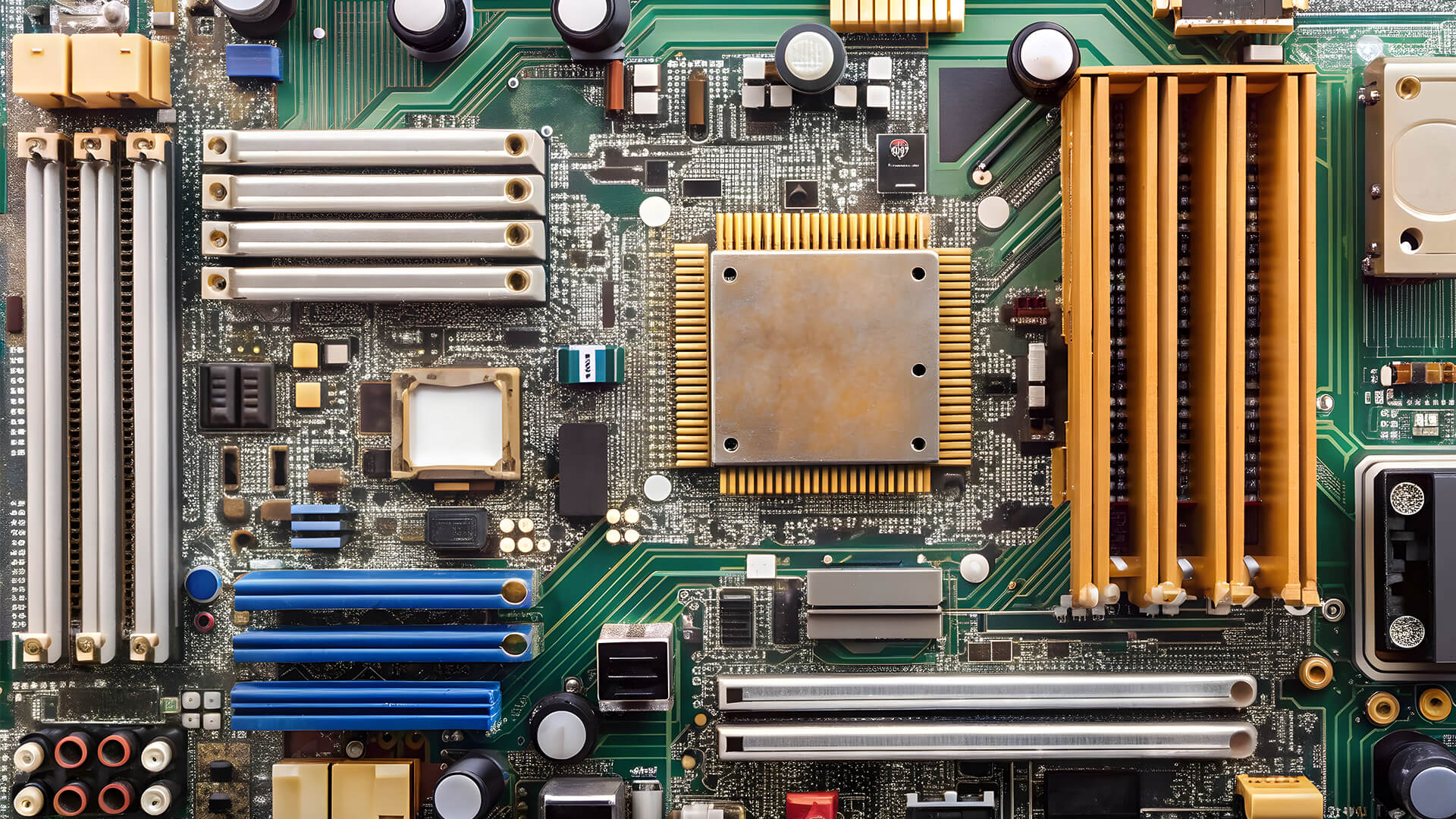
PCIe devices are generally backwards and forward compatible. A PCIe 4.0 device can work in a PCIe 5.0 slot, and a PCIe 3.0 device can work in a PCIe 4.0 slot. The catch is speed: the device runs at the lower supported generation, not the fastest one available.
Why Some Slots or Ports Disable Others
Motherboards only have a limited number of PCIe lanes available from the CPU and chipset. To offer more connectors, some PCIe slots, M.2 slots and SATA ports share the same resources. This is called multi-device bandwidth sharing, and it affects bandwidth allocation across the board.
For example, using a certain M.2 slot may disable selected SATA ports, or adding a second high-speed device may change another slot’s lane distribution. Hence, it is important to check the manual before adding extra SSDs, capture cards or expansion cards. A part can fit perfectly and still change how another slot behaves.
Do PCIe Slots Affect Gaming Performance?
Motherboard PCIe slots can affect gaming, but they are rarely the first reason a game runs badly. The GPU, CPU, RAM, cooling and game settings usually have a bigger impact, while PCIe mainly controls how much bandwidth the graphics card or storage device can access. Whether you are comparing Intel motherboards or AMD motherboards, the important checks are the same: the main GPU slot, PCIe generation, lane count and whether other slots or M.2 connectors share bandwidth.
GPU Performance and x16 vs x8
For most gaming PCs, the graphics card should go in the main full-length GPU PCIe slot, usually the top x16 slot closest to the CPU. This gives the card the best chance of running at full bandwidth and avoids unnecessary limits.
The x16 vs x8 performance difference depends on the GPU, PCIe generation, game and resolution. On newer PCIe generations, x8 can still offer plenty of bandwidth, so the gap is often small in many games. In many gaming builds, the difference between PCIe 3.0, 4.0 and 5.0 is small when a graphics card has enough lanes, but results can vary depending on the GPU, game, resolution and settings. In short, PCIe is one part of gaming performance, but it should not be treated as a guaranteed way to boost FPS.
SSD Speed, Loading and FPS
A faster PCIe SSD can improve game loading, file transfers and general system responsiveness, but it does not normally increase FPS directly. Frame rate is still driven mainly by the graphics card, processor and how well the game uses your hardware.
So, PCIe gaming performance should not be judged by storage speed alone. A Gen 4 or Gen 5 SSD can make a system feel quicker, especially in newer games built around faster asset streaming, but it will not fix weak graphics performance by itself.
When PCIe Bandwidth Actually Matters
PCIe bandwidth matters more when the system is already being pushed hard. High-end GPUs, lower-lane graphics cards, multiple fast SSDs, capture cards and streaming setups can all put more pressure on available bandwidth.
For buyers comparing powerful gaming motherboards, the useful thing is not just “more PCIe”. It is the right GPU slot, sensible M.2 layout, enough usable lanes and a board design that can keep the system stable under load. PCIe layout also works alongside power delivery, cooling and CPU support, which is why understanding a motherboard’s VRM effect on gaming performance is important when building a balanced gaming PC.
The practical takeaway is simple: use the main x16 slot for the GPU, avoid unnecessary lane sharing where possible, and treat PCIe as one part of overall system performance scaling, not a magic FPS switch.
How to Choose a Motherboard with the Right PCIe Slots
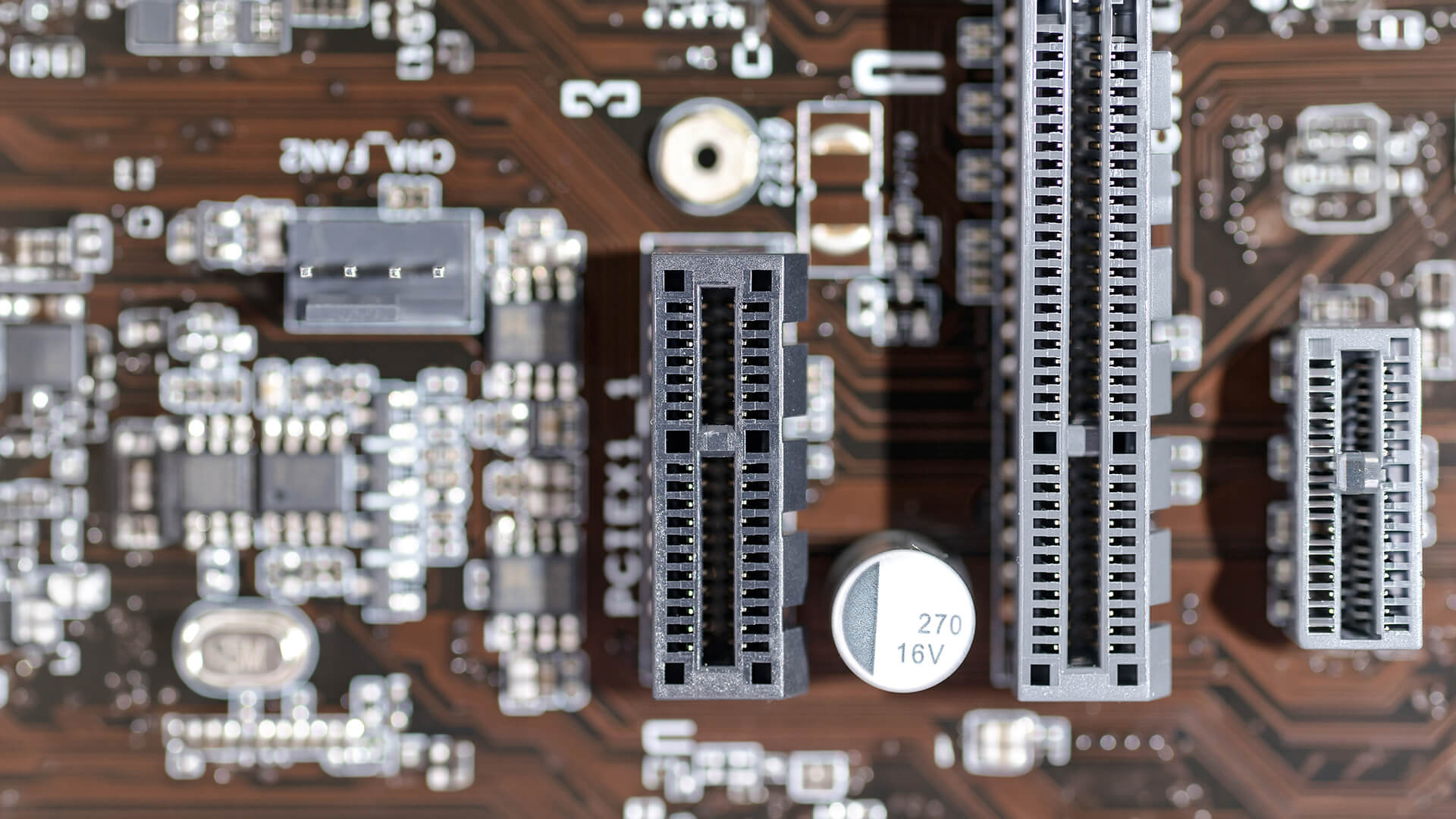
Choosing a motherboard is not only about CPU socket, RAM support or chipset. The layout of the motherboard's PCIe slots decides how easily you can install a graphics card, add extra storage, fit expansion cards and keep upgrade room for later.
Before choosing a board, check:
- Whether the main GPU slot is full-length and supports the PCIe generation you need.
- How many M.2 slots are available for NVMe SSDs.
- Whether any M.2 slots share bandwidth with PCIe slots or SATA ports.
- Whether a large graphics card will block smaller slots.
- How many usable x1, x4, x8, or x16 slots remain after the GPU is installed?
- Whether the case size gives enough room around the board.
- Whether the manual confirms the slot speeds you expect.
The key is not just having more motherboard expansion slots. A good board should have a clean motherboard layout design, sensible spacing and enough usable lanes for the parts you actually plan to install.
Who Needs More PCIe Expansion?
Gamers usually need one strong graphics card slot and enough M.2 support for fast storage. Streamers may need room for a capture card, while creators may want extra storage, faster networking or more add-in cards.
For everyday users, too many PCIe slots may not matter much. A compact build with one GPU slot and a couple of M.2 connectors can still be perfectly fine. For heavier builds, checking PCIe x16, x8, x4, and x1 support before buying helps avoid awkward upgrade limits later.
Final Verdict: Do PCIe Slots Really Matter?
Yes, motherboard PCIe slots do matter, especially if you plan to add a graphics card, extra SSD storage, a capture card, faster networking or other expansion cards. The important thing is not just how many slots a board has, but what type they are, how they are wired and whether they share bandwidth.
For most buyers, the main checks are simple: use the correct slot for the GPU, check the PCIe generation, confirm the real lane count, and make sure the board layout leaves enough room for future upgrades. PCIe is built around long-term compatibility, so older and newer devices can often work together, but the final speed depends on the slowest supported device or slot.
Frequently Asked Questions
What are PCIe slots for on a motherboard?
PCIe slots are used to add extra hardware to a PC, such as graphics cards, Wi-Fi cards, sound cards, capture cards, network cards and SSD adapter cards.
Should I use PCIe slot 1 or 2?
For a graphics card, use the first full-length PCIe slot, usually the one closest to the CPU. For smaller cards, the second slot can be fine as long as the motherboard manual supports it.
Can I put a PCIe 4.0 card in a PCIe 5.0 slot?
Yes. A PCIe 4.0 card can work in a PCIe 5.0 slot, but it will run at PCIe 4.0 speeds rather than PCIe 5.0 speeds. PCIe is designed to support compatibility across generations.
Is PCIe faster than SSD?
PCIe is not a storage drive. It is the connection interface used by many fast NVMe SSDs, and an NVMe SSD using PCIe is usually much faster than an older SATA SSD.
Can I put an SSD in a PCIe slot?
Yes, but usually with a PCIe-to-M.2 adapter card. Most modern NVMe SSDs install directly into an M.2 slot on the motherboard.
Can I put a PCIe 3.0 card in a PCIe 4.0 slot?
Yes. A PCIe 3.0 card can work in a PCIe 4.0 slot, but it will run at PCIe 3.0 speeds.
You can pay with:
*PayPal Credit Representative Example: Assumed credit limit £1,200, Representative 23.9% APR (variable). Purchase rate 23.9% p.a (variable).Terms & Conditions apply.


PayPal Credit and PayPal Pay in 3 are trading names of PayPal UK Ltd, 5 Fleet Place, London, United Kingdom, EC4M 7RD. Terms and conditions apply. Credit subject to status, UK residents only, Five Tech LTD acts as a broker and offers finance from a restricted range of finance providers. PayPal Pay in 3 is not regulated by the Financial Conduct Authority. Pay in 3 eligibility is subject to status and approval. 18+. UK residents only. Pay in 3 is a form of credit. Check if affordable and how you will repay. May make other borrowing more difficult or expensive. See product terms for more details.
Copyright © 1996-2026 Fivetech LTD | Terms and Conditions
box.co.uk & Box are trading names of Five Tech Limited. Registered office: Box LTD, Unit 10 Woodford Trading Estate, Woodford Green IG8 8HF