


 Menu
MenuMenu


Get Sales Advice from Mon - Fri 9am - 5:00pm:
020 3337 8950LAST UPDATED: December 02, 2025
MacBook Pro Crashes or Kernel Panics: Diagnosing & Preventing Unexpected Restarts
Even top-tier laptops like the Apple MacBook Pro can run into stability problems. Creators, developers and everyday users occasionally deal with sudden crashes, unexpected restarts or the dreaded message: "Your computer was restarted because of a problem." These moments can be frustrating, especially when you rely on your machine to stay productive or to handle heavier tasks like editing, coding, or running multiple apps at once.
A crash or kernel panic isn't just an annoyance. It can disrupt deadlines, corrupt files, and hint at a deeper issue that needs attention. This guide walks you through the MacBook Pro kernel panic fix process, helping you understand what these errors actually mean, how to diagnose them properly and what steps you can take to prevent them in future.
If you've been searching "Why does my MacBook Pro keep restarting because of a problem?", you're in the right place. We'll cover the most common root causes, practical troubleshooting methods and long-term habits to keep your Mac running smoothly. And if you're comparing your current setup with potential upgrades, you can browse the latest MacBook laptops including the new MacBook Pro options or even check whether a MacBook Air suits your workload better.
What Counts as a Crash or Kernel Panic on a MacBook Pro?
Before you dive into any MacBook Pro kernel panic fix, it helps to understand exactly what's going on when your system crashes. On macOS, a standard crash is usually caused by an app freezing or failing, which might force you to close it or restart manually. A kernel panic, however, is more serious. It happens when macOS detects a low-level system fault, often involving hardware, drivers or processes that operate deeper than regular apps.
When a kernel panic occurs, your MacBook Pro typically restarts on its own. After rebooting, you'll see a message saying "Your computer was restarted because of a problem." In some cases, the machine might enter a restart loop, or you may experience repeated black-screen resets without warning.
These events matter because they can interrupt important work, risk data loss, and signal that something in your setup isn't behaving as expected. Recognising the difference between a simple crash and a kernel panic gives you the clarity you need before moving into diagnosis and troubleshooting. It also helps you narrow down whether you're dealing with a one-off glitch or a recurring stability issue that needs a proper fix.
You might also want to check out our step by step guide if you MacBook won't turn on or boot for detailed instructions on recovery and diagnostics.
Common Causes Behind MacBook Pro Kernel Panics
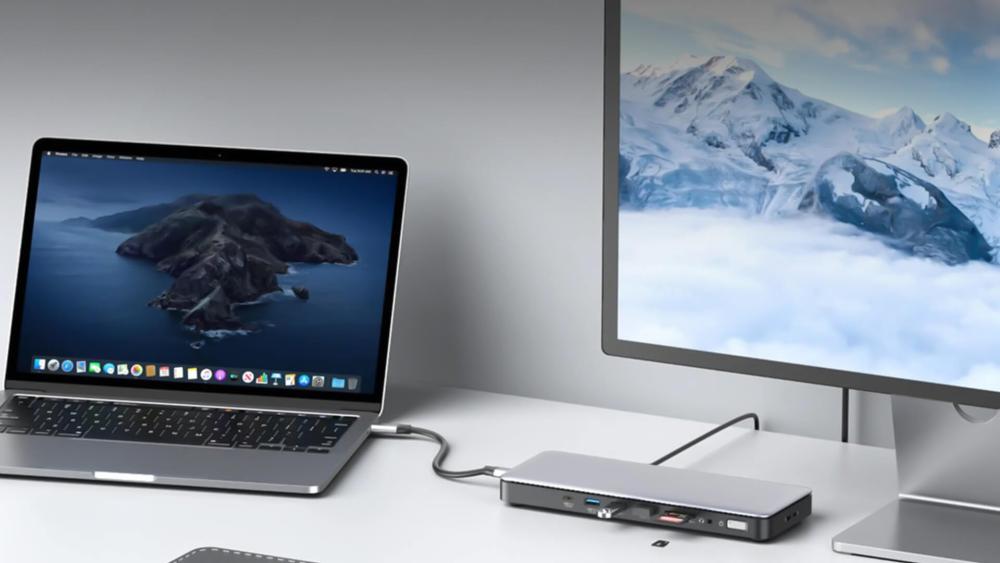
When you're hunting for a MacBook Pro kernel panic fix, the first step is understanding what might be causing the instability. Kernel panics can come from software, hardware, or even something as simple as a misbehaving USB-C dock. Identifying the pattern helps you zero in on the root cause rather than guessing.
Software Conflicts & Outdated Apps
A large portion of crashes comes from software that macOS isn't happy with. Incompatible apps, outdated plugins or background tools that rely on old kernel extensions can trigger sudden restarts. Even a macOS update can introduce temporary bugs if an app hasn't been patched yet. These issues often appear after waking the laptop from sleep or when launching heavier programmes.
Hardware Issues: RAM, Storage & Temperature
Hardware faults are another common source. Faulty RAM, storage corruption or SSD issues can all cause macOS to panic at a low level. If your MacBook Pro runs hot during gaming, editing or long rendering sessions, thermal stress can cause momentary instability. Over time, consistent overheating increases the likelihood of a kernel panic, especially on older Intel-era models.
External Devices & Peripherals
Many users report that kernel panics disappear the moment they remove external accessories. USB-C hubs, third-party docks, external monitors and discount chargers can introduce incompatible drivers or unstable power delivery. If you're exploring a MacBook Pro kernel panic fix, always consider peripherals as a potential cause.
Frequency Matters
How often the panic occurs can also point to the problem.
- Frequent panics, especially after sleep, usually suggest a software extension or external peripheral conflict.
- Rare panics, happening once every few weeks, may come from a one-off glitch, thermal spike or app bug.
Understanding which category your issue falls into sets the tone for the diagnostic steps ahead.
Diagnosing the Issue: How to Track Down Kernel Panic Causes
Before applying any MacBook Pro kernel panic fix, you need solid information about what triggered the restart. Proper diagnosis helps you avoid random trial-and-error and instead focus on the root cause, whether it's software, hardware or a dodgy USB-C hub.
Read macOS Crash & Kernel Panic Logs
Your first stop is the Console app. Open it, head to System Reports, and look for files named "Kernel_" or "Panic_". These logs detail which process or extension caused the crash. If you are wondering "How do I read a MacBook crash log?", don't worry. You don't need to decode the entire log. Just noting repeated processes, extensions or timestamps gives you key clues.
Test in Safe Mode
Booting in Safe Mode loads only essential macOS components. If your MacBook Pro runs smoothly in this mode, the problem likely sits with a third-party app, driver or background tool. Safe Mode strips the system down enough to help you pinpoint software-based panics.
Disconnect All External Devices
One of the most effective diagnostic techniques is also the simplest. Unplug docks, hubs, external drives, portable monitors, and USB-C adapters. Then use the Mac normally.
If your system stabilises, you've found the likely culprit. Sometimes USB-C docks can cause Kernal panics so this is a must check.
Run Apple Diagnostics
Apple Diagnostics checks for hardware faults like memory errors, logic board issues or defective sensors. Hardware-related panics are less common but more serious. If Diagnostics flags something, professional repair will be more effective than any software-based MacBook Pro kernel panic fix.
Look for Patterns
Patterns matter as much as the panic log itself.
- Does it crash after sleep? That often means a driver conflict.
- Does it happen under heavy load? That suggests thermal or hardware stress.
- Does it occur only when peripherals are connected? That's a peripheral-driven panic.
Tracking when the crash happens helps you move straight to the right solution instead of chasing ghosts.
Preventing Future MacBook Pro Crashes & Kernel Panics

Once you've identified the cause, the next step is applying a reliable MacBook Pro kernel panic fix and establishing habits that stop the issue from returning. Recent guidance confirms that most panics come from software conflicts, low system resources or unstable peripherals, so improving these areas significantly boosts long-term stability.
Keep macOS and Apps Updated
Up-to-date software is one of the strongest defences against kernel panics. Many stability fixes from Apple and third-party developers are delivered through routine updates, especially for apps that rely on background processes or kernel extensions. Running an old macOS version or outdated apps increases your chance of unexpected restarts.
Remove Faulty Extensions, Drivers or Login Items
Multiple reputable sources confirm that outdated or incompatible drivers and kernel extensions are major panic triggers. If your panic log repeatedly points to a specific extension, remove the associated app or driver. Cleaning up unused login items can also stop background tools from interfering with macOS.
Maintain Enough Free Storage & Memory
Low storage is directly linked to macOS instability. If you are wondering how much free storage is required to avoid crashes on MacBook Pro, keeping 10 to 20% of your SSD free gives the system enough room for virtual memory, caching, and maintenance tasks.
When your drive gets too full, macOS struggles to operate efficiently, which increases the chance of both app crashes and kernel panics.
Keep Hardware Clean and Cool
Thermal issues remain a recognised cause of system-level crashes. Dust buildup, blocked vents or extreme workloads can push your MacBook Pro into excessive heat, especially older Intel-based models. Make sure the system has clear airflow and avoid using the laptop on soft surfaces that trap heat.
Cheap docks, chargers or overloaded USB-C hubs can also deliver unstable power and cause crashes, so stick to reliable, well-matched accessories.
Consider a Clean Reinstall of macOS
If your Mac continues to panic even after updates, driver cleanup and hardware checks, a clean reinstall of macOS can resolve corrupted system files. This aligns with guidance that reinstalling the OS is a sensible last resort for persistent, unexplained panics. It's not required for most users, but it's effective when everything else has been ruled out.
Building these habits into your setup not only helps you apply a strong MacBook Pro kernel panic fix, but also ensures your system stays stable over the long term.
Which MacBook Pro Models Are More Likely to Show Kernel Panics?
Not every model is equally vulnerable, and understanding where your MacBook Pro sits on the stability spectrum helps you decide whether you need a MacBook Pro kernel panic fix, an accessory change or even an upgrade. Some models have more driver dependencies, while others handle peripherals and heavy workloads more gracefully.
Older Intel-Based MacBook Pro Models
Intel-era MacBook Pros rely on more third-party drivers and kernel extensions, especially for graphics, networking and external displays. These systems are also more prone to heat build-up, which can trigger panics when running demanding workloads. If you're experiencing recurring restarts on an older model, outdated drivers and thermal strain are likely suspects.
Apple Silicon Models (M1, M2, M3 and newer)
Apple Silicon models are generally far more stable because they don't use as many external kernel extensions, and their thermal efficiency reduces the risk of heat-related crashes. However, they're not immune. Faulty peripherals, buggy USB-C docks and certain third-party apps can still cause kernel panics, especially after major macOS updates.
Heavy Workflows & Complex Setups
Workflows that involve virtual machines, containers, AI tools, rendering or multi-display setups place extra stress on macOS. These environments often rely on background extensions or high-bandwidth hardware, meaning any incompatibility has a higher chance of surfacing as a crash.
After Major macOS Upgrades
Right after a big macOS version release, some users experience temporary instability. Older drivers may not be fully optimised, and early patches often address kernel-level bugs. If you suddenly run into a MacBook Pro kernel panic fix after a big update, a mismatched or outdated extension is a strong possibility.
Value & Stability: Should You Upgrade or Reconfigure?
If your Mac keeps restarting unexpectedly, it's not just a technical inconvenience. It also reduces the overall value you're getting from the machine. A reliable setup is essential whether you're editing content, coding long builds or running heavier workflows.
Understanding when to continue troubleshooting versus when to consider a change helps you make a smarter long-term decision.
When Frequent Crashes Reduce Value
If you are going through a MacBook Pro kernel panic fix every few days, you're losing time, data and productivity. At that point, the real "cost" isn't the laptop but the interruptions. Persistent kernel panics often point to deeper hardware issues, ageing components or inconsistent peripherals that aren't worth repeatedly patching.
Picking the Most Reliable MacBook Pro Setup
When you're browsing options, look for configurations with a strong record of stability. Apple Silicon models tend to offer fewer driver issues and more predictable macOS performance. If you're considering a replacement, check the latest MacBook Pro range or browse new laptops for models with known reliability benefits. Even stepping sideways to a well-balanced MacBook Air can offer surprising value for less demanding workflows.
Authentic Accessories vs Cheap Hubs
One of the most common causes behind repeat kernel panics is unstable power delivery or incompatible drivers from cheap USB-C hubs, HDMI adapters or no-name docks. Genuine Apple accessories or reputable alternatives significantly reduce the risk of restarts. For many users, replacing a £20 hub has a bigger impact than any software tweak.
Long-Term Stability for Creatives & Developers
If your work relies on uptime, especially if you're handling virtual machines, running external displays or exporting heavy media projects, stability becomes part of your value equation. A predictable, panic-free machine is worth more than raw specs.
Investing in a dependable setup saves far more time than trying to repeatedly patch around unstable extensions or hardware.
Who Should Pay Close Attention to Kernel Panic Symptoms?

Kernel panics can affect anyone, but certain users are more likely to experience them, or suffer more from the downtime they cause. Knowing whether you fall into one of these groups helps you decide how urgently you should apply a MacBook Pro kernel panic fix or review your current setup.
Creatives & Professionals
If you rely on your MacBook Pro for editing, rendering, recording or rapid-turnaround client work, even a single unexpected restart can cost valuable time. Since many creative workflows push the CPU, GPU and storage hard, small software or hardware faults can reveal themselves more quickly. Staying ahead of kernel panics is essential for protecting deadlines and ongoing projects.
Developers
Developers run some of the most demanding environments on a laptop: virtual machines, containers, emulators, multiple monitors and long compilation sessions. These setups expose low-level issues like driver conflicts or faulty extensions more often than casual use. A small glitch in one development tool can cascade into instability, making a reliable MacBook Pro kernel panic fix especially important.
Power Users & Travellers
If you regularly use your MacBook Pro with docks, USB-C hubs, external displays or portable monitors while on the go, you're at higher risk of peripheral-induced crashes. Many kernel panics stem from unstable power delivery or incompatible accessories. When troubleshooting, always start by unplugging everything. This may readily fix the issue for you.
Conclusion
MacBook Pro crashes and kernel panics might feel unpredictable, but with the right approach they're almost always fixable. Whether it's a faulty extension, a buggy app, a misbehaving USB-C dock or a hardware issue that's been building up over time, each symptom points towards a cause, and that makes a proper MacBook Pro kernel panic fix far easier than most people expect.
By checking crash logs, testing in Safe Mode, unplugging peripherals and running Apple Diagnostics, you can quickly identify what's behind the instability. From there, regular updates, reliable accessories, healthy storage levels and clean system management go a long way in preventing the problem from returning.
If you're dealing with repeated unexpected restarts or the "Your computer was restarted because of a problem" message, don't ignore it. Quick action protects your data, keeps your workflow smooth and ensures your MacBook Pro delivers the stability it was designed for. And if you decide your current setup is holding you back, you can explore the latest MacBook laptops including affordable MacBook Pro and the best MacBook Air ranges at Box to match your workload and long-term reliability needs.
FAQs
Why does my MacBook Pro keep restarting because of a problem?
This usually happens when macOS detects a system-level fault. Common causes include incompatible apps, faulty extensions, unstable USB-C docks, overheating or hardware issues. Identifying when the restart occurs is the first step toward a proper MacBook Pro kernel panic fix.
What causes a kernel panic on a MacBook Pro?
Kernel panics are triggered by low-level issues like corrupted system files, failing hardware, incompatible drivers, buggy software or power delivery problems from external devices.
Can external USB-C docks cause MacBook Pro crashes?
Yes. Many kernel panics are linked to unstable power delivery or incompatible firmware in third-party docks, hubs or adapters. Disconnecting peripherals is one of the fastest ways to diagnose this.
How do I read a Mac panic log?
Open the Console app, go to System Reports and look for files beginning with "Kernel_" or "Panic_". Focus on repeated extensions or processes, as they often highlight the cause.
Does reinstalling macOS fix kernel panics?
A clean reinstall can fix persistent issues caused by corrupted system files or deep software conflicts. It's best used after you've ruled out peripherals and faulty drivers.
Are MacBook Pro kernel panics more common on older models?
Yes. Intel-based MacBook Pros tend to rely on more third-party drivers, generate more heat and are more prone to hardware wear, making them more susceptible to panics.
Should I disconnect all externals if my MacBook Pro crashes after sleep?
Definitely. Sleep–wake kernel panics are often caused by external monitors, docks or hubs. Testing with no peripherals is one of the quickest ways to isolate the issue.
How much free storage do I need to avoid panics?
Aim to keep 10–20% of your SSD free. macOS relies on free space for caching, virtual memory and system processes, and running too close to full can increase instability.
What peripherals are safest to use with a MacBook Pro?
Official Apple accessories or reputable branded USB-C hubs, docks and chargers are safest. Cheap, unregulated hubs are a common cause of crashes and should be avoided.
When should I get my MacBook Pro hardware inspected for crashes?
If panics persist after removing peripherals, updating software and freeing storage, it's time for diagnostics. Frequent restarts, overheating or repeated panic logs suggest a hardware fault that needs professional inspection.
You can pay with:
*PayPal Credit Representative Example: Assumed credit limit £1,200, Representative 23.9% APR (variable). Purchase rate 23.9% p.a (variable).Terms & Conditions apply.


PayPal Credit and PayPal Pay in 3 are trading names of PayPal UK Ltd, 5 Fleet Place, London, United Kingdom, EC4M 7RD. Terms and conditions apply. Credit subject to status, UK residents only, Five Tech LTD acts as a broker and offers finance from a restricted range of finance providers. PayPal Pay in 3 is not regulated by the Financial Conduct Authority. Pay in 3 eligibility is subject to status and approval. 18+. UK residents only. Pay in 3 is a form of credit. Check if affordable and how you will repay. May make other borrowing more difficult or expensive. See product terms for more details.
Copyright © 1996-2026 Fivetech LTD | Terms and Conditions
box.co.uk & Box are trading names of Five Tech Limited. Registered office: Box LTD, Unit 10 Woodford Trading Estate, Woodford Green IG8 8HF