


 Menu
MenuMenu


Get Sales Advice from Mon - Fri 9am - 5:00pm:
020 3337 8950LAST UPDATED: March 11, 2026
Resolving Battery Drain & Performance Slowdown on MacBook After macOS Updates
If you've just installed the latest macOS update and your Mac suddenly feels hotter, louder, or far less efficient than usual, you're not alone. It's incredibly common for users to experience battery drain and sluggish MacBook performance right after upgrading the system. Even powerful devices that seem like the best laptops, for example, the MacBook Air and MacBook Pro can show signs of strain during the first few hours or days after an update.
Major macOS releases trigger a lot of behind-the-scenes processing, and that can leave your MacBook performance feeling inconsistent. Tasks like background indexing, app migrations, and system optimisation all compete for resources, which can lead to stutters, rapid battery drops, and overall slow behaviour. The good news is that most of these issues aren't long-term problems, and with the right steps, you can bring your Mac back up to speed quickly.
This guide walks you through every reliable fix: from identifying heavy background tasks to improving battery efficiency, restoring smooth MacBook performance or making your MacBook faster after a macOS update. Whether you're using an everyday laptop apple MacBook or a high-end MacBook Pro, this step-by-step approach breaks down exactly what to do, how to do it, and when you might need to take the more advanced route.
By the end of this guide, you'll have a clear path to recovering your battery life, boosting day-to-day responsiveness, and keeping MacBook performance at its best long after each macOS update.
Why Does It Happen? Understanding macOS Post-Update Behaviour
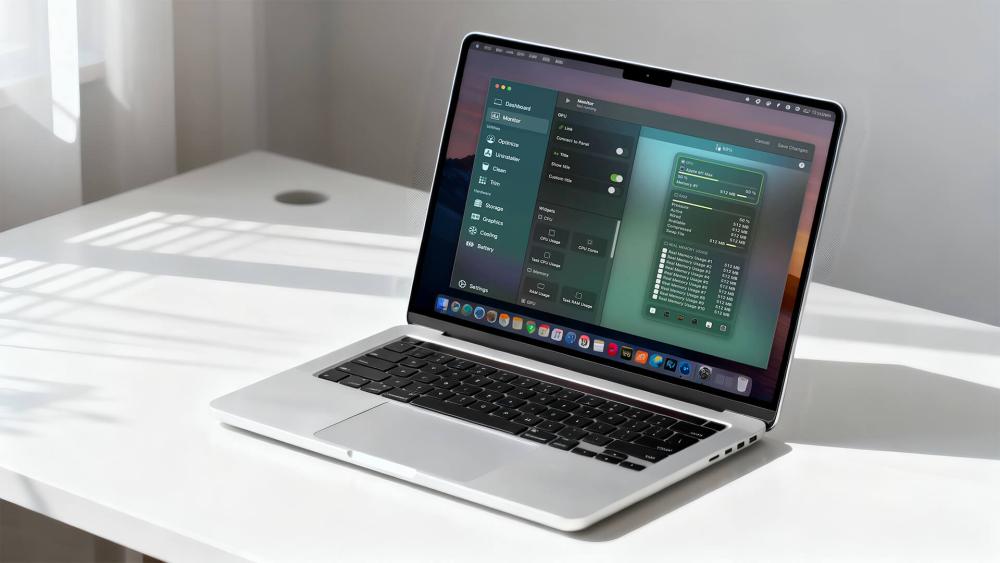
A sudden hit to MacBook performance right after a macOS update usually isn't a sign of hardware failure. In most cases, your system is simply working overtime to settle into the new software environment. macOS performs several intensive tasks in the background after every major update, and these can temporarily drain the battery or make your machine feel slower than usual.
One of the biggest culprits is Spotlight reindexing. After an update, your Mac rebuilds its entire search index, and this alone can cause high CPU usage, rising temperatures, and noisy fans. The Photos app also does a full sweep of your library to identify faces, scenes and objects, which can be extremely demanding on both processing power and battery life. On top of that, iCloud often re-syncs documents, system data and app files, especially if you work between multiple Apple devices. All of these tasks running together can make even powerful models like a Mac Pro or modern Apple MacBook Air feel unusually sluggish.
These behaviours are completely normal and usually settle down within a day or two. The key is understanding the difference between temporary background activity and persistent problems. If your MacBook performance continues to suffer long after those processes should have completed, that's when deeper troubleshooting becomes necessary.
For users switching between different Apple machines, whether it's a lightweight Mac laptop for travel or a more robust iMac workstation, knowing what's happening behind the scenes can help you decide whether to wait it out or take action. By recognising the typical symptoms of post-update processing, you can keep expectations realistic while avoiding unnecessary worry.
Step-by-Step Fixes for Battery Drain
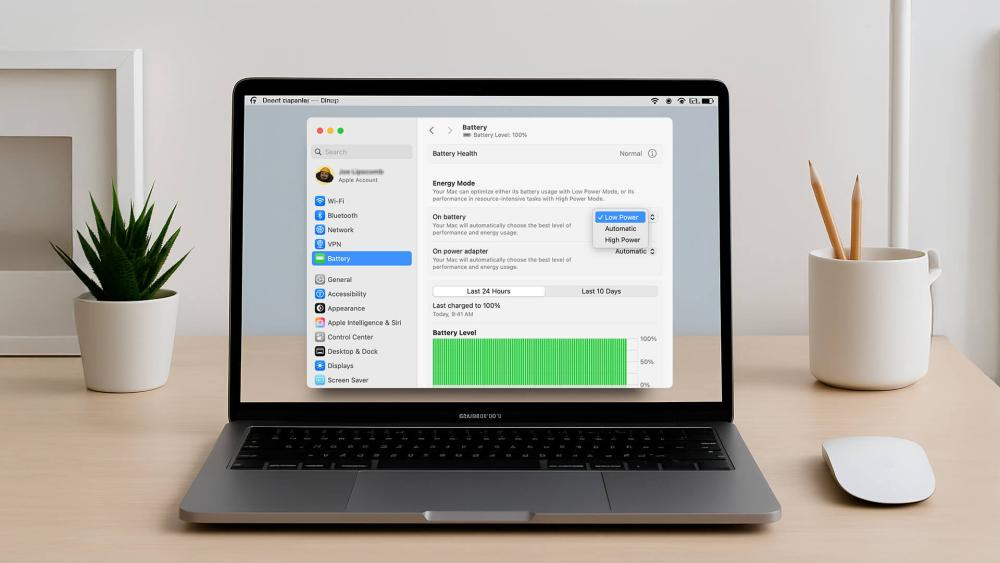
After an update, battery drain is usually the first thing users notice. Fortunately, most causes are easy to pinpoint with a few checks and adjustments. The following steps focus on improving battery life while helping stabilise overall MacBook performance, whether you're using a compact apple MacBook Air or a higher-end MacBook model.
Check Activity Monitor
Before changing anything else, open Activity Monitor and sort by "Energy Impact" and "CPU". This quickly reveals apps that are using too much power. Sometimes an app gets stuck in a loop after a macOS update, especially tools like cloud storage clients, browsers with many tabs, or creative software.
If you spot anything unusual, like a process using significant CPU while idle, quitting or restarting that app can immediately improve MacBook performance and reduce power drain. Background processes such as photoanalysisd, cloudd or mdworker are normal post-update, but they shouldn't dominate resources for long.
Reset SMC & NVRAM
A reset of the System Management Controller is one of the most reliable fixes for power-related issues on Intel-based Macs. The SMC controls battery charging, thermal behaviour and general power management, things that can behave oddly after a big update.
NVRAM stores display, sound and startup settings. Resetting it can help resolve cases where brightness, volume or boot errors indirectly affect MacBook performance.
M-series chips don't require SMC resets, but restarting your device and letting it complete post-update optimisation can achieve a similar result.
Disable Unnecessary Startup Apps
Too many login items can drain power every time your machine wakes up. Head to System Settings → Login Items and remove anything you don't truly need running in the background. VPN tools, messaging apps, and older utilities are common offenders, especially if they haven't been updated for the latest macOS version.
Keeping your startup list lean helps stabilise MacBook performance and gives your battery an easier time throughout the day.
Optimise Display & Power Settings
Small adjustments can lead to noticeable improvements. Lowering screen brightness, enabling auto-brightness, and shortening sleep timers can have an immediate effect on battery life. High refresh-rate displays and constant background refresh from certain apps can also drain power faster than expected.
Reviewing your Mac power management settings in System Settings allows you to fine-tune sleep behaviour, display timing, and battery optimisation features, which can significantly improve stability after a macOS update.
If you're using multiple Apple machines these settings are worth checking after every update.
Fixing Performance Slowdown
Even after battery issues are stabilised, many users still notice sluggish menus, app stutter or general lag after a macOS update. Some users also report that their MacBook screen went black temporarily during use, which can happen if background processes spike CPU or GPU usage while the system is still optimising. In more severe cases, the MacBook frozen issue can occur, where the cursor stops responding or apps refuse to close, typically due to background indexing, memory pressure, or incompatible software running after the update.
This is usually caused by lingering background tasks, cached system data, or apps struggling to adjust to the new OS. The following steps help restore smooth MacBook performance whether you're using a slim apple MacBook Air or a more powerful workstation.
Check CPU Usage & Kernel Tasks
Open Activity Monitor and sort by CPU. If you notice processes like WindowServer, mdworker, photoanalysisd or kernel_task constantly hitting the top of the list, that's a sign your system is still working through post-update workloads. While short spikes are normal, continuous high usage points to an issue.
Kernel_task, in particular, can ramp up to reduce overheating by artificially limiting CPU access. This often happens after updates if dust buildup, background indexing, or outdated apps are stressing the system. Reducing the load helps normalise MacBook performance.
Clean System Cache & Rebuild Spotlight Index
Corrupted or outdated cache files can cause lag or slow app launches. Clearing system cache through Finder is a safe option for most users. You can also rebuild the Spotlight index if searches feel slow or if Spotlight constantly spins the CPU.
Rebuilding Spotlight often solves unexpected dips in MacBook performance, as it resets the macOS search framework to work more efficiently.
Manage Background Syncs
Syncing services like iCloud Drive, Photos, OneDrive and Dropbox can be heavy after a macOS update. If your Mac feels sluggish, temporarily pausing large sync operations can make a noticeable difference, especially on models with smaller SSDs.
This is particularly important for users who work across multiple MacBook laptops, as syncing happens across all devices simultaneously after an update.
Run Disk Utility & First Aid
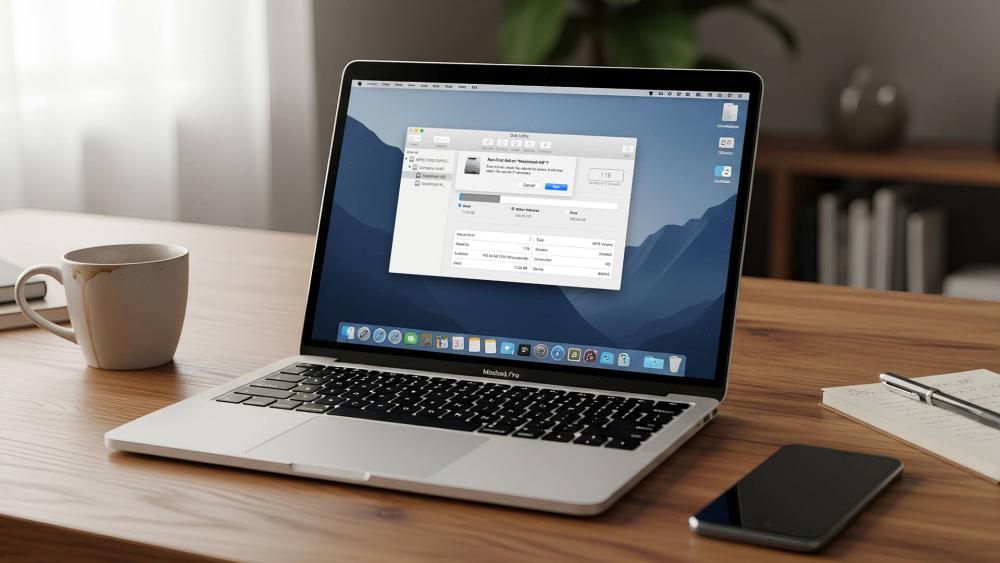
Disk Utility's First Aid tool checks for corrupted sectors or file system inconsistencies. This is a smart step after every major macOS upgrade, especially if the update was interrupted or the Mac froze during installation.
Repairing minor disk issues can drastically improve MacBook performance, and it's completely safe to run.
Reinstall macOS if Needed (Non-Destructive)
If slowdowns persist even after all other fixes, a non-destructive macOS reinstall can refresh system files without touching your data. This replaces damaged components that updates sometimes struggle with, restoring a more responsive experience.
It's a last-resort option, but many users report an immediate boost in MacBook performance afterward, especially on older devices that have gone through several updates.
Battery Calibration & Health Monitoring
Even after fixing immediate drain issues, it's essential to understand the long-term condition of your battery. Every macOS update puts extra strain on power management systems, which can make MacBook performance feel inconsistent if the battery isn't in good shape. Proper calibration and monitoring help you spot early signs of battery wear, especially on devices like an apple MacBook air or older Mac laptops that have already been through several update cycles.
Checking Battery Health
Head to System Settings → Battery → Health to view your current maximum capacity and cycle count. A healthy battery typically sits above 80 percent capacity, although aging hardware will naturally show lower numbers. If your battery health appears to have dipped sharply right after an update, don't panic, macOS sometimes recalculates metrics, and readings can stabilise after a few charge cycles.
Monitoring tools like CoconutBattery or iStat Menus can provide deeper insights. These apps let you track wear levels over time, which helps you understand whether performance drops are caused by software issues or genuine battery aging.
Good battery health directly affects MacBook performance, especially under load, so it's worth checking this regularly.
Recalibrating the Battery
If your readings feel inaccurate or your MacBook is behaving unpredictably, shutting down early or draining very quickly, a full recalibration often helps. The process is simple:
- Charge the Mac to 100 percent.
- Leave it plugged in for an additional two hours.
- Use the Mac on battery until it shuts down naturally.
- Charge it back to full without interruptions.
This helps macOS create a fresh baseline for battery reporting. MacBooks can often benefit from this, as smaller batteries are more sensitive to calibration drifts.
When to Consider Replacement
If your battery health is below 80 percent or your Mac struggles under even light workloads, it may be time to consider a replacement. A weak battery doesn't just cut unplugged time. It also limits MacBook performance, as macOS will throttle power to prevent unexpected shutdowns. Older units, particularly those used heavily for gaming, creative work or multi-display setups, tend to show this sooner. A bad battery is probably the biggest reason your MacBook keeps turning off randomly.
Software Conflicts & App Compatibility
After a macOS update, the system itself isn't always the problem. Outdated apps, background tools and third-party utilities can clash with the new OS, causing sudden battery drain, fan noise and a noticeable drop in MacBook performance. This is especially common on systems that rely on older software versions, plug-ins or Intel-optimised apps.
Outdated Apps Causing Issues
Apps that haven't been updated for the latest macOS version can behave unpredictably. VPN clients, antivirus software, audio tools and menu-bar apps are often the most problematic. They may run inefficiently or repeatedly crash in the background, pulling down overall MacBook performance.
If you've noticed a specific app becoming sluggish or unstable after the update, check for patches in the App Store or directly from the developer. Users moving between devices, whether a lightweight Apple MacBook Air or a more workstation-style Mac laptop, should keep all commonly used apps updated to avoid system conflicts.
Intel-Only Apps on M-Series Macs
Many apps still rely on Rosetta 2 to run Intel-based software on M-series hardware. While Rosetta works impressively well, it can still add overhead, especially with resource-intensive programs like creative suites, emulators or older productivity tools.
If you're using an M-series Mac and notice a hit to MacBook performance, check whether your heavier apps offer native Apple Silicon versions. Switching to native builds can significantly reduce CPU load, battery drain and heat.
Background Tools & Syncing Services
Cloud tools, menu-bar widgets and security utilities sometimes misbehave after macOS changes. If you use multiple Apple devices, for example, combining a portable MacBook with a more robust Apple Mac Pro, apps like Dropbox, OneDrive and iCloud Drive may re-sync huge volumes of data across all machines immediately after updating.
Pausing these syncs or restarting the affected apps can quickly stabilise MacBook performance if they're causing excessive background load.
Advanced Solutions
If you've tried all the standard fixes and your MacBook performance still isn't where it should be, it may be time to explore more advanced troubleshooting. These steps are ideal for confident users who understand the risks of deeper system adjustments. They're also helpful for devices that have gone through several major macOS updates or run complex software setups across different Apple machines like an Apple MacBook Air or a more powerful Apple Mac Pro. In some cases, users report their MacBook not turning on at all after an update. While this is far less common than performance slowdown, it can happen if the update process was interrupted, if power management settings become corrupted, or if the battery is critically low. Before assuming hardware failure, ensure the device is charged, try a forced restart, and disconnect external accessories that may interfere with startup.
-
Reset macOS Power Management Database (Terminal)
macOS occasionally develops power management inconsistencies after system upgrades. Resetting these parameters through Terminal can help stabilise behaviour such as sudden battery drops, unexpected fan activity or inconsistent MacBook performance.
The command removes outdated power settings so macOS can rebuild a clean profile. Users typically notice smoother sleep–wake behaviour and better idle efficiency afterward.
-
PRAM/NVRAM Reset for Intel Macs
While M-series devices don't use this step, Intel-based Macs can benefit from a PRAM/NVRAM reset if you're experiencing odd behaviour with sound, display brightness, boot sequence or battery reporting. These settings can become corrupted during macOS updates, and resetting them often restores more predictable MacBook performance.
-
Safe Boot Diagnostics
Starting your Mac in Safe Mode disables third-party extensions and login items, allowing you to isolate problematic software. If your Mac runs noticeably faster in Safe Mode, something in your normal startup sequence is dragging down MacBook performance.
From here, you can remove or review background tools, legacy software or older utilities that may be clashing with the latest macOS features.
-
Managing Heavy Background Processes
Advanced users can also manually throttle or terminate demanding processes using Activity Monitor or Terminal. This is useful for creative workloads or users who work between devices, for example, switching from a portable mac laptop to a heavier workstation, where multi-app workflows create additional stress after updates.
Stopping runaway tasks or restarting stuck background services often delivers an immediate lift in MacBook performance.
-
Third-Party Optimisation Tools (Use with Caution)
Utilities like CleanMyMac X, Sensei and OnyX can tidy up cache files, rebuild system databases, and streamline background activity. However, they must be used responsibly. While these tools can help free storage and tidy system clutter, deleting the wrong components can cause new issues.
For users confident with the software, selective use can complement manual troubleshooting and lead to smoother MacBook performance, especially on older devices or machines with limited storage.
Preventive Maintenance Tips
Once your Mac is running smoothly again, the best thing you can do is prevent the same problems from returning. Regular maintenance doesn't just help preserve battery life. It also keeps MacBook performance stable long-term, especially on devices that undergo heavy workloads or frequent macOS updates. Whether you're using a slim Apple MacBook Air or a more professional Mac laptop, these habits make a noticeable difference.
-
Stay Updated — But Choose the Right Time
While macOS updates bring new features and important security improvements, early versions often include bugs that can impact battery life and MacBook performance. It's usually best to wait until the first minor patch is released before updating. This gives Apple time to resolve widespread issues reported by early adopters.
-
Maintain Free Storage Space
macOS runs best when at least 20 percent of your SSD is free. Low storage forces the system to work harder, slowing down tasks and increasing battery drain. Users working between multiple Apple machines should make storage maintenance a regular habit.
Avoid Constant High Brightness and Heat Exposure
High screen brightness and warm environments can dramatically affect battery health. Reducing brightness and avoiding direct heat helps protect both battery longevity and MacBook performance. This is especially important for portable models that travel frequently.
-
Restart Regularly
A simple restart can clear cached processes, refresh system tasks and keep everything running efficiently. Many users go weeks without rebooting, which allows small glitches and background tasks to build up over time. Restarting once or twice a month is an easy way to keep MacBook performance consistent.
-
Install Only Trusted Software
Malicious or poorly maintained apps can run unnecessary background tasks, eat into storage space and cause unexpected slowdowns. Sticking to reputable developers helps you avoid hidden drainers that can undermine MacBook performance, particularly after macOS updates.
Conclusion
Battery drain and slowdowns after a macOS update can be frustrating, but for most users, these problems are temporary and completely fixable. Background processes like indexing, syncing and cache rebuilding naturally place extra strain on the system during the first few hours or days, which explains the dip in MacBook performance. Once those tasks settle, your device should feel noticeably smoother.
By checking Activity Monitor, adjusting power settings, reviewing software compatibility and performing resets where needed, you can resolve the majority of post-update issues without any complicated steps. For more persistent problems, tools like Disk Utility or even a clean macOS reinstall can restore stable MacBook performance, especially on older devices that have been through multiple major updates.
Whether you rely on a lightweight Apple MacBook Air for portability or a more powerful Mac laptop for demanding workloads, keeping a few maintenance habits in place ensures consistent performance long-term. Monitor your battery health, stay mindful of background apps and give your system time to settle after each update. These small steps go a long way.
If your device still struggles despite troubleshooting, it may be worth exploring newer models known for stronger battery efficiency and more consistent MacBook performance, especially across the latest macOS releases.
FAQs
Why is my MacBook battery draining fast after updating macOS?
Right after an update, your Mac runs several system tasks in the background, including Spotlight indexing, iCloud sync and photo analysis. These jobs increase CPU usage and energy consumption, which can temporarily impact MacBook performance and battery life. Once the processes complete, battery behaviour should return to normal.
How do I fix performance lag after a macOS update?
Start by checking Activity Monitor for apps using heavy CPU or Energy Impact. Resetting settings like SMC (Intel Macs), disabling unnecessary startup items, and cleaning outdated caches can also help. These steps usually restore smooth MacBook performance within a short time.
Should I reset SMC after every macOS update?
You don't need to reset the SMC after every update, but it's helpful if you notice unusual battery drain, fan noise or power-related issues on an Intel-based Mac. Since the SMC controls thermal behaviour and power management, a reset can stabilise MacBook performance in cases where updates disrupt those functions. M-series models don't use SMC resets.
How can I tell if battery drain after an update is normal?
If the drain occurs mainly during the first 24 to 48 hours and Activity Monitor shows indexing tasks running, it's normal. However, if the battery continues to fall rapidly after the system has had time to settle, there may be an issue with app compatibility, background tools or calibration. Poor battery health can also affect MacBook performance, especially under load.
Does reinstalling macOS fix performance issues?
A non-destructive reinstall replaces damaged or outdated system files without erasing your data. If your Mac still lags after trying standard fixes, a fresh install often restores consistent MacBook performance. Many users see immediate improvements, particularly on older devices or those that have been updated repeatedly.
Can background indexing really slow down a Mac?
Yes. Spotlight, Photos and iCloud indexing are some of the most demanding background tasks macOS performs after an update. They can temporarily cause heat, fan spikes and slower MacBook performance, but the impact should fade once indexing is complete.
You can pay with:
*PayPal Credit Representative Example: Assumed credit limit £1,200, Representative 23.9% APR (variable). Purchase rate 23.9% p.a (variable).Terms & Conditions apply.


PayPal Credit and PayPal Pay in 3 are trading names of PayPal UK Ltd, 5 Fleet Place, London, United Kingdom, EC4M 7RD. Terms and conditions apply. Credit subject to status, UK residents only, Five Tech LTD acts as a broker and offers finance from a restricted range of finance providers. PayPal Pay in 3 is not regulated by the Financial Conduct Authority. Pay in 3 eligibility is subject to status and approval. 18+. UK residents only. Pay in 3 is a form of credit. Check if affordable and how you will repay. May make other borrowing more difficult or expensive. See product terms for more details.
Copyright © 1996-2026 Fivetech LTD | Terms and Conditions
box.co.uk & Box are trading names of Five Tech Limited. Registered office: Box LTD, Unit 10 Woodford Trading Estate, Woodford Green IG8 8HF