


 Menu
MenuMenu


Get Sales Advice from Mon - Fri 9am - 5:00pm:
020 3337 8950LAST UPDATED: January 14, 2026
MacBook Air Screen Issues: Flicker, Lines & Brightness - Diagnosis & Fixes
MacBooks are renowned for their quality and reliability, but even Apple's sleekest laptops, including the MacBook Air, aren't immune to occasional display hiccups. Experiencing frustrating screen issues like flickering, persistent lines (horizontal or vertical), or sudden brightness dips can be alarming and disrupt your workflow.
These symptoms can come from many sources; macOS bugs, outdated GPU drivers, flex cable problems, overheating, or even backlight degradation. In this guide, we'll walk you through how to diagnose the root cause, apply proven fixes, and determine when it's time to seek professional repair.
If you've ever searched for "MacBook Air screen flickering fix", "MacBook Air lines on screen repair" or "MacBook brightness not working", this guide is built to answer those exact queries.
Understanding MacBook Air Screen Issues
Before attempting any fixes, it's essential to understand how different display faults manifest on a MacBook Air and what they typically mean. Each symptom provides valuable clues that point toward either software glitches or deeper hardware issues.
Flickering
Screen flickering involves rapid flashes, momentary blackouts, or a shimmering effect across the display. This can happen occasionally or persistently. Flicker often indicates that something is interrupting the normal communication between macOS, the graphics processor, and the display panel.
A flickering screen is often a software problem, but persistent flicker under load may hint hardware strain or cable degradation.
Lines on Screen
Horizontal or vertical lines can appear as thin stripes, ghost patterns, or static‑like bands. These lines usually point toward physical or electronic faults within the display system. Lines are more commonly linked to hardware failure, especially if they change when adjusting the hinge angle.
Brightness Problems
Brightness issues can range from a screen that dims unexpectedly to one that refuses to brighten at all. These problems tend to affect usability more subtly but can still be disruptive.
Brightness faults can come from both software settings and hardware damage. If brightness remains uneven or half, the screen appears dim, it is usually a physical backlight issue.
Common Causes of MacBook Air Screen Problems
Many users assume screen faults always mean expensive repairs, but in reality, many problems originate from software conflicts or minor component wear. Below is a detailed breakdown of the most common causes behind flicker, lines, dimming, and backlight problems.
1. macOS Display Bugs or Update Issues
Each time Apple releases a major macOS update such as macOS Sequoia or Sonoma; it introduces new display drivers and graphical frameworks. Sometimes, these updates don't perfectly align with specific MacBook Air models or older hardware. This mismatch can cause random flickering, incorrect brightness levels, and colour profile errors.
These issues are usually temporary and often fixed by a patch or minor update, but they can be extremely frustrating while they persist.
2. Graphics Rendering & Overheating
The MacBook Air's thin, silent, fanless design keeps it lightweight but also makes it more prone to overheating during demanding tasks. When the system gets too warm, it automatically slows down (thermal throttling) to prevent damage.
This can lead to virtual artifacts, flickers under load, and delayed refresh rate adjustments. If display problems worsen during heavy use, overheating is likely the culprit.
3. Flexgate or Ribbon Cable Issues
The MacBook Air display relies on a thin, flexible ribbon cable that runs through the hinge. Repeated opening and closing of the lid can weaken this cable over time, especially on earlier models.
Signs of cable wear include lines that shift when the hinge moves, flickering at certain angles, and backlight drop-outs. This is a hardware problem, but replacing the cable is often cheaper than a full screen replacement.
4. Backlight Failure / LED Degradation
The backlight is responsible for illuminating the LCD panel. When it fails, visibility drops dramatically even if the screen is technically still displaying an image.
Typical indicators include half‑dim screens, zero brightness, and shadowing or flickering areas. Backlight problems almost always require professional repair or a full display assembly replacement.
5. Ambient Light Sensor Malfunction
Located near the webcam, the ambient light sensor automatically adjusts screen brightness based on room lighting. If this sensor starts misreading its environment, your MacBook Air may behave unpredictably.
Common symptoms include constant auto‑dimming, random brightness spikes, and unresponsive brightness controls. Sensor issues are often software‑related, but in rare cases they point to hardware faults near the display housing.
Step‑by‑Step Fixes for Screen Flicker
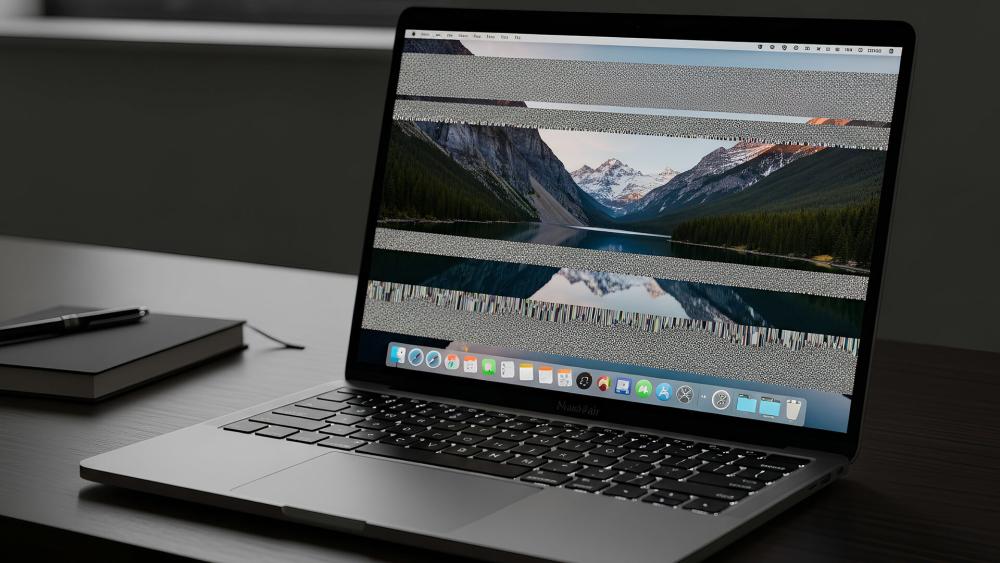
These fixes address the most common software‑related causes before moving to hardware checks. Display flickers are often caused by temporary system conflicts, overheating, or misconfigured settings, and many of these can be resolved at home.
1. Restart and Safe Boot
A restart helps clear cached files and reloads display drivers, which can immediately fix temporary bugs.
If flickering continues, Safe Mode helps isolate the issue.
Why Safe Mode helps:
- It disables third‑party apps and login items
- Loads only Apple's essential system extensions
- Runs basic disk checks
How to enter Safe Mode:
- Shut down your MacBook Air.
- Press the power button and immediately hold Shift.
- Release Shift at the login window.
If the flicker stops in Safe Mode, third‑party software is likely the cause.
2. Reset NVRAM/PRAM & SMC
Display settings (brightness, colour calibration, resolution) can become corrupted. Resetting NVRAM and SMC restores default behaviour.
Reset NVRAM/PRAM
- Shut down your Mac.
- Turn it on while holding Option + Command + P + R for 20 seconds.
This reset often fixes brightness drops, scaling glitches, and flicker after updates.
Reset SMC (Intel models only)
The SMC controls battery power, backlight functions, and thermal management.
- Shut down your Mac.
- Hold Shift + Control + Option + Power for 10 seconds.
- Turn the Mac on normally.
3. Update macOS & GPU Drivers
macOS updates frequently include patches that fix GPU‑related flickering.
Go to: System Settings → General → Software Update
Keeping your MacBook updated ensures display drivers and performance frameworks are compatible.
4. Disable Automatic Graphics Switching
Some MacBook Air models can shift between graphics modes to save battery. However, this switching can cause frame output instability.
Go to: System Settings → Battery → Options → Disable Automatic Graphics Switching
This forces a single consistent graphics mode, reducing flicker.
5. Check Display Refresh Rate
A mismatched or forced refresh rate can create flicker or shimmering.
Go to: System Settings → Displays → Refresh Rate
4. Select Default for Display
This ensures your MacBook uses the most stable refresh rate for your panel.
| If you are looking for a device that offers true touch and tablet versatility, you'll want to explore the best 2 in 1 laptops in the market. |
Fixing Lines on Your MacBook Air Screen
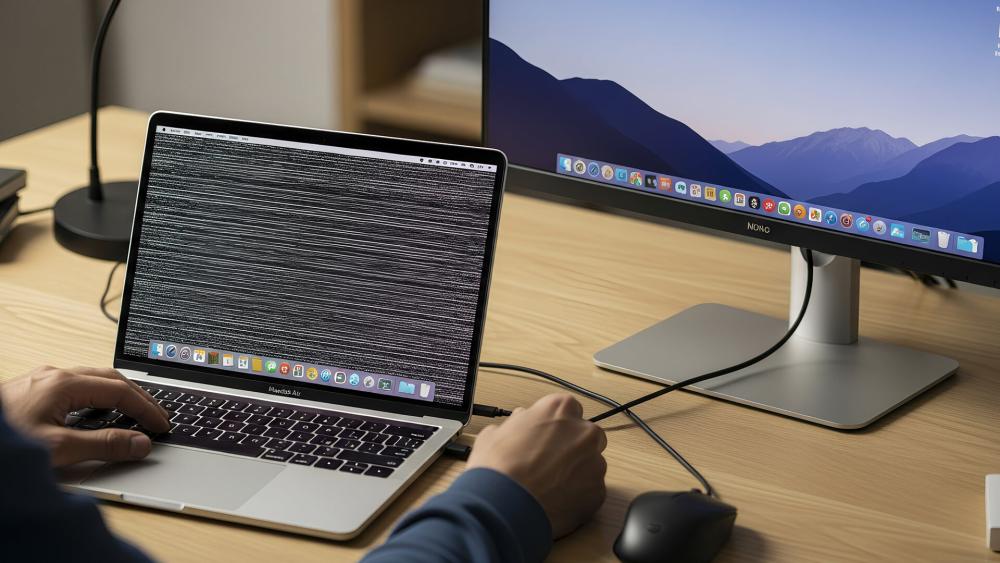
Seeing vertical or horizontal lines on your MacBook Air display can be alarming, but these lines often provide useful clues about what's going wrong. In many cases, the issue is related to the internal display connection or graphics processing, and you can diagnose the cause by following the steps below.
1. Test with an External Display
Connecting your MacBook Air to an external monitor is one of the quickest ways to narrow down the issue.
Why this test helps:
- If the external display looks normal, the GPU is functioning correctly. This means the problem is likely with the internal screen, flex cable, or display assembly.
- If the external display also shows lines, the issue likely originates from the GPU or logic board, not the screen itself.
What this tells you:
- Internal-only lines = display hardware fault
- Both screens affected = graphics subsystem fault
This step prevents unnecessary repairs by identifying whether the screen or the logic board is responsible.
2. Check the Display Flex Cable
The flex cable connects the display to the motherboard and runs through the hinge. With repeated opening and closing of the MacBook Air lid, this cable can become strained or partially damaged.
How to test it:
- Slowly open the lid to different angles.
- Watch the screen closely as you move the hinge.
If the lines:
- Change intensity
- Disappear at certain angles
- Become worse when the lid is nearly closed
This strongly indicates a flex cable issue. This problem is often repairable without replacing the entire screen, making it less costly than a full display assembly replacement.
| Users who prefer flexible touchscreen devices may also consider the best 2-in-1 laptops, which offer tablet-style versatility alongside traditional laptop functionality |
3. Run Apple Diagnostics
Apple Diagnostics can help identify deeper hardware issues.
How to run it:
- Shut down your MacBook Air.
- Press the power button and immediately hold D.
- Let go when the diagnostics screen appears.
- Follow the on-screen instructions.
If the test reports any reference codes related to the GPU, memory, or display subsystem, this confirms a hardware-level issue on the logic board.
4. Reset Display Colour Profile
Sometimes lines or colour distortions are caused not by hardware, but by a corrupted colour profile.
Go to: System Settings → Displays → Colour → Default
What this does:
- Restores Apple's original colour calibration
- Removes corrupted or incompatible profiles
- Fixes issues caused by third-party apps or external monitors
This is a simple step that can resolve visual artifacts without any hardware intervention.
Step-by-Step Fixes for Brightness & Backlight Problems
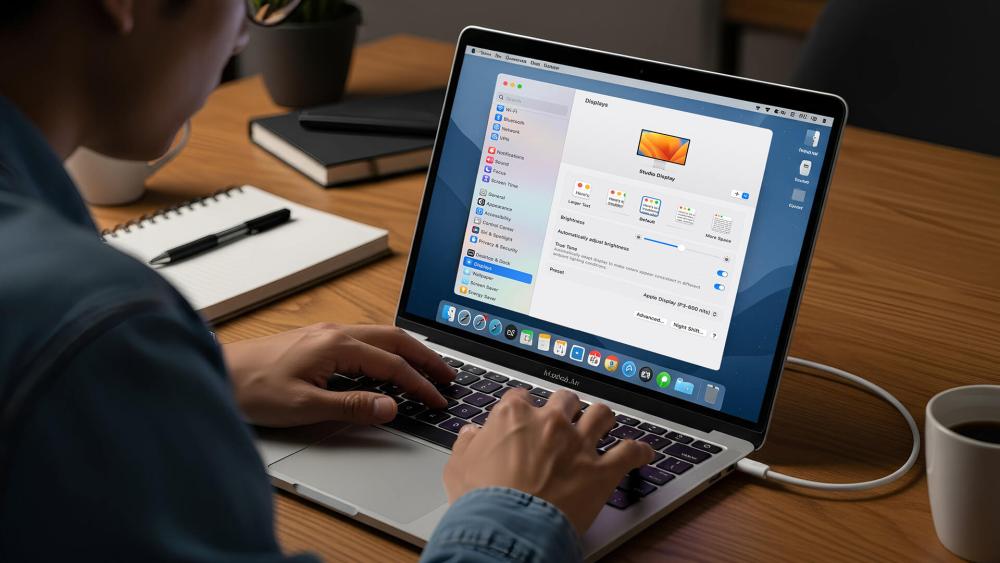
When your MacBook Air screen suddenly becomes too dim, unevenly lit, or refuses to brighten, the issue usually stems from either software-based brightness controls or a hardware-related backlight fault. Understanding which one you're dealing with is essential because while many brightness issues can be fixed at home, backlight failures generally require professional repair.
1. Disable True Tone & Auto‑Brightness
True Tone and Auto‑Brightness rely on sensors to automatically adjust your screen brightness and colour temperature. When these settings malfunction, your MacBook's brightness may constantly shift or look incorrect.
Go to: System Settings → Displays
- Turn off True Tone
- Turn off Automatic Brightness
Why this helps:
- It removes automatic adjustments and gives you full manual control.
- It prevents brightness from fluctuating due to sensor glitches or room lighting changes.
2. Check the Ambient Light Sensor
Your MacBook Air uses a tiny sensor near the webcam to measure surrounding light levels. If this sensor becomes dirty, blocked, or faulty, it may send inaccurate readings; causing sudden brightness jumps.
How to test it:
- Shine a light close to the webcam area.
- Then gently cover the sensor with your finger.
What it means:
- Huge, sudden shifts in brightness suggest the sensor is misreading light levels.
- No response at all may indicate that the sensor is malfunctioning.
Sensor issues are often software-related, but persistent misreadings can indicate a hardware fault near the display housing.
3. Reset NVRAM/PRAM Again
Brightness levels and backlight behaviour are partly stored in NVRAM. Sometimes the first reset doesn't fully clear corrupted data.
Running a second reset can fix:
- Unresponsive brightness keys
- A screen that stays too dim
- Incorrect brightness curves
This makes it one of the simplest and most effective brightness fixes.
4. Check Battery & Power Adapter
Your MacBook Air may dim the screen automatically to preserve battery life especially when the charge is low or the power adapter is failing.
You may notice:
- The screen dims when unplugged
- Brightness won't reach maximum on battery power
- The display flickers at certain battery percentages
Faulty or third‑party power adapters can also cause unstable voltage, which affects backlight performance.
5. Backlight Damage (Hardware Issue)
If your screen is bright on one side and dim on the other, or if it flickers only at certain brightness levels, the backlight LED system may be failing.
Common signs of backlight failure:
- Half‑dim screen: One LED strip has failed.
- Bright spots or shadows: Localised LED damage.
- No brightness at all: Backlight not powering on.
- Flickering even at high brightness: Inverter or LED instability.
Backlight issues cannot be fixed with software. They require:
- Backlight circuit repair, or
- A complete display assembly replacement
This is typically diagnosed by a technician and is separate from screen image problems.
Tips on Preventing Screen Problems
Taking care of your MacBook Air's display helps prevent future issues and prolongs the lifespan of the panel, backlight, and hinge mechanisms.
1. Keep macOS Updated
Stable updates include important bug fixes and display driver improvements. However, beta versions can introduce unpredictable behaviour.
2. Use Genuine Apple Chargers
Third-party chargers can deliver irregular voltage, risking damage to the logic board, backlight, or power circuits.
3. Avoid Pressure on the Lid
Objects left on the keyboard or pressing against the lid can crack internal display layers or damage cable connections.
4. Clean the Display Properly
Use microfiber cloth and avoid harsh chemicals. Liquid can seep into the edges and damage the backlight or sensor.
5. Protect the Hinge Mechanism
Opening the lid too far or using excessive force strains the flex cable and hinge structure is a common cause of screen lines and flickers.
Final Thoughts!
MacBook Air screen issues whether flickering, showing lines, or suffering backlight problems can be frustrating, but they're often easier to diagnose than most users expect. By understanding the underlying causes and applying the right troubleshooting steps, you can quickly narrow down whether the problem is software-based or requires professional repair.
If your MacBook Air laptop is experiencing persistent display issues, early diagnosis can help prevent more serious internal faults.
If you're considering upgrading to the latest Apple MacBook or need a reliable replacement while your device is being repaired, explore the wide range of MacBook Air, MacBook Pro, and other premium laptops available at Box.co.uk. With competitive prices, trusted brands, and fast delivery, Box is your go-to destination for your next Apple device or tech upgrade.
| If you move to more demanding visual tasks, models like the Apple Mac Pro offer higher GPU performance and improved thermal management. |
Frequently Asked Questions
Why is my MacBook Air screen flickering randomly?
Usually caused by GPU rendering glitches, macOS driver bugs, or worn display cables.
How do I fix lines on my MacBook Air display?
Start by testing an external monitor, checking the flex cable, and running Apple Diagnostics.
Why does my MacBook's brightness keep changing?
Auto-Brightness or a faulty ambient light sensor may be adjusting levels incorrectly.
Can a MacBook Air screen be repaired?
Yes, screens, flex cables, and backlight systems can all be professionally replaced.
How much does MacBook Air screen repair cost in the UK?
Most repairs range from £150–£350, depending on the model and damage.
Does AppleCare+ cover flickering or backlight issues?
Yes, if the issue is due to a manufacturing fault; accidental damage may require a fee.
You can pay with:
*PayPal Credit Representative Example: Assumed credit limit £1,200, Representative 23.9% APR (variable). Purchase rate 23.9% p.a (variable).Terms & Conditions apply.


PayPal Credit and PayPal Pay in 3 are trading names of PayPal UK Ltd, 5 Fleet Place, London, United Kingdom, EC4M 7RD. Terms and conditions apply. Credit subject to status, UK residents only, Five Tech LTD acts as a broker and offers finance from a restricted range of finance providers. PayPal Pay in 3 is not regulated by the Financial Conduct Authority. Pay in 3 eligibility is subject to status and approval. 18+. UK residents only. Pay in 3 is a form of credit. Check if affordable and how you will repay. May make other borrowing more difficult or expensive. See product terms for more details.
Copyright © 1996-2026 Fivetech LTD | Terms and Conditions
box.co.uk & Box are trading names of Five Tech Limited. Registered office: Box LTD, Unit 10 Woodford Trading Estate, Woodford Green IG8 8HF