


 Menu
MenuMenu


Get Sales Advice from Mon - Fri 9am - 5:00pm:
020 3337 8950LAST UPDATED: July 06, 2026
HP Monitor Connectivity Guide: HDMI, DisplayPort, USB-C and More
Choosing the right HP monitor connectivity setup is just as important as choosing the monitor itself. Whether you’re setting up a home office, building a gaming station or connecting a laptop for everyday work, understanding how different ports work can save time, reduce frustration and improve your overall experience.
Modern HP monitors offer a wide range of connectivity options from HDMI and DisplayPort to USB-C and legacy ports each designed for different devices and use cases. But with so many choices available, it can be confusing to know which one to use and when.
In this guide, we’ll explain everything you need to know about HP monitor ports, how to connect your monitor to a laptop or PC, and which connection type is best for your setup.
What Is HP Monitor Connectivity?
At its core, HP monitor connectivity refers to how your monitor connects to other devices such as laptops, desktop PCs, or docking stations. These connections allow your monitor to receive video, audio, and, in some cases, power through a single cable.
Different connection types offer different benefits, depending on your usage. For example, a gamer may prioritise refresh rates and bandwidth, while a professional may prefer a cleaner, single-cable setup using USB-C.
Understanding these differences helps you get the best performance and convenience from your monitor.
Top Connectivity Options for HP Monitors
When choosing the right HP monitor connectivity, it’s important to understand that not all ports are the same. Each connection type is designed for a specific purpose, whether that’s improving performance, simplifying your setup, or ensuring compatibility with different devices.
Modern HP monitors are built to be flexible, offering a range of ports that support everything from everyday office use to high-performance gaming and creative workflows. By understanding what each connection does, you can make better decisions and get the most out of your monitor.
1. USB-C / Thunderbolt (Best for Modern Setups)
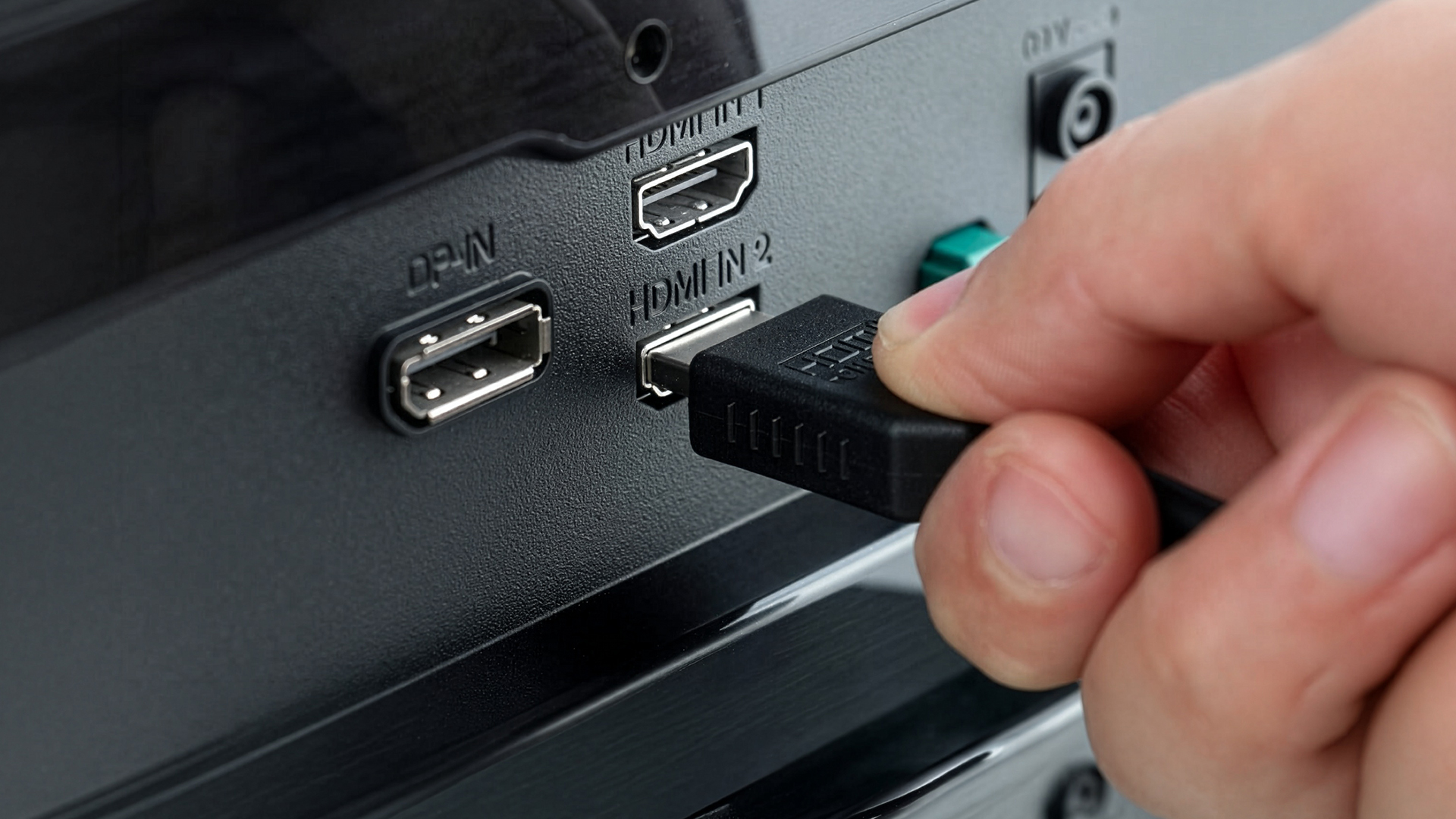
A HP USB-C monitor represents one of the most convenient and advanced connectivity options available today. Unlike traditional cables, USB-C is designed to handle multiple functions through a single connection.
With just one cable, you can:
- Transmit video from your laptop to the monitor
- Transfer data between devices
- Charge your laptop at the same time
Many modern HP monitors support Power Delivery between 65W and 100W, which means your laptop stays charged while you work eliminating the need for a separate power adapter.
This makes USB-C especially useful for users who want a clean, clutter-free workspace. Instead of managing multiple cables, you can rely on a single connection to handle everything.
For professionals, remote workers and students using modern laptops, USB-C offers the perfect balance of convenience, efficiency and simplicity.
2. DisplayPort (Best for Performance and Multi-Monitor Setups)
If your priority is performance, especially for gaming or professional use, HP monitor DisplayPort is often the best choice.
DisplayPort is designed to handle higher bandwidth than HDMI, which allows it to support:
- Higher refresh rates for smoother gameplay
- Higher resolutions for sharper visuals
- More stable connections in multi-monitor setups
This makes it particularly popular among users with gaming monitors or those running dual or triple monitor configurations.
For gamers, DisplayPort helps deliver a smoother and more responsive experience. For professionals, it ensures consistent performance when working across multiple screens.
In short, if you need performance and reliability, DisplayPort is a strong choice.
3. HDMI (Most Common and Versatile)
HP monitor HDMI is the most widely used and accessible connection type, making it the default choice for many users.
One of its biggest advantages is compatibility. HDMI works with:
- Laptops and desktop PCs
- Gaming consoles
- Streaming devices and media players
It supports up to 4K resolution at 60Hz, which is more than enough for everyday tasks such as office work, browsing, streaming and casual gaming.
What makes HDMI so popular is its simplicity. It’s easy to set up, widely supported and reliable across a wide range of devices.
For most users, HDMI provides a straightforward and dependable solution without needing specialised hardware.
4. VGA and DVI (Legacy Connections)
Some older HP monitor ports may still include VGA or DVI connections. These were commonly used in previous generations of monitors and computers.
While they can still be useful for connecting older devices, they come with limitations:
- Lower image quality compared to modern connections
- No support for higher resolutions or refresh rates
- Limited compatibility with newer devices
Because of this, VGA and DVI are gradually being replaced by HDMI, DisplayPort, and USB-C in modern setups.
If you’re using newer devices, it’s generally better to choose a more modern connection to ensure better performance and future compatibility.
How to Connect an HP Monitor to Your Laptop or PC
Setting up your monitor might seem technical at first, but once you understand the basics of HP monitor connectivity, the process becomes simple and straightforward. Whether you’re trying to connect HP monitor laptop setups for work or linking a desktop PC for gaming, the goal is to ensure a stable connection that delivers the best possible display quality.
The key is to follow a few simple steps while understanding how each connection works. This not only helps you set up your monitor correctly but also ensures you get the best performance from your device.
Step 1: Identify the Ports on Your Devices
Before connecting anything, take a moment to check the available HP monitor ports on both your monitor and your laptop or PC. Most modern devices will include options like:
- HDMI
- DisplayPort
- USB-C
Matching the ports on both devices is essential. For example, if your laptop has USB-C and your monitor supports it, using that connection can give you a cleaner and more efficient setup.
Understanding your ports at this stage helps avoid compatibility issues and ensures you choose the best connection for your needs.
Step 2: Connect the Appropriate Cable
Once you’ve identified the ports, the next step is to connect your monitor using the correct cable.
- Use USB-C to USB-C if you’re working with a modern laptop and want a single-cable solution
- Use an HDMI cable for a simple and widely compatible setup
- Use a DisplayPort cable if you want better performance, especially for gaming or multi-monitor setups
After connecting the cable, most systems will automatically detect the monitor. This plug-and-play functionality makes the process quick and hassle-free.
Step 3: Power On and Select the Right Input
After connecting the cable, turn on your monitor and ensure it is connected to a power source.
One important step that is often overlooked is selecting the correct input source on the monitor. For example, if you’re using HDMI, the monitor should be set to HDMI input rather than DisplayPort or USB-C.
If the display doesn’t appear immediately, switching to the input source usually resolves the issue.
Step 4: Configure Your Display Settings
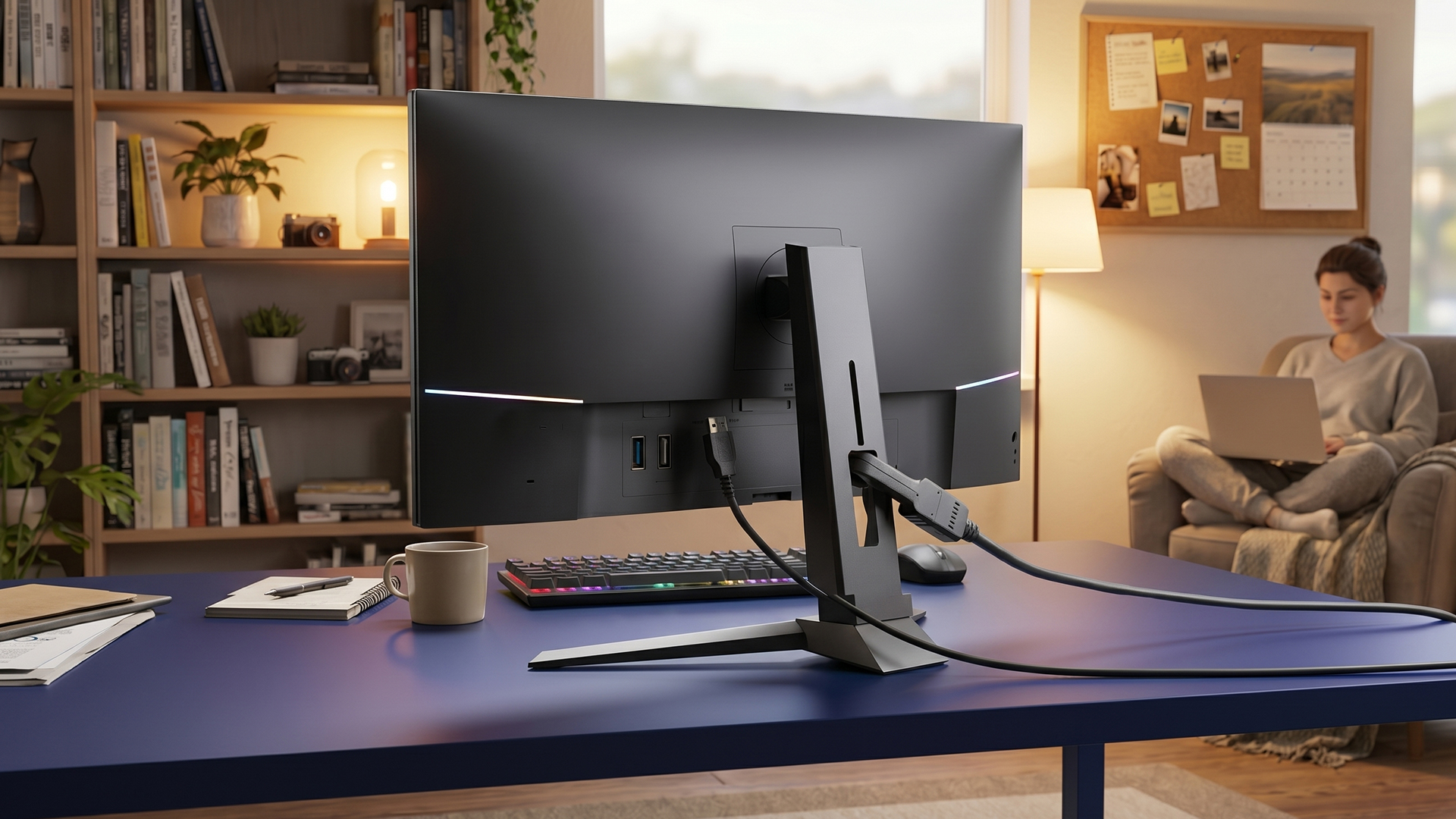
Once your monitor is connected, you can customise how it works through your system’s display settings.
On Windows, you can adjust:
- Resolution, to ensure sharp and clear visuals
- Display mode, such as duplicating your screen or extending it
- Scaling, for better readability and layout
This step allows you to tailor your setup based on how you plan to use your monitor whether for work, gaming or multitasking.
Key Tips for HP Monitor Connectivity
Once your setup is complete, a few simple tips can help you get the most out of your HP monitor connectivity and avoid common issues.
Use USB-C for a Cleaner Setup
If your laptop supports it, using a HP USB-C monitor is one of the easiest ways to simplify your workspace. A single cable can handle video, data and charging, reducing clutter and improving convenience.
Choose DisplayPort for Better Performance
For users focused on performance especially with gaming monitors, DisplayPort is often the better choice. It supports higher refresh rates and delivers smoother visuals, making it ideal for fast-paced applications.
Use Multiple Ports for Dual Monitor Setups
If you’re working with more than one screen, you can use a combination of HDMI, DisplayPort and USB-C to connect multiple monitors. This is particularly useful for productivity and multitasking setups.
Check Input Source if There Is No Display
If your monitor isn’t showing anything, the issue is often simple. Make sure the input source matches the cable you’re using. For example, switch from DisplayPort to HDMI if needed.
Best Use Cases for Different HP Monitor Connections
When it comes to HP monitor connectivity, choosing the right port is not just about what’s available; it’s about what works best for your specific setup. Different connection types are designed for different use cases, and understanding this can help you get better performance, improved visuals and a more efficient workspace.
For Office and Productivity
For everyday office use, simplicity and convenience are key. This is where USB-C and HDMI connections stand out.
A HP USB-C monitor is particularly useful in modern work environments. It allows you to connect your laptop, transfer data and charge your device all through a single cable. This creates a clean, clutter-free desk setup, which is ideal for professionals working from home or in an office.
HDMI, on the other hand, offers reliable compatibility with most laptops and desktops, making it a practical choice for standard productivity setups.
Recommended Product
For example, models like the HP Series 5 527sh 27" IPS Full HD 100Hz Height Adjustable Monitor (94C50AA#ABU) are well suited for office environments. Its Full HD IPS panel provides clear visuals for everyday tasks, while the ergonomic stand improves comfort during long working hours.
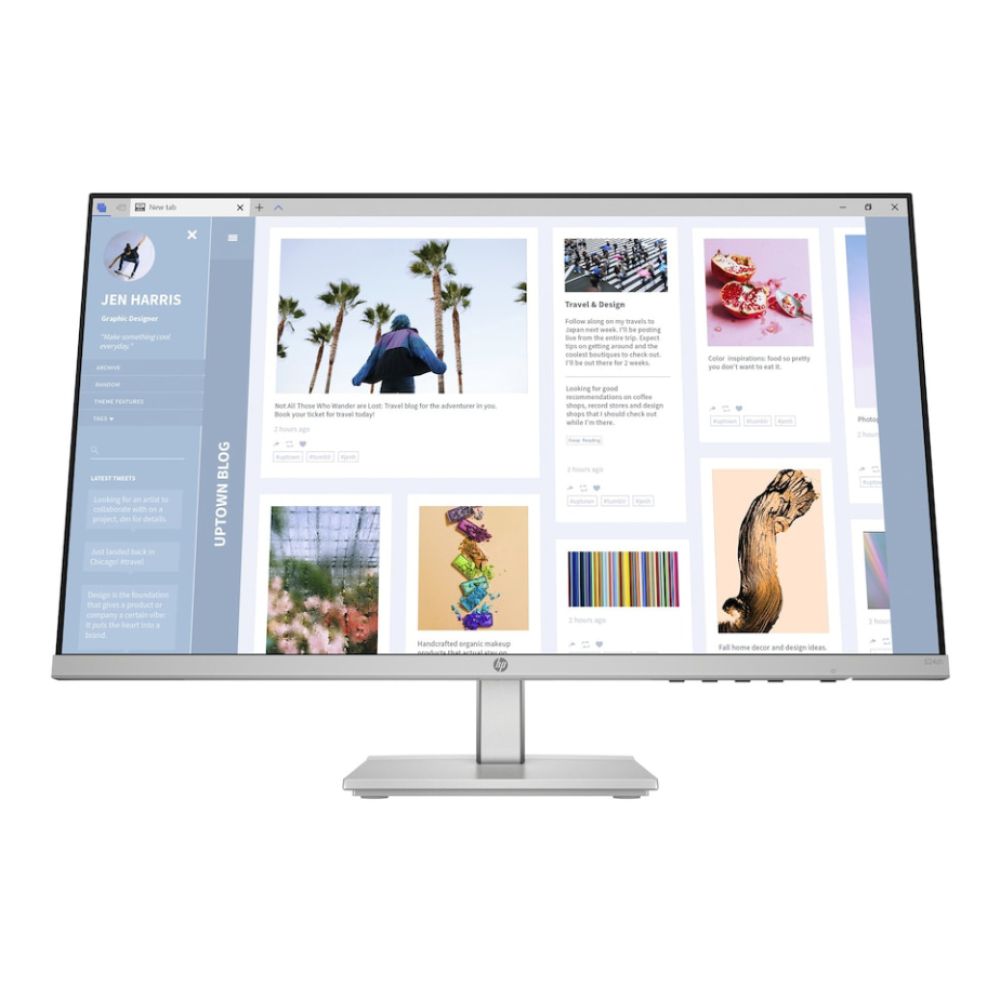
For users focused on efficiency and ease of use, these types of monitors paired with HDMI or USB-C provide the perfect balance of performance and convenience. You can also explore the best HP monitors for office use to find models specifically designed to enhance productivity.
For Gaming
For gaming setups, performance becomes the top priority. This is where HP monitor DisplayPort connections offer a clear advantage.
DisplayPort provides higher bandwidth compared to HDMI, allowing it to support higher refresh rates and smoother gameplay. This is especially important for fast-paced games where responsiveness and visual fluidity can make a noticeable difference.
If you’re using gaming monitors, DisplayPort helps deliver a more immersive and consistent experience, reducing screen tearing and improving overall performance.
Recommended Product
A great example is the HP OMEN 32c 32" Curved QHD 165Hz 1ms FreeSync Premium Gaming Monitor (780K6AA#ABU). With its high refresh rate and fast response time, it is designed for smooth and responsive gameplay. Pairing it with DisplayPort ensures you get the most out of its performance capabilities, especially in competitive or fast-paced games.
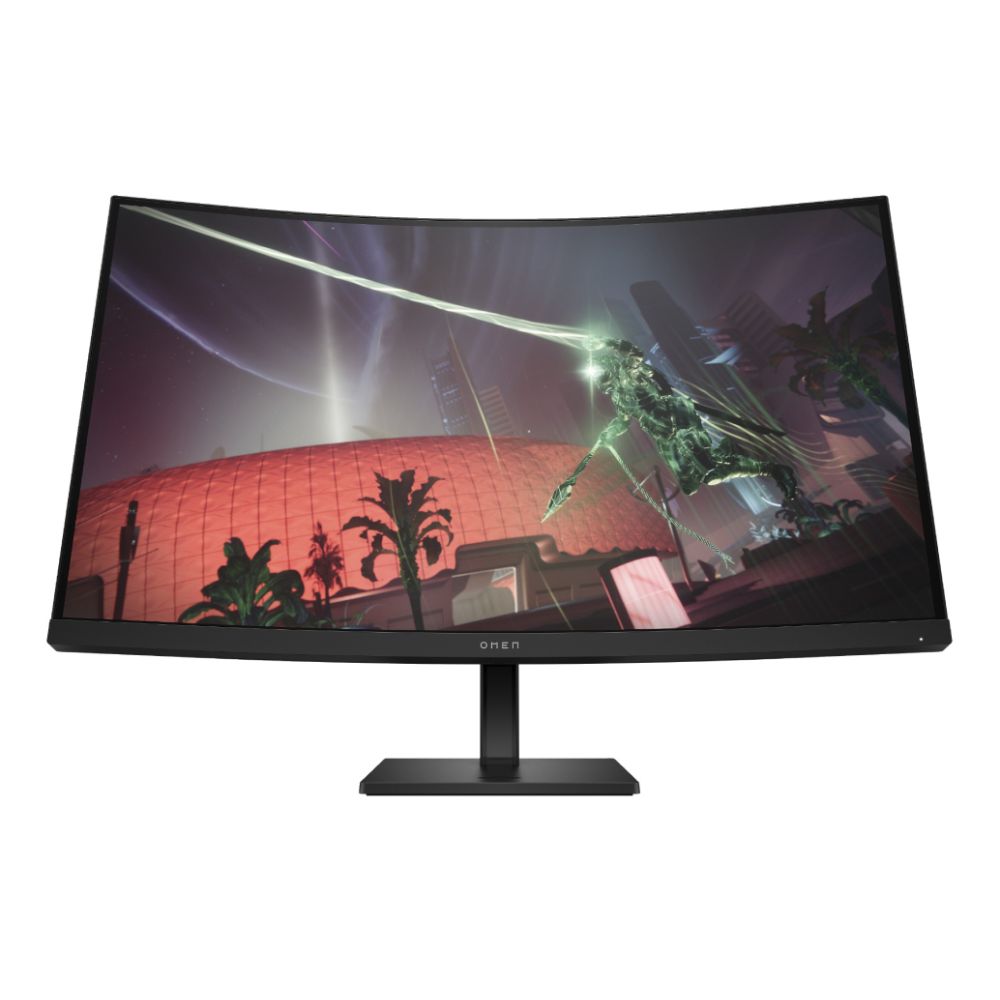
To find the right display for your setup, you can explore the best HP gaming monitors designed for high-performance gaming.
For High-Resolution Displays
If your setup involves 4K monitors or higher-resolution displays, both HDMI and DisplayPort can handle the workload, but there are some important differences.
While HDMI is suitable for high-resolution output at standard refresh rates, DisplayPort offers greater flexibility, especially if you want to combine higher resolution with improved refresh rates.
Recommended Product
Larger displays like the HP Series 5 532sf 32" monitor also benefit from this, as increased screen size makes resolution and clarity even more important for both work and entertainment.
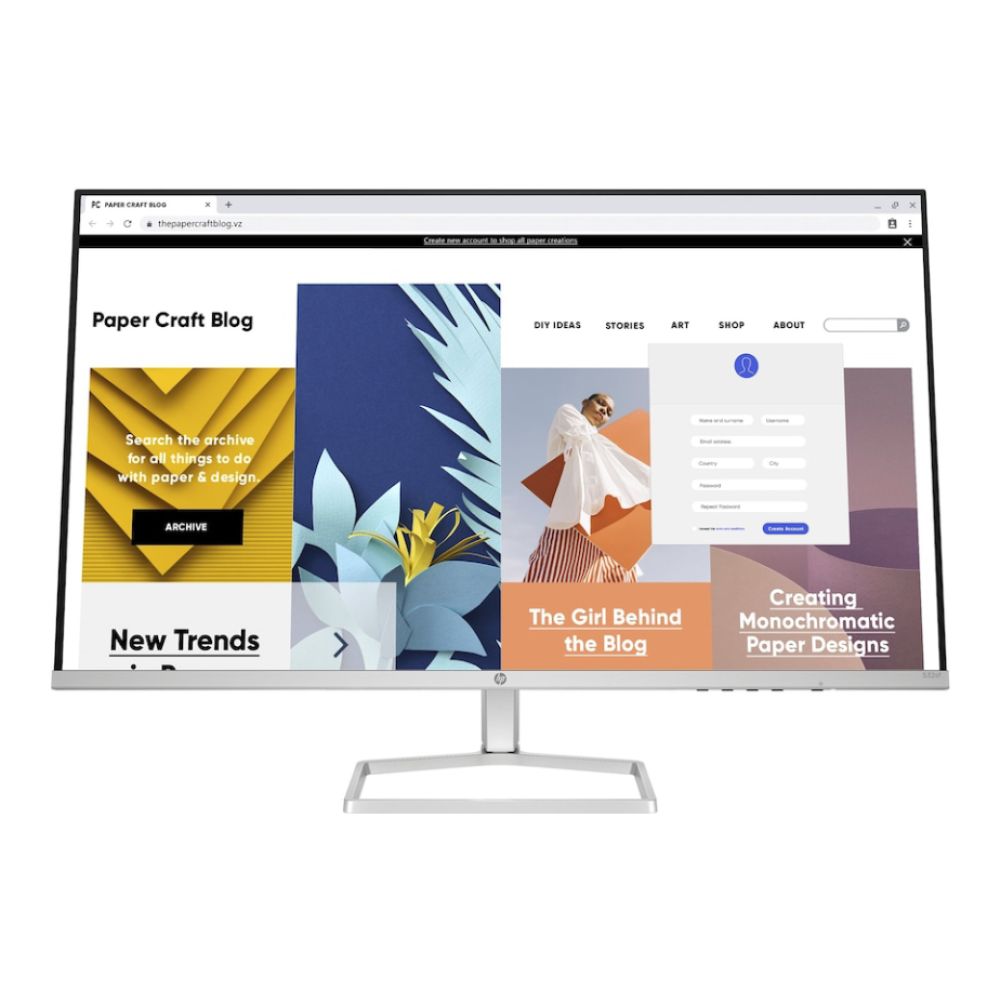
This makes DisplayPort the better option for users who want both sharp visuals and smooth performance, whether for creative work, media consumption or high-end setups.
Common HP Monitor Connectivity Issues and Fixes
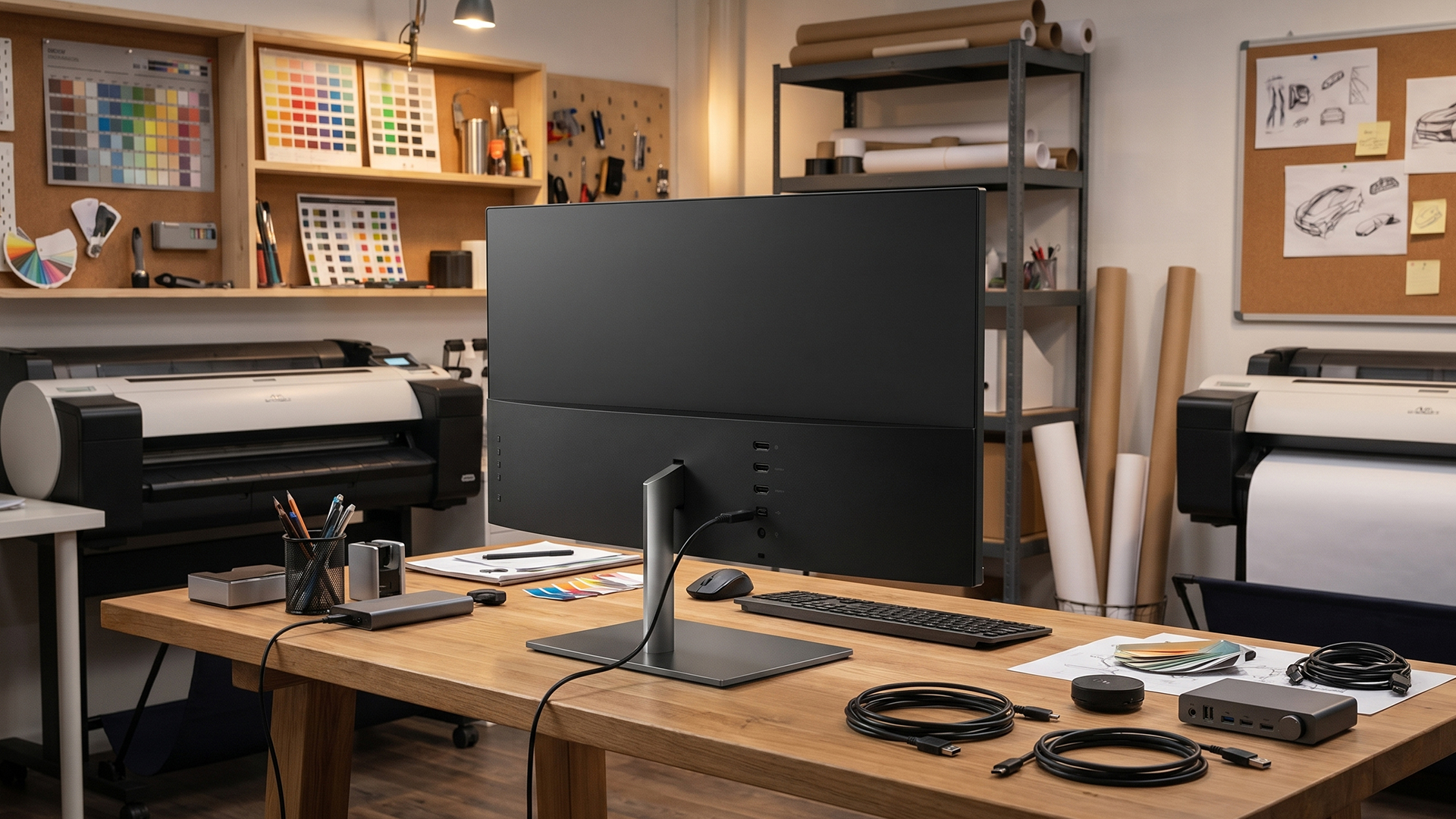
Even with the right setup, you may occasionally run into issues. The good news is that most HP monitor connectivity problems are easy to fix once you know what to look for.
No Display Signal
One of the most common issues is when your monitor shows no signal.
This is usually caused by:
- Loose or incorrectly connected cables
- The monitor being set to the wrong input source
- A temporary system issue
Start by checking all cable connections and making sure the input source matches the cable you’re using (for example, HDMI or DisplayPort). Restarting your device can also resolve temporary glitches.
Monitor Not Detected
If your monitor is connected but not detected by your system, the issue may be related to settings or compatibility.
Try:
- Opening display settings and manually detecting the monitor
- Switching to a different port or cable
- Updating your system drivers if needed
These steps usually resolve detection issues quickly.
Poor Image Quality
If your display looks blurry or not as sharp as expected, the problem is often related to settings or cable quality.
To fix this:
- Check that your resolution is set to the monitor’s recommended setting
- Use higher-quality cables such as HDMI 2.0 or DisplayPort 1.4+
- Ensure your graphics settings are properly configured
Improving these factors can significantly enhance image clarity and overall viewing experience.
If you’re experiencing issues, explore our monitor troubleshooting tips to quickly diagnose and fix common display and connectivity problems.
Final Thoughts
Modern HP monitors are built with flexibility in mind, offering a wide range of connectivity options to suit different users and setups. Whether you’re working from home, setting up a gaming station or managing multiple tasks across screens, understanding HP monitor connectivity can make a significant difference to how smoothly your setup performs.
If you’re looking to upgrade or build your setup, you can explore a wide range of monitors, including business monitors, gaming monitors and 4K monitors, to find the right display for your requirements at Box.co.uk. This ensures you not only choose the right monitor but also get the connectivity options that support your work, gaming and everyday use.
FAQs
What is the best connection for HP monitors?
USB-C is best for modern laptops, while DisplayPort is ideal for gaming and performance.
Can I connect an HP monitor to a laptop?
Yes, you can connect HP monitor laptop using HDMI, USB-C or DisplayPort.
Does USB-C charge laptops on HP monitors?
Yes, many HP USB-C monitors support power delivery up to 100W.
Is HDMI or DisplayPort better?
DisplayPort is better for performance; HDMI is better for compatibility.
Can I use multiple monitors with HP monitors?
Yes, you can set up dual or multiple monitors using different ports.
You can pay with:
*PayPal Credit Representative Example: Assumed credit limit £1,200, Representative 23.9% APR (variable). Purchase rate 23.9% p.a (variable).Terms & Conditions apply.


PayPal Credit and PayPal Pay in 3 are trading names of PayPal UK Ltd, 5 Fleet Place, London, United Kingdom, EC4M 7RD. Terms and conditions apply. Credit subject to status, UK residents only, Five Tech LTD acts as a broker and offers finance from a restricted range of finance providers. PayPal Pay in 3 is not regulated by the Financial Conduct Authority. Pay in 3 eligibility is subject to status and approval. 18+. UK residents only. Pay in 3 is a form of credit. Check if affordable and how you will repay. May make other borrowing more difficult or expensive. See product terms for more details.
Copyright © 1996-2026 Fivetech LTD | Terms and Conditions
box.co.uk & Box are trading names of Five Tech Limited. Registered office: Box LTD, Unit 10 Woodford Trading Estate, Woodford Green IG8 8HF