


 Menu
MenuMenu


Get Sales Advice from Mon - Fri 9am - 5:00pm:
020 3337 8950LAST UPDATED: July 23, 2026
HP Laptop Screen Flickering? Causes and 10 Fixes That Work
An HP laptop screen flickering problem can be distracting, frustrating, and worrying. The screen may blink, flash, show horizontal lines, go black for a second, flicker when you move the mouse, or keep flashing during startup. In many cases, the issue is caused by software, display settings, or drivers. In other cases, it can point to a loose display cable, faulty LCD display panel or graphics hardware problem.
The good news is that many HP laptop display flickering issues can be fixed without replacing the laptop. A graphics driver update, refresh rate adjustment, Windows update, Safe Mode check or HP hardware diagnostics test may help identify the cause. The important thing is to diagnose the problem first instead of randomly changing settings.
This guide explains why your HP laptop flickering screen happens, how to test whether it is a Windows or hardware issue, and the 10 most practical fixes to try before considering repair or replacement.
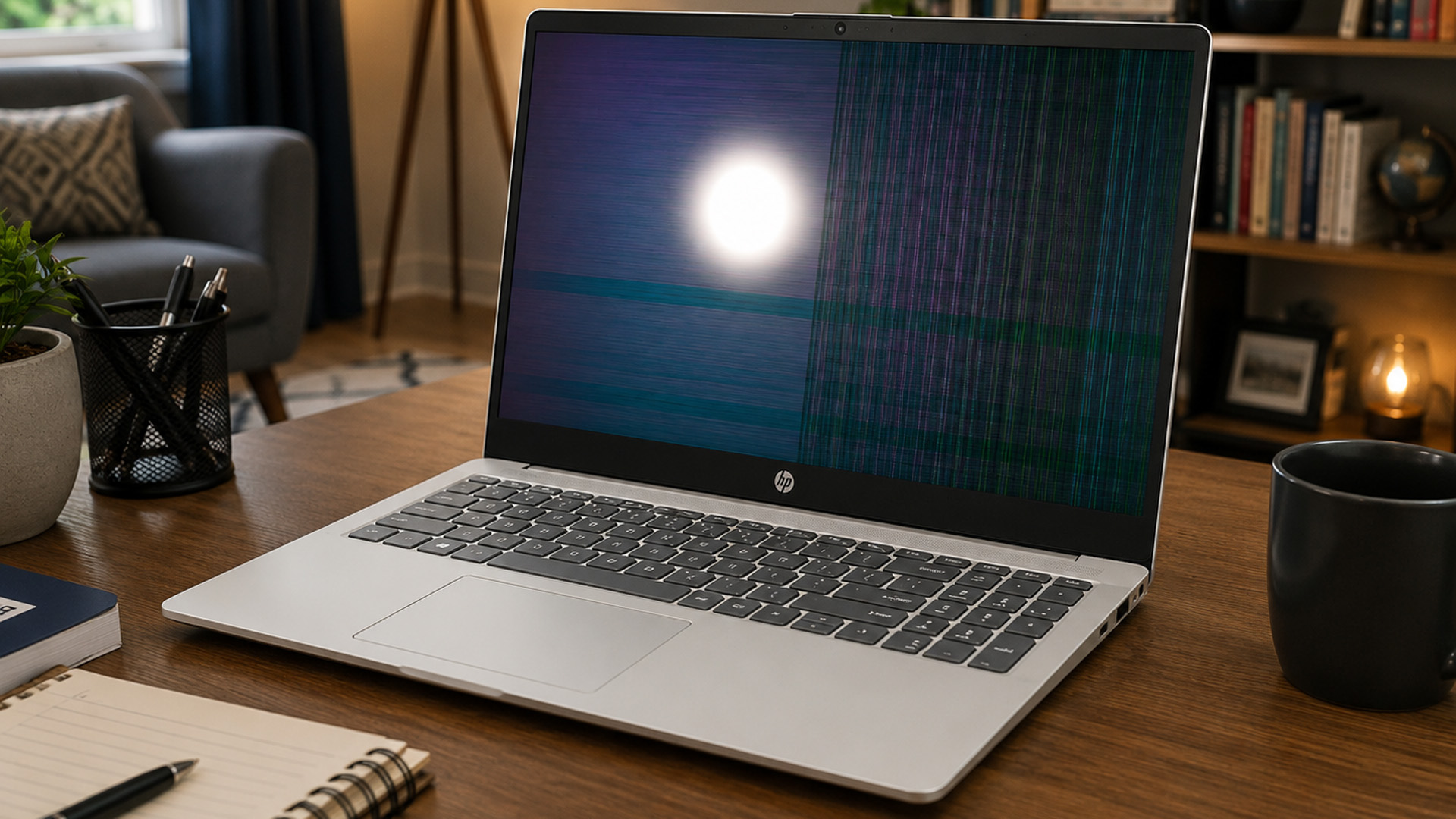
Why Is My HP Laptop Screen Flickering?
A flickering laptop screen can have several causes. Some are simple, such as a display setting or incompatible application. Others are more serious, such as a damaged LCD panel or loose display cable inside the hinge area.
The timing of the flicker is important. A screen that flickers only after Windows loads usually points to software, drivers or display settings. A screen that flickers before Windows loads, or flickers when you move the lid, is more likely to be hardware-related.
Display Driver or Windows Software Problem
A display driver controls how Windows communicates with your laptop screen and graphics hardware. If the driver is outdated, corrupted or recently changed, the display can flicker, blink or go black.
This is one of the most common causes of an HP laptop screen flickering problem, especially after a Windows update, graphics driver update, or failed driver installation.
Incorrect Refresh Rate or Display Configuration
A laptop screen refresh rate controls how often the display updates per second. If Windows is using an unsupported or unstable refresh rate, the screen can flicker.
This can also happen when switching between laptop display mode, external monitor mode, duplicate display mode, or extended display mode.
Application Conflict or Hardware Acceleration
Some apps can cause flickering if they conflict with the graphics driver. Browsers, video apps, creative tools, chat apps, and older software can sometimes behave badly when hardware acceleration is enabled.
If flickering happens only inside one app, the app may be the problem rather than the laptop screen itself.
Charging, Battery or Power-Management Issue
Some users notice HP laptop screen flickering while charging or when switching between battery and mains power. This can happen because of power settings, adaptive brightness, battery saver mode, charger issues or graphics, power-management changes.
If flickering only happens when plugged in or unplugged, power settings and charger checks should be part of your troubleshooting.
Loose Display Cable, Faulty Screen or Graphics Hardware
If the flickering changes when you move the laptop lid, press near the bezel or adjust the screen angle, the issue may be physical. A loose display cable, damaged hinge area, failing LCD display panel or graphics hardware fault can cause flickering, horizontal lines, black areas or image distortion.
Hardware faults usually need professional repair.
Diagnose the Cause Before Applying a Fix
Before trying fixes, spend a few minutes identifying the pattern. This helps you avoid wasting time on the wrong solution.
Check Whether Task Manager Flickers
The Task Manager flicker test is a useful starting point. Press Ctrl + Shift + Esc to open Task Manager.
If Task Manager flickers along with the rest of the screen, the issue is more likely linked to the display driver, graphics settings or Windows display configuration. If Task Manager does not flicker but the rest of the screen does, an incompatible application may be causing the problem.
This simple test can help separate driver-related flickering from app-related flickering.
Test the Screen Before Windows Loads
Restart the laptop and watch the HP logo or startup screen. You can also enter BIOS or startup diagnostics if you are comfortable doing so.
If the screen flickers before Windows loads, the issue is less likely to be caused by Windows settings. It may point to the display panel, cable, graphics hardware or firmware-level issue.
If the startup screen is stable but Windows flickers later, focus on Windows updates, display drivers, refresh rate and apps.
Connect the Laptop to an External Monitor
An external monitor test is one of the best ways to narrow down the cause. Connect your HP laptop to a monitor or TV using HDMI, USB-C or DisplayPort, depending on your model.
If the external monitor works normally while the laptop screen flickers, the built-in screen, display cable or hinge area may be the issue. If both screens flicker, the problem is more likely related to the graphics driver, Windows settings or graphics hardware.
If you use your laptop for gaming, creative work or business tasks, you can also find a reliable business laptop, or explore flexible 2-in-1 laptops if replacement becomes more sensible than repair.
Identify the Trigger: Startup, Charging, Mouse Movement or Sleep Mode
Try to identify when the flickering starts. Does it happen on startup? Only when charging? Only when moving the mouse or using the touchpad? Only after waking from sleep?
The trigger helps you choose the right fix. Startup flicker may point to drivers or hardware. Charging flicker may point to power settings or charger issues. Mouse movement flicker may point to graphics acceleration, touchpad drivers or app conflicts.
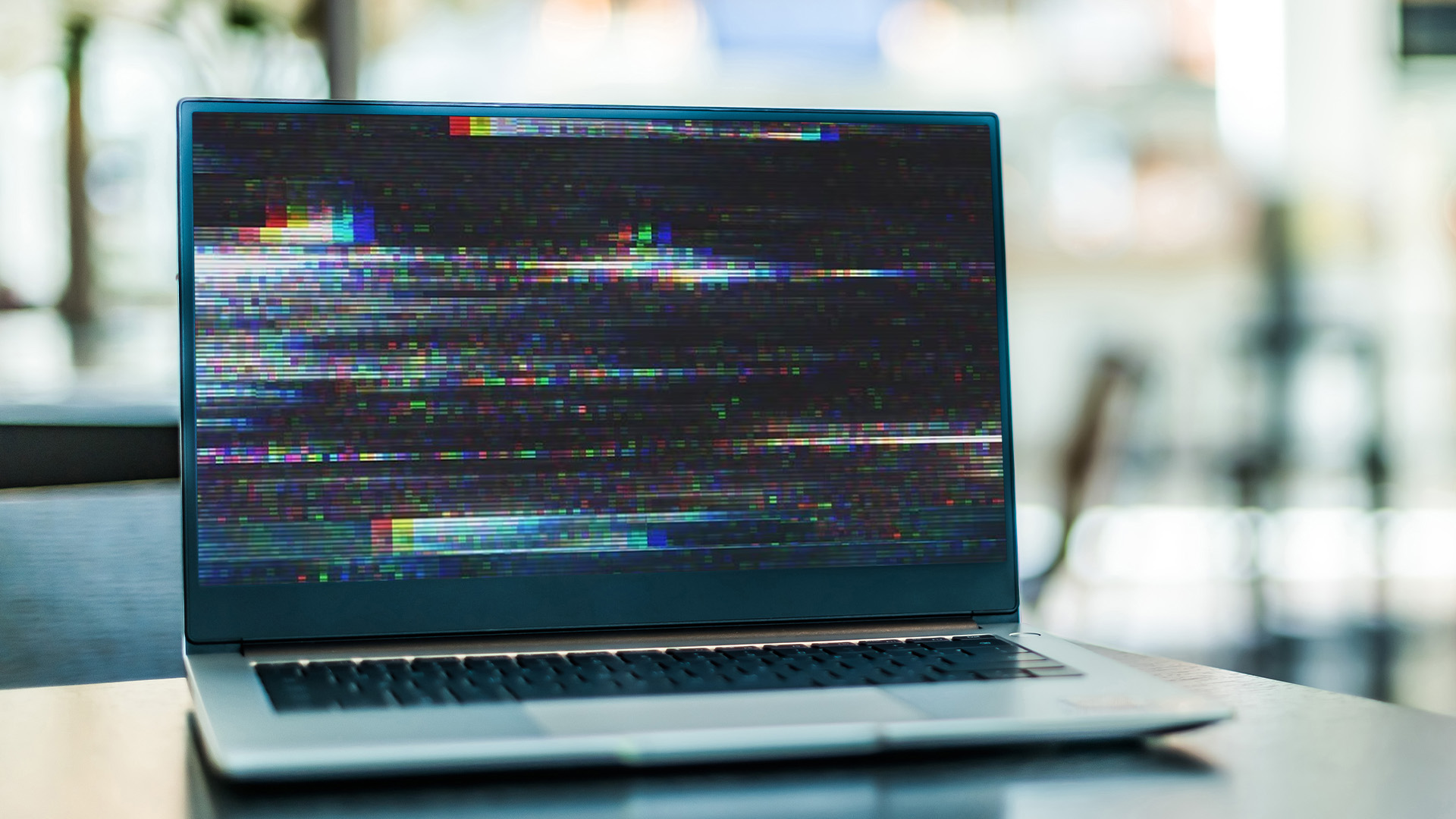
How to Fix an HP Laptop Screen That Keeps Flickering
Start with the safest fixes first. Do not open the laptop or attempt internal repair unless you understand the risks.
1. Restart the Laptop and Disconnect External Devices
Restart the laptop first. A temporary graphics glitch, failed wake-from-sleep state or stuck display process may clear after a proper restart.
Disconnect external monitors, docks, USB hubs, adapters and accessories. If the flickering stops after removing a device, reconnect items one at a time to find the cause. Docks, display adapters and external monitors can sometimes trigger flickering if there is a cable, refresh rate or driver conflict.
2. Install Windows and HP Updates
Install available Windows updates and HP driver updates. Updates can fix display bugs, driver conflicts and firmware issues.
Use Windows Update first, then check HP’s support tools or your laptop’s support page for model-specific updates. This is especially useful if the flickering began after a major Windows update or if the laptop has not been updated in a long time.
For business users, this matters because display issues can interrupt meetings, spreadsheets, presentations and daily workflows. If your current machine is unreliable, you may want to shop HP ProBook business laptops or compare HP EliteBook laptops.
3. Restart the Windows Graphics Driver
Windows includes a quick keyboard shortcut that restarts the graphics driver:
Windows key + Ctrl + Shift + B
The screen may briefly go black or make a beep sound. This can help if the display driver has frozen or is behaving incorrectly.
This is a quick fix to try when the screen suddenly flickers, freezes, flashes or briefly goes black.
4. Update, Reinstall or Roll Back the Display Driver
A faulty display driver is one of the most common causes of an HP laptop screen flickering fix. Open Device Manager, find the display adapter and check for driver options.
If the issue started after a graphics driver update, try rolling back the driver. If the driver is old, update it. If the driver appears corrupted, uninstall it and restart the laptop so Windows can reinstall a working version.
This can help with HP laptop screen flickering Windows 11 and HP laptop screen flickering Windows 10 problems, especially when flickering starts after a system update.
5. Set the Correct Screen Refresh Rate
Go to Windows display settings and check the screen refresh rate. Choose the recommended refresh rate for your laptop display.
If you recently changed settings for gaming, external monitors or battery saving, the refresh rate may have changed. An unsupported or unstable setting can cause flickering, especially on high-refresh displays.
This is especially important for gaming laptops such as HP OMEN models, where refresh rates can be higher than standard office laptops.
6. Adjust Brightness and Display Power Settings
Check brightness, adaptive brightness, battery saver and power mode settings. If the screen flickers when switching between charging and battery, power management may be involved.
Try setting a consistent brightness level, turning off adaptive brightness if available and using a balanced or performance power mode. Also test the laptop with the original charger where possible.
If the screen flickers only while charging, inspect the charger, cable and socket. A faulty charger or unstable power source can create display behaviour that looks like a screen fault.
7. Update or Remove Conflicting Applications
If Task Manager does not flicker but the rest of the screen does, an app may be causing the issue. Update recently installed apps, especially browsers, antivirus tools, screen recording software, display utilities and older programs.
If the flickering started after installing a specific app, uninstall it temporarily and restart the laptop. If the flickering stops, the app was likely causing the display conflict.
8. Disable Hardware Acceleration Where Flickering Occurs
Hardware acceleration lets apps use the GPU for smoother performance. It is useful, but it can also cause flickering when an app conflicts with the graphics driver.
If flickering happens in a browser, video player, design app or chat tool, open that app’s settings and turn off hardware acceleration. Restart the app and check whether the flicker stops.
This is especially useful if the desktop is stable but the screen flickers during video playback, scrolling or browser use.
9. Test the Laptop in Safe Mode
Safe Mode starts Windows with basic drivers and fewer background services. If the flickering stops in Safe Mode, the issue is probably caused by a driver, startup app or software conflict.
From Safe Mode, you can uninstall recent apps, roll back drivers, remove updates or run system checks.
Safe Mode troubleshooting is a good next step when normal Windows is too unstable to use comfortably.
10. Run HP Hardware Diagnostics
If software fixes do not help, run HP hardware diagnostics. HP laptops often include diagnostic tools that can test hardware such as memory, storage and system components. Depending on the model, you may be able to access diagnostics from startup or through HP support tools in Windows.
Diagnostics cannot fix every display problem, but they can help identify whether the issue is more likely hardware-related. If the laptop fails a hardware test, or the display flickers outside Windows, professional repair may be needed.
HP Omen Laptop Screen Flickering
An HP OMEN laptop screen flickering issue can be linked to graphics drivers, high refresh rates, gaming performance modes, GPU switching, overheating or external monitor settings. Because OMEN laptops are gaming-focused, they often use more advanced display and graphics configurations than basic laptops.
Start by checking the refresh rate, updating NVIDIA or AMD graphics drivers, installing HP updates and testing whether flickering happens only in games or across Windows.
If flickering happens during games only, lower graphics settings and check GPU temperatures. If it happens on the desktop too, focus on display drivers, Windows display settings and external monitor tests.
For a gaming upgrade, you can compare HP OMEN gaming laptops or browse high-performance gaming laptops.
HP Laptop Screen Flickering on Startup
HP laptop screen flickering on startup can be more serious than flickering inside Windows. If the HP logo, BIOS screen or startup menu flickers, the issue may not be caused by Windows apps.
Possible causes include a faulty display panel, loose display cable, graphics hardware issue, BIOS problem or power-related fault. Try an external monitor test. If the external monitor is stable but the laptop screen flickers, the built-in screen or cable may be the issue.
If both screens flicker before Windows loads, get professional support before using the laptop heavily.
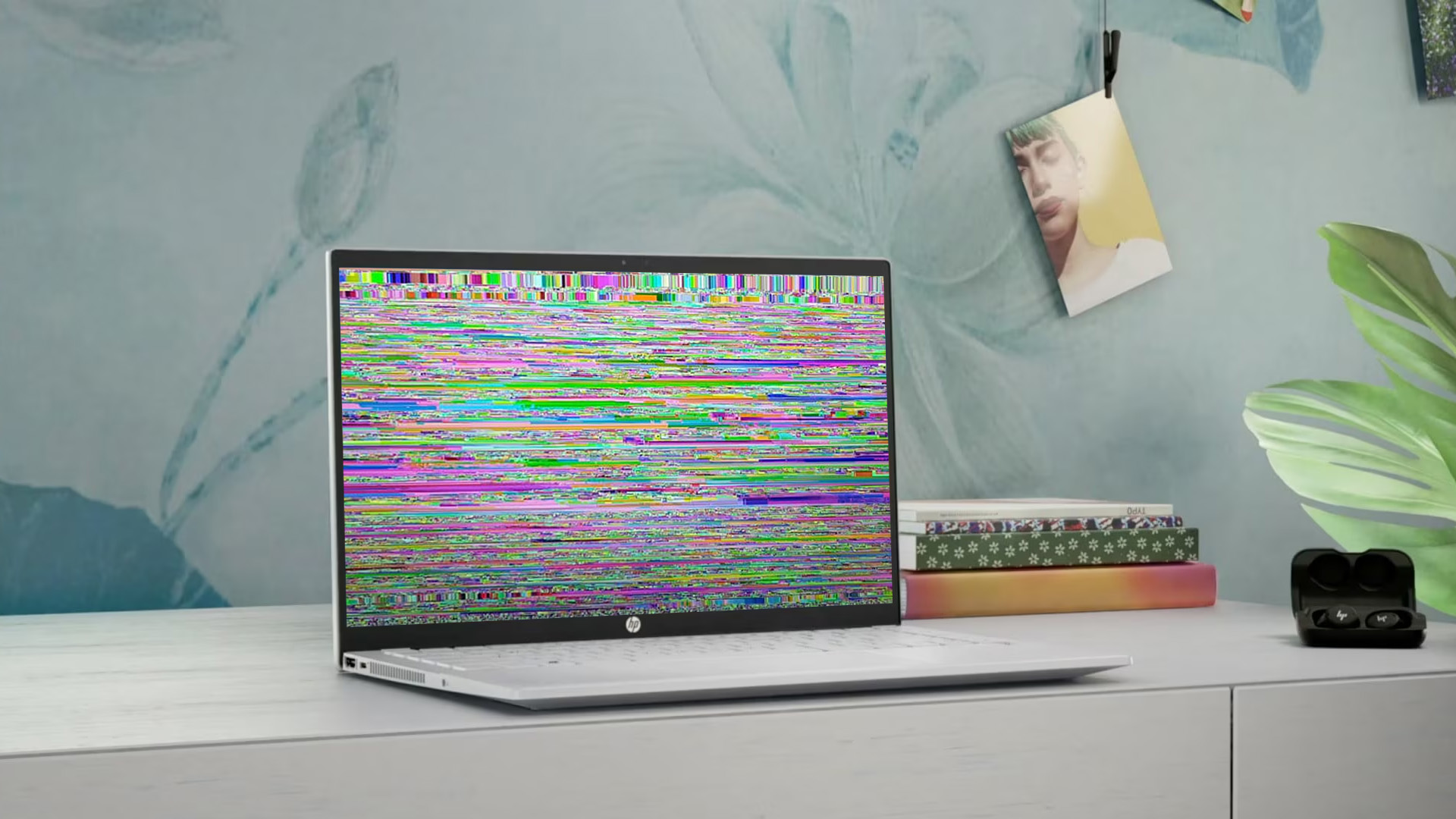
HP Laptop Screen Flickering Horizontal Lines
HP laptop screen flickering horizontal lines can indicate a display panel, cable or graphics issue. Lines across the screen are more likely to be hardware-related if they appear before Windows loads or change when you move the lid.
If the lines only appear after Windows starts, update or roll back the display driver and check refresh rate settings. If the lines appear in BIOS or on the startup screen, the LCD display panel or internal cable may need repair.
Do not keep twisting or flexing the lid to “fix” the image. That can make a loose cable or hinge-area problem worse.
HP Laptop Screen Flickering when Mouse Moves
HP laptop screen flickering when mouse moves can happen because of display driver issues, touchpad driver problems, hardware acceleration, or app conflicts. Some users also notice the screen flickers when scrolling, moving between windows, or using browser-based apps.
Start by updating the display driver and touchpad driver. Then disable hardware acceleration in apps where the flicker appears. If the issue happens only in one program, update or reinstall that program.
If the flicker happens across the entire desktop, try Safe Mode and driver rollback.
HP Laptop Screen Flickering Windows 11
HP laptop screen flickering Windows 11 is often linked to graphics drivers, incompatible apps, display scaling, refresh rate settings or Windows updates. Because Windows 11 relies heavily on modern graphics features, driver stability matters.
Try the Task Manager flicker test first. If Task Manager flickers, focus on the display driver and refresh rate. If Task Manager does not flicker, focus on apps and hardware acceleration.
Also install Windows updates and HP-specific driver updates, especially after a major Windows 11 feature update.
HP Laptop Screen Flickering Windows 10
HP laptop screen flickering Windows 10 can be caused by similar issues: outdated display drivers, incorrect refresh rate, app conflicts, hardware acceleration or failing display hardware.
Windows 10 users should check Device Manager, update or roll back the graphics driver, uninstall recently added apps and test Safe Mode. If the laptop is older and the screen flickers even before Windows loads, hardware wear may be more likely.
If your Windows 10 HP laptop is struggling with screen faults, battery wear and slow performance together, it may be worth comparing repair costs with replacement options from the shop the latest HP laptops range.
What Different Flickering Symptoms May Indicate
Different flickering patterns point to different causes. Use this quick table to understand what your HP laptop may be telling you.
| Causes | Possible Cause | Best First Check |
|---|---|---|
| Screen flickers after login | Driver, app or Windows setting | Task Manager flicker test |
| Screen flickers on startup | Hardware, firmware or display panel | External monitor test |
| Screen flickers while charging | Power setting, charger or battery issue | Test on battery and charger |
| Screen flickers when moving mouse | Driver, app or touchpad conflict | Update drivers and disable hardware acceleration |
| Horizontal lines appear | Display cable, panel or driver issue | Check BIOS and external monitor |
| Screen flickers black | Graphics driver, refresh rate or hardware issue | Restart graphics driver and test external display |
| White flashing screen | Panel fault, driver crash or display signal issue | Test before Windows loads |
This is why diagnosis matters. The same phrase, “HP laptop screen keeps flickering,” can describe several different problems.
When the Problem Is Likely Hardware-Related
Not every flickering screen is a software problem. Some signs strongly suggest hardware.
Flickering Continues in the BIOS or Startup Screen
If the display flickers before Windows loads, the issue is less likely to be caused by an app. It may be the screen, display cable, GPU or motherboard.
Moving the Laptop Lid Changes the Display
If the image flickers, disappears or shows lines when you move the lid, the display cable may be loose or damaged. This often happens around the hinge area.
The External Monitor Works but the Laptop Screen Flickers
If an external monitor works normally, the laptop’s graphics system may still be working. The built-in LCD display panel, cable or backlight may be the issue.
Lines, Black Areas or Image Distortion Remain Visible
Persistent horizontal lines, black patches, colour distortion or flashing white areas can point to display panel damage. If the same issue appears in BIOS, repair is likely needed.
Can You Continue Using a Flickering HP Laptop?
You can continue using a flickering HP laptop temporarily if the flicker is mild, software-related and not getting worse. However, you should not ignore the issue for long.
Flickering can cause eye strain and headaches, especially during long work or study sessions. If the issue is caused by overheating, graphics failure or a loose display cable, continued use may make the problem worse.
If you rely on your laptop for daily work, university or gaming, back up your important files before troubleshooting. If the display becomes unusable, you may need an external monitor or repair support to recover data comfortably.
Repair or Replace: What Makes More Sense?
Repair is usually worth considering if the laptop is fairly new, still powerful enough and the issue is limited to a replaceable display part. Replacement may make more sense if the laptop is old, slow, out of warranty or has several problems at once.
If you need power for games, creative tools or high-refresh displays, compare HP OMEN gaming laptops.
Final HP Laptop Screen Flickering Checklist
Before booking a repair, go through this quick checklist.
| Step | What to Do | Why It Helps |
|---|---|---|
| 1 | Restart the laptop | Clears temporary display glitches |
| 2 | Disconnect external devices | Removes dock, monitor or adapter conflicts |
| 3 | Open Task Manager | Helps separate driver issues from app issues |
| 4 | Restart graphics driver | Quickly resets the display driver |
| 5 | Update Windows and HP drivers | Fixes known software and driver issues |
| 6 | Roll back display driver | Helps if flickering started after an update |
| 7 | Check refresh rate | Prevents unsupported display settings |
| 8 | Disable hardware acceleration | Helps with browser and app flickering |
| 9 | Test Safe Mode | Identifies software conflicts |
| 10 | Use an external monitor | Separates laptop screen faults from graphics issues |
| 11 | Run HP hardware diagnostics | Checks for deeper hardware problems |
| 12 | Get repair support if needed | Helps avoid further display damage |
If the flickering only happens in Windows, the issue is often fixable with drivers, settings or apps. If the flickering appears before Windows loads or changes when you move the lid, hardware support is more likely needed.
Final Thoughts
An HP laptop screen flickering issue can be caused by display drivers, refresh rate settings, Windows updates, conflicting apps, hardware acceleration, power settings or physical display faults. Start with simple fixes first, then move to deeper troubleshooting.
Use the Task Manager flicker test, external monitor test and Safe Mode to narrow down the cause. Then update or roll back the display driver, check refresh rate, remove app conflicts and run HP hardware diagnostics if needed.
If the problem is hardware-related or repair costs are too high, compare or explore flexible 2-in-1 laptops at Box.co.uk.
FAQs
Is laptop screen flickering a serious problem?
Laptop screen flickering can be minor or serious. If it happens only inside Windows or one app, it may be caused by a driver, refresh rate or software conflict. If it happens before Windows loads, changes when you move the lid or shows horizontal lines, it may be a hardware problem.
Why is my HP laptop screen flickering and going black Windows 11?
An HP laptop screen flickering and going black in Windows 11 may be caused by a display driver problem, Windows update issue, incorrect refresh rate, app conflict, hardware acceleration or power-management setting. Start with the Task Manager flicker test, then update or roll back the graphics driver.
How do I get my laptop screen to stop flickering?
Restart the laptop, disconnect external devices, update Windows, update or roll back the display driver, check the refresh rate, disable hardware acceleration and test Safe Mode. If the flickering continues on the startup screen or BIOS, test with an external monitor and consider repair support.
Does screen flickering mean virus?
Screen flickering does not usually mean a virus. It is more often caused by display drivers, Windows settings, app conflicts, refresh rate problems or hardware faults. However, if your laptop also shows suspicious pop-ups, unknown apps or unusual behaviour, run a trusted security scan.
How to fix HP black screen of death?
For an HP black screen, first check brightness, charging, power status and external display output. Hold the power button to restart, disconnect accessories and test an external monitor. If Windows loads but the screen stays black, try the graphics driver shortcut, Safe Mode or Startup Repair. If there is no display anywhere, hardware diagnosis may be needed.
You can pay with:
*PayPal Credit Representative Example: Assumed credit limit £1,200, Representative 23.9% APR (variable). Purchase rate 23.9% p.a (variable).Terms & Conditions apply.


PayPal Credit and PayPal Pay in 3 are trading names of PayPal UK Ltd, 5 Fleet Place, London, United Kingdom, EC4M 7RD. Terms and conditions apply. Credit subject to status, UK residents only, Five Tech LTD acts as a broker and offers finance from a restricted range of finance providers. PayPal Pay in 3 is not regulated by the Financial Conduct Authority. Pay in 3 eligibility is subject to status and approval. 18+. UK residents only. Pay in 3 is a form of credit. Check if affordable and how you will repay. May make other borrowing more difficult or expensive. See product terms for more details.
Copyright © 1996-2026 Fivetech LTD | Terms and Conditions
box.co.uk & Box are trading names of Five Tech Limited. Registered office: Box LTD, Unit 10 Woodford Trading Estate, Woodford Green IG8 8HF