


 Menu
MenuMenu


Get Sales Advice from Mon - Fri 9am - 5:00pm:
020 3337 8950LAST UPDATED: July 06, 2026
How to Use Norton VPN: A Step-by-Step Guide for Beginners
A VPN helps protect your privacy by creating a secure internet connection between your device and the web.
Norton VPN is useful when you are browsing on public Wi-Fi, travelling, working remotely or simply want extra privacy at home. It can help hide your IP address, encrypt data and make everyday browsing more secure.
This Norton VPN guide explains how to set up Norton VPN, sign in, adjust the main Norton VPN settings, and use it safely on laptops, desktops, and mobile devices.
Quick answer: To use Norton VPN, install the Norton app, sign in to your Norton account, open the VPN section, choose a server location or opt for the fastest location, then switch the VPN on. For better protection, turn on Auto Connect and Kill Switch where available.
What Is Norton VPN and How Does It Work?
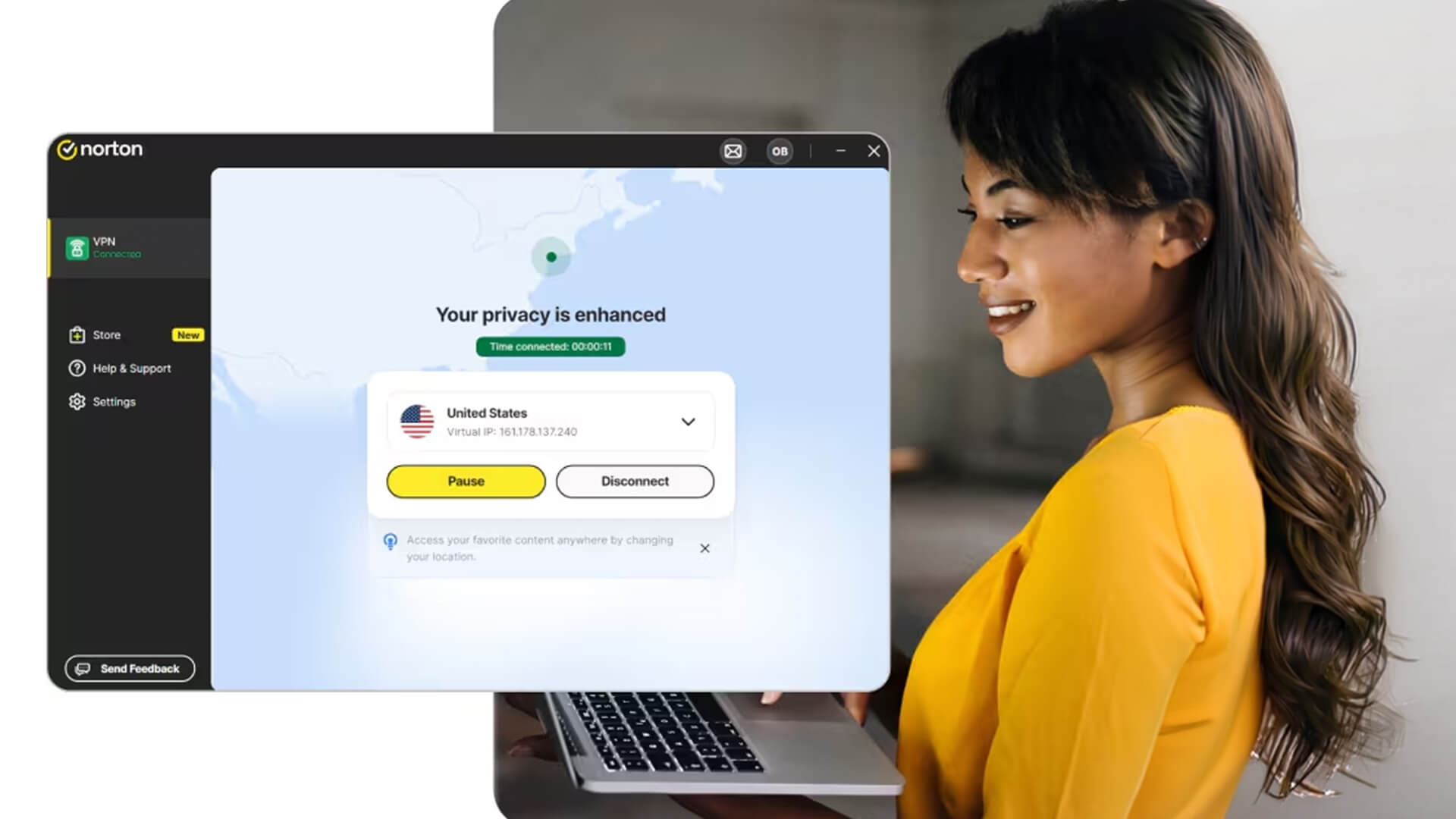
Norton VPN is a virtual private network that helps protect your online privacy. When it is switched on, your internet traffic is routed through a VPN server. This can help hide your IP address and encrypt data as it travels between your device and the internet.
In simple terms, Norton VPN helps with:
- safer browsing on public Wi-Fi
- hiding your real IP address
- encrypting internet traffic
- reducing online tracking
- improving privacy when browsing
- creating a secure internet connection
A VPN is not the same as full antivirus protection. It helps with privacy and connection security, while antivirus tools help detect and block malware, viruses and other threats. For stronger online safety, many users pair VPN protection with Norton security for online safety to stay extra safe against malicious attackers.
Norton VPN Guide: What You Need Before You Start
Before you begin the Norton setup process, check that you have:
- a Norton account
- an active Norton subscription
- your Norton account sign in details
- a supported device
- a working internet connection
- the latest version of the Norton app
- admin permission on your device, if needed
If you are using Norton 360 Standard, Norton VPN may be included as part of your subscription, depending on your plan and region. You can check this in My Norton Subscription after signing in.
Quick Setup Checklist
| Step | What to Do |
|---|---|
| 1 | Sign in to your Norton account |
| 2 | Check your subscription includes VPN |
| 3 | Download the Norton app |
| 4 | Install it on your device |
| 5 | Open VPN settings |
| 6 | Connect to fastest location or choose a region |
| 7 | Turn on extra privacy settings where available |
How to Set Up Norton VPN
Setting up Norton VPN is straightforward once your Norton account is ready.
Installing Norton VPN
On Windows or Mac:
- Go to the Norton website.
- Choose Sign In.
- Enter your Norton account sign in details.
- Go to My Norton or My Subscriptions.
- Find Norton VPN or your Norton 360 product.
- Select Download.
- Open the installer.
- Follow the on-screen setup instructions.
On mobile:
- Open the App Store or Google Play Store.
- Search for Norton VPN or Norton 360.
- Install the official Norton app.
- Open the app.
- Sign in with your Norton account.
Only install Norton apps from official sources. Avoid random download links, especially if they appear in pop-ups or emails.
Signing In and Activating
After installation, open the Norton app and sign in.
After signing in, Norton will verify your subscription and activate the features available to you.
If the VPN does not appear, check:
- whether your plan includes VPN
- whether you are signed in to the correct Norton account
- whether your subscription is active
- whether the app needs updating
- whether your device limit has already been reached
Basic Setup Steps
Once Norton VPN is active:
- Open the Norton app.
- Find VPN, Secure VPN, or Privacy.
- Choose Turn On or Connect.
- Select Fastest Location for everyday use.
- Choose another region if needed.
- Open Norton VPN settings.
- Turn on Auto Connect or Kill Switch if available.
For everyday browsing, fastest location is usually the best option because it should connect to a nearby VPN server with good speed.
How to Use Norton VPN on Different Devices
Norton VPN works slightly differently depending on the device, but the core idea is the same: open the app, connect the VPN and browse as normal.
Windows and Mac
On a laptop or desktop:
- Open Norton.
- Go to the VPN section.
- Click Connect or Turn On.
- Choose Fastest Location or a server region.
- Keep the app running while you browse.
Use Norton VPN on Windows or Mac when you are:
- working from a café
- using hotel Wi-Fi
- browsing on public networks
- signing into accounts
- shopping online
- checking email away from home
If your current device is old, slow or no longer secure, it may be worth comparing laptops for secure browsing, especially if you use online banking, work accounts or cloud storage regularly.
Mobile Devices
On iPhone, iPad or Android:
- Open the Norton app.
- Tap the VPN or privacy section.
- Tap Connect.
- Approve VPN permissions if prompted.
- Use Auto Connect if available.
Mobile VPN use is especially helpful on public Wi-Fi because phones and tablets often connect automatically to networks in airports, cafés, hotels and shops.
Use Norton VPN on mobile when:
- using public Wi-Fi
- travelling
- shopping online
- using banking apps
- checking work email
- browsing away from home
Switching Server Locations
Norton VPN may let you choose different VPN server locations depending on your app version and plan.
Use Fastest Location for:
- general browsing
- online shopping
- social media
- everyday privacy
Choose a specific location if:
- a website is not loading correctly
- you need a different region for privacy reasons
- the fastest server feels slow
- you are troubleshooting a connection issue
Avoid constantly changing location unless you need to. Switching servers can briefly interrupt the connection, so it is best to choose a location and stick with it during important tasks.
Key Norton VPN Features You Should Know
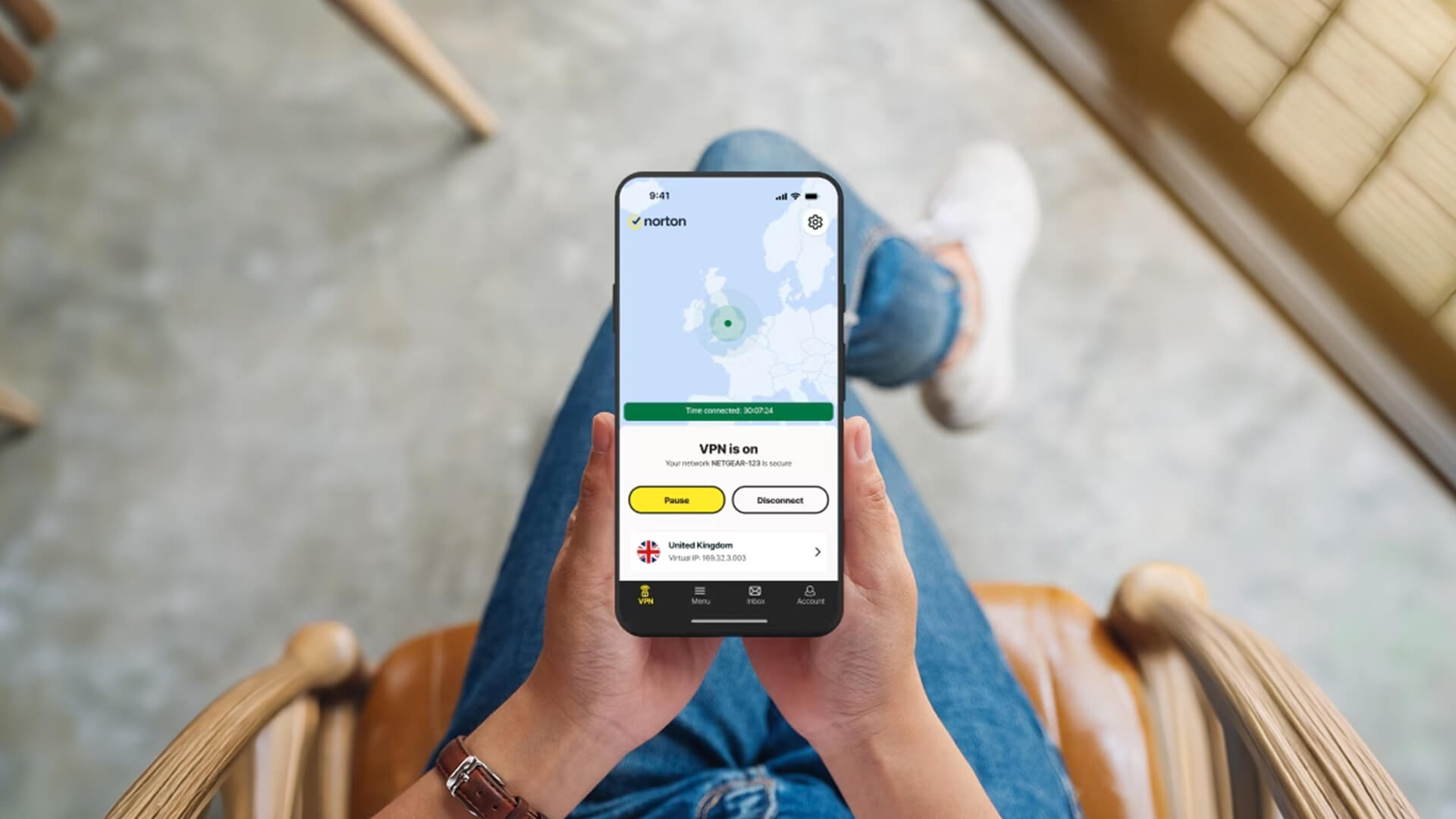
Norton VPN features vary by plan, platform, and app version, but these are the main settings beginners should understand.
Auto Connect and Kill Switch
Auto Connect
Auto Connect can help turn the VPN on automatically, especially when you connect to public or unsafe networks. This is useful if you often forget to switch the VPN on manually.
Use Auto Connect if you:
- travel often
- use public Wi-Fi
- work remotely
- browse from cafés or hotels
- want less manual setup
Kill Switch
Kill Switch is an extra privacy feature. If the VPN connection drops, Kill Switch can block internet access until the VPN reconnects. This helps prevent your real IP address or unprotected traffic from being exposed during a drop.
Turn on Kill Switch if you:
- use public Wi-Fi
- handle sensitive information
- want stronger privacy
- use the VPN for work
- often switch server locations
If your internet stops working after the VPN drops, Kill Switch may be doing its job. Reconnect the VPN or turn Kill Switch off if you need temporary access.
Choosing Server Locations
Server location can affect speed and browsing experience.
Simple Server Location Guide
| Need | Best Choice |
|---|---|
| Everyday browsing | Fastest Location |
| Better speed | Nearby server |
| Public Wi-Fi protection | Any stable VPN connection |
| Troubleshooting website access | Try another region |
| Streaming privacy | Use a stable, fast server |
| Work browsing | Use the most reliable location |
A VPN can sometimes affect websites, streaming services, apps, or login checks. If something does not load properly, switch location or pause the VPN briefly if you trust the network.
Privacy and Security Settings
Useful Norton VPN settings may include:
- Kill Switch
- Auto Connect
- ad tracker blocking
- split tunnelling
- local network access
- VPN protocol settings
- server location selection
Availability depends on your device and Norton plan.
What These Settings Mean
- Ad Tracker Blocking: Helps reduce online tracking.
- Split Tunnelling: Lets selected apps bypass the VPN.
- Local Network Access: Helps you use printers, drives, or devices on your home network.
- VPN Protocol Settings: Can affect speed, stability, and compatibility.
- Kill Switch: Blocks traffic if the VPN disconnects.
If you are not sure, start with default settings, enable Auto Connect, and use fastest location.
When Should You Use Norton VPN?
You do not need to overthink it. A VPN is most useful when privacy or network safety matters.
Public Wi-Fi Protection
This is one of the best reasons to use a VPN.
Turn Norton VPN on when using Wi-Fi in:
- Cafés
- Airports
- Hotels
- Universities
- Libraries
- Public transport
- Shared offices
- Shopping centres
Public Wi-Fi can be convenient, but it is not always secure. A VPN helps protect the information you send and receive.
For stronger home or office connectivity, you can also compare networking devices for secure connections, especially if your router is old or unreliable.
Secure Browsing at Home
A VPN is not only for travelling. You can also use it at home for safer browsing and online privacy.
Use it when:
- Shopping online
- Using cloud storage
- Signing into work accounts
- Browsing privately
- Using shared home networks
- Researching sensitive topics
- Checking email
A VPN is one part of safe browsing. It should sit alongside strong passwords, software updates, antivirus protection, and careful clicking.
Streaming and Online Privacy
You can use Norton VPN when streaming, but results can vary depending on the service, location, and connection speed.
A VPN may slightly reduce speed because it encrypts traffic and routes it through a VPN server. If streaming buffers, try:
- Fastest location
- A nearby server
- Restarting the VPN
- Restarting the router
- Checking Wi-Fi strength
- Reducing other network activity
Do not use a VPN to break service rules. Use it for privacy, safer browsing, and secure internet connection habits.
Common Issues and How to Fix Them
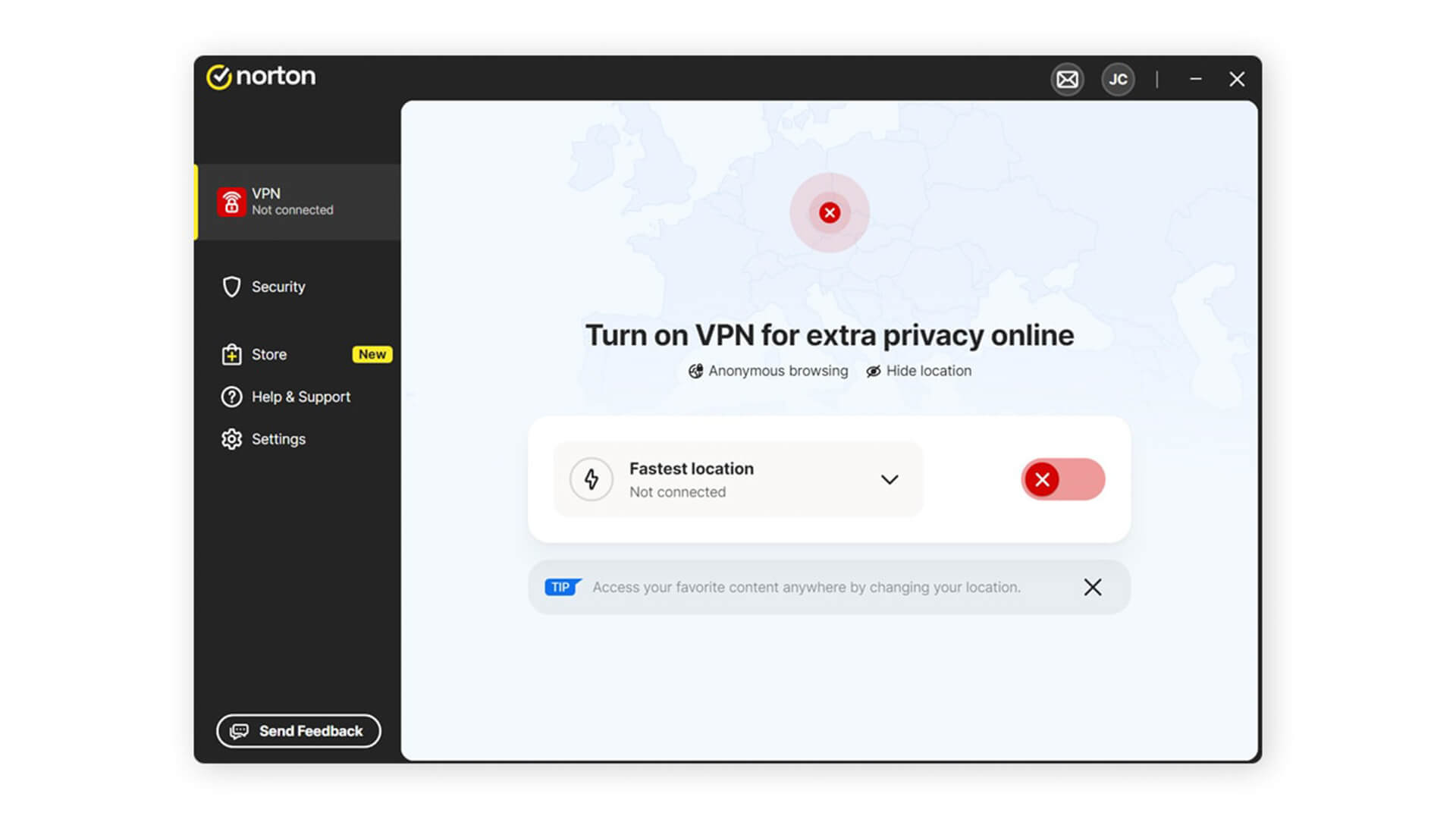
Most Norton VPN connection issues are easy to troubleshoot.
VPN Not Connecting
Try these steps:
- Check your internet connection.
- Restart the Norton app.
- Sign out and sign back in.
- Update the Norton app.
- Restart your device.
- Try another server location.
- Temporarily disable other VPN apps.
- Check your Norton subscription.
- Restart your router.
If you see a Norton security login or subscription error, check that you are using the right Norton account.
Slow Internet Speeds
A VPN can reduce speed slightly, but it should not make browsing unusable.
Try:
- Switching to fastest location
- Choosing a nearby VPN server
- Closing downloads and streaming apps
- Restarting your router
- Using 5GHz Wi-Fi where possible
- Checking your broadband speed without VPN
- Updating the Norton app
- Restarting your device
If the internet is slow even with the VPN off, the issue may be your Wi-Fi, broadband, device performance or router.
App Not Working Properly
If the VPN app freezes, will not open, or keeps disconnecting:
- Update the app
- Restart your device
- Reinstall Norton VPN
- Check device storage
- Check system updates
- Remove other VPN apps
- Review firewall settings
- Check subscription status
If you are using an older or underpowered laptop, VPN apps can feel slower because encryption uses system resources. Newer laptops with Norton 360 Deluxe can be a practical choice if you want security software included with a fresh device setup.
Norton VPN Settings for Beginners
Start with this simple setup:
- VPN location: Fastest Location
- Auto Connect: On, especially for public Wi-Fi
- Kill Switch: On if available
- Ad tracker blocking: On if available
- Split tunnelling: Leave off unless you know which apps need it
- Local network access: On if you need printers or shared drives
- App updates: On
This setup suits most beginners because it focuses on protection without making the app harder to use.
Norton VPN and Norton 360 Standard
Norton 360 Standard may include Secure VPN as part of the wider Norton security package, depending on your subscription and region.
Norton 360 Standard is not just a VPN product. It may include a mix of device security, privacy and online safety features. Always check My Norton Subscription to see what your plan includes.
If your plan does not include the features you want, compare Norton options before upgrading.
Good VPN Habits for Everyday Use
A VPN works best when it becomes part of your normal browsing routine.
Use these habits:
- Turn VPN on before using public Wi-Fi
- Keep Norton updated
- Use strong passwords
- Enable two-factor authentication where possible
- Avoid suspicious links
- Keep your device updated
- Do not ignore browser warnings
- Disconnect only when necessary
- Check VPN status before banking or shopping on public networks
A VPN improves privacy, but it does not make unsafe websites safe. Cybersecurity basics still matter.
Final Thoughts:
This Norton VPN guide gives beginners a simple way to get started: install the app, complete Norton account sign-in, check your subscription, turn on the VPN, and adjust the main privacy settings.
For most users, the best setup is simple:
- Use fastest location
- Enable Auto Connect
- Enable Kill Switch where available
- Update the Norton app
- Use VPN on public Wi-Fi
- Pair VPN protection with antivirus software
- Keep your laptop, phone, and router updated
Norton VPN can help with online privacy, safe browsing, and public Wi-Fi protection, but it should be part of a wider security setup. Strong passwords, updates, trusted antivirus tools, and careful browsing all work together to keep you safer online.
FAQs
How to use Norton VPN for free?
Norton VPN is usually a paid product or included with selected Norton subscriptions. A free trial or promotional offer may be available at certain times, but you should check Norton’s official pricing and your current subscription before assuming it is free. You can also get the Norton 360 Deluxe that includes the VPN with many eligible purchases from Box.co.uk so explore our products.
Should I leave my Norton VPN on all the time?
You can leave Norton VPN on for everyday privacy, especially on public Wi-Fi. At home, it depends on your needs. If a website, printer, streaming app, or local device stops working properly, you may need to adjust settings, switch server location, or pause the VPN briefly.
Does Norton VPN start automatically?
Norton VPN can start automatically if Auto Connect is enabled and supported on your device. This is useful when connecting to public or unsecured networks because it helps protect your connection without needing to switch VPN on manually each time.
Is Norton VPN safe?
Yes, Norton VPN is designed to help protect your online privacy by encrypting your internet connection and hiding your IP address. For fuller protection, use it alongside antivirus software, secure passwords, software updates, and safe browsing habits.
Does Norton VPN slow down internet speed?
A VPN can slow down internet speed slightly because it encrypts traffic and routes it through a VPN server. If speeds feel too slow, use fastest location, choose a nearby server, update the app, restart your router or check whether your normal internet connection is already slow.
Can I use Norton VPN on multiple devices?
Yes, but the number of devices depends on your Norton subscription. Sign in to your Norton account and check My Norton Subscription to see how many devices your plan covers.
Where do I find Norton VPN settings?
Open the Norton app, go to VPN or Secure VPN, then look for settings or preferences. From there, you may be able to adjust server location, Auto Connect, Kill Switch, ad tracker blocking, split tunnelling and local network access, depending on your device and plan.
You can pay with:
*PayPal Credit Representative Example: Assumed credit limit £1,200, Representative 23.9% APR (variable). Purchase rate 23.9% p.a (variable).Terms & Conditions apply.


PayPal Credit and PayPal Pay in 3 are trading names of PayPal UK Ltd, 5 Fleet Place, London, United Kingdom, EC4M 7RD. Terms and conditions apply. Credit subject to status, UK residents only, Five Tech LTD acts as a broker and offers finance from a restricted range of finance providers. PayPal Pay in 3 is not regulated by the Financial Conduct Authority. Pay in 3 eligibility is subject to status and approval. 18+. UK residents only. Pay in 3 is a form of credit. Check if affordable and how you will repay. May make other borrowing more difficult or expensive. See product terms for more details.
Copyright © 1996-2026 Fivetech LTD | Terms and Conditions
box.co.uk & Box are trading names of Five Tech Limited. Registered office: Box LTD, Unit 10 Woodford Trading Estate, Woodford Green IG8 8HF