


 Menu
MenuMenu


Get Sales Advice from Mon - Fri 9am - 5:00pm:
020 3337 8950LAST UPDATED: February 05, 2026
How to Take a Screenshot on an HP Laptop: All Methods (Windows 11/10)
Taking a screenshot on an HP laptop is something most users need sooner or later, whether you're saving an error message, sharing a game moment, or grabbing information for work or study. While Windows makes screen capture fairly simple, HP keyboards can add a layer of confusion thanks to shared keys, function shortcuts, and different layouts across models.
This guide covers every reliable HP laptop screenshot method on Windows 10 and Windows 11. You'll learn the fastest shortcuts, where screenshots are saved, how to edit them, and what to do if Print Screen isn't working on your HP laptop.
Quick Answer: Fastest Ways to Screenshot on an HP Laptop

If you just need the quickest option, start here. These shortcuts work on most HP laptops running Windows 10 or Windows 11.
- Print Screen (PrtScn): Copies the entire screen to the clipboard
- Windows + Shift + S: Opens Snipping Tool for custom snips
- Windows + PrtScn: Takes a full-screen screenshot and saves it automatically
- Alt + PrtScn: Captures only the active window
These shortcuts apply whether you're using everyday HP laptops or premium machines like HP Envy, ProBook, EliteBook, or HP Omen high-performance models.
Before you start: Find the screenshot key on your HP keyboard
Before using any HP screenshot shortcut, it helps to understand how HP labels its keys.
Where PrtScn appears on HP keyboards
On most HP laptops including the premium HP Envy laptops, the Print Screen (PrtScn) key is located in the top-right area of the keyboard. It may appear as:
- PrtSc
- PrtScn
- Print Scr
- PrtSc / SysRq (shared key)
This applies across many HP laptops, including business and gaming models.
When to press Fn + PrtScn
Some HP keyboards require you to press Fn + PrtScn instead of just PrtScn. This is common on slimmer laptops where keys are shared to save space. On certain HP models, Print Screen shares a key with another function. In these cases, the Fn key activates the screenshot function, while the default press triggers the secondary action.
If pressing PrtScn alone does nothing, always try Fn + PrtScn.
Method 1: Take a Full-Screen Screenshot on HP
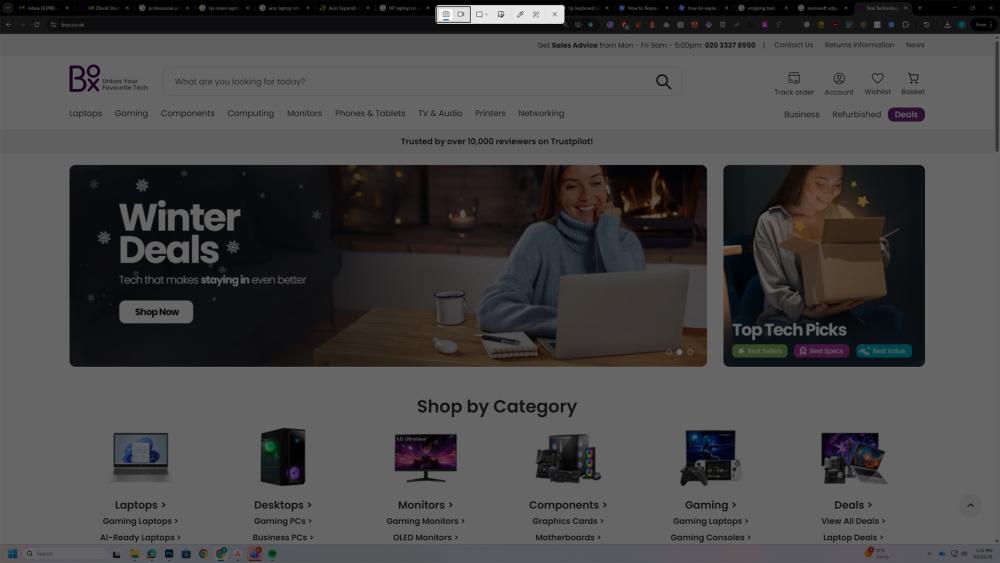
This method is best when you want to capture everything on your screen.
PrtScn (Copies Screen to Clipboard)
Press PrtScn (or Fn + PrtScn) to copy the entire screen to the clipboard.
You'll need to paste it manually using Ctrl + V into an app like Paint, Word, or an image editor.
This is one of the most common answers to how to print screen on HP laptop.
Windows + PrtScn (Saves Automatically)
Press Windows + PrtScn to take a full-screen HP laptop screenshot and save it automatically.
Your screen will briefly dim, confirming the capture.
Snipping Tool full-screen capture
Open Snipping Tool, choose Full-screen snip, and capture everything instantly. This works well if Print Screen isn't responding correctly.
Method 2: Screenshot a Specific Area on Your Screen
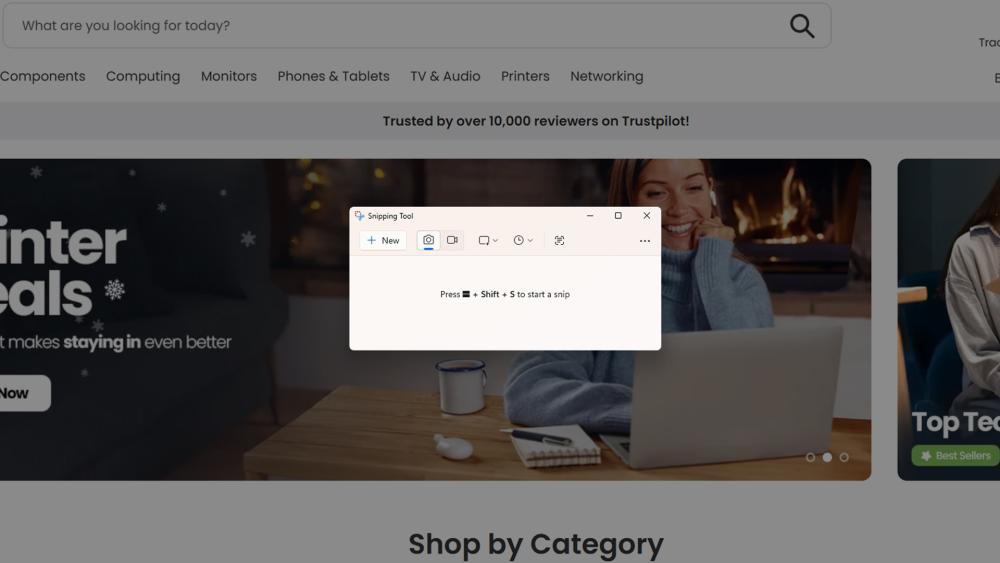
If you only need part of the screen, this is the most flexible method.
Windows + Shift + S (All Snip Modes)
Press Windows + Shift + S to open the Snipping Tool overlay. You can choose:
- Rectangular Snip
- Freeform Snip
- Window Snip
- Full-Screen Snip
This is the most popular screenshot shortcut on Windows 10 and Windows 11.
Where Custom Snips are Saved
By default, custom snips are copied to the clipboard. You can paste them instantly or click the notification to save and edit the image.
Paste instantly with Ctrl + V
After taking the snip, press Ctrl + V in an app like Paint, PowerPoint, or Teams to use the screenshot immediately.
Method 3: Screenshot Only One Window
This is ideal when you want to avoid taskbars, notifications, or background clutter.
Alt + PrtScn (Active Window Capture)
Press Alt + PrtScn to capture only the currently active window.
This method copies the image to the clipboard.
Window Snip Using Snipping Tool
Use Windows + Shift + S, then select Window snip. Click the window you want to capture.
Avoid Pop-ups and Taskbar Captures
Always click the target window first before using Alt + PrtScn or Window snip to ensure a clean capture.
Method 4: Take Scrolling Screenshots on HP
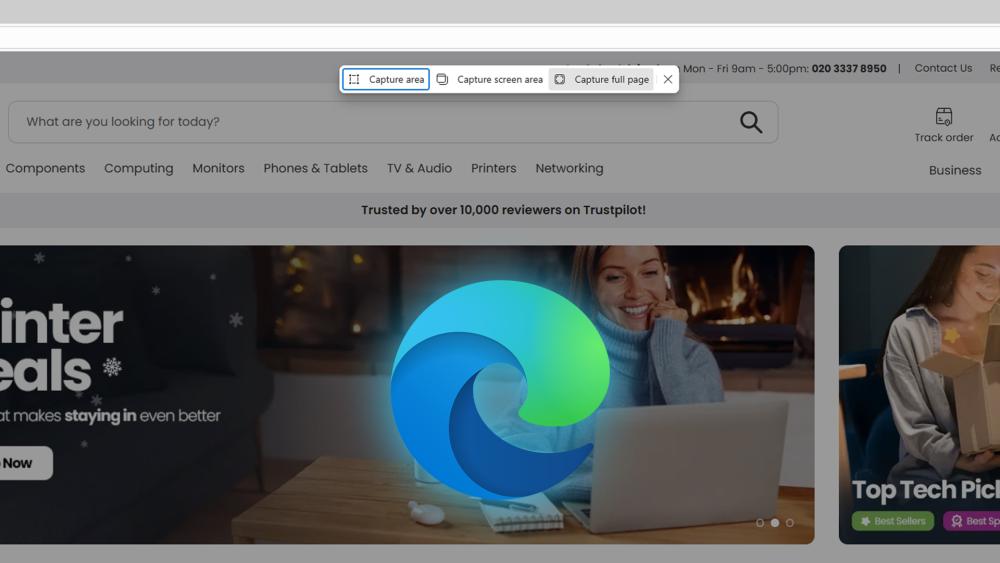
Windows doesn't offer native scrolling screenshots for desktop apps, but there are still reliable options.
Native vs Browser Screenshot Options
Most desktop apps require third-party tools for scrolling capture, but web browsers handle this natively.
Full-Page Capture in Microsoft Edge
Microsoft Edge includes a built-in Web Capture feature:
- Open Edge
- Press Ctrl + Shift + S
- Select Capture full page
This works perfectly for long articles, receipts, or guides.
Safe Tools for Long Screenshots
Stick to built-in browser tools or trusted apps to avoid security risks, especially on work or business devices like EliteBook laptops or ProBook laptops.
Where Screenshots are Saved on Windows
Knowing where files go saves a lot of frustration.
Default folder: Pictures > Screenshots
Screenshots taken with Windows + PrtScn are saved automatically to: Pictures > Screenshots
Find Clipboard Screenshots Quickly
If you copied a screenshot using PrtScn or Alt + PrtScn, you must paste it into an app to save it.
You can also enable Clipboard history with Windows + V.
Organise and Back Up Screenshots
Consider sorting screenshots into folders or backing them up with cloud storage to avoid clutter.
Edit and Share Screenshots Easily
Windows makes basic editing simple.
Crop and Annotate in Snipping Tool
Snipping Tool allows you to crop, draw, highlight, and annotate screenshots without extra software.
Blur Sensitive Info Before Sharing
Always blur passwords, email addresses, or personal data before sharing screenshots publicly or at work.
PNG vs JPG (Which is Better?)
- PNG: Better quality, larger file size
- JPG: Smaller file size, suitable for sharing
Most Windows screenshots default to PNG for clarity.
Fix Print Screen Not Working on an HP Laptop
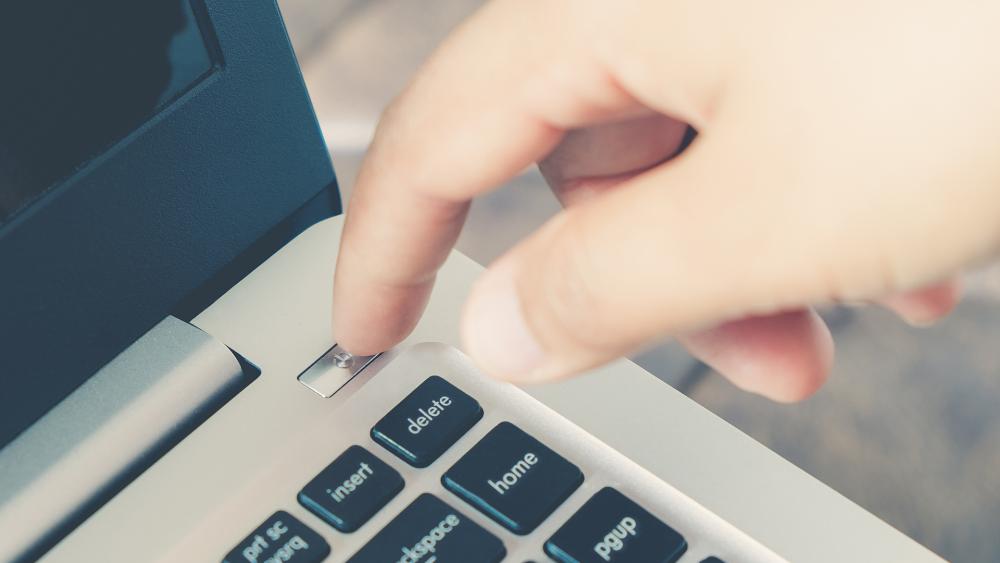
If your HP laptop screenshot shortcut isn't working, try these fixes.
Check Fn Key and Function Lock
Some HP laptops use Fn Lock, which changes how function keys behave. Toggle it and try again.
Ensure Snipping Tool is Enabled
Make sure Snipping Tool is installed and enabled in Windows settings.
OneDrive Screenshot Save Issues
If OneDrive is active, it may redirect screenshots. Check OneDrive settings if screenshots aren't appearing locally.
Update Keyboard and System Settings
Outdated keyboard drivers or Windows updates can interfere with shortcuts. Keeping Windows up to date helps.
Workarounds If The Key is Damaged
If the Print Screen key is physically damaged, rely on Windows + Shift + S or use an external keyboard. Mechanical keyboards can be useful here, especially if you rely heavily on shortcuts as well as gaming.
Best Screenshot Method for Each Situation
Here's a quick summary of the best option depending on what you need:
- Fast Copy: PrtScn or Alt + PrtScn - Best for quick sharing and pasting.
- Custom Capture: Windows + Shift + S - Best for precision and editing.
- Auto-Save: Windows + PrtScn - Best when you want files saved automatically.
- Long Pages: Edge Scrolling Capture - Best for websites and documents.
FAQs
How do you take a screenshot on an HP laptop?
Use PrtScn, Windows + Shift + S, or Windows + PrtScn depending on whether you want to copy or save the screenshot.
How to take a screenshot on HP laptop without a Windows key?
Use PrtScn, Fn + PrtScn, or Alt + PrtScn, then paste using Ctrl + V.
How do I print screen on an HP laptop?
Press PrtScn or Fn + PrtScn to copy the screen to the clipboard.
Where do I find my Screenshots on Windows?
Automatically saved screenshots appear in Pictures > Screenshots.
You can pay with:
*PayPal Credit Representative Example: Assumed credit limit £1,200, Representative 23.9% APR (variable). Purchase rate 23.9% p.a (variable).Terms & Conditions apply.


PayPal Credit and PayPal Pay in 3 are trading names of PayPal UK Ltd, 5 Fleet Place, London, United Kingdom, EC4M 7RD. Terms and conditions apply. Credit subject to status, UK residents only, Five Tech LTD acts as a broker and offers finance from a restricted range of finance providers. PayPal Pay in 3 is not regulated by the Financial Conduct Authority. Pay in 3 eligibility is subject to status and approval. 18+. UK residents only. Pay in 3 is a form of credit. Check if affordable and how you will repay. May make other borrowing more difficult or expensive. See product terms for more details.
Copyright © 1996-2026 Fivetech LTD | Terms and Conditions
box.co.uk & Box are trading names of Five Tech Limited. Registered office: Box LTD, Unit 10 Woodford Trading Estate, Woodford Green IG8 8HF