


 Menu
MenuMenu


Get Sales Advice from Mon - Fri 9am - 5:00pm:
020 3337 8950LAST UPDATED: July 06, 2026
How do I reset BIOS on an AMD motherboard?
Resetting BIOS on an AMD motherboard restores default firmware settings. It can help after failed overclocking, RAM instability, boot loops, no-display issues, or incorrect BIOS configuration. The safest method depends on whether your PC can still access BIOS. If it can, use the BIOS menu. If it cannot, clear CMOS using the button, jumper pins, or CMOS battery. This guide will walk you through how you can reset the BIOS on an AMD motherboard step-by-step. So let’s get started!
Quick Answer: How Do You Reset BIOS on an AMD Motherboard?
You can reset BIOS on an AMD motherboard in four main ways: load default settings inside BIOS/UEFI, press the Clear CMOS button, short the CMOS jumper pins, or remove and reinstall the CMOS battery. ASUS lists Clear CMOS button, CLRTC pin and CMOS battery removal as standard CMOS clearing methods, and explains that CMOS stores settings such as date, time, BIOS password and BIOS setup parameters.
If your current board keeps failing after resets, it may be time to compare latest AMD motherboards, especially if you are moving to a newer Ryzen CPU or AM5 platform.
Best Method Based on Your Situation
| Situation | Best Reset Method |
| PC still enters BIOS | Load BIOS defaults |
| PC will not boot | Clear CMOS button or jumper |
| No display after overclocking | Clear CMOS button or CMOS battery |
| No Clear CMOS button | Jumper pins or CMOS battery |
| Beginner user | BIOS defaults or Clear CMOS button |
What Does Resetting BIOS Actually Do?
Resetting BIOS restores motherboard firmware settings to default. It can reset boot order, RAM profiles, CPU overclocking, fan curves, date and time, Secure Boot settings, fTPM settings and other motherboard-level options.
Will Resetting BIOS Delete Windows or Files?
No. Resetting BIOS does not delete Windows, games, apps, photos, videos, documents or saved files. It only resets motherboard settings.
Your SSD or hard drive data stays in place, but the PC may fail to boot correctly if the boot order changes. That is usually easy to fix by selecting the Windows drive again inside BIOS.
BIOS Reset vs BIOS Update
A BIOS reset restores settings to default. A BIOS update installs newer motherboard firmware.
Use a BIOS reset when settings are wrong or the PC will not boot after changes. Use a BIOS update when you need newer CPU support, bug fixes, security updates or hardware compatibility improvements.
Before You Reset BIOS: Safety Checklist
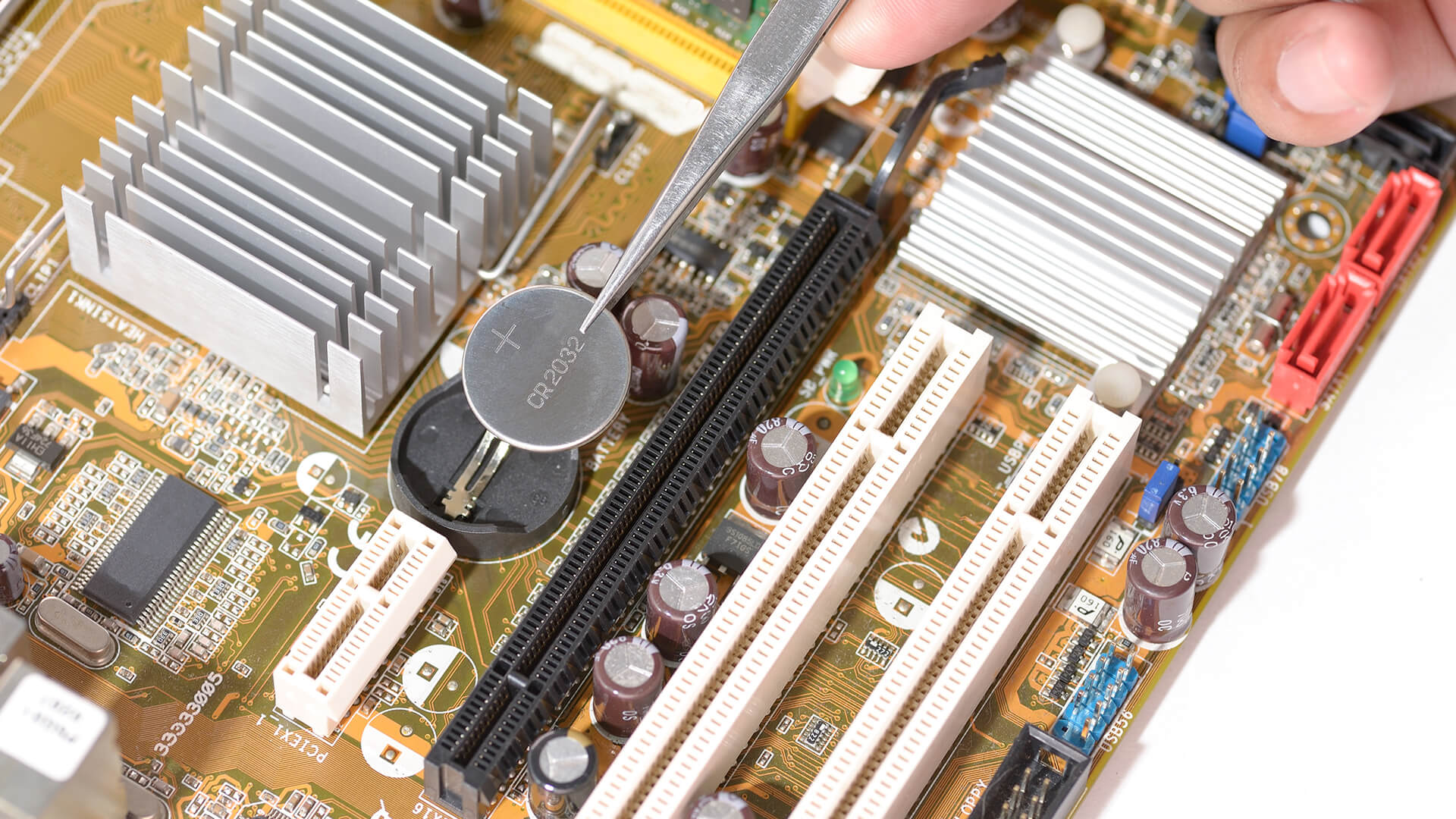
Before touching the motherboard, shut everything down properly. A BIOS AMD motherboard reset is simple, but rushing it can cause avoidable problems.
Turn Off the PC and Unplug Power
Shut down Windows, switch off the power supply and remove the power cable. Press the power button once after unplugging to discharge leftover power.
Do not touch jumper pins, the CMOS battery or internal components while the system is powered.
Check Your Motherboard Manual
Motherboard makers use different labels for reset points. Look for names such as:
- CLR_CMOS
- CLRTC
- JBAT1
- CMOS_SW
- CLEAR RTC
- Clear CMOS
On larger ATX boards, these headers are often easier to spot than on compact layouts, but always check the exact manual before shorting any pins.
Note Important BIOS Settings First
If the PC still enters BIOS, note settings you may need later:
- EXPO or XMP RAM profile
- Boot drive order
- Fan curves
- Secure Boot
- TPM or fTPM
- Resize BAR
- CPU or memory overclocking
- SATA or RAID settings
After resetting, you may need to re-enable some of these.
Method 1: Reset BIOS from the BIOS/UEFI Menu
This is the safest method if your AMD PC still boots into BIOS. It does not require opening the case or touching the motherboard.
Step-by-Step BIOS Reset from Settings
- Restart the PC.
- Press Delete or F2 during startup.
- Enter BIOS/UEFI.
- Find Load Optimised Defaults, Load Setup Defaults, Restore Defaults or similar.
- Confirm the reset.
- Save and exit.
- Let the system restart.
ASUS also documents a BIOS defaults method where users enter BIOS and use Load Optimized Defaults to return settings to default values.
When This Method Works Best
Use this method when the PC still displays BIOS but behaves badly after a setting change. It is ideal after incorrect fan settings, unstable EXPO/XMP, wrong boot settings or failed manual overclocking that still allows BIOS access.
Method 2: Reset BIOS Using the Clear CMOS Button
Many modern AMD gaming motherboards include a Clear CMOS button. This is one of the easiest ways to reset an AMD motherboard BIOS when the system will not boot properly.
Where to Find the Clear CMOS Button
The button may be:
- On the rear I/O panel
- On the motherboard PCB
- Near the bottom edge of the board
- Close to the CMOS battery or debug buttons
It may be labelled Clear CMOS, CLR_CMOS or similar.
Step-by-Step Clear CMOS Button Method
- Shut down the PC.
- Switch off the power supply.
- Unplug the power cable.
- Press and hold the Clear CMOS button for around 5 to 10 seconds.
- Reconnect power.
- Turn the PC back on.
- Enter BIOS and reconfigure settings if needed.
ASUS advises powering off, removing the power cord and holding the Clear CMOS or CLR_CMOS button for around 5 to 10 seconds.
Clear CMOS Button vs BIOS Flashback Button
Do not confuse Clear CMOS with BIOS Flashback.
Clear CMOS resets BIOS settings. BIOS Flashback updates or recovers firmware using a USB drive. Pressing the wrong button will not usually help your BIOS reset issue and may start a different process on supported boards.
Method 3: Reset BIOS Using the CMOS Jumper Pins
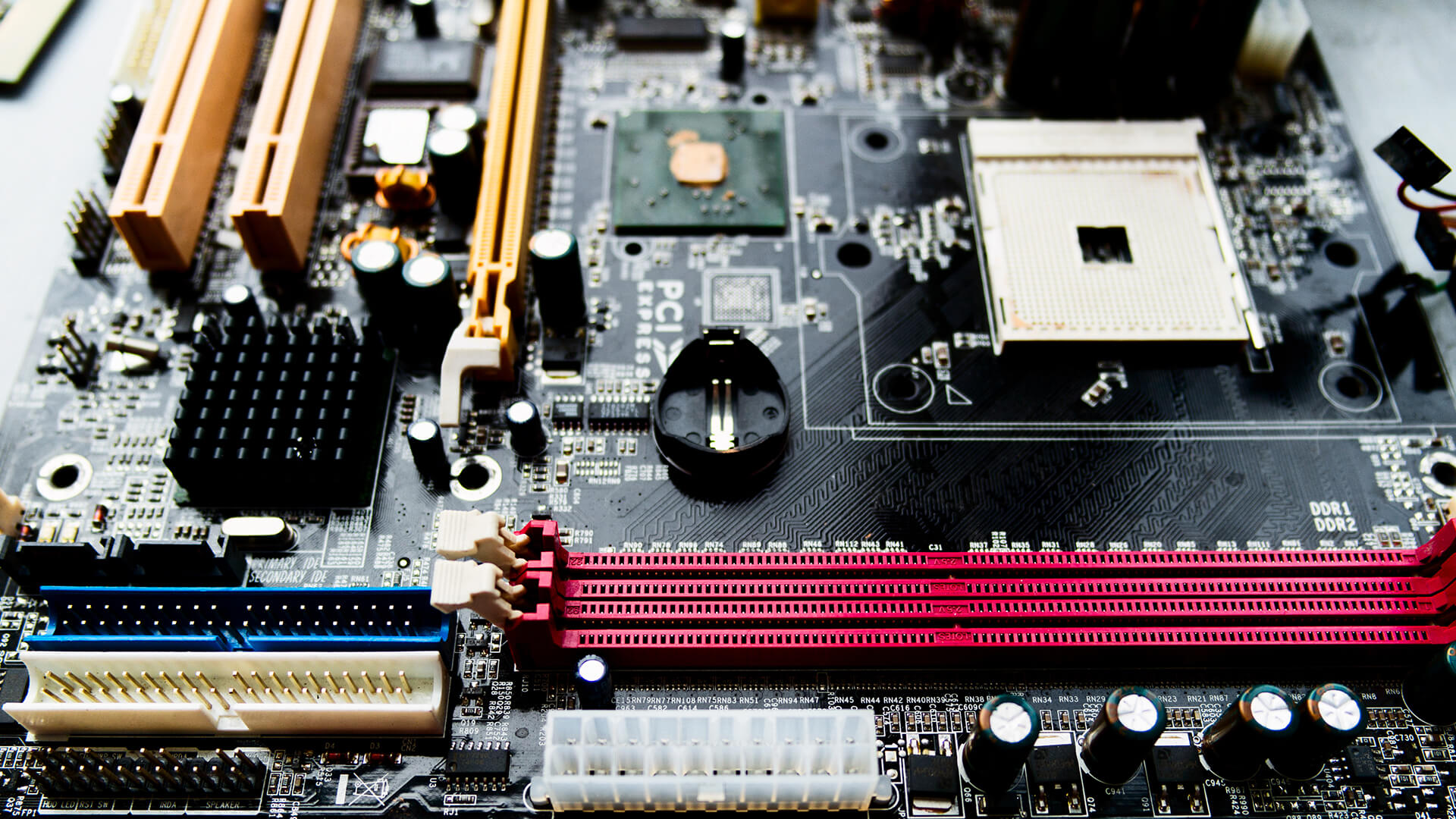
If your board does not have a Clear CMOS button, use the jumper method. This is common on AM4 motherboard and AM5 motherboard designs.
How to Find the CMOS Jumper on an AMD Motherboard
Look for a small two-pin or three-pin header labelled:
- CLR_CMOS
- CLRTC
- JBAT1
- CMOS_SW
- CLEAR RTC
The location varies by brand and model. It may be near the battery, chipset area, bottom edge, or front panel connectors.
Step-by-Step Jumper Reset Method
- Turn off the PC.
- Switch off the power supply.
- Unplug the power cable.
- Open the PC case.
- Locate the CMOS jumper pins.
- Short the pins with the jumper cap or a screwdriver, only if the manual says this is correct.
- Hold for a few seconds, or follow the manual’s timing.
- Return the jumper to its original position if required.
- Reconnect power.
- Boot the PC and enter BIOS.
ASUS gives similar CLRTC guidance, including powering off, removing the power cord and shorting the two pins for around 5 to 10 seconds.
When to Use the Jumper Method
- Use the jumper method when the system has no display, BIOS is inaccessible, or the motherboard has no rear Clear CMOS button. It is especially useful after failed overclocking, RAM tuning or EXPO instability.
- Method 4: Reset BIOS by Removing the CMOS Battery
- Removing the CMOS battery is the classic fallback method. It works on many desktop boards, but it requires opening the case and handling the motherboard carefully.
Where Is the CMOS Battery?
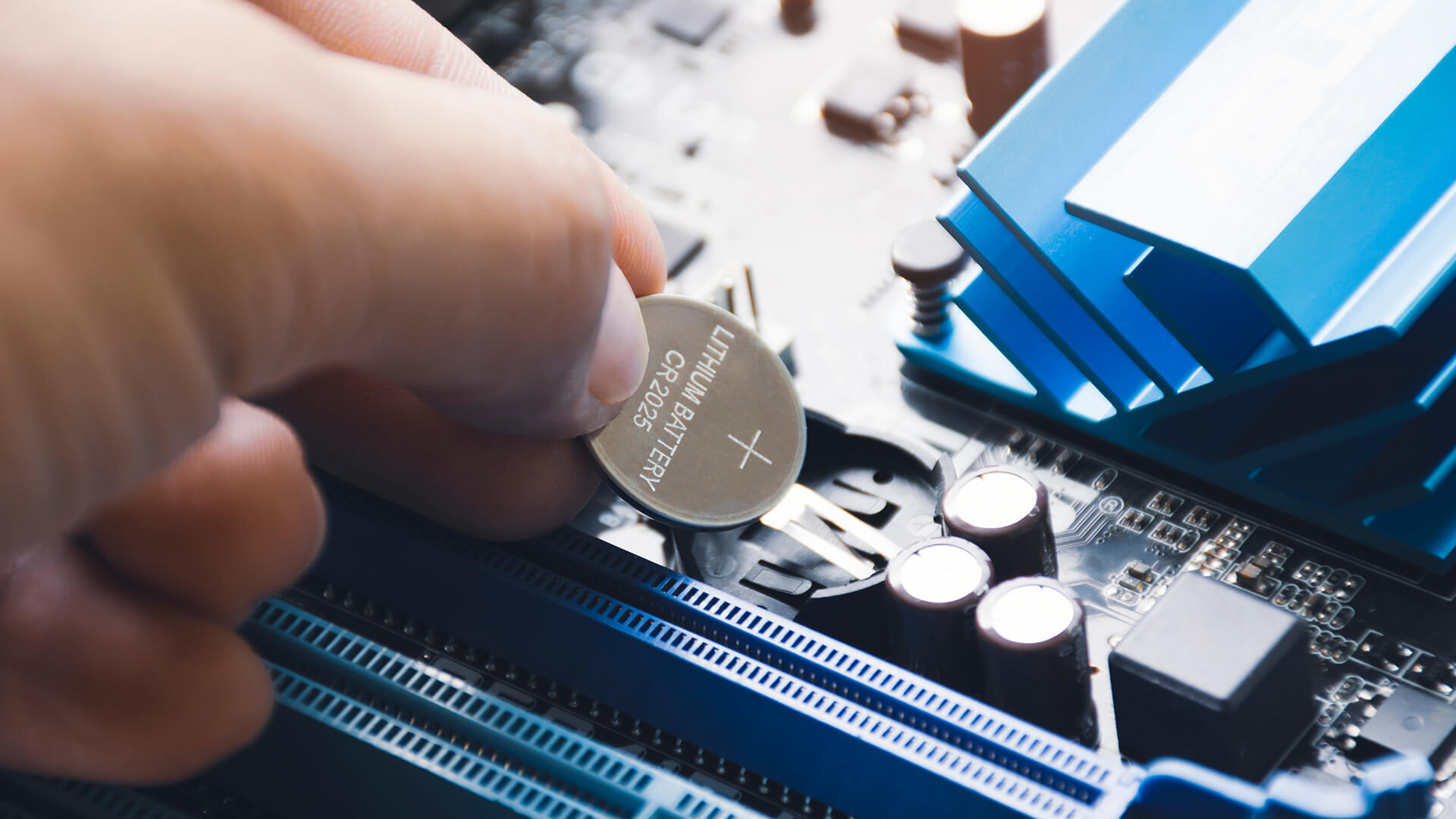
The CMOS battery is usually a round silver CR2032 battery on the motherboard. On some compact Mini ITX boards, it may be harder to reach or connected by a small cable rather than sitting flat in a holder.
Step-by-Step CMOS Battery Reset
- Shut down the PC.
- Switch off the power supply.
- Unplug the power cable.
- Press the power button once to discharge remaining power.
- Open the PC case.
- Locate the CMOS battery.
- Remove it carefully.
- Wait a few minutes.
- Reinstall the battery in the same orientation.
- Reconnect power.
- Start the PC and enter BIOS.
ASUS includes CMOS battery removal as one of its Clear CMOS methods and recommends powering off and removing the power cord before accessing the battery.
How Long Should You Remove the CMOS Battery?
- Usually, a few minutes is enough. Some boards reset faster, while others may need longer. Check the motherboard manual if the first attempt does not work.
- If BIOS settings keep resetting after every shutdown, the CMOS battery may be weak or dead.
- What to Do After Resetting BIOS
- After a reset, your AMD motherboard will usually boot with default settings. That is normal. The next step is to check the settings that affect booting, memory speed and Windows compatibility.
Recheck Boot Order
Make sure your Windows SSD is selected as the first boot device. If the PC goes straight to BIOS after the reset, boot order is one of the first things to check.
Re-enable EXPO or XMP for RAM
After clearing CMOS, RAM may run at default speed. If your memory kit supports EXPO or XMP, re-enable it only after confirming the PC boots normally.
If the PC becomes unstable again, the RAM profile may be too aggressive for the CPU, memory controller or motherboard.
Check Date, Time, Secure Boot and fTPM
Resetting BIOS can affect date, time, Secure Boot and fTPM settings. These matter for Windows 11, encryption, anti-cheat software and some boot configurations.
Save Settings and Restart
Once settings are correct, save and restart. Let the PC boot fully into Windows before changing more BIOS options.
- BIOS Reset Not Working? Common Problems and Fixes
- If the AMD motherboard BIOS reset does not fix the issue, the problem may be hardware, display, storage or RAM related rather than a BIOS setting.
PC Still Shows a Black Screen
Try these checks:
- Reseat the RAM.
- Try one RAM stick at a time.
- Check the GPU power cable.
- Connect the display cable to the correct GPU output.
- Confirm the monitor input.
- Remove unnecessary USB devices.
- Wait longer on first boot after reset.
- AM5 boards can take longer to train memory after a reset, especially with DDR5.
PC Boots but Goes Straight to BIOS
This usually points to boot order or drive detection.
Check that:
- The SSD is detected.
- The Windows drive is first in boot priority.
- SATA or NVMe settings are correct.
- RAID settings match the previous setup, if used.
BIOS Settings Keep Resetting
If BIOS settings reset every time the PC loses power, the CMOS battery may be failing. Replacing the CR2032 battery often fixes this on desktop boards.
PC Beeps or Shows Debug LEDs
Many AMD motherboards have debug LEDs for CPU, DRAM, VGA and BOOT. Use these lights to narrow the issue.
- CPU LED: CPU seating, BIOS compatibility or power issue
- DRAM LED: RAM seating, EXPO instability or memory compatibility
- VGA LED: graphics card or display output issue
- BOOT LED: storage or boot order issue
When Should You Reset BIOS on an AMD Motherboard?
Resetting BIOS is useful when settings are the likely cause of the problem. It is not a cure for every hardware fault, but it is one of the best first steps after unstable changes.
After Failed Overclocking
If the PC freezes, crashes or shows no display after CPU tuning, clearing CMOS can restore safe defaults. ASUS also lists unstable, crash or freeze behaviour after CPU or memory overclocking as a usage scenario for Clear CMOS.
After RAM Upgrade or EXPO Instability
If you installed new RAM and the system will not boot, reset BIOS and start with default memory speeds. Then enable EXPO or XMP later if the system is stable.
After Boot Loop or No Display
A boot loop or blank screen after BIOS changes is a common reason to clear CMOS. Use the Clear CMOS button first if available, then jumper pins or battery removal if needed.
Before Selling or Rebuilding a PC
- Resetting BIOS before selling or rebuilding can remove custom fan curves, overclocking profiles and boot settings. It gives the next setup a cleaner starting point.
- Wrapping Up
- Use the simplest method that matches your situation. If the PC still boots into BIOS, load default settings from the BIOS menu. If the system will not boot, use the Clear CMOS button if your board has one. If there is no button, use the CMOS jumper. If that is not available or easy to access, remove the CMOS battery.
For most users, the order should be:
- BIOS defaults
- Clear CMOS button
- CMOS jumper pins
- CMOS battery removal
That keeps the reset process safe, practical and beginner-friendly.
FAQs
-
Is clearing CMOS the same as resetting BIOS?
Yes. In most PC troubleshooting contexts, clearing CMOS means resetting BIOS or UEFI settings back to default.
-
Will resetting BIOS damage my AMD motherboard?
No, not when done correctly. The main risk comes from touching components while the PC is powered or shorting the wrong pins. Always unplug the power cable and follow the motherboard manual.
-
Does resetting BIOS remove a BIOS update?
No. Resetting BIOS changes settings, but it does not usually roll back the BIOS firmware version. A BIOS update and BIOS reset are different processes.
-
Why won’t my AMD PC boot after resetting BIOS?
The boot order may have changed, EXPO or XMP may be disabled, or the storage drive may not be selected correctly. Enter BIOS and check the Windows boot drive first.
-
Do I need to reset BIOS after installing a new Ryzen CPU?
Sometimes. If the system does not boot after a Ryzen CPU upgrade, clearing CMOS can help the motherboard detect the new hardware correctly. You may still need a BIOS update if the CPU is not supported by the installed firmware.
-
Can I reset BIOS on an AM5 motherboard the same way as AM4?
Yes, the basic methods are similar: BIOS defaults, Clear CMOS button, jumper pins or CMOS battery. The exact labels and layout vary by motherboard model.
-
What is AMD BIOS recovery mode?
AMD BIOS recovery mode usually refers to a motherboard recovery feature used when firmware is corrupted or a BIOS update fails. It is different from clearing CMOS, which only resets BIOS settings.
You can pay with:
*PayPal Credit Representative Example: Assumed credit limit £1,200, Representative 23.9% APR (variable). Purchase rate 23.9% p.a (variable).Terms & Conditions apply.


PayPal Credit and PayPal Pay in 3 are trading names of PayPal UK Ltd, 5 Fleet Place, London, United Kingdom, EC4M 7RD. Terms and conditions apply. Credit subject to status, UK residents only, Five Tech LTD acts as a broker and offers finance from a restricted range of finance providers. PayPal Pay in 3 is not regulated by the Financial Conduct Authority. Pay in 3 eligibility is subject to status and approval. 18+. UK residents only. Pay in 3 is a form of credit. Check if affordable and how you will repay. May make other borrowing more difficult or expensive. See product terms for more details.
Copyright © 1996-2026 Fivetech LTD | Terms and Conditions
box.co.uk & Box are trading names of Five Tech Limited. Registered office: Box LTD, Unit 10 Woodford Trading Estate, Woodford Green IG8 8HF