


 Menu
MenuMenu


Get Sales Advice from Mon - Fri 9am - 5:00pm:
020 3337 8950LAST UPDATED: July 06, 2026
GPU Stress Test: How to Test Your Graphics Card for Performance, Stability & Health
A GPU stress test is one of the best ways to check whether your graphics card is stable, healthy, and performing as expected. It pushes the GPU harder than normal desktop use, helping you spot overheating, driver crashes, visual artefacts, FPS drops, and power issues before they ruin a gaming session.
If your PC crashes during games, your screen flickers, your fans suddenly ramp up, or your frame rate feels unstable, a GPU stress test can help you narrow down the cause. It is also useful after installing a new graphics card, buying a used GPU, changing drivers, building a gaming PC, or adjusting overclock settings.
This guide explains how to stress test a GPU safely, what software to use, how long to test, what the results mean, and what to do if your graphics card fails.
Quick answer: A GPU stress test checks whether your graphics card can run under heavy load without overheating, crashing, showing artefacts or throttling. Start with a short test, monitor temperatures closely, then run a longer stability test if everything looks safe.
What Is a GPU Stress Test?
A GPU stress test is a controlled workload designed to push your graphics card close to full load.
It helps check whether the GPU can stay stable under pressure.
A stress test graphics card routine usually monitors:
- GPU temperature
- GPU utilisation
- Fan speed
- Clock speed
- VRAM usage
- Power draw
- Frame rate stability
- Driver stability
- Visual artefacts
- System freezes or restarts
A normal game may only push the graphics card in short bursts. A dedicated GPU stress test program keeps the load high for longer, making hidden issues easier to spot.
GPU Stress Test vs GPU Benchmark
A GPU stress test and a GPU benchmark are related, but they are not the same thing.
| Test Type | Main Purpose | Best For |
|---|---|---|
| GPU stress test | Checks stability under heavy load | Temperatures, crashes, throttling |
| GPU benchmark | Measures performance score | Comparing GPUs or settings |
| Real-world gaming test | Checks actual gameplay experience | FPS, frame pacing, settings balance |
| VRAM test | Checks video memory stability | Artefacts, crashes, memory errors |
A benchmark tells you how fast your GPU is. A GPU stress test tells you whether it can stay stable when pushed.
What a GPU Stress Test Can Reveal
A GPU stress test can help identify:
| Symptom | Possible Cause |
|---|---|
| High temperatures | Dust, poor airflow, weak cooler |
| Visual artefacts | VRAM issue, unstable overclock, failing GPU |
| Driver crash | Driver fault, unstable GPU, power issue |
| Black screen while gaming | GPU, driver, cable or PSU issue |
| System restart | PSU, power cable or thermal problem |
| FPS drops | Thermal throttling or background load |
| Fan noise spike | Heat buildup or aggressive fan curve |
It is not a magic repair tool, but it gives you useful evidence.
When Should You Run a GPU Stress Test?
You do not need to run a graphics card stress test every week. It is most useful when you have a reason to check stability.
Best Times to Test a Graphics Card
| Situation | Why a GPU Stress Test Helps |
|---|---|
| New graphics card installed | Confirms stability before regular gaming |
| New gaming PC build | Checks thermals, power, and airflow |
| Used GPU purchase | Helps reveal hidden problems |
| Overclocking | Tests stability under load |
| Undervolting | Checks if voltage is too low |
| Driver update issues | Helps confirm if crashes remain |
| Random game crashes | Separates game bugs from hardware issues |
| Visual artefacts | Checks if the GPU or VRAM is unstable |
If you are planning an upgrade, compare your current results before buying. That gives you a clearer idea of whether upgrade-ready graphics cards are likely to solve the issue or whether the problem sits elsewhere in the system.
Before Buying or Trusting a Used GPU
A GPU stress test is especially useful with second-hand cards.
Before relying on a used graphics card, check:
- Does it reach high temperatures quickly?
- Do the fans sound rough?
- Are there visual artefacts?
- Does the driver crash?
- Is the card stable for 15 to 30 minutes?
- Does performance drop sharply over time?
If you want a lower-cost route but prefer a more reliable buying path, tested refurbished GPUs are a safer option than taking a punt on unknown used hardware.
Is a GPU Stress Test Safe?
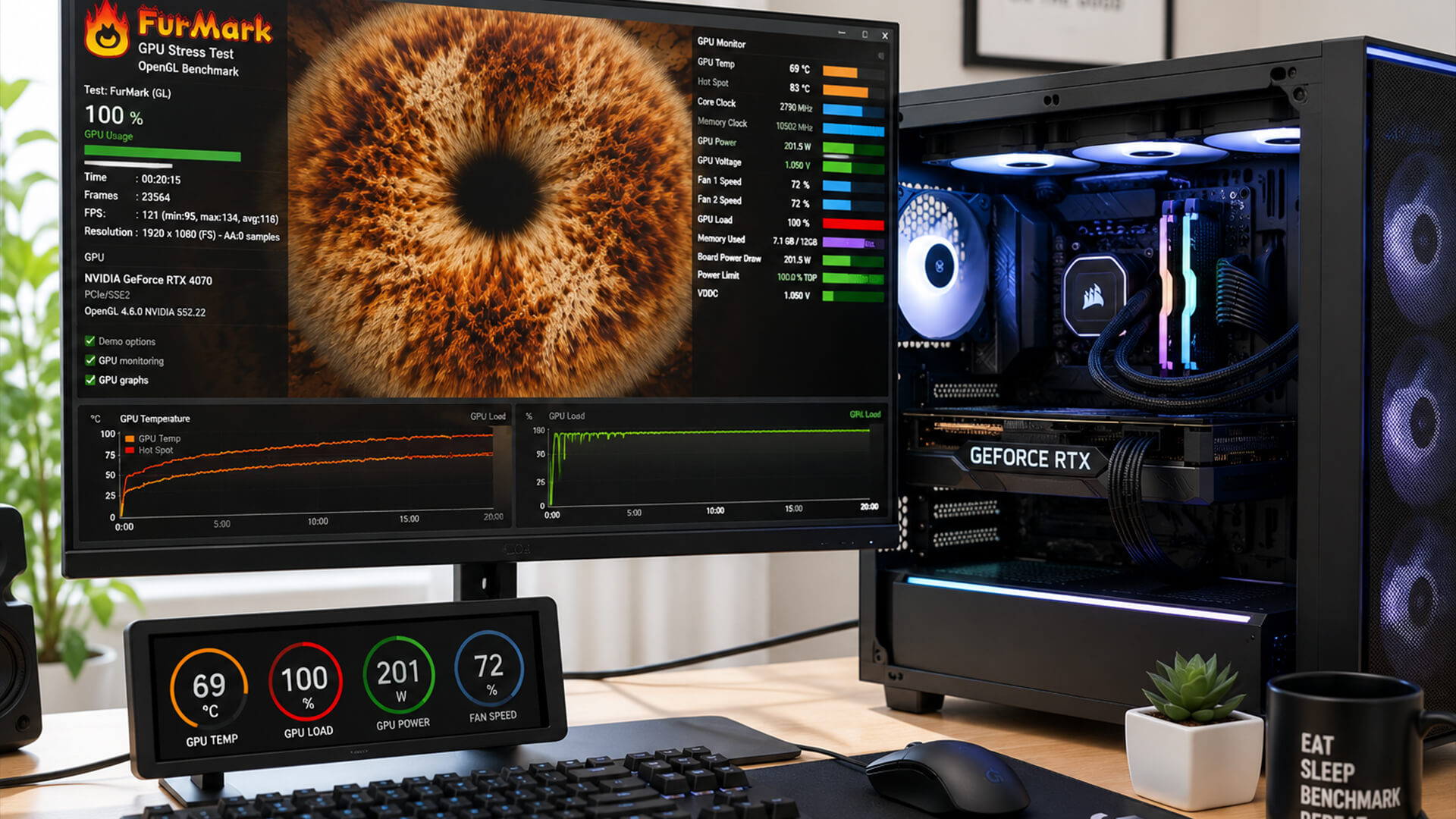
A GPU stress test is generally safe if you use sensible settings, watch temperatures, and stop when something looks wrong.
The risk comes from leaving the test running blindly, especially on an old GPU, dusty PC, weak power supply or hot gaming laptop.
What to Check Before You Start
Before you stress test GPU hardware, do this:
| Check | Why It Matters |
|---|---|
| Clean dust from fans | Improves airflow |
| Check GPU fans spin | Prevents instant overheating |
| Update GPU drivers | Reduces software-related crashes |
| Close background apps | Keeps results cleaner |
| Check PSU cables | Avoids power instability |
| Remove unstable overclocks | Establishes a baseline |
| Open monitoring software | Lets you watch temps and clocks |
Do not start with an extreme hour-long FurMark GPU stress test if you have not checked basic cooling and stability first.
Warning Signs That Mean You Should Stop
Stop the GPU stress test if you see:
- Rapid temperature spikes
- GPU temperature climbing beyond safe expectations
- Burning smell
- Loud grinding fan noise
- Visual artefacts
- Screen flickering
- Black screen
- Driver crash
- System freeze
- Sudden restart
- Fans stuck at 100% with rising temps
If a stress test makes the system unstable quickly, treat that as useful information. Do not keep forcing it.
Laptop Safety Tips
Gaming laptops need extra caution.
Laptop GPUs run hotter because cooling space is limited. Always test with the charger connected and the laptop on a hard surface.
Avoid:
- Testing on a bed or sofa
- Blocking vents
- Running long stress tests immediately
- Ignoring fan noise
- Testing while on battery
- Using silent mode during a heavy GPU test
For portable systems, gaming laptops for smooth GPU performance are designed with stronger cooling than general-purpose laptops, but they still need careful temperature monitoring.
How to Stress Test a GPU Safely
The safest approach is to build up gradually.
Do not jump straight into a long torture test. Start short, monitor everything, then extend the test only if the system behaves normally.
Step-by-Step GPU Stress Test Process
| Step | What to Do | Why It Matters |
|---|---|---|
| 1 | Update GPU drivers | Reduces driver-related instability |
| 2 | Restart the PC | Clears background problems |
| 3 | Close heavy apps | Keeps the test clean |
| 4 | Open monitoring tools | Tracks temperature and usage |
| 5 | Run a short test | Checks immediate problems |
| 6 | Run a longer test | Confirms stability |
| 7 | Test games afterwards | Checks real-world behaviour |
Step 1: Update Your Graphics Drivers
Start with the latest stable driver for your GPU.
Driver issues can cause:
- Game crashes
- Black screens
- Stutter
- Incorrect GPU utilisation
- Poor performance
- Benchmark errors
For NVIDIA cards, update through the NVIDIA App or driver download page. For AMD cards, use AMD Software.
If crashes started after a recent driver update, rolling back to a previous driver may also be worth testing.
Step 2: Close Background Apps
Before running a GPU test stress routine, close anything that could affect results.
Close:
- Game launchers you do not need
- Browser tabs
- Video streaming apps
- Recording software
- Unused overlays
- File downloads
- RGB control tools if they are buggy
- Heavy productivity software
Keep only your stress test and monitoring tools open.
Step 3: Choose a GPU Stress Test Program
Choose the tool based on what you want to check.
| Goal | Tool Type |
|---|---|
| Basic stability | Free GPU stress test software |
| Extreme thermal load | FurMark-style stress test |
| Benchmark score | 3DMark-style benchmark |
| Overclock stability | OCCT or similar test suite |
| VRAM errors | VRAM test tool |
| Real gaming performance | Built-in game benchmark |
The best GPU stress test software is the one that matches the problem you are trying to solve.
Step 4: Start with a Short GPU Test
Start with 5 to 10 minutes.
Watch:
- Temperature rise
- Fan behaviour
- Clock speed stability
- GPU utilisation
- VRAM usage
- Visual artefacts
- Any crash or freeze
If the card fails quickly, there is no need to run a longer test yet.
Step 5: Monitor Temperature, Fan Speed and GPU Usage
A proper GPU stress test is not just “run it and leave”.
Monitor:
| Metric | What to Look For |
|---|---|
| GPU temperature | Should stabilise, not rise endlessly |
| Hotspot temperature | Helps show cooler contact issues |
| Fan speed | Should respond to heat |
| GPU utilisation | Usually close to full load |
| Clock speed | Should not drop sharply for long periods |
| Power draw | Helps spot power limit behaviour |
| VRAM usage | Useful for memory-heavy tests |
| Frame time | Shows smoothness and spikes |
Temperature limits vary by card, cooler and laptop design, so compare results against your GPU model and normal gaming behaviour.
Step 6: Run a Longer Stability Test
If the short test looks fine, run a longer test.
A sensible approach:
| Test Length | Best Use |
|---|---|
| 5 to 10 minutes | Quick safety check |
| 15 to 30 minutes | General stability check |
| 30 to 60 minutes | Stronger confidence test |
| 1 hour+ | Overclock validation or deeper troubleshooting |
Most gamers do not need to run stress tests for hours. If your goal is gaming stability, combine a 20 to 30 minute GPU stress test with real game testing.
Step 7: Compare Results with Real Gaming Performance
A GPU stress test is useful, but games are the final check.
After the stress test, play the games that were causing problems.
Watch for:
- FPS drops
- Frame time spikes
- Stutter
- Driver crashes
- Black screens
- Visual artefacts
- GPU overheating
- Fan noise changes
For smoother results, it also helps to understand matching your monitor with your GPU, especially if you are targeting high refresh rates at 1080p, 1440p, or 4K.
Best GPU Stress Test Software and Tools
There are several ways to run a GPU test. Some are better for beginners, while others are more useful for advanced troubleshooting.
Tool Comparison
| Tool Type | Best For | Notes |
|---|---|---|
| FurMark GPU stress test | Thermal stress and quick stability checks | Very demanding, use carefully |
| 3DMark | Benchmarks and stress-loop stability | Good for comparing scores |
| OCCT | Stability, VRAM and power testing | Useful for deeper troubleshooting |
| Unigine-style tests | Visual stability and benchmarks | Good for artefact spotting |
| Game benchmarks | Real-world performance | Best for practical FPS testing |
| Online GPU test | Basic browser checks | Not a true stress test |
Things to Look for in the Best Free GPU Stress Test Software
Free GPU stress test software is enough for most users.
Look for tools that provide:
- GPU load testing
- Temperature monitoring
- Error detection
- Benchmark loops
- VRAM checks
- Stability reporting
- Easy stop controls
Do not download random “free GPU stress test” tools from unknown websites. Stick to well-known names and official sources.
FurMark GPU Stress Test: What It Is Best For
The FurMark GPU stress test is commonly used to push a graphics card hard and check thermal stability.
It is useful for:
- Checking maximum temperatures
- Spotting cooling problems
- Finding unstable overclocks
- Testing fan behaviour
- Quickly loading the GPU
Use FurMark carefully because it can create a heavier load than many games. Start with short runs and monitor temperatures closely.
NVIDIA GPU Stress Test Options
There is not one single official “NVIDIA GPU stress test” that every user must run. For NVIDIA systems, the usual approach is:
- Use NVIDIA App for driver updates and monitoring
- Use 3DMark or a similar benchmark for performance testing
- Use OCCT or FurMark-style tools for stability checks
- Use real games for practical validation
If you are upgrading for better gaming performance, NVIDIA GPUs for gaming are a strong place to start, especially if you want DLSS support, ray tracing performance, and high-FPS gaming features.
Online GPU Test Tools: Are They Worth Using?
A GPU online stress test or online graphics card stress test can be useful for a quick browser-based check, but it should not be treated as a full stability test.
Online GPU tests are usually limited by:
- Browser restrictions
- Lower hardware access
- Inconsistent load
- Poor monitoring depth
- Less reliable results
- Limited VRAM testing
Use an online GPU test for a quick check, not for serious troubleshooting.
For proper results, use installed GPU stress test software and a separate monitoring tool.
How to Read GPU Stress Test Results
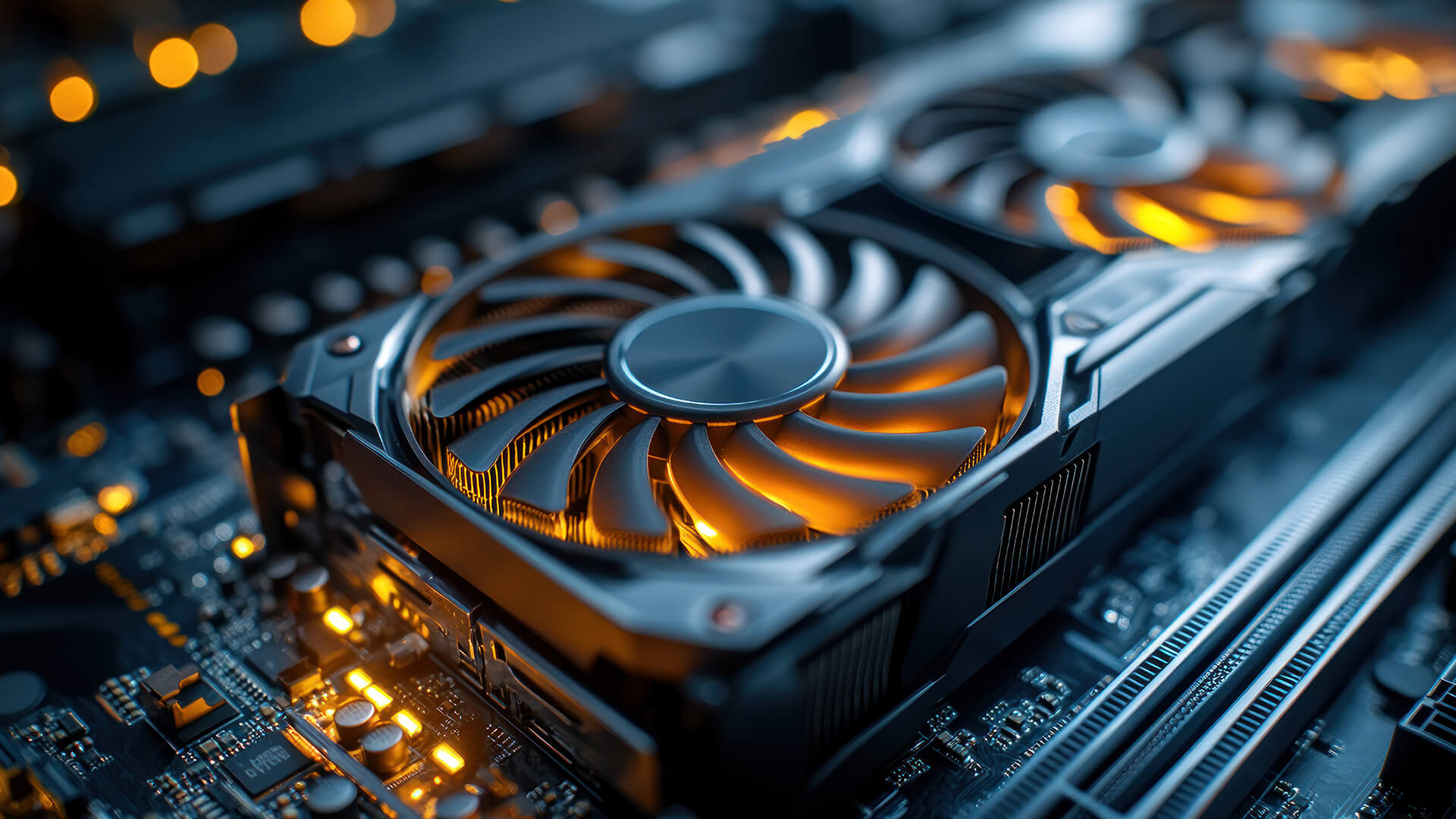
The result is not just pass or fail. You need to look at the behaviour during the test.
Signs Your GPU Is Stable
A stable graphics card should show:
- No crashes
- No visual artefacts
- No black screens
- No driver resets
- No sudden restarts
- Stable clock speeds
- Temperatures levelling off
- Fans responding normally
- No major frame time spikes
If the GPU passes a stress test and games also run well, your card is likely stable.
Signs Your GPU May Be Overheating
GPU overheating can show up as:
| Sign | What It Suggests |
|---|---|
| Temperature keeps climbing | Cooling cannot keep up |
| Clock speed drops sharply | Thermal throttling |
| Fans hit 100% quickly | Cooler is struggling |
| Case feels very hot | Poor airflow |
| Game FPS drops over time | Heat-related performance loss |
| Laptop becomes too hot to touch | Cooling limit reached |
If temperatures are the issue, do not immediately replace the GPU. Clean dust, improve airflow, and check fan curves first.
Crashes, Artefacts and Restarts
Different failures point to different problems.
| Problem | Possible Cause |
|---|---|
| Driver crash | Driver issue, unstable overclock, bad GPU |
| Visual artefacts | VRAM instability or failing GPU |
| Black screen | Driver, power or hardware fault |
| Full system restart | PSU or power delivery problem |
| Game-only crash | Game bug, driver issue or unstable settings |
| Stress test-only crash | Overheating or instability under heavy load |
A failed video card stress test does not always mean the graphics card is dead. It means the system needs more diagnosis.
How to Test GPU Health on a Gaming Laptop
Testing GPU health on a laptop is similar to testing a desktop GPU, but temperatures matter more.
Laptop cooling is tighter, and many gaming laptops use shared heatpipes for the CPU and GPU. A heavy GPU stress test can also raise CPU temperatures.
Laptop GPU Test Checklist
| Step | What to Do |
|---|---|
| Plug in charger | Ensures full performance mode |
| Use performance mode | Prevents low-power results |
| Place laptop on hard surface | Keeps vents clear |
| Open monitoring software | Watch GPU and CPU temps |
| Start with a short test | Avoid instant heat soak |
| Listen to fan behaviour | Fans should ramp normally |
| Test real games after | Confirms practical stability |
Do not judge a gaming laptop only by one synthetic stress test. Thin laptops often run hot under maximum load, but still perform well in real games.
When Laptop GPU Problems Mean Upgrade Time
Consider upgrading if:
- Games crash even after driver updates
- GPU temperatures are always too high
- FPS drops heavily after a few minutes
- The laptop cannot handle your target resolution
- VRAM is too limited for modern games
- The fans are constantly maxed out
- You want better frame rate stability
If the laptop is older and the GPU cannot be upgraded internally, replacing the full system may be more sensible than chasing small fixes.
What to Do If Your GPU Fails a Stress Test
Do not panic. Work through the simple fixes first.
Fixes to Try First
| Fix | Why It Helps |
|---|---|
| Clean dust from GPU and case | Improves airflow |
| Reset overclock | Removes unstable settings |
| Update drivers | Fixes software issues |
| Reinstall drivers cleanly | Removes corrupted driver problems |
| Check power cables | Prevents power instability |
| Improve case airflow | Lowers GPU temperature |
| Lower power limit slightly | Can improve stability |
| Test another game | Rules out game-specific bugs |
| Check PSU quality | Power issues can mimic GPU faults |
Clean Dust and Improve Airflow
Dust can block heatsinks and fans.
Check:
- GPU fans
- Case intake filters
- Front mesh panels
- CPU cooler area
- PSU intake
- Cable clutter around airflow paths
Better airflow can lower temperatures and reduce thermal throttling.
Reset Overclocks or Undervolt Settings
Unstable tuning is a common cause of crashes.
Reset:
- GPU core overclock
- Memory overclock
- Voltage curve
- Power limit changes
- Fan curve changes
Then run the GPU stress test again at stock settings.
If the card passes at stock but fails when overclocked, the GPU is not faulty. The overclock is.
Check PSU and Power Cables
A weak or ageing PSU can cause black screens, restarts, and sudden shutdowns under GPU load.
Check:
- Correct PCIe power cables
- Fully seated connectors
- No damaged cables
- PSU wattage headroom
- PSU age and quality
- Adapter cable requirements
A GPU test stress routine can expose power problems that normal desktop use never triggers.
Consider a New GPU, Gaming PC or Laptop
If the GPU still fails after cleaning, driver work, stock settings, and power checks, replacement may be the sensible route.
Use the failure to guide the upgrade.
If only the GPU is weak or faulty, replace the graphics card. If the whole system is old, a full PC upgrade may make more sense. If the issue is a laptop GPU, replacement usually means a new laptop.
For a complete system route, Prebuilt High-FPS Gaming PCs can be easier than rebuilding around ageing parts.
Choosing a Better GPU After Testing
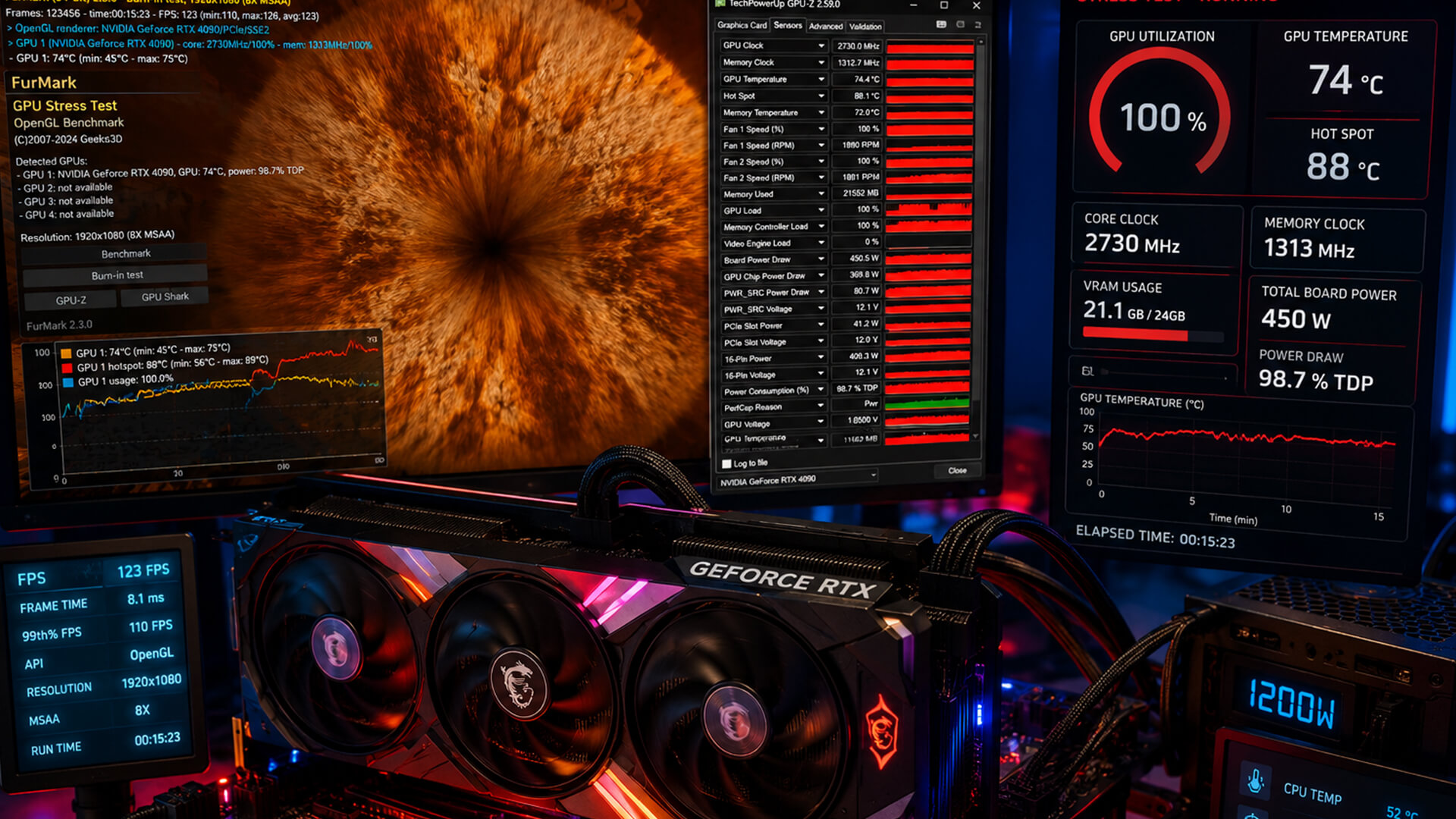
A GPU stress test can tell you whether your current card is healthy, but it can also show when your setup is simply not meeting your gaming goals anymore.
If your GPU passes the stress test but still struggles in games, it may not be faulty. It may just be underpowered for your target resolution, settings or refresh rate.
Upgrade Signs
| Sign | What It Means |
|---|---|
| Stable stress test but low FPS | GPU is healthy but not powerful enough |
| High VRAM usage | More VRAM may help |
| Low 1% lows | CPU, RAM, storage or GPU limit possible |
| Poor 1440p performance | GPU upgrade may be needed |
| Ray tracing tanks FPS | Need stronger RT and upscaling support |
| Monitor supports high refresh but GPU cannot keep up | GPU and monitor are mismatched |
If you are comparing options, our guide to choosing the best GPU can help match your graphics card to your games, resolution, and budget.
For players focused on popular resolutions, the guide to the best GPUs for smooth 1080p and 1440p gaming is a good next read.
GPU Stress Test Results and High Refresh Monitors
A GPU stress test checks stability, but your monitor decides how much of that performance you can actually see.
If your GPU can push 140 FPS but your monitor is 60Hz, you will not see the full smoothness benefit. If your monitor is 165Hz but your GPU can only manage 70 FPS in your favourite games, the display has more headroom than your system can use.
For smoother results, high-refresh rate gaming monitors make the most sense when your GPU can deliver enough frames to match them.
Quick Pairing Guide
| Gaming Target | Sensible Setup |
|---|---|
| 1080p 60 FPS | Entry-level to mid-range GPU |
| 1080p 144 FPS | Strong mid-range GPU |
| 1440p 144 FPS | Upper mid-range or high-end GPU |
| 4K 60 FPS | High-end GPU |
| 4K high refresh | Top-tier GPU |
Use your GPU stress test, benchmark scores, and in-game FPS data together. That gives a better picture than one number on its own.
Wrapping Up
A GPU stress test is worth running when you need to check stability, temperatures or graphics card health. It is especially useful after installing a new GPU, building a PC, buying a used card, tuning an overclock, or troubleshooting crashes and artefacts.
For most gamers, the safest method is simple:
- Update drivers
- Start with a short test
- Monitor temperatures
- Watch for artefacts
- Run a longer test only if stable
- Compare results with real games
- Fix cooling, drivers, or power before replacing hardware
Do not treat a GPU stress test as something you need to run constantly. Use it as a diagnostic tool.
If your graphics card passes the test and games run smoothly, you are in a good place. If it fails, the result gives you a starting point: cooling, drivers, power, tuning, or hardware replacement.
The aim is not to torture your GPU for no reason. It is to make sure your gaming PC or laptop is stable, cool and ready for proper gameplay.
FAQs
-
Is it safe to run a GPU stress test?
Yes, a GPU stress test is generally safe if you monitor temperatures, use trusted software and stop if you see warning signs such as artefacts, crashes, black screens or extreme heat. Start with short tests before running longer stability checks.
-
How long should you run a GPU stress test?
For a quick check, run a GPU stress test for 5 to 10 minutes. For general stability, 15 to 30 minutes is enough for most users. For overclock validation or deeper troubleshooting, 30 to 60 minutes can give more confidence.
-
Can you run a GPU stress test online?
You can run a basic online GPU test, but it is not the same as a proper installed GPU stress test program. Browser-based tests usually have limited hardware access and weaker monitoring, so they are better for quick checks than serious stability testing.
-
What is the best GPU stress test software?
The best GPU stress test software depends on the job. FurMark is useful for heavy thermal testing, OCCT is strong for stability and VRAM checks, 3DMark is useful for benchmarks and stress loops, and real game benchmarks are best for practical gaming performance.
-
What is FurMark GPU stress test used for?
The FurMark GPU stress test is used to put a graphics card under heavy load. It is commonly used to check GPU temperatures, cooling behaviour, fan response and basic stability. Because it can be very demanding, it should be used carefully with temperature monitoring.
-
How do I test GPU health on a laptop?
Plug the laptop in, use performance mode, place it on a hard surface, open monitoring software, then run a short GPU stress test first. Watch GPU temperature, fan speed, clock speeds and performance drops. Follow up with real game testing.
-
What should I do if my graphics card fails a stress test?
Stop the test and check the basics first. Clean dust, reset overclocks, update or reinstall drivers, check power cables, improve airflow and test again. If the GPU still fails at stock settings, it may have a cooling, power or hardware fault.
-
What temperature is too high during a GPU stress test?
Safe GPU temperatures vary by model, cooler and laptop design. The key warning sign is temperature that keeps climbing, causes throttling, triggers crashes, or makes fans run at maximum without stabilising. Always compare against your specific GPU’s expected operating range.
-
Does passing a GPU stress test mean my GPU is fine?
Passing a GPU stress test is a good sign, but it does not guarantee every game will run perfectly. Some crashes are caused by game bugs, drivers, RAM, CPU issues, storage problems or power supply instability. Always confirm with real-world gaming too.
You can pay with:
*PayPal Credit Representative Example: Assumed credit limit £1,200, Representative 23.9% APR (variable). Purchase rate 23.9% p.a (variable).Terms & Conditions apply.


PayPal Credit and PayPal Pay in 3 are trading names of PayPal UK Ltd, 5 Fleet Place, London, United Kingdom, EC4M 7RD. Terms and conditions apply. Credit subject to status, UK residents only, Five Tech LTD acts as a broker and offers finance from a restricted range of finance providers. PayPal Pay in 3 is not regulated by the Financial Conduct Authority. Pay in 3 eligibility is subject to status and approval. 18+. UK residents only. Pay in 3 is a form of credit. Check if affordable and how you will repay. May make other borrowing more difficult or expensive. See product terms for more details.
Copyright © 1996-2026 Fivetech LTD | Terms and Conditions
box.co.uk & Box are trading names of Five Tech Limited. Registered office: Box LTD, Unit 10 Woodford Trading Estate, Woodford Green IG8 8HF