


 Menu
MenuMenu


Get Sales Advice from Mon - Fri 9am - 5:00pm:
020 3337 8950LAST UPDATED: July 22, 2026
How Long Will Your Gaming GPU Last? Signs It's Time to Upgrade in 2026
Your graphics card is one of the most important parts of a gaming PC. It controls how smoothly your games run, how sharp they look, whether you can use ray tracing, and how well your system handles modern resolutions such as 1440p and 4K. But even a good GPU will not feel powerful forever.
The average GPU lifespan depends on how you use it, how well it is cooled, what games you play and what resolution you target. A graphics card can physically last for many years, but its gaming performance may start to feel outdated much sooner. In 2026, newer games are more demanding, ray tracing is more common, VRAM requirements are higher, and technologies such as DLSS, FSR and frame generation can make newer cards feel much more capable.
This guide explains how long graphics cards last, the clear signs your graphics card is dying, how to spot GPU bottleneck symptoms, when to upgrade your graphics card, and which newer options make sense if your current GPU is holding you back.
To compare current upgrades, browse GPU cards, explore gaming GPU options and AMD graphic display card choices at Box.co.uk.
Average GPU Lifespan: How Long Should a Graphics Card Last?
The Average GPU Lifespan is usually around 4 to 6 years for a good gaming experience, although the card itself may physically last longer. A well-cooled graphics card used sensibly can keep working for 7 years or more, but that does not always mean it will still deliver the performance you want in modern games.
There are two ways to think about graphics card lifespan:
| Lifespan Type | What It Means | Typical Range |
|---|---|---|
| Physical lifespan | How long the GPU keeps working without hardware failure | Often 5 to 8+ years with good care |
| Gaming lifespan | How long the GPU feels fast enough for new games | Often 3 to 6 years depending on resolution and settings |
| Driver support lifespan | How long the GPU receives useful driver updates | Varies by manufacturer and generation |
| Feature lifespan | How long the GPU supports modern features such as ray tracing, upscaling and frame generation | Usually shorter on older cards |
A graphics card does not become useless overnight. It usually becomes outdated gradually. First, you lower a few settings. Then you disable ray tracing. Then you reduce resolution scaling. Eventually, you may notice stutters, crashes, poor frame rates or unsupported features.
How Long Do Graphics Cards Last?
Most graphics cards last long enough to outlive the gaming performance you expect from them. In other words, your GPU may still turn on and display an image, but it may no longer deliver smooth gameplay in the latest titles.
For a typical gamer, a graphics card often stays useful for around 4 to 5 years. Budget cards can feel outdated sooner, especially if they have limited VRAM. High-end cards usually last longer because they start with more performance headroom.
A basic way to judge GPU age is:
| GPU Age | What to Expect |
|---|---|
| 0–2 years | Usually strong performance in current games |
| 3–4 years | Still usable, but some settings may need reducing |
| 5–6 years | Often starts to struggle in newer AAA titles |
| 7+ years | May still work, but driver support, VRAM and feature support can become limiting |
If you mainly play esports games, your GPU can last longer because games such as competitive shooters often run well on older hardware. If you play new AAA games at 1440p or 4K, you may need to upgrade sooner.
NVIDIA GPU Lifespan: Does Brand Matter?
NVIDIA GPU Lifespan depends more on cooling, workload, VRAM, card tier and driver support than the brand name alone. A well-built NVIDIA graphics card can last many years, but a lower-end card may still become outdated quickly if modern games demand more VRAM or newer features.
NVIDIA cards often remain useful for a long time because of strong driver support, DLSS, ray tracing features and wide game optimisation. However, older generations can eventually reach GPU driver support end of life, which means fewer updates, less game optimisation and weaker long-term compatibility.
The same idea applies to AMD cards. A good Radeon GPU can last years, but older cards can become limited by VRAM, driver support, ray tracing performance or raw FPS.
The key point is simple: buy the right performance tier for your resolution and keep the card cool.
Signs Your Graphics Card Is Dying
The signs your graphics card is dying are different from signs that it is simply outdated. A dying card may show visual errors, crashes and instability even in games it used to run well. An outdated card may still work normally but fail to deliver the performance you want.
Common warning signs include:
| Symptom | What It Could Mean |
|---|---|
| Random crashes in games | Driver issue, overheating, unstable GPU or failing hardware |
| Visual artefacts | Possible VRAM or GPU hardware problem |
| Black screen during gaming | Driver crash, power issue, overheating or GPU fault |
| Fans spinning loudly all the time | Heat, dust or failing cooling system |
| Sudden FPS drops in games | Thermal throttling, bottleneck or outdated GPU |
| Graphics card driver crash messages | Driver conflict, unstable overclock or failing GPU |
| PC restarts under load | PSU issue, GPU power problem or overheating |
If your GPU crashing in games problem only happens in one title, the game or driver may be the issue. If it happens across many games, especially under load, the GPU, PSU or cooling system needs checking.
Is My Graphics Card Outdated or Actually Failing?
Many gamers ask, “is my graphics card outdated or is it dying?” The difference matters because an outdated GPU needs an upgrade, while a failing GPU may need urgent replacement or troubleshooting.
Your GPU is probably outdated if games still run, but you need lower settings, reduced resolution or upscaling to maintain playable frame rates. Your GPU may be failing if you see artefacts, repeated driver crashes, black screens, sudden shutdowns or instability across different games.
A simple test is to compare old games and new games. If older games run normally but newer games struggle, your GPU is likely outdated. If both old and new games crash or show visual corruption, the issue may be hardware, drivers, temperatures, or power.
GPU Overheating Symptoms to Watch For
GPU overheating symptoms can look like performance problems or hardware failure. A hot GPU may reduce its clock speed to protect itself, which causes stutters, sudden frame drops and inconsistent performance.
Common overheating signs include loud fans, high temperatures, thermal throttling, crashes after several minutes of gaming, hot case airflow and lower FPS than expected. Dust buildup, poor case airflow, old thermal paste, blocked fans or a cramped PC case can all make heat worse.
Before replacing the GPU, check temperatures during gaming. If the card gets too hot, clean dust filters, check fan operation, improve case airflow, and make sure cables are not blocking the fans.
If temperatures remain high after cleaning, the GPU cooler or thermal materials may need professional attention.
Frame Rate Drops in Games: Is the GPU the Problem?
Frame rate drops in games can be caused by the GPU, but not always. The graphics card is usually responsible when FPS drops happen after increasing resolution, texture quality, ray tracing or anti-aliasing.
Your GPU may be the problem if:
- GPU usage is close to 100% during gameplay
- Lowering graphics settings improves FPS
- VRAM usage is maxed out
- Ray tracing causes heavy stuttering
- The game runs better at 1080p than 1440p or 4K
- Other components are not under heavy load
If FPS drops happen even at low graphics settings, the issue may be the CPU, RAM, storage, game optimisation or background apps. This is where bottleneck checks become important.
GPU Bottleneck Symptoms: When the Graphics Card Holds You Back
GPU bottleneck symptoms happen when your graphics card is the main limit on performance. This is common when pairing an older GPU with a newer CPU, a high-refresh monitor or a higher resolution display.
A GPU bottleneck is not always bad. In gaming, it is normal for the GPU to work hard. The problem is when it cannot keep up with your target FPS, resolution or visual settings.
Signs of a GPU bottleneck include low FPS at high settings, heavy GPU usage, poor 1440p or 4K performance, VRAM warnings, stuttering with high-resolution textures and weak ray tracing performance.
If you are comparing full-system upgrades, browse gaming computers, especially if your CPU, RAM and storage are also old. Upgrading only the graphics card may not fix every issue if the rest of the system is holding it back.
Monitors, Refresh Rate and Why FPS Matters
Your monitor can make your GPU feel older than it is. A card that was fine for 1080p 60Hz may struggle when paired with a 1440p 165Hz or 4K display.
If you buy a high-refresh display, your GPU needs to produce enough frames to take advantage of it. For example, a 144Hz monitor feels best when your PC can deliver high FPS consistently. If your GPU can only manage 50 to 70 FPS in the games you play, you may not be getting the full benefit.
This is why it is useful to match your GPU upgrade with your monitor. For smoother competitive play, compare monitors for FPS gaming. For higher resolutions, make sure your GPU has enough power for the monitor you plan to use.
GPU Driver Support End of Life
GPU driver support end of life matters because modern games often rely on driver updates for performance, bug fixes and compatibility. When a GPU becomes too old, it may stop receiving the latest game-ready drivers or security updates.
Driver support ending does not mean the GPU instantly stops working. It means new games may be less optimised, bugs may remain unresolved, and newer features may not be supported.
A driver support issue may appear as missing game optimisations, graphics glitches, poor performance in newer titles or a game refusing to launch on older hardware.
If your graphics card is still physically working, but driver updates are becoming limited, it may be time to start planning an upgrade.
Graphics Card Driver Crash: What It Means
A graphics card driver crash can happen for several reasons. It may be caused by a bad driver update, unstable overclock, overheating, power supply problems, corrupted game files or a failing GPU.
If the issue starts after a new driver, try rolling back to an earlier stable version. If it happens only in one game, check for game patches and verify game files. If it happens in every demanding game, monitor GPU temperature and power behaviour.
Repeated driver crashes under load are one of the strongest signs you need deeper troubleshooting. If the problem continues after clean driver installation, temperature checks and power checks, the GPU may be failing.
When to Upgrade Graphics Card
The best time for when to upgrade graphics card depends on performance, not just age. If your card still runs your favourite games smoothly at the settings you like, you do not need to upgrade just because a newer model exists.
You should consider upgrading when your GPU no longer meets your gaming goals. This may mean you cannot reach your monitor’s refresh rate, modern games require low settings, VRAM is too limited, or new features such as ray tracing and upscaling are important to you.
A good upgrade is not about chasing the most expensive model. It is about choosing a card that matches your resolution, games, CPU, power supply and budget.
How Often Should You Upgrade Your GPU?
Most gamers should upgrade their GPU every 3 to 5 years, depending on expectations. Competitive esports players may keep a GPU longer if they play lighter games. AAA gamers, 1440p players and 4K users may upgrade more often because modern games become demanding quickly.
A sensible upgrade cycle looks like this:
| Gamer Type | Typical Upgrade Cycle |
|---|---|
| Casual 1080p gamer | Every 5–6 years |
| Esports player | Every 4–6 years, depending on FPS target |
| 1440p gamer | Every 3–5 years |
| 4K gamer | Every 2–4 years |
| Ray tracing enthusiast | Every 2–3 generations |
| Content creator and gamer | When GPU time or VRAM becomes limiting |
If your current GPU still meets your needs, keep it. If you are lowering settings more often than enjoying the game, it is probably time to upgrade.
Signs You Need a New GPU in 2026
There are several clear signs you need a new GPU in 2026. The most common is performance. If games that used to run smoothly now stutter, crash or need low settings, the card may be past its useful gaming lifespan.
You should consider a new GPU if your card struggles with modern titles, lacks enough VRAM, cannot handle your monitor resolution, overheats even after cleaning, crashes in multiple games, or no longer receives useful driver support.
Another sign is feature support. If you want ray tracing, frame generation, better upscaling, AV1 encoding or improved power efficiency, a newer GPU can feel like a major upgrade even if your old card technically still works.
Best Time to Buy a New Graphics Card
The best time to buy a new graphics card is when your current card no longer meets your needs and pricing makes sense. Waiting forever can leave you stuck with poor performance, but buying too early can waste money.
Good times to upgrade include after a new generation launches, during seasonal sales, when bundle deals appear, or when your target card drops to a more sensible price. It can also make sense to upgrade before a major game release if your current GPU is below the recommended requirements.
Avoid upgrading only because of hype. Check real benchmarks, your monitor resolution, your power supply, your case size and your CPU before buying.
Which GPU Should You Upgrade To?
The right upgrade depends on the resolution you play at and the kind of games you enjoy.
For 1080p gaming, a mid-range GPU is usually enough. For 1440p, look for a stronger card with good VRAM and modern upscaling support. For 4K, ray tracing and high settings, you will need a higher-end card.
Here is a simple upgrade direction:
| Need | Upgrade Direction |
|---|---|
| Affordable 1080p gaming | Modern mid-range GPU |
| High-refresh 1080p | Stronger mid-range or upper-mid-range GPU |
| Smooth 1440p gaming | RTX 5070 / RX equivalent class or better |
| High-refresh 1440p | RTX 5070 Ti or stronger |
| 4K gaming | RTX 5080 or RTX 5090 class |
| Gaming laptop upgrade | Move to a newer laptop GPU generation |
If you want current NVIDIA upgrade paths, compare 5070 graphics cards, 5070 Ti graphics cards, RTX 5080 options or RTX 5090 cards at Box.co.uk.
Desktop GPU Upgrade or Gaming Laptop?
If you use a desktop PC, upgrading the graphics card is often the easiest way to improve gaming performance. You can keep the same case, motherboard, CPU and storage if they are still suitable.
If you use a laptop, upgrading the GPU usually means replacing the whole laptop. Most gaming laptop GPUs are not user-upgradable. If your laptop is old, runs hot, has poor battery life or cannot keep up with new games, a new gaming laptop may be the better route.
For portable upgrades, compare laptops for gamers or explore 50 Series laptops if you want newer laptop GPU performance.
Before You Upgrade: Check the Rest of Your PC
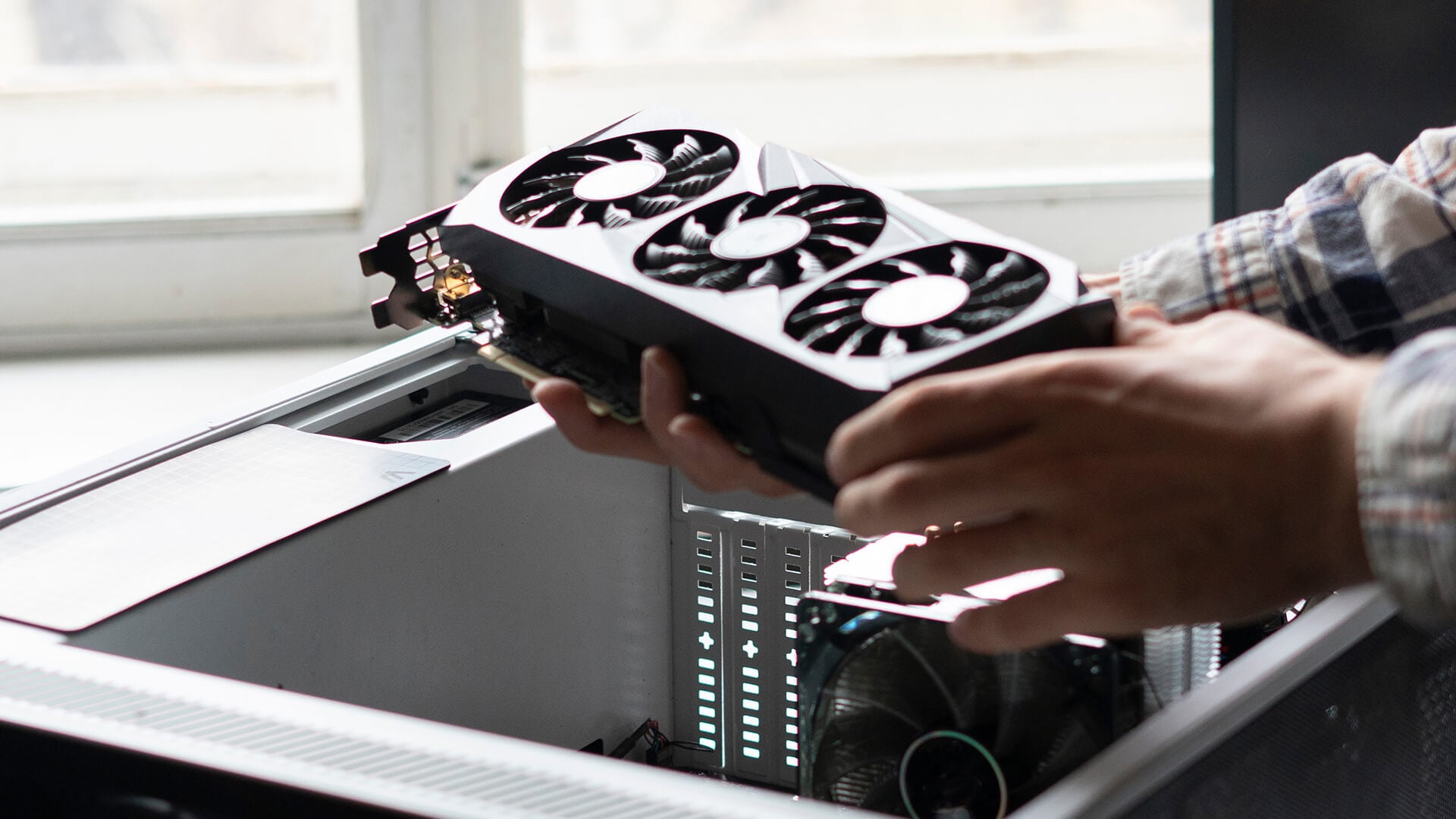
Before buying a new GPU, check whether the rest of your PC can support it. A powerful graphics card needs the right power supply, enough case clearance, suitable airflow and a CPU that will not hold it back too much.
Check the PSU wattage and connectors, especially for higher-end cards. Make sure the GPU fits inside your case and that your motherboard has the right PCIe slot. Also check whether your monitor resolution makes sense for the card.
If you pair a very high-end GPU with an old CPU, you may still get stutters in CPU-heavy games. In that case, a full system upgrade or new gaming PC may be better value.
How to Extend Your GPU Lifespan
You can extend your GPU lifespan by keeping it cool, clean, and stable. Good airflow is one of the best ways to protect a graphics card over time.
Keep dust out of the heatsink and fans, avoid extreme overclocks, use a reliable power supply and make sure your case has enough airflow. Updating drivers can also help with game stability and performance.
Do not ignore repeated crashes or overheating. A small cooling issue today can become a bigger problem if the card runs hot for months.
Final Verdict: How Long Will Your Gaming GPU Last?
A gaming GPU can physically last for many years, but its useful gaming lifespan is usually around 4 to 6 years for most players. Budget cards may feel outdated sooner, while high-end GPUs can stay useful longer if you are willing to adjust settings over time.
The clearest upgrade signs are repeated FPS drops, stuttering, crashes, overheating, driver issues, low VRAM, weak ray tracing performance and poor results at your monitor’s resolution. If you are asking “is my graphics card outdated?” and you keep lowering settings in every new game, it is probably time to upgrade.
For most gamers in 2026, the best upgrade is one that matches your resolution and refresh rate. Choose a sensible mid-range GPU for 1080p, a stronger card for 1440p, and a high-end card for 4K or ray tracing.
To compare your next upgrade, browse GPU cards, compare NVIDIA GPUs, or shop RTX 50 Series upgrades at Box.co.uk.
You can pay with:
*PayPal Credit Representative Example: Assumed credit limit £1,200, Representative 23.9% APR (variable). Purchase rate 23.9% p.a (variable).Terms & Conditions apply.


PayPal Credit and PayPal Pay in 3 are trading names of PayPal UK Ltd, 5 Fleet Place, London, United Kingdom, EC4M 7RD. Terms and conditions apply. Credit subject to status, UK residents only, Five Tech LTD acts as a broker and offers finance from a restricted range of finance providers. PayPal Pay in 3 is not regulated by the Financial Conduct Authority. Pay in 3 eligibility is subject to status and approval. 18+. UK residents only. Pay in 3 is a form of credit. Check if affordable and how you will repay. May make other borrowing more difficult or expensive. See product terms for more details.
Copyright © 1996-2026 Fivetech LTD | Terms and Conditions
box.co.uk & Box are trading names of Five Tech Limited. Registered office: Box LTD, Unit 10 Woodford Trading Estate, Woodford Green IG8 8HF