


 Menu
MenuMenu


Get Sales Advice from Mon - Fri 9am - 5:00pm:
020 3337 8950LAST UPDATED: July 01, 2026
Refresh Rate (Hz) vs Frames Per Second (FPS): Key Differences
Smooth gameplay depends on more than just having a powerful gaming PC or a good monitor. Two of the most important terms to understand are FPS vs refresh rate. They sound similar, and they both affect how smooth your game feels, but they are not the same thing.
FPS, or frames per second, is how many frames your gaming PC or console produces every second. Refresh rate, measured in hertz or Hz, is how many times your monitor refreshes the image on screen every second.
For the best gaming experience, both need to work well together. A high FPS can make gameplay feel more responsive, while a higher monitor refresh rate can show those frames more smoothly. If one is much lower than the other, you may notice lag, stutter, screen tearing or less fluid movement.
This guide explains the difference between FPS and refresh rate, how they affect gameplay, and what you need for a smoother setup.
What Is FPS in Gaming?
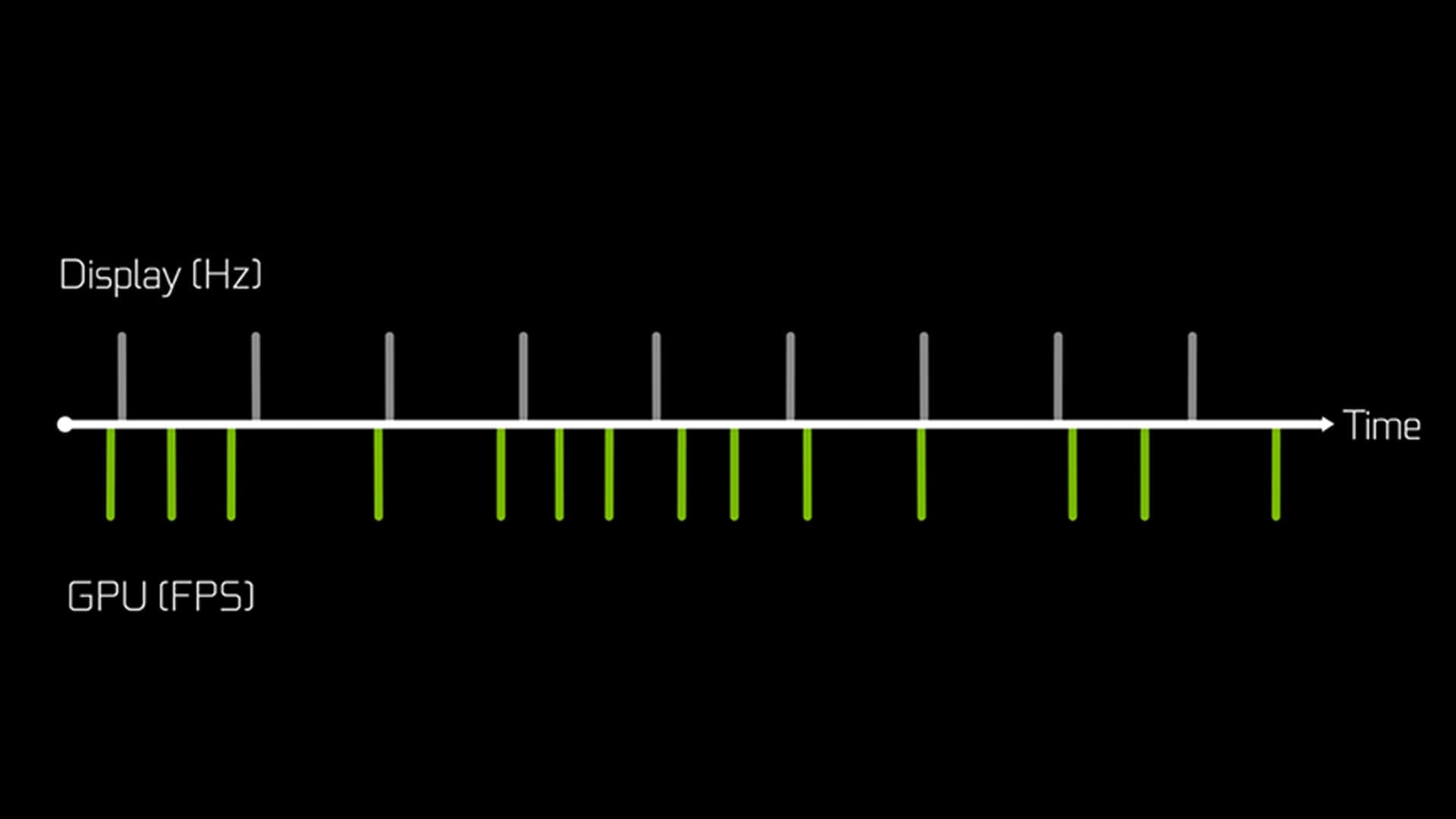
Frames Per Second Explained
FPS stands for frames per second. It tells you how many individual images, or frames, your system can create every second while running a game.
| FPS | What It Means |
|---|---|
| 30 FPS | The game shows 30 frames every second. |
| 60 FPS | The game shows 60 frames every second. |
| 120 FPS | The game shows 120 frames every second. |
| 144 FPS | The game shows 144 frames every second. |
| 240 FPS | The game shows 240 frames every second. |
The higher the FPS, the more frames your system is producing. This can make movement look smoother and controls feel more responsive.
However, FPS depends on your hardware and game settings. A stronger GPU, faster CPU, enough RAM and optimised settings can all help improve frame rate.
How FPS Affects Gameplay
FPS affects how responsive and smooth a game feels. When FPS is low, movement can look choppy. When FPS is higher, animations, camera movement and aiming can feel more fluid.
This is especially important in fast-paced games such as:
- First-person shooters
- Racing games
- Competitive esports games
- Fighting games
- Battle royale games
- Action games
Higher FPS can also reduce input lag. Input lag is the delay between pressing a button or moving your mouse and seeing the result on screen. Lower input lag makes gameplay feel more direct, which is important in competitive gaming.
Low FPS vs High FPS
Low FPS and high FPS feel very different in practice.
| FPS Level | Gameplay Feel |
|---|---|
| Below 30 FPS | Often feels choppy and slow. |
| 30 FPS | Playable for some slower games, but not very smooth. |
| 60 FPS | A good basic target for smooth gaming. |
| 120 FPS | Much smoother and more responsive. |
| 144 FPS | Popular for gaming monitors and competitive play. |
| 240 FPS+ | Very smooth, mainly useful for serious competitive gamers. |
For most players, 60 FPS is a good starting point. For competitive gaming, 120 FPS, 144 FPS or higher can feel much better.
What Is Refresh Rate?
Refresh Rate (Hz) Explained
Refresh rate is how many times your monitor refreshes the image on screen every second. It is measured in hertz, written as Hz.
For example, a 60Hz monitor refreshes the screen 60 times per second. A 144Hz monitor refreshes 144 times per second. A 240Hz monitor refreshes 240 times per second.
This is why terms like monitor refresh rate, monitor Hz, monitor hertz, hertz rate and refresh rate Hz all refer to the same basic idea: how often the display updates.
A higher screen refresh rate can make motion look smoother, especially when paired with a system that can produce enough FPS.
How Monitors Display Frames
Your gaming PC or console creates frames. Your monitor displays them.
If your system produces 120 FPS but your monitor is only 60Hz, the monitor can only refresh 60 times per second. This means it cannot fully show every frame your system is producing.
On the other hand, if your monitor is 144Hz but your game only runs at 45 FPS, the monitor is capable of more, but your system is not producing enough frames to take full advantage of it.
That is why FPS and refresh rate work best when they are balanced.
60Hz vs 120Hz vs 144Hz
Different refresh rates suit different users.
| Refresh Rate | Best For |
|---|---|
| 60Hz | Everyday use, casual gaming and basic displays. |
| 120Hz | Smoother gaming and better console support. |
| 144Hz | A popular choice for PC gaming and esports. |
| 165Hz | Slightly smoother than 144Hz, common on gaming monitors. |
| 240Hz+ | Competitive gaming and high-end setups. |
For many gamers, 144Hz is the sweet spot. It offers a clear improvement over 60Hz without needing the most expensive hardware. If you want this level of smoothness, explore 144Hz refresh rate displays for gaming and everyday use.
FPS vs Refresh Rate: What’s the Difference?
Output vs Display
The easiest way to understand FPS vs refresh rate is this:
FPS is what your system produces. Refresh rate is what your monitor can show.
Your graphics card, processor and game settings affect FPS. Your monitor controls refresh rate.
| Term | Controlled By | What It Means |
|---|---|---|
| FPS | Gaming PC, console, GPU, CPU and settings | How many frames are produced per second. |
| Refresh rate | Monitor or display | How many times the screen updates per second. |
This is why upgrading only one part of your setup may not always solve the problem. A high refresh rate monitor is useful, but only if your system can produce enough FPS. A powerful GPU is useful, but you need a capable monitor to see the benefit.
How They Work Together
For smooth gaming, FPS and refresh rate should support each other.
A 144Hz monitor works best when your system can produce close to 144 FPS. A 240Hz monitor works best when your system can produce very high FPS. A 60Hz monitor can still be fine for casual gaming, but it will not show the extra smoothness of 120 FPS or 144 FPS in the same way.
The best match depends on your games. Competitive players often prefer higher FPS and higher refresh rates. Story-focused gamers may prefer higher resolution and visual quality, even if FPS is lower.
Why Mismatch Causes Problems
If FPS and refresh rate do not match well, you may notice visual issues.
Common problems include:
- Screen tearing
- Stuttering
- Input lag
- Uneven frame pacing
- Motion that feels unsmooth
- Gameplay that feels delayed
This does not always mean your monitor or PC is broken. It usually means your system and display are not working together as smoothly as they could.
Why Your Gameplay Feels Laggy or Unsmooth
Low FPS Issues
Low FPS is one of the most common reasons games feel laggy. If your system cannot create enough frames, gameplay may feel slow, choppy or delayed.
Low FPS can be caused by:
- Weak GPU performance
- Older CPU
- High graphics settings
- Too much background software
- Not enough RAM
- High resolution settings
- Poor game optimisation
- Thermal throttling
If your FPS is low, lowering graphics settings can help. Reducing shadows, ray tracing, texture quality or resolution can improve frame rate. Upgrading your graphics card can also make a big difference. For stronger performance, browse GPUs for better FPS.
Refresh Rate Limitations
Sometimes your FPS is high, but the game still does not feel as smooth as expected. This can happen if your monitor has a low refresh rate.
For example, if your PC is producing 140 FPS but you are using a 60Hz monitor, you will not see the full benefit. The monitor can only refresh 60 times per second, so the extra frames cannot be displayed fully.
This is why high refresh rate displays are popular with gamers. They allow the screen to update more often, which makes motion look clearer and more responsive.
If you want smoother motion, compare monitors for smooth gameplay.
Screen Tearing and Stuttering
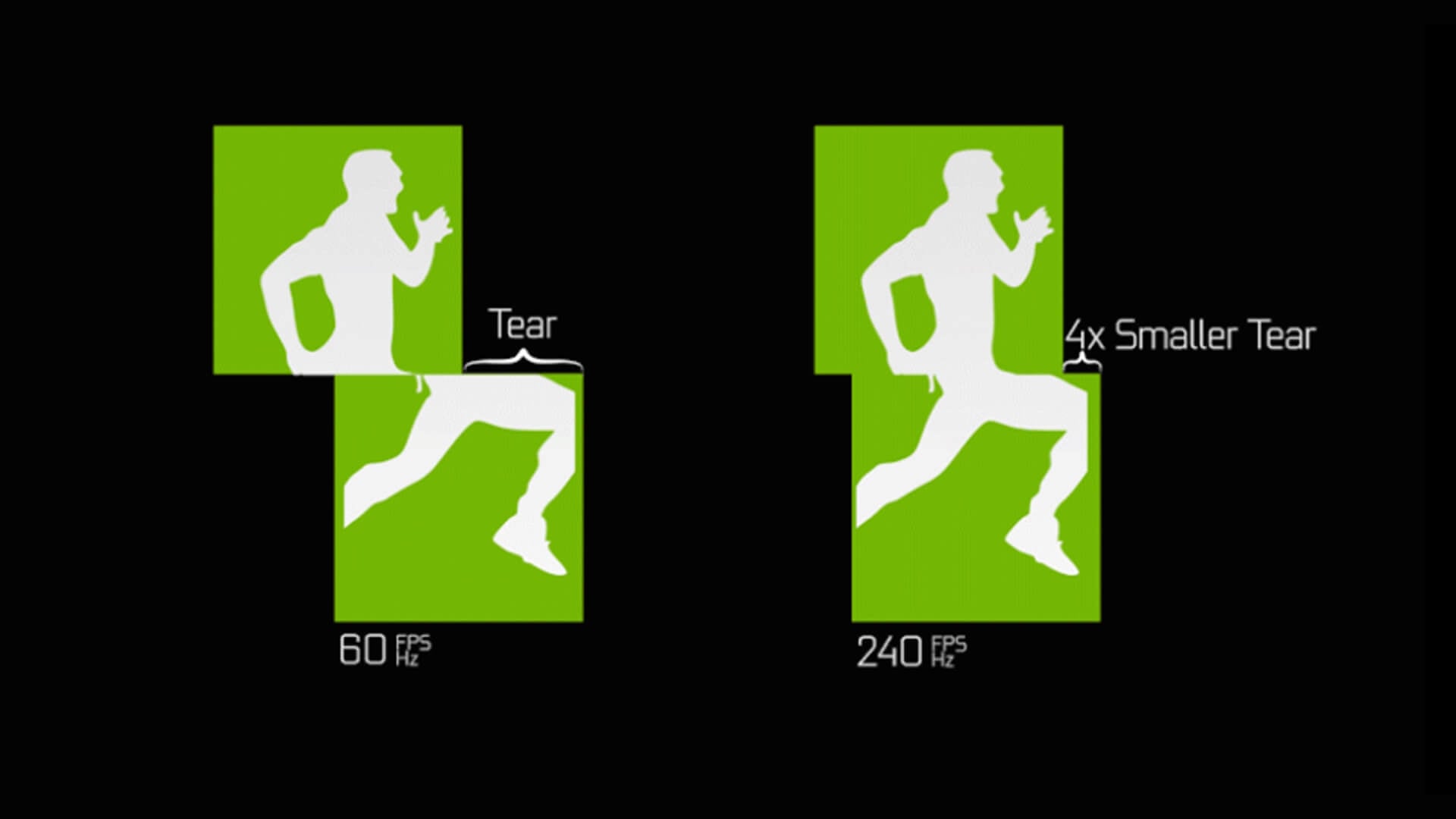
Screen tearing happens when the monitor shows parts of more than one frame at the same time. This can create a visible split or tear across the screen, especially during fast movement.
Stuttering happens when frames are delivered unevenly. Even if your average FPS looks good, poor frame pacing can make the game feel rough or inconsistent.
These issues can be reduced with technologies such as V-Sync, G-Sync, FreeSync and adaptive sync. These help the monitor and GPU work together more smoothly.
How to Match FPS and Refresh Rate
Choosing the Right Monitor
Choosing the right monitor depends on the type of games you play and the performance your system can deliver.
| Gamer Type | Good Refresh Rate Target |
|---|---|
| Casual gamer | 60Hz to 75Hz |
| Console gamer | 120Hz |
| PC gamer | 144Hz to 165Hz |
| Competitive gamer | 240Hz or higher |
| Visual-focused gamer | Balance refresh rate with resolution and panel quality |
If you mostly play story games, a 144Hz monitor may be more than enough. If you play competitive shooters, a higher refresh rate can help with responsiveness. If you play at 4K, you may need a strong GPU to reach high FPS.
Optimising Game Settings
You do not always need new hardware to improve smoothness. Sometimes adjusting settings can help your system reach a better FPS target.
Useful settings to adjust include:
- Lower shadow quality
- Reduce ray tracing
- Lower anti-aliasing
- Use DLSS, FSR or XeSS if supported
- Reduce texture quality if VRAM is limited
- Lower resolution slightly
- Close background apps
- Update graphics drivers
- Use full-screen mode where possible
The goal is not always to make everything ultra. The goal is to find the right balance between visual quality and frame consistency.
Using Adaptive Sync Technologies
Adaptive sync technologies help match the monitor’s refresh behaviour to the FPS your system is producing. This can reduce screen tearing and stuttering.
Common examples include:
- NVIDIA G-Sync
- AMD FreeSync
- VESA Adaptive Sync
- V-Sync
V-Sync can reduce tearing, but it may add input lag in some cases. G-Sync and FreeSync are often better options because they adjust more dynamically.
If your monitor and GPU support adaptive sync, enabling it can make gameplay feel smoother without needing to lock FPS perfectly.
What You Need for Smooth Gaming
GPU for Higher FPS
Your GPU is one of the most important parts of a smooth gaming setup. It controls how quickly your system can render frames, especially at higher settings and resolutions.
A better GPU can help with:
- Higher FPS
- Better graphics settings
- Smoother 1440p gaming
- Better 4K performance
- Ray tracing
- More stable frame pacing
- Lower graphics-related bottlenecks
If your monitor supports 144Hz but your system only reaches 50 FPS, upgrading the GPU can help you take better advantage of the display.
High Refresh Rate Monitors
A high refresh rate monitor makes it easier to see the extra frames your system produces. This can improve visual smoothness and make input feel more immediate.
A high refresh rate monitor is useful for:
- Competitive gaming
- Fast camera movement
- Racing games
- Shooters
- Esports
- Action games
- Everyday desktop smoothness
Even outside games, a high refresh rate can make scrolling, cursor movement and general use feel smoother.
To upgrade your display, explore monitors for smooth gameplay.
Balanced Setup
The best gaming experience comes from balance. A very powerful GPU with a low refresh rate monitor is limited by the display. A very fast monitor with a weak GPU is limited by frame rate.
A balanced setup should include:
- A GPU that can reach your target FPS
- A monitor with a refresh rate that matches your needs
- A CPU that does not hold back performance
- Enough RAM
- Fast storage
- Good cooling
- Updated drivers
- Suitable game settings
If you want a ready-made system, compare gaming PCs for high FPS. To improve comfort and control, add accessories for better experience, such as gaming mice, keyboards, headsets and mouse mats.
Best Refresh Rate for Gaming
The best refresh rate for gaming depends on what you play.
| Refresh Rate | Best Use |
|---|---|
| 60Hz | Casual gaming, strategy games and slower titles. |
| 120Hz | Console gaming, smoother action and better responsiveness. |
| 144Hz | PC gaming sweet spot for many players. |
| 165Hz | Slightly smoother than 144Hz and common in gaming monitors. |
| 240Hz | Competitive shooters and esports. |
| 360Hz+ | High-level competitive gaming with very high FPS systems. |
For most gamers, 144Hz is a very good target. It gives a clear improvement over 60Hz and does not require the same level of hardware as 240Hz or higher.
However, if you mainly play visually rich single-player games, you may prefer a higher resolution monitor with a lower refresh rate. If you play competitive games, refresh rate and FPS should be higher priorities.
Frame Time: The Hidden Smoothness Factor
FPS tells you how many frames are produced per second. Frame time tells you how long each frame takes to appear.
For example, 60 FPS means each frame should take around 16.7 milliseconds. 120 FPS means each frame should take around 8.3 milliseconds. 144 FPS means each frame should take around 6.9 milliseconds.
Lower frame time can make games feel more responsive, but consistency matters too. A game running at 100 FPS can still feel rough if the frame times are uneven.
That is why frame pacing is important. Smooth gaming is not only about hitting a high FPS number. It is also about delivering frames evenly.
Quick Example: Why 144Hz Feels Better Than 60Hz
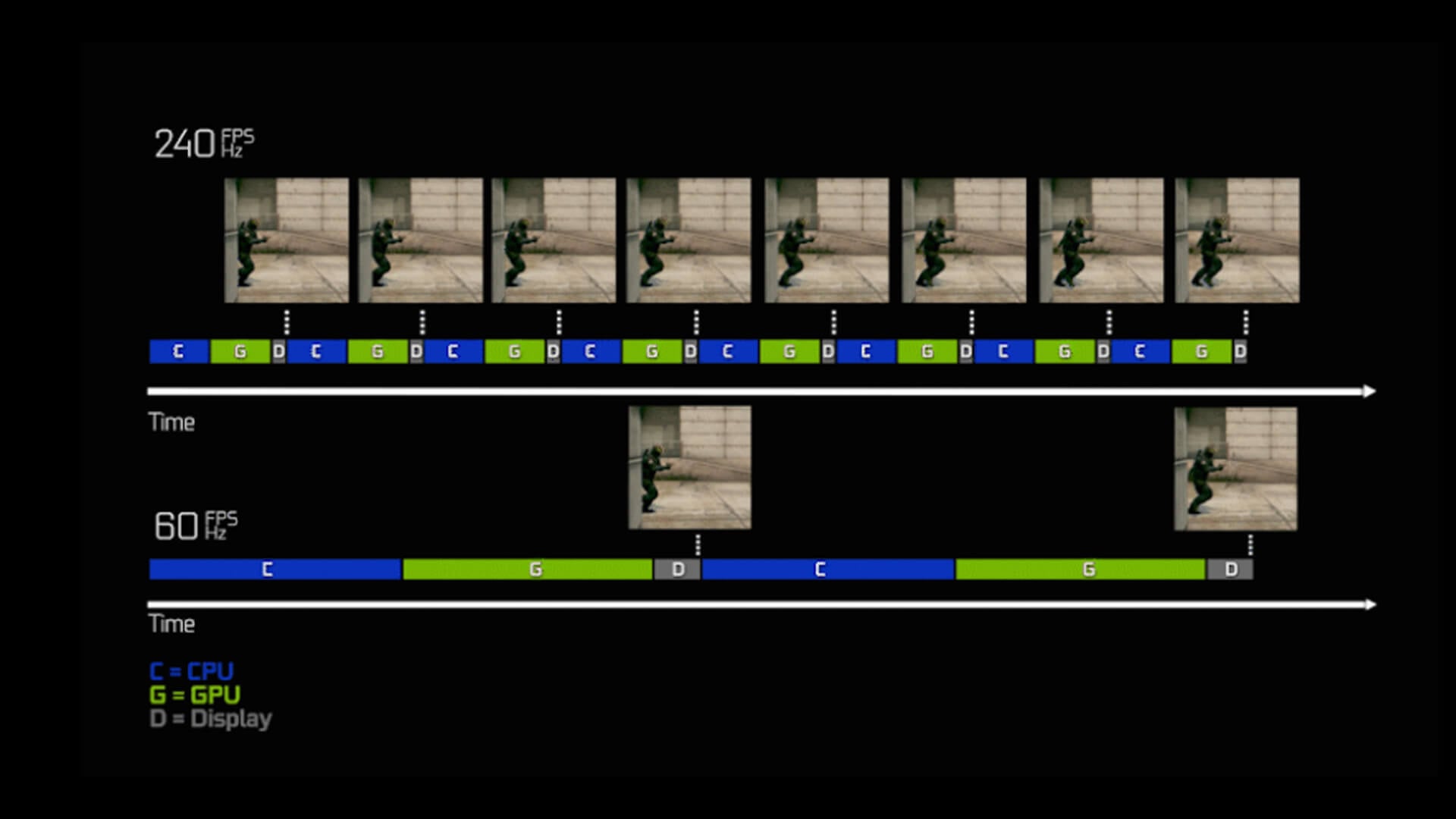
A 60Hz monitor refreshes every 16.7 milliseconds. A 144Hz monitor refreshes every 6.9 milliseconds. This means a 144Hz display can update more than twice as often as a 60Hz display.
In real gameplay, this can make:
- Camera movement look smoother
- Aiming feel more responsive
- Fast motion look clearer
- Mouse movement feel more direct
- Competitive games feel sharper
This is why many players notice a big difference when moving from 60Hz to 144Hz. It is not only about the number; it changes how quickly the display can show new visual information.
Final Thoughts: Smooth Gameplay Explained
When comparing FPS vs refresh rate, remember that both matter, but they do different jobs. FPS is how many frames your system creates. Refresh rate is how many times your monitor updates the screen.
For smooth gameplay, you need both working together. A powerful GPU can help produce higher FPS, while a high refresh rate monitor can display those frames more smoothly. If either one is too low, your gaming experience may feel limited.
For most gamers, a setup targeting 100 to 144 FPS on a 144Hz monitor is a strong balance. Competitive players may want 240Hz or higher, while casual players may be happy with 60Hz or 120Hz depending on the games they play.
FAQs
Is 120 FPS the same as 120Hz?
No. 120 FPS means your system is producing 120 frames per second. 120Hz means your monitor refreshes 120 times per second. They work well together, but they are not the same thing.
Can 144Hz run 200 FPS?
Yes, a game can run at 200 FPS on a 144Hz monitor, but the monitor can only refresh 144 times per second. You may still benefit from lower input lag, but you will not see all 200 frames fully displayed.
Should FPS be the same as refresh rate?
It does not have to be exactly the same, but matching them closely can help with smoothness. For example, 144 FPS on a 144Hz monitor is a strong match. Adaptive sync can help when FPS changes during gameplay.
Can the human eye see 144 FPS?
Many people can feel and see the difference between 60 FPS and 144 FPS, especially in fast games. The benefit is not just visual smoothness; it also affects responsiveness and input feel.
What causes screen tearing?
Screen tearing happens when the monitor displays parts of different frames at the same time. This usually happens when FPS and refresh rate are not synchronised. Adaptive sync, G-Sync, FreeSync or V-Sync can help reduce it.
Is higher FPS better than higher refresh rate?
Higher FPS and higher refresh rate are both useful, but they work best together. Higher FPS improves responsiveness, while a higher refresh rate monitor lets you see more of those frames smoothly. The best setup balances both.
You can pay with:
*PayPal Credit Representative Example: Assumed credit limit £1,200, Representative 23.9% APR (variable). Purchase rate 23.9% p.a (variable).Terms & Conditions apply.


PayPal Credit and PayPal Pay in 3 are trading names of PayPal UK Ltd, 5 Fleet Place, London, United Kingdom, EC4M 7RD. Terms and conditions apply. Credit subject to status, UK residents only, Five Tech LTD acts as a broker and offers finance from a restricted range of finance providers. PayPal Pay in 3 is not regulated by the Financial Conduct Authority. Pay in 3 eligibility is subject to status and approval. 18+. UK residents only. Pay in 3 is a form of credit. Check if affordable and how you will repay. May make other borrowing more difficult or expensive. See product terms for more details.
Copyright © 1996-2026 Fivetech LTD | Terms and Conditions
box.co.uk & Box are trading names of Five Tech Limited. Registered office: Box LTD, Unit 10 Woodford Trading Estate, Woodford Green IG8 8HF