


 Menu
MenuMenu


Get Sales Advice from Mon - Fri 9am - 5:00pm:
020 3337 8950POSTED: February 18, 2026
Signs Your Gaming Laptop Is Dying: When to Repair vs Replace
It starts small... Your gaming laptop takes a little longer to boot, games stutter unexpectedly, or the fans suddenly sound like they're preparing for take-off. Before you know it, performance drops become daily annoyances, and you're left wondering if your machine's simply tired or on its last legs.
Every gamer faces this moment sooner or later. Gaming laptops are built to handle high performance, but constant heat, wear, and heavy workloads take their toll. The good news? Not every strange sound or slowdown means the end. Some dying gaming laptop signs can be fixed with a quick tune-up or part replacement, while others signal it's time to upgrade.
This guide breaks down the telltale symptoms, from laggy gameplay to overheating and flickering screens, and helps you decide when to repair, and when to finally replace, your gaming companion.
Early Warning Signs Your Gaming Laptop Is Dying:
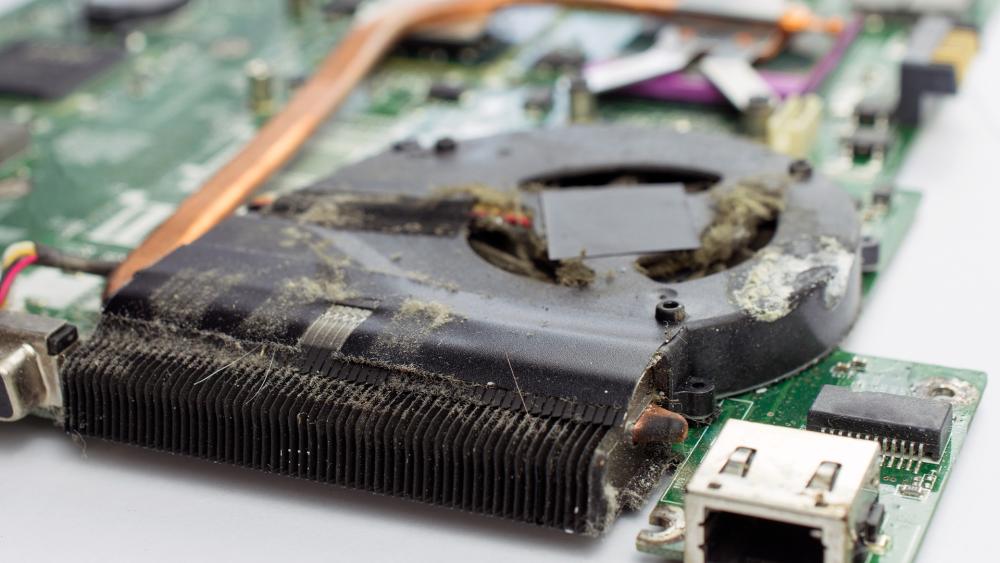
Before your gaming laptop completely gives out, it often tries to warn you. The key is recognising these early dying gaming laptop signs before they escalate into expensive repairs or full hardware failure.
Sluggish Performance & Freezes:
If your once-fluid gameplay now struggles with frame drops, lag spikes, or random freezes, your system might be crying out for help. A failing SSD or HDD, ageing RAM, or excessive heat can throttle performance, slowing even basic tasks. Regular driver updates and freeing up storage might temporarily help, but persistent slowdowns could indicate deeper hardware fatigue.
Overheating and Loud Fans:
When your laptop fan is always running or your chassis feels scorching hot after a short session, that's a clear red flag. Overheating not only affects comfort but also damages vital components over time. Dust buildup, worn-out cooling systems, or dried-out thermal paste can all cause this. Clean your vents regularly and monitor temperatures. Ignoring this can cut your laptop's lifespan dramatically.
Screen Issues:
A screen flickering laptop, dead pixels, or blackouts during gameplay often hint at GPU or motherboard stress. Sometimes, loose display connectors or failing ribbon cables are to blame, but persistent screen problems usually mean the graphics card or display panel is on its way out.
Battery Drain & Charging Problems:
If your laptop's battery drains fast or refuses to charge consistently, the issue might be battery wear, a failing charging circuit, or even a motherboard fault. Batteries naturally degrade after hundreds of cycles, but a sharp decline in battery life is worth investigating. Replacements are usually affordable, especially under warranty coverage.
Strange Noises or Smells:
Unusual buzzing, clicking, or a faint burning smell from your system should never be ignored. Coil whine can be harmless, but loud grinding noises or electrical odours might point to fan failure, short circuits, or melting components, all serious indicators of internal damage. Power off immediately if you notice these and get it inspected.
Mid-Life Signs – It's Not Dead, But It's Struggling:

When your laptop still powers on and runs games but just doesn't feel as smooth as it used to, you're probably in the "mid-life" stage. These aren't instant death signals yet, but they're strong indicators your system is fighting to keep up. Understanding these dying gaming laptop signs early can save you from costly breakdowns later.
Games Are Underperforming or Crashing:
If titles that once ran flawlessly now stutter, freeze, or crash altogether, something's off under the hood. Outdated drivers, thermal throttling, or an overworked GPU can all cause performance drops. Even newer patches or demanding updates can strain older systems. Try updating your graphics drivers and monitoring GPU temperatures but if the issue persists, it may be a sign your hardware is losing steam.
Ports or Keyboard Malfunctions:
When your laptop keyboard stops responding or USB ports become unreliable, it's often wear and tear rather than bad luck. Ports loosen with frequent use, and keyboard membranes degrade over time. Replacements are possible, but if multiple ports fail or the issues trace back to the motherboard, repair costs can quickly outweigh the laptop's value.
Blue Screens & System Errors (BSOD):
Nothing kills the mood like a blue screen of death mid-match. Frequent BSODs are more than random Windows hiccups. They can signal failing RAM, corrupted system files, or even GPU and storage issues. Use diagnostic tools like Windows Memory Diagnostic or Event Viewer to narrow it down, but frequent crashes typically point to hardware instability.
Storage Warnings or Disk Errors:
If you're seeing "drive failure" warnings, disappearing files, or long save times, it's likely your SSD or HDD is nearing the end of its life. Back up everything immediately. Most drives are rated for a certain number of write cycles, and when those are used up, sudden data loss can follow without warning.
When It's Time to Consider a Repair
Not every dying gaming laptop sign means the end. In many cases, a few targeted repairs can breathe years of life back into your system, especially if it's still relatively new. Knowing which components are worth fixing (and which aren't) can save you hundreds of pounds.
Components That Are Commonly Fixable
Some parts are easy and affordable to replace, either through DIY or a professional technician.
- Battery: Worn-out batteries are among the most common failures. Replacements are usually quick and cost-effective.
- Storage (SSD/HDD): If your games are slow to load or you're getting disk errors, upgrading to a fresh SSD can feel like a brand-new machine.
- RAM: Cheap, simple, and instantly improves sluggish multitasking performance.
- Cooling System: Replacing fans or applying new thermal paste can fix overheating and extend lifespan.
- Keyboard: Sticky or unresponsive keys are easy to replace without breaking the bank.
Repair Makes Sense When…
If your gaming laptop is under three years old and hasn't suffered a GPU or motherboard failure, repair is often the smarter option. It's even better if your system is still covered by warranty coverage, as that can significantly cut costs.
Generally, it's worth repairing when:
- The issue is isolated to an affordable component.
- Replacement parts are available.
- Your system still meets your gaming needs.
If the motherboard or GPU is intact, fixing smaller issues like fans, storage, or RAM can restore performance at a fraction of the price of a new system.
When It's Better to Replace Your Gaming Laptop:
Sometimes, even after all the troubleshooting and tinkering, your gaming laptop just can't keep up anymore. Repairs might fix minor issues, but once core components begin to fail, replacement becomes the smarter and more economical move.
Components That Signal the End (GPU, Motherboard):
If your graphics card or motherboard dies, it's often game over, quite literally. These parts are the heart of a gaming laptop, and replacing them is rarely worth it due to high costs and compatibility challenges. Symptoms like no display output, system boot failure, or sudden shutdowns can all indicate a failing GPU or motherboard. In such cases, even professional repairs might cost nearly as much as a new model.
When Repair Costs Exceed Laptop Value:
Here's a simple rule of thumb: if repairs cost more than 50% of your laptop's current value, you're better off investing in a new one. For example, repairing a £700 system for £500 doesn't make financial sense when you could put that money towards a better-performing upgrade. Consider this especially if your laptop's performance is already lagging behind modern titles.
Replacement Makes Sense When…
If your machine is four to five years old or older, and you're dealing with persistent overheating, GPU instability, or system crashes, replacement is often the wiser long-term move. Modern gaming laptops now feature advancements like DLSS 3, DDR5 memory, and PCIe Gen 5 storage, upgrades that drastically improve speed, efficiency, and longevity.
If you are taking this path, check out the new gaming laptop releases to see how far technology has come and find one that fits your current gaming style and budget.
Repair vs Replace – Decision Matrix & Checklist:
So, you've spotted a few dying gaming laptop signs and you're torn between fixing it or starting fresh. This section helps you decide logically, not emotionally, using a simple checklist and practical guidelines.
Quick Diagnostic Decision Tool:
Here's a straightforward rule-based approach to help you choose your next move:
- If GPU or motherboard has failed → Replace
- If SSD or battery has failed → Repair (cheap and simple)
- If fan noise and overheating persist even after cleaning → Replace or repaste
- If laptop is under warranty → Always repair first
- If your laptop is over 4 years old and repair exceeds 50% of its value → Replace
This quick matrix can save you from unnecessary spending. A good rule of thumb is to fix what's affordable and modular, replace when the core hardware fails.
Consider These Before Deciding:
Before you make the call, think about the following factors:
- Warranty status: If your machine is still under warranty coverage, use it before shelling out on parts.
- Gaming performance needs: If newer titles already struggle to run, a repair may only delay the inevitable.
- Future-proofing: Modern systems with better thermals, faster storage, and AI-optimised GPUs will last longer and perform more efficiently.
Ultimately, your goal should be value not just saving money now, but ensuring the system you use next actually meets your gaming demands.
Common Repair Scenarios with Cost Estimates:
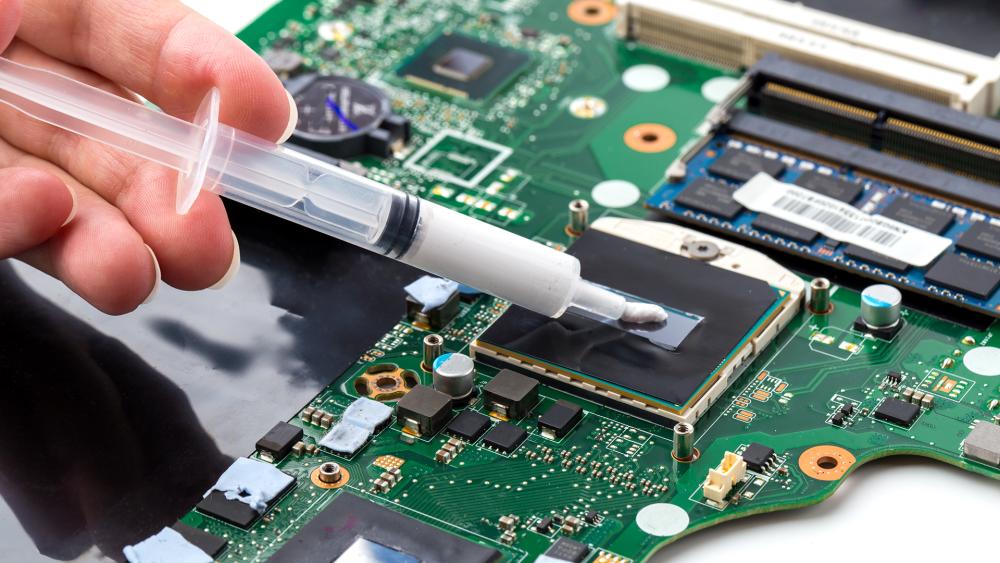
Before rushing to replace your gaming laptop, it helps to understand what typical repair costs look like. Some issues are surprisingly inexpensive to fix, especially if you're confident with basic maintenance or have access to reliable technicians. Knowing the rough prices of common repairs can help you decide whether your dying gaming laptop signs are worth addressing or not.
Battery Replacement:
A worn-out battery is one of the easiest and most affordable fixes. Most replacements cost between £70 and £120, depending on the model. If your laptop's battery drains fast or refuses to hold charge, this is likely the culprit. DIY battery swaps can save you money, but if your system is sealed or under warranty, always opt for a professional service.
Screen Fixes:
A flickering or cracked screen can range anywhere from £40 to £250, depending on whether it's a simple cable issue or a full panel replacement. For minor flickering, it's worth checking display drivers first. However, if the screen remains unresponsive or shows dead pixels, you'll likely need a replacement panel.
Thermal and Cooling Repairs:
If your laptop overheats while gaming or the fan is always running, your cooling system might need attention. Basic cleaning costs around £50, while deeper fixes like replacing fans or reapplying thermal paste usually range from £80 to £150. Proper cooling maintenance not only solves overheating but can also add years to your laptop's lifespan.
Please note that these figures are just rough cost estimates and depend heavily on your specific laptop and the issue you are facing. These repairs are generally worthwhile when your laptop is still powerful enough for your gaming needs and doesn't suffer from major motherboard or GPU issues.
How to Extend Your Gaming Laptop's Life:
Even if your rig is showing a few dying gaming laptop signs, proper care can delay the inevitable. Preventive maintenance is the key and with a few smart habits, you can squeeze years of extra performance out of your system.
Maintenance Best Practices:
Think of this as your gaming laptop's fitness plan. Regular upkeep keeps temperatures low and performance high.
- Clean fans and vents every six months to prevent dust build-up that causes overheating.
- Reapply thermal paste every two years for optimal heat transfer.
- Use a cooling pad or elevate the rear of your laptop to improve airflow.
- Avoid extreme heat and soft surfaces, like beds or couches, that block ventilation.
- Undervolt your CPU or limit FPS in demanding games — less strain means a longer life.
Consistent maintenance not only prevents overheating but also extends the health of your GPU and motherboard; two parts most prone to heat damage.
Software Habits That Keep Systems Healthy:
Even powerful hardware can't save a laptop bogged down by software clutter.
- Trim startup apps to free system resources.
- Avoid background bloatware and unnecessary RGB or driver utilities.
- Run malware scans regularly and keep your OS lean.
- Use temperature monitoring tools like HWMonitor or CoreTemp to stay informed about thermals.
By combining good maintenance with smart software habits, you can avoid slowdowns, fan noise, and unexpected shutdowns which are the usual dying gaming laptop signs that frustrate most users. For more information, you can check out our blog on how long gaming laptops last where you can find additional tips for improving your gaming laptops life.
Wrapping Up:
Spotting dying gaming laptop signs early can make all the difference between a simple repair and an expensive replacement. Whether it's a flickering screen, constant overheating, or that dreaded blue screen of death, understanding what your system is telling you helps you act smart, not in panic.
If repairs are affordable and your laptop still meets your gaming needs, give it another shot. But if the costs pile up or performance keeps dipping, it might be time to invest in something newer, faster, and future-proof. Either way, keep your current or next rig healthy with proper care, timely maintenance, and smart upgrades.
FAQs
What are the first signs of a dying gaming laptop?
Early warnings include slow boot times, overheating, laptop fans always running, and screen flickering. You might also notice sudden crashes or random shutdowns during gaming sessions.
How can I tell if my laptop's GPU is failing?
Frequent display artefacts, black screens, or stuttering during games are common signs of GPU failure. If updating drivers and cleaning doesn't help, it may be time to replace or retire your laptop.
Can battery problems mean my whole laptop is dying?
Not always. A battery draining fast or refusing to charge is often just a worn-out cell; a relatively cheap fix unless it's tied to a motherboard fault.
When should I not bother with repairs?
If your laptop is over five years old, has a dead GPU or motherboard, or if repair costs exceed half its current value, replacement is usually the better call.
Can a gaming laptop last five years with repairs?
Yes, with good maintenance and timely fixes, many gaming laptops easily pass the five-year mark. Just make sure to keep thermals under control and components updated.
Should I buy refurbished or new after mine dies?
If you're on a budget, a refurbished model with warranty coverage can be a smart choice. But if you want cutting-edge performance and longevity, check out the latest new gaming laptops.
You can pay with:
*PayPal Credit Representative Example: Assumed credit limit £1,200, Representative 23.9% APR (variable). Purchase rate 23.9% p.a (variable).Terms & Conditions apply.


PayPal Credit and PayPal Pay in 3 are trading names of PayPal UK Ltd, 5 Fleet Place, London, United Kingdom, EC4M 7RD. Terms and conditions apply. Credit subject to status, UK residents only, Five Tech LTD acts as a broker and offers finance from a restricted range of finance providers. PayPal Pay in 3 is not regulated by the Financial Conduct Authority. Pay in 3 eligibility is subject to status and approval. 18+. UK residents only. Pay in 3 is a form of credit. Check if affordable and how you will repay. May make other borrowing more difficult or expensive. See product terms for more details.
Copyright © 1996-2026 Fivetech LTD | Terms and Conditions
box.co.uk & Box are trading names of Five Tech Limited. Registered office: Box LTD, Unit 10 Woodford Trading Estate, Woodford Green IG8 8HF