


 Menu
MenuMenu


Get Sales Advice from Mon - Fri 9am - 5:00pm:
020 3337 8950POSTED: 30 September, 2025
Crucial RAM Buying Guide – Fast, Easy Upgrades
When your PC starts to feel sluggish or your laptop struggles with multitasking, the simplest and most effective upgrade you can make is adding more RAM. This Crucial RAM buying guide will walk you through everything you need to know about choosing the right memory upgrade. Whether you’re gaming, editing, or just juggling multiple browser tabs, extra computer RAM can give your system the boost it needs.
Crucial has long been a trusted name in memory upgrades, known for its reliability, compatibility, and excellent performance across both desktops and laptops. From budget-friendly modules to high-performance Crucial RGB RAM designed for gamers, there’s an option for every type of build.
Key Factors in Buying RAM:
When working through this Crucial RAM buying guide, there are several important specifications to consider before buying. Each plays a role in how well your system performs:
-
Capacity (GB):
More RAM means your system can handle more tasks at once. While 8GB covers basic use, Crucial 16GB RAM has become the sweet spot for gaming and multitasking. Creators or professionals working with heavy files may benefit from 32GB or more. -
Speed (MHz):
RAM speed determines how quickly data moves between the memory and your CPU. Higher MHz values mean better responsiveness in demanding workloads. Crucial memory modules come in a wide range of speeds to suit both entry-level and enthusiast builds. -
Latency (CL):
Often overlooked, latency measures how fast your RAM responds to requests. Lower latency combined with higher speeds delivers the best performance, especially noticeable in games and creative software. -
Single vs Dual Channel:
Running memory in dual channel (two sticks) almost always outperforms a single module. Pairing two Crucial memory sticks improves bandwidth, which translates to smoother gameplay and faster multitasking. -
DDR4 vs DDR5:
DDR4 remains the most common and cost-effective choice, but DDR5 RAM offers higher bandwidth, lower power usage, and is more future-proof. If your motherboard supports it, Crucial DDR5 is the way forward.
By weighing these five factors, you’ll be able to match the right Crucial memory to your system and usage. For the latest technology, check out DDR5 RAM options available at Box.

Compatibility with Your PC or Laptop:
One of the most important steps in this Crucial RAM buying guide is ensuring the memory you choose is compatible with your system. Even the fastest RAM won’t work if it doesn’t match your motherboard or laptop specifications.
- Check Your Motherboard Manual: Every board lists the supported RAM type (DDR4 or DDR5), maximum capacity, and supported speeds.
- Match the Form Factor: Desktop PCs require DIMMs, while laptops use SODIMMs. Choosing the right Crucial memory form factor ensures an easy, slot-in upgrade.
- Look at Maximum Supported Capacity: Some laptops are limited to 16GB, while modern gaming motherboards can support 128GB or more.
- Confirm CPU Compatibility: Both Intel and AMD CPUs have maximum RAM speeds they can handle, which should be paired correctly with Crucial memory for stability.
- Future-Proof Your System: If you’re upgrading a gaming rig or high-performance workstation, selecting Crucial DDR5 gives you room to grow as new software demands increase.
Crucial makes it easy to upgrade thanks to wide compatibility across brands and systems, from budget laptops to powerful gaming towers. Make sure to only choose PC parts that are compatible with Crucial RAMs to make sure your build runs perfectly.
Crucial RAM Options for Gamers:
For gamers, memory speed and style matter. This Crucial RAM buying guide wouldn’t be complete without looking at the modules built specifically for gaming PCs. Crucial offers high-performance memory designed to keep up with the demands of modern titles, esports, and streaming.
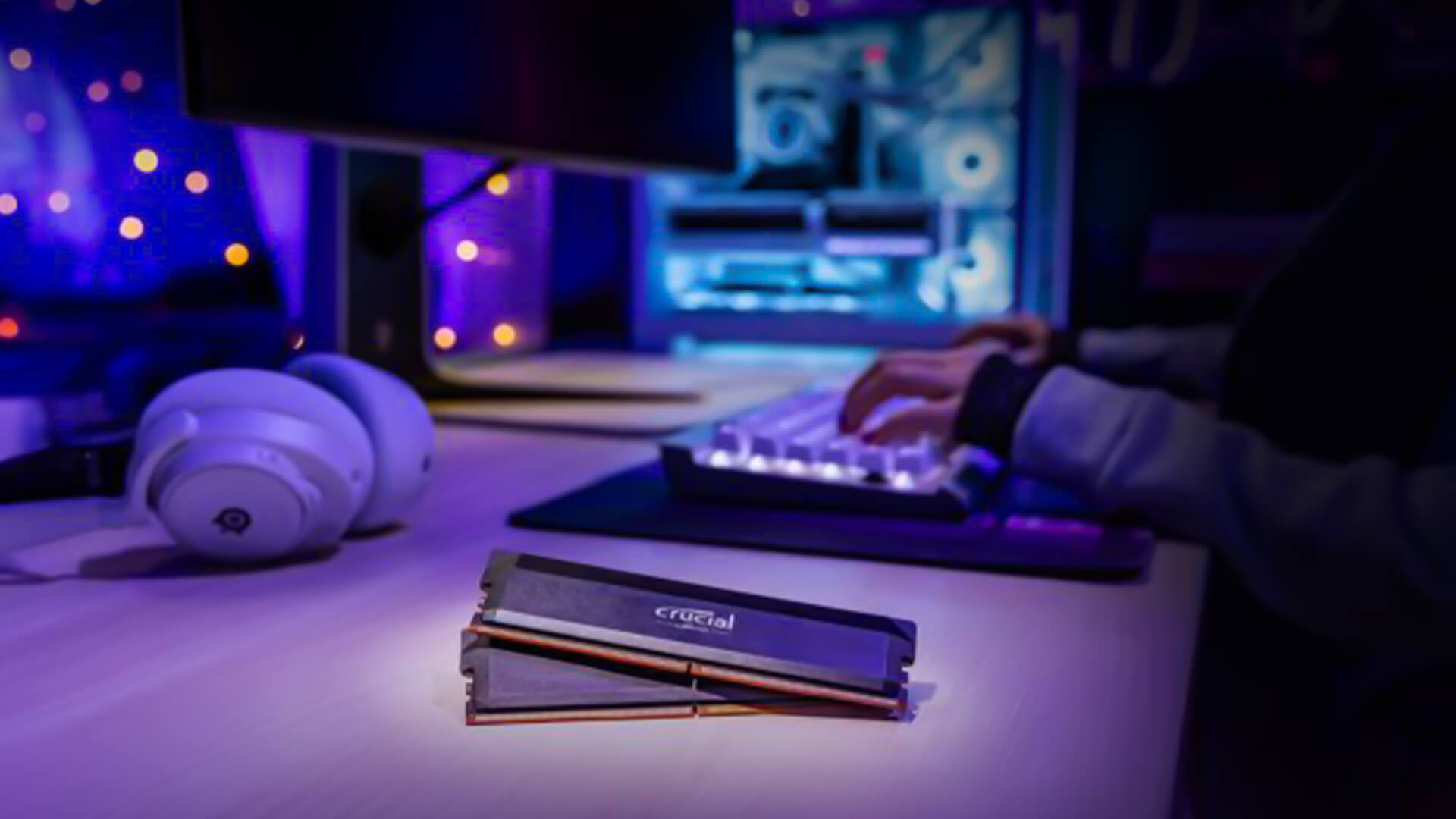
- Crucial RGB RAM: Perfect for custom rigs, these modules combine speed and striking aesthetics. With dynamic lighting effects, they not only improve performance but also give your build that premium gaming look.
- Capacity Choices for Gaming: 16GB is the standard for most AAA titles, while competitive gamers often benefit from 32GB, especially if streaming or running multiple applications at once.
- High-speed Modules: Faster MHz RAM from Crucial ensures smoother gameplay, reduced stuttering, and faster texture loading. This makes a noticeable difference in open-world or high-fidelity games.
- Overclocking Support: Crucial gaming memory often supports XMP profiles, allowing you to push speeds higher for extra performance without complicated setup.
- Future-ready Builds: Investing in Crucial DDR5 modules ensures you’ll have the bandwidth to handle next-gen games and upcoming GPUs without bottlenecks.
Crucial memory combines performance with style, making it ideal for gaming enthusiasts who want reliable hardware that looks as good as it performs. Pair them with the latest gaming PCs for the ultimate setup.
Crucial Laptop RAM Upgrades:
Laptops are often limited in terms of upgrade potential, but RAM is the exception. This Crucial RAM buying guide highlights how a simple memory upgrade can breathe new life into an older laptop or unlock more performance in a newer one.
- Smoother Multitasking: Upgrading with Crucial laptop RAM allows you to handle multiple apps, browser tabs, and background tasks without slowdowns.
- Capacity Options: Many entry-level laptops ship with 4GB or 8GB. Moving up to Crucial 16GB RAM dramatically improves performance for gaming, editing, and productivity.
- Faster Boot and Load Times: Crucial memory improves responsiveness, helping your laptop start up faster and load software more smoothly.
- Cost-Effective Upgrades: Instead of replacing your laptop, adding Crucial memory RAM is far cheaper and extends its usable lifespan.
- Broad Compatibility: Crucial laptop RAM works with a huge range of systems, from older ultrabooks to modern gaming laptops, making it one of the easiest upgrades you can perform.
If you’re not ready to replace your machine, upgrading with Crucial memory is one of the smartest investments you can make. So, upgrade your laptop RAM to extend its life and improve performance.
How Much RAM Do You Actually Need?
Choosing the right capacity is one of the biggest decisions in this Crucial RAM buying guide. The amount of RAM you need depends entirely on how you use your PC or laptop:
- Everyday tasks (8GB minimum): For light use such as browsing, streaming, and office work, 8GB of Crucial memory RAM will keep things smooth.
- Gaming & Multitasking (16GB recommended): Crucial 16GB RAM has become the standard for gamers, balancing performance and cost. It’s also the sweet spot for users who like to keep several programs running at once.
- Creative Professionals (32GB or more): Video editors, 3D artists, and music producers benefit from higher capacities. Crucial offers memory kits to handle these demanding workflows with ease.
- Power Users & Enthusiasts (64GB+): For those running virtual machines, complex simulations, or high-end workstation tasks, investing in large Crucial memory kits ensures no bottlenecks.
- Future-Proofing: Even if you don’t need it right now, opting for higher RAM capacity ensures your system is ready for new games and software updates in the years ahead.
Whatever your needs, Crucial offers a wide range of options to suit both casual users and hardcore enthusiasts. For the best all-round choice, go for gaming laptops or desktop kits bundled with Crucial memory. You might also check out our guide on how much RAM is required for AI-powered laptops if you are working with AI tasks.
Installing Crucial RAM – A Quick Guide:
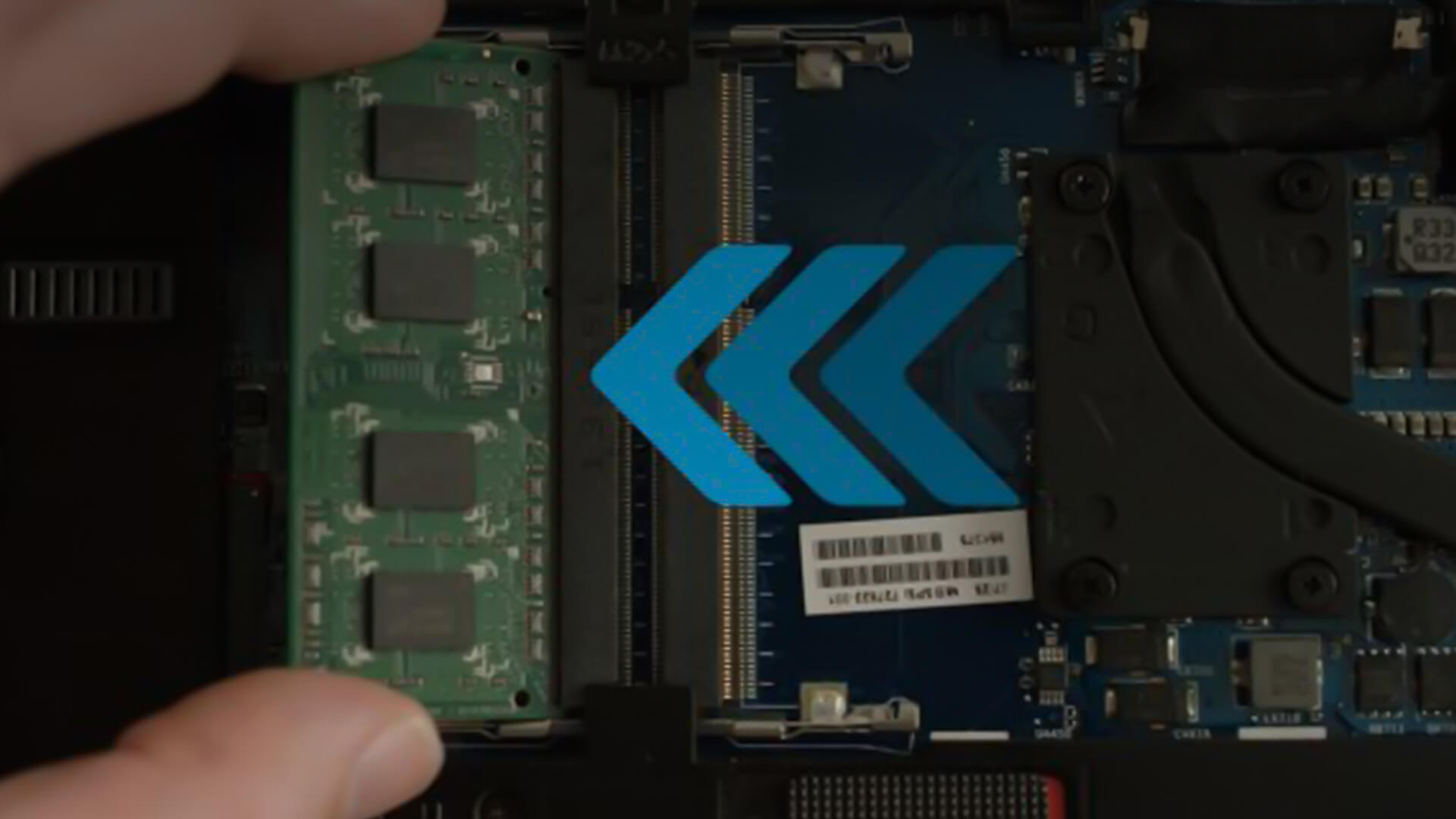
Upgrading memory might sound technical, but this Crucial RAM buying guide shows how straightforward the process really is. Whether for a desktop PC or laptop, installing Crucial memory only takes a few minutes.
- Power Down & Unplug: Always switch off your system and disconnect it from the mains before working on it.
- Ground Yourself: Use an anti-static wrist strap or touch a metal surface to avoid electrostatic discharge (ESD) that could damage components.
- Access the RAM slots: On a desktop, remove the side or top panel to reach the motherboard and locate the PC RAM slots. On a laptop, remove the back cover or dedicated RAM hatch (if available) to reveal the slots.
- Insert Crucial Memory: Align the notch on the module with the slot on the motherboard, then press firmly until it clicks into place.
- Test and Confirm: Reconnect power, boot the system, and check the BIOS or Task Manager to ensure your Crucial RAM has been recognised.
Installing RAM is one of the simplest upgrades you can do, yet it delivers one of the biggest performance boosts.
How to Upgrade RAM in a Laptop
Upgrading your laptop’s RAM is one of the most effective ways to improve speed, responsiveness, and multitasking performance. If your system slows down when running multiple browser tabs, Office apps, or creative software, a memory upgrade can make a noticeable difference.
Step 1: Check Compatibility First
Before buying new RAM, confirm what your laptop supports. Not all laptops use the same memory type (DDR4 vs DDR5), speed, or maximum capacity. The safest way to check is by using your exact laptop model number or a compatibility tool such as the Crucial System Scanner. This prevents purchasing RAM that won’t fit or won’t run at the correct speed.
Also check whether your laptop allows RAM upgrades — some ultra-thin models have soldered memory, which cannot be replaced or expanded.
Step 2: Power Down and Prepare
Turn off your laptop completely and unplug it from the charger. If the battery is removable, take it out. Hold the power button for a few seconds to discharge any remaining electricity. This reduces the risk of static damage.
Work on a flat, clean surface and ideally use an anti-static wrist strap or ground yourself by touching a metal object before handling internal components.
Step 3: Access the RAM Slots
Most upgradeable laptops allow access by removing the back panel. Use the correct screwdriver to carefully unscrew the bottom cover. Once removed, locate the RAM slots — these are long, thin slots with memory modules clipped into place.
If there’s an existing module installed and you’re replacing it, gently push the side clips outward. The RAM will pop up at an angle and can then be removed.
Step 4: Install the New RAM
Align the notch on the new RAM module with the slot. Insert it at a slight angle (around 30 degrees), then press down firmly until the side clips lock into place. It should sit flat and secure.
Avoid forcing it — if it doesn’t fit easily, double-check compatibility and alignment.
Step 5: Reassemble and Verify
Replace the back panel and screws, reconnect the battery (if removed), and power the laptop on.
To confirm the upgrade worked:
- On Windows, open Task Manager → Performance → Memory
- On macOS, go to About This Mac
If the system shows the new RAM capacity, your upgrade was successful.
For most users, moving from 8GB to 16GB significantly improves daily performance. Power users running creative software or virtual machines may benefit from 32GB.
How to Upgrade RAM in a Desktop PC
Desktop RAM upgrades are typically even more straightforward and are one of the fastest ways to boost system performance for gaming, content creation, or heavy multitasking.
Step 1: Confirm Motherboard Compatibility
Before installation, check your motherboard’s supported RAM type (DDR4 or DDR5), maximum capacity, and supported speeds. Using compatible memory ensures stability and full performance.
Step 2: Shut Down and Open the Case
Turn off your PC completely and unplug it from the wall. Press the power button once to discharge residual power.
Remove the side panel of your PC case to access the motherboard. RAM slots are located next to the CPU socket.
Step 3: Insert the RAM Modules
If adding new sticks, open the plastic retention clips on the RAM slots. Align the notch on the RAM with the slot (it only fits one way). Press down firmly until both clips snap into place.
If installing two sticks, consult your motherboard manual to place them in the correct dual-channel configuration (usually slots 2 and 4). This improves performance.
Step 4: Close and Power On
Replace the side panel, reconnect power, and turn the PC back on.
Enter BIOS or check Task Manager to confirm the system recognises the new memory. Some systems may benefit from enabling XMP/EXPO in BIOS to run RAM at its advertised speed.
Desktop upgrades are generally quick, beginner-friendly, and low-risk — making them one of the best value performance upgrades available.
Conclusion:
Upgrading your system with Crucial memory is one of the simplest yet most effective ways to improve performance. This Crucial RAM buying guide has shown how to choose the right capacity, speed, and type of RAM for your build, whether it’s a gaming PC, professional workstation, or everyday laptop.
From Crucial laptop RAM for smooth multitasking to Crucial 16GB RAM kits that strike the perfect balance for gamers, and even Crucial RGB RAM for those who want both power and style, there’s a Crucial solution for every user.
If you’re ready to give your system a boost, buy Crucial RAM at Box and enjoy fast, reliable upgrades that will keep your setup running at its best.
FAQs – Crucial RAM Buying Guide:
- Is Crucial RAM good for gaming?
Yes, Crucial memory is excellent for gaming. Options like Crucial 16GB RAM and RGB options are designed to deliver smooth performance and support modern titles without bottlenecks. - How do I know which Crucial memory fits my laptop?
Check your laptop’s manual or system specifications for supported RAM type (DDR4 or DDR5) and maximum capacity. Crucial laptop RAM modules are designed for wide compatibility across brands. - What’s the difference between Crucial DDR4 and DDR5 RAM?
DDR4 is more affordable and still widely used, while DDR5 offers higher bandwidth, better efficiency, and future-proofing. If your motherboard supports it, Crucial DDR5 is the smarter upgrade. - Does Crucial make RGB RAM for gaming PCs?
Yes, Crucial RGB RAM is available for gamers who want both high-speed performance and customisable lighting effects for their builds. - How much RAM should I buy for everyday use vs gaming?
For everyday tasks, 8GB is enough. For gaming and multitasking, Crucial 16GB RAM is the recommended choice, while creators and power users may benefit from 32GB or more.
You can pay with:
*PayPal Credit Representative Example: Assumed credit limit £1,200, Representative 23.9% APR (variable). Purchase rate 23.9% p.a (variable).Terms & Conditions apply.


PayPal Credit and PayPal Pay in 3 are trading names of PayPal UK Ltd, 5 Fleet Place, London, United Kingdom, EC4M 7RD. Terms and conditions apply. Credit subject to status, UK residents only, Five Tech LTD acts as a broker and offers finance from a restricted range of finance providers. PayPal Pay in 3 is not regulated by the Financial Conduct Authority. Pay in 3 eligibility is subject to status and approval. 18+. UK residents only. Pay in 3 is a form of credit. Check if affordable and how you will repay. May make other borrowing more difficult or expensive. See product terms for more details.
Copyright © 1996-2026 Fivetech LTD | Terms and Conditions
box.co.uk & Box are trading names of Five Tech Limited. Registered office: Box LTD, Unit 10 Woodford Trading Estate, Woodford Green IG8 8HF