


 Menu
MenuMenu


Get Sales Advice from Mon - Fri 9am - 5:00pm:
020 3337 8950LAST UPDATED: January 27, 2026
How to Connect Your Smartphone to a Portable Monitor (Wired and Wireless Guide)
Being able to connect your smartphone to a portable monitor turns your phone into far more than a small-screen device. Whether you’re working remotely, travelling light, gaming on the go, or watching films in a hotel room, using your phone with an external display can completely change how you use it.
Modern smartphones are powerful enough to handle productivity, media, and even desktop-style workflows. The key is knowing how to connect your phone to a monitor, which cables or adapters you need, and whether wired or wireless is the better option for your setup.
This guide covers every method, from USB-C and HDMI connections to wireless casting, with clear steps for both Android and iPhone users.
Why Connect Your Smartphone to a Portable Monitor?
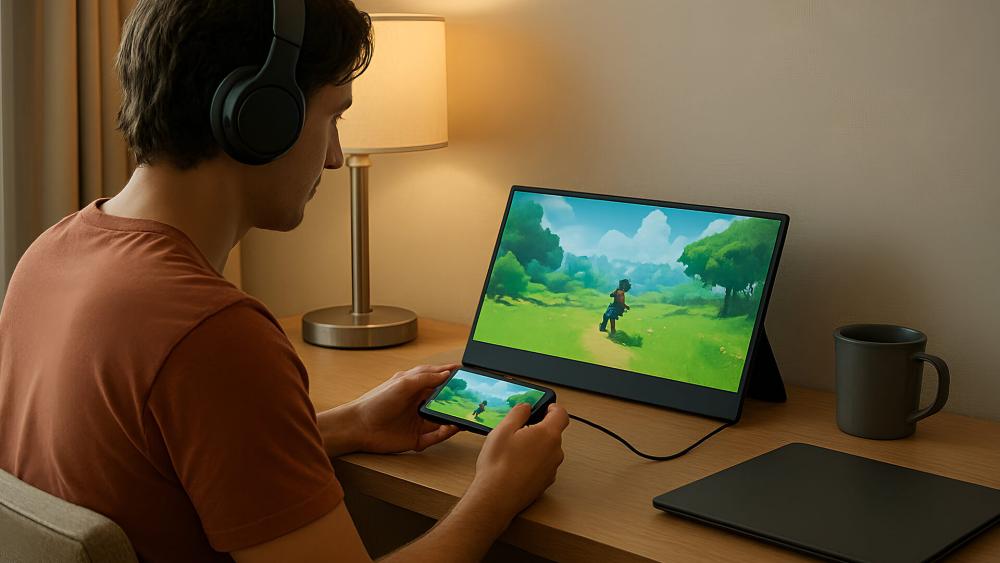
There are plenty of practical reasons to connect smartphone to portable monitor setups rather than relying on a phone screen alone.
For work and travel, a larger display makes emails, documents, and web browsing far more comfortable. If you’re mobile gaming, a portable monitor gives you better immersion and control visibility. Streaming films or videos also benefits massively from a bigger screen, especially when travelling.
Compared to using only your phone, a portable monitor offers better ergonomics, easier multitasking, and a much more laptop-like experience. Many people now pair their phone with portable monitors for phones when they want a lightweight setup without carrying a full laptop.
Can Your Smartphone Connect to a Portable Monitor? (Compatibility Check)
Before you try to connect phone to monitor hardware, it’s important to check compatibility on both sides.
How Do You Check If Your Phone Supports Video Output Over USB-C?
Most modern Android devices use USB-C, but not all USB-C ports support video output. To connect phone to monitor with USB-C, your phone needs DisplayPort Alt Mode.
You can check this by:
- Looking up your phone’s official specifications
- Checking the manufacturer’s support site
- Searching for "DisplayPort Alt Mode" alongside your model name
Many newer Android phones with USB-C support this feature, but budget models sometimes do not.
Can an iPhone Connect to a Portable Monitor and What Do You Need?
iPhone support depends on the model:
- Older iPhones use Lightning and require a Lightning to HDMI adapter
- Newer iPhones with USB-C can connect using USB-C to HDMI or USB-C video
In both cases, iPhones typically mirror the screen rather than offering a desktop-style layout.
Does Your Portable Monitor Support USB-C, HDMI or Wireless Input?
Most portable monitors support one or more of the following:
- USB-C video input
- Full-size or mini HDMI
- Wireless input via a dongle or built-in receiver
Checking the available ports will help you decide how to connect monitor to phone with the least hassle.
Smartphone to Portable Monitor Connection Options – Comparison Table
Here's a table to help you quickly decide the best way to connect smartphone to portable monitor based on your needs.
| Connection method | Hardware required | Compatible devices | Setup complexity | Video quality | Input lag | Power delivery | Best use-cases |
| USB-C to USB-C | USB-C video cable | Android phones with DP Alt Mode | Plug-and-play | High | Very low | Often yes | Work, gaming |
| USB-C to HDMI | USB-C adapter + HDMI cable | Android, newer iPhones | Simple | High | Low | No | Presentations |
| Lightning to HDMI | Lightning adapter + HDMI | Older iPhones | Simple | Good | Low | No | Media, slides |
| Wireless casting | Wi-Fi / dongle | Android & iPhone | App-based | Variable | Higher | No | Casual viewing |
How to Connect an Android Phone to a Portable Monitor with USB-C

This is the most reliable and lowest-latency option for Android users.
What Do You Need to Connect an Android Phone to a USB-C Portable Monitor?
You’ll need:
- An Android phone that supports DisplayPort Alt Mode
- A USB-C cable that supports video
- A compatible USB-C portable monitor
Many USB-C portable monitors are designed specifically for this use-case.
Step-by-Step: USB-C Phone to USB-C Portable Monitor
- Power on the portable monitor
- Connect the USB-C cable from the phone to the monitor
- Unlock your phone
- The display should mirror automatically, or prompt you to select display mode
Some Android smartphones offer desktop-style modes when connected to an external display.
How to Use USB-C to HDMI to Connect an Android Phone to a Portable Monitor
If your monitor doesn’t support USB-C video:
- Connect a USB-C to HDMI adapter to your phone
- Plug an HDMI cable into the monitor
- Select the correct input source on the monitor
Quality monitor cables and adapters make a big difference to stability and image clarity here.
How to Connect an iPhone to a Portable Monitor (Wired Options)
Connecting an iPhone to a portable monitor is straightforward, but requires the right adapter.
What Adapter Do You Need to Connect an iPhone to a Portable Monitor?
- Lightning iPhones need a Lightning to HDMI adapter
- USB-C iPhones use USB-C to HDMI or USB-C video
These fall under common phone display adapters used for external screens.
Step-by-Step: iPhone to Portable Monitor via HDMI
- Power the monitor
- Connect the adapter to your iPhone
- Attach the HDMI cable to the monitor
- Select the HDMI input
Your iPhone screen will mirror instantly.
Limitations When Using an iPhone with a Portable Monitor
Most iPhones mirror rather than extend the display. Aspect ratios and some apps may not scale perfectly, but for media and presentations, the setup works well for an iPhone with external display.
How to Use Wireless Casting from Your Smartphone to a Portable Monitor

Wireless options remove cables but come with trade-offs.
What Wireless Options Can You Use to Cast Your Phone to a Portable Monitor?
Some portable monitors include wireless receivers, while others rely on external casting dongles connected via HDMI.
How to Mirror an Android Phone Wirelessly
Many Android devices include built-in casting:
- Open display or connection settings
- Select Cast or Screen Mirroring
- Choose the wireless receiver
How to Mirror an iPhone Screen Wirelessly
iPhones require compatible wireless receivers or apps that support iOS screen mirroring.
Wireless vs Wired: Which Is Better?
Wireless casting is convenient but introduces latency. For gaming or work, wired methods are far more reliable.
How to Use Your Smartphone Like a Desktop on a Portable Monitor
Some phones support desktop-style interfaces when connected to an external display.
Can You Use Desktop Modes on a Portable Monitor?
Certain Android devices offer desktop-style layouts when you connect phone to monitor setups via USB-C.
What Extra Accessories Do You Need?
- Bluetooth keyboard
- Bluetooth mouse
- Phone stand or hub
Best Use-Cases for a Smartphone Desktop Setup
This works well for emails, browsing, documents, and light productivity without carrying a laptop.
How to Power a Portable Monitor When Connecting a Smartphone
Power is often overlooked. Here’s what to look out for:
Do USB-C Portable Monitors Need External Power?
Some monitors draw power from the phone, while others require external power via USB-C or wall chargers.
Can a Portable Monitor Charge Your Phone?
A few monitors support power delivery, but charging is often slow or limited.
Using a Power Bank or Wall Charger
For travel setups, a power bank keeps both phone and monitor running reliably.
Common Problems When Connecting a Smartphone to a Portable Monitor (and Fixes)
When you are connecting your smartphone to a portable monitor, you might face some problems. Here are some scenarios and how to get out of them:
Portable Monitor Not Detecting Phone
- Check cable supports video
- Confirm DisplayPort Alt Mode
- Verify correct input source
Sound but No Picture (or Vice Versa)
- Check display and audio settings
- Confirm app permissions
Cropped, Zoomed or Blurry Image
- Adjust resolution and aspect ratio
- Change display scaling in phone settings
Reducing Wireless Lag
- Reduce Wi-Fi interference
- Switch to wired if possible
Which Connection Method Is Best for Your Use-Case?
Based on your unique use-case, the connection method can be different. Here’s what to do:
Best for Work and Productivity
USB-C wired connections offer stability, clarity, and low latency.
Best for Films and Media
HDMI or wireless connections are usually fine for streaming.
Best for Gaming
Wired USB-C or HDMI setups deliver the lowest input lag.
Does Connecting a Smartphone to a Portable Monitor Affect Battery Life?
When you connect smartphone to portable monitor setups, battery usage can increase noticeably, especially with wired connections that also power the display.
Wired USB-C connections often draw power from the phone to run the monitor, which can drain the battery faster during extended sessions. Wireless casting may use less physical power but can still be demanding due to constant screen streaming and Wi-Fi usage.
To manage battery life:
- Use a portable monitor with its own power source where possible
- Connect a power bank or wall charger during longer sessions
- Reduce screen brightness on both the phone and monitor
This is especially useful for travel setups or long work sessions away from mains power.
Can You Use Touch Input or Phone Controls with a Portable Monitor?
Most portable monitors act purely as displays, meaning touch input and controls still happen on your phone. While some monitors support touch, compatibility with smartphones is limited and often depends on both the device and connection method.
In most cases:
- Touch interaction remains on the phone
- External keyboards and mice provide better control
- Desktop-style modes work best with physical input devices
For productivity-focused users, pairing a keyboard and mouse with your phone delivers a much smoother experience than relying on touch alone.
Conclusion
Learning how to connect your smartphone to a portable monitor opens up far more flexibility than most people expect. Whether you’re using a wired USB-C connection for low-latency work, HDMI for presentations and media, or wireless casting for convenience, the right setup depends on how you plan to use your phone.
For Android users, USB-C with DisplayPort Alt Mode is usually the most reliable and versatile option, especially if you want to use your phone for productivity or gaming. iPhone users can still get excellent results through HDMI-based connections, particularly for media playback and screen mirroring. Whichever route you choose, using the correct cables, adapters, and a compatible portable monitor makes a noticeable difference to performance and stability.
Once set up properly, a portable monitor can turn your phone into a capable work station, entertainment hub, or travel-friendly gaming screen, without the need to carry extra hardware. Understanding your phone’s capabilities and matching them with the right connection method ensures you get the best experience every time.
FAQs
Can any smartphone connect to a portable monitor?
No. The phone must support video output, especially for USB-C connections.
Do you need a special cable to connect a phone to a monitor?
Yes. The cable or adapter must support video, not just charging.
Is wired or wireless better for a portable monitor?
Wired connections are more reliable and better for gaming and work.
Can you use a portable monitor with both your laptop and your phone?
Yes. Most portable monitors work with phones, laptops, and consoles, depending on inputs.
You can pay with:
*PayPal Credit Representative Example: Assumed credit limit £1,200, Representative 23.9% APR (variable). Purchase rate 23.9% p.a (variable).Terms & Conditions apply.


PayPal Credit and PayPal Pay in 3 are trading names of PayPal UK Ltd, 5 Fleet Place, London, United Kingdom, EC4M 7RD. Terms and conditions apply. Credit subject to status, UK residents only, Five Tech LTD acts as a broker and offers finance from a restricted range of finance providers. PayPal Pay in 3 is not regulated by the Financial Conduct Authority. Pay in 3 eligibility is subject to status and approval. 18+. UK residents only. Pay in 3 is a form of credit. Check if affordable and how you will repay. May make other borrowing more difficult or expensive. See product terms for more details.
Copyright © 1996-2026 Fivetech LTD | Terms and Conditions
box.co.uk & Box are trading names of Five Tech Limited. Registered office: Box LTD, Unit 10 Woodford Trading Estate, Woodford Green IG8 8HF