


 Menu
MenuMenu


Get Sales Advice from Mon - Fri 9am - 5:00pm:
020 3337 8950LAST UPDATED: August 29, 2025
How To Connect Your Lenovo Laptop To A TV
Ever wanted to enjoy your favourite films, TV shows, or even a gaming session on a bigger screen? Connecting your Lenovo laptop to a TV is one of the easiest ways to upgrade your entertainment experience. You don’t need to be a tech expert to do it, all it takes is the right method, and you’ll be enjoying crisp visuals on a larger display in no time.
In this guide, we’ll explore them all and show you how to connect a Lenovo laptop to a TV step by step.
Why Connect Your Lenovo Laptop to a TV?
If you’ve ever struggled to enjoy a film on a small laptop screen, you’ll know how much of a difference a TV makes. Connecting your Lenovo laptop to a TV means more than just enlarging the picture, it’s about enhancing your whole experience. Imagine streaming your favourite shows on a wide screen with better sound quality, playing games where every detail pops, or running a work presentation without everyone crowding around a 14-inch display.
There’s also a practical benefit. Instead of investing in a new monitor, a TV can serve as both your entertainment hub and a second screen for productivity. And with plenty of cheap TVs for sale, it’s an affordable way to give your home setup a real upgrade.
So, let’s get into the detailed methods of how you can connect your Lenovo laptop to a TV:
Method 1: Connect Lenovo Laptop to TV with HDMI Cable
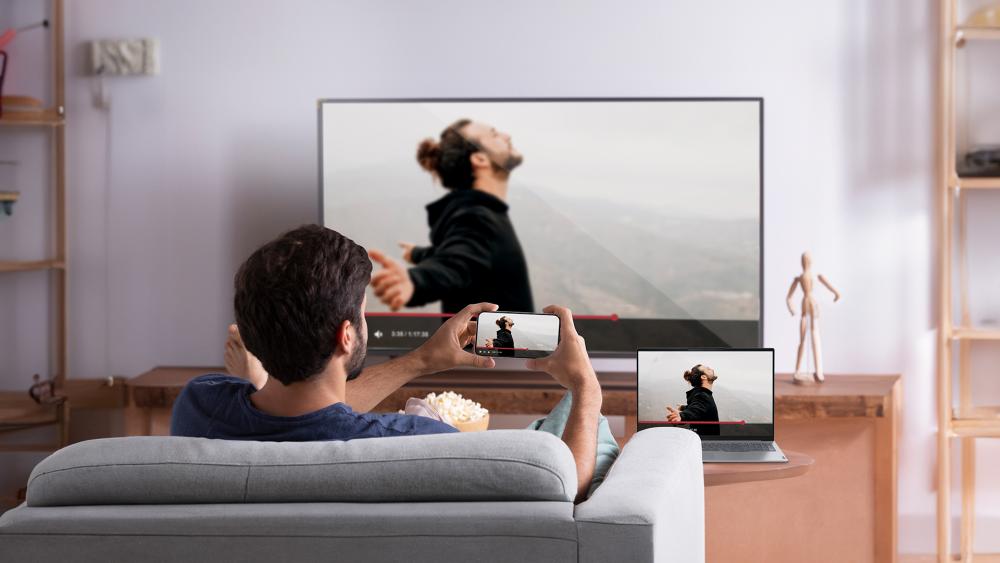
Using an HDMI cable is by far the most straightforward and reliable way to connect your Lenovo laptop to a TV. Because HDMI carries both video and audio signals in a single cable, it gives you crisp picture quality and full sound without needing extra setup. It also doesn’t depend on Wi-Fi, so it’s stable, lag-free, and perfect for situations where you want the best possible performance.
Step-by-step Guide
- Turn off both devices
While you can technically plug in HDMI while your devices are on, it’s safer to switch them off first. Doing this helps avoid any connection glitches and ensures both devices detect the cable properly when they power up. - Plug in the HDMI cable
Insert one end of the HDMI cable into the HDMI port on your Lenovo laptop, and the other end into one of the HDMI ports on your TV. Most TVs have several HDMI inputs, usually labelled HDMI 1, HDMI 2, etc., on the back or side. - Switch on your devices
Power up your laptop and TV. Once they’re on, the TV should automatically recognise that an HDMI device is connected. - Select the HDMI input on your TV
Using your TV remote, press the Input or Source button and choose the HDMI channel that matches the port you used (for example, HDMI 1). If you don’t see anything, cycle through the HDMI options until the laptop screen appears. - Adjust display settings on your laptop
On your Lenovo laptop, press Windows + P to open the display options. You’ll see three main choices:
- Duplicate: This shows the same screen on both your laptop and TV. Great if you want to mirror content for group viewing.
- Extend: This treats your TV as a second monitor. You can drag windows between your laptop and TV, perfect for multitasking.
- Second screen only: This switches off your laptop display and uses only the TV. Useful when you want to focus on the big screen.
Troubleshooting common issues
- No signal on TV: Double-check both ends of the HDMI cable are securely connected. Make sure you’ve selected the correct HDMI input on the TV. Try restarting your laptop if it still doesn’t work.
- No sound from TV speakers: Right-click the sound icon on your laptop, go to Sound settings or Playback devices, and select your TV as the default audio output. HDMI usually carries sound automatically, but sometimes it needs this manual tweak.
- Blurry or stretched image: Right-click on your desktop, select Display settings, and adjust the resolution so it matches your TV’s native resolution (often 1920x1080 for HD or 3840x2160 for 4K). This ensures the picture looks sharp and fills the TV screen correctly.
When to use HDMI
HDMI is the best choice if you want the smoothest experience with no interruptions. It’s especially useful for watching films in high definition, gaming sessions where speed matters, or long work presentations where you don’t want to risk Wi-Fi dropouts. Since it doesn’t depend on a wireless connection, you can enjoy uninterrupted video and sound for as long as you like.
Our Recommendation:
For example, you can pair the Lenovo V14 Intel Core i5-13420H 16GB RAM 512GB SSD 14" Windows 11 Pro Business Laptop (SKU: V14-I5-13420H-16-512-W11P) with the stunning Sony BRAVIA XR 7 K55XR70PU 55" 4K Ultra HD QLED Mini LED Smart TV (MPN: K55XR70PU) using a simple HDMI cable for crisp visuals and immersive sound.
Method 2: Lenovo Screen Mirroring (Wireless)
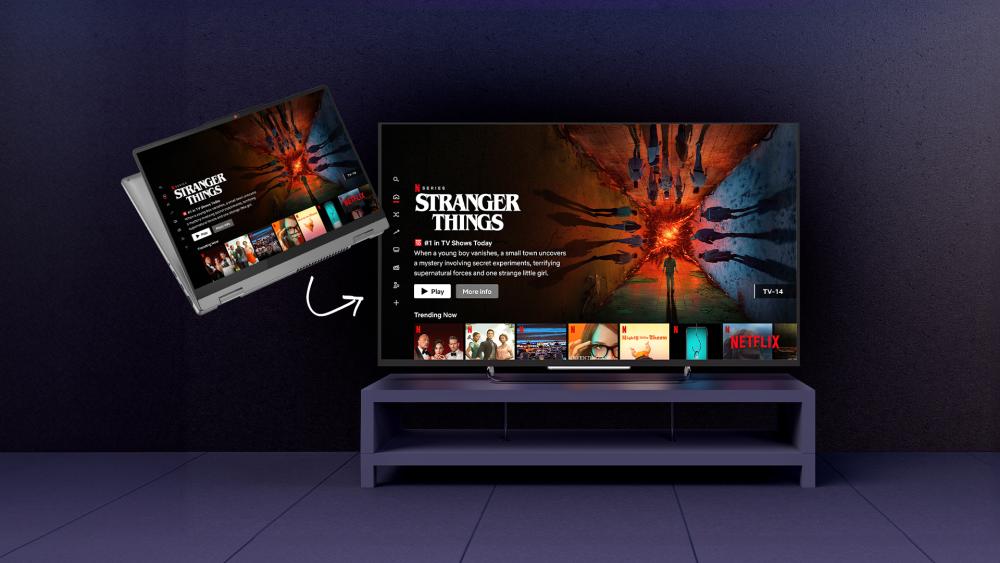
If you prefer a clutter-free setup without cables running across the room, Lenovo laptops give you the option to mirror your screen wirelessly. Screen mirroring uses your Wi-Fi network to send the laptop display directly to your TV. It’s not only convenient but also quick to set up, making it a great choice for casual streaming or when you simply want to share content with friends and family.
How to mirror your screen
- Check the Wi-Fi connection
Both your Lenovo laptop and your TV need to be connected to the same Wi-Fi network. This ensures they can detect and communicate with each other. If they’re on different networks, the TV won’t appear as an available device. - Open the display settings on your laptop
On your Lenovo laptop, press Windows + P. This brings up the display menu where you can manage external displays. - Select “Connect to a wireless display”
From the menu, click the option to connect to a wireless display. Your laptop will begin searching for available devices. - Choose your TV
Once your TV appears in the list, select it. Within a few seconds, your laptop screen should appear on the TV. Some TVs may ask you to approve the connection with a quick on-screen confirmation.
Benefits of screen mirroring
One of the biggest advantages of wireless mirroring is that it keeps your living space tidy. It’s ideal for situations where you want flexibility, such as streaming a film from bed, showing holiday photos in the living room, or projecting a presentation in a meeting room without carrying adapters around.
It’s also very simple to use. Once you’ve connected once, many TVs will remember your laptop, making future connections even quicker.
Things to keep in mind
Wireless screen mirroring depends heavily on the strength of your Wi-Fi connection. If your internet is fast and stable, you’ll enjoy smooth playback. However, if the signal is weak or there are many devices using the network at the same time, you may notice lag, stuttering, or lower quality video. For that reason, it’s perfect for casual use like browsing the web, watching short videos, or sharing photos, but may not always be the best option for fast-paced gaming or high-resolution films.
It’s also worth noting that this feature works best with modern Smart TVs that support Miracast or similar wireless display technologies. If your TV doesn’t have this functionality built-in, you may need an external device such as a Microsoft Wireless Display Adapter or a streaming stick that supports mirroring.
Our Recommendation:
Enjoy seamless wireless screen mirroring by connecting the Lenovo V14 Intel Core i5-13420H 16GB RAM 512GB SSD 14" Windows 11 Pro Business Laptop (SKU: V14-I5-13420H-16-512-W11P) with the impressive Hisense 75A6NTUK A6N Series 75" 4K Ultra HD LED Smart TV (MPN: 75A6NTUK) for a clutter-free big-screen experience.
Method 3: Cast Lenovo to a TV
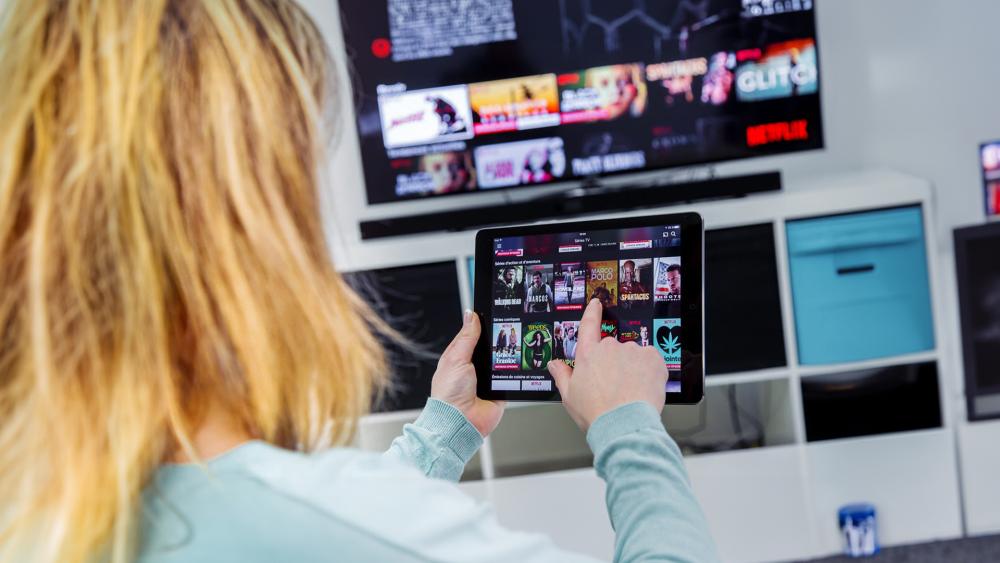
Casting is slightly different from screen mirroring. Instead of duplicating your entire laptop screen, it streams specific content such as a browser tab, a YouTube video, or a Netflix show directly to the TV. The biggest advantage is that you can still use your Lenovo laptop for other tasks while the TV handles the playback in the background. It’s like sending the content to the TV so it can play independently, freeing up your laptop.
How to cast from a Lenovo laptop
1) Set up your TV or streaming device
If you have a smart TV with built-in casting support (like those with Chromecast or AirPlay functionality), you’re ready to go. If not, plug in a device such as a Chromecast, Amazon Fire Stick, or Roku into one of your TV’s HDMI ports. These devices add casting functionality to almost any television.
2)Check the Wi-Fi connection
Your Lenovo laptop and your TV (or streaming device) must be on the same Wi-Fi network. If they aren’t, your laptop won’t be able to detect the TV as an available casting option.
3) Open Google Chrome on your laptop
Casting is built directly into Google Chrome. Open the browser and make sure you’re signed in with the latest version installed.
4) Select the Cast option
Click the three-dot menu in the top-right corner of Chrome, then select Cast. A list of available devices will appear, showing your TV or streaming stick.
5) Choose what to cast
You can decide whether you want to:
- Cast a specific tab: great for streaming a video, running a slideshow, or sharing a web page.
- Cast your entire desktop: This shares everything on your screen, similar to mirroring but routed through Chrome.
6) Enjoy your content
Once connected, the content will appear on your TV. The playback runs through the TV’s streaming device, meaning your laptop can be used for other things at the same time.
Why casting is useful
Casting is ideal when you want to relax and watch films or shows on your TV while still being able to check emails, browse social media, or do other tasks on your Lenovo laptop. Because the TV or streaming device is doing most of the heavy lifting, it also reduces strain on your laptop. This helps keep performance smooth and prevents your laptop fan from whirring during long streaming sessions.
It’s also very flexible. You can cast from a wide range of apps and services from Netflix and YouTube to Spotify and even Google Slides for presentations. And because casting only shares the chosen content, you don’t need to worry about people seeing pop-ups, messages, or notifications from your laptop while you’re streaming.
Things to keep in mind
Casting usually requires a strong Wi-Fi connection. If your network is weak, you might see buffering or reduced quality. In that case, moving closer to your router or switching to a 5GHz Wi-Fi network can make a big difference. Also, remember that not all websites or apps support casting directly. In some cases, you may need to cast the entire desktop instead of just a single tab.
Method 4: Connect a Lenovo Tablet to a TV
If you’re using a Lenovo tablet instead of a laptop, the good news is that you still have plenty of options to connect it to a TV. Tablets are naturally lightweight and portable, which makes them especially handy when you want to carry your entertainment or work setup from room to room. Whether you’re streaming a series in the living room, giving a presentation in the office, or sharing photos on holiday, linking your Lenovo tablet to a TV can be quick and simple.
Wired option
The most reliable way to connect is with a cable. Many Lenovo tablets feature USB-C ports, and some older models even have micro-HDMI outputs. With the right adapter or cable, you can easily connect the tablet to the TV.
- Start by checking your tablet’s ports. If it has USB-C, you’ll need a USB-C to HDMI adapter. If it has micro-HDMI, you can use a micro-HDMI to HDMI cable.
- Plug the adapter into your tablet and then connect it to your TV using a standard HDMI cable.
- Switch on your TV and select the HDMI input that matches the port you used (for example, HDMI 1 or HDMI 2).
- Your tablet’s screen should instantly appear on your TV. From there, you can play videos, open apps, or even run presentations.
The benefit of a wired connection is that it’s consistent. You don’t have to rely on Wi-Fi strength, and you’ll get smooth video and audio with very little chance of lag.
Wireless option
If you’d rather go cable-free, Lenovo tablets also support wireless casting. Depending on your TV, you can use built-in Miracast support or external devices such as Chromecast or Amazon Fire Stick.
- Make sure your TV (or casting device) and tablet are connected to the same Wi-Fi network.
- On your Lenovo tablet, go into Settings and look for an option like Cast, Screen sharing, or Wireless display.
- Select your TV from the list of available devices.
- Once connected, your tablet screen will be mirrored on the TV.
Wireless casting is incredibly convenient, especially if you want to move around freely while using your tablet. It’s perfect for casual streaming, music playback, or quickly showing friends photos and videos without having to dig out cables.
When to use each option
- Wired connection is best when you want stability and top-quality playback, such as for films, gaming, or longer work sessions.
- Wireless casting is best when convenience matters most, for example, when you’re quickly sharing content with others or streaming casually without worrying about setup.
Both options give you flexibility, and since tablets are so portable, you can easily connect to different TVs in different rooms or even at someone else’s house.
Our Recommendations
For a portable yet powerful setup, you can connect the Lenovo Tab K11 Plus Qualcomm Snapdragon SDM680 8GB RAM 256GB UFS 11.4" 2K Tablet (MPN: ZADS0035GB) directly to your TV either with a USB-C to HDMI adapter for stable wired playback or wirelessly via casting for effortless sharing.
Accessories That Help
Sometimes the right accessories can make the whole experience smoother and more enjoyable.
- High-speed HDMI cables:
While basic HDMI cables work for everyday use, investing in a high-speed cable ensures sharp, vibrant visuals and rich sound, especially if you’re streaming in 4K or gaming. - USB-C to HDMI adapters:
Many modern Lenovo laptops are slim and lightweight, which often means they’ve dropped the traditional HDMI port. A USB-C to HDMI adapter solves that problem instantly, giving you a reliable wired connection without hassle. - Streaming devices:
Devices like Chromecast and Amazon Fire Stick are excellent for casting and streaming. They add smart features to any TV, even older models, and make wireless connections much more reliable.
At Box, you can explore the latest Lenovo laptops or pick from our range of affordable TVs to complete your perfect setup.
Extra Tips for a Better Experience
Once you’ve connected your Lenovo device to a TV, a few simple tweaks can take the experience from good to great.
- Keep drivers updated:
Outdated graphics or audio drivers can sometimes cause connection issues or limit resolution options. By updating your Lenovo laptop’s drivers, you’ll ensure everything runs smoothly and you get access to the latest features. - Adjust your screen resolution:
Your TV has a “native resolution” (for example, 1920x1080 for Full HD or 3840x2160 for 4K). Matching your laptop’s output to this resolution ensures the picture is sharp and clear, with no stretched or blurry images. - Use “Extend” mode for productivity:
If you’re working, instead of duplicating your screen, use the “Extend” option. This turns your TV into a second monitor, giving you more space to multitask. You can keep a video call open on your laptop while working on documents on the TV, for example. - Invest in a quality HDMI cable for gaming or 4K streaming:
Serious gamers or film enthusiasts will benefit from a good HDMI cable designed for higher bandwidth. These cables can handle faster refresh rates and higher resolutions, giving you smoother gameplay and richer picture quality.
Conclusion
Connecting your Lenovo laptop or tablet to a TV is a simple way to unlock a whole new level of entertainment and productivity. Whether you go for the reliability of an HDMI cable, the convenience of wireless screen mirroring, or the flexibility of casting, each method gives you the freedom to enjoy content on the big screen in the way that suits you best.
So, the next time you want to share photos, enjoy a boxset marathon, or boost your productivity with a second screen, remember how easy it is to connect your Lenovo to a TV. Once you’ve tried it, you’ll wonder how you ever managed without it.
Ready to buy Lenovo laptops and discover great deals on TVs today? Box.co.uk is your trusted tech destination.
You can pay with:
*PayPal Credit Representative Example: Assumed credit limit £1,200, Representative 23.9% APR (variable). Purchase rate 23.9% p.a (variable).Terms & Conditions apply.


PayPal Credit and PayPal Pay in 3 are trading names of PayPal UK Ltd, 5 Fleet Place, London, United Kingdom, EC4M 7RD. Terms and conditions apply. Credit subject to status, UK residents only, Five Tech LTD acts as a broker and offers finance from a restricted range of finance providers. PayPal Pay in 3 is not regulated by the Financial Conduct Authority. Pay in 3 eligibility is subject to status and approval. 18+. UK residents only. Pay in 3 is a form of credit. Check if affordable and how you will repay. May make other borrowing more difficult or expensive. See product terms for more details.
Copyright © 1996-2026 Fivetech LTD | Terms and Conditions
box.co.uk & Box are trading names of Five Tech Limited. Registered office: Box LTD, Unit 10 Woodford Trading Estate, Woodford Green IG8 8HF