


 Menu
MenuMenu


Get Sales Advice from Mon - Fri 9am - 5:00pm:
020 3337 8950LAST UPDATED: July 20, 2026
How Many Nits Should a Monitor Have?
For most people, the right monitor brightness is not the highest number on the spec sheet. Around 100 to 150 nits can be comfortable for normal indoor use, especially in a typical home office or bedroom. Brighter rooms may need 200 to 300 nits so the screen stays visible against overhead office lighting, daylight and screen reflections.
A 250 nits monitor is fine for basic home and office use. A 400 nits monitor is better for brighter rooms, punchier SDR image quality and entry-level HDR support. A 1000 nit monitor is very bright and is mainly useful for HDR highlights, not for running the whole screen at maximum brightness all day.
The key point: A bright display is useful, but comfort matters too. For everyday browsing, work, study and gaming, set the brightness to match your room lighting. HDR needs higher peak brightness for highlights, while normal desktop use usually feels better at a lower brightness level.
What Are Monitor Nits?
Monitor nits measure screen brightness. A nit is another way of describing luminance, measured as candela per square metre, or cd/m². In monitor listings, nits and cd/m² usually refer to the same brightness measurement.
In simple terms, monitor nits tell you how much light the screen can produce. A higher number means the screen can get brighter.
Common examples:
- 250 nits monitor: basic indoor use
- 300 nits monitor: good everyday brightness
- 400 nits monitor: strong SDR brightness and entry-level HDR
- 600 nits monitor: better HDR highlights
- 1000 nit monitor: high brightness monitor for stronger HDR impact
A higher monitor brightness can help in bright rooms, but it does not automatically mean better picture quality. Contrast performance, black levels, panel type, anti-glare coating, colour accuracy and local dimming all matter too.
If you are comparing models, start with monitors by use & display type so you can match brightness with panel type, resolution and refresh rate.
How Many Nits Do You Need for Everyday Use?
For everyday use, most people do not need a high brightness monitor. A screen that can reach 250 to 300 nits is usually enough for home working, browsing, emails, documents, shopping, streaming and general desktop use.
A practical guide:
| Use Case | Good Brightness Range |
|---|---|
| Dark room | 80 to 120 nits |
| Normal home office | 100 to 150 nits |
| Bright office | 200 to 300 nits |
| Gaming in normal lighting | 200 to 350 nits |
| Bright room with reflections | 300 to 400 nits or more |
| Entry-level HDR | 400 nits and above |
| Stronger HDR highlights | 600 to 1000 nits or more |
The best computer monitor brightness depends on the room. A monitor that looks perfect at 120 nits in the evening may look too dim next to a window during the day.
For work setups, displays for home working are worth comparing because brightness, screen size, adjustability and comfort all matter when you stare at the screen for hours.
Is a 250 Nits Monitor Enough?
A 250 nits monitor is enough for basic indoor use. It is fine for documents, web browsing, spreadsheets, schoolwork and light entertainment in a room without harsh daylight.
Choose 250 nits if:
- You work indoors
- Your room lighting is controlled
- You do not sit in direct sunlight
- You mostly use office apps
- You want a basic value monitor
- HDR is not important
A 250 nits monitor may feel limited if your desk is near a bright window, the screen has reflections, or you want a punchier image for games and films. It can still be comfortable, but it is not the best choice for bright-room use.
Is 400 Nits Good for a Monitor?
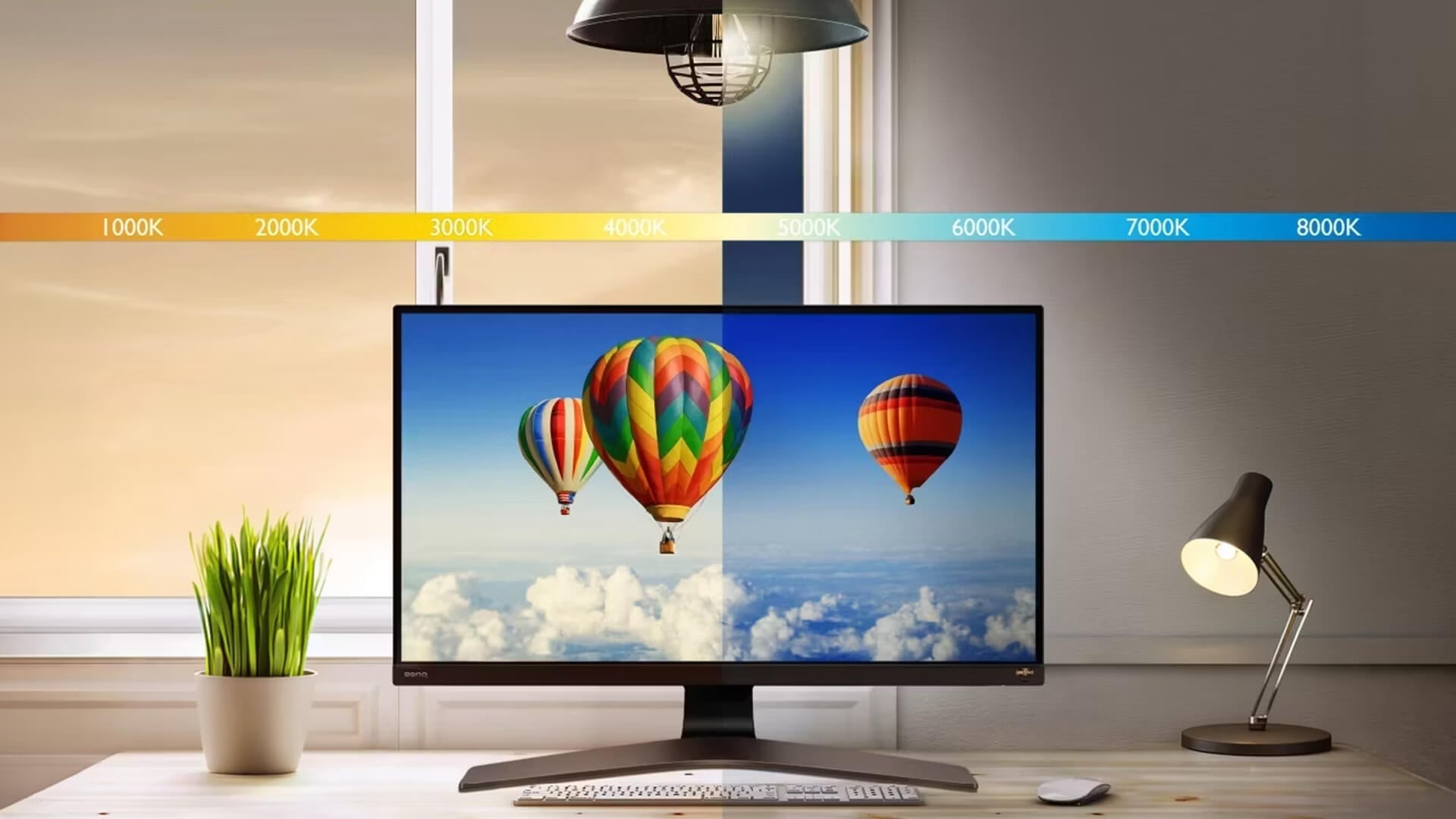
A 400 nits monitor is a strong choice for most users. It gives more headroom than a basic 250 nits screen and can help with bright offices, daylight, gaming and media.
Choose 400 nits if:
- Your room is fairly bright
- You want better visibility in daytime
- You play games with bright scenes
- You watch films and sport
- You want entry-level HDR support
- You prefer a brighter computer screen
- Your monitor has an anti-glare coating
For SDR content, you may still run a 400 nits monitor below maximum brightness. The extra brightness is useful when the room gets brighter, not because the screen should always run flat out.
A 400 nits monitor can support HDR signals on some models, but HDR quality depends on more than brightness. Local dimming, contrast, colour gamut and black levels matter heavily.
Is a 1000 Nit Monitor Too Bright?
A 1000 nit monitor is very bright. It is mainly useful for HDR highlights, such as sunlight, explosions, reflections, neon signs and bright skies in supported HDR content.
It does not mean the whole screen should sit at 1000 nits during normal use. That would be uncomfortable for most people indoors.
A 1000 nit monitor is useful if you want:
- Stronger HDR highlights
- Better bright-scene impact
- Premium gaming visuals
- HDR films and streaming
- Better visibility in bright rooms
- High peak brightness for creative work
For everyday desktop use, you will usually lower brightness. For HDR, the monitor may only hit peak brightness in small areas of the screen for short moments. That is normal.
Monitor Brightness for Dark Rooms
In a dark room, lower brightness is usually more comfortable. A screen that is too bright can cause eye strain, washed-out blacks and an unpleasant glow, especially during evening gaming or film watching.
For a dark room, start around:
- 80 to 120 nits for office work
- 100 to 150 nits for browsing and media
- lower brightness for late-night use
- slightly higher if the monitor has poor contrast
OLED monitors are popular in darker rooms because they can deliver excellent black levels and contrast performance. If you want deep blacks for films, single-player games and moody visuals, compare OLED for dark-rooms.
However, OLED brightness works differently from many LCD monitors. Peak brightness can be strong, but full-screen brightness may be lower, especially with large bright areas. For dark rooms, that is rarely a problem.
Monitor Brightness for Bright Rooms
In bright rooms, monitor brightness needs to fight ambient room lighting. Daylight, overhead office lighting and screen reflections can make a screen look washed out.
For a bright room, look for:
- 300 nits minimum
- 400 nits or more for better headroom
- Anti-glare coating
- Good viewing angles
- Strong SDR brightness
- An IPS panel if you need wide viewing angles
- Adjustable stand to reduce reflections
A bright-room IPS display can be a good choice because IPS monitors usually offer strong viewing angles and practical everyday visibility. Pair that with sensible desk placement and you will get a more comfortable setup.
Avoid putting your monitor directly opposite a window where possible. Even a high brightness monitor can struggle against direct sunlight and strong reflections.
Monitor Brightness for Gaming
For gaming, monitor brightness depends on the type of games you play and the room you play in.
For competitive gaming, you want clear visibility, stable brightness and low distraction. You do not need the brightest monitor possible. You need to see enemies, HUD elements and dark areas clearly without blowing out bright scenes.
Good gaming brightness targets:
- 200 to 300 nits for normal indoor gaming
- 300 to 400 nits for bright rooms
- 400 nits or more for entry-level HDR gaming
- 600 to 1000 nits for stronger HDR highlights
For esports games, refresh rate, response time and input lag matter more than extreme brightness. For cinematic games, HDR highlights, contrast and black levels become more important.
If you play RPGs, racing games, shooters or open-world titles, a bright display can help, but only if the monitor also has good contrast and accurate picture settings.
Monitor Brightness for HDR
HDR is where brightness becomes more important. HDR content uses a wider range between dark and bright areas, so the monitor needs enough luminance level to show highlights properly.
For HDR monitors:
- 400 nits is entry-level
- 600 nits is better
- 1000 nits is strong for HDR highlights
- Local dimming improves HDR on LCD monitors
- OLED brightness gives excellent blacks, but full-screen brightness can vary
- Windows HDR calibration can help improve HDR tone mapping
The problem is that some HDR monitors accept an HDR signal but do not get bright enough or have enough contrast to make HDR look impressive. That is why a 400 nits monitor may support HDR but still look only mildly different from SDR.
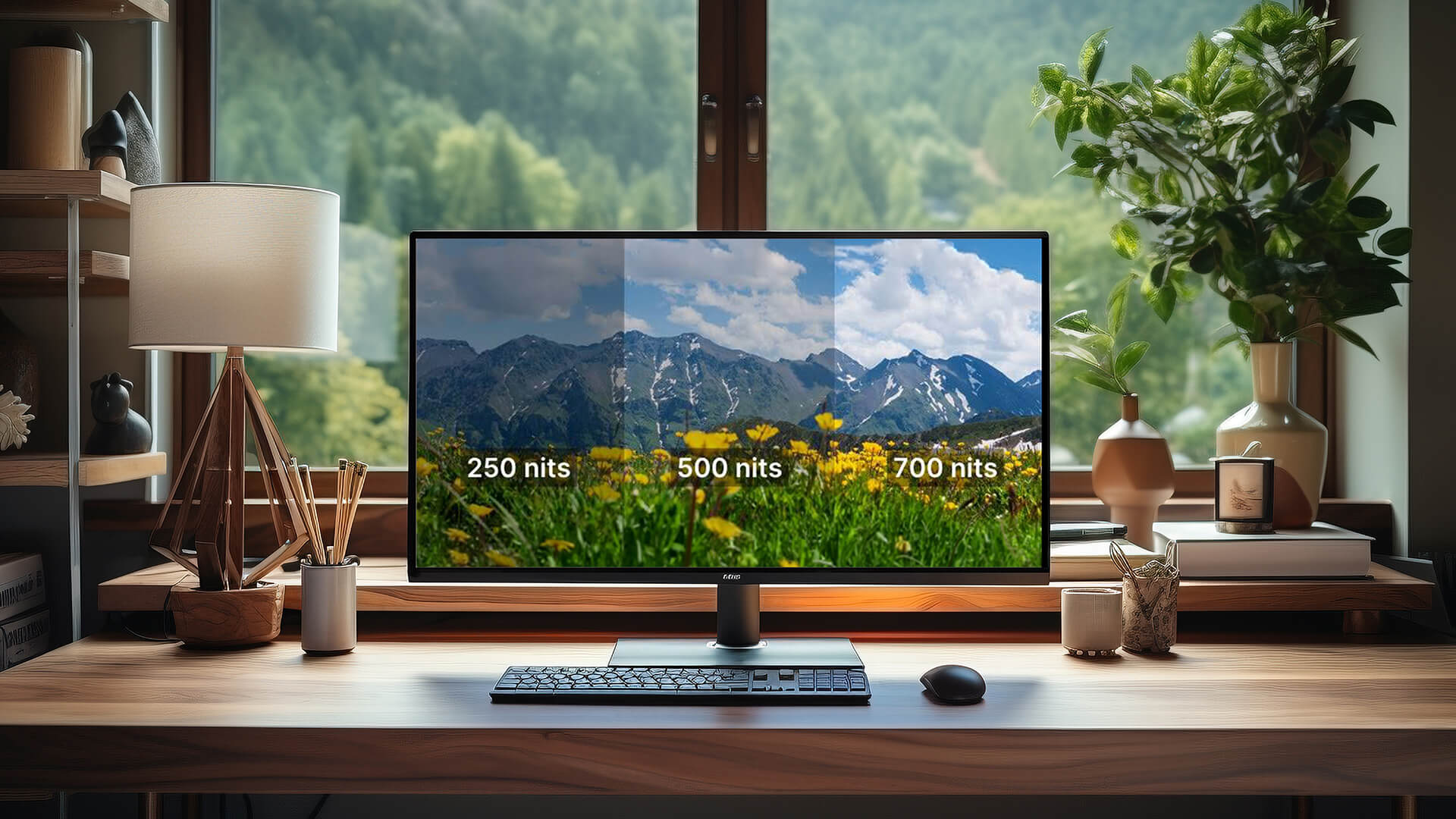
For better HDR, check:
- Peak brightness
- Full-screen brightness
- Sustained luminance
- Local dimming
- Contrast performance
- Colour gamut
- Panel type
- HDR certification
- Windows HDR calibration support
HDR is not just about nits. A 1000 nit monitor with poor local dimming can still struggle with black levels. An OLED monitor with lower peak brightness can look excellent in a dark room because black levels are so strong.
Why HDR Can Look Dim on a Monitor
HDR can look dim for several reasons. It is not always a fault.
Common causes include:
- Monitor has low peak brightness
- HDR is enabled for SDR desktop use
- Windows HDR calibration is not set up
- SDR brightness slider is too low
- The game has poor HDR implementation
- The monitor has limited local dimming
- Full-screen brightness is lower than peak brightness
- The room is too bright
- The content is mastered dark
A common issue is leaving HDR enabled all the time in Windows. SDR desktop content can then look different or dull on some monitors. If you mainly use SDR content, it may be better to turn HDR on only when watching HDR content or playing HDR games.
For Windows 11, use HDR calibration on an HDR-capable display and adjust the settings in the lighting conditions you normally use.
Should Monitor Brightness Match Room Lighting?
Yes, monitor brightness should roughly match room lighting. The goal is comfortable viewing, not maximum brightness.
Use this simple rule:
- Dark room: lower brightness
- Normal room: medium brightness
- Bright office: higher brightness
- Direct sunlight: move the monitor or control reflections
If the screen feels like a lamp shining at you, reduce brightness. If whites look dull and you are squinting to read text, increase brightness or reduce room glare.
For work, aim for a paper-white brightness that feels similar to a white sheet of paper on your desk. It should look clear, not glaring.
How to Set Monitor Brightness Properly
Start with a practical setting rather than a number.
Step 1: Set Your Room Lighting First
Set up your desk lighting before adjusting the monitor. Brightness that works in a dark room may feel too low during the day.
Step 2: Start Around 40 to 60 Percent
Most monitors do not need to run at 100 percent brightness. Start around 40 to 60 percent and adjust from there.
Step 3: Use White Pages as a Comfort Check
Open a document or webpage with a white background. If it feels harsh, lower brightness. If it looks grey or hard to read, raise brightness.
Step 4: Check Dark Content
Open a dark webpage, film scene or game. If dark areas crush together, adjust brightness, contrast or black equaliser settings if available.
Step 5: Save Separate Modes
Use different picture modes if your monitor supports them:
- Work mode
- Gaming mode
- Movie mode
- HDR mode
- Night mode
Avoid using vivid showroom-style modes for long work sessions. They often push computer monitor brightness and colour too hard.
Panel Type Matters as Much as Brightness
Monitor brightness is only one part of picture quality. Panel type matches as much. Here's what to consider:
IPS Monitors
IPS monitors are good for bright-room use, work, general gaming and wide viewing angles. A 400 nits monitor with an IPS panel can be a great all-rounder.
OLED Monitors
OLED monitors are excellent for dark-room gaming, films and high contrast. OLED brightness can be lower in full-screen white scenes, but black levels are far better than most LCD panels.
VA Monitors
VA monitors often offer strong contrast, which can help dark scenes. Viewing angles and motion handling vary by model.
4K Monitors
Brightness is not the only way to make a screen look better. Resolution matters too. 4K monitors for sharp display are ideal if you want crisp text, detailed images and more desktop space.
For work and creative tasks, a sharp 4K display at sensible brightness can feel better than a lower-resolution monitor pushed to maximum brightness.
Brightness, Eye Comfort and Long Sessions
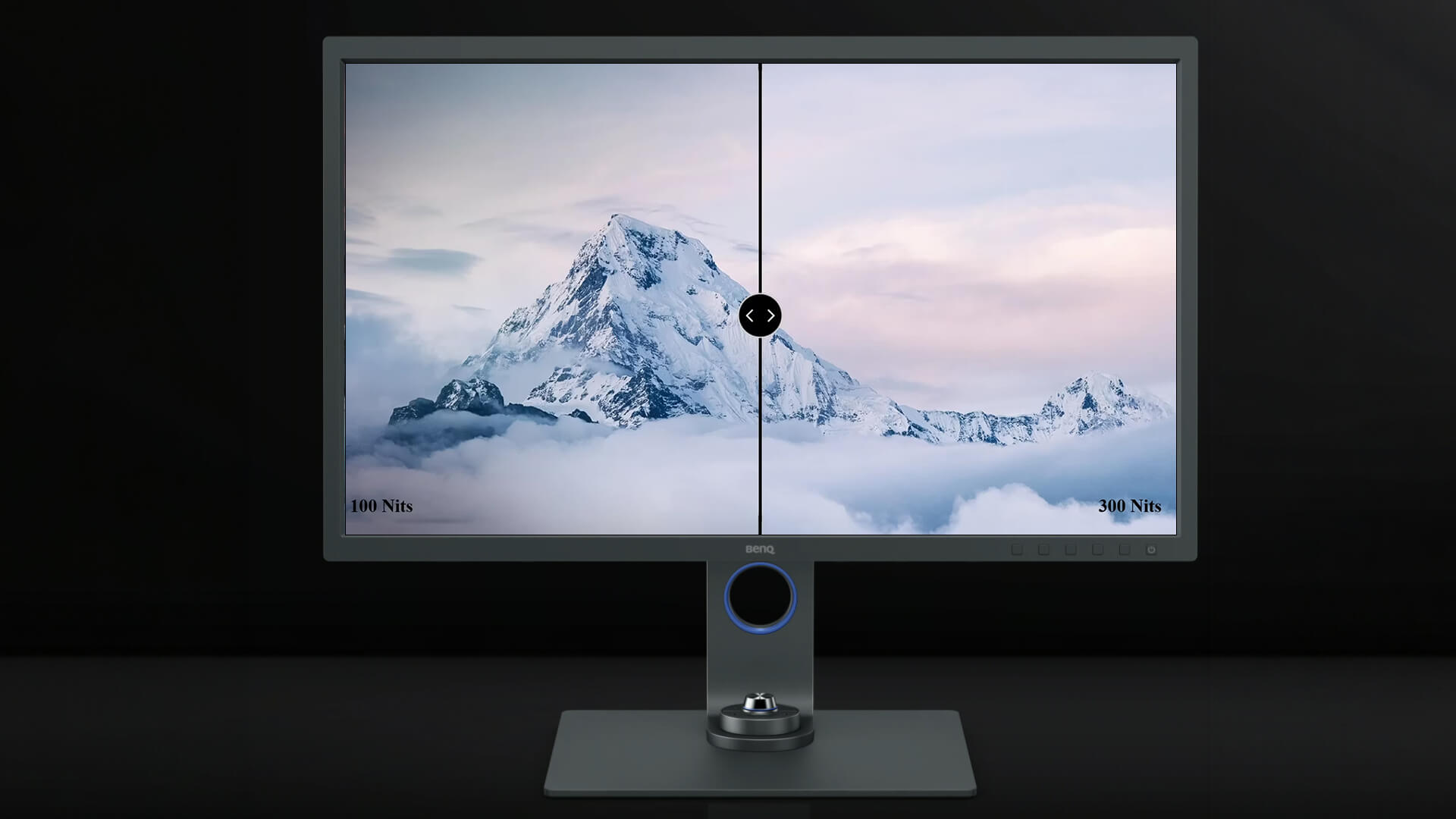
A bright computer screen can look impressive at first, but it may become tiring during long sessions. This matters for office users, students, gamers and streamers who spend hours at the desk.
For comfortable viewing:
- Lower brightness in dim rooms
- Avoid direct glare
- Use bias lighting behind the monitor
- Keep the screen clean
- Adjust monitor height
- Take regular breaks
- Use night light only when colour accuracy is not important
- Reduce reflections with curtains or blinds
- Avoid sitting in total darkness with a very bright screen
A light sensor can help on some displays, but manual brightness adjustment is still useful. Your eyes usually tell you when the screen is too bright.
Brightness Recommendations by User Type
Home Office Users
Most home workers should look for 250 to 350 nits. This is enough for documents, spreadsheets, web apps and video calls in normal indoor lighting.
If your desk is beside a window, consider 400 nits or better.
Students
Students usually need comfortable brightness rather than extreme brightness. A 250 nits monitor is fine for basic use, while 300 to 400 nits gives more flexibility for shared rooms, halls and mixed lighting.
Gamers
Gamers should look for at least 300 nits for SDR gaming and 400 nits or more if HDR matters. For a true HDR experience, brightness, contrast and local dimming are all important.
Creative Users
Photo and video users should focus on calibration, colour accuracy and consistency. Brightness should match the editing environment. Many creators work at lower controlled brightness rather than maximum output.
Bright Office Users
For overhead office lighting, 300 to 400 nits is a good target. Anti-glare coating can be just as useful as extra brightness.
Common Monitor Brightness Mistakes
Buying Only by the Highest Nit Rating
A high brightness monitor is not always the best monitor. Check panel type, contrast, resolution, refresh rate and HDR quality too.
Running Brightness at 100 Percent All Day
Maximum brightness can be uncomfortable and unnecessary. It may also make blacks look worse on some monitors.
Expecting 400 Nits to Deliver Premium HDR
A 400 nits monitor can support HDR, but premium HDR usually needs higher peak brightness, strong contrast and good dimming.
Ignoring Reflections
A bright display can still look poor if sunlight hits the panel directly. Move the monitor or manage lighting before assuming you need more nits.
Treating OLED and LCD Brightness the Same
OLED and LCD monitors behave differently. OLED can deliver excellent black levels, while some LCD monitors can sustain higher full-screen brightness.
Wrapping Up
The right monitor brightness depends on where and how you use the screen. For normal indoor use, most people do not need to run a monitor at maximum brightness. Around 100 to 150 nits can suit typical office lighting, while brighter rooms may need 200 to 300 nits to overcome ambient light and reflections.
A 250 nits monitor is fine for basic home and office use. A 400 nits monitor is a better all-round choice for brighter rooms, gaming and entry-level HDR. A 1000 nit monitor is bright and useful for HDR highlights, but it is not meant for constant full-screen brightness during normal desktop work.
Choose monitor brightness based on comfort first, then picture quality, then HDR needs. The best monitor is not simply the brightest one. It is the one that stays clear, comfortable and consistent in your actual room.
FAQs
-
Is 1000 nits bright for a monitor?
Yes, 1000 nits is very bright for a monitor. It is mainly useful for HDR highlights rather than normal full-screen desktop use. For everyday work or browsing, most people will use much lower brightness settings.
-
Is 400 nits good for HDR?
400 nits is entry-level for HDR. It can show some HDR effect, but stronger HDR usually needs higher peak brightness, better contrast, local dimming or OLED black levels. A 400 nits monitor can still be a good everyday display.
-
Should monitor brightness match room lighting?
Yes, monitor brightness should match room lighting. Use lower brightness in dark rooms and higher brightness in bright rooms. The screen should look clear without feeling harsh or causing glare.
-
Why does HDR look dim on my monitor?
HDR can look dim if the monitor has low peak brightness, limited local dimming, poor HDR tuning or incorrect Windows HDR calibration. It can also look dim if HDR is left on for SDR desktop content.
-
What brightness should a monitor be set to?
For normal indoor use, start around 100 to 150 nits or around 40 to 60 percent brightness on many monitors. Increase it in brighter rooms and lower it in dark rooms. Comfort is more important than using the maximum setting.
-
Is 300 nits good for gaming?
Yes, 300 nits is good for SDR gaming in normal indoor lighting. For brighter rooms or HDR gaming, 400 nits or higher is better. For strong HDR highlights, look at 600 to 1000 nits and check contrast and dimming too.
-
Is lower brightness better for your eyes?
Lower brightness can be more comfortable in dark rooms, but too low can make text harder to read. The best setting is one that matches the room lighting and lets you read comfortably without squinting or feeling glare.
-
Does higher brightness mean better picture quality?
Not always. Higher brightness can help visibility and HDR highlights, but contrast, black levels, colour accuracy, resolution, refresh rate and panel type also affect picture quality.
You can pay with:
*PayPal Credit Representative Example: Assumed credit limit £1,200, Representative 23.9% APR (variable). Purchase rate 23.9% p.a (variable).Terms & Conditions apply.


PayPal Credit and PayPal Pay in 3 are trading names of PayPal UK Ltd, 5 Fleet Place, London, United Kingdom, EC4M 7RD. Terms and conditions apply. Credit subject to status, UK residents only, Five Tech LTD acts as a broker and offers finance from a restricted range of finance providers. PayPal Pay in 3 is not regulated by the Financial Conduct Authority. Pay in 3 eligibility is subject to status and approval. 18+. UK residents only. Pay in 3 is a form of credit. Check if affordable and how you will repay. May make other borrowing more difficult or expensive. See product terms for more details.
Copyright © 1996-2026 Fivetech LTD | Terms and Conditions
box.co.uk & Box are trading names of Five Tech Limited. Registered office: Box LTD, Unit 10 Woodford Trading Estate, Woodford Green IG8 8HF