


 Menu
MenuMenu


Get Sales Advice from Mon - Fri 9am - 5:00pm:
020 3337 8950LAST UPDATED: July 21, 2026
How to Choose the Right Graphics Card for Your Monitor (1080p, 1440p & 4K)
Choosing the right graphics card for your monitor starts with its resolution, refresh rate and the games you play. A 1080p 60Hz display needs far less rendering power than a 1440p 165Hz or 4K 144Hz monitor. Ultrawide resolutions also need separate consideration, as screens such as 3440 × 1440 render more pixels than standard 1440p.
Graphics settings, VRAM, ray tracing and upscaling can change the requirement further. Competitive games may reach high frame rates on a mainstream card, while demanding AAA titles need more power to maintain smooth performance at higher resolutions.
The aim is not to buy the most powerful GPU available. It is to choose one that can deliver stable frame rates at your monitor’s native resolution without paying for performance you are unlikely to use. This guide compares gaming graphics cards for 1080p, 1440p, ultrawide and 4K screens, helping you find a suitable GPU for your gaming monitor and PC.
Quick Answer: Which GPU Tier Matches Your Monitor?
Use the monitor’s resolution and refresh rate as the starting point. Move up a tier for demanding ray tracing, Ultra settings or games with heavier graphics requirements.
| Monitor target | Practical GPU tier | VRAM starting point | Current examples |
|---|---|---|---|
| 1080p at 60–120Hz | Entry-level gaming | 8GB | RTX 5050 or Radeon RX 7600 |
| 1080p at 144–180Hz | Mainstream | 8GB | RTX 5060 or RX 9060 XT |
| 1080p at 240Hz or higher | Strong mainstream to mid-range | 8GB to 12GB+ | RTX 5060 Ti, RTX 5070 or RX 9060 XT 16GB |
| 1440p at 60–144Hz | Mid-range to upper mid-range | 12GB preferred | RTX 5070, RX 9070 or RTX 5060 Ti 16GB |
| 1440p at 165–240Hz | Upper mid-range to high-end | 16GB preferred | RTX 5070 Ti or RX 9070 XT |
| 3440 × 1440 ultrawide | Upper mid-range | 12GB to 16GB | RTX 5070, RX 9070 or stronger |
| 5120 × 1440 super ultrawide | High-end | 16GB preferred | RTX 5070 Ti, RTX 5080 or RX 9070 XT |
| 4K at 60Hz | High-end | 16GB preferred | RTX 5070 Ti, RX 9070 or RX 9070 XT |
| 4K at 120Hz or higher | High-end to enthusiast | 16GB or more | RTX 5080, RTX 5090 or RX 9070 XT, depending on the game |
These are practical starting points rather than fixed rules. Competitive titles may run well on a lower tier, while demanding AAA games can require more power even at the same resolution.
When choosing between graphics cards for a PC, also check the monitor’s available ports, the card’s power requirements and whether it will fit inside the case. The right graphics card for your monitor should meet the performance target without making you pay for performance you are unlikely to use.
How Resolution and Refresh Rate Affect GPU Choice
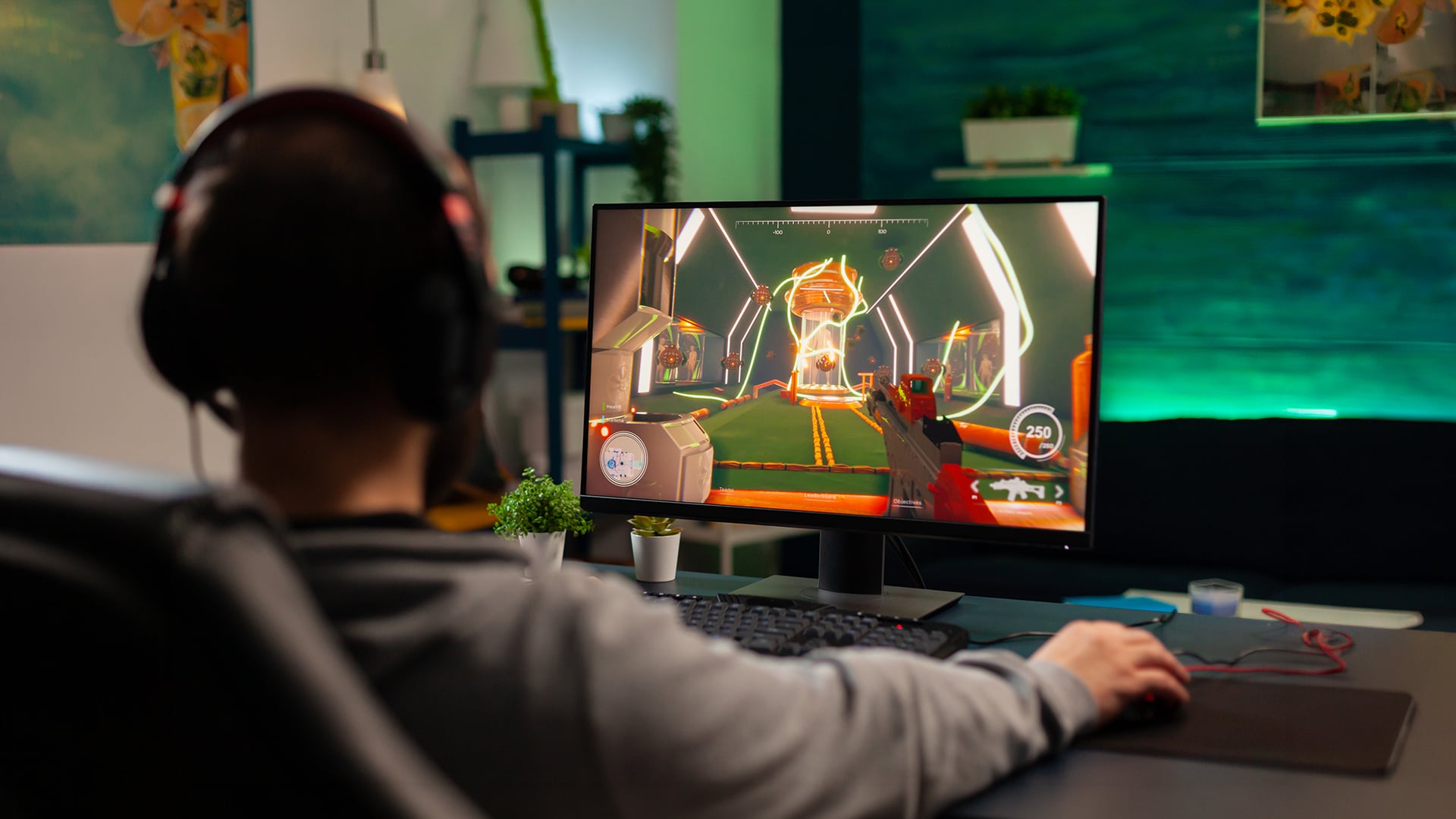
Resolution determines how many pixels the GPU must render for each frame, while refresh rate determines how many frames the monitor can display per second. Both should be considered when choosing a graphics card for your monitor.
| Monitor specification | What it changes | Effect on the GPU |
|---|---|---|
| Higher resolution | Increases the number of pixels in each frame | Requires more rendering performance |
| Higher refresh rate | Raises the potential frame-rate target | Requires the GPU and CPU to produce frames faster |
| Higher graphics settings | Adds more detailed lighting, shadows and effects | Increases the workload per frame |
| Ray tracing | Adds demanding reflection and lighting calculations | Can reduce native frame rates considerably |
| Ultrawide resolution | Adds more horizontal pixels | Requires more power than the nearest standard 16:9 resolution |
A 1080p screen contains around 2.1 million pixels, compared with 3.7 million at 1440p and 8.3 million at 4K. This means 1440p creates roughly 78% more pixel workload than 1080p, while 4K renders four times as many pixels.
Refresh rate affects the performance target differently. A 60Hz monitor can display up to 60 complete updates per second, while a 144Hz or 240Hz model can show considerably more. The GPU does not need to match the monitor’s maximum rate constantly, but a suitable target frame rate helps make better use of the display.
Smooth frame pacing also matters. A consistent 100 FPS can feel better than performance that repeatedly jumps between much higher and lower figures.
When comparing the best gaming monitors, treat native resolution and refresh rate as one combined requirement. A 1080p 240Hz display may need a stronger GPU than a 1440p 60Hz monitor, particularly in competitive games.
Best Graphics Card for a 1080p Monitor
The best graphics card for 1080p gaming depends on the monitor’s refresh rate and the types of games you play. Entry-level cards suit standard Full HD screens, while competitive gaming and demanding visual settings require more performance.
| 1080p monitor target | Suitable GPU level | Current examples |
|---|---|---|
| 60–120Hz everyday gaming | Entry-level | RTX 5050 or Radeon RX 7600 |
| 144–180Hz mixed gaming | Mainstream | RTX 5060 or Radeon RX 9060 XT |
| 240Hz competitive gaming | Strong mainstream to mid-range | RTX 5060 Ti, RTX 5070 or RX 9060 XT 16GB |
| Demanding ray tracing | Stronger NVIDIA or AMD tier with upscaling | RTX 5060 Ti or above |
| Texture-heavy AAA games | More VRAM where affordable | RX 9060 XT 16GB or RTX 5060 Ti 16GB |
The RTX 5050 and Radeon RX 7600 suit 1080p monitors with modest refresh-rate targets. Both have 8GB of VRAM and are better matched to sensible High settings than to maximum ray tracing in every new game.
For 144Hz gaming across esports and AAA titles, the RTX 5060 or Radeon RX 9060 XT provides more performance headroom. The 16GB RX 9060 XT can also offer additional flexibility for texture-heavy games, mods and occasional 1440p use.
A stronger card becomes worthwhile for 240Hz monitors, but the processor must also produce frames quickly enough. Games such as Counter-Strike 2 and Valorant may become limited by the CPU before the GPU reaches its full capability.
A suitable 1080p GPU should therefore match the intended workload:
- Choose the RTX 5050 or RX 7600 for standard Full HD gaming.
- Move to the RTX 5060 or RX 9060 XT for higher refresh rates and demanding games.
- Consider the RTX 5060 Ti, RTX 5070 or RX 9060 XT 16GB for competitive 240Hz targets.
- Prioritise stable performance and suitable settings rather than selecting Ultra automatically.
Best Graphics Card for a 1440p Monitor
A suitable 1440p gaming GPU needs more rendering power than a standard 1080p card. The right tier depends on whether the monitor targets 60Hz, high-refresh gaming or demanding ray tracing.
| 1440p monitor target | Suitable GPU level | Current examples |
|---|---|---|
| 60–75Hz with sensible settings | Strong mainstream | RTX 5060 Ti 16GB or Radeon RX 9060 XT 16GB |
| 120–180Hz mixed gaming | Mid-range to upper mid-range | RTX 5070 or Radeon RX 9070 |
| 240Hz competitive gaming | Upper mid-range to high-end | RTX 5070 Ti or Radeon RX 9070 XT |
| Demanding ray tracing | Stronger GPU with effective upscaling | RTX 5070 Ti or above |
| Texture-heavy AAA games | More VRAM where practical | RTX 5060 Ti 16GB, RTX 5070 Ti or RX 9070 series |
The RTX 5060 Ti 16GB and Radeon RX 9060 XT 16GB provide an accessible starting point for 1440p gaming, particularly at 60Hz to 75Hz or with carefully selected High settings. The RTX 5050 remains better suited to 1080p and would require greater compromises in demanding QHD games.
For 120Hz to 180Hz gaming, the RTX 5070 and Radeon RX 9070 provide more performance headroom. Their stronger rasterisation performance makes them better suited to modern AAA titles and higher frame-rate targets.
The RTX 5070 Ti and Radeon RX 9070 XT make more sense for 240Hz displays, heavier ray tracing or users who want to maintain higher settings. The processor may still become the limiting factor in competitive games.
A suitable graphics card for 1440p should therefore match the monitor and workload:
- Choose the RTX 5060 Ti 16GB or RX 9060 XT 16GB for accessible 1440p gaming.
- Move to the RTX 5070 or RX 9070 for high-refresh mixed gaming.
- Consider the RTX 5070 Ti or RX 9070 XT for 240Hz, heavier ray tracing or demanding AAA titles.
- Prefer 12GB or more of VRAM, with 16GB providing greater flexibility for high-resolution textures.
Best Graphics Card for a 4K Monitor
The best graphics card for 4K gaming depends on the monitor’s refresh rate, the games being played and whether ray tracing or upscaling will be used. A 4K screen renders four times as many pixels as 1080p, so it needs considerably more GPU power.
| 4K monitor target | Suitable GPU level | Current examples |
|---|---|---|
| 60Hz with adjusted High settings | Upper mid-range to high-end | RTX 5070 Ti, Radeon RX 9070 or RX 9070 XT |
| 60Hz with demanding ray tracing | High-end | RTX 5080 or above |
| 120–144Hz mixed gaming | High-end | RTX 5080, RTX 5090 or RX 9070 XT |
| 240Hz competitive gaming | Enthusiast, depending on the game | RTX 5080 or RTX 5090 |
| Maximum settings and path tracing | Enthusiast with upscaling | RTX 5090 |
The RTX 5070 Ti, Radeon RX 9070 and RX 9070 XT can provide a practical starting point for 4K gaming at 60Hz. The RX 9070 may need more adjusted settings or upscaling in demanding titles, while the stronger cards provide additional performance headroom.
For 120Hz to 144Hz monitors, the RTX 5080 and RTX 5090 are better suited to demanding AAA games. The RX 9070 XT can also support high-refresh 4K gaming, although the achievable frame rate will depend heavily on the game, settings and use of FSR.
A 240Hz 4K monitor does not mean every game must run at 240 FPS. These refresh rates are more achievable in competitive or less demanding titles, while graphically intensive games may run at lower frame rates.
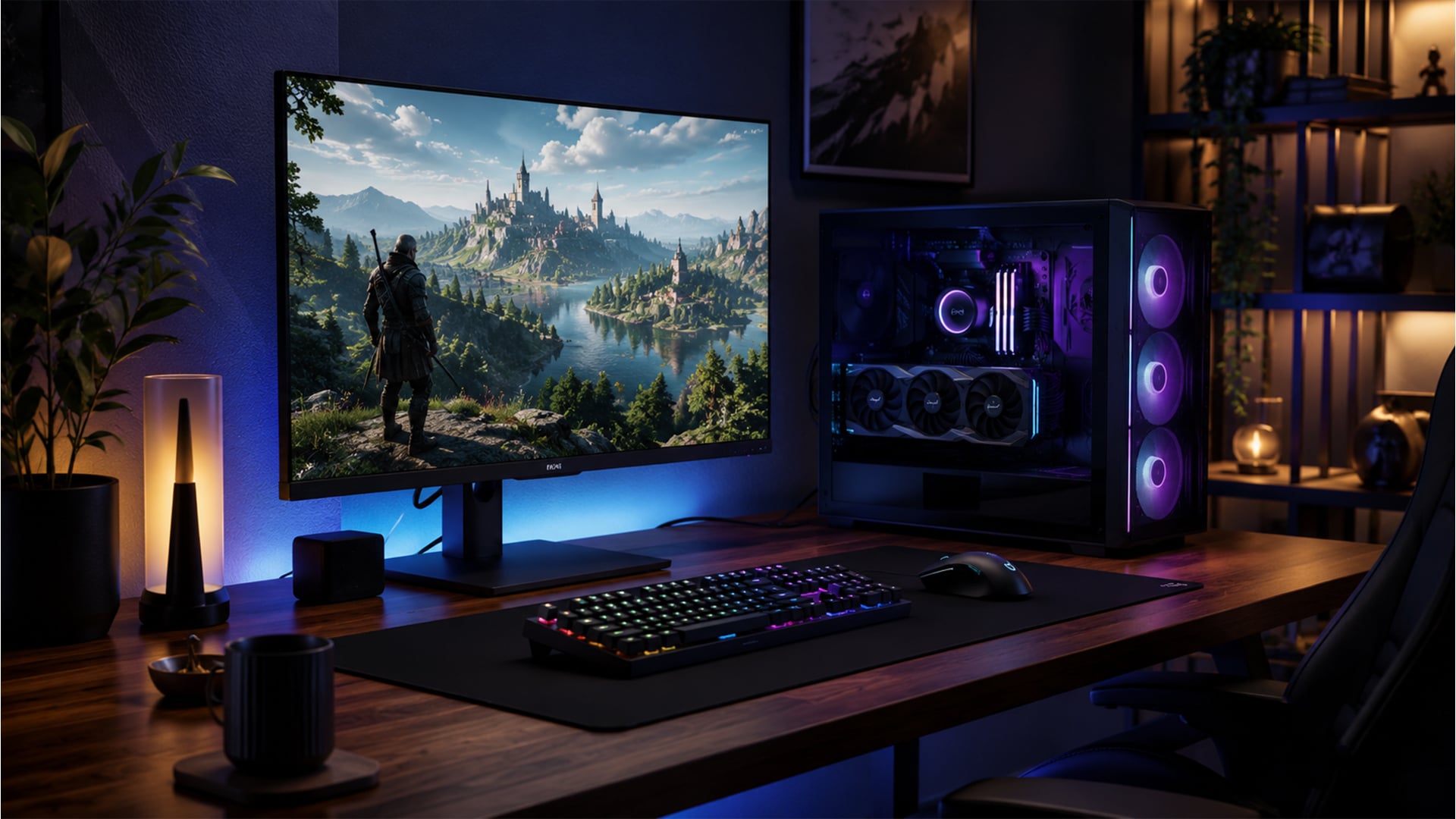
A suitable 4K GPU should therefore match the intended experience:
- Choose the RTX 5070 Ti, RX 9070 or RX 9070 XT for 4K gaming around 60Hz.
- Move to the RTX 5080 for higher refresh rates, heavier ray tracing and stronger performance headroom.
- Consider the RTX 5090 for maximum settings, path tracing or the most demanding 4K targets.
- Prefer at least 16GB of VRAM for modern 4K gaming.
- Use DLSS or FSR when native performance falls below the desired frame rate.
- Choose High rather than Ultra settings when the visual difference is small.
What About Ultrawide Monitors?
Ultrawide screens need to be matched by their actual resolution rather than their diagonal size. A 2560 × 1080 display is only moderately more demanding than standard Full HD, while 3440 × 1440 and 5120 × 1440 require considerably more GPU power.
| Ultrawide monitor target | Suitable GPU level | Current examples |
|---|---|---|
| 2560 × 1080 at 60–100Hz | Entry-level to mainstream | RTX 5050, Radeon RX 7600 or RTX 5060 |
| 2560 × 1080 at 144Hz or higher | Mainstream | RTX 5060 or Radeon RX 9060 XT |
| 3440 × 1440 at 60–100Hz | Mid-range to upper mid-range | RTX 5070 or Radeon RX 9070 |
| 3440 × 1440 at 144–180Hz | Upper mid-range to high-end | RTX 5070 Ti or Radeon RX 9070 XT |
| 5120 × 1440 super ultrawide | High-end | RTX 5070 Ti, RTX 5080 or Radeon RX 9070 XT |
The RTX 5050 and Radeon RX 7600 can suit a 2560 × 1080 monitor when the refresh-rate target and settings remain sensible. For higher refresh rates or more demanding games, the RTX 5060 and RX 9060 XT provide better headroom.
A 3440 × 1440 monitor renders around one-third more pixels than standard 2560 × 1440. The RTX 5070 or Radeon RX 9070 is therefore a more suitable starting point, while the RTX 5070 Ti and RX 9070 XT better match high-refresh ultrawide gaming.
A 5120 × 1440 display has a pixel workload close to 4K. It should be paired with a capable 4K GPU tier, particularly when ray tracing, Ultra textures or refresh rates above 120Hz are priorities.
For the right ultrawide setup:
- Match the GPU to the exact resolution and refresh rate.
- Allow more performance than a standard 16:9 monitor with the same vertical resolution.
- Check that the games you play support 21:9 or 32:9 aspect ratios.
- Prefer 12GB to 16GB of VRAM for 3440 × 1440 and higher resolutions.
- Use DLSS or FSR where native performance falls below the desired frame rate.
- Treat 5120 × 1440 more like 4K than ordinary 1440p.
VRAM, Ray Tracing and Upscaling: What Matters?
VRAM, ray tracing and image-scaling features can move the required graphics card up or down a tier. They should be considered alongside resolution and refresh rate rather than used as standalone buying criteria when comparing graphics cards for your monitor.
How Much VRAM Do You Need?
- 1080p: 8GB is a practical starting point for most games, although maximum textures, ray tracing and large mods may benefit from more.
- 1440p: 12GB provides better flexibility for modern AAA games, with 16GB useful for heavier textures and demanding settings.
- 3440 × 1440 ultrawide: 12GB to 16GB is sensible because the GPU must render more pixels than standard 1440p.
- 4K or 5120 × 1440: 16GB is a stronger starting point for high-resolution textures and more demanding games.
- Raw performance still matters: Extra VRAM capacity cannot make up for a GPU that lacks the processing power needed for the selected resolution.
These figures are practical guidelines rather than fixed minimum requirements. Actual memory use depends on the game, texture quality, ray tracing, mods and background applications.
How Ray Tracing Changes the Requirement
- Ray tracing adds more demanding lighting, shadow and reflection calculations.
- Moderate effects may work well on a suitable mid-range card, while maximum ray tracing or path tracing can require a substantially stronger GPU.
- Moving down from Ultra to High ray-tracing settings can recover performance without removing every enhanced effect.
When comparing NVIDIA GeForce Graphics Cards, consider both conventional gaming and ray-tracing performance, as well as the DLSS features available in supported titles. Apply the same approach to AMD Radeon Graphics Cards by assessing standard rendering, ray tracing and FSR support.
Upscaling and Frame Generation
- Upscaling renders the game at a lower internal resolution before reconstructing it for the monitor’s native output.
- DLSS is available on compatible NVIDIA RTX cards, while FSR support spans compatible hardware from different manufacturers.
- Quality modes generally preserve more detail, while more aggressive modes trade additional image clarity for higher performance.
- Frame Generation inserts generated frames between conventionally rendered ones to increase displayed FPS.
- Frame Generation works best when the game already has a stable underlying frame rate. It should not be used to hide severe stuttering or weak responsiveness.
- Native performance, upscaled FPS, and results with Frame Generation enabled should be compared separately, as they do not represent the same rendering workload or control response.
Monitor and GPU Compatibility Tips
A powerful graphics card for your monitor is only useful when the card, display and cable can deliver the required resolution, refresh rate and features.
- Display connections: Confirm that the graphics card and monitor share a suitable HDMI or DisplayPort connection.
- Display bandwidth: Check whether the port supports the full resolution, refresh rate, HDR and colour depth you plan to use.
- HDMI 2.1: This is useful for high-refresh 4K monitors, although the supported modes can vary between individual products.
- DisplayPort 2.1: Newer high-end cards and monitors may use it for demanding 4K, ultrawide or multi-monitor setups.
- Cable support: Use a certified cable rated for the required display mode. A cable that fits the socket may not provide enough bandwidth.
- Variable refresh rate: Confirm support for FreeSync, G-SYNC Compatible or Adaptive-Sync across both the monitor and graphics card.
- Display Stream Compression: Some high-resolution, high-refresh combinations use DSC to fit within the available connection bandwidth.
- Ultrawide support: Check that the selected port supports the monitor’s full native resolution and maximum refresh rate.
- Multiple monitors: Confirm that the card has enough outputs and can support the combined display configuration.
- Correct GPU connection: Connect the monitor to the dedicated graphics card rather than the motherboard video output.
- Monitor settings: Enable the maximum refresh rate, HDR and adaptive-sync features in the monitor menu, graphics software and Windows.
For more details on compatibility between the two, read our guide on monitor and GPU compatibility.
Check Your PC Before Buying the Graphics Card
Before choosing a graphics card for a PC, make sure the rest of the system can support the card safely and without avoidable performance limits.
- Power supply: Check the GPU manufacturer’s recommended wattage and required power connectors. Use the correct cables and make sure every connector is fully inserted.
- Card clearance: Compare the card’s length, height and slot width with the available case space, including room for power cables.
- PCIe slot: Confirm that the motherboard has a suitable PCIe x16 slot and check how many lanes it provides.
- PCIe generation: Modern cards can generally run at the highest generation supported by both the GPU and the motherboard. When comparing PCIe 4.0 and PCIe 5.0 graphics cards, consider lane count and available PCIe bandwidth rather than upgrading the motherboard solely for the newer standard.
- Processor: A weaker CPU can create a CPU bottleneck, particularly when targeting high frame rates at 1080p.
- Cooling: Large, powerful cards need sufficient case airflow and clear space around their fans.
- System memory: Make sure the PC has enough RAM for the games and applications being used alongside the GPU.
- Drivers and features: Install current graphics drivers and enable Resizable BAR where the card, processor and motherboard support it.
- Upgrade timing: The average life of a gaming card is only a general guide. Replace the GPU when it no longer delivers suitable performance, features or efficiency for your monitor rather than following a fixed GPU upgrade cycle.
Final Thoughts: Which Graphics Card Should You Choose?
The following graphics cards provide useful starting points for comparison:
- 1080p: RTX 5050, RX 7600, RTX 5060 or RX 9060 XT
- 1440p: RTX 5060 Ti 16GB, RTX 5070, RX 9070 or RX 9070 XT
- Ultrawide: RTX 5070, RTX 5070 Ti, RX 9070 or RX 9070 XT
- 4K: RTX 5070 Ti, RTX 5080, RTX 5090 or RX 9070 XT
These are not final choices for every setup. The right graphics card for your monitor still depends on its refresh rate, the games you play, graphics settings, ray tracing and whether upscaling will be used. Check the card’s VRAM, power requirements, dimensions and display connections before buying.
Frequently Asked Questions
Which graphics card do I need for a 1080p monitor?
An RTX 5050 or Radeon RX 7600 can provide a sensible starting point for standard 1080p gaming. Consider the RTX 5060 or RX 9060 XT for higher refresh rates, demanding games or stronger graphics settings.
Is 8GB of VRAM enough for 1440p gaming?
It can be enough with suitable textures and settings, but 12GB or 16GB provides more flexibility for demanding games, ray tracing and higher-resolution assets. GPU processing performance still matters alongside memory capacity.
What GPU do I need for a 3440 × 1440 ultrawide monitor?
An RTX 5070 or Radeon RX 9070 is a reasonable starting point for many 3440 × 1440 setups. Higher refresh rates, ray tracing and Ultra settings may justify an RTX 5070 Ti or RX 9070 XT.
What GPU do I need for a 4K 144Hz monitor?
A high-end card such as the RTX 5080, RTX 5090 or RX 9070 XT is more suitable for this demanding target. Actual performance depends on the game, graphics settings, ray tracing and whether DLSS or FSR is enabled.
Can any graphics card work with any monitor?
Most modern combinations can produce an image, but full functionality depends on the available HDMI or DisplayPort connections, cable bandwidth and supported resolution, refresh rate, HDR and adaptive-sync features.
Should my FPS match my monitor’s refresh rate?
Not exactly. Matching or approaching the refresh rate can improve motion clarity, but stable frame pacing within the monitor’s variable-refresh range can still provide a smooth experience.
Can I use a 4K monitor with a graphics card intended for 1440p?
Yes. Desktop applications and video playback should be manageable, but demanding games may need lower settings, upscaling or a reduced rendering resolution to maintain smooth performance.
You can pay with:
*PayPal Credit Representative Example: Assumed credit limit £1,200, Representative 23.9% APR (variable). Purchase rate 23.9% p.a (variable).Terms & Conditions apply.


PayPal Credit and PayPal Pay in 3 are trading names of PayPal UK Ltd, 5 Fleet Place, London, United Kingdom, EC4M 7RD. Terms and conditions apply. Credit subject to status, UK residents only, Five Tech LTD acts as a broker and offers finance from a restricted range of finance providers. PayPal Pay in 3 is not regulated by the Financial Conduct Authority. Pay in 3 eligibility is subject to status and approval. 18+. UK residents only. Pay in 3 is a form of credit. Check if affordable and how you will repay. May make other borrowing more difficult or expensive. See product terms for more details.
Copyright © 1996-2026 Fivetech LTD | Terms and Conditions
box.co.uk & Box are trading names of Five Tech Limited. Registered office: Box LTD, Unit 10 Woodford Trading Estate, Woodford Green IG8 8HF